
Sony WH-CH720N noise cancelling features turn a noisy commute or a busy office into a quiet listening space, but only when the controls are set up correctly. Most people who buy these headphones know the NC button exists, yet many never bother adjusting the deeper settings inside the Headphones Connect app, which is where the real difference happens. This guide walks through every control, button, and app setting needed to get the most out of the noise cancelling system on the WH-CH720N, without wandering into unrelated topics.
Quick Summary Table
- Main control: NC/AMB button on the left ear cup cycles through Noise Cancelling, Ambient Sound, and Off
- First-time use: noise cancelling switches on automatically the very first time the headset is powered on
- Deeper control: the Sony Headphones Connect app unlocks Adaptive Sound Control and Ambient Sound level adjustments
- Wired mode: noise cancelling still works over the included cable, but only while the headset is powered on
- Best results: turn off Adaptive Sound Control if noise cancelling needs to stay on consistently
Method 1: Turn On Noise Cancelling Using the NC/AMB Button
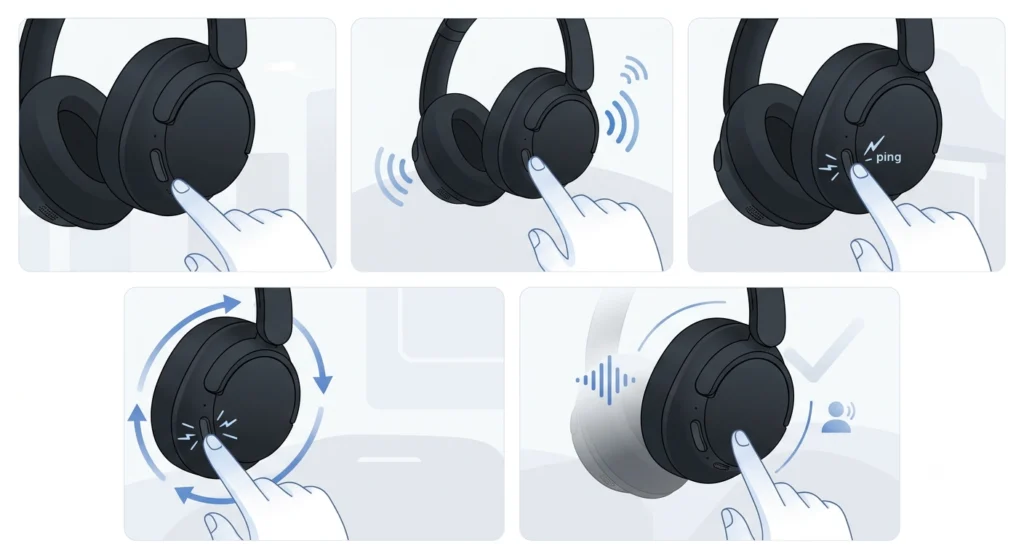
The fastest way to activate noise cancelling on the WH-CH720N does not involve any app at all. The button handles it directly.
- Step 1: Locate the NC/AMB button on the left ear cup, next to the noise cancelling microphones.
- Step 2: Turn on the headset using the power button and wait for the notification sound confirming power-on.
- Step 3: Press the NC/AMB button once. A short notification tone plays, confirming the mode has switched.
- Step 4: Keep pressing the button to cycle through the available modes: Noise Cancelling On, Ambient Sound Mode On, and Off. The voice guidance announces each mode as it switches.
- Step 5: Stop pressing once the desired mode is confirmed by the voice prompt.
This works best when there is no need for fine-tuning. A quick switch between blocking outside noise and hearing surroundings is all most listening sessions require.
Pro-Tip: The very first time the WH-CH720N is powered on after purchase, or right after a factory reset, noise cancelling turns on automatically. Any manual changes made after that point are remembered going forward, so there is no need to reset preferences every time the headset is switched on.
Method 2: Customise Noise Cancelling Through the Sony Headphones Connect App
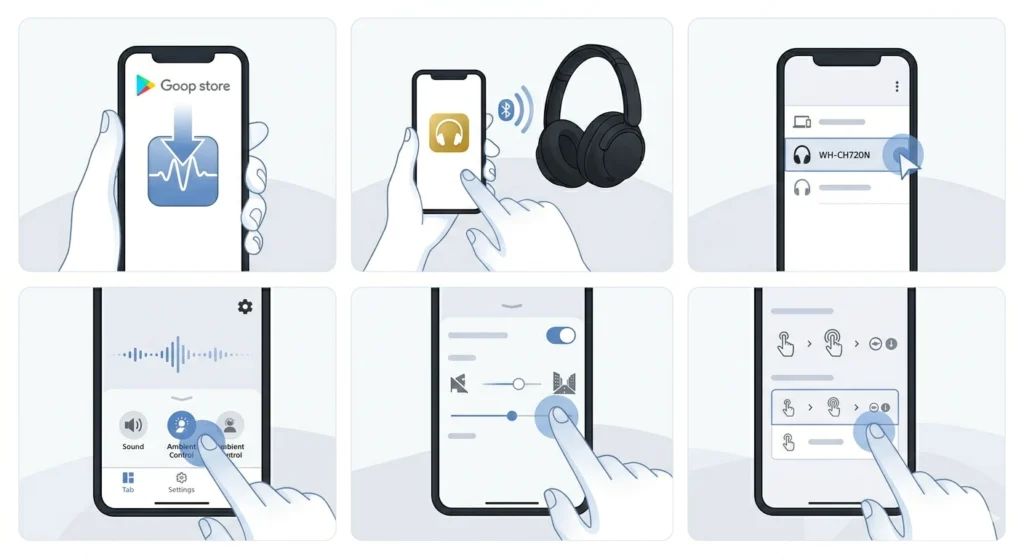
The app is where the WH-CH720N becomes far more flexible than the button alone allows. This is the part most users skip, and it’s the part that actually matters for getting consistent results.
- Step 1: Download the Sony Headphones Connect app from the device’s app store if it is not already installed.
- Step 2: Pair the WH-CH720N with the phone or computer running the app. The pairing process can be reviewed in this guide on re-pairing Bluetooth earbuds for stereo sound if the headset has been previously connected to another device.
- Step 3: Open the app and select the WH-CH720N from the connected device list.
- Step 4: Tap the Sound settings or Ambient Sound Control section.
- Step 5: Choose between Noise Cancelling and Ambient Sound, then adjust the level of ambient sound passthrough if that mode is selected.
- Step 6: Set how the NC/AMB button cycles through modes by selecting a preferred button-press pattern inside the app.
Most people find that once these preferences are set inside the app, the physical button becomes a quick toggle rather than something that needs constant adjusting.
Method 3: Use Adaptive Sound Control for Automatic Adjustments
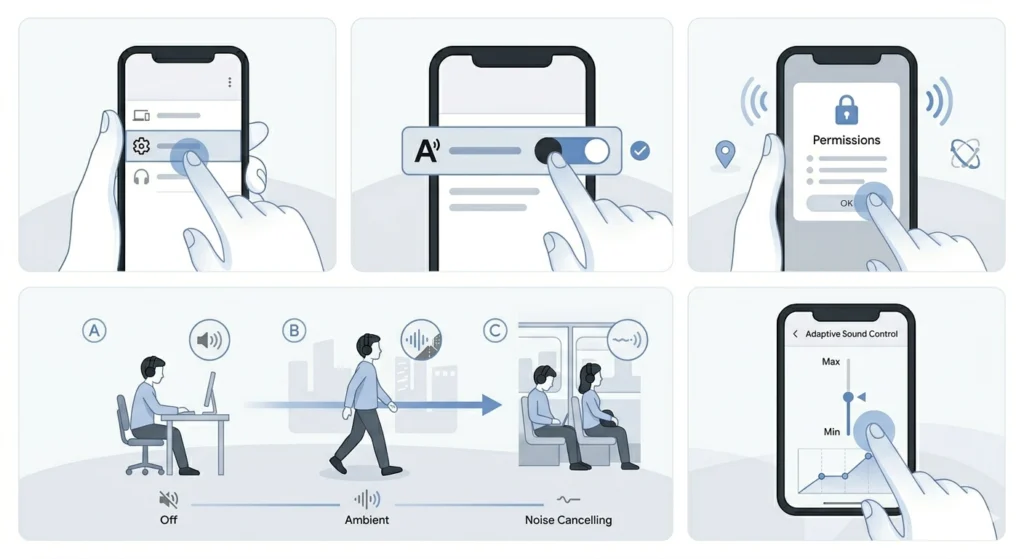
Adaptive Sound Control is the feature that quietly does the thinking for the wearer. Instead of manually switching modes throughout the day, the headset adjusts on its own based on movement and activity.
- Step 1: Open the Headphones Connect app and go to the Adaptive Sound Control section.
- Step 2: Switch the toggle on to enable detection mode.
- Step 3: Allow the app the permissions it requests, since motion detection relies on the connected phone’s sensors.
- Step 4: Carry on with normal activities. Walking, sitting, or commuting will each trigger a different noise cancelling or ambient sound balance automatically.
- Step 5: Fine-tune detection sensitivity from the same menu if the automatic switching feels too aggressive or too subtle.
The key is to think of this feature as a personal assistant for sound settings. It is genuinely useful for people who move between environments throughout the day, like switching from a quiet desk to a busy train platform.
Method 4: Use Noise Cancelling With the Wired Cable
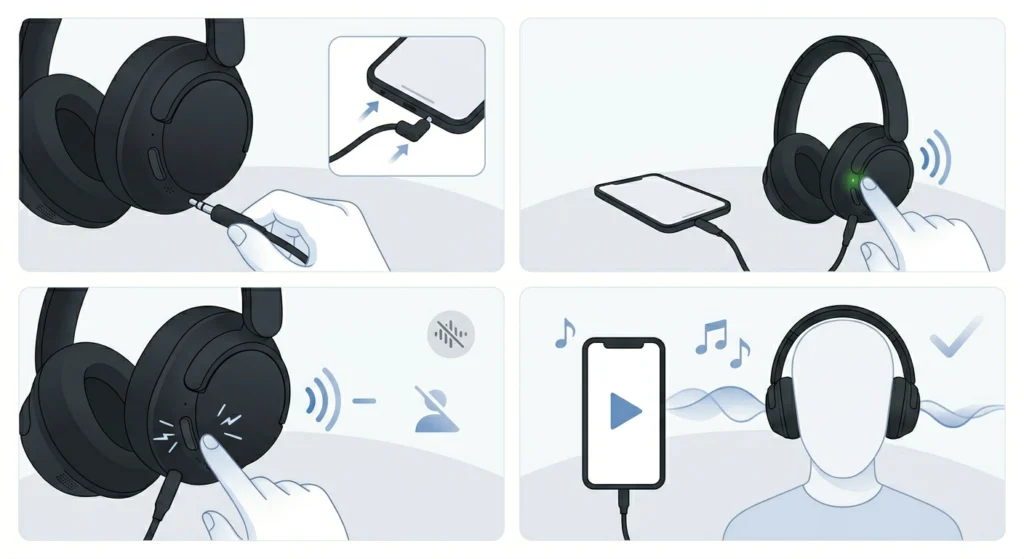
There are situations where Bluetooth is not an option, such as on a flight where wireless connections are restricted. The WH-CH720N still supports noise cancelling in this scenario.
- Step 1: Connect the supplied headphone cable to the headset’s input jack, making sure the L-shaped plug is inserted into the connecting device.
- Step 2: Turn the headset on using the power button.
- Step 3: Press the NC/AMB button to activate noise cancelling, just as with a Bluetooth connection.
- Step 4: Play audio from the connected device as usual.
One detail catches people off guard here: if the headset is switched off while the cable is still plugged in, audio still plays, but noise cancelling stops working entirely. The headset has to stay powered on for the cancelling circuit to function, even in wired mode.
Tips for Getting the Most Out of Noise Cancelling
- Quiet rooms don’t need noise cancelling switched on, since the feature works by countering existing ambient sound. In a silent room, there’s little for it to counter, and some users notice a faint pressure sensation instead of any real benefit.
- Turn off Adaptive Sound Control if noise cancelling needs to stay locked in one mode regardless of movement. Automatic switching is convenient, but it can override manual preferences at the wrong moment.
- Keep the firmware updated through the Headphones Connect app, since Sony periodically improves noise cancelling performance through firmware updates rather than hardware changes.
- Noise cancelling does not apply to phone calls. The person on the other end of the call may still hear background noise even while the wearer hears a quieter environment.
Common Problems With WH-CH720N Noise Cancelling
Fix 1: Noise Cancelling Effect Feels Weak
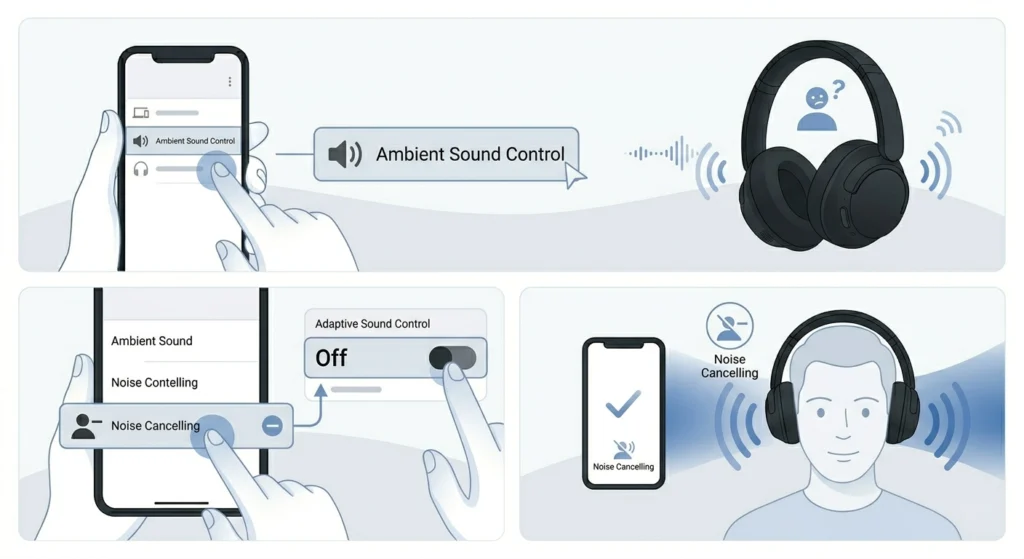
This usually traces back to the Ambient Sound Control setting rather than a hardware fault. Open the app and confirm the mode is set to Noise Cancelling rather than Ambient Sound, since the latter intentionally lets outside sound through. Adaptive Sound Control can also be quietly switching modes in the background, so turning it off and setting noise cancelling manually often resolves the issue.
Fix 2: NC/AMB Button Not Responding
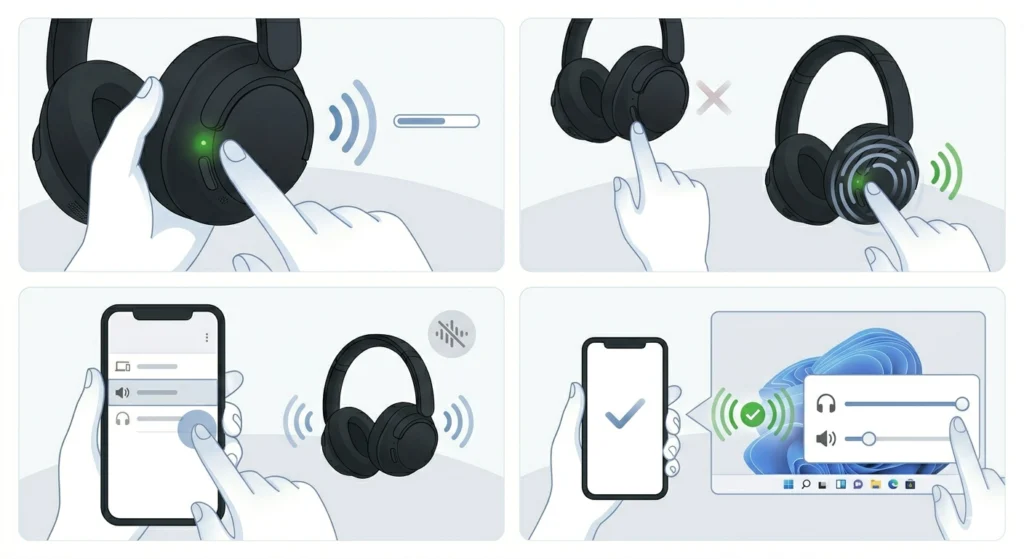
Check that the headset is actually powered on first, since the button does nothing while the headset is off. If the headset is on and the button still doesn’t respond, a quick reset usually clears the issue. Adjusting broader audio output behaviour can also help, and this guide on adjusting audio output settings covers related fixes for Windows 11 systems.
Fix 3: Headset Won’t Switch Modes Through the App
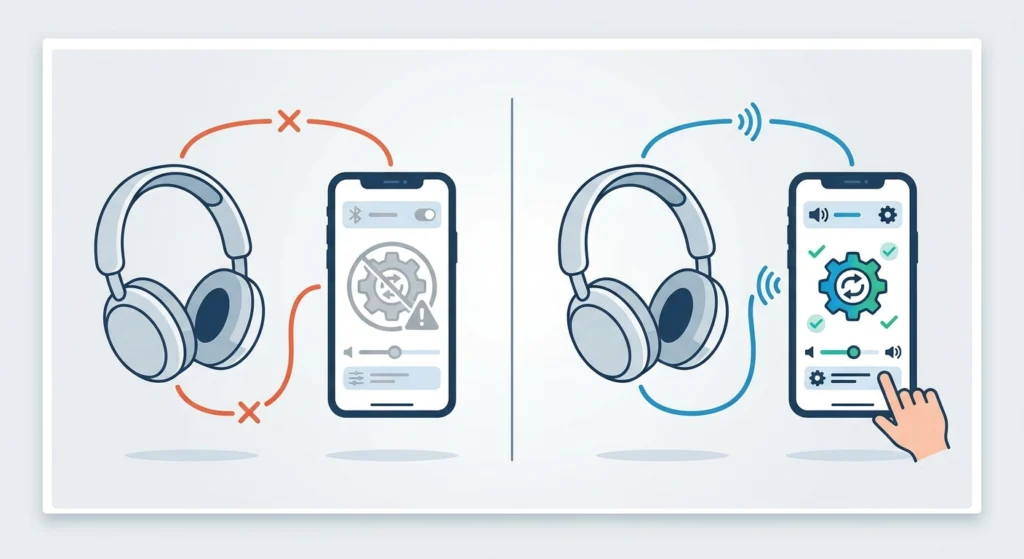
This typically points to a Bluetooth connection issue between the phone and the headset rather than a problem with the app itself. Disconnecting and reconnecting the Bluetooth pairing often fixes it, and the steps in this guide on resetting audio settings are useful for Windows 11 users running into the same disconnect pattern.
Frequently Asked Questions
Does the Sony WH-CH720N have adjustable noise cancelling levels?
The WH-CH720N offers Noise Cancelling On, Ambient Sound Mode with adjustable levels, and Off. Unlike some higher-end Sony models, it doesn’t include multiple numbered noise cancelling intensity levels, but Ambient Sound Mode itself can be adjusted within the app.
Why does noise cancelling turn on automatically the first time the headset is used?
Sony sets noise cancelling as the default mode the first time the headset powers on after purchase or after a factory reset. This default can be changed at any point, and the new setting is then remembered for future use.
Can noise cancelling be used without the Headphones Connect app?
Yes. The NC/AMB button on the left ear cup controls noise cancelling directly without needing the app. The app simply adds finer control over Ambient Sound levels and automatic switching behaviour.
Does noise cancelling work when the headphones are connected with the wired cable?
Yes, as long as the headset is powered on. If the headset is turned off while the cable is connected, audio continues to play, but the noise cancelling function stops working.
Why does noise cancelling seem to have little effect in a quiet room?
Noise cancelling works by detecting ambient sound and generating an opposing signal to cancel it out. In a very quiet environment, there’s minimal sound for the system to counteract, so the effect feels less noticeable than in a noisy space like a train or street.
Does noise cancelling affect call quality on the WH-CH720N?
Noise cancelling does not carry over to the microphone during calls. The wearer experiences reduced background noise, but the other party on the call may still hear ambient sound from the wearer’s environment.
What is Adaptive Sound Control and how is it different from noise cancelling itself?
Adaptive Sound Control is a separate feature inside the Headphones Connect app that automatically adjusts between Noise Cancelling and Ambient Sound Mode based on detected activity, such as walking or sitting still. Noise cancelling itself is the underlying audio function being adjusted.
Can the function of the NC/AMB button be changed?
Yes. Inside the Headphones Connect app, the button’s cycling pattern can be customised to switch between specific combinations of Noise Cancelling and Ambient Sound Mode, rather than cycling through every available option.
Why isn’t the microphone working properly during calls with noise cancelling on?
Noise cancelling and microphone pickup operate through separate systems, so this is rarely caused by noise cancelling itself. Checking the device’s input settings is the more likely fix, and this guide on resolving microphone detection problems covers the relevant steps for Windows 11.
How is the correct audio input device confirmed on a computer while using these headphones?
This depends on the operating system’s audio settings rather than the headphones themselves. For Windows 11 users, this guide on managing audio input devices walks through confirming and switching the active input device.