
If your Google Pixel Buds A-Series auto-pause not working is turning every quick chat into a scramble for the pause button, the fix is usually only a few taps away. This Step-by-Step Guide covers the exact settings and checks that bring automatic pausing back.
Quick Summary
- Auto-pause on the Pixel Buds A-Series is controlled by a feature called In-ear detection.
- The most common cause is that the setting has been switched off in the Pixel Buds app or phone settings.
- A dirty sensor, a poor fit, old firmware, or a corrupted pairing can also stop it from working.
- Most people solve it in under five minutes with Fix 1 or Fix 2.
Step-by-Step Guide to Fix Pixel Buds A-Series Auto-Pause
Work through these fixes in order. Test after each one by playing music, then taking one earbud out of your ear.
Fix 1: Turn On In-Ear Detection
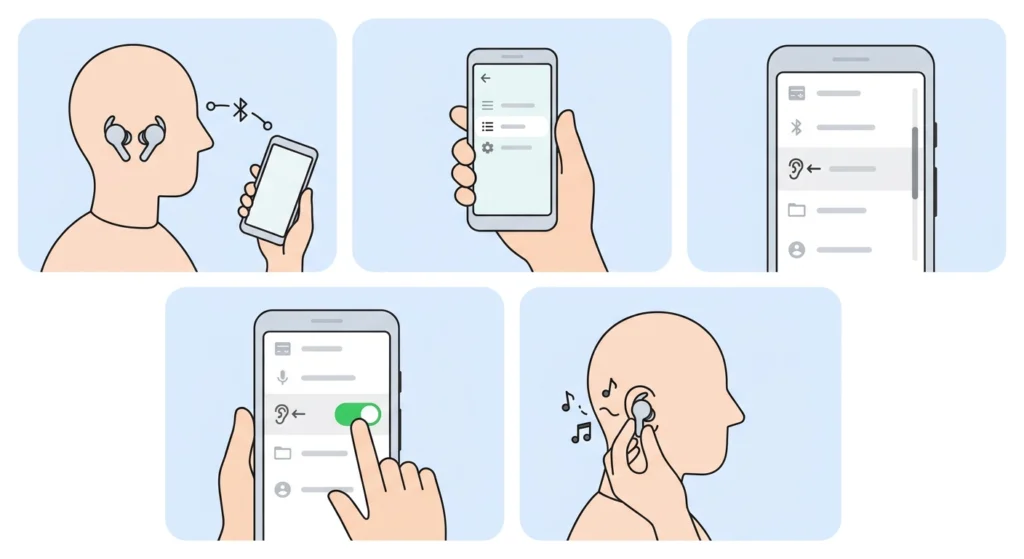
In-ear detection is the feature that pauses audio when an earbud is removed and resumes it when the earbud goes back in. Google’s own help pages confirm that it can be switched on or off for the Pixel Buds A-Series, so this is the first place to look.
- Step 1: Place both earbuds in your ears and make sure they are connected to your phone.
- Step 2: On a Pixel phone, open Settings, tap Connected devices, then tap the gear icon next to your Pixel Buds A-Series. On other Android phones, open the Google Pixel Buds app and tap your earbuds.
- Step 3: Scroll down until In-ear detection appears.
- Step 4: Switch In-ear detection on.
- Step 5: Play a song, then remove one earbud. The music should pause within a moment.
Pro-Tip: When In-ear detection is turned off, triple tapping the right earbud puts the earbuds to sleep or wakes them manually. If that happens by accident, the feature can look broken even though the settings are fine.
Fix 2: Reseat and Clean the Earbuds
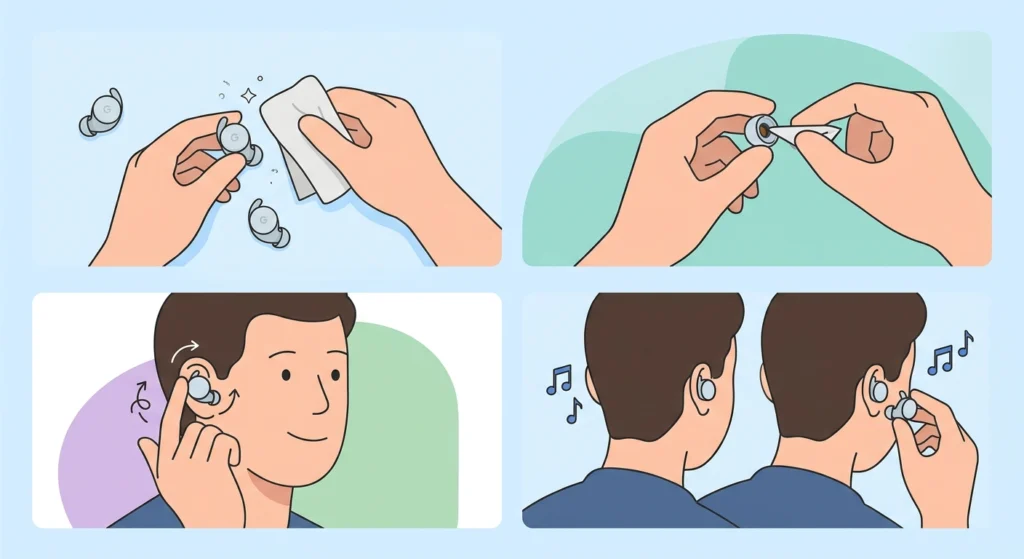
Each earbud uses a single infrared proximity sensor to figure out whether it is in an ear. Think of it like the sensor on a phone screen that turns the display off during a call. If something blocks it, or the bud sits loosely, the earbud may never realize it has been removed.
- Step 1: Take both earbuds out and wipe them gently with a dry, soft, lint-free cloth.
- Step 2: Check the eartips for earwax or debris and wipe those clean too.
- Step 3: Put the earbuds back in and twist them slightly until they sit snugly and comfortably.
- Step 4: Play music and remove one earbud to test the auto-pause again.
Fix 3: Update the Earbud Firmware
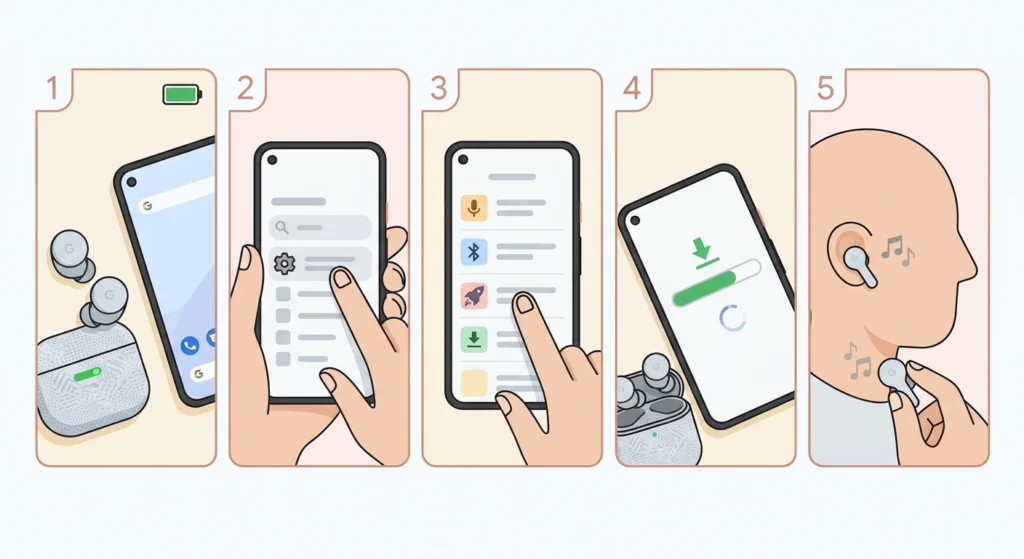
Firmware updates can resolve feature bugs, and the Pixel Buds app allows a manual firmware update on the Pixel Buds A-Series.
- Step 1: Make sure both earbuds are charged and close to your phone.
- Step 2: Open your Pixel Buds settings on your phone, using the same path as Fix 1.
- Step 3: Tap Firmware update and check for updates.
- Step 4: If an update is available, start it and keep the earbuds near the phone until it finishes.
- Step 5: Test auto-pause once the update is complete.
Fix 4: Forget the Earbuds and Pair Them Again
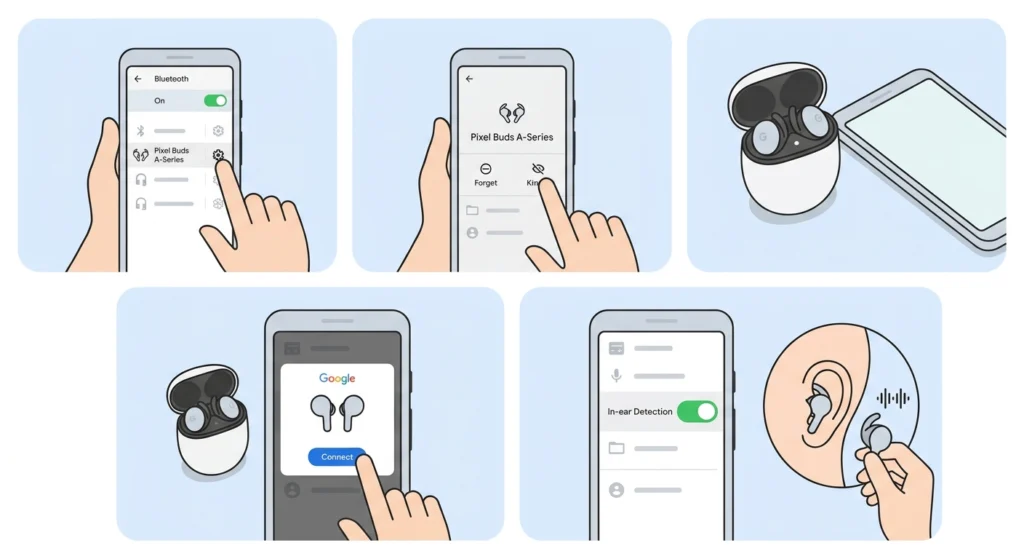
A glitchy saved connection can leave settings in a strange state. A fresh pairing clears it out. In-ear detection is turned on automatically when the earbuds are paired through Fast Pair on an Android 6.0 or newer phone, so a clean re-pair often restores it.
- Step 1: On your phone, open Bluetooth settings and find Pixel Buds A-Series in the paired devices list.
- Step 2: Tap the gear icon and choose Forget.
- Step 3: Put both earbuds in the charging case and open the lid near your phone.
- Step 4: Tap Connect when the pairing pop-up appears.
- Step 5: Open the Pixel Buds settings and confirm In-ear detection is on, then test it.
Anyone who also uses the earbuds with a computer may want to follow this guide to re-pair Bluetooth earbuds for stereo sound on Windows so the connection stays clean on both devices.
Fix 5: Factory Reset the Pixel Buds A-Series
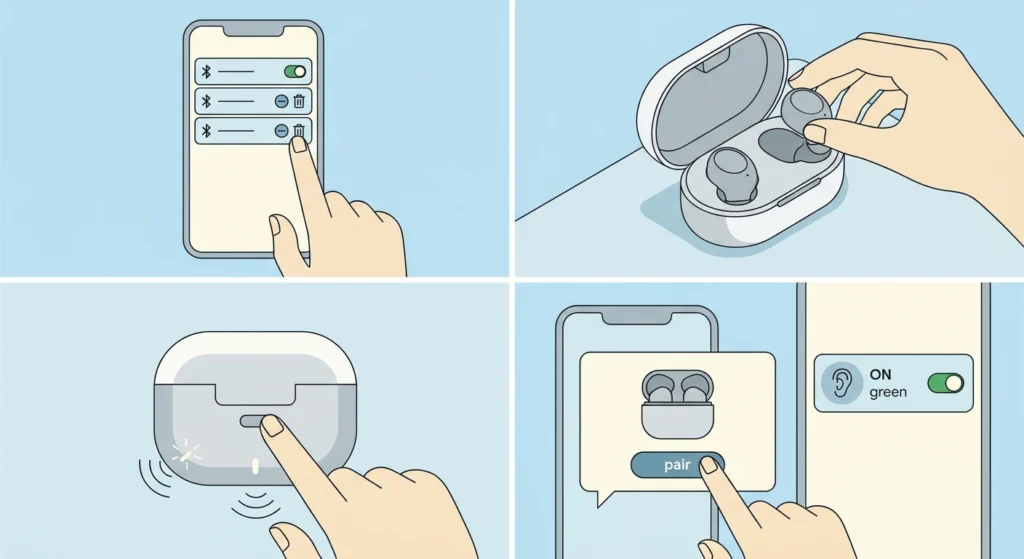
A reset is the last step when everything else fails. It wipes the earbuds’ saved connections and settings, so the earbuds need to be paired again afterward.
- Step 1: Forget the earbuds in your phone’s Bluetooth settings first.
- Step 2: Put both earbuds in the case and keep the lid open.
- Step 3: Press and hold the button on the back of the case for about 30 seconds, until the case light flashes.
- Step 4: Pair the earbuds again using Fast Pair, then open the Pixel Buds settings and turn on In-ear detection if it is off.
Common Problems After Fixing Auto-Pause
Music Pauses but Does Not Resume
When switching from using both earbuds to a single earbud on your own, tap play to resume listening. This is expected behavior according to Google’s help page for the Pixel Buds settings.
The In-Ear Detection Option Is Missing
On a non-Pixel Android phone, the setting lives inside the Google Pixel Buds app, so the app needs to be installed. Update the app from the Play Store, reopen it, and scroll down past the first set of options.
Audio Seems to Ignore the Earbuds on a Windows 11 PC
If the earbuds are also paired with a Windows 11 computer, sound may be going to a different device than expected. A quick look at the guide on adjusting audio output settings helps confirm the right output device is selected.
Tips to Keep Auto-Pause Working
- Wipe the earbuds with a dry cloth every week or so to keep the proximity sensor clear.
- Choose the eartip fit that feels secure, since a loose bud is more likely to confuse the sensor.
- Keep the Pixel Buds app updated so settings stay in sync with the earbuds.
- Check for firmware updates every few weeks.
- Put the earbuds back in the case after use so they stay charged and ready.
Pro-Tip: After any change, always test with a real song and remove just one earbud. A silent track or a paused app can make a working feature look broken.
Frequently Asked Questions
Do Pixel Buds A-Series support auto-pause?
Yes. The Pixel Buds A-Series include a proximity sensor for in-ear detection, which pauses audio when an earbud is removed and plays it again when the earbud returns.
Where is the In-ear detection setting?
On a Pixel phone, open Settings, tap Connected devices, then tap the gear next to the earbuds. On other Android phones, open the Google Pixel Buds app. Scroll down and tap In-ear detection.
Is In-ear detection on by default?
It is turned on automatically when the earbuds are paired with an Android 6.0 or newer device that has Fast Pair enabled. It can be turned off manually in the Pixel Buds settings.
Why do the earbuds not pause when I remove only one?
The most likely reasons are that In-ear detection is switched off, the sensor is dirty, or the earbud was never sitting properly in the ear. Work through Fix 1 and Fix 2 first.
How do I wake the earbuds if In-ear detection is off?
Triple tap the right earbud to manually put the earbuds to sleep or wake them up.
Can a firmware update fix auto-pause problems?
It can. Firmware updates can resolve bugs, and the Pixel Buds A-Series allow a manual update through the Pixel Buds settings. Updating is a quick step worth trying early.
Why does music not resume after I use a single earbud?
When switching from both earbuds to one earbud on your own, tap play to resume listening. Auto-resume is designed for putting the earbud back in the ear.
Will resetting the earbuds delete my music or data?
No. A reset only clears the pairing and settings stored on the earbuds. Music and apps on the phone are not affected, but the earbuds need to be paired again.
Does cleaning the earbuds really help?
It can. The in-ear sensor needs a clear view to work properly, so wiping away dirt and earwax with a dry, soft cloth often helps.