
Learning how to route game audio and chat audio separately lets game sound play through one device while teammates’ voices come through another. Windows 11 can do this without extra software, as long as two playback devices are connected.
Key Takeaways:
- Windows sends each app to one output device, so two playback devices are needed (for example, speakers plus a headset, or two pairs of earbuds).
- The Volume mixer in Windows 11 assigns a different output device to each app.
- Discord and most voice chat apps have their own Output Device setting.
- The classic Sound panel can set a default communications device for calling apps.
Method 1: Assign Different Output Devices in the Windows 11 Volume Mixer
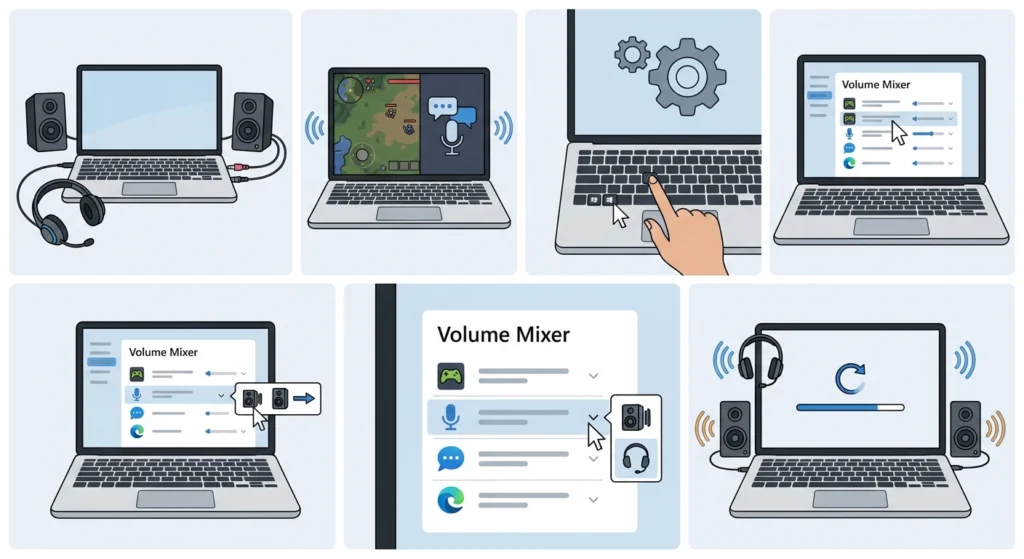
This is the quickest route because it works for any app, not just chat programs. Start the game and the chat app first. Windows only lists apps that are open, and most people find the list is much easier to work with once both are running.
- Step 1: Connect both audio devices, such as a wired headset and speakers, or two Bluetooth earbuds.
- Step 2: Open the game and the chat app (Discord, Teamspeak, or similar) and let them play a sound or join a voice channel.
- Step 3: Press Windows + I to open Settings, then go to System > Sound > Volume mixer.
- Step 4: Find the game in the app list and open the Output device dropdown next to it.
- Step 5: Choose the device that should carry game sound.
- Step 6: Find the chat app in the same list and set its Output device to the other device.
- Step 7: Restart the game or chat app if the sound stays on the old device, since some apps only pick up the change after a relaunch.
Pro-Tip: Rename each device in Settings > System > Sound so labels like Headset Chat and Speakers Game appear in the dropdown. Generic names such as Speakers (2- USB Audio Device) are easy to mix up.
Method 2: Set the Output Device Inside Discord
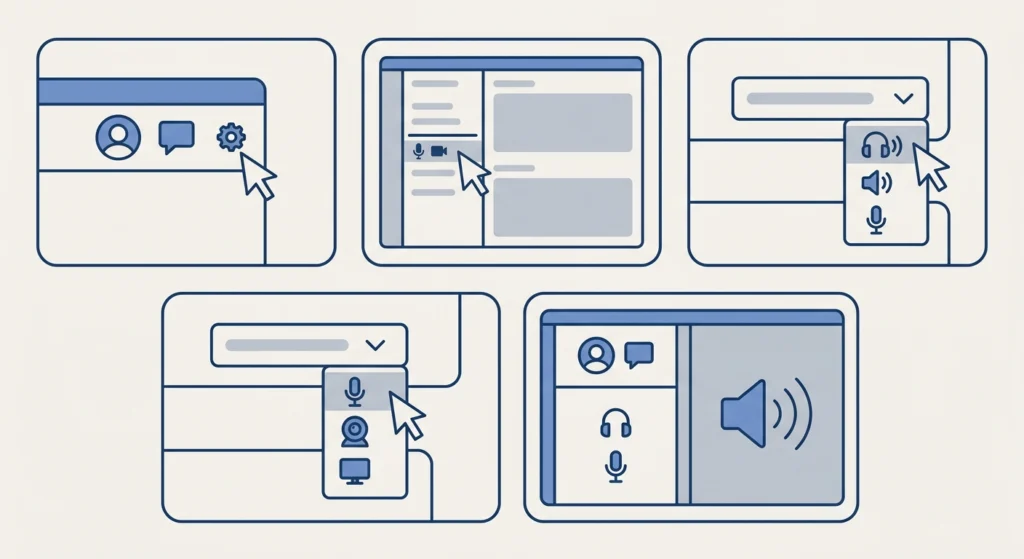
Voice apps keep their own device choice, which makes this a handy second layer. The key is to pick the device inside the app rather than leaving it on Default.
- Step 1: Open Discord and click the gear icon next to the username to open User Settings.
- Step 2: Select Voice & Video from the left menu.
- Step 3: Under Output Device, open the dropdown and choose the headset or earbuds that should carry voice chat.
- Step 4: Under Input Device, pick the microphone that belongs to that same headset.
- Step 5: Leave the game on the other device, either through the Windows Volume mixer or by setting that device as the Windows default output.
Anyone whose microphone is not showing up in the list can follow this guide on resolving microphone detection problems in Windows 11.
Method 3: Use the Default Communications Device
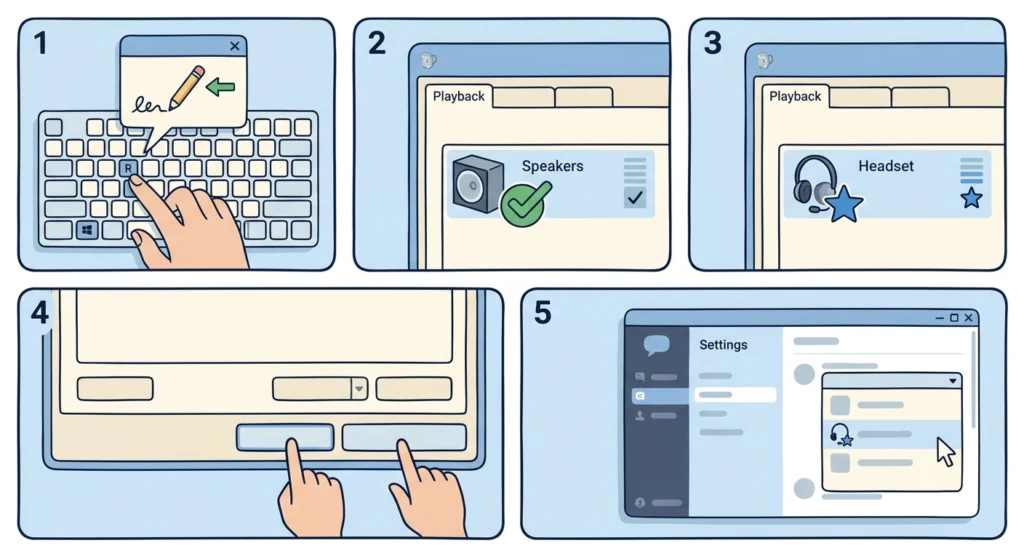
Windows keeps a second default specifically for calling and chat apps. Apps that respect it will send voice to that device while everything else follows the main default.
- Step 1: Press Windows + R, type mmsys.cpl, and press Enter to open the classic Sound window.
- Step 2: On the Playback tab, right-click the device for the main game sound and choose Set as Default Device.
- Step 3: Right-click the headset meant for chat and choose Set as Default Communication Device.
- Step 4: Click Apply, then OK.
- Step 5: Set the chat app’s output to Default Communications Device if it offers that option.
For a closer look at the main sound menu, this walkthrough on adjusting audio output settings covers the options in more detail.
Tips for a Cleaner Setup
- Use a wired headset or USB headset for chat and speakers for the game if latency matters. Wireless earbuds can add a small delay to voice.
- Set the microphone in the input device settings so the right mic is always used for chat.
- Keep both devices connected before launching any app, because Windows can reassign the default when a device appears mid-session.
- Lower the Windows system sounds slider if notification beeps keep landing in the chat headset.
Common Problems and Quick Fixes
Fix 1: The App Is Missing From the Volume Mixer
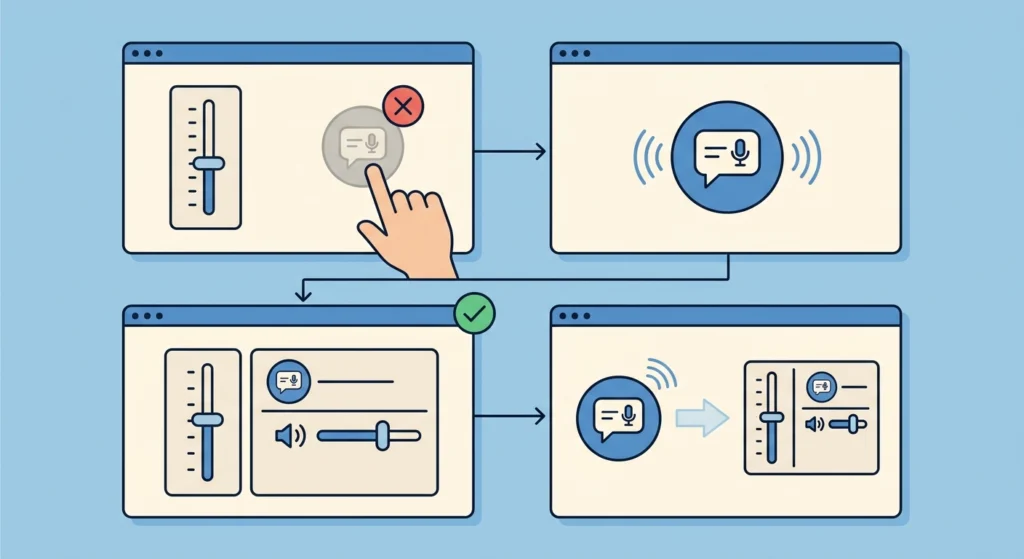
The app must be open and producing sound. Play a sound in it, then reopen the Volume mixer.
Fix 2: Both Apps Still Play Through the Same Device
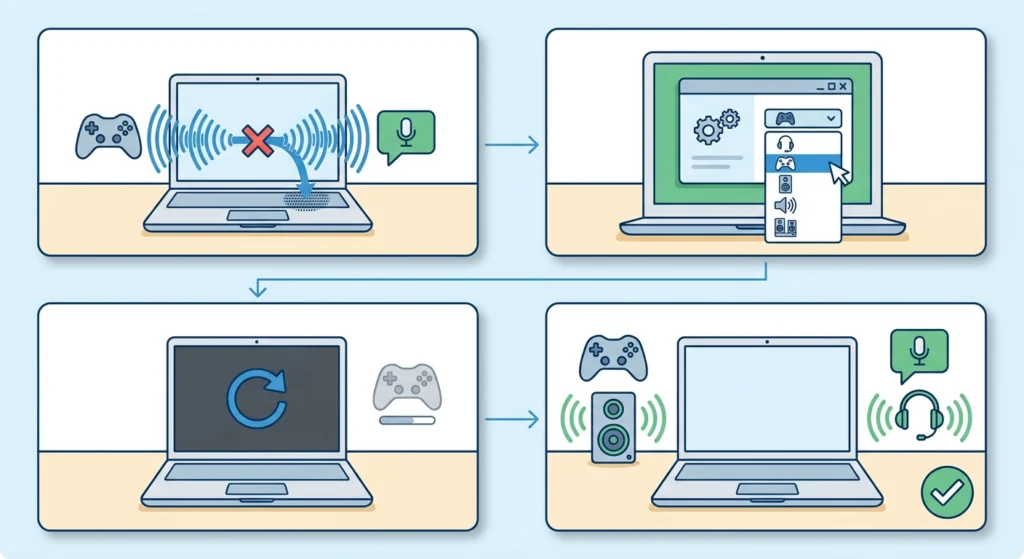
Restart the game or chat app after changing its output device. Also confirm the app itself is not forced to Default in its own audio settings.
Fix 3: A Bluetooth Device Does Not Appear
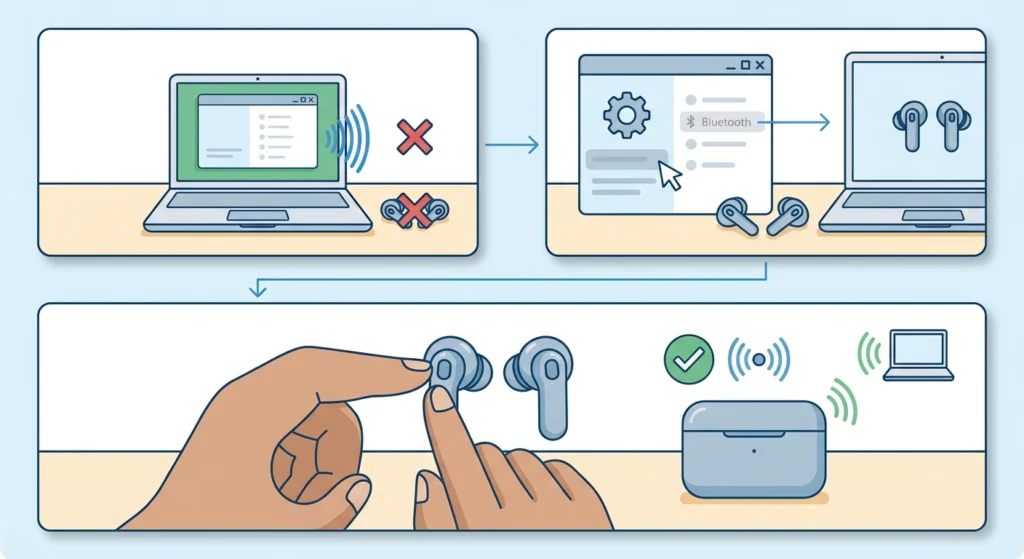
The earbuds may need to be paired again. This guide on how to re-pair Bluetooth earbuds for stereo sound in Windows shows the process.
Fix 4: Settings Look Wrong After Many Changes
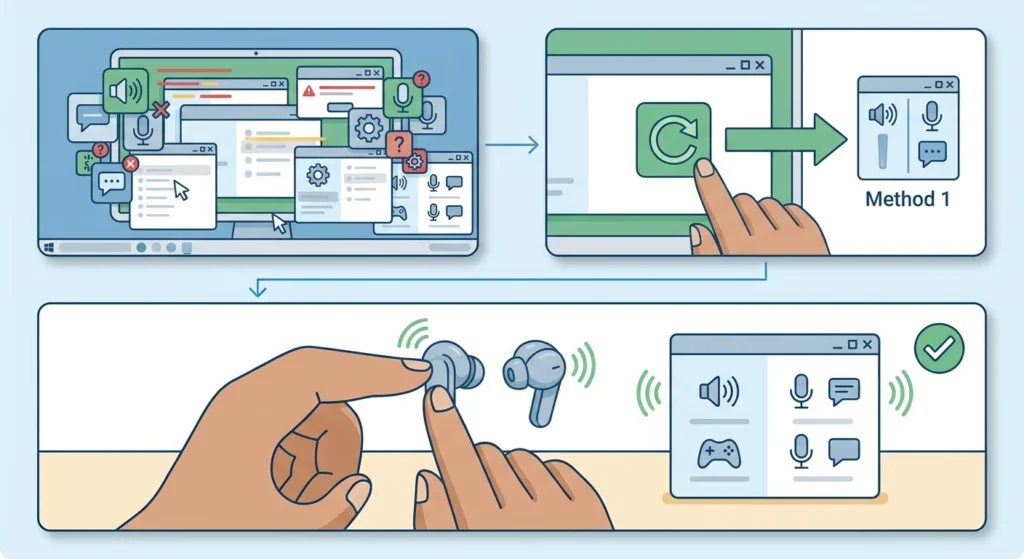
Too many overlapping choices can cause confusion. Use the steps to reset audio settings in Windows 11 and then repeat Method 1 from the start.
Frequently Asked Questions
Can game audio and chat audio be split on a single pair of headphones?
Not with built-in Windows settings. Windows assigns each app to a device, so a single headset cannot be divided into two separate outputs without third-party mixing software.
Do Bluetooth earbuds work for this setup?
Yes. Once paired, Bluetooth earbuds appear as a playback device and can be assigned to any app in the Volume mixer.
Where is the Volume mixer in Windows 11?
Open Settings, go to System, select Sound, and choose Volume mixer. Right-clicking the speaker icon in the taskbar also offers a shortcut to it.
Does changing Discord output affect the game?
No. The Output Device setting in Discord only changes where Discord sound plays. The game stays on whatever device it is assigned to.
Why is my game not listed in the Volume mixer?
Windows lists apps that are currently open and playing audio. Launch the game, make it produce sound, and check the list again.
Will Windows remember the app and device choices?
Windows saves per-app output choices, but if an assigned device is unplugged, the app falls back to the default device until the device returns.
Can the microphone be chosen separately from the output?
Yes. Voice apps have a separate Input Device setting, and the Volume mixer also offers an input device choice for each app.
Does the same method work for music or streaming apps?
Yes. Any app listed in the Volume mixer can be sent to its own output device, so music can play on speakers while chat stays in a headset.
Is extra software required?
No. The Windows 11 Volume mixer, the Discord settings, and the Default Communication Device option cover this setup without extra downloads.