
Pixel Buds Pro 2 low volume in one earbud is one of those problems that makes music feel lopsided and calls sound distant. The good news is that the cause is usually simple: a clogged speaker mesh, a poor seal, a balance slider, or a glitchy connection. This guide walks through each fix in the order that saves the most time.
Quick Summary:
- Most cases come from earwax or debris blocking the speaker mesh, so cleaning comes first.
- A loose ear tip fit can make one side sound much quieter, even when the hardware is fine.
- Android has an audio balance slider that can quietly drift off-center.
- A factory reset of the earbuds is the last software fix to try.
Fix Pixel Buds Pro 2 Low Volume in One Earbud: Step-by-Step Methods
Method 1: Clean the Speaker Mesh and Ear Tips
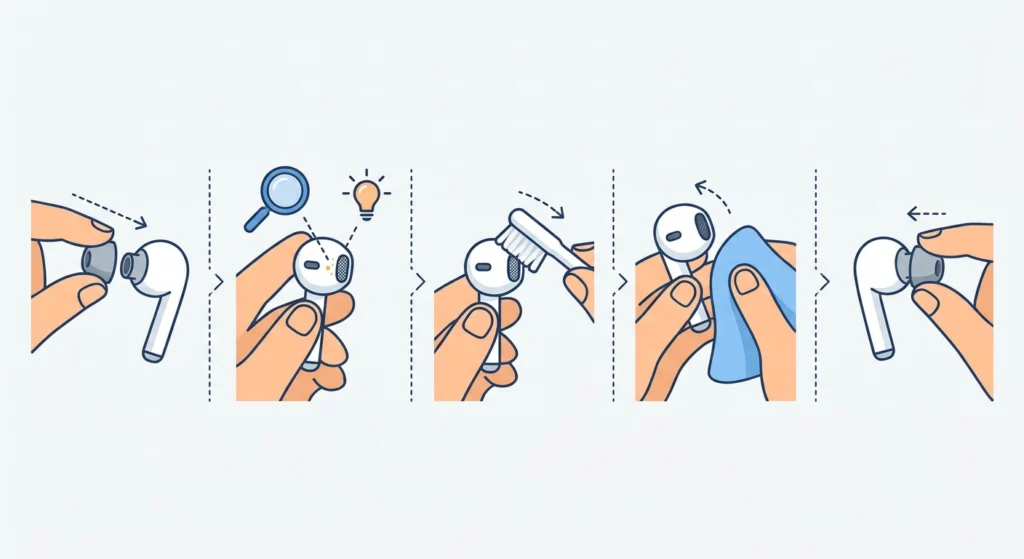
Think of the speaker mesh like a tiny window screen. Once earwax or lint builds up on it, sound squeezes through a smaller gap, and the earbud sounds muffled and quiet. One side usually clogs before the other, which is why the problem shows up in a single earbud.
- Step 1: Remove the ear tip from the quiet earbud and set it aside.
- Step 2: Look at the speaker mesh under good light. Visible wax or lint means a clog is likely.
- Step 3: Gently brush the mesh with a clean, dry, soft-bristled brush such as a dry toothbrush or a small cosmetic brush. Use light strokes.
- Step 4: Wipe the earbud body and the ear tip with a dry, soft, lint-free cloth.
- Step 5: Refit the ear tip until it clicks securely, then test the volume again.
Pro-Tip: Never push a pin, needle, or any sharp object into the mesh, and avoid liquids and cleaning sprays. Poking can damage the speaker and turn a quick fix into a permanent one.
Method 2: Check the Ear Tip Fit and Seal
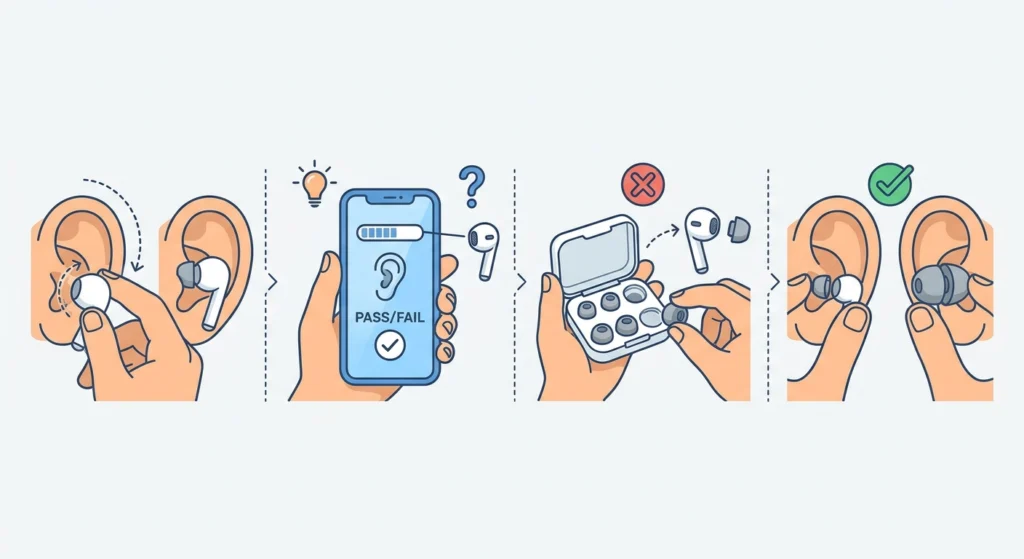
This works best when the quiet side sounds thin and weak on bass rather than truly low in volume. Pixel Buds Pro 2 depend on a good seal for full sound. If one ear tip sits loosely, bass drops and the whole earbud seems quieter.
- Step 1: Put both earbuds in and twist them gently until they sit snugly in the ear canal.
- Step 2: Open the Pixel Buds app on the Android phone and run the ear tip fit test.
- Step 3: If the quiet side fails the test, swap to a different ear tip size from the box and test again.
- Step 4: Many people need a different size for each ear, so a mismatched pair is perfectly normal.
Method 3: Reset the Audio Balance on Android
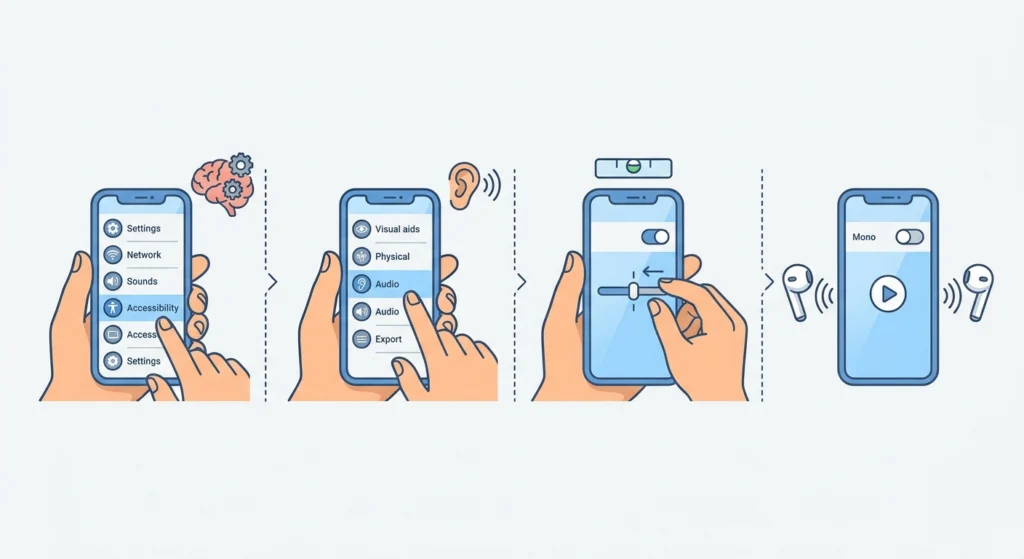
Android includes an audio balance slider in the accessibility settings. If it has shifted even slightly to one side, one earbud plays louder than the other. It is easy to bump by accident.
- Step 1: Open Settings on the phone and tap Accessibility.
- Step 2: Tap Audio adjustment.
- Step 3: Find the Audio balance slider and move it back to the exact center.
- Step 4: Check that Mono audio is switched off unless it is needed. Then play a song and compare both sides.
Method 4: Fix Uneven Volume on a Windows 11 PC

When the earbuds are connected to a laptop or desktop, the PC audio settings can cause the imbalance instead of the earbuds. Start by reviewing the audio output settings in Windows 11 and confirm that the Pixel Buds Pro 2 are selected as the output device. Also make sure Mono audio is off in the Sound settings.
If the sound is still lopsided on the PC only, removing the earbuds from Windows and connecting them again often restores both channels. The guide on how to re-pair Bluetooth earbuds for stereo sound on Windows covers that process.
Method 5: Factory Reset the Pixel Buds Pro 2
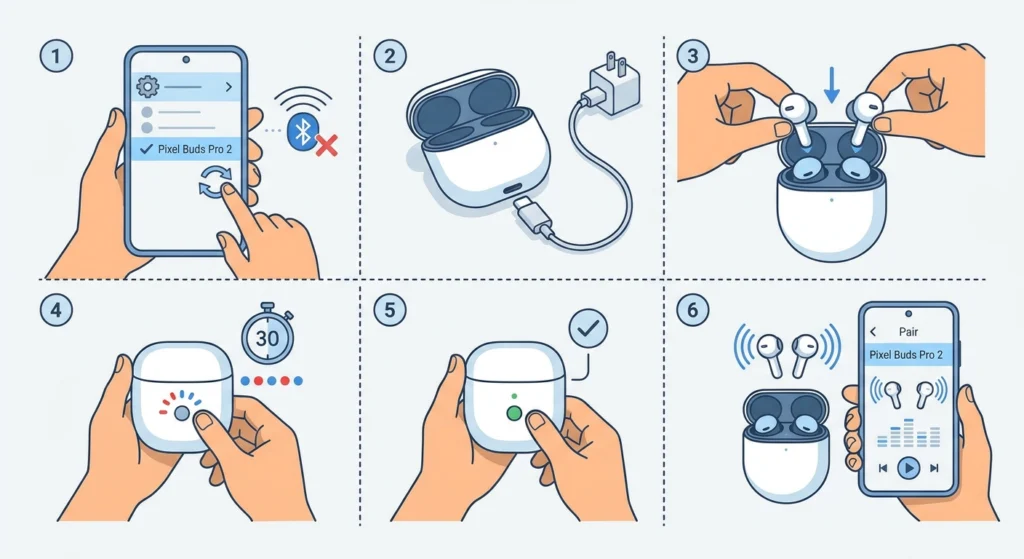
A reset clears the stored settings and pairing data, which fixes software glitches that affect only one earbud. This is the last fix to try, and it follows Google’s official reset process. The earbuds will need to be paired again afterward.
- Step 1: Open the Bluetooth settings on the phone and forget the Pixel Buds Pro 2.
- Step 2: Plug the charging case into a power source with a USB-C cable.
- Step 3: Place both earbuds in the case, seated firmly in their slots, and leave the lid open.
- Step 4: Press and hold the pairing button on the back of the case for 30 seconds.
- Step 5: Release the button when the status light stops flashing.
- Step 6: Put the earbuds into pairing mode and connect them to the phone again. Then test both sides.
Pro-Tip: Make sure both earbuds are fully seated in the case before holding the button. A bud that is only resting in place may not reset properly, and the problem can come right back.
Tips to Keep Both Earbuds Sounding Even
- Wipe the speaker mesh with a dry soft brush every week or two, especially after workouts or long listening sessions.
- Store the earbuds in the charging case so they stay clean, protected, and charging.
- Keep the earbuds updated. Firmware updates install automatically while the earbuds are in the charging case, charging, and connected to the phone.
- Use the ear tip size that passes the fit test on each ear, even if the sizes differ.
- Avoid sleeping or showering in the earbuds, since moisture and wax speed up mesh buildup.
Common Problems After Trying These Fixes
Problem 1: One Earbud Is Still Quieter After Cleaning and Resetting
If the quiet side stays weak after every fix above, the speaker itself may be faulty. Contact Google Support and check the warranty status of the earbuds. Replacements for a single earbud may be available.
Problem 2: The Balance Slider Keeps Moving Off-Center
If the slider keeps changing, check whether another accessibility feature or a paired device is adjusting it. Reset it to the center and test again after restarting the phone.
Problem 3: Volume Is Low Only on One Device
If the earbuds sound even on one device but uneven on another, the issue sits in that device’s audio settings and not in the earbuds. Review the balance and mono settings on that device.
Frequently Asked Questions
Why is one Pixel Buds Pro 2 earbud quieter than the other?
The most common reasons are a clogged speaker mesh, a loose ear tip seal, or an off-center audio balance setting. Cleaning and refitting solve most cases.
Can earwax really cause low volume in one earbud?
Yes. Earwax and lint can block the speaker mesh, which reduces how much sound reaches the ear. This usually affects one side first.
How do I clean Pixel Buds Pro 2 safely?
Use a dry, soft-bristled brush and a dry lint-free cloth. Avoid liquids, sharp objects, and anything that could push debris deeper into the mesh.
Where is the audio balance setting on Android?
Open Settings, tap Accessibility, then tap Audio adjustment. The Audio balance slider sits there and should be centered for even sound.
Will a factory reset delete anything important?
A reset removes the saved pairing and custom settings from the earbuds. Nothing else is lost, but the earbuds must be paired again afterward.
How long should the reset button be held?
Press and hold the pairing button on the back of the case for 30 seconds, with the earbuds inside and the lid open. Release it when the status light stops flashing.
Can a poor ear tip fit make one earbud sound quieter?
Yes. A loose seal lets bass escape and makes the earbud sound thin and faint. Trying a different ear tip size often fixes it.
Does the problem happen on Windows 11 too?
It can. Windows has its own audio output and mono settings, and a lopsided connection may need to be re-paired to restore stereo sound.
When should the earbuds be replaced or repaired?
If cleaning, fit changes, balance checks, and a reset all fail, the speaker may be damaged. Contact Google Support to ask about warranty coverage or a replacement earbud.