
Mic worked fine yesterday. Today Zoom shows a flat line, your voice sounds like it’s coming through a tin can, or Windows randomly hops to a different device mid-call. You know the drill — you’re already dreading the “can you hear me now?” moment. Good news: this is one of the most common Windows headaches out there, and almost every case of it has a five-minute fix.
Short answer: Managing audio input devices in Windows starts in Settings > System > Sound > Input. Click a microphone to make it the default, then click the arrow next to it to set input volume, run a test, and change the audio format. If apps still can’t hear you, the block is almost always in Settings > Privacy & security > Microphone or in your browser’s site permissions.
Microphone problems come from one of five places, and they’re worth checking in this order: Windows is using the wrong device, the mic is muted (sometimes by a physical switch), Windows privacy permissions are off, the browser is blocking the site, or the app has its own mic picked. Drivers come last, not first. Work down that order and you’ll find the block instead of guessing at it.
Steps verified on Windows 11 24H2 and later. Windows 10 paths are covered in the section below.
Quick Fix: Find Your Problem
Know your symptom? Jump straight to the fix.
| What’s happening | Most likely cause | Go here |
|---|---|---|
| Mic doesn’t show up at all | Disabled device or driver | Mic not recognized |
| Works in browser, not in Zoom or Teams | “Let desktop apps access your microphone” is off | Privacy blocks |
| Works in apps, not on a website | Browser site permission | Browser blocks |
| Wrong mic used in a meeting | The app has its own device picker | Per-app mics |
| Voice too quiet or distant | Input level or mic boost | Volume too low |
| Voice sounds muffled or tinny | Wrong audio format | Levels and format |
| Windows keeps changing your mic | Default reassigned on new connections | Default switching |
| Headset sounds worse the moment a call starts | Bluetooth profile switch | Bluetooth mics |
| Mic broke right after an update | Reset permissions or driver | After an update |
What Counts as an Audio Input Device on Windows
An audio input device is anything that captures sound and hands it to your PC — built-in laptop mic, USB desk mic, headset, webcam mic, or an XLR mic running through an audio interface. Windows can see multiple input devices at once, but only one is ever the active default. Every app uses that default unless you tell it otherwise inside its own settings.
Before you change anything in Windows, check the mic itself for a physical mute switch or button. Most USB mics and gaming headsets have one, and Windows will happily show the correct device as active while the hardware mute keeps the signal at zero. It’s the single most common false alarm in this whole guide.
If You’re Still on Windows 10
Everything in this guide works on Windows 10 too — the Sound Control Panel, mmsys.cpl, Device Manager, and services.msc are identical on both versions. Only five things sit in a different place. Note them once here, then follow the Windows 11 steps below.
| What you’re looking for | Windows 11 | Windows 10 |
|---|---|---|
| Privacy toggles | Settings > Privacy & security > Microphone | Settings > Privacy > Microphone |
| Input device picker | “Choose a device for speaking or recording” | “Choose your input device” dropdown |
| Mic volume and test | Click the arrow next to your mic | Click the “Device properties” link |
| Per-app input mixer | Windows + A > Volume Mixer | Not available — output only |
| Studio Effects, Copilot key, LE Audio | Supported on capable hardware | Not available |
See Every Audio Input Device Windows Can Detect
Before you touch a single setting, check what Windows actually sees.
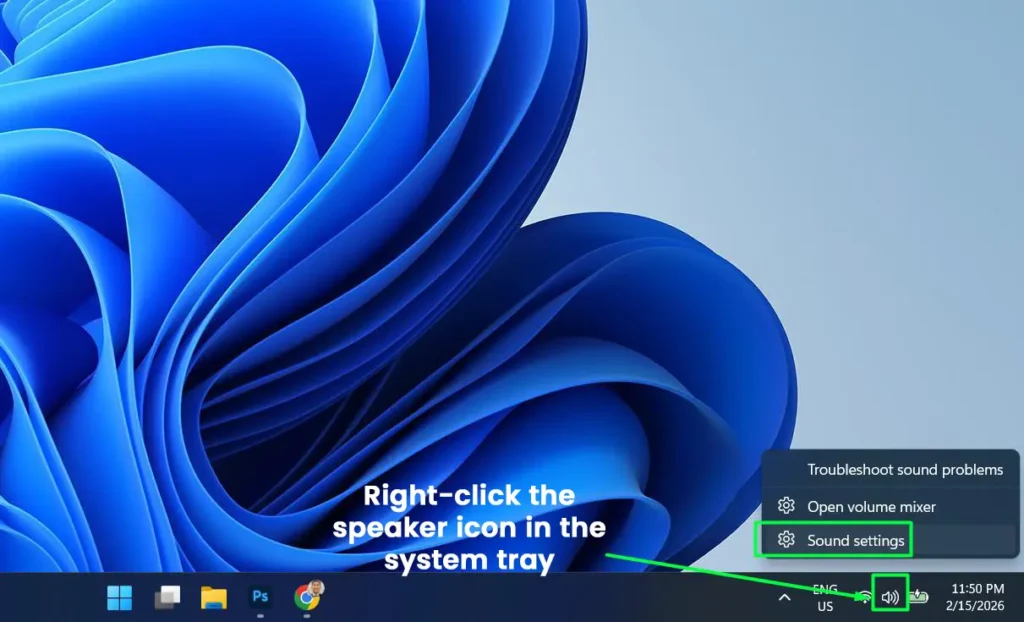
- Right-click the speaker icon in the system tray. Click Sound settings.
- Scroll to Input. You’ll see “Choose a device for speaking or recording” with every mic Windows detects listed below it.
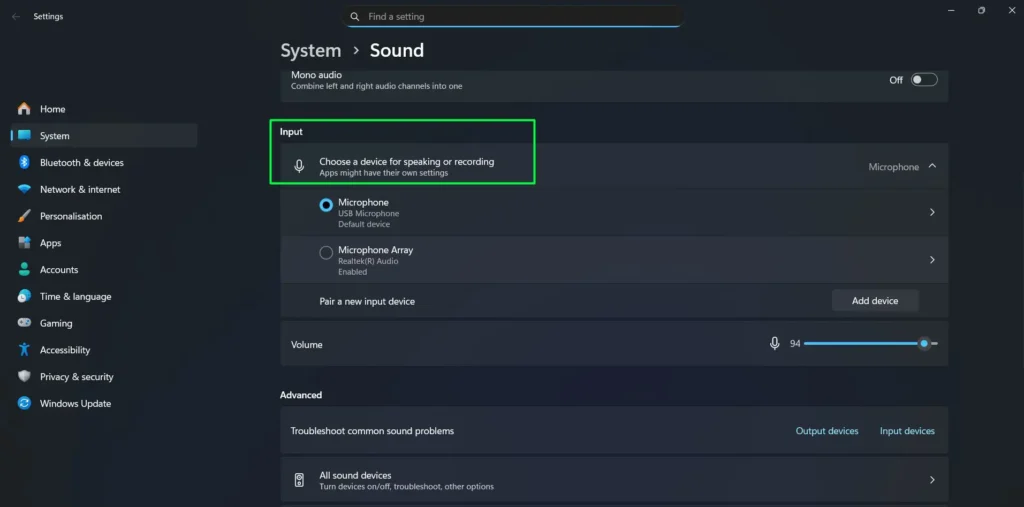
- Check the list. Windows 11 tags each device with its connection type — USB, Bluetooth, or built-in — so you’re not guessing which one is which.
Under the device list sits a volume slider and a live test bar. Talk into your mic and watch the blue bar. If it moves, the mic works. No extra software required — though our free browser mic test gives you the same confirmation in one click if you’d rather not dig through Settings.
Mic plugged in but nowhere to be found? It’s probably disabled or missing a driver. Both are covered below.
Set Your Default Microphone (So It Stops Changing on You)
Locking in the right default input means Windows and every app on it grab the correct mic without you touching a setting each time. Do it through the Settings app for a quick fix, or the classic Sound Control Panel if you want it to actually stick.
Option A: The Settings App
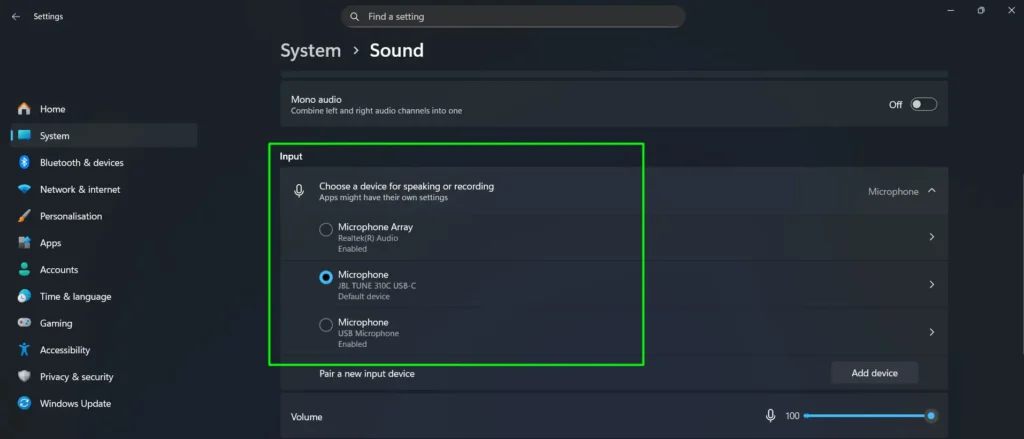
- Open Settings > System > Sound. Scroll to Input.
- Click your mic. It’s now the default input, instantly.
Option B: The Sound Control Panel (Sticks Better)
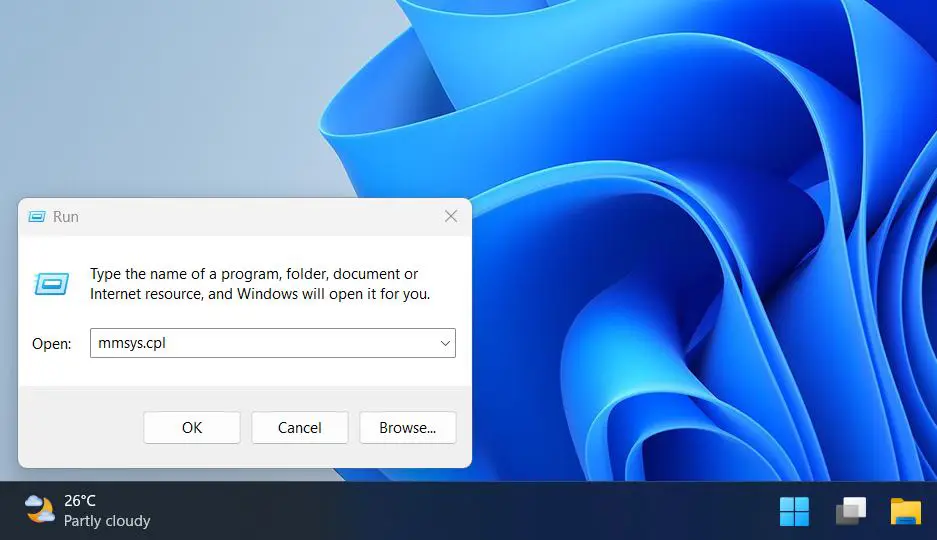
- Press Windows + R. Type mmsys.cpl. Hit Enter.
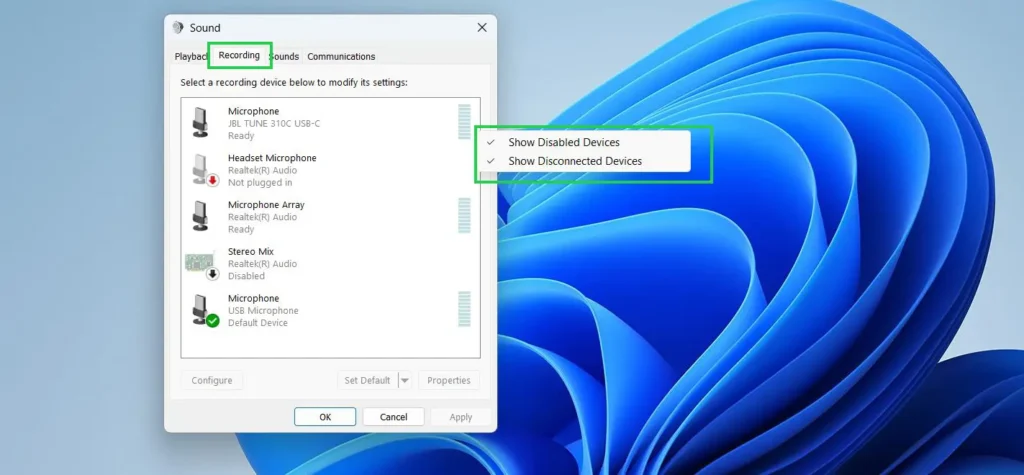
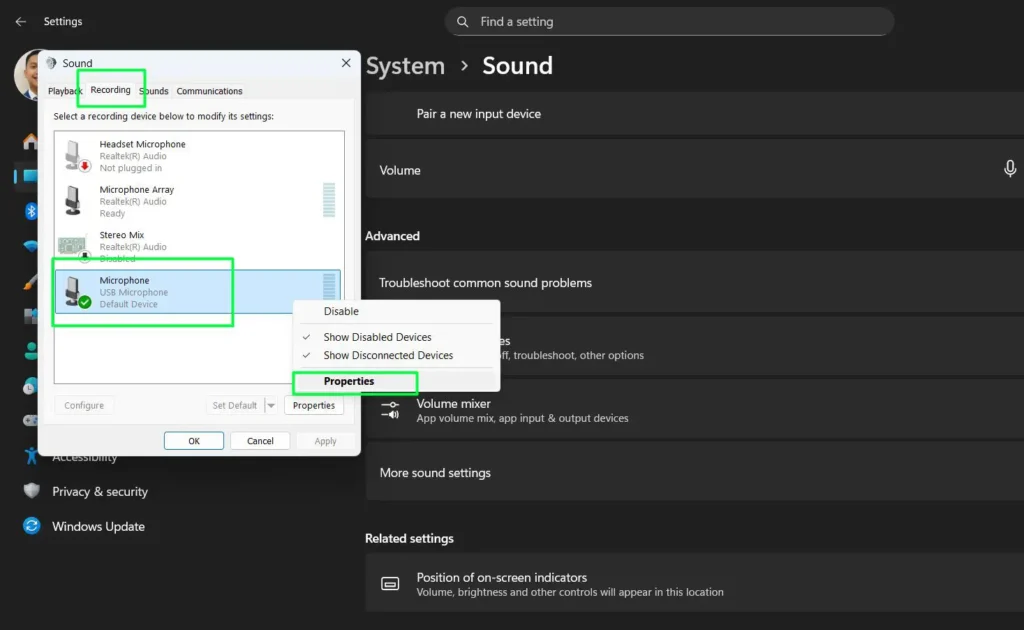
- Click the Recording tab. Right-click an empty spot in the list. Turn on “Show Disabled Devices” and “Show Disconnected Devices.” Hidden mics show up here.
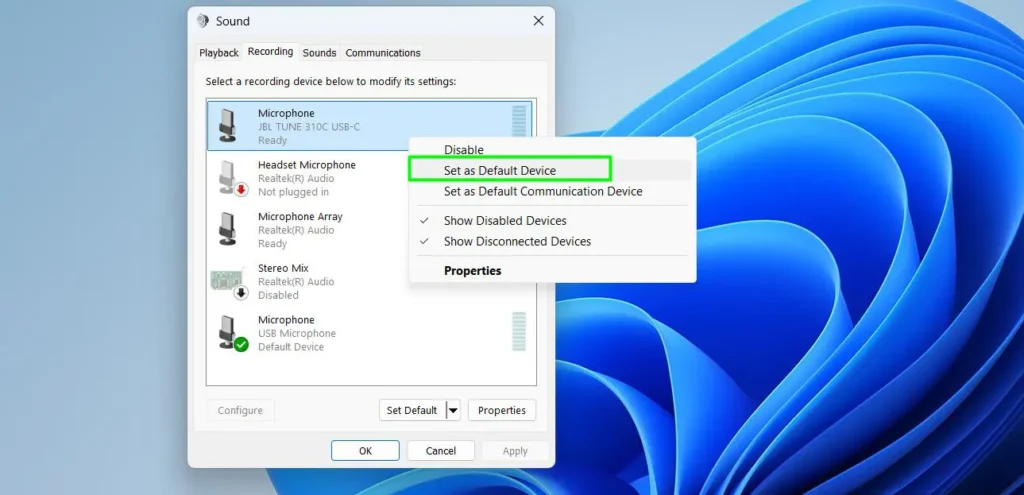
- Right-click your mic. Pick “Set as Default Device.” Anything using the Windows default now uses this mic.
- Want one mic for calls and a different one for recording? Right-click the same mic. Choose “Set as Default Communication Device.” Now both jobs run at once without conflict.
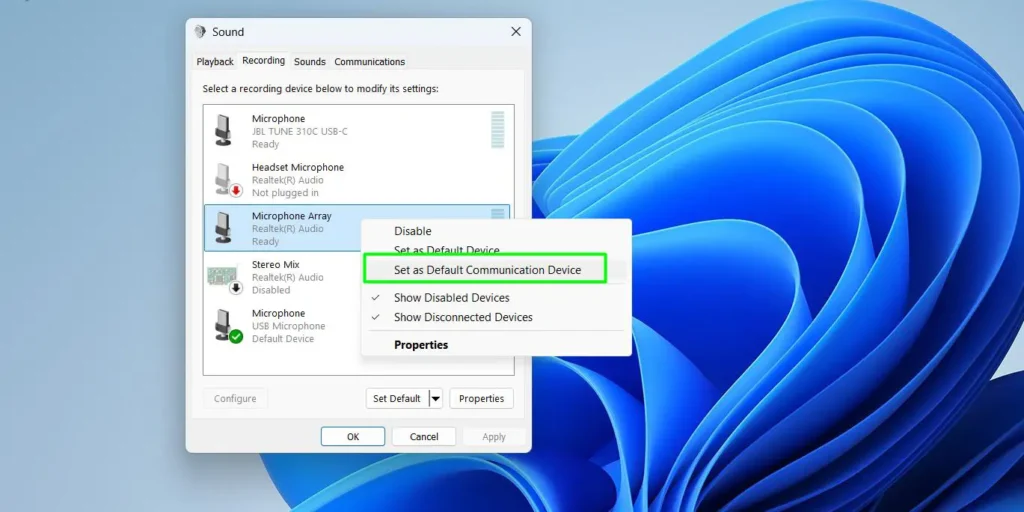
Set both defaults properly and Windows stops jumping to a random mic every time you plug in a headset, webcam, or USB dongle.
Switch Microphones Fast (Without Digging Through Menus)
Bouncing between a headset and a desk mic all day? You don’t need the full Settings trip every time.
- Right-click the speaker icon in the tray. Click Sound settings.
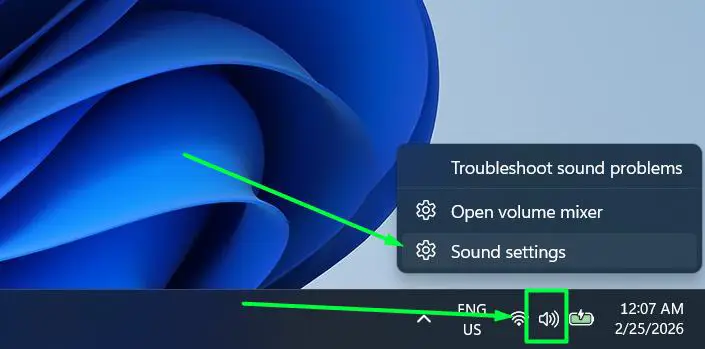
- Scroll to Input. Every connected mic is listed there.
- Click the mic you want. Windows switches instantly. No restart.
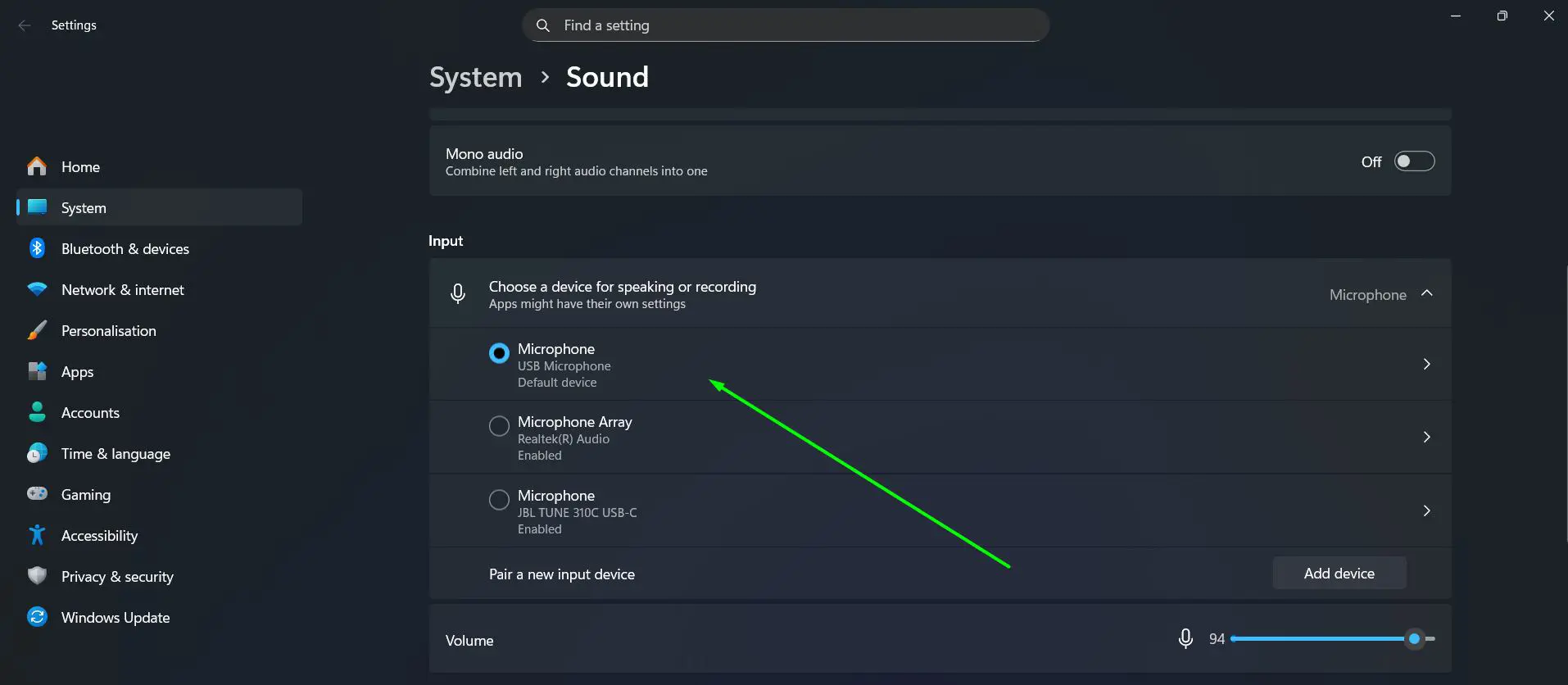
Heads up: The Quick Settings panel (Windows + A) only swaps output devices — speakers and headphones. It doesn’t touch mic selection. Use Sound settings or the Settings app for that.
Fix Microphone Privacy and Permission Blocks
Hardware fine but apps still won’t see your mic? Most of the time it’s a privacy toggle, not the mic itself. Windows gates microphone access per app, and these toggles frequently reset after major updates — so check them first whenever your mic breaks right after a patch.
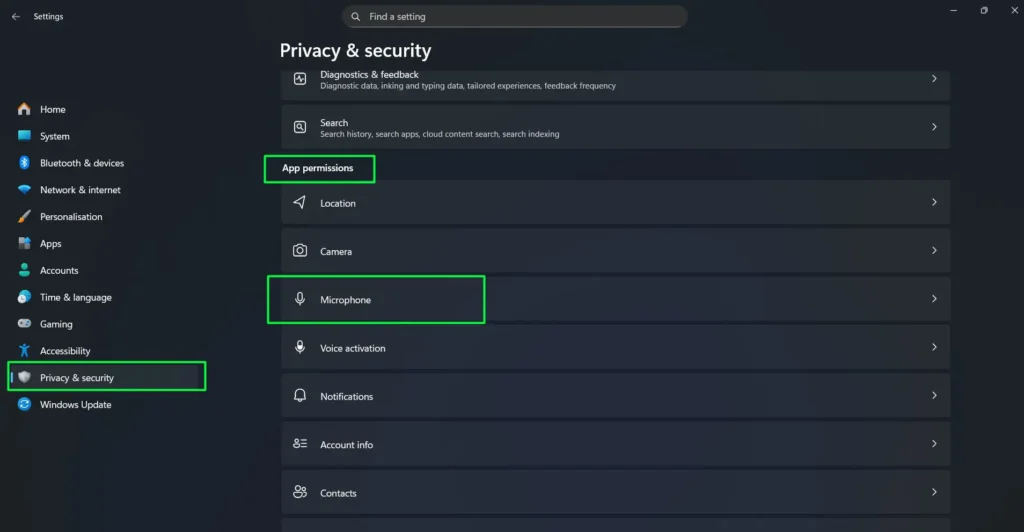
- Open Settings. Click Privacy & security. Scroll to App permissions. Click “Microphone.”
- Confirm “Microphone access” is On. This is the master switch. Off here means nothing gets mic access, no matter what else you set.
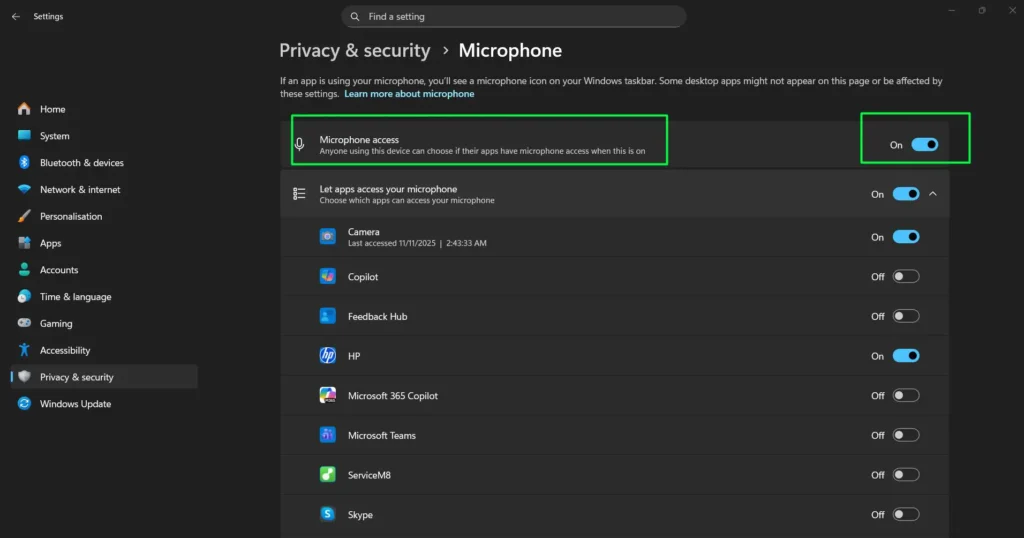
- Turn on “Let apps access your microphone” for Microsoft Store apps — Camera, Copilot, Teams, Skype.
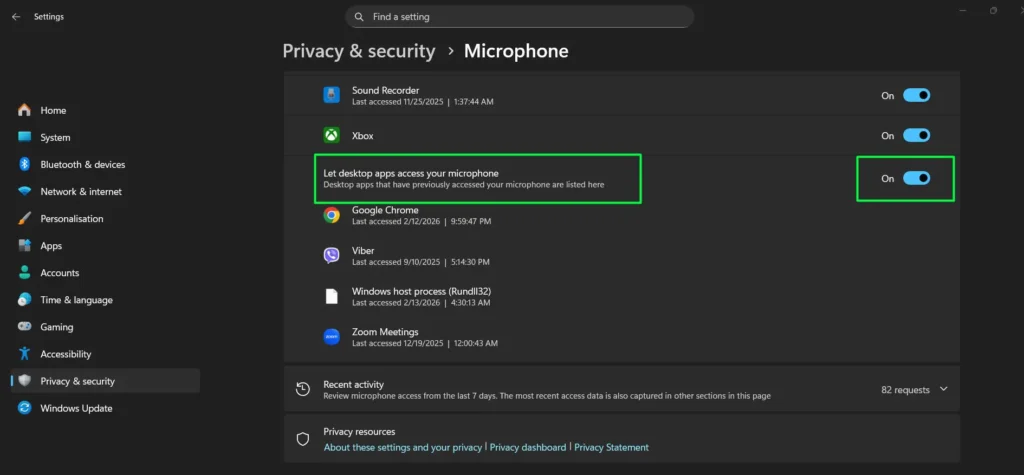
- Scroll down. Turn on “Let desktop apps access your microphone.” This is the toggle almost everyone misses. Mic works in your browser but not in a desktop app like Zoom? This is why.
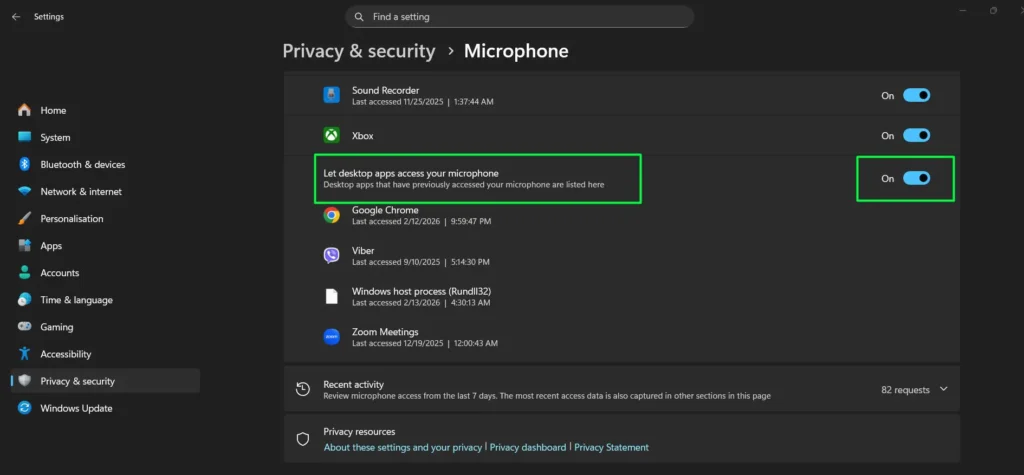
- Check Recent activity to see which apps touched your mic in the last 7 days. Good for catching anything you didn’t expect.
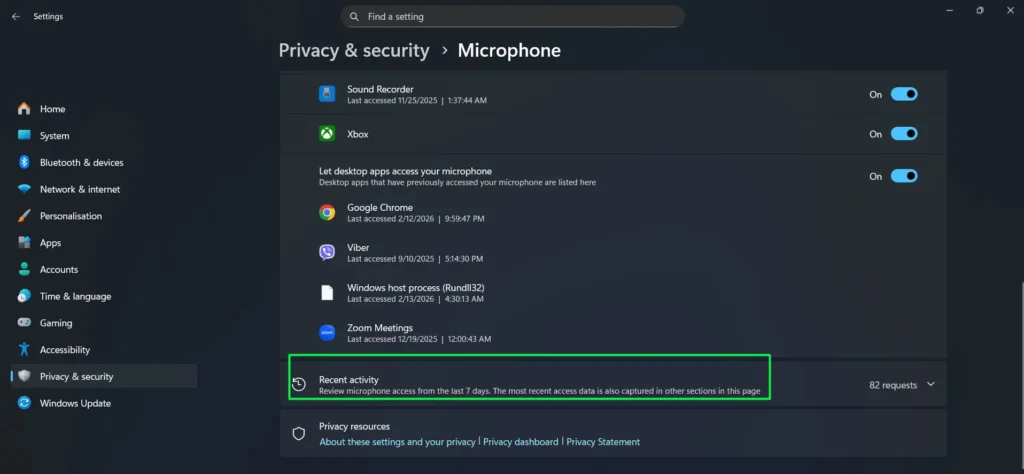
One app still blocked? The individual toggles on that page only cover Microsoft Store apps. Desktop programs are governed by the single “Let desktop apps access your microphone” switch, and some never appear in the list at all depending on how they request the mic. For packaged apps that do expose their own permissions, go to Settings > Apps > Installed apps, find the app, open Advanced options, and turn on Microphone under App permissions.
Clear Microphone Blocks in Your Browser
Here’s the step most guides skip entirely: websites need browser permission even when Windows microphone access is fully enabled. The two systems are separate. If your mic works in Zoom’s desktop app but Google Meet, Riverside, or a browser voice recorder can’t hear you, this is where the block lives.
Google Chrome
- Open the three-dot menu > Settings > Privacy and security > Site settings.
- Under Permissions, click Microphone.
- Set the default behaviour to “Sites can ask to use your microphone.” If this is set to block, no site will ever prompt you.
- Use the dropdown at the top to pick which physical mic Chrome uses — this is separate from your Windows default, and a mismatch here is a very common cause of “it works everywhere except Chrome.”
- Scroll down and check the Not allowed to use your microphone list. Remove the site you’re trying to use.
Microsoft Edge
- Open Settings and more > Settings > Cookies and site permissions > Microphone.
- Turn on “Ask before accessing.”
- For one specific site, go to Settings > Privacy, search, and services > Site Permissions > All sites, choose the site, and set Microphone to Allow.
Firefox
- When a site asks for access, choose Allow and tick Remember this decision if you’ll use it regularly.
- To change a saved choice, open Settings > Privacy & Security > Permissions > Microphone > Settings, set the site to Allow, then click Save Changes.
- Faster route: press Ctrl + I on the page, open Permissions, and clear Use Default for “Use the microphone.”
Quickest way to confirm the browser side is clear: open our online mic test. If it picks up your voice, the browser permission is fine and the problem is elsewhere.
Set Different Mics for Different Apps
Windows won’t natively assign separate mics to separate apps. But Teams, Zoom, Discord, and OBS all have their own device pickers that override the system default — so when a meeting grabs the wrong mic, change it inside the app instead of redoing the Windows default.
Fast route via the taskbar: Press Windows + A for Quick Settings, click the Volume Mixer icon next to the volume slider, and adjust input/output per app right there.
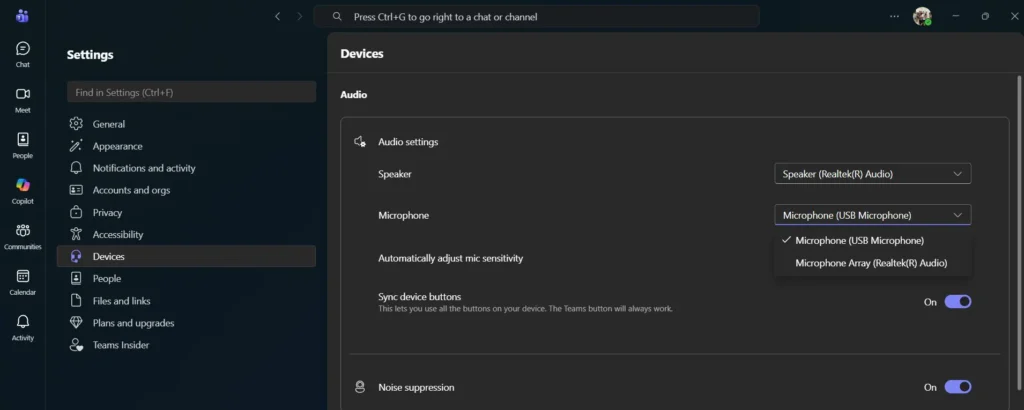
- Microsoft Teams — go to Settings > Devices. Pick your mic from the Microphone dropdown, then use Make a test call to confirm. Mid-meeting, press Windows + Alt + K to mute or unmute.
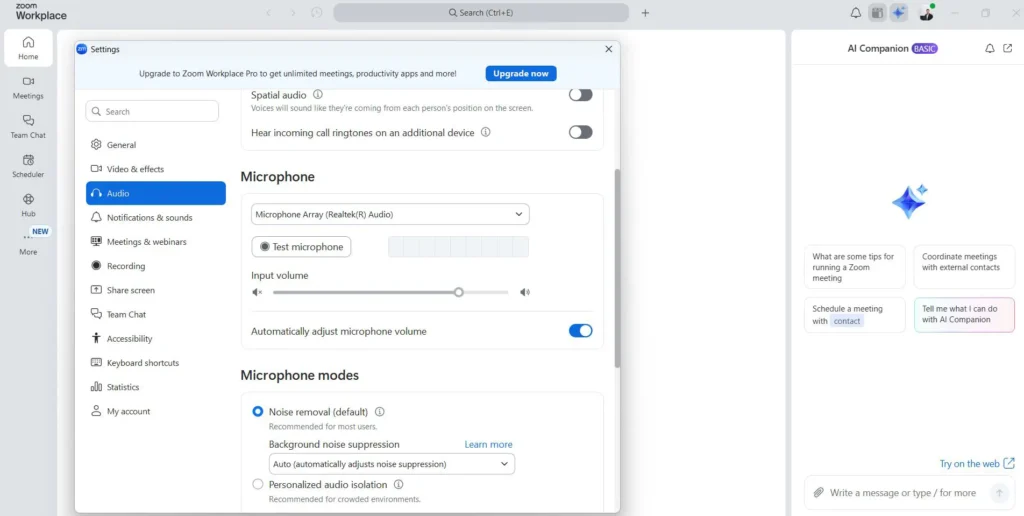
- Zoom — go to Settings > Audio. Set your mic in the Microphone dropdown and use Test Mic. During a call, click the arrow next to the Mute button to switch devices without leaving the meeting.
- Discord — go to User Settings > Voice & Video. Change Input Device to the mic you want Discord to use.
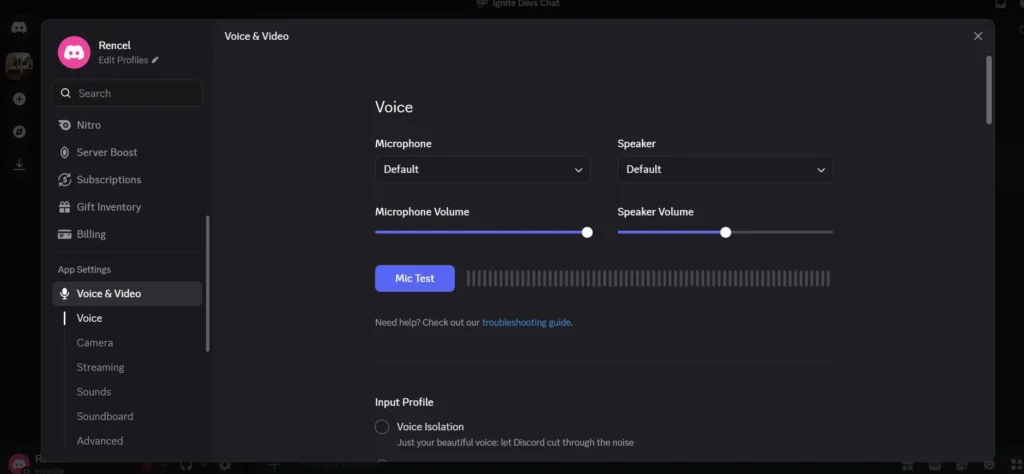
- OBS Studio — go to Settings > Audio. Set Mic/Auxiliary Audio to route specific mics to specific tracks in your recording or stream.
- Multi-app routing — use VoiceMeeter Banana to build virtual inputs that send different physical mics to different apps at the same time.
Voice typing: Windows dictation (Windows + H) has no separate device picker. It uses whatever your Windows default input is, and it needs microphone access enabled in Privacy & security like any other feature.
Dial In Input Volume, Format, and Mic Levels
Set the level wrong and you either sound like you’re across the room or your voice claps and distorts every time you raise it. The same properties page also holds format selection and a built-in test.
- Go to Settings > System > Sound. Scroll to Input. Click the arrow next to your mic to expand it.
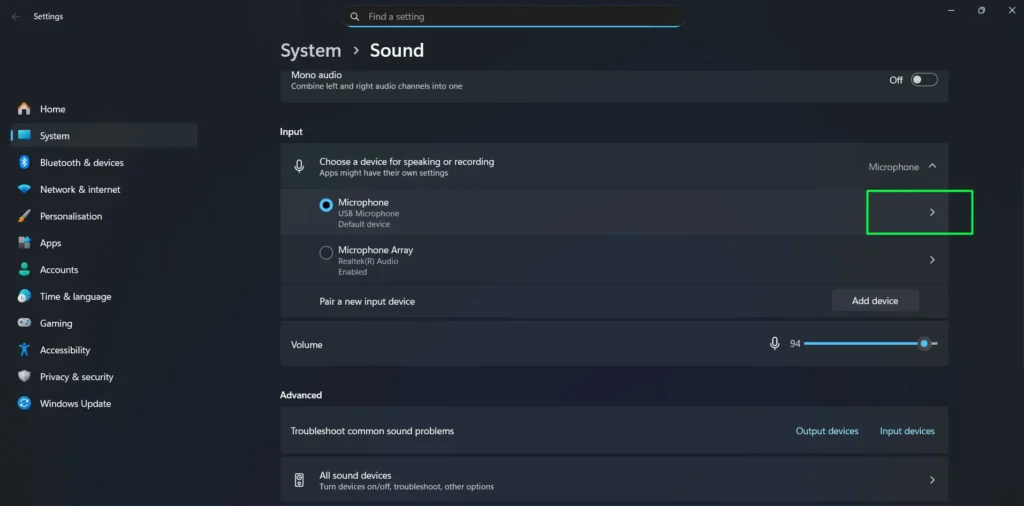
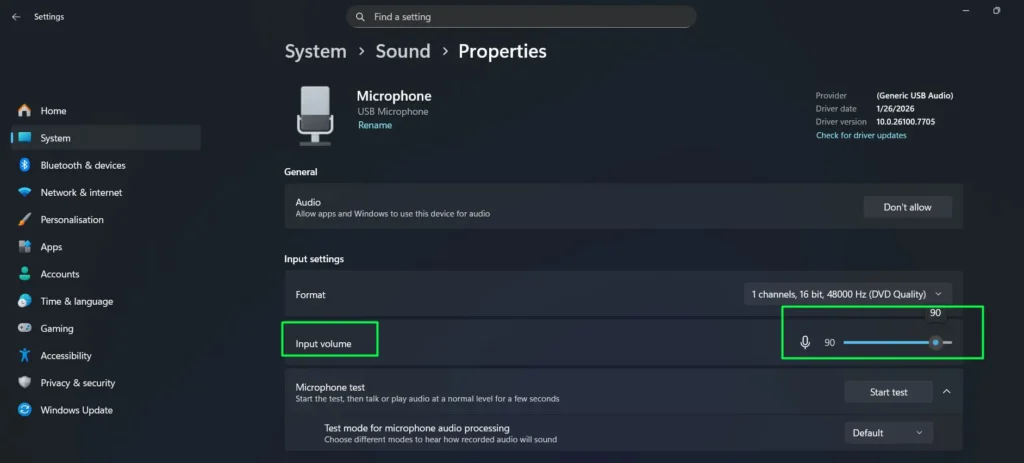
- Drag the Input volume slider. Start around 75–80%. Talk and watch the level bar move.
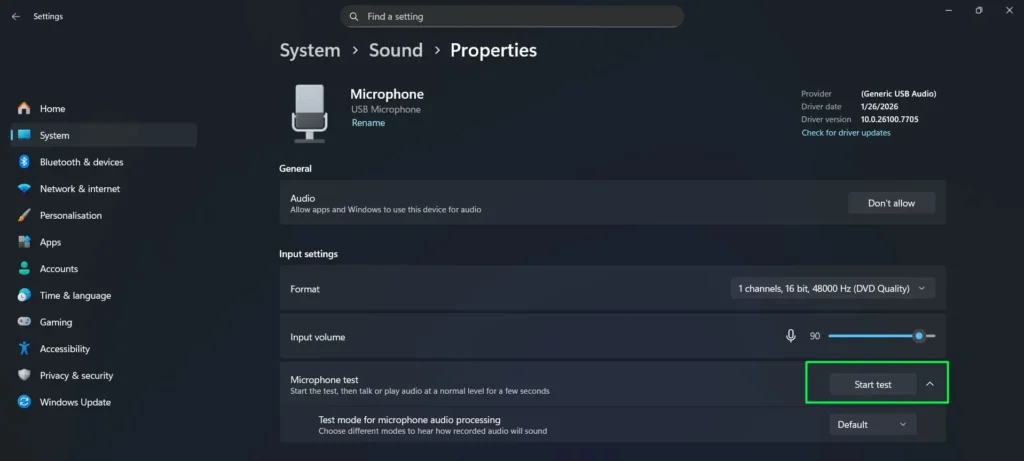
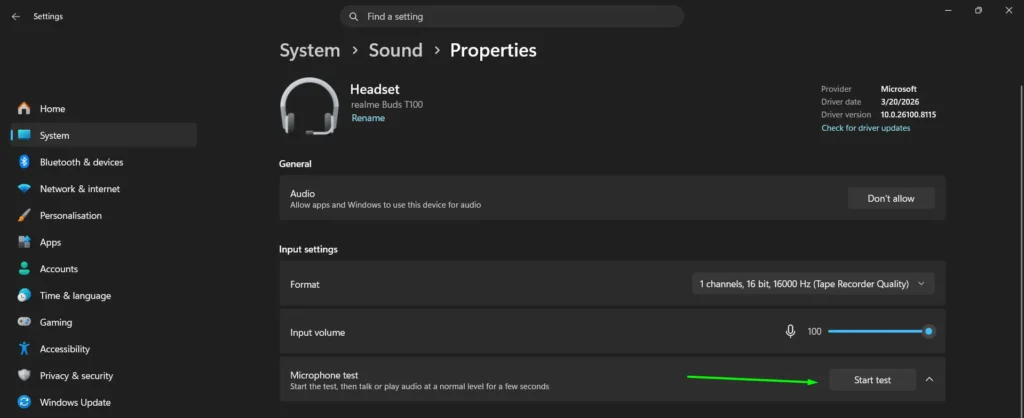
- Click “Start test” under Test your microphone. Talk normally. Watch the progress bar, then hit Stop test to see the percentage Windows captured.
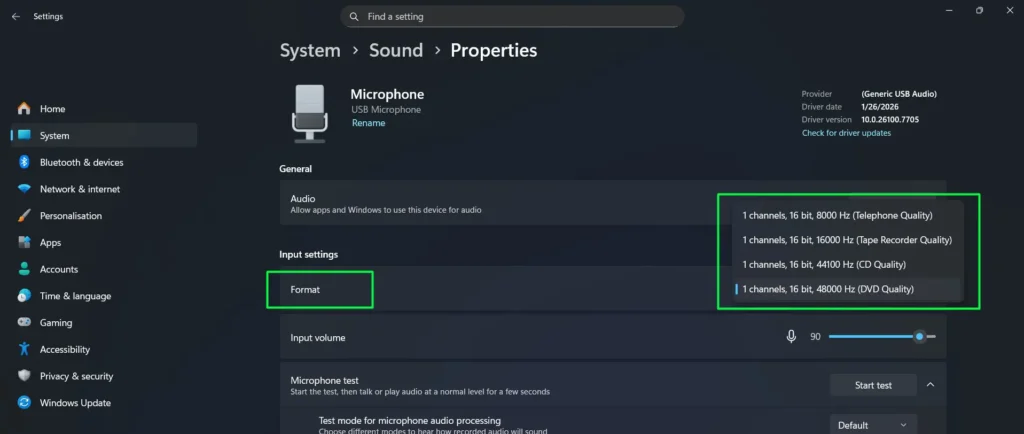
- Open the Format dropdown. For everyday use, pick 1 channel, 16-bit, 48000 Hz. Go higher only if you’re recording professionally. Muffled or tinny audio is very often just a low sample rate here.
- Need finer control? Open mmsys.cpl > Recording tab. Double-click your mic. Go to Levels. You get a main volume slider plus a separate Microphone Boost slider in dB steps. Push boost up in small increments — more boost means more background noise too.
Level bar totally flat? The mic is muted, disabled, or not the default. Skip to troubleshooting below.
Use the Classic Sound Control Panel for Deeper Control
The modern Settings app handles device choice and testing. The old Sound Control Panel is still where you go for three things it doesn’t cover: Exclusive Mode, Microphone Boost, and enabling a disabled device.
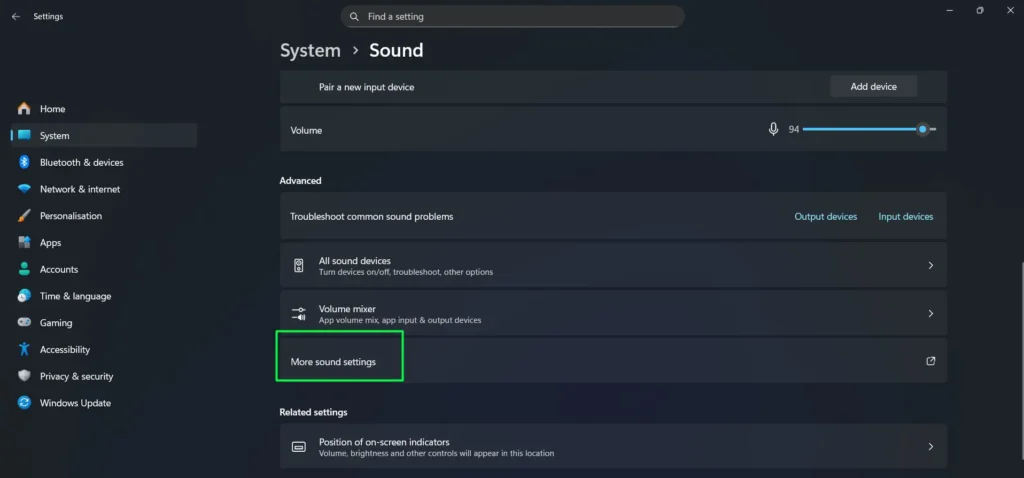
- Press Windows + R. Type mmsys.cpl. Press Enter. Or go to System > Sound and click “More sound settings” at the bottom.
- Click “Recording.” Right-click an empty area. Turn on “Show Disabled Devices” to reveal mics the modern Settings app hides. If yours is greyed out, right-click it and choose Enable.
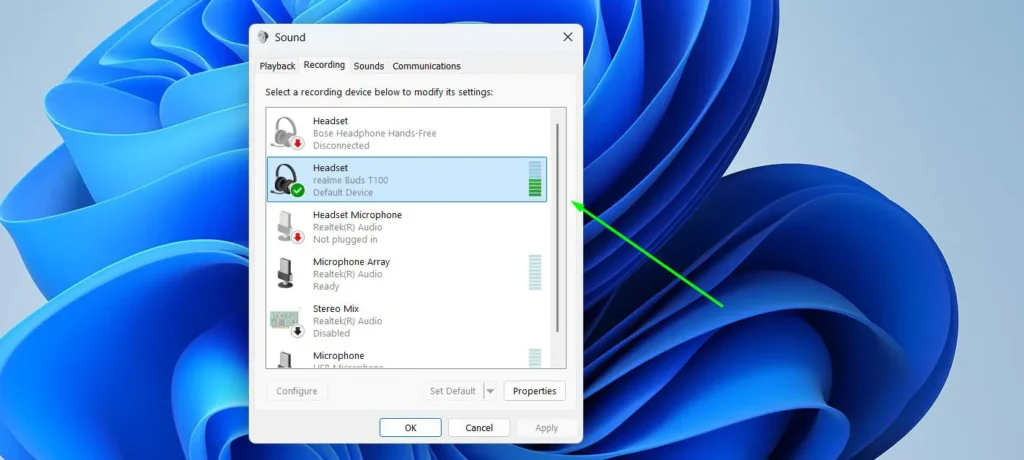
- Find your active mic. It’ll have a green checkmark and animated green bars when it picks up sound. Right-click it and select “Properties.”
- Click through General, Listen, Levels, Enhancements, and Advanced. That’s every option you have.

- In Advanced, uncheck “Allow applications to take exclusive control of this device.” This stops apps from fighting over the mic and locking each other out.
Pro tip for podcasters and streamers: Browser tools like Riverside.fm, Zencastr, or BandLab clash with Exclusive Mode constantly. If Teams is open in the background, it can grab your mic and throw a “Microphone Blocked” error in your browser. Turning off Exclusive Mode is usually the fastest fix.
The General tab shows device info and lets you enable or disable the mic. The Listen tab lets you hear your own mic through your speakers — leave “Listen to this device” unchecked, or you’ll hear yourself echo on every call.
Turn On Mic Enhancements and AI Noise Cancellation
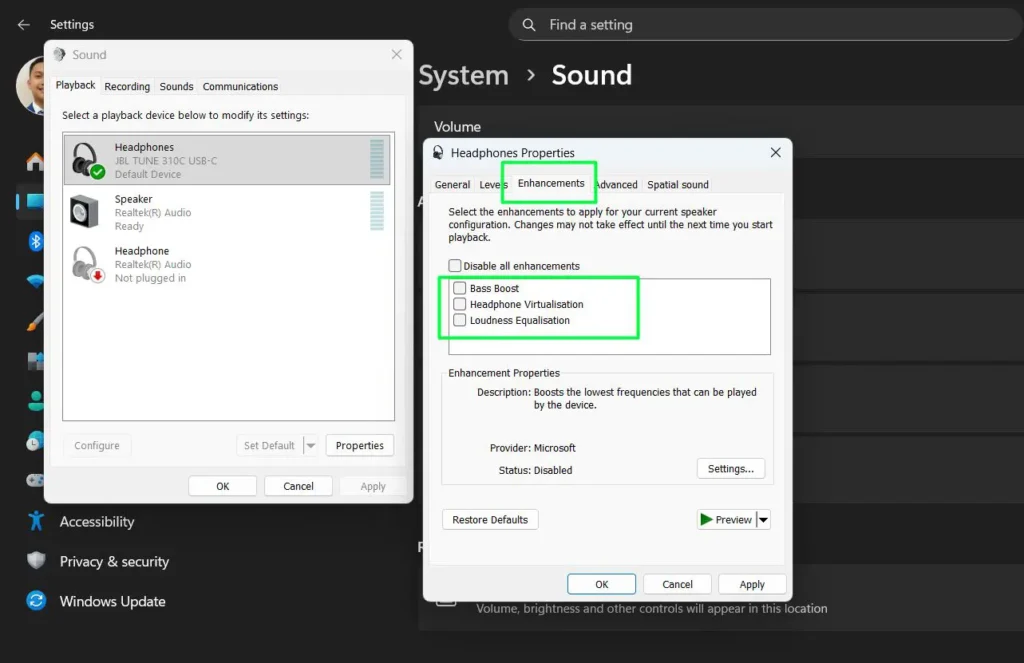
Windows has built-in processing that cleans up your mic signal before apps ever hear it. Note that these live on the Recording tab, not Playback — Playback enhancements like Bass Boost and Headphone Virtualisation only affect what comes out of your speakers and do nothing for your microphone.
- Open mmsys.cpl and click the Recording tab.
- Right-click your microphone. Select Properties.
- Open the Enhancements tab. What’s available depends on your driver — Realtek and Waves expose more than a generic USB device does.
The two that actually matter for a microphone:
- Noise Suppression — cuts steady ambient background noise like fans and air conditioning
- Acoustic Echo Cancellation — stops your speaker audio from looping back through your mic on calls
Tick what you want, click Apply to test it live, then OK to save. Recording in a DAW? Tick “Disable all enhancements” instead, for a clean raw signal you can process yourself.
Copilot+ PC note: Got a Neural Processing Unit (NPU)? You’ll see Windows Studio Effects right in Sound Settings under your mic properties. Flip Voice Focus on for AI noise cancellation — it isolates your voice and strips out typing, dogs, and background chatter without dragging down CPU performance.
Manage Bluetooth Microphones and Headsets
Bluetooth mics play by different rules. They run two audio profiles — A2DP for high-quality stereo playback, and HFP/HSP for mic input at noticeably lower quality. The instant an app grabs your mic, Windows historically switched to HFP, which is exactly why your headset sounds worse the moment a call starts. A Bluetooth headset also has to be paired properly before Windows will list it as an input at all.
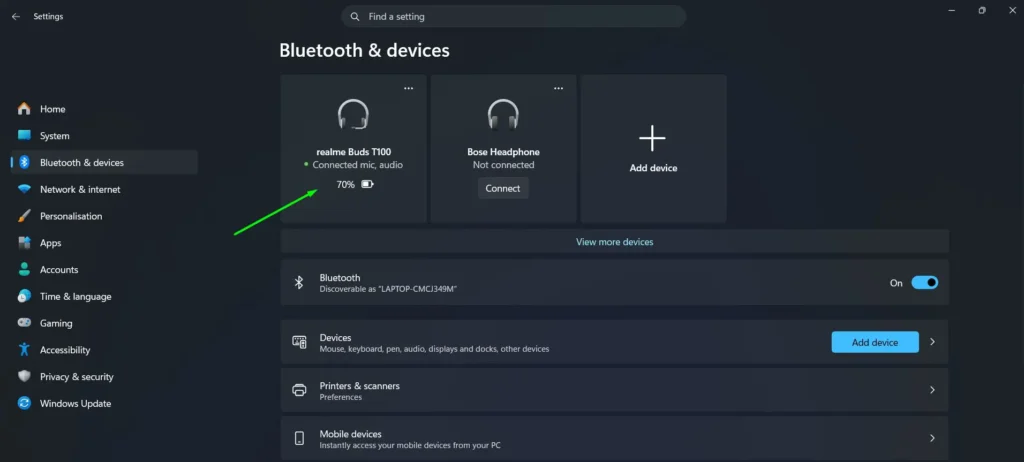
- Go to Settings > Bluetooth & devices. Confirm your headset shows Connected.
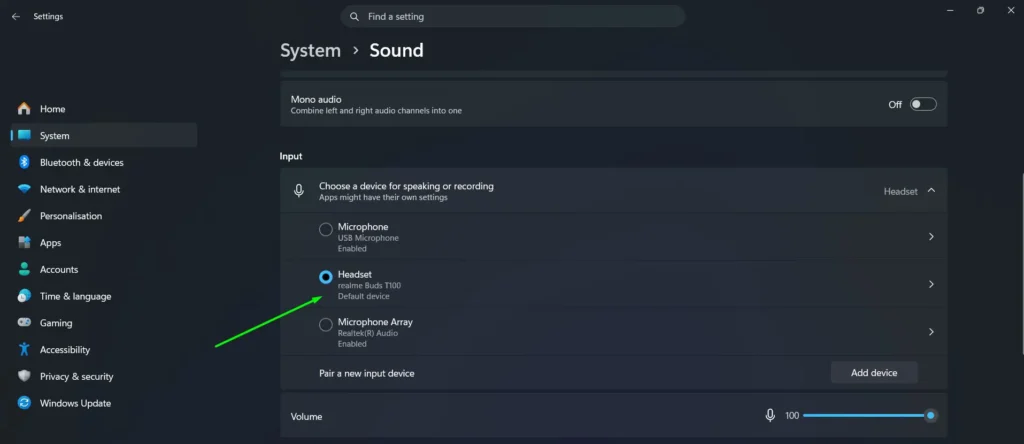
- Open Settings > System > Sound > Input. Your headset should show up as its own input device. Click it to set it as default.
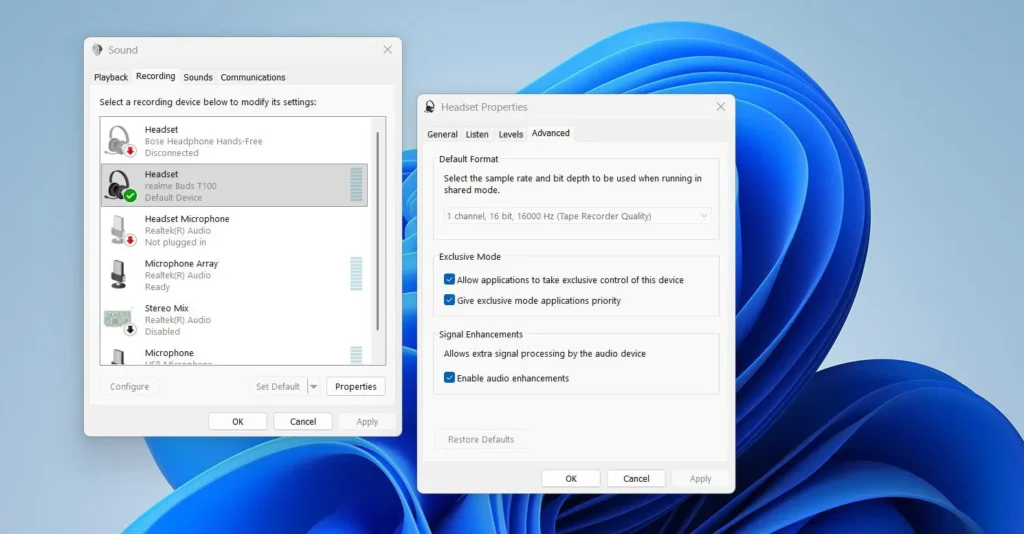
- Not showing up? Press Windows + R > mmsys.cpl > Recording tab. Right-click an empty area, turn on “Show Disabled Devices,” and look for it there. Still missing? Remove the headset in Bluetooth settings and pair it again from scratch.
- To fix the quality drop on calls — open mmsys.cpl > Recording tab, right-click your headset, go to Properties > Advanced, and set Default Format to the highest rate it supports, usually 16000 Hz (16-bit) on the older HFP path.
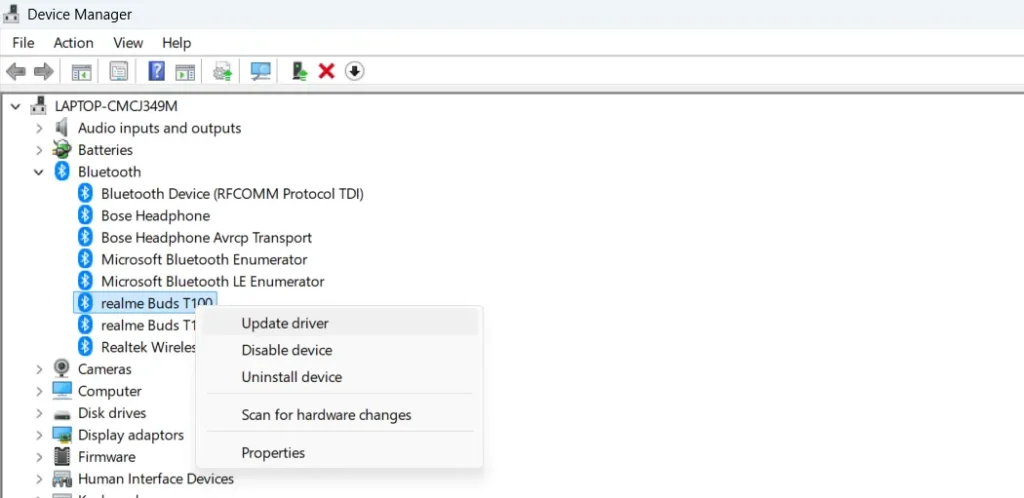
- Headset dropping out or lagging? Open Device Manager. Expand Bluetooth, right-click your adapter, select Update driver.
The newer fix worth knowing about: Microsoft has been rolling out Bluetooth LE Audio support with “super wideband stereo” on recent Windows 11 builds. On supported hardware, this stops the old mono/HFP downgrade entirely — your headset keeps stereo quality even while the mic is active on a call. You need a newer Bluetooth radio, an updated Bluetooth driver, and an LE Audio-capable headset (check the manufacturer’s spec page for “LE Audio” or “LC3” support). If your PC and headset both qualify, this beats fiddling with sample rates manually.
Update or Reinstall Your Microphone Driver
Drivers come last, not first. Only reach for this once the mic is connected, selected, unmuted, tested, and allowed in privacy settings — but an outdated or corrupted audio driver is a genuine cause when a mic simply stops showing up, especially right after a big Windows update or a fresh install.
- Check Settings > Windows Update first, then Advanced options > Optional updates > Driver updates for any audio driver waiting there. Install and restart.
- Press Windows + X. Click Device Manager. Expand “Audio inputs and outputs.” Look for a yellow warning triangle — that flags a driver problem.
- Right-click your mic. Choose Update driver > Search automatically for drivers. Restart once it’s done.
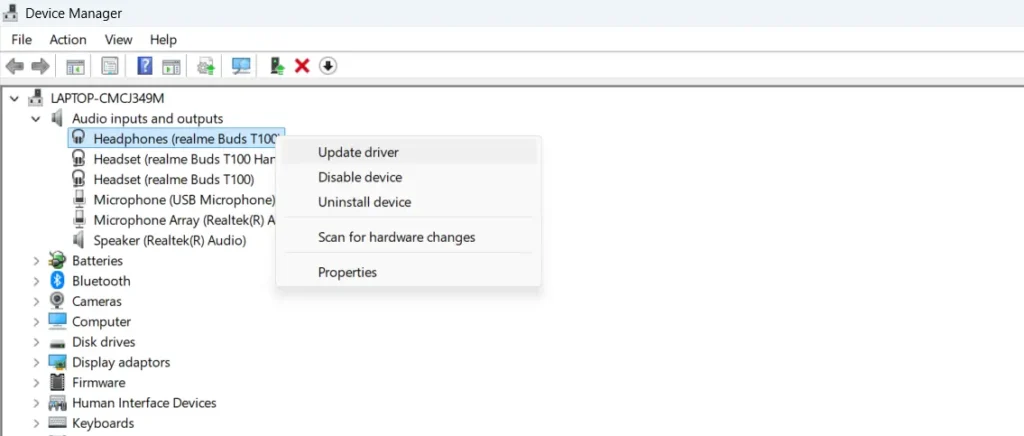
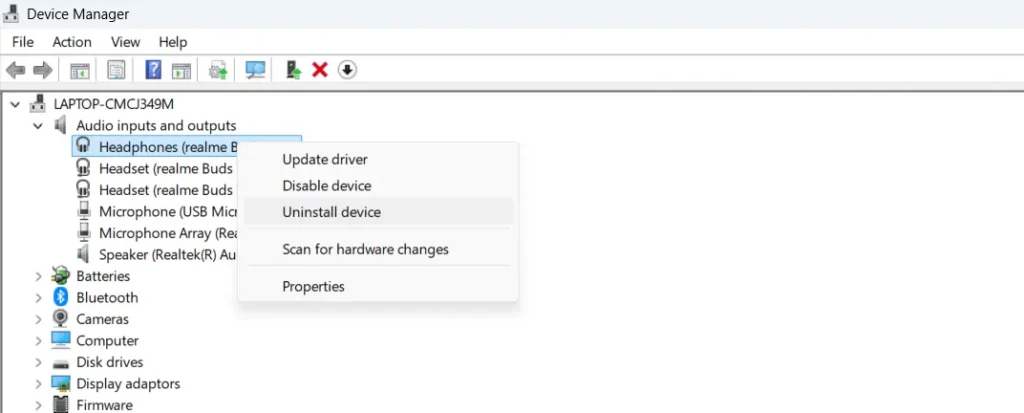
- Still broken? Right-click the device again. Choose Uninstall device. Check “Attempt to remove the driver for this device” before confirming. Restart. Windows reinstalls it fresh.
- Dell, HP, Lenovo, ASUS laptop? Skip Windows Update and grab the official Realtek or Waves driver straight from your manufacturer’s support page for your exact model. These almost always fix what Windows Update misses.
Restart the Windows Audio Service
Mic vanished from Settings even though your drivers and permissions look fine? The Windows Audio service probably crashed in the background. Restarting it takes under a minute.
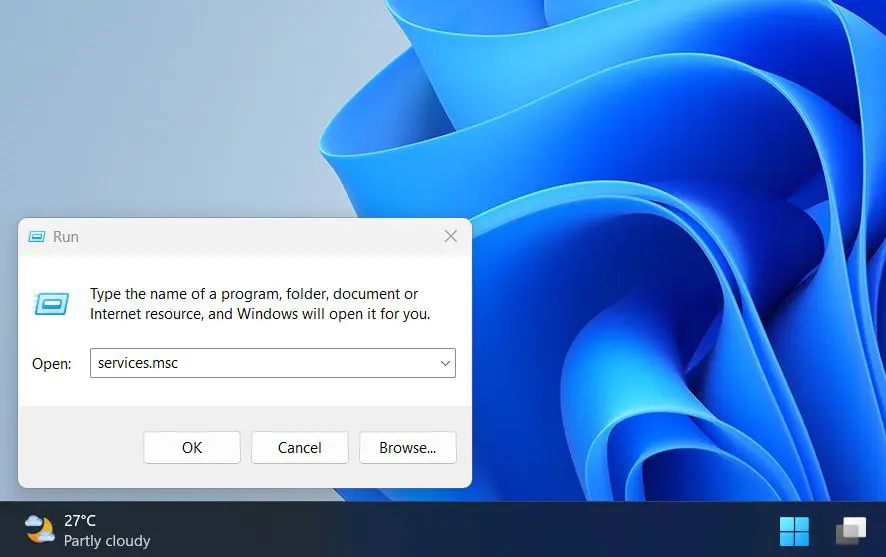
- Press Windows + R. Type services.msc. Press Enter.
- Scroll to Windows Audio. Double-click it. Click Stop. Wait five seconds. Click Start. Confirm Startup type is Automatic — switch it if it’s set to Disabled.
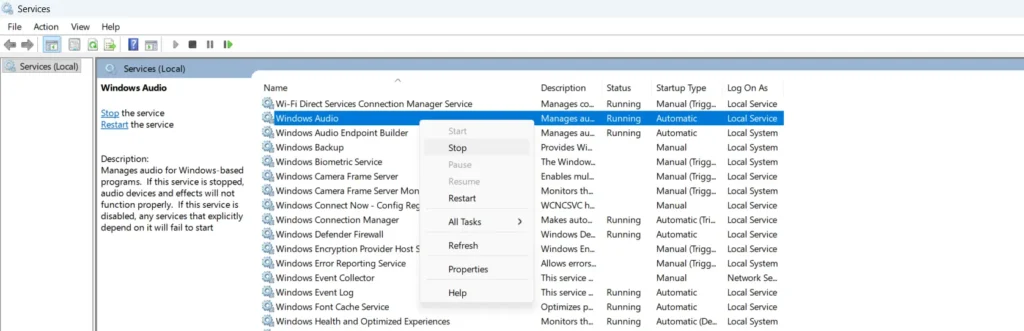
- Do the same for Windows Audio Endpoint Builder. Right-click. Select Restart.
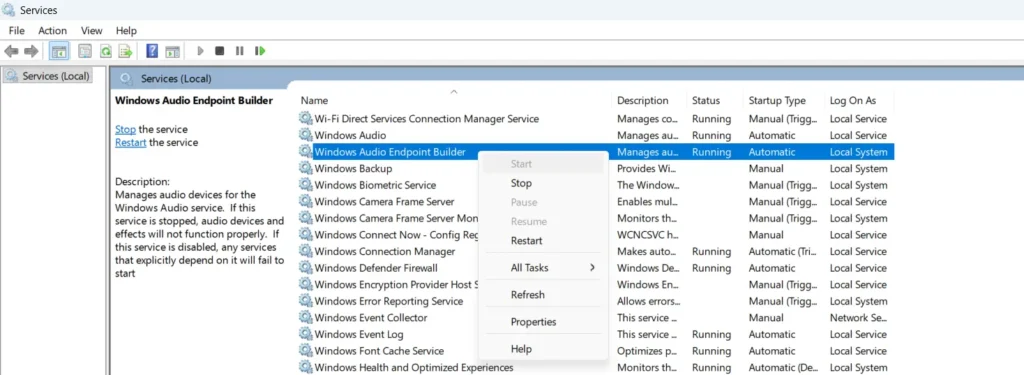
- Faster route — press Windows + X, open Terminal (Admin), type
net stop audiosrv && net start audiosrv, and press Enter. Your devices should reappear in seconds.
Windows Audio set to Disabled instead of Automatic is exactly what causes the “no audio devices installed” error after a Windows reinstall. Switch it to Automatic and start the service — problem solved.
Test Your Microphone Before It Matters
Changed any settings? Test the mic before your meeting, recording, or stream starts — not during it. Three quick ways to confirm it works.
- Go to Settings > System > Sound. Scroll to Input. Click the arrow next to your mic. Click “Start test,” talk, watch the bar. Click “Stop test” — Windows shows the percentage of maximum input volume it caught. This is the same check Microsoft recommends running first before you troubleshoot any app.
- Open the Sound Control Panel via mmsys.cpl > Recording tab. Talk and watch for animated green bars next to your mic. Moving bars mean the right device is active.
- Record yourself and listen back. A level bar only proves signal exists — playback proves it actually sounds right. Use Sound Recorder from the Start menu, or our online voice recorder if you want to test the browser path at the same time.
Bar stays flat no matter what you do? The mic is muted, disabled, or isn’t the default input. Head to the troubleshooting section below.
Fixing the Most Common Windows Microphone Problems
Even with everything set up right, mics still act up. Here’s exactly what to do for each common failure.
Run the built-in troubleshooter first: Go to Settings > System > Troubleshoot > Other troubleshooters, find Recording Audio, click Run. On Windows 11 24H2 and newer, you can also hit the Copilot key and type “My microphone isn’t working” — Copilot will jump straight to the troubleshooter or the right settings page.
Microphone Not Recognized At All
- Check the physical connection and any hardware mute switch on the mic or headset. Unplug and reconnect. USB mic? Try a USB 3.0 port directly on the motherboard, not through a hub.
- Open mmsys.cpl > Recording tab. Right-click an empty area. Turn on “Show Disabled Devices.” If your mic shows greyed out, right-click it and hit Enable.
- Check Settings > Privacy & security > Microphone. All three toggles need to be on.
- Open Device Manager. Expand “Audio inputs and outputs.” Look for a yellow warning symbol. Right-click the flagged device and choose Update driver or Uninstall device, then reconnect the mic so Windows reinstalls it clean.
- Test the mic on another computer. Works there? It’s a Windows setting issue, not the hardware. Fails there too? Time to replace the mic.
Microphone Volume Too Low
- Confirm the mic isn’t muted — check the hardware switch, the system tray, and inside the app itself.
- Open the Sound Control Panel. Go to Recording. Right-click your mic. Select Properties.
- Go to Levels. Raise volume and boost slowly. More boost also means more background noise.
- Move the mic physically closer to your mouth. This does more than any slider.
Echo or Feedback During Calls
- Open mic Properties in the Sound Control Panel. Go to Listen. Make sure “Listen to this device” is unchecked — leaving it on sends your mic straight through your speakers and creates the feedback loop.
- Turn down speaker volume, or switch to headphones, so audio stops re-entering the mic.
- Turn on Acoustic Echo Cancellation in the Enhancements tab if your device supports it.
Windows Keeps Switching Your Default Mic
- Open mmsys.cpl > Recording tab. Set your mic as both Default Device and Default Communication Device.
- Open mic Properties > Advanced. Uncheck “Allow applications to take exclusive control of this device.” This stops new devices from stealing your default.
- Re-set your main mic as default any time you connect a new audio device — each new connection can trigger Windows to reassign the default on its own.
Microphone Broke After a Windows Update
- Check your default input is still set right in Settings > System > Sound.
- Check Privacy & security > Microphone — updates reset all three toggles more often than you’d think.
- Open Device Manager. Find your mic under “Audio inputs and outputs.” Right-click. Select Update driver.
- Restart Windows Audio and Windows Audio Endpoint Builder in services.msc. Still nothing? Grab the latest driver directly from your manufacturer’s site.
When a Work or School PC Locks the Setting
On a managed PC, an administrator can control microphone access at the policy level — and no amount of clicking will override it. You’ll usually see a greyed-out toggle, a “Some settings are managed by your organization” banner, or a Teams option that simply isn’t there.
If Microphone access is locked, an app toggle is unavailable, or a meeting app refuses mic access after everything above checks out, contact your IT support. Send them four things and you’ll get a much faster answer: the PC name, the microphone name as it appears in Sound settings, the app that’s blocked, and the exact setting or menu that’s locked.
Get Better Mic Audio Without Buying New Gear
Get Your Input Level Right
Too low sounds distant and thin. Too high clips and distorts. Use the live test bar in Sound Settings before anything important. Aim for the bar sitting around 70–80% when you’re talking at normal volume.
Cut Background Noise
Turn on Noise Suppression in the Enhancements tab and keep mic boost as low as you can — boost amplifies everything, not just your voice. The single biggest improvement is just moving the mic closer to your mouth. For genuinely noisy environments, third-party tools like Krisp or NVIDIA Broadcast still beat Windows’ built-in processing by a real margin.
Set Array Mics to Directional Mode
Most newer laptops have array mics — several microphones built into the display bezel. In mic properties, switch between 360-degree mode (picks up the whole room) and Directional/Personal mode (focuses on whoever’s sitting in front of the screen). Flipping to Directional is one of the quickest wins for call quality on a laptop.
Pick the Right Audio Format for the Job
Match format to what you’re actually doing. Calls, gaming, and streaming: 16-bit, 48000 Hz — solid quality, light on the CPU. Podcasting and pro recording: 24-bit, 48000 Hz or higher — more room to edit later.
AI transcription tip: Local tools like Whisper and Windows Live Captions are everywhere now. Keep your mic at least at 16-bit, 48000 Hz. Drop to telephone-quality 8000 Hz and Copilot voice commands, plus most transcription tools, start making mistakes.
Write Down Your Working Settings
Note your best volume, boost, format, and active enhancements for each mic. When a Windows update wipes everything, you restore it in minutes instead of troubleshooting from zero. Retest your setup after every major update — audio settings get reset far more often than people expect.
Frequently Asked Questions
How do I manage audio input devices in Windows 11?
Right-click the speaker icon and open Sound settings. Scroll to Input, click your mic to set it as default, then click the arrow next to it to adjust volume, run a test, and change the audio format. To see disabled or hidden devices, press Windows + R, type mmsys.cpl, open the Recording tab, right-click an empty area, and turn on Show Disabled Devices.
How do I fix microphone permissions in Windows 11?
Go to Settings, then Privacy and security, then Microphone. Turn on all three toggles: Microphone access, Let apps access your microphone, and Let desktop apps access your microphone. That third toggle is the one people miss, and it’s usually why a desktop app like Zoom can’t find the mic. On Windows 10 the same page sits under Settings, then Privacy, then Microphone.
Why does my browser still ask for microphone permission after I enabled it in Windows?
Windows microphone access and browser site permission are two separate systems, so enabling the mic in Windows Settings grants no website access on its own. Allow the specific site in Chrome, Edge, or Firefox. In Chrome, also check that its own microphone dropdown under Site settings is pointed at the right physical device — a mismatch there is a common cause of a mic that works everywhere except the browser.
Why does my microphone sound muffled in Windows 11?
Open mic Properties through mmsys.cpl, go to Advanced, and set the format to 16-bit 48000 Hz — a low sample rate is the usual cause. Also check Enhancements, since stacking too many effects at once can make audio sound worse rather than better. If it’s a Bluetooth headset, the muffling is the HFP profile switching in, not a setting you can fix on the format dropdown alone.
Why is my USB microphone not showing up in Windows 11?
Try a different USB 3.0 port directly on the motherboard instead of a hub. Then open mmsys.cpl, go to the Recording tab, right-click an empty area, and turn on Show Disabled Devices — a USB mic is often connected but disabled rather than actually missing. Check for a physical mute switch on the mic itself before assuming Windows is at fault.
Why does Windows keep switching my default microphone automatically?
Windows reassigns the default input every time a new audio device connects. Open mmsys.cpl, set your mic as both Default Device and Default Communication Device, then open its Properties and uncheck Allow applications to take exclusive control of this device under Advanced. Re-set your main mic after connecting any new headset, webcam, or dongle.
Can I use two microphones at the same time in Windows 11?
Windows only runs one default input at a time on its own. To combine multiple mics into a single input, use VoiceMeeter Banana — assign your mics to Hardware Input 1 and 2, then set VoiceMeeter Input as your Windows default. Zoom, Teams, and OBS will all pick up the combined signal.
Why does my Bluetooth headset microphone quality drop on calls?
Classic Bluetooth switches from the high-quality A2DP profile to the lower-quality HFP profile the moment an app requests mic access. Open mmsys.cpl, go to Recording, open your headset Properties, go to Advanced, and set Default Format to 16000 Hz for the best quality that profile allows. If both your PC and headset support Bluetooth LE Audio, updating Windows and your Bluetooth driver can eliminate this drop entirely instead of just working around it.