
Learning how to fix headphones not working in Zoom usually takes only a couple of minutes, because the cause is almost always a wrong audio setting rather than a broken device. Here is a clear, direct path to get sound back in your headphones.
Key Takeaways
- Zoom has its own speaker and microphone selection, separate from the computer’s default device.
- Choosing the correct headphones in Zoom’s Audio settings fixes most cases.
- Joining with computer audio, checking volume, and updating Zoom solve most of the remaining ones.
- Bluetooth headphones may need to be reconnected before Zoom can detect them.
Step-by-Step Guide to Get Headphones Working in Zoom
Method 1: Select Your Headphones as the Speaker in Zoom
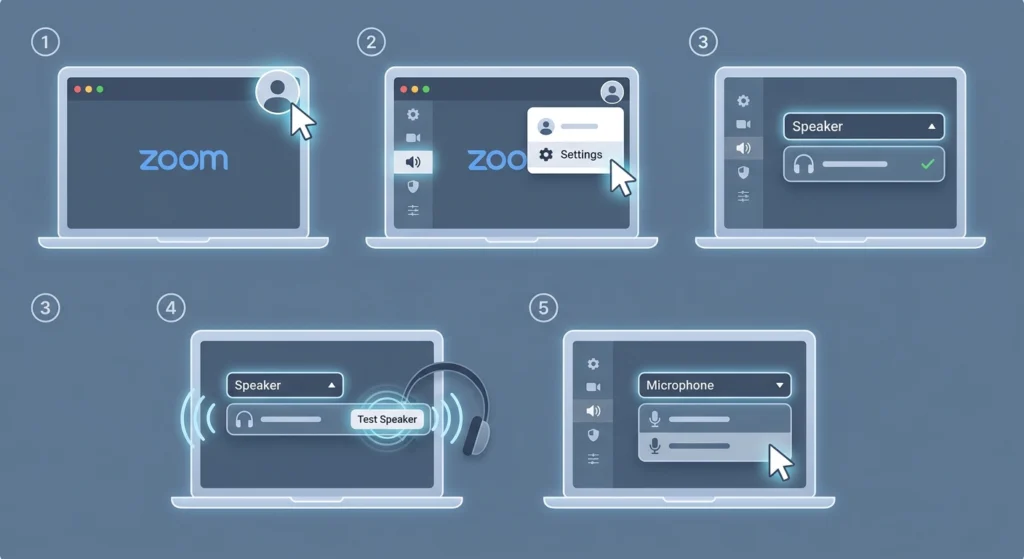
Zoom does not always follow the device your computer is using. Picking the headphones manually is the most common fix.
- Step 1: Open the Zoom desktop app and click your profile picture in the top right corner.
- Step 2: Click Settings, then choose Audio from the left menu.
- Step 3: Open the Speaker drop-down menu and select your headphones from the list.
- Step 4: Click Test Speaker. A short tone should play through the headphones.
- Step 5: Open the Microphone drop-down menu and select the headphone microphone if you plan to speak.
If a meeting is already running, click the small arrow next to the Mute button and choose your headphones under Select a Speaker. The change applies right away.
Method 2: Join the Meeting With Computer Audio
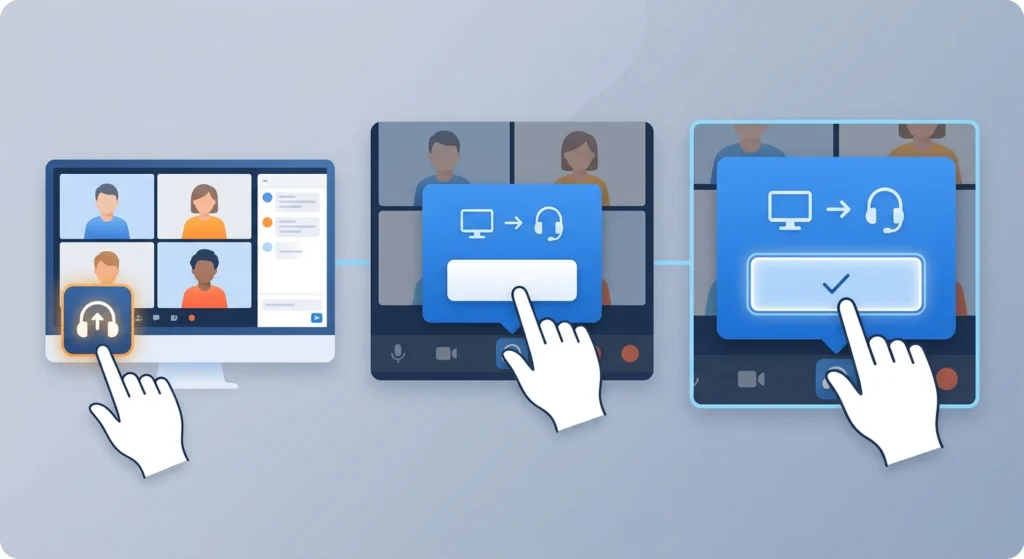
Sometimes the headphones are fine, but audio was never connected to the meeting. This happens when the pop-up window is closed too quickly.
- Step 1: Look at the bottom left of the meeting window for the Join Audio button, which appears when audio is not connected.
- Step 2: Click Join Audio.
- Step 3: Select Join with Computer Audio.
Once connected, the button turns into a Mute or Unmute microphone icon.
Method 3: Check the Volume in Zoom and on the Computer
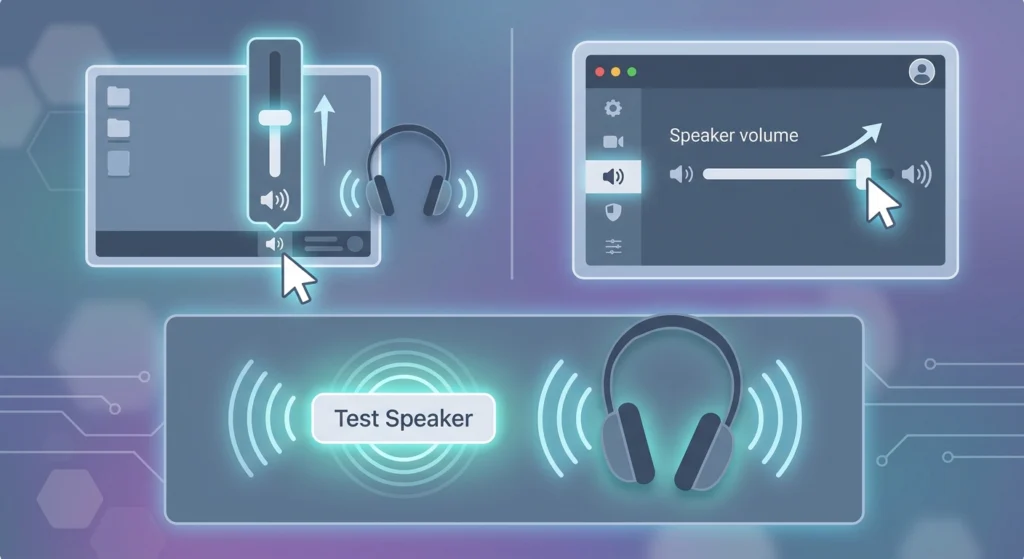
A muted or very low volume level can look exactly like broken headphones. Both the system volume and the Zoom volume matter.
- Step 1: Raise the main volume on the computer using the speaker icon in the taskbar on Windows or the menu bar on Mac.
- Step 2: Open Zoom Settings, then Audio, and drag the Speaker volume slider upward.
- Step 3: Click Test Speaker again to confirm the sound is audible.
Pro-Tip: Always run Test Speaker before an important meeting. It takes five seconds and confirms that Zoom is sending sound to the headphones and not to the laptop speakers.
Method 4: Set the Headphones as the Default Output Device
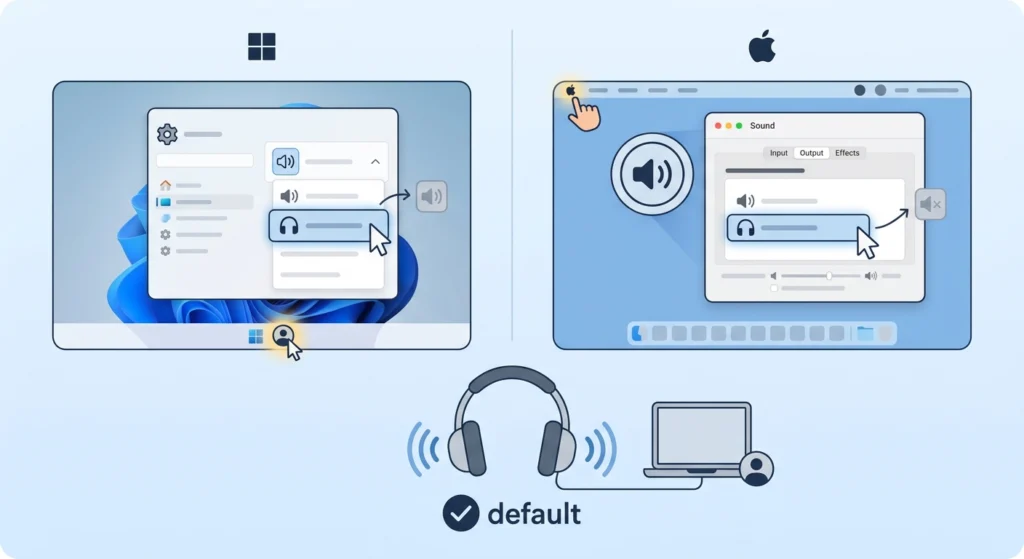
If Zoom is set to use the system default, the computer needs to point to the headphones first. Windows 11 users can follow this guide on adjusting audio output settings to choose the right device. On Mac, open System Settings, click Sound, select the Output tab, and pick the headphones from the list.
After changing the default device, return to Zoom and set the Speaker option to Same as System, or pick the headphones by name.
Method 5: Reconnect Bluetooth Headphones
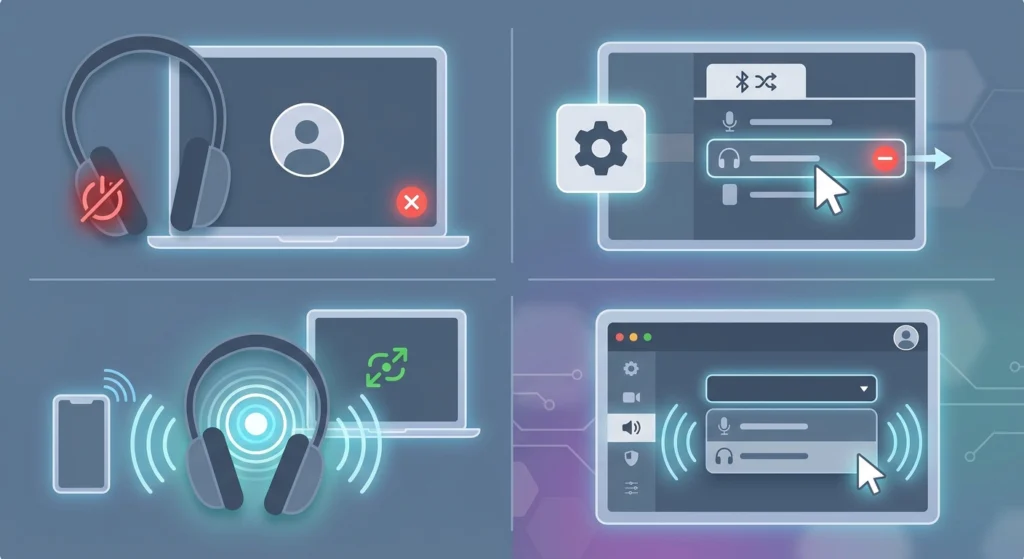
Wireless headphones can stay paired but lose their active connection, which leaves Zoom with nothing to detect. Removing the device and pairing it again clears this up. This walkthrough on how to re-pair Bluetooth earbuds for stereo sound on Windows covers the process in detail.
- Step 1: Turn off the headphones and close Zoom completely.
- Step 2: Open Bluetooth settings on the computer and remove the headphones from the paired devices list.
- Step 3: Put the headphones in pairing mode and connect them again.
- Step 4: Reopen Zoom and select the headphones in Settings, then Audio.
Method 6: Allow Microphone Access for Zoom
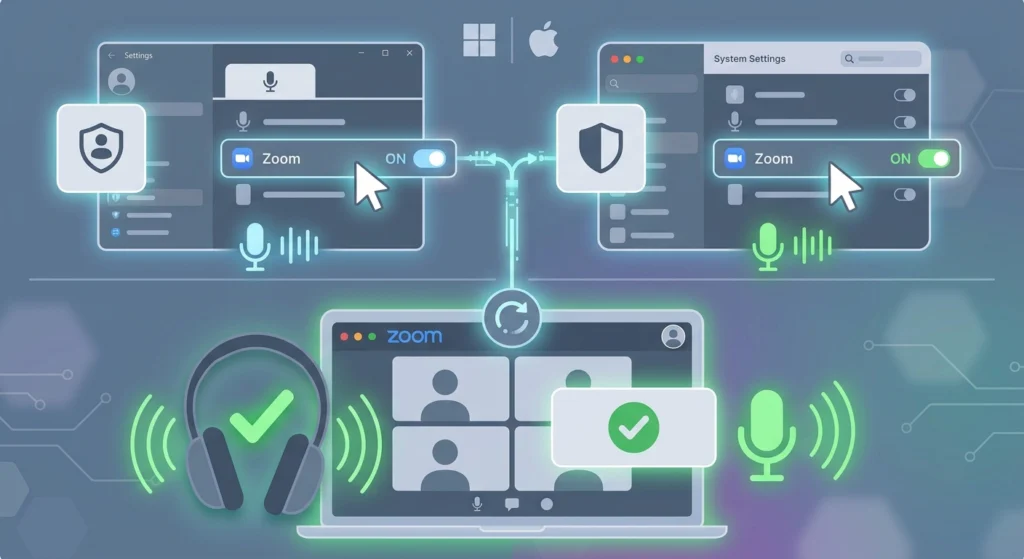
When the headphones play sound but the microphone is silent, a blocked permission is the usual reason.
- Step 1: On Windows 11, open Settings, then Privacy and security, then Microphone, and make sure microphone access is turned on and Zoom is allowed.
- Step 2: On Mac, open System Settings, then Privacy and Security, then Microphone, and switch on the toggle next to Zoom.
- Step 3: Restart Zoom so the new permission takes effect.
If the headset microphone still does not appear, this guide on resolving microphone detection problems on Windows 11 explains what to check next.
Method 7: Update the Zoom App
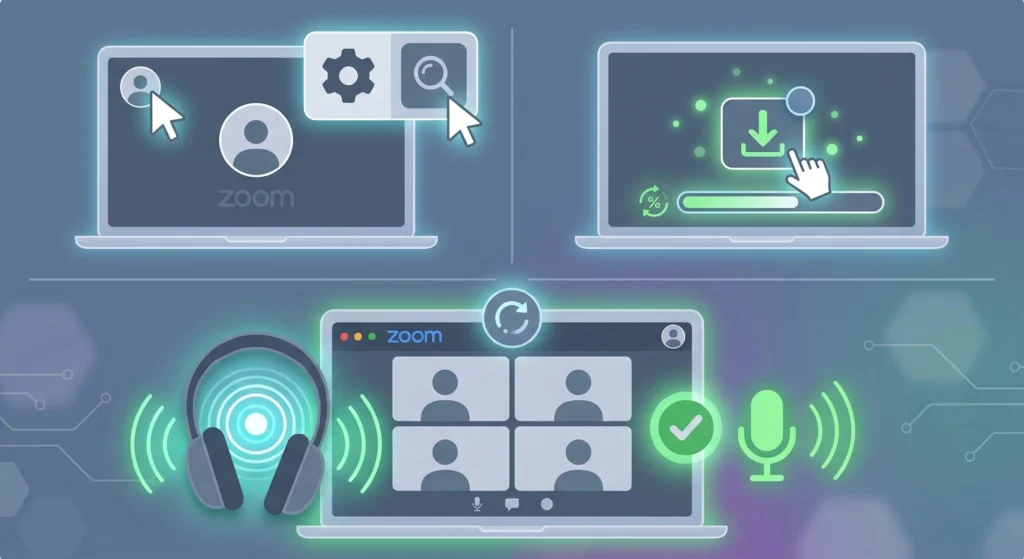
An outdated version of Zoom can cause device detection problems that newer releases have already corrected.
- Step 1: Open Zoom and click your profile picture.
- Step 2: Click Check for Updates.
- Step 3: Install any available update, then restart the app and test the headphones again.
Common Problems and Quick Answers
Headphones Do Not Appear in the Zoom Speaker List
Unplug the headphones or turn off Bluetooth, then reconnect them. Close Zoom fully and reopen it so the device list refreshes. For Windows 11 users, managing audio input devices helps confirm the headset is enabled.
Sound Plays Through Laptop Speakers Instead
This means Zoom is pointed at the wrong output. Open Settings, then Audio in Zoom and select the headphones by name in the Speaker menu.
Others Can Hear You but You Cannot Hear Them
The microphone is working, but the speaker output is not. Repeat Method 1 and Method 3, and make sure the volume slider is not set to zero.
Audio Settings Seem Completely Scrambled
If nothing responds after changing several options, restoring the defaults can help. The guide on resetting audio settings for Windows 11 walks through a clean reset.
Tips for Reliable Headphone Audio in Zoom
- Connect the headphones before opening Zoom so the app detects them at launch.
- Use the Test Speaker and Test Mic buttons before every important call.
- Keep wireless headphones charged. A low battery can cause dropouts or sudden disconnections.
- Close other apps that use audio, such as music players, so they do not compete for the device.
- Pick the headphones by name in Zoom rather than relying on Same as System when switching between devices often.
Pro-Tip: When headphones are used both for listening and speaking, Bluetooth models may lower sound quality while the microphone is active. This is normal behavior for wireless headsets, and a wired connection avoids it completely.
Frequently Asked Questions
Why are headphones not working in Zoom but work everywhere else?
Zoom keeps its own audio device selection. Open Settings, then Audio, and choose the headphones in the Speaker and Microphone menus.
How can headphones be tested in Zoom?
Open Settings, then Audio, and click Test Speaker. A tone should play through the headphones. Use Test Mic to check the microphone as well.
Is computer audio required to hear a Zoom meeting?
Yes. If audio is not connected, click Join Audio at the bottom left of the meeting window and select Join with Computer Audio.
Why does Zoom use laptop speakers instead of headphones?
The Speaker option in Zoom is probably set to a different device. Select the headphones by name from the Speaker drop-down menu.
Can Zoom detect Bluetooth headphones?
Yes, as long as the headphones are connected to the computer. If they are not listed, remove and pair them again, then restart Zoom.
Why can others not hear the headphone microphone in Zoom?
The microphone may be blocked by system privacy settings or set to the wrong device. Allow Zoom to access the microphone and select the headset microphone in Zoom Audio settings.
Do wired headphones need any special setup in Zoom?
No special setup is needed. Plug them in, then select them in the Speaker menu in Zoom Audio settings if they are not chosen automatically.
Does updating Zoom help with headphone problems?
It can. Newer versions include fixes for device detection, so clicking Check for Updates from the profile menu is a quick and safe step.
Can headphones be changed during a Zoom meeting?
Yes. Click the small arrow next to the Mute button and choose a different device under Select a Speaker. The switch happens immediately.