
HyperX Cloud III Wireless cutting out during games is one of those problems that always seems to strike mid-fight or right before a clutch round. The good news is that the cause is almost always something simple, like a crowded USB port, a weak signal path, or an outdated firmware, and each one can be fixed in a few minutes.
Key Takeaways:
- Plug the USB-C dongle into a rear USB port, ideally with an extension cable, to keep it away from interference.
- Keep a clear line of sight between the dongle and the headset.
- Update the headset and dongle firmware through the official HyperX NGENUITY software.
- Turn off USB power saving in Windows so the dongle is never put to sleep.
- Charge the headset fully before testing, since a low battery can cause unstable audio.
Step-by-Step Guide to Stop HyperX Cloud III Wireless Cutting Out
Work through the fixes below in order. Most people find that the first two solve the problem, so test a game session after each one before moving on.
Fix 1: Move the Dongle to a Better USB Port
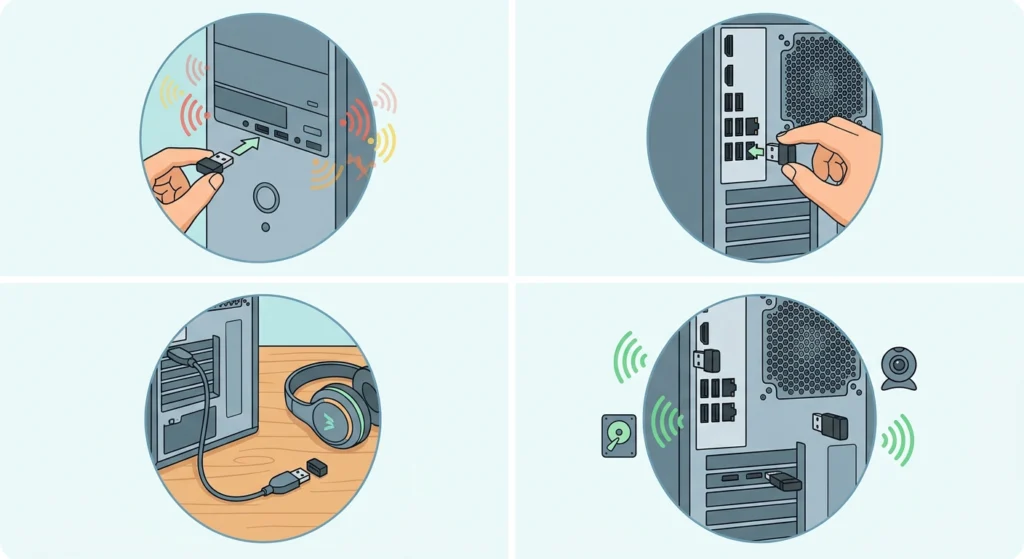
The dongle talks to the headset over the 2.4GHz band, and USB 3.x ports, nearby hubs, and other wireless gear can crowd that space. Think of it like trying to hold a conversation next to a loud speaker. Moving the dongle is the easiest way to get some quiet.
- Step 1: Unplug the dongle from its current port.
- Step 2: Plug it directly into a rear USB port on the PC. Avoid front panel ports and unpowered USB hubs.
- Step 3: If the rear ports sit behind the case, use a short USB extension cable so the dongle sits on the desk, closer to the headset.
- Step 4: Keep the dongle away from external drives, webcams, and other USB 3.x devices plugged in right beside it.
Pro-Tip: An extension cable that places the dongle a foot or two from the PC is often the single most effective change. Metal PC cases block a surprising amount of wireless signal, especially when the dongle is tucked behind the tower.
Fix 2: Clear the Signal Path
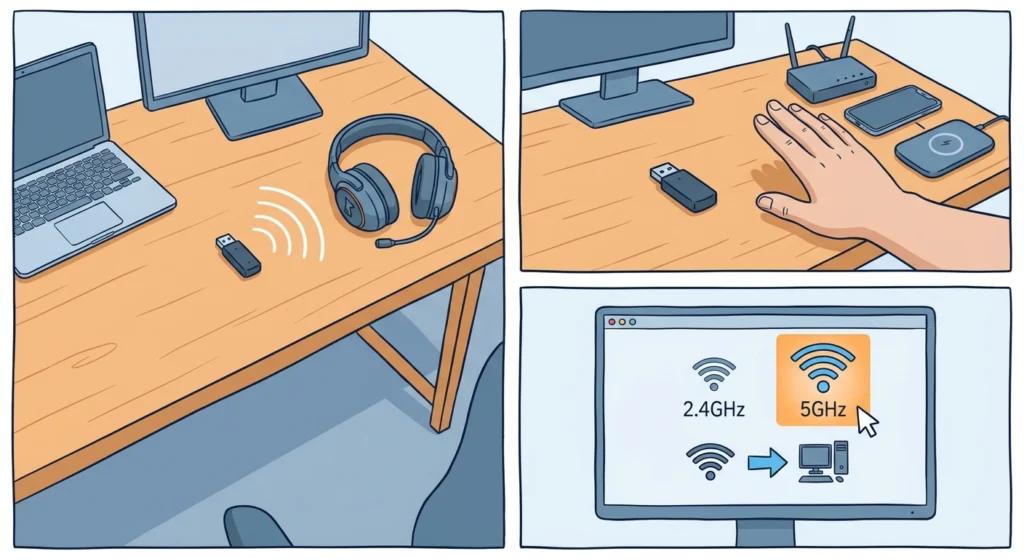
The Cloud III Wireless is rated for up to 20 meters in open space, but walls, furniture, and the player’s own body can shorten that range in real rooms.
- Step 1: Place the dongle where it has a clear line of sight to the headset, ideally on top of the desk.
- Step 2: Move routers, phones, and wireless chargers away from the dongle.
- Step 3: If the router is close to the PC, switch the gaming PC to the 5GHz Wi-Fi band to reduce crowding on 2.4GHz.
Fix 3: Charge the Headset Fully
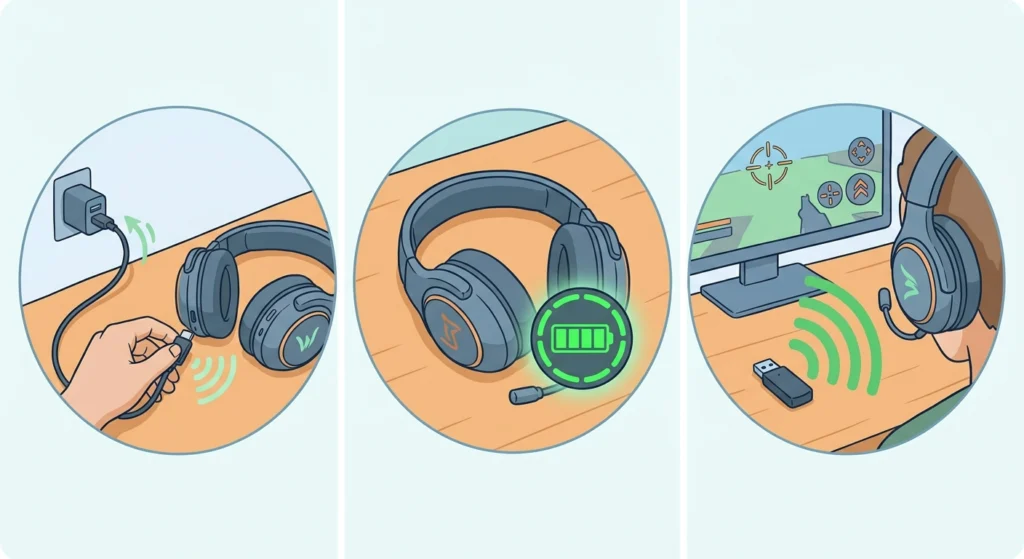
A very low battery can lead to weak or unstable performance, so rule this out early. HyperX rates the headset at up to 120 hours of battery life, which makes it easy to forget that it needs charging at all.
- Step 1: Connect the headset to a power source with the included USB-C cable.
- Step 2: Let it charge until the indicator shows a full charge.
- Step 3: Disconnect the cable and test it in a game.
Fix 4: Update the Firmware With HyperX NGENUITY
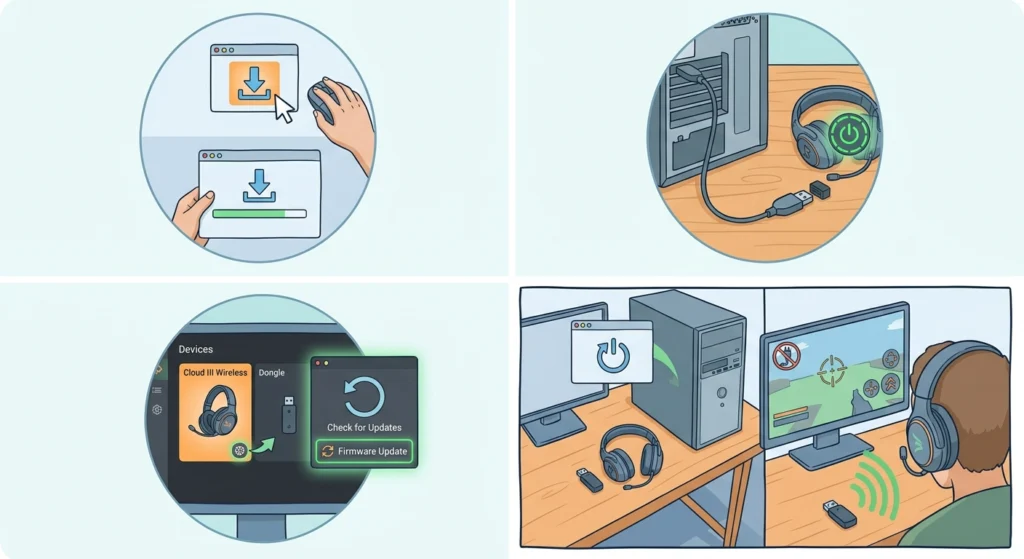
Firmware controls how the headset and dongle communicate, so an outdated version can cause dropouts that no setting will fix. Only use the official NGENUITY software downloaded from the HyperX website.
- Step 1: Download and install the latest version of HyperX NGENUITY from the official HyperX website.
- Step 2: Plug in the dongle and turn on the headset.
- Step 3: Open NGENUITY, select the Cloud III Wireless, and check for a firmware update in the device settings.
- Step 4: Start the update and keep the headset powered and the dongle connected until it finishes.
- Step 5: Restart the PC, then test a gaming session.
Pro-Tip: Never unplug the dongle or switch off the headset during a firmware update. An interrupted update is the one situation that can turn a minor annoyance into a bigger problem.
Fix 5: Turn Off USB Power Saving in Windows
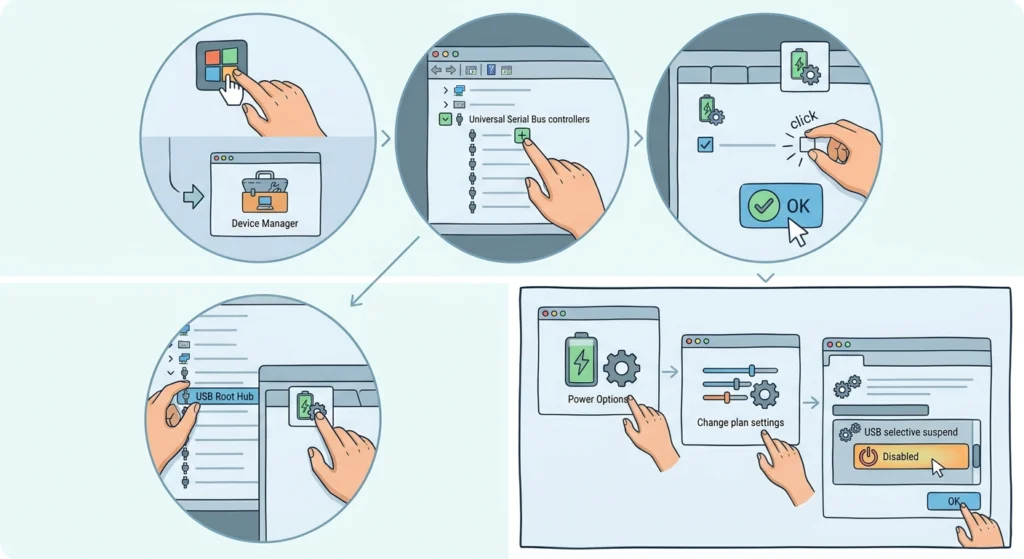
Windows can switch off USB devices to save power, and that can make the dongle disappear for a moment. Turning this off keeps the connection steady during long sessions.
- Step 1: Right-click the Start button and open Device Manager.
- Step 2: Expand Universal Serial Bus controllers.
- Step 3: Double-click each USB Root Hub entry and open the Power Management tab.
- Step 4: Uncheck the option that lets the computer turn off the device to save power, then click OK.
- Step 5: Open Power Options, choose Change plan settings, then Change advanced power settings, and set USB selective suspend to Disabled.
Fix 6: Reset the Windows Audio Setup
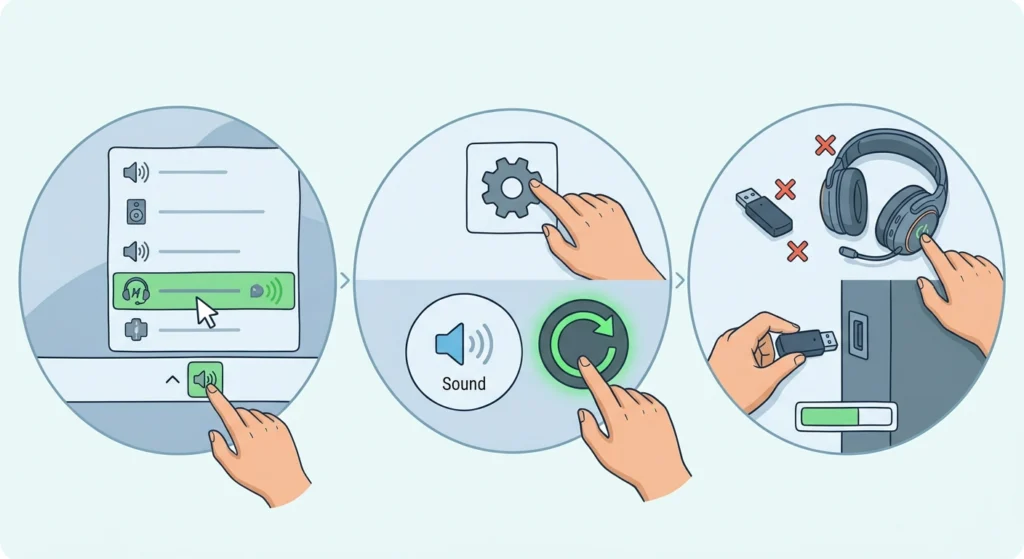
Sometimes the headset connection is fine, but Windows audio settings are the real culprit. Check that the headset is the active output device with this guide on adjusting audio output settings in Windows 11. If the sound still breaks up after that, resetting audio settings in Windows 11 clears out stale configurations that can interfere with the dongle.
- Step 1: Set the Cloud III Wireless as the default playback device.
- Step 2: Reset the audio settings using the guide above.
- Step 3: Unplug the dongle and turn off the headset, wait about ten seconds, then plug the dongle back in and power the headset on.
Tips to Keep the Connection Stable
- Leave the dongle in the same rear port once it works, since switching ports can cause Windows to set up the device again.
- Avoid running the dongle through a crowded USB hub, especially an unpowered one.
- Keep NGENUITY and Windows updates current so new fixes reach the headset.
- Charge the headset before long gaming nights rather than waiting for a low battery warning.
Common Problems After Applying the Fixes
Audio Still Cuts Out Only in One Game
If dropouts happen in a single title, the game’s own audio settings may be the cause. Check which output device the game is using and make sure it matches the Cloud III Wireless.
The Headset Does Not Appear as an Audio Device
Confirm that the dongle is plugged in and the headset is on, then check the list of connected devices in Sound settings. This guide on managing audio input devices in Windows 11 shows how to find and enable missing devices.
Dropouts Return After a Few Days
This usually points back to the dongle placement or USB power saving. Recheck Fix 1 and Fix 5, since Windows updates can sometimes restore default power settings.
Frequently Asked Questions
Why does the HyperX Cloud III Wireless keep cutting out during games?
The most common causes are 2.4GHz interference, a dongle placed in a poor USB port, outdated firmware, and Windows USB power saving.
Does the HyperX Cloud III Wireless use Bluetooth or a dongle?
It supports both a 2.4GHz wireless connection through the USB-C dongle and Bluetooth. The dongle is the connection meant for low-latency gaming.
How far can the headset be from the dongle?
HyperX rates the wireless range at up to 20 meters in open space. Walls and furniture can reduce that distance in real rooms.
Can a USB hub cause audio dropouts?
Yes. Hubs, especially unpowered ones, can add interference or limit power to the dongle. Plugging it straight into a rear port is the safer choice.
Should the firmware be updated?
Yes. Firmware updates are delivered through HyperX NGENUITY and can improve connection stability. Keep the headset powered and the dongle connected until the update finishes.
Can Wi-Fi interfere with the headset?
It can. Wi-Fi on the 2.4GHz band shares space with the wireless dongle, so moving the PC or router to the 5GHz band can help.
How long does the battery last?
HyperX rates the Cloud III Wireless at up to 120 hours of battery life, though real results vary with volume and usage.
Does a low battery cause the headset to cut out?
It can lead to unstable performance. Charging the headset fully with the included USB-C cable removes this as a possible cause.
Why do the dropouts happen more in busy rooms?
Phones, routers, and other wireless devices all compete for the same airspace, so a busy desk setup can cause more interference.
What if the problem continues after every fix?
Contact HyperX support and check the warranty status, since the dongle or headset may have a hardware fault.