
Nothing kills a song faster than sound coming from just one earbud. If you need to re-pair Bluetooth earbuds for stereo sound on Windows because they’re stuck in mono, sound muffled, or keep dropping to one side, the fix usually takes under five minutes. This updated 2026 guide gives you the exact steps for both Windows 11 and Windows 10, starting with the fix itself — the explanations come after.
Quick Answer
To re-pair Bluetooth earbuds for stereo sound on Windows, remove the earbuds under Settings > Bluetooth & devices (Windows 11) or Settings > Devices (Windows 10), delete their leftover entries in Device Manager, factory reset both earbuds in the charging case, restart the Bluetooth services, then pair again with both earbuds active at once. Finally, set the Stereo entry as your default playback device and uncheck Handsfree Telephony so Windows stops falling back to mono.
Find Your Fix Fast
Jump straight to the step that matches what you’re hearing:
- Only one earbud plays — start at Step 3: Factory reset both earbuds.
- Sound is muffled, tinny, or “underwater” — go to Step 7: Turn off Handsfree Telephony.
- Windows only shows a Hands-Free entry, no Stereo option — go to No Stereo option appears at all.
- One earbud is louder than the other — go to Fix uneven volume between earbuds.
- It works, then flips back to mono during calls — go to Step 7: Turn off Handsfree Telephony.
How to Re-Pair Bluetooth Earbuds for Stereo Sound on Windows 11 and 10
Work through these steps in order and stop as soon as stereo returns. Steps 1 to 6 fix the problem for most people. Steps 7 to 10 are what you need when it keeps coming back. Every step covers both Windows 10 and Windows 11.
Step 1: Remove the Earbuds from Bluetooth Settings
Disconnecting is not enough. Windows keeps the old pairing record, and if that record is what broke, reconnecting just reloads the same broken configuration. Remove the device completely.
Open Settings. On Windows 11, pick Bluetooth & devices. On Windows 10, go to Devices > Bluetooth & other devices.
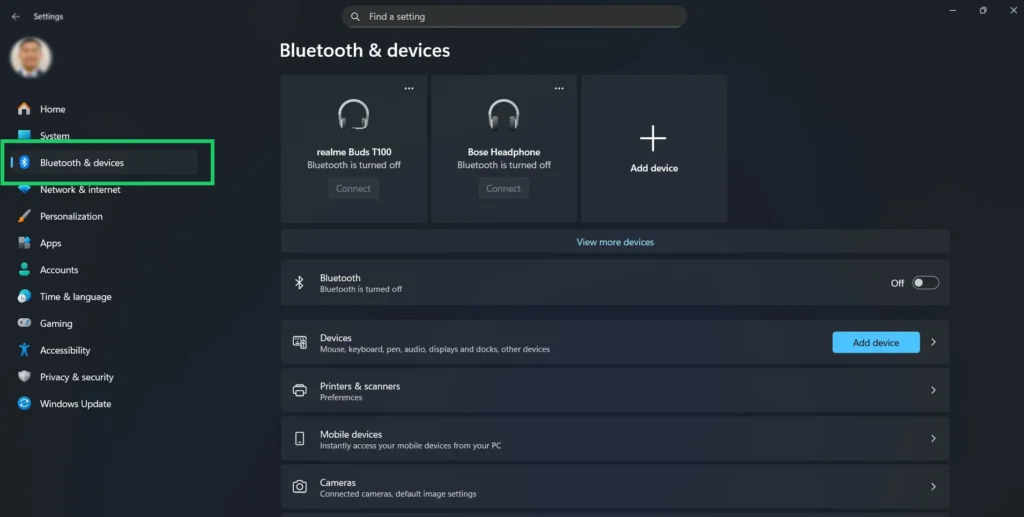
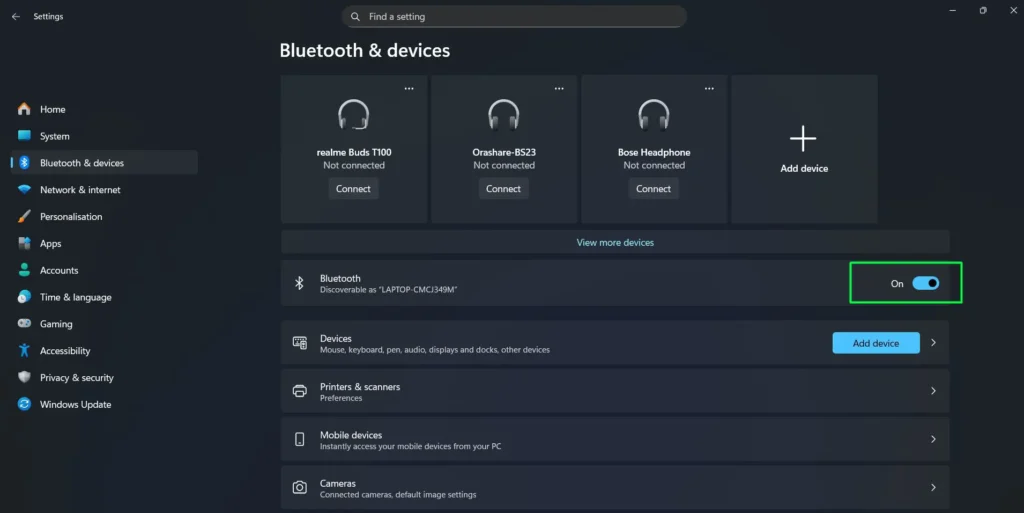
Make sure the Bluetooth toggle is ON (shown in blue) so your paired devices are listed.
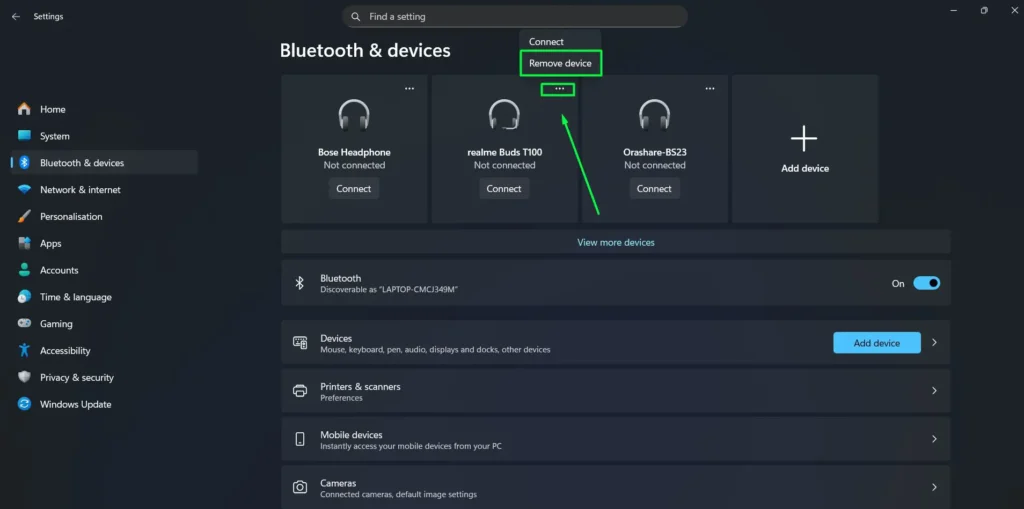
Find your earbuds, click the three-dot menu (⋯), and select Remove device. Confirm with Yes. On Windows 10, select the earbuds and click Remove device. If you see more than one entry for the same earbuds — a Stereo one, a Hands-Free one, or separate “L” and “R” entries — remove every one of them.
Step 2: Delete Leftover Audio Profiles in Device Manager
This is the step most guides skip, and it is why the problem often survives a re-pair. Removing a device in Settings does not always remove the audio endpoints Windows created for it. Those stale endpoints get reused on the next pairing, and the corruption comes straight back.
- Press Windows key + X and open Device Manager.
- Click View > Show hidden devices so greyed-out leftovers appear.
- Expand these three sections one at a time: Bluetooth, Audio inputs and outputs, and Sound, video and game controllers.
- Look for anything carrying your earbuds’ name, including entries ending in Stereo, Hands-Free AG Audio, Headset, LE Audio, or Avrcp Transport.
- Right-click each one and choose Uninstall device. If Attempt to remove the driver for this device appears, tick it.
- Leave your Bluetooth adapter alone — remove only the earbud entries.
- Restart your PC.
Windows now has to build a fresh set of audio profiles the next time your earbuds connect.
Step 3: Factory Reset Both Earbuds
True wireless earbuds pair with each other before they pair with your PC. If that left-to-right handshake failed, Windows will only ever see one side no matter how many times you re-pair. A factory reset forces the two buds to re-sync, and it is the single most effective fix for one-ear audio.
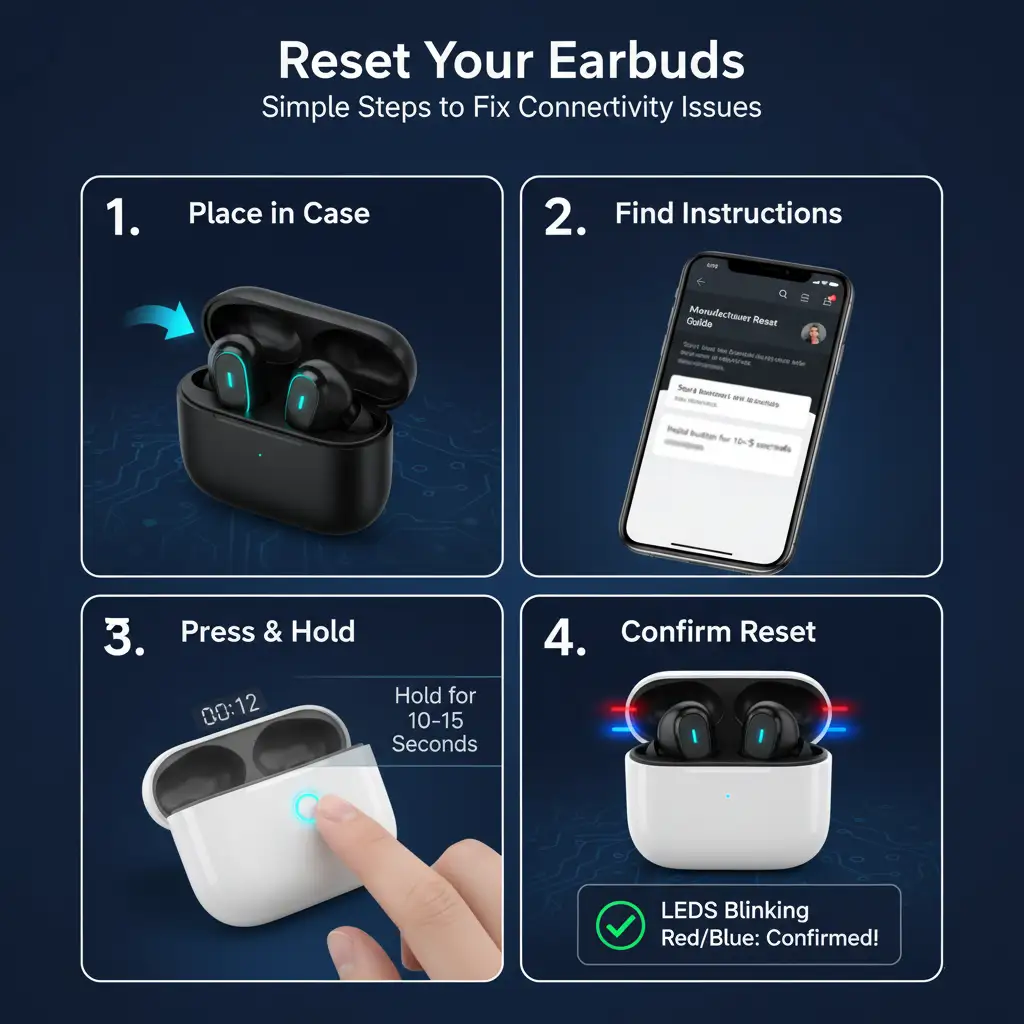
Place both earbuds in their charging case and confirm they are charging. Follow your manufacturer’s reset gesture — usually holding a button or both touch pads for 10 to 20 seconds. Watch for the LED confirming reset mode, typically blinking red and blue or flashing white.
Reset Gestures by Brand
| Brand | Reset method | LED confirmation |
|---|---|---|
| Apple AirPods / AirPods Pro | Buds in case, lid open. Hold the setup button on the back for about 15 seconds. | Amber, then white |
| Samsung Galaxy Buds | Galaxy Wearable app > Settings > Reset. Or place in case, close lid 10 seconds, open, then hold both touch pads. | Red, then green |
| Sony WF series | Charge 10 minutes in the case, remove both buds, hold both touch sensors for about 15 seconds. | Blue flash |
| Bose QuietComfort / Sport Earbuds | Bose Music app > device > Delete product. Or hold the case Bluetooth button for 30 seconds. | White pulse |
| Jabra Elite | Buds in case, lid open. Hold both buttons for about 10 seconds. | Purple or red flash |
| JBL Tune / Live | Buds in case. Hold both touch panels together for 10 to 15 seconds. | White flash |
| Anker Soundcore | Buds in case, lid open. Hold both touch areas for about 10 seconds, or hold the case button. | White triple flash |
| OnePlus Buds | Buds in case, lid open. Hold the case function button for about 10 seconds. | Red, then white |
| boAt Airdopes | Buds in case. Tap either bud three times, or hold both for 10 seconds. | Red and blue alternating |
| Noise Buds | Buds in case. Hold both touch controls for 10 to 15 seconds. | Red and blue alternating |
| Realme Buds | Buds in case, lid open. Hold the case button for about 10 seconds. | White flash |
| Redmi / Xiaomi Buds | Buds in case, lid open. Hold the case button for about 15 seconds. | Orange, then white |
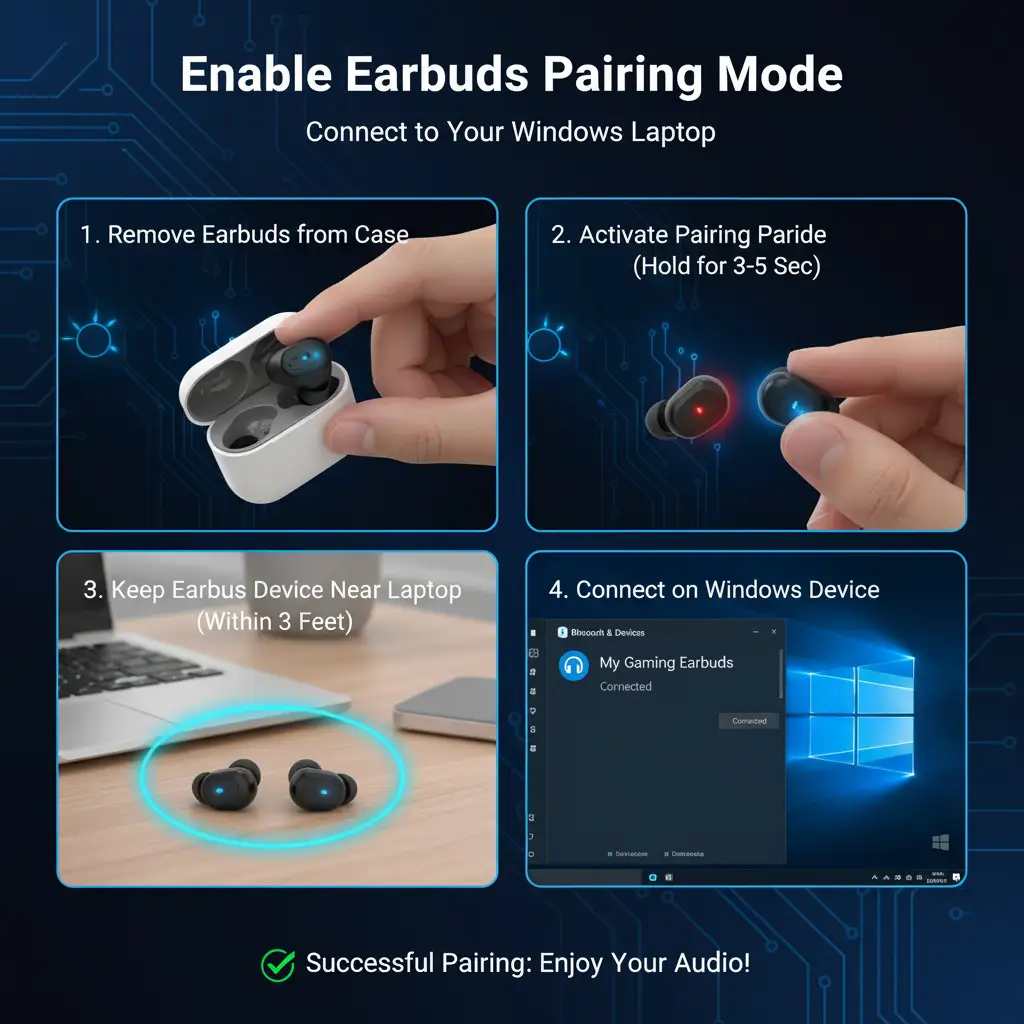
After the reset, leave both earbuds in the closed case for about 30 seconds. This gives the two sides time to find each other before Windows tries to connect. Then take them out, activate pairing mode, and keep both within about three feet of your PC.
Step 4: Restart the Bluetooth Services
Windows runs several background services for Bluetooth audio, and they hold cached device information even after you remove a device. Restarting them clears that cache.
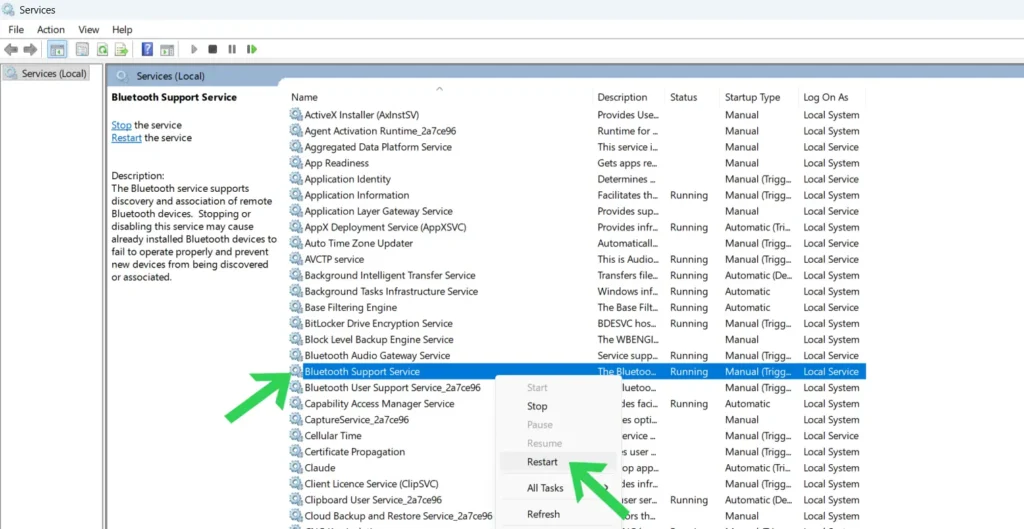
- Press Windows key + R, type services.msc, and press Enter.
- Find Bluetooth Support Service. Right-click it and choose Restart. If it is stopped, choose Start.
- Do the same for Bluetooth Audio Gateway Service and Device Association Service.
- Double-click each one, set Startup type to Automatic, then click Apply and OK.
You may also see Bluetooth User Support Service with a random suffix. That one is a per-user service and cannot be set to Automatic — leave its startup type as it is. Signing out and back in restarts it if needed.
Step 5: Pair the Earbuds Again with Both Sides Active
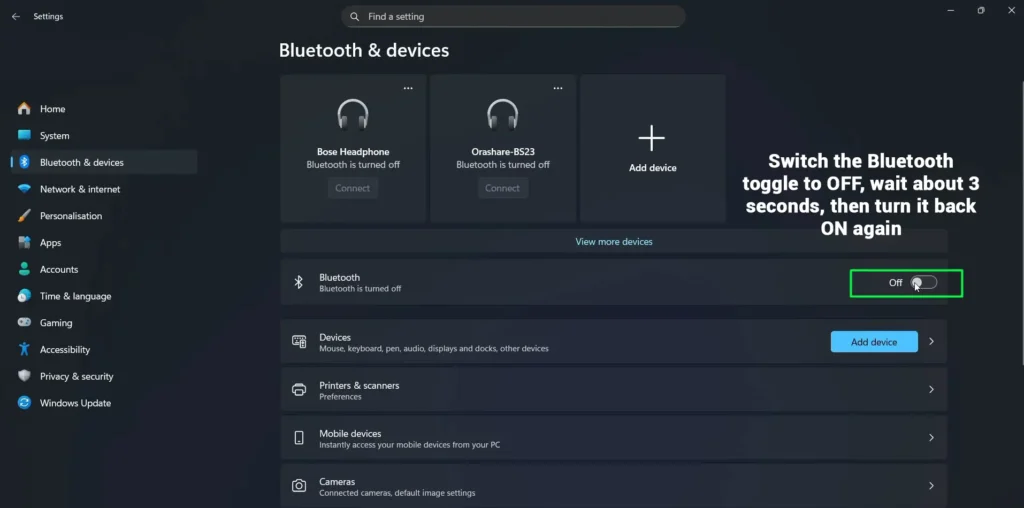
Turn Bluetooth OFF, wait 3 to 5 seconds, then turn it back ON. This clears any leftover connection state before you pair.
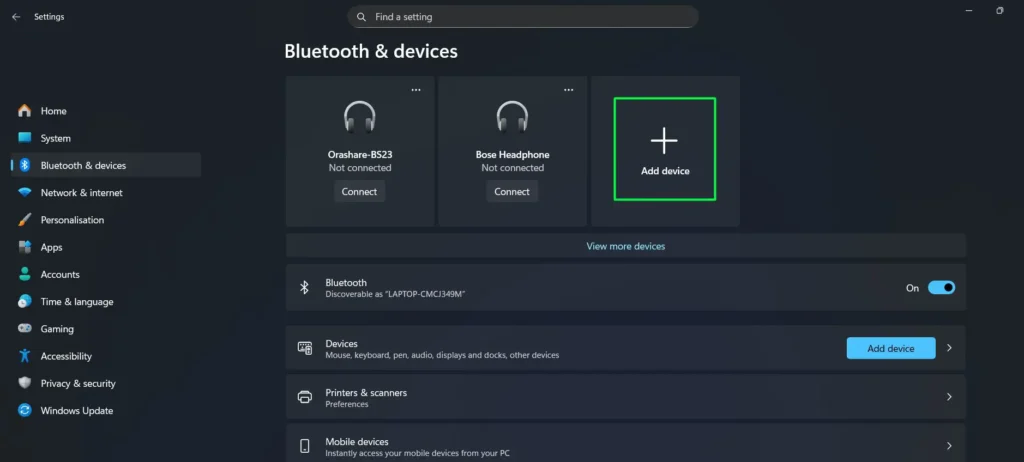
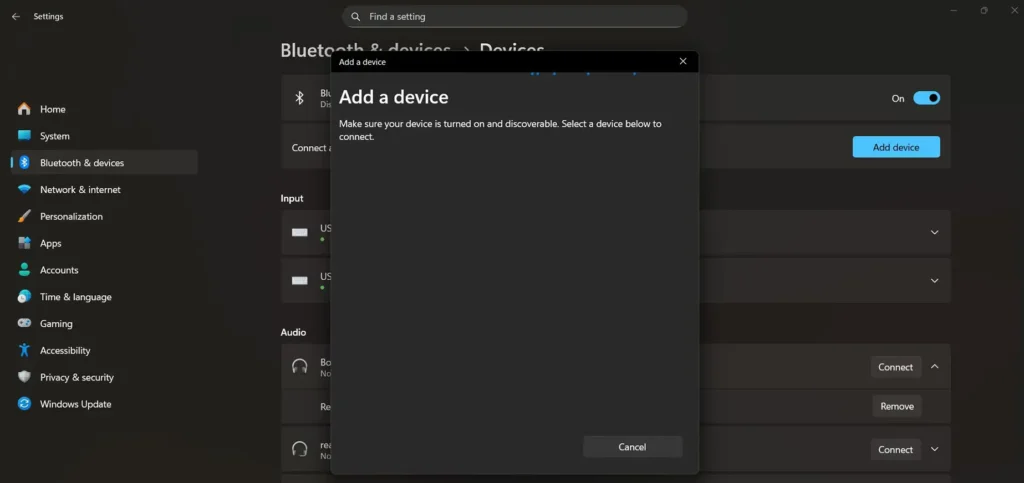
Click Add device (Windows 11) or Add Bluetooth or other device (Windows 10).
In the dialog, click Bluetooth — the first option.
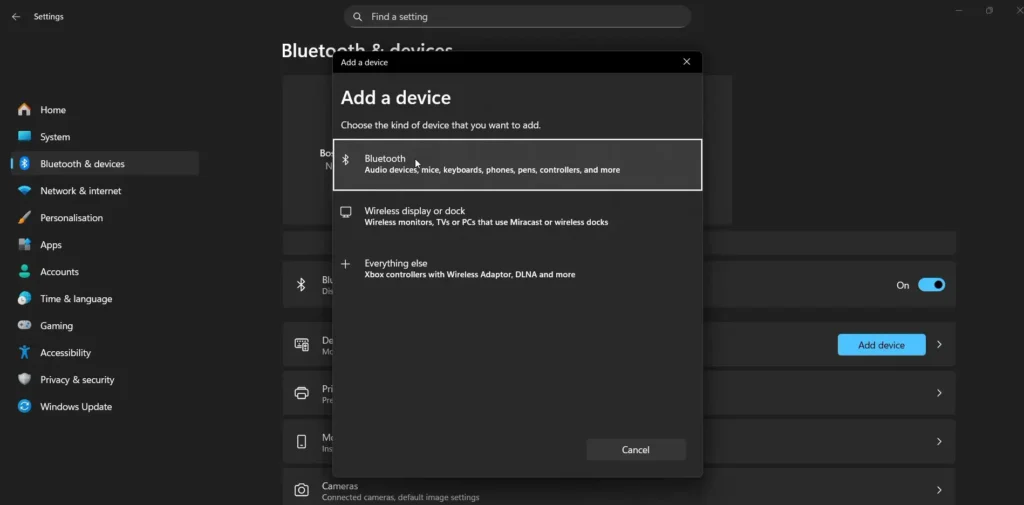
Take both earbuds out of the case together and wait for them to enter pairing mode. One bud becomes the primary and the other syncs to it automatically. When your earbuds appear in the list, pick the entry carefully.
- Choose the plain device name, or an entry labelled Stereo, Audio, or Music.
- Avoid entries labelled Hands-Free, Headset, Voice, LE, or anything showing just L or R.
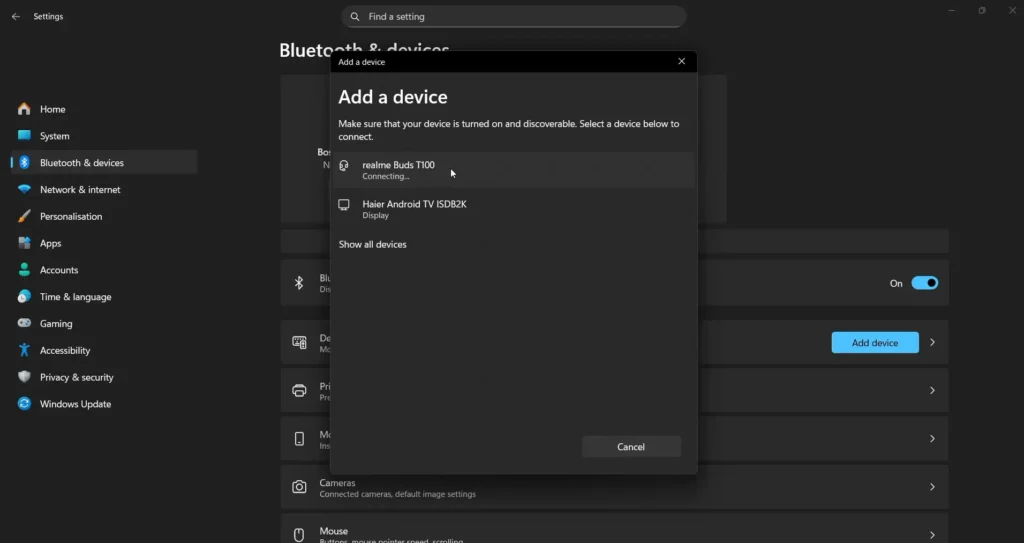
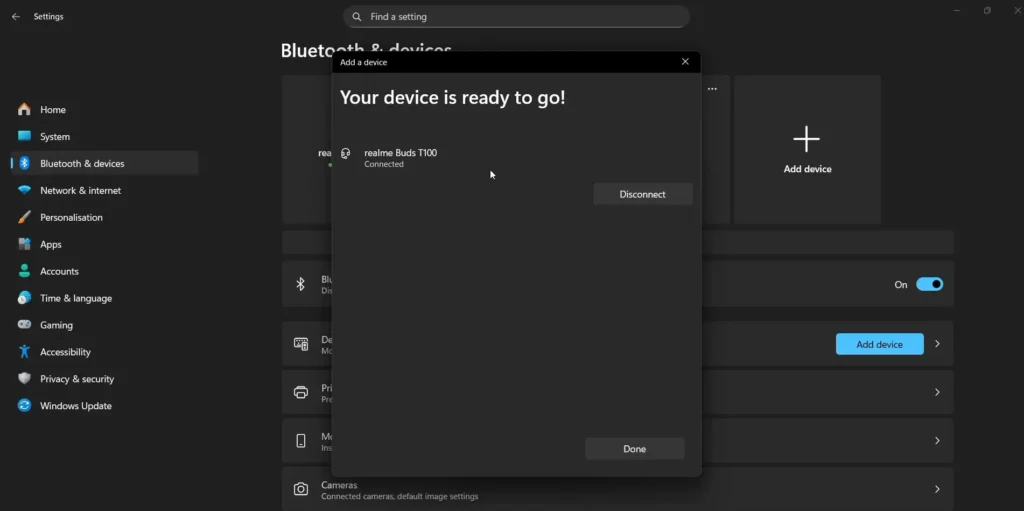
Wait for “Your device is ready to go!” and a status of Connected. Do not play audio until pairing has fully finished — interrupting it is one of the ways the stereo profile fails to register.
Step 6: Set the Stereo Entry as Your Default Playback Device
Even after a clean pairing, Windows often selects the wrong profile on its own. Right-click the Sound icon in the taskbar and select Sound settings.
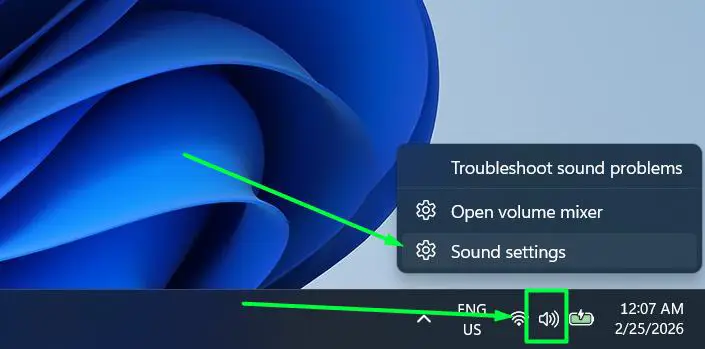
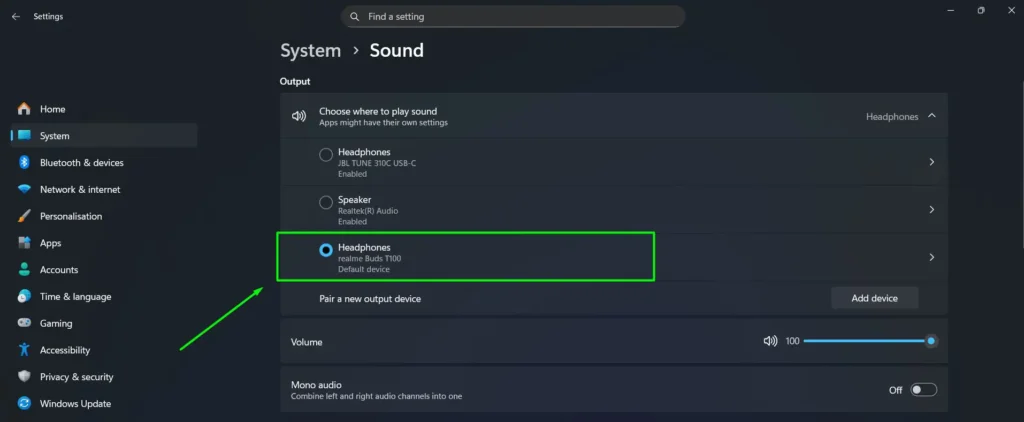
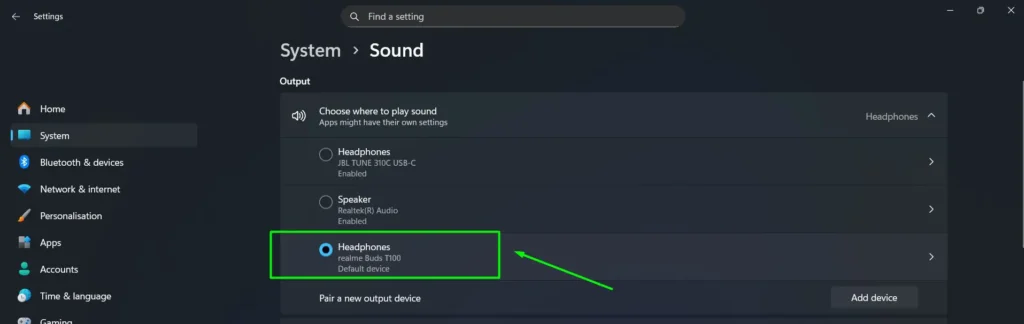
Under Output, set your earbuds as the default playback device. You will usually see two versions listed — one ending in Stereo and one ending in Hands-Free AG Audio. Always pick the Stereo one for music, video, and gaming.
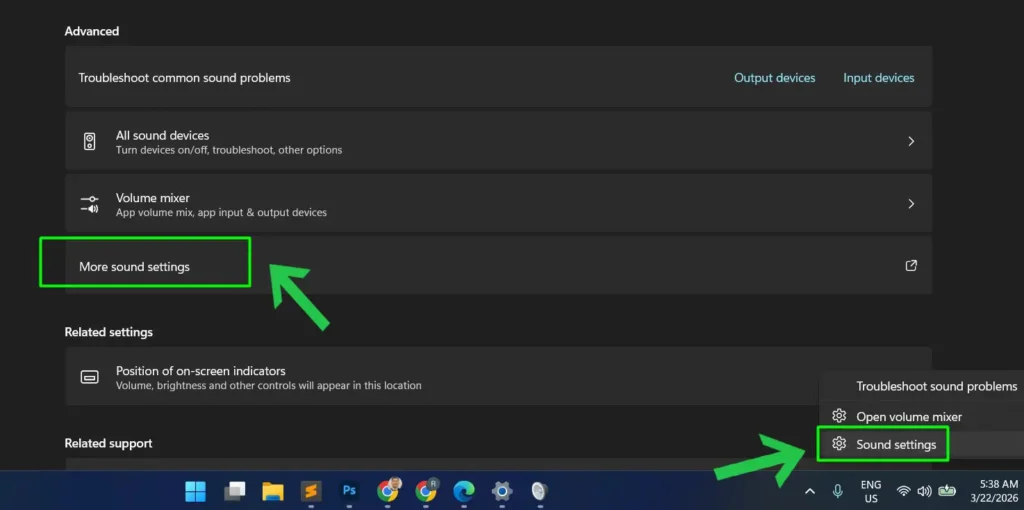
Now click More sound settings (Windows 11) or open the Sound Control Panel (Windows 10) to lock the choice in.
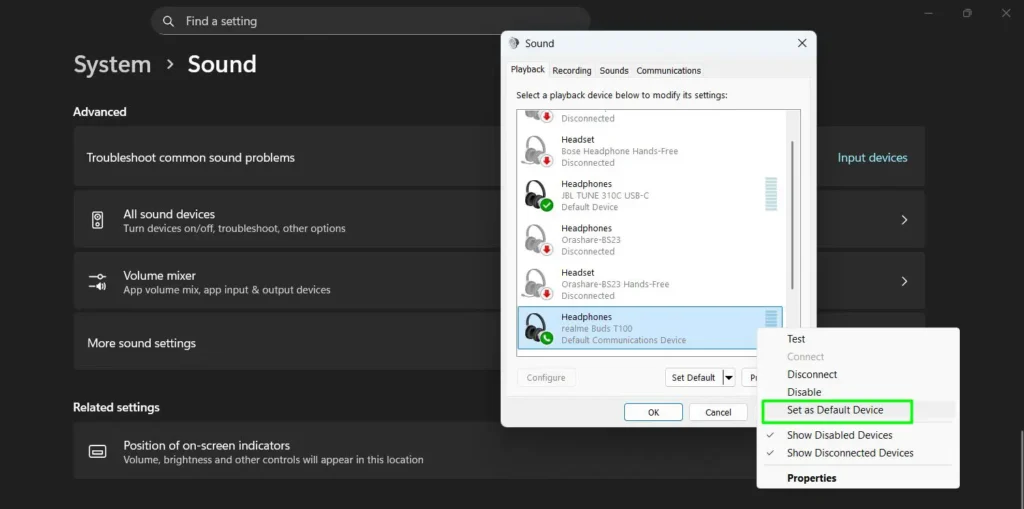
In the Playback tab, find the Stereo entry for your earbuds.
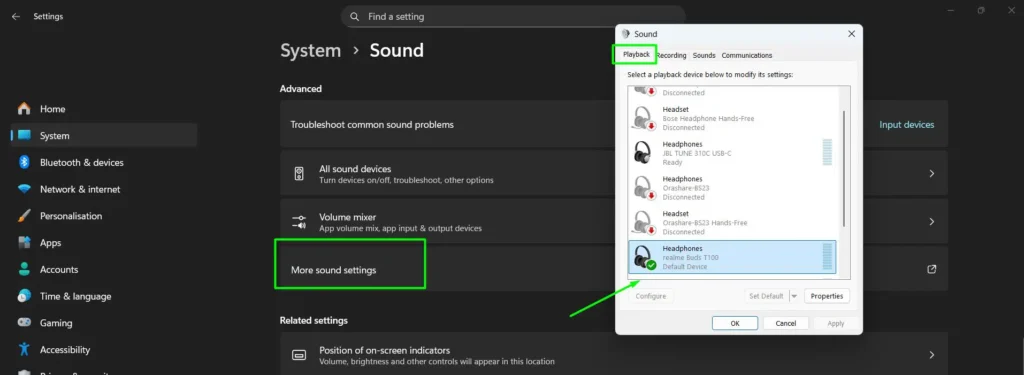
Right-click it and select Set as Default Device, then click Apply. Play a track and confirm sound is coming from both earbuds with proper left and right separation.
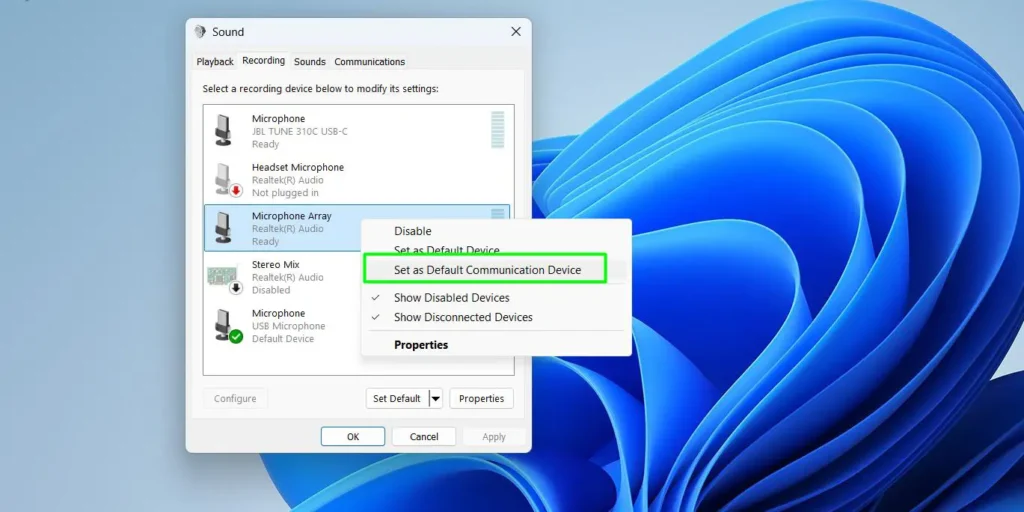
If you still want the earbud microphone available for calls, right-click your earbud microphone in the Recording tab and choose Set as Default Communication Device. That keeps calls on the mic while music stays in stereo.
Step 7: Turn Off Handsfree Telephony (The Permanent Fix)
If your earbuds go stereo, then flip back to mono the next time you open Teams or a browser tab with a microphone permission, this is the step that ends it for good. Setting a default device is a preference Windows can override. Unchecking the hands-free service removes the mono profile from the device entirely, so there is nothing left to switch to.
- Press Windows key + R, type control printers, and press Enter. On newer Windows 11 builds that redirects to Settings — if it does, run shell:::{A8A91A66-3A7D-4424-8D24-04E180695C7A} instead to open the classic Devices and Printers window.
- Find your Bluetooth earbuds under Devices.
- Right-click them and choose Properties.
- Open the Services tab.
- Untick Handsfree Telephony. Leave Audio Sink ticked — that one is your stereo profile.
- Click Apply, then OK.
- Disconnect and reconnect the earbuds.
The trade-off is real: with Handsfree Telephony off, the earbud microphone stops working on that PC. For music, gaming, and video that is exactly what you want, since the mono call profile is what was ruining your audio. If you need the mic back, tick the box again and use our free online mic test to confirm it is picking up sound.
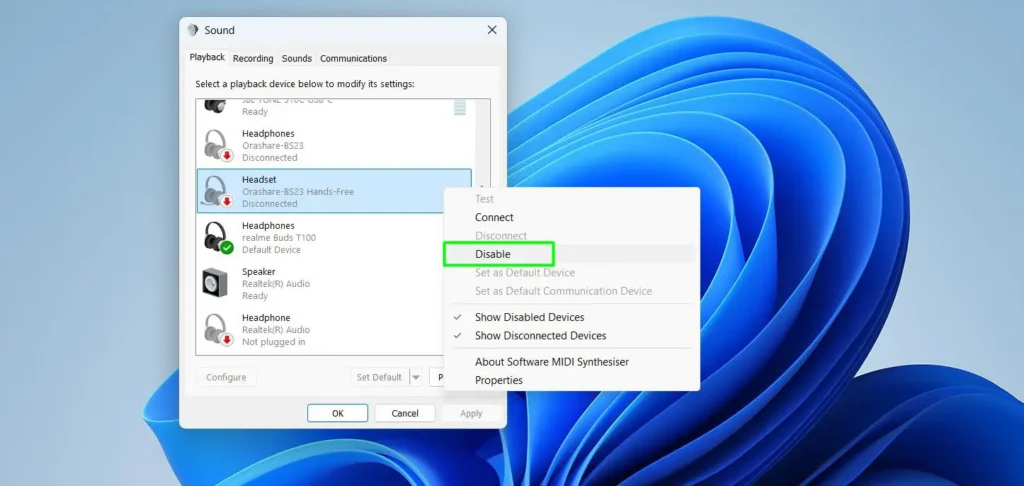
You can also disable the hands-free entry from the Sound Control Panel as a lighter alternative. Right-click the Hands-free entry in the Playback tab and select Disable.
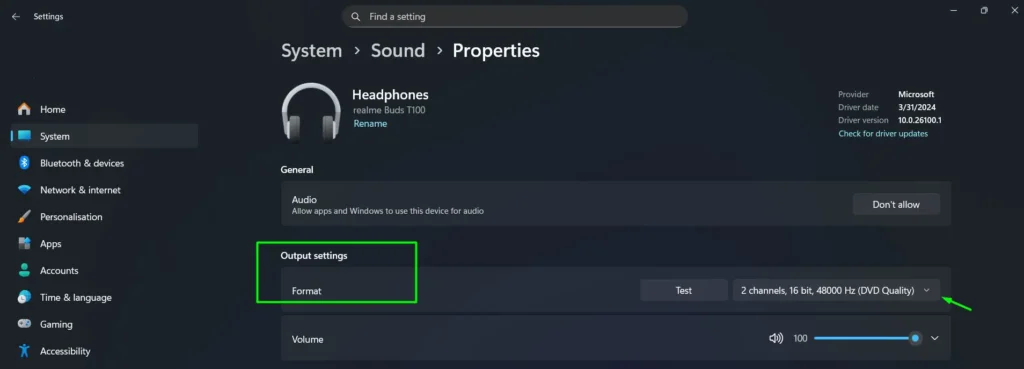
Step 8: Force the Audio Format to 2-Channel Stereo
Sometimes the connection is correct but Windows has picked a single-channel format, so everything still comes out mono. Right-click the speaker icon and select Sound settings.
Under Output, find your earbuds and click the arrow (>) to open their properties.
In the Format row, choose 2 channels, 16 bit, 48000 Hz (DVD Quality). If 48000 Hz is unavailable, 44100 Hz works just as well — the number that matters is 2 channels.
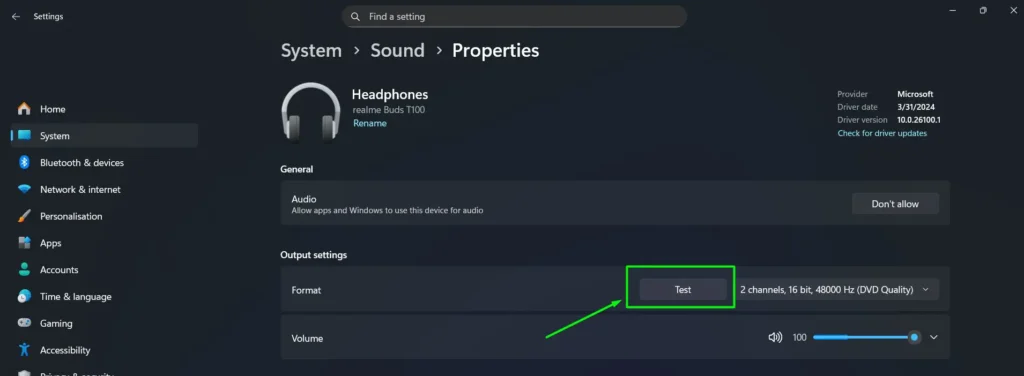
Click Test. You should hear a tone in the left earbud, then the right.
Step 9: Turn Off Mono Audio in Windows
Windows has an accessibility setting that deliberately merges both channels into one. If it is on, no amount of re-pairing will give you stereo. It is easy to switch on by accident with a keyboard shortcut, so check it even if you never touched it.
- Windows 11: go to Settings > Accessibility > Audio and turn Mono audio off.
- Windows 10: go to Settings > Ease of Access > Audio and turn off Turn on mono audio.
Test with a track you know has wide stereo separation rather than a podcast or a voice recording, which are often mono at the source anyway.
Step 10: Update or Roll Back Your Bluetooth Driver
Outdated or freshly broken drivers are a frequent cause of stereo problems. Which direction you go depends on when the trouble started.
Updating Bluetooth Drivers
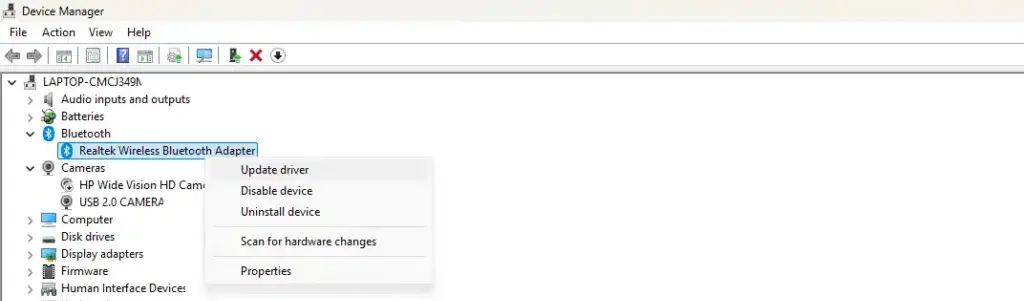
- Press Windows key + X and open Device Manager.
- Expand the Bluetooth section.
- Right-click your Bluetooth adapter and select Update driver.
- Choose Search automatically for drivers.
- Restart your PC.
If Windows says you already have the best driver, that only means it has nothing newer in its own catalogue. Download directly from your adapter’s maker instead — most laptops use Intel, Realtek, Qualcomm, MediaTek, or Broadcom. The adapter name in Device Manager tells you which.
Rolling Back Problematic Drivers
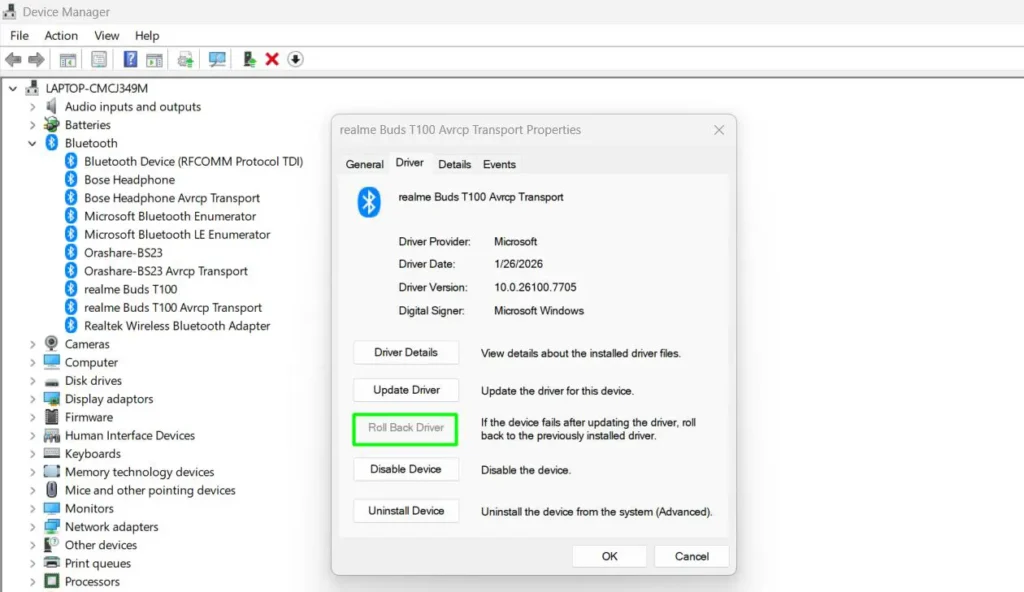
If stereo broke right after an update, go backwards instead:
- In Device Manager, find your Bluetooth adapter.
- Right-click, choose Properties, and open the Driver tab.
- Click Roll Back Driver, pick a reason, and confirm.
- Restart and test stereo audio.
If the button is greyed out, Windows kept no previous version. Uninstall the adapter driver instead, restart, and let Windows reinstall it from scratch. Some users have specifically fixed stereo issues by reverting Intel Wireless Bluetooth drivers from version 22.250.0.2 to 21.80.0.3.
Still No Stereo? Advanced Fixes
The ten steps above cover the overwhelming majority of cases. If you are still stuck, one of these less common causes is in the way.
No Stereo Option Appears at All
If the Playback tab only ever shows a Hands-Free or Headset entry and never a Stereo one, the A2DP stereo profile is not being registered at all. Check the service is actually enabled:
- Press Windows key + R, type control printers, and press Enter.
- Right-click your earbuds, choose Properties, and open the Services tab.
- Make sure Audio Sink is ticked. If it is not, tick it and click Apply.
- If Audio Sink is missing from the list entirely, your Bluetooth adapter or its driver does not support A2DP. That is common on very old or very cheap USB dongles, and a Bluetooth 5.0 or newer adapter will solve it.
Turn Off LE Audio for Your Earbuds (Windows 11)
Windows 11 supports Bluetooth LE Audio, and it will use it automatically when it thinks your earbuds support it. Earbuds with partial or buggy LE Audio firmware often end up in a degraded mono state as a result. You can turn it off for one device without affecting anything else:
- Go to Settings > Bluetooth & devices > Devices.
- Click your earbuds, or the gear icon next to them.
- Turn off Use LE Audio when available.
- Disconnect and reconnect.
If that toggle is not there, your earbuds or adapter do not use LE Audio and this is not your problem. Leave LE Audio enabled for genuinely LE Audio-certified earbuds — on those it improves quality rather than breaking it.
Turn Off Audio Enhancements
Windows and some laptop vendors apply audio processing that can collapse or distort the stereo image. Go to Settings > System > Sound, click your earbuds, and set Audio enhancements to Off. On Windows 10, open the device properties in the Sound Control Panel and tick Disable all enhancements under the Enhancements tab.
Fix Uneven Volume Between Earbuds
If both earbuds play but one is noticeably quieter, stereo is working and the balance is off. Go to Settings > System > Sound, select your earbuds under Output, open Volume (or Device properties on Windows 10), and set the left and right sliders to the same level.
If the volume also jumps around unpredictably when you change it, Windows Absolute Volume is fighting your earbuds’ own volume control. You can disable it, though this involves editing the registry — back it up first.
- Press Windows key + R, type regedit, and press Enter.
- Navigate to HKEY_LOCAL_MACHINE\SYSTEM\ControlSet001\Control\Bluetooth\Audio\AVRCP\CT.
- Double-click DisableAbsoluteVolume and set its value to 1. If it does not exist, create a new DWORD (32-bit) Value with that name.
- Restart your PC.
Set the value back to 0 to undo it. If the imbalance follows the earbuds to your phone as well, it is a hardware issue — clean the mesh on the quieter bud and check the warranty.
Disabling Intel Smart Sound Technology
On systems with Intel Smart Sound Technology, this feature can interfere with Bluetooth audio routing:
- Open Device Manager and expand System devices.
- Right-click and disable Intel Smart Sound Technology – Audio Bus.
- Also disable Intel Smart Sound Technology – Bluetooth Audio.
- Restart your PC.
If your built-in speakers or microphone stop working afterwards, re-enable both entries — this fix helps some machines and hurts others.
Running the Windows Bluetooth Troubleshooter
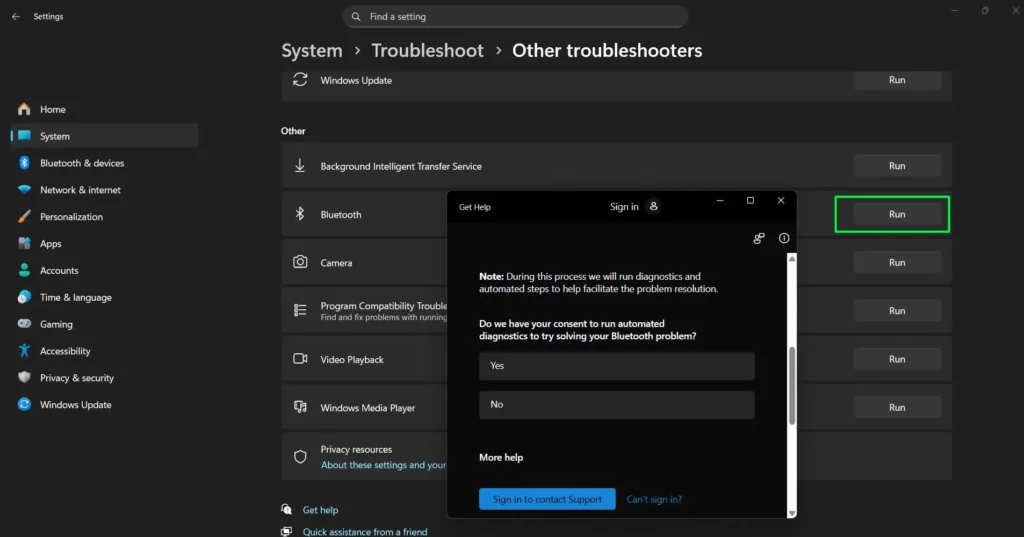
- Windows 11: go to Settings > System > Troubleshoot > Other troubleshooters, find Bluetooth, and click Run.
- Windows 10: go to Settings > Update & Security > Troubleshoot > Additional troubleshooters > Bluetooth, then click Run the troubleshooter.
The troubleshooter will not solve a profile problem, but it does repair stopped services, disabled radios, and broken audio endpoint configurations without you having to hunt for them.
When It Is Actually a Hardware Problem
Before you spend another hour on settings, pair the earbuds with a phone or tablet. If stereo works there, the problem is on the Windows side and one of the steps above will fix it. If only one earbud plays on every device you try, the fault is in the earbuds themselves.
- Bluetooth adapter limitations: older adapters may not support A2DP properly. A USB Bluetooth 5.0 adapter is an inexpensive fix.
- USB 3.0 interference: move a nearby dongle to a USB 2.0 port or use a short extension cable — USB 3.0 ports throw noise across the 2.4GHz band.
- Known compatibility issues: some earbud models have documented Windows problems. Checking earbud comparisons before buying saves a lot of troubleshooting later.
Why Bluetooth Earbuds Play Mono Instead of Stereo on Windows
Now that your audio is working, here is what was actually going wrong — useful for recognising the problem faster next time.
Windows handles Bluetooth audio differently from a phone. It exposes each Bluetooth audio profile as a separate device, which means it can quietly select the wrong one. There are two that matter:
| Profile | What it is for | Channels | Quality | Microphone |
|---|---|---|---|---|
| A2DP (shown as “Stereo”) | Music, video, gaming | Stereo (2) | High | No |
| HFP / HSP (shown as “Hands-Free AG Audio”) | Calls and voice chat | Mono (1) | Low, often 8–16 kHz | Yes |
That trade-off is why the fix is not just “pick the right device” — it is making sure Windows never has a reason to swap. The related accessibility feature, Windows mono audio, does the same thing deliberately by merging both channels into one.
Here are the most common reasons Windows ends up in mono mode:
- The two earbuds never synced with each other: Windows connects to one side and never sees the pair.
- Windows chose the hands-free profile: the earbuds link via the call and microphone profile, which is mono only.
- Corrupted or duplicated pairing data: old audio endpoints in Device Manager get reused on the next connection.
- Outdated Bluetooth driver: older drivers handle modern true wireless earbuds badly, especially LE Audio models.
- Wrong earbud connected first: connecting the secondary side first can skip the primary entirely.
- Call apps override your profile: Zoom, Teams, Discord, or Skype activate the mic and force hands-free mono mode.
- Battery imbalance between the buds: a nearly flat secondary earbud may drop out of the pair before Windows registers it.
- A Windows update reset things: feature updates sometimes replace Bluetooth drivers and reset audio defaults.
How to Keep Stereo Sound Working
Once stereo is back, a few habits keep it that way.
- Charge both earbuds evenly. Uneven battery levels are one of the most common causes of a broken left-right sync. Store them in the case, not loose in a pocket.
- Point call apps at a different microphone. Set Zoom, Teams, and Discord to use your laptop’s built-in mic so they never trigger the hands-free profile.
- Disconnect your phone while pairing. Multipoint earbuds will happily hold on to a phone connection and give Windows a degraded one.
- Delete pairings you no longer use. A long device list creates conflicts and slows reconnection.
- Keep earbud firmware updated through the manufacturer’s app, and keep Windows updated for Bluetooth stack fixes.
- Keep the 2.4GHz band clear. Turn off unused Bluetooth devices, stay within about 30 feet, and keep USB 3.0 devices away from your adapter.
- Clean the charging contacts now and then. A bud that charges intermittently will keep falling out of sync.
- Use one audio device at a time. Windows is not built to run several Bluetooth audio outputs simultaneously.
If you are shopping for a replacement pair, our headphone comparisons note which models have reliable Windows stereo support, which saves you from repeating all of this on a new set.
Frequently Asked Questions
Why do my Bluetooth earbuds only play in one ear on Windows?
Usually the two earbuds lost sync with each other, so Windows only ever sees one side. Remove the device in Bluetooth settings, factory reset both earbuds in the charging case, then re-pair with both sides in pairing mode at the same time.
Why do my earbuds show two entries in Windows sound settings?
That is normal. One entry is the stereo A2DP profile for music and the other is the hands-free HFP profile for calls. Windows lists them separately because it can only use one at a time. Always set the Stereo entry as your default for music and video.
How do I switch from Hands-Free to Stereo audio on Windows?
Right-click the speaker icon, open Sound settings, then More sound settings. In the Playback tab, right-click the Stereo entry for your earbuds and choose Set as Default Device. To make it stick, run control printers, open your earbuds’ Properties, go to the Services tab, and untick Handsfree Telephony.
Why do my earbuds keep switching to hands-free mode during calls?
Any app that activates the microphone — Zoom, Teams, Discord, Skype, even a browser tab — forces Windows onto the hands-free profile, which is mono. Set those apps to use your PC’s built-in microphone instead, or untick Handsfree Telephony in the device’s Services tab.
What if Windows shows no Stereo option for my earbuds at all?
The A2DP profile is not registering. Run control printers, right-click the earbuds, open Properties, go to the Services tab, and make sure Audio Sink is ticked. If Audio Sink is not listed at all, your Bluetooth adapter does not support stereo audio and you will need a Bluetooth 5.0 or newer adapter.
Why do my earbuds work on my phone but not on my PC?
Phones manage Bluetooth audio profiles automatically and switch between them cleanly. Windows exposes each profile as a separate device and depends on driver quality and adapter hardware, so it has far more ways to pick the wrong one. It is almost always a software issue, not a fault with your earbuds.
Can a Windows update break Bluetooth stereo pairing?
Yes. Feature updates can replace your Bluetooth driver, reset default audio devices, or change how LE Audio is negotiated. If stereo stopped working right after an update, roll the Bluetooth driver back in Device Manager first, then work through the re-pairing steps.
Should I disable Bluetooth LE Audio on Windows 11?
Only if you are having problems. Go to Settings, Bluetooth and devices, click your earbuds, and turn off Use LE Audio when available. Older earbuds with partial LE Audio support often drop to mono because of it. Leave it on for genuinely LE Audio-certified models, where it improves quality.
One earbud is louder than the other — how do I fix it?
Open Sound settings, select your earbuds under Output, open their volume or properties, and set the left and right sliders to the same level. If the volume also jumps around on its own, disable Absolute Volume in the registry. If the imbalance follows the earbuds to your phone, it is a hardware fault.
Do I need to re-pair my earbuds every time I use them on Windows?
No. Once paired correctly in stereo, they should reconnect on their own. If they keep dropping to mono or to one side on reconnect, the fix is to untick Handsfree Telephony and keep both earbuds charged evenly. Needing to re-pair daily points to corrupted pairing data or a failing driver.