
If Windows is not detecting your microphone, first determine whether the microphone is completely missing or whether Windows can see it but an app cannot use it. That distinction matters because a missing microphone usually points to the connection, Device Manager, the audio driver, USB, Bluetooth, or the computer’s audio hardware. A microphone that appears in Windows but does not work in Zoom, Teams, Discord, or a browser is more often an input-selection or permission problem.
This guide focuses on resolving microphone detection problems in Windows 11 and Windows 10, including built-in laptop microphones, headset microphones, USB microphones, Bluetooth microphones, webcams, and 3.5mm analog microphones.
Quick test: If Windows already lists your microphone under Settings > System > Sound > Input, you can also use our free online microphone test to confirm that your browser can access the microphone and receive an audio signal. If the microphone is completely missing from Windows, start with the detection fixes below instead.
Microphone Not Detected? Identify the Problem First
Before reinstalling drivers or changing privacy settings, match what you are seeing to the correct troubleshooting path.
| What You See | What It Means | Start Here |
|---|---|---|
| Microphone completely missing under Input | Actual detection problem | Check hidden devices and Device Manager |
| Microphone appears but is disabled | Windows can see the device | Enable it in Recording devices |
| Microphone appears and Windows test works | Hardware detection is working | Check app permissions and app input selection |
| Microphone appears but records no sound | Input level, mute, driver, or configuration issue | Test the microphone and check input volume |
| USB microphone does not appear | USB detection, cable, port, or driver problem | Try another port and check Device Manager |
| Bluetooth headset connects but microphone is missing | Bluetooth or input-device configuration issue | Re-pair and check Input devices |
| Built-in laptop microphone is missing | Mute control, privacy, or OEM audio-driver issue | Check mute controls and Device Manager |
| Microphone disappeared after an update | Driver or configuration may have changed | Check or roll back the audio driver |
Important: If the microphone appears under Settings > System > Sound > Input, Windows is already detecting it. In that case, skip the hardware-detection fixes and go to the sections for microphone testing, permissions, or app-specific problems.
Fix 1: Check the Microphone Connection and Type
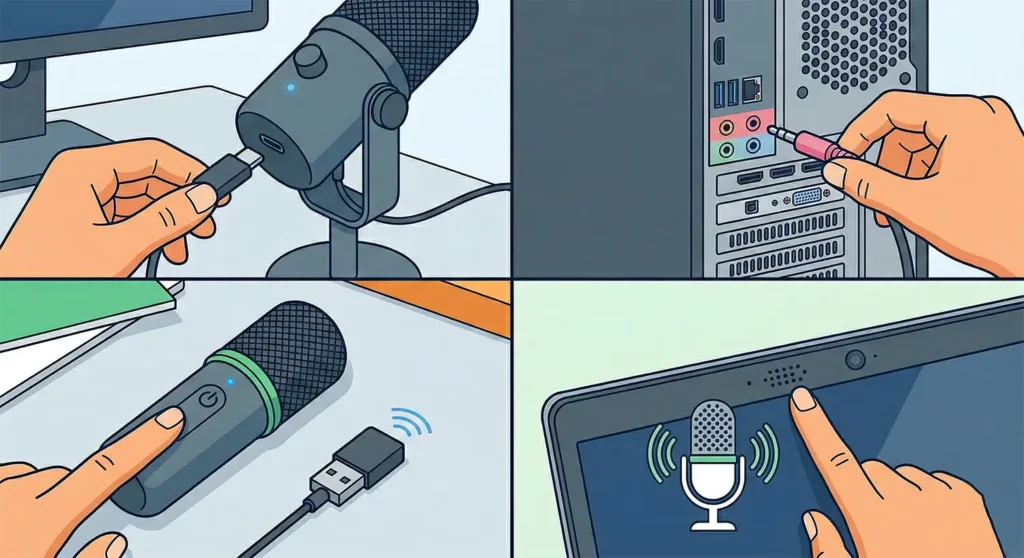
Rule out the physical connection before changing Windows settings. The correct check depends on the type of microphone you are using.
- USB microphone: reconnect the cable firmly and check whether the microphone powers on. If the cable is detachable, test another compatible cable if available.
- 3.5mm microphone: connect it to the microphone input or compatible headset combo jack. On desktops with separate ports, the microphone input is commonly pink.
- Headset with one 3.5mm plug: a headset with a combined TRRS plug may require a compatible combo jack or a headset splitter when the PC has separate headphone and microphone sockets.
- Bluetooth microphone or headset: confirm that the device is powered on, paired, and connected to the computer.
- Wireless microphone with a USB receiver: make sure the receiver is connected directly to the PC and the microphone is paired with its receiver.
- Built-in laptop microphone: check for a physical microphone-mute button or keyboard shortcut and make sure nothing is covering the microphone openings.
If possible, test an external microphone on another computer. If it works there, the microphone itself is less likely to be the problem and you can focus on Windows, the port, or the computer’s audio driver.
Fix 2: Show Disabled or Disconnected Microphones
A microphone can be present in Windows but hidden from the normal Input list because it is disabled or disconnected. Check the classic Recording panel before reinstalling drivers.
- Right-click the speaker icon in the system tray.
- Select Sound settings.
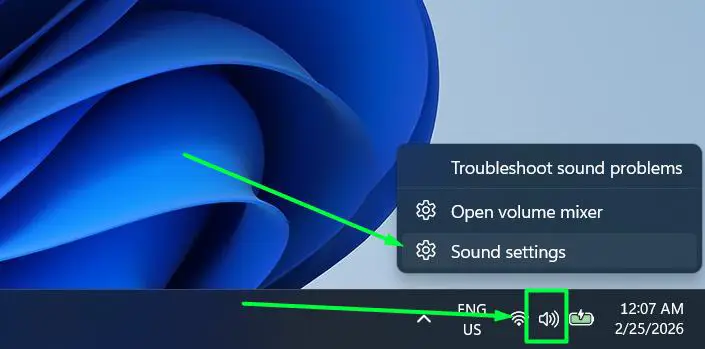
- Scroll to Advanced and select More sound settings.
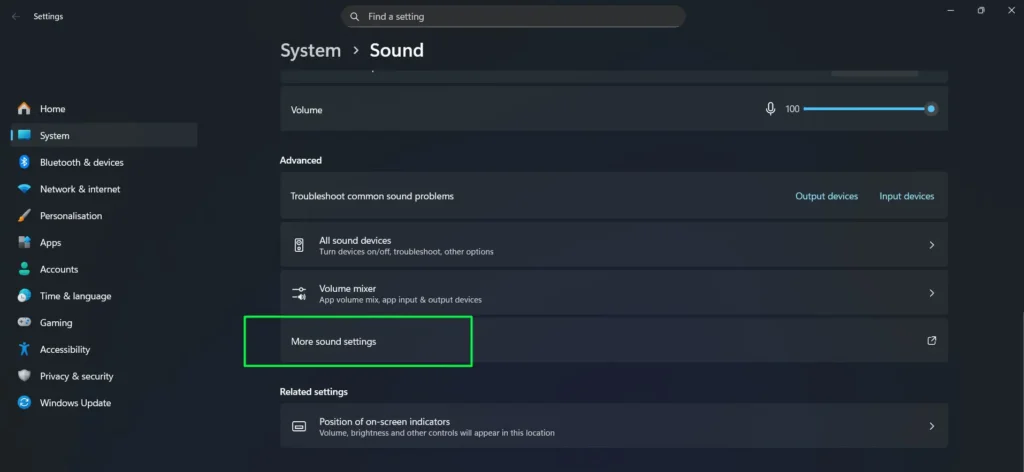
- Open the Recording tab.
- Right-click an empty area and enable Show Disabled Devices and Show Disconnected Devices.
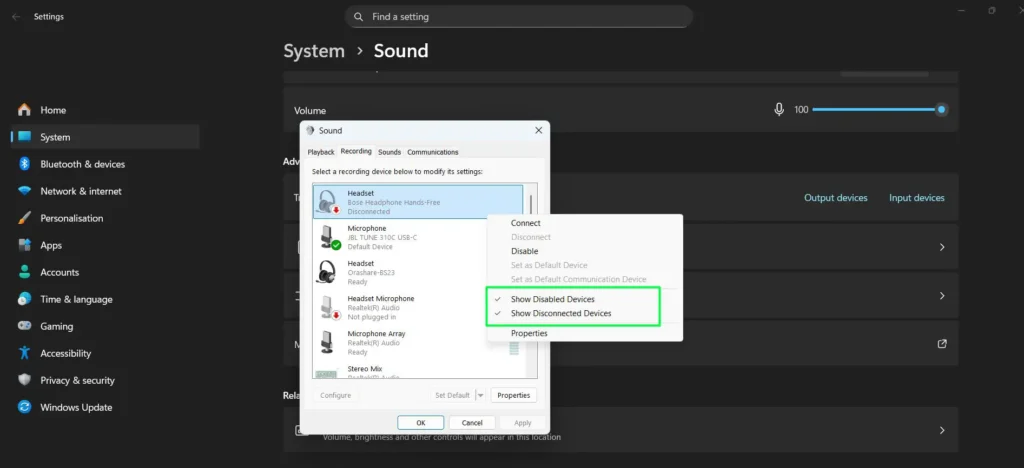
If the microphone appears greyed out, Windows is seeing the device. It simply needs to be enabled.
Fix 3: Enable the Microphone and Make It Available to Windows
- Right-click the speaker icon and select Sound settings.
- Select More sound settings under Advanced.
- Open the Recording tab.
- Right-click the disabled microphone.
- Select Enable.
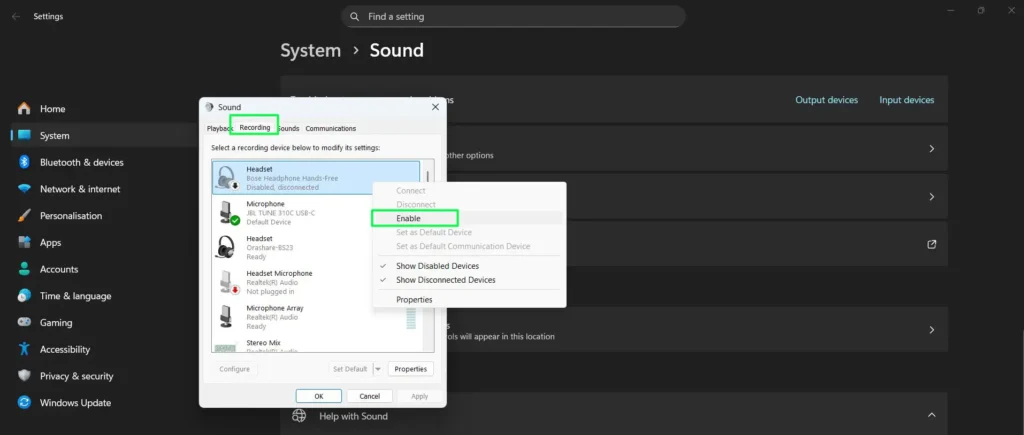
- If you want Windows to use this microphone by default, right-click it again and choose Set as Default Device.
Now go to Settings > System > Sound > Input. If the microphone appears there, Windows is detecting it. Test it before making any more changes.
You can also use our Online Mic Test Tool after Windows detects the device to check whether a browser can receive its audio.
Fix 4: Check the Microphone in Device Manager
If the microphone is completely missing from Sound settings and the Recording tab, Device Manager is the next place to look. This helps determine whether Windows can see the microphone, audio controller, USB device, or related driver at the hardware level.
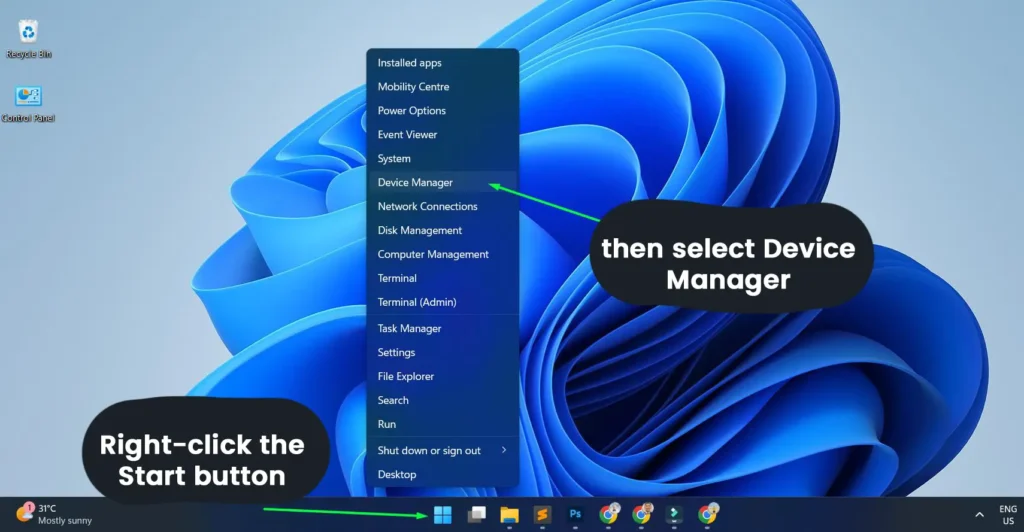
- Right-click Start and select Device Manager.
- Expand Audio inputs and outputs.
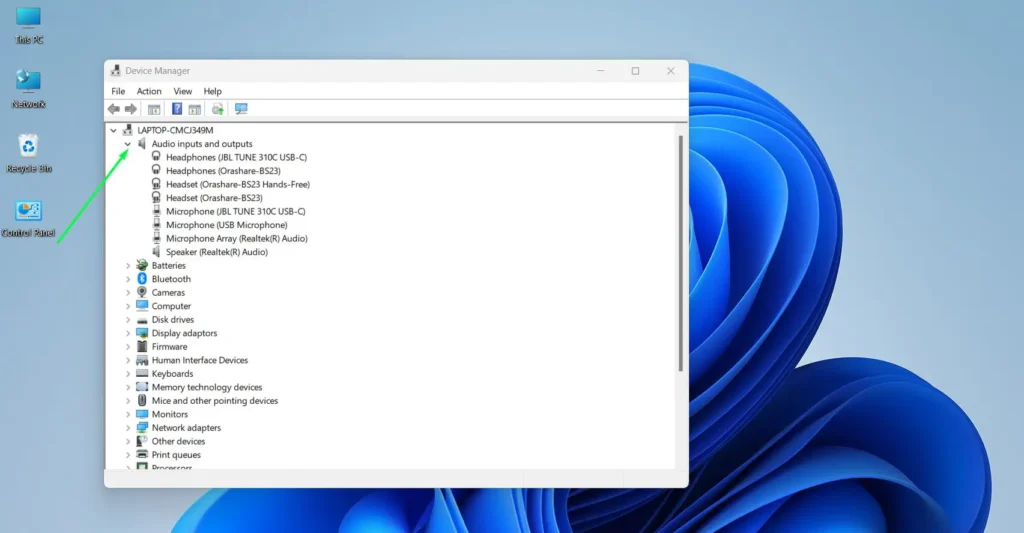
- Also expand Sound, video and game controllers. A built-in microphone may depend on an audio controller such as Realtek Audio or Intel Smart Sound Technology even when the microphone itself is not listed clearly.
- Select View > Show hidden devices.
- If the microphone or audio controller is disabled, right-click it and choose Enable device.
- If the expected device is missing, select Action > Scan for hardware changes.
- If an audio device has a yellow warning icon, open its Properties window and read the message under Device status.
If scanning for hardware changes makes the microphone reappear, restart the computer and check Sound settings again. If the device is present but still does not work correctly, continue with the driver fixes.
Fix 5: Update the Microphone or Audio Driver
Missing, corrupted, disabled, or incompatible audio drivers can prevent Windows from detecting a microphone. Start with Device Manager, but do not assume Windows always has the best driver for your exact laptop, motherboard, webcam, USB microphone, or audio interface.
- Open Device Manager and locate the microphone or related audio controller.
- If the microphone appears under Audio inputs and outputs, select it. If not, check Sound, video and game controllers.
- Right-click the appropriate device and choose Update driver.
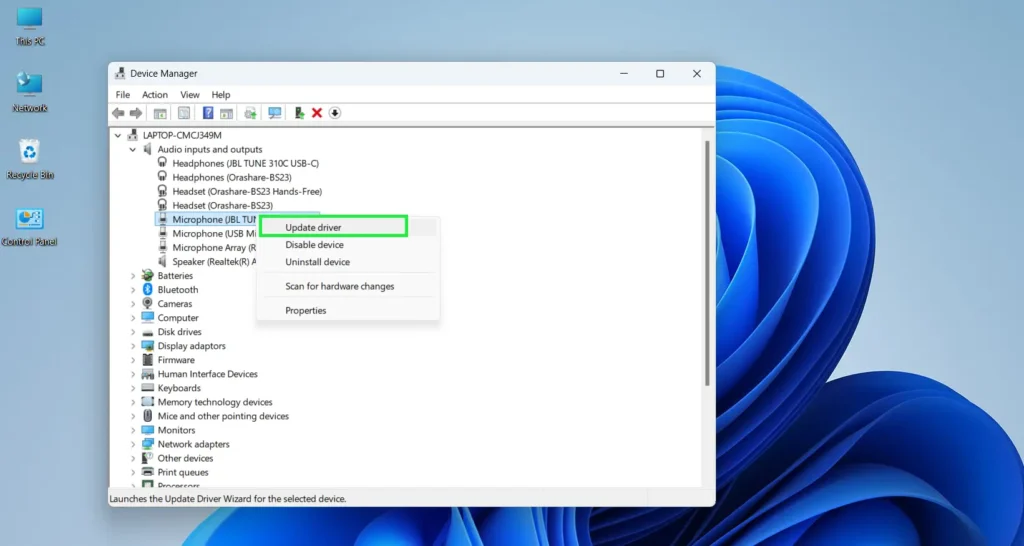
- Select Search automatically for drivers.
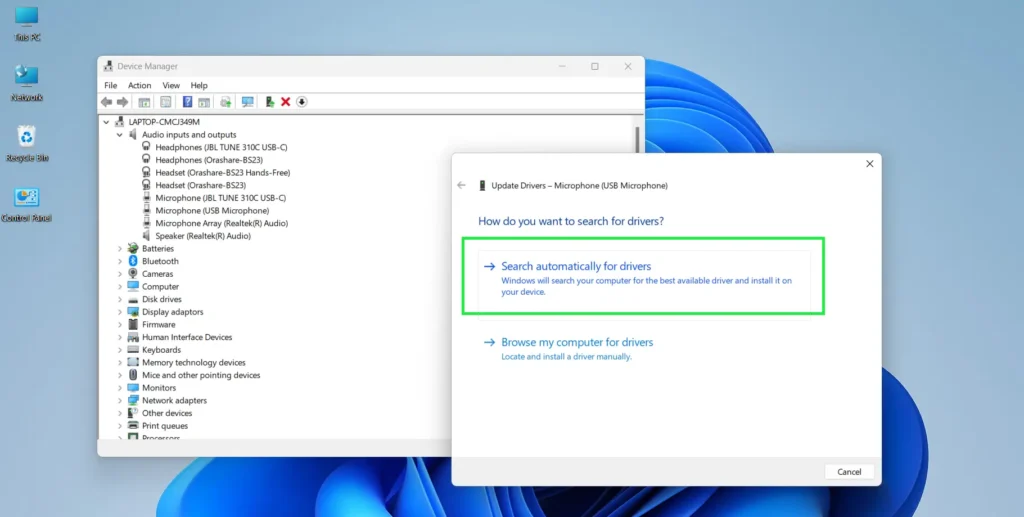
- Restart the computer after any driver change.
- If Windows does not find a better driver, visit the support page for your exact laptop, motherboard, webcam, microphone, USB interface, or other audio hardware and install the manufacturer’s recommended driver.
Manufacturer drivers can be especially important for built-in laptop microphones, combo audio jacks, Realtek audio systems, Intel Smart Sound Technology, webcams, and devices that require their own control software.
Fix 6: Reinstall the Audio Driver
If the microphone is still missing or the driver appears corrupted, reinstalling the device can force Windows to rebuild the audio-device configuration.
- Open Device Manager.
- Find your microphone under Audio inputs and outputs or identify the related device under Sound, video and game controllers.
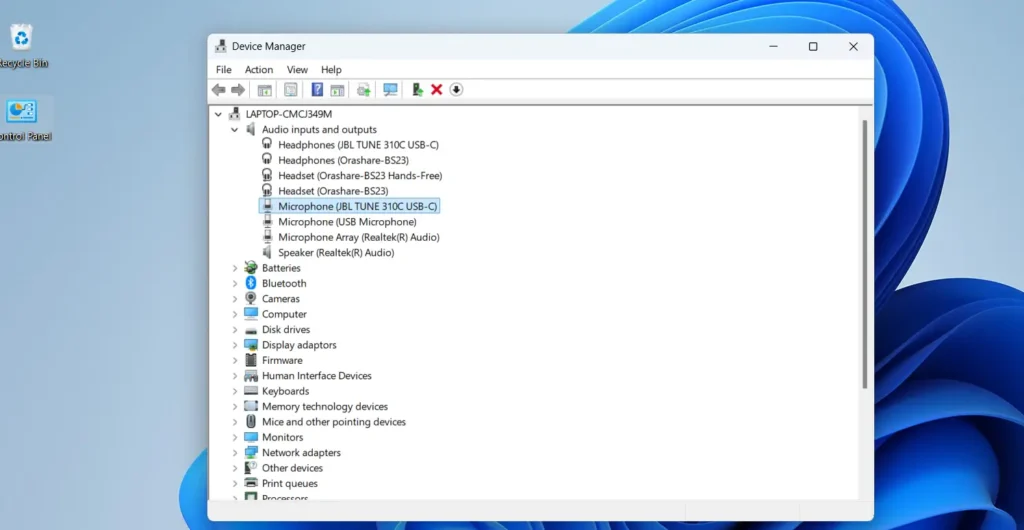
- Right-click the affected device and select Uninstall device.
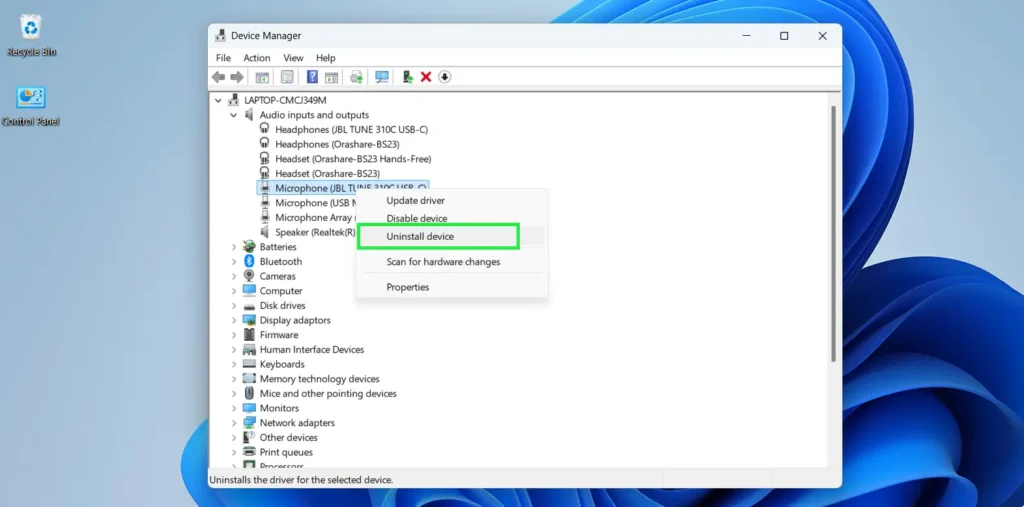
- If Windows offers Attempt to remove the driver for this device, use it only when you are prepared to reinstall the correct driver afterward.
- Restart the computer. Windows may reinstall the device automatically.
- If it does not return correctly, install the audio driver from your PC or hardware manufacturer’s support site.
- Return to Settings > System > Sound > Input and check whether the microphone now appears.
Fix 7: Microphone Disappeared After a Windows Update
If microphone detection stopped immediately after a Windows or driver update, check whether the audio driver changed. Do not assume the update itself is permanently broken until you have tested the driver.
- Open Device Manager.
- Open the Properties window for the audio controller or microphone and select the Driver tab.
- If Roll Back Driver is available and the problem began after that driver changed, try the rollback.
- Restart Windows and test the microphone.
- If rollback is unavailable or does not help, install the current audio driver from your device manufacturer.
- Check Windows Update afterward for current supported updates.
Check Windows Update After the Driver Is Stable
- Press Windows + I.
- Select Windows Update.
- Select Check for updates.
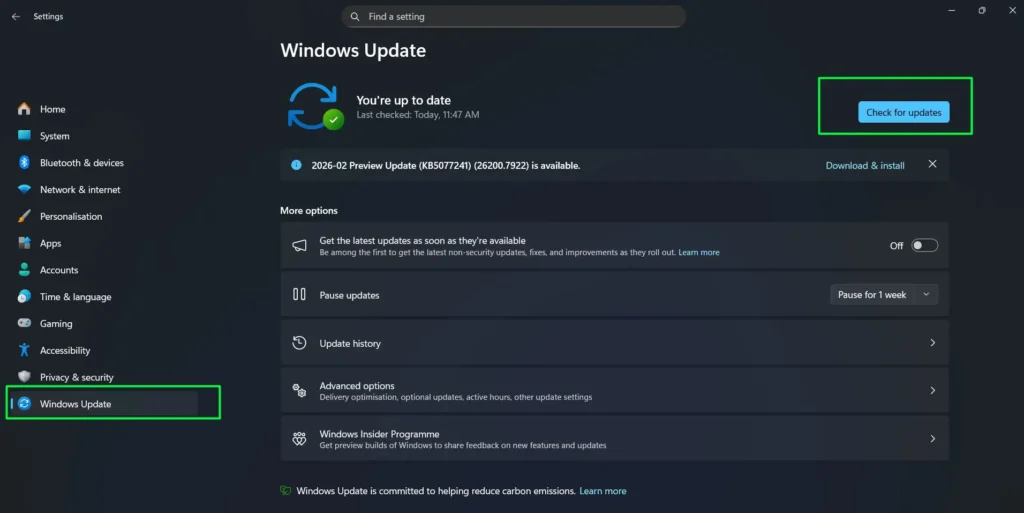
- Select Download & install for the updates you intend to install.
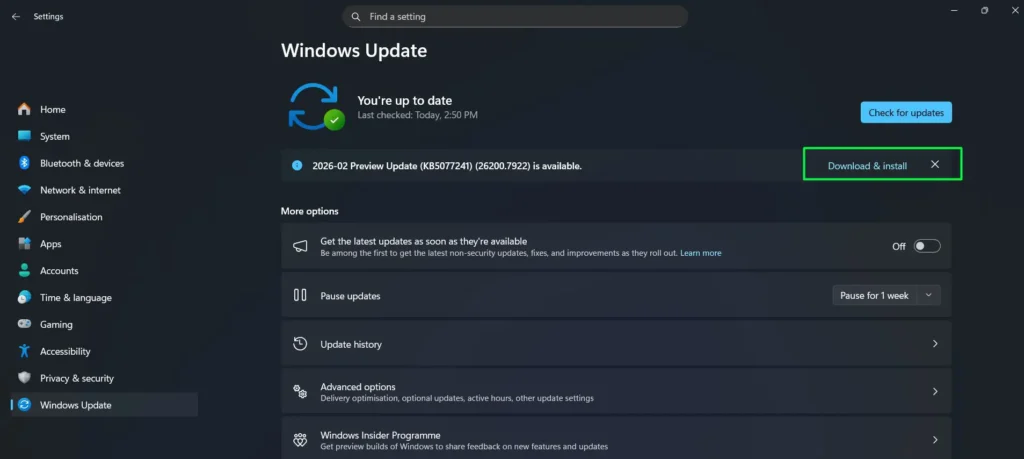
- Restart when required and test the microphone again.
Fix 8: Restart Windows Audio Services
If audio devices suddenly disappear or stop responding, restart the Windows services that manage audio playback and endpoints.
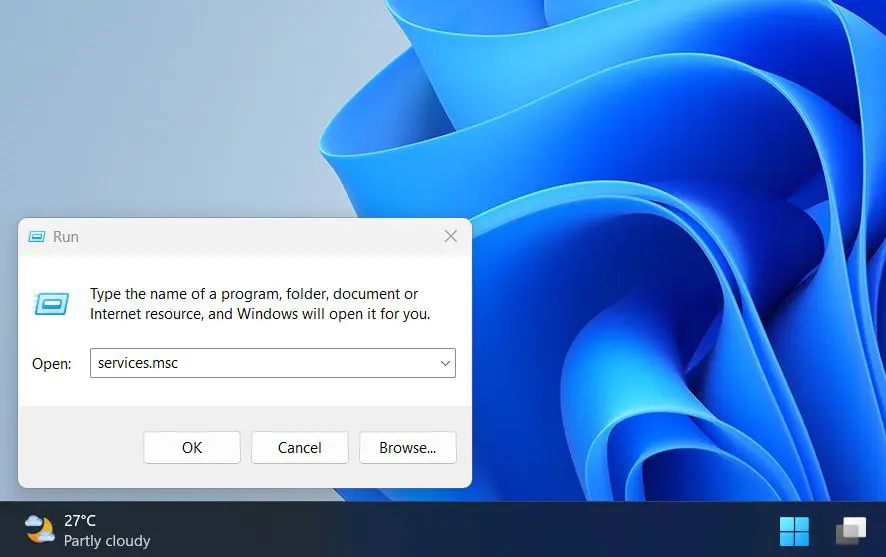
- Press Windows + R.
- Type services.msc and press Enter.
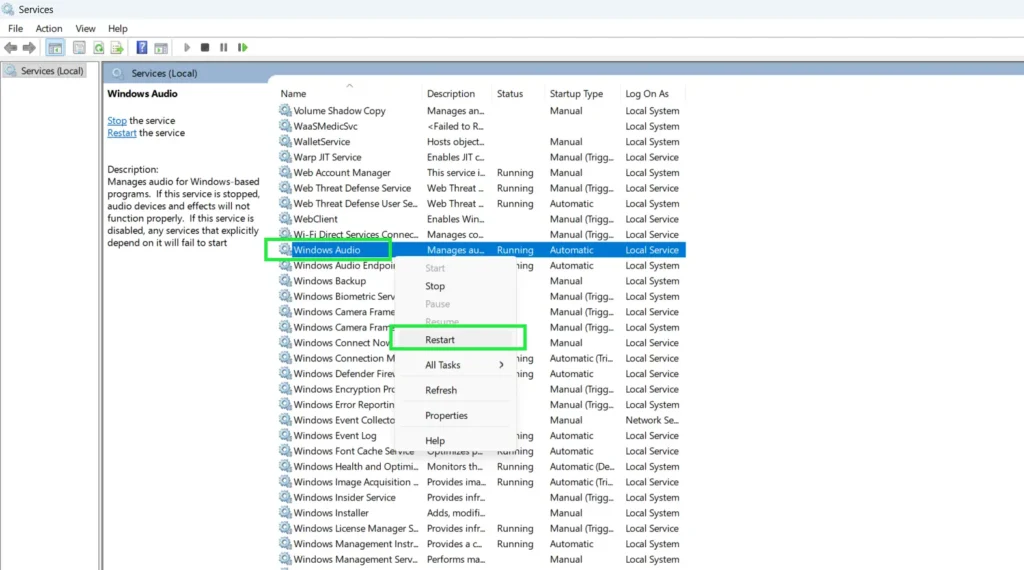
- Find Windows Audio.
- Right-click it and select Restart.
- Find Windows Audio Endpoint Builder.
- Right-click it and select Restart too.
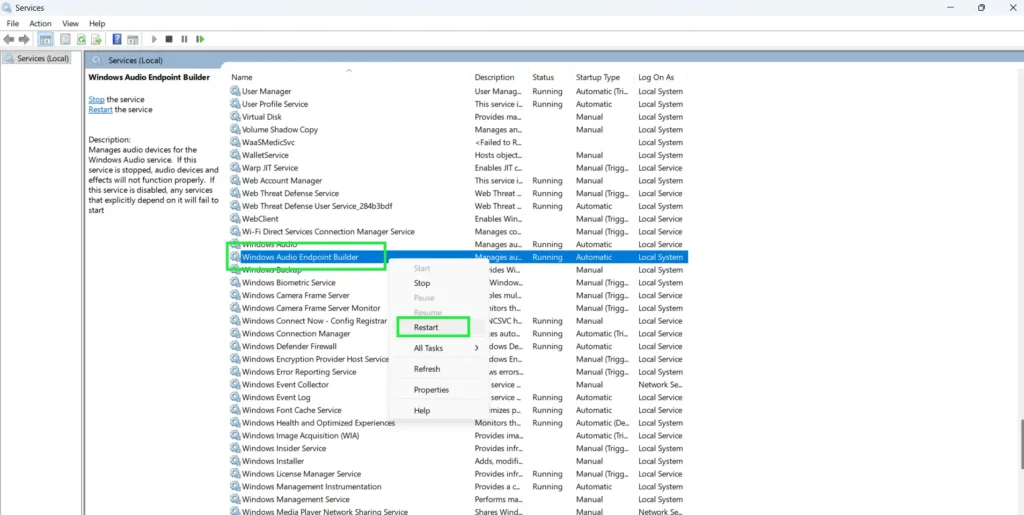
- If either service is stopped, select Start instead.
- Reconnect or re-enable the microphone and check Sound settings again.
Fix 9: Run the Windows Audio Troubleshooter
Windows includes audio diagnostics that can check device configuration and common audio problems automatically. On current Windows 11 systems, Microsoft also provides audio troubleshooting through the Get Help experience.
You can also see our dedicated Windows Audio Troubleshooter guide for more detail.
- Open Settings.
- Select System.
- Depending on your Windows build, you may see troubleshooting options under System.
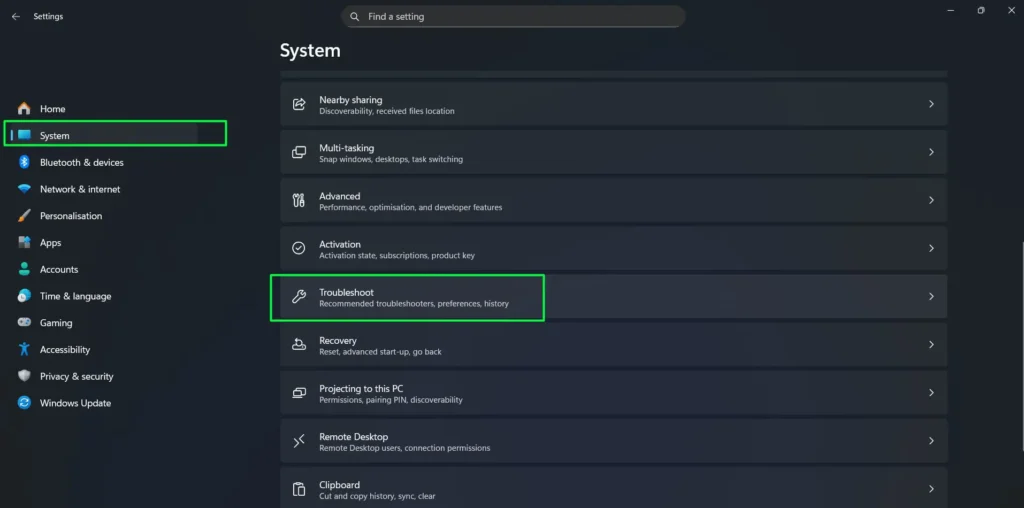
- Open the available troubleshooting controls.
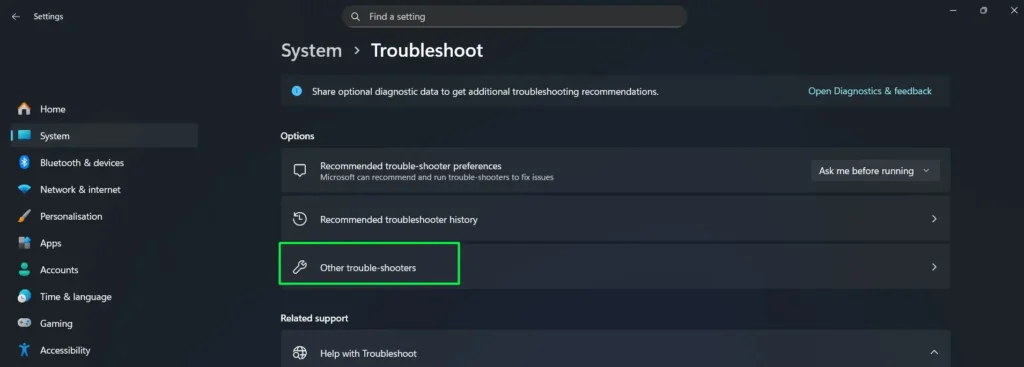
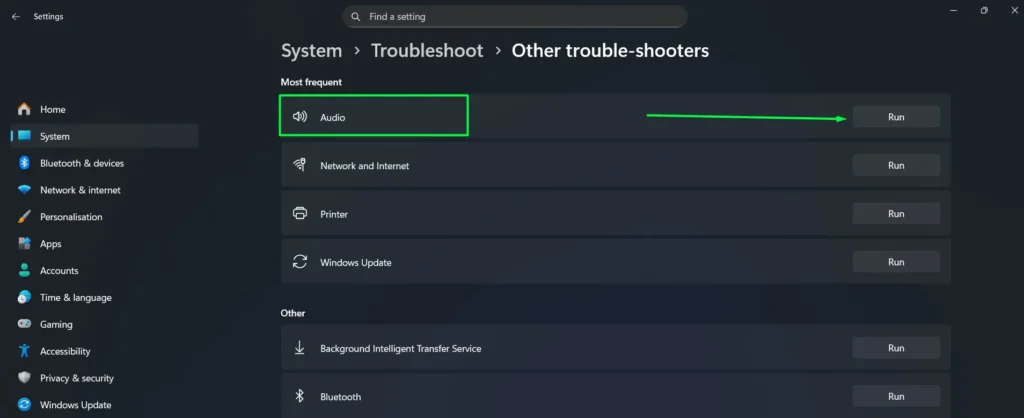
- If an Audio or Recording Audio troubleshooter is offered, run it.
- On Windows 11, you can also open the Get Help app and search for audio troubleshooter.
- Apply relevant recommendations and test the microphone again.
Fix 10: USB Microphone Not Detected
A USB microphone acts as its own audio device, so troubleshooting should focus on USB detection before changing analog microphone settings.
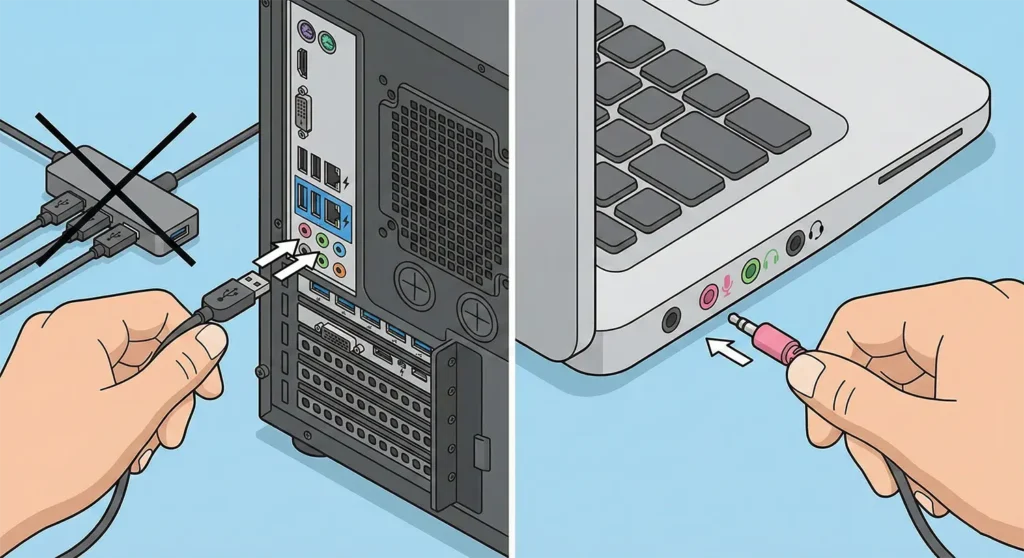
- Disconnect the USB microphone.
- Reconnect it directly to the computer rather than through a hub, dock, monitor, or extension cable.
- Try another USB port.
- If the microphone uses a detachable cable, test another known-good compatible cable if available.
- Open Device Manager and check Audio inputs and outputs, Sound, video and game controllers, and Universal Serial Bus controllers.
- Select Action > Scan for hardware changes.
- If the microphone appears with an error, uninstall the affected device, restart Windows, and reconnect it.
- For microphones or audio interfaces that require manufacturer software, install the current driver, firmware, or control application supplied for the device.
If the microphone works on another computer but no USB port on this PC detects it, check USB controller or chipset drivers from the computer or motherboard manufacturer.
Fix 11: Bluetooth Microphone or Headset Mic Not Detected
A Bluetooth headset can be connected for audio playback while its microphone input is not selected or does not appear where you expect it. Treat Bluetooth pairing and microphone input as separate checks.
- Make sure the Bluetooth device is powered on and connected under Settings > Bluetooth & devices.
- Open Settings > System > Sound and look under Input for the headset microphone.
- If the device is connected but no microphone appears, remove the Bluetooth device from Windows and pair it again.
- Check Device Manager for the Bluetooth adapter and audio devices, then update the Bluetooth driver from your PC or adapter manufacturer if needed.
- Press Windows + R, enter
services.msc, and confirm the Bluetooth support services required by your system are running. - After pairing again, return to Sound settings and explicitly select the Bluetooth microphone under Input.
Remember that Windows microphone privacy settings also apply to Bluetooth microphones once Windows detects them.
Built-In Laptop Microphone Not Detected
A built-in laptop microphone has no external cable to reconnect, so concentrate on mute controls, Sound settings, Device Manager, and the manufacturer’s audio driver.
- Look for a microphone-mute key on the keyboard. Some laptops have a dedicated key or an Fn shortcut with an indicator light.
- Go to Settings > System > Sound > Input and check whether the internal microphone appears.
- Open
mmsys.cpl, switch to the Recording tab, and show disabled devices. - Open Device Manager and inspect Audio inputs and outputs and Sound, video and game controllers.
- Install the laptop manufacturer’s current audio package for your exact model. Systems using Realtek or Intel Smart Sound Technology can depend on OEM-specific driver components.
- If the internal microphone disappeared after using an external microphone, restart Windows and manually select the internal microphone under Input.
Test the Microphone in Windows Before Troubleshooting Apps
If the microphone appears under Input, use the Windows microphone test before changing Zoom, Teams, Discord, or browser settings.
- Open Settings > System > Sound.
- Under Input, select the microphone you want to test.
- Use Start test under the microphone’s input settings.
- Speak normally into the microphone.
- Stop the test and play the recorded sample when that option is available.
- If the recording is very quiet, raise the Input volume and test again.
If Windows records your voice correctly, the microphone hardware and Windows input path are working. The problem is likely in app permissions or the app’s selected microphone.
Microphone Detected but Apps Cannot Use It? Check Privacy Permissions
If the microphone appears and works in Windows but an application cannot access it, this is no longer a hardware-detection problem. Check Windows microphone permissions.
- Press Windows + I.
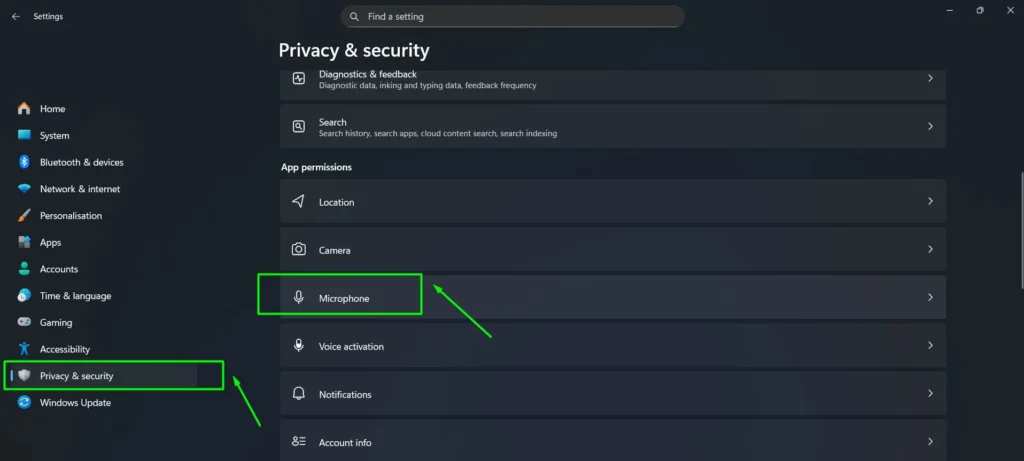
- Go to Privacy & security > Microphone under App permissions.
- Turn Microphone access On.
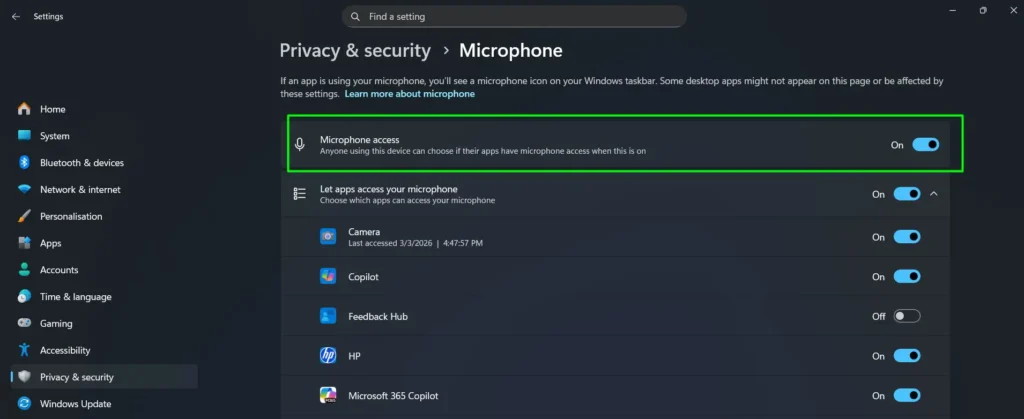
- Make sure Let apps access your microphone is enabled and allow the supported apps that need microphone access.
- Scroll to Let desktop apps access your microphone and make sure it is On for desktop applications.
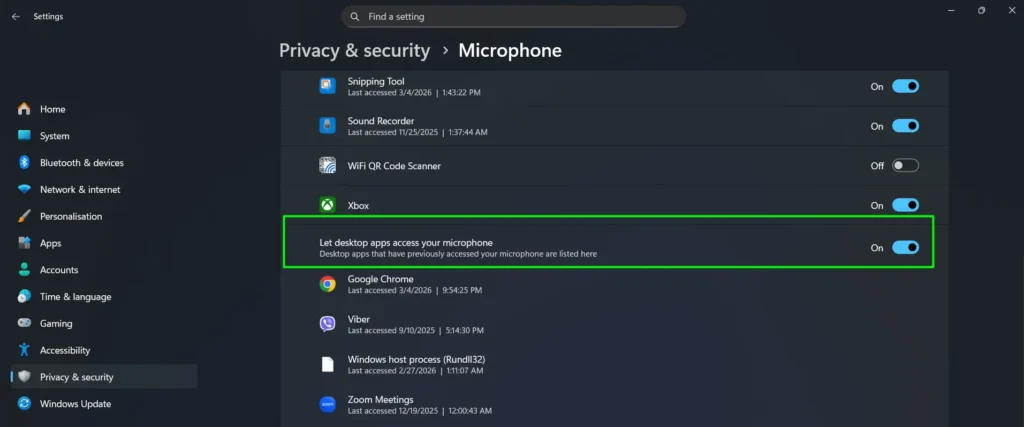
For more detail, see our guide to enabling the microphone for specific Windows apps.
Microphone Detected but No Audio Is Recorded
If the microphone appears in Windows but the test records silence, detection is working. Check mute controls and the recording configuration instead.
- Check for a hardware mute button on the microphone, headset, laptop, or keyboard.
- Open Settings > System > Sound > Input and make sure the correct microphone is selected.
- Raise the microphone’s Input volume.
- Run the built-in Windows microphone test again.
- For analog microphones, verify that the plug is connected to the correct input and that the PC supports that plug type.
- For USB microphones, reconnect directly to the computer and check the manufacturer’s software.
Microphone Works in One App but Not Another? Check Exclusive Mode
If the microphone works in Windows and in one program but becomes unavailable in another, an application may be taking exclusive control of the recording device. This is an app-sharing issue rather than a hardware-detection problem.
- Open Control Panel > Sound.
- Select the Recording tab.
- Right-click the microphone and choose Properties.
- Open the Advanced tab.
- Temporarily clear Allow applications to take exclusive control of this device.
- Select Apply and test the applications again.
If disabling exclusive mode does not make a difference, you can restore the original setting.
Microphone Works in Windows but Not in Teams or Zoom
If the Windows microphone test works, do not keep reinstalling the hardware driver just because one conferencing app cannot hear you. Check Windows permission and then verify that the application is using the same microphone you tested.
Microsoft Teams
- Open Settings > Privacy & security > Microphone and make sure microphone access is enabled.
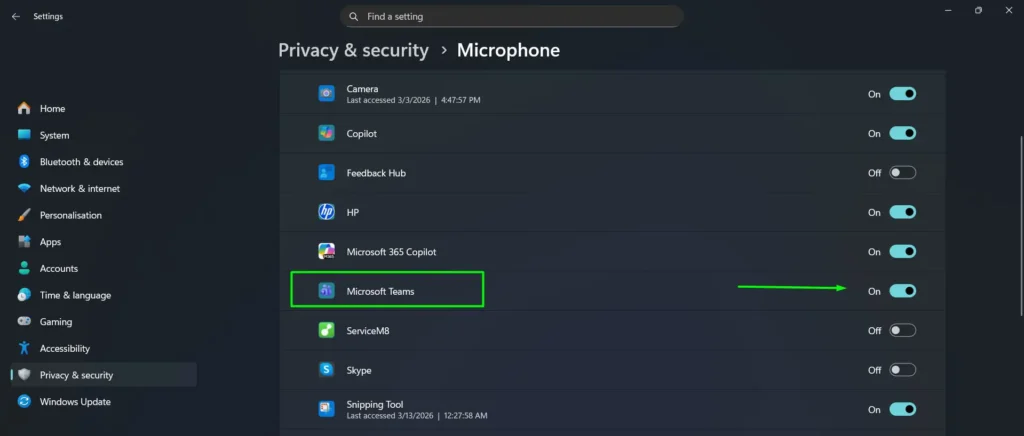
- Open Microsoft Teams and go to its Settings.
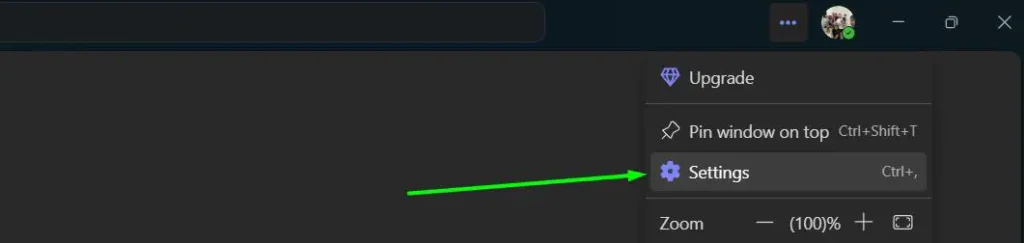
- Open the device or audio settings and choose the microphone you want Teams to use.
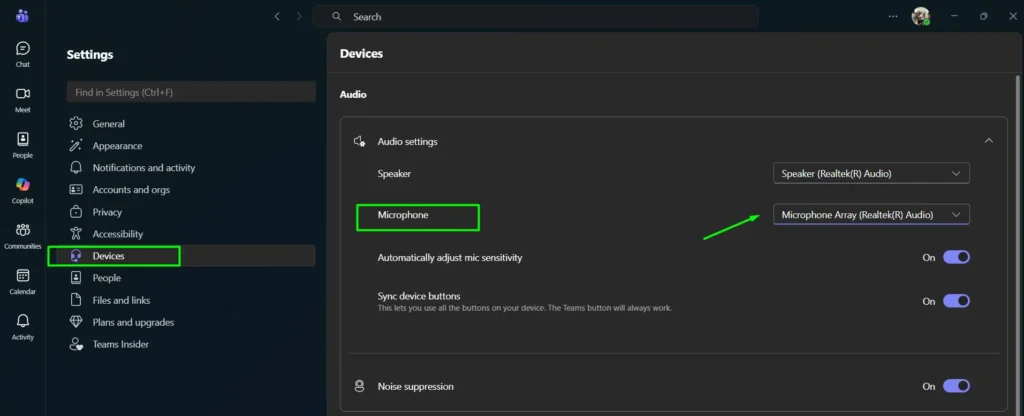
- Use Teams’ available microphone or call test and restart the app after changing the input device if necessary.
Zoom
- Confirm that Let desktop apps access your microphone is enabled in Windows.
- Open Zoom and open its Settings.
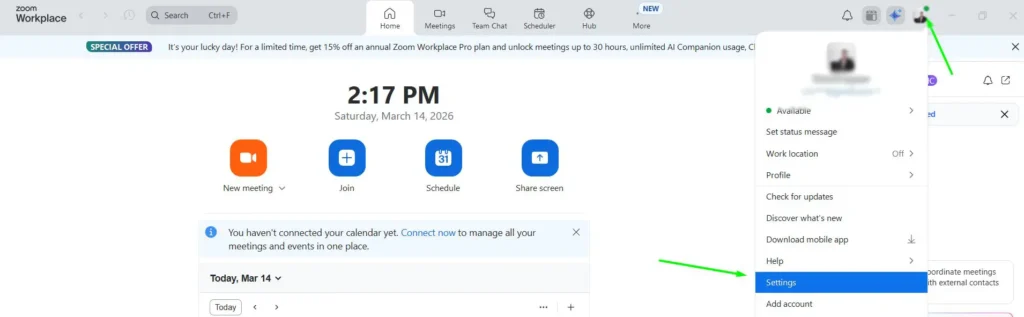
- Open the Audio section and select the correct microphone.
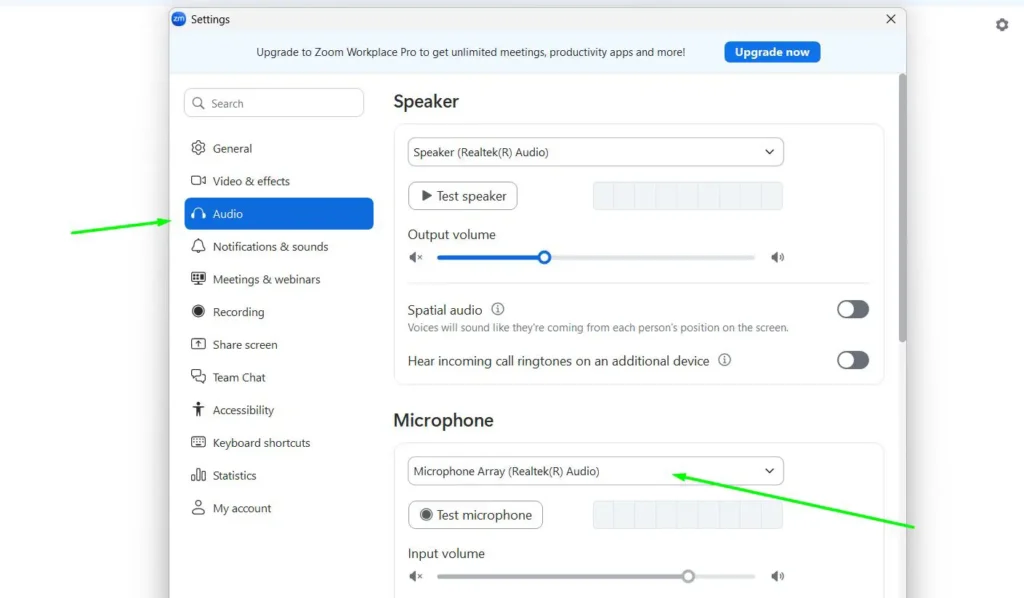
- Run Zoom’s microphone test and confirm the input level responds while you speak.
The same principle applies to Discord, OBS, browsers, DAWs, games, and other software: if Windows records the microphone correctly, check the application’s selected input and permission before changing the Windows driver.
Check Security or Privacy Software Only If Windows Already Detects the Mic
Some third-party security or privacy tools can restrict microphone access for applications. This is worth checking only when the microphone appears and works in Windows but a particular browser or application cannot use it.
- Open the third-party security or privacy application you use.
- Look for microphone, webcam, privacy, application permissions, or device-control settings.
- Check whether the affected application is blocked.
- Allow the application if you trust it, then retest the microphone.
Do not disable your overall security protection just to troubleshoot microphone detection. First confirm that Windows itself detects and tests the microphone correctly.
Windows Says “No Microphone Found”
If Windows does not list any microphone at all, work through the detection checks rather than app permissions.
- Confirm the physical connection or built-in microphone mute control.
- Open
mmsys.cpland show disabled and disconnected recording devices. - Open Device Manager and use View > Show hidden devices.
- Select Action > Scan for hardware changes.
- Install or reinstall the correct audio driver from the PC or hardware manufacturer.
- For USB microphones, test another USB port and cable.
- For Bluetooth microphones, remove and re-pair the device.
- If the built-in audio controller itself is completely absent, continue to the advanced hardware checks below.
Advanced: Check BIOS or UEFI Only If the Audio Controller Is Missing
Do not start with BIOS or UEFI for an ordinary microphone problem. Consider this only when onboard audio is completely absent from Device Manager and the correct driver does not restore it, particularly on a desktop or custom-built PC.
- Restart the computer.
- Enter BIOS or UEFI using the key specified by your computer or motherboard manufacturer.
- Look for an onboard audio, HD Audio, integrated audio, or similar setting.
- If onboard audio is intentionally disabled and you rely on the motherboard’s audio hardware, enable it.
- Save the change and boot back into Windows.
- Check Device Manager before changing any other firmware settings.
Firmware menus vary widely between systems. Avoid changing unrelated settings if you are unsure what they control.
If the Microphone Is Still Not Detected
At this point, use controlled tests to determine whether the remaining problem is Windows, the port, or the microphone hardware.
- Test the microphone on another compatible device.
- Test a second known-working microphone on the problem PC.
- If one microphone fails everywhere, the microphone itself is the likely problem.
- If several working microphones fail only on one PC, focus on that PC’s port, controller, driver, or Windows configuration.
- If USB microphones work but the built-in or 3.5mm microphone never appears, investigate the onboard audio driver, analog jack, or laptop audio hardware.
- If necessary, run
sfc /scannowfrom an elevated Command Prompt to check Windows system files, then restart. - If system corruption is suspected, you can also run
DISM /Online /Cleanup-Image /RestoreHealth, restart Windows, and reinstall the correct audio driver.
Windows 10 Note
The main troubleshooting logic in this guide also applies to Windows 10: check the physical connection, Recording devices, Device Manager, drivers, microphone permissions, and the selected input device. Menu names and locations differ slightly from Windows 11. Microsoft ended standard Windows 10 support on October 14, 2025, so Windows 11 is the primary reference for current instructions in this guide.
Frequently Asked Questions
Why isn’t my microphone detected in Windows 11?
If the microphone is completely missing from Windows 11 Sound settings, check the Recording tab for disabled devices, then open Device Manager and inspect Audio inputs and outputs and Sound, video and game controllers. Show hidden devices, scan for hardware changes, and install the correct audio driver from the PC or microphone manufacturer if necessary.
Why does my microphone show in Device Manager but not Sound settings?
If Device Manager sees the microphone or audio hardware but Sound settings does not list an input device, check the Recording tab for disabled devices and restart the audio services. If that does not help, reinstall the microphone or audio driver and restart Windows.
Why does Windows detect my microphone but apps cannot use it?
If the microphone works in the Windows microphone test but not in an app, check Settings > Privacy & security > Microphone and make sure microphone access and the appropriate app access are enabled. Also confirm that the app itself is using the correct input device.
Why did my microphone disappear after a Windows update?
A Windows or driver update can coincide with an audio-driver change or expose a compatibility problem. Check the audio driver’s Properties page in Device Manager. If Roll Back Driver is available and the problem began immediately after the driver changed, try the rollback. Otherwise install the current supported driver from the computer or hardware manufacturer.
How can I tell whether the microphone or Windows is the problem?
Test the microphone on another compatible device and test a second known-working microphone on the same PC. If the microphone fails on several devices, the microphone itself is more likely to be faulty. If multiple working microphones fail only on one computer, investigate that computer’s ports, drivers, audio controller, and Windows configuration.