
JBL Tour Pro 3 sound cutting out is usually a short-term Bluetooth hiccup rather than a hardware fault, and it can be fixed in a few minutes with the right order of steps. Most people find that a restart, a clean re-pair, or a firmware update brings back smooth audio without any special tools.
Key Takeaways
- Fix 1 restarts the earbuds using the button on the Smart Charging Case.
- Fix 2 removes the old Bluetooth pairing and creates a fresh one.
- Fix 3 installs the latest firmware through the JBL Headphones app.
- Fix 4 factory resets the earbuds if the first three do not solve it.
- Fix 5 reduces signal interference, which is a common cause of dropouts.
- Fix 6 covers PC users who hear cutting out on Windows 11.
Fix 1: Restart the Earbuds With the Smart Charging Case
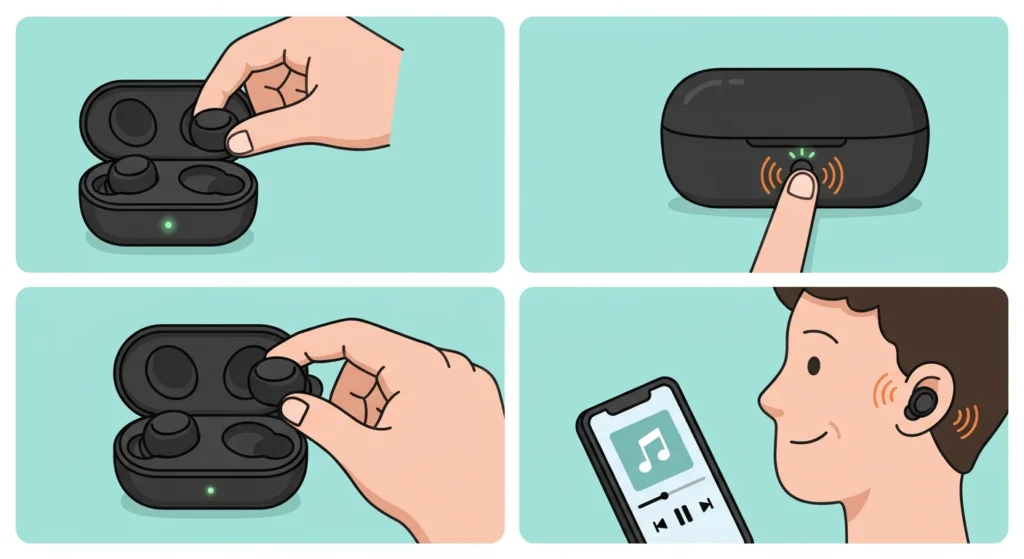
A restart clears small software glitches without wiping any settings, so it is the best place to start. Think of it like closing and reopening an app that has frozen.
- Step 1: Place both earbuds in the Smart Charging Case.
- Step 2: Press and hold the button on the case for 10 seconds.
- Step 3: Take the earbuds out and let them reconnect to the phone.
- Step 4: Play a song for a few minutes to check that the sound stays steady.
Fix 2: Forget the Earbuds and Pair Them Again
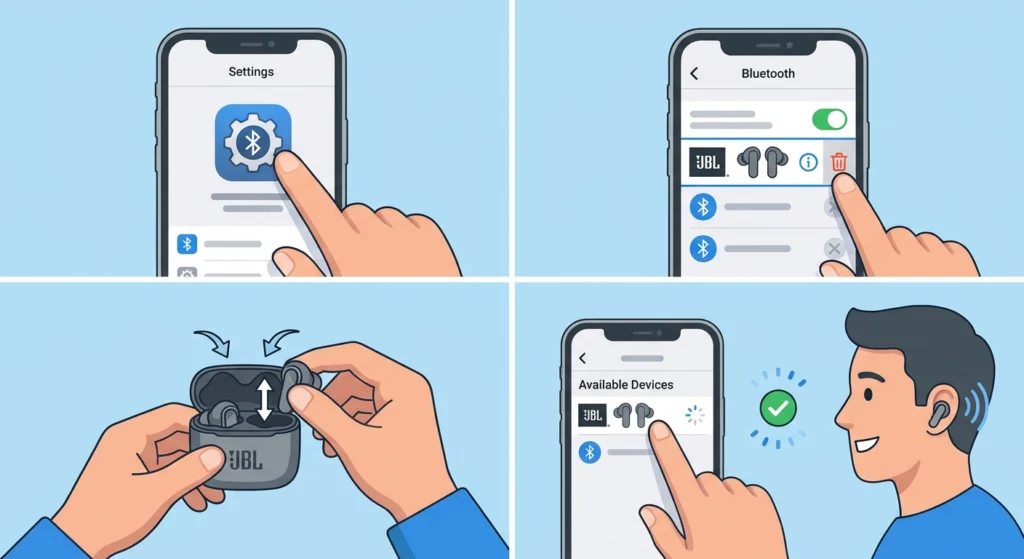
An old or corrupted pairing record can cause the connection to stutter. Removing it and starting fresh often fixes the problem right away.
- Step 1: Open the Bluetooth settings on the phone.
- Step 2: Find JBL Tour Pro 3 in the paired devices list and choose Forget or Unpair.
- Step 3: Place the earbuds in the charging case, then take them out again.
- Step 4: Select JBL Tour Pro 3 from the list of available devices and confirm the pairing.
Pro-Tip: If the earbuds are also paired with a tablet, laptop, or smartwatch, switch off Bluetooth on those devices while testing. Several nearby devices trying to grab the same earbuds is a well-known reason for audio breaking up.
Fix 3: Update the Firmware in the JBL Headphones App
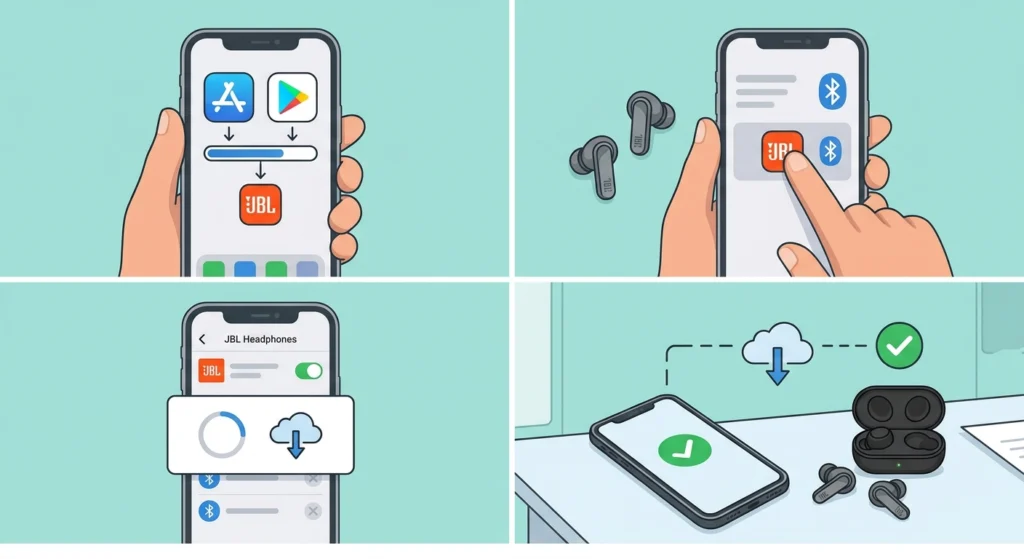
JBL releases firmware updates through the free JBL Headphones app, and outdated firmware can cause connection problems. Installing the latest version is one of the most reliable long-term fixes.
- Step 1: Install the JBL Headphones app from the Google Play Store or Apple App Store.
- Step 2: Connect the JBL Tour Pro 3 to the phone and open the app.
- Step 3: Follow the on-screen prompt if a firmware update is available.
- Step 4: Keep the earbuds in or near the phone with a stable internet connection until the update finishes.
Fix 4: Factory Reset the JBL Tour Pro 3
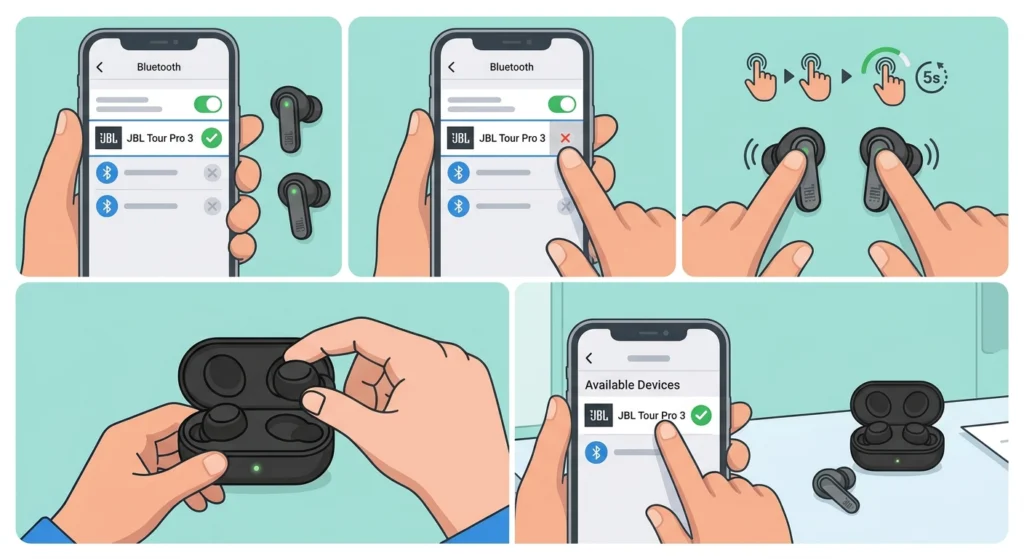
A factory reset is the strongest fix and works best when the earlier steps have not helped. It returns the earbuds to their default state, so any custom settings may need to be set again in the JBL Headphones app.
- Step 1: Connect the earbuds to the phone and keep both of them out of the charging case and switched on.
- Step 2: Remove or forget the JBL Tour Pro 3 from the Bluetooth device list on the phone.
- Step 3: Tap the touch control on each earbud twice, then press and hold for 5 seconds.
- Step 4: Place both earbuds in the charging case.
- Step 5: Pair the earbuds with the phone again as a brand new device.
Pro-Tip: The reset only works while the earbuds are connected, so skipping Step 1 is the most common reason a reset seems to do nothing.
Fix 5: Reduce Signal Interference
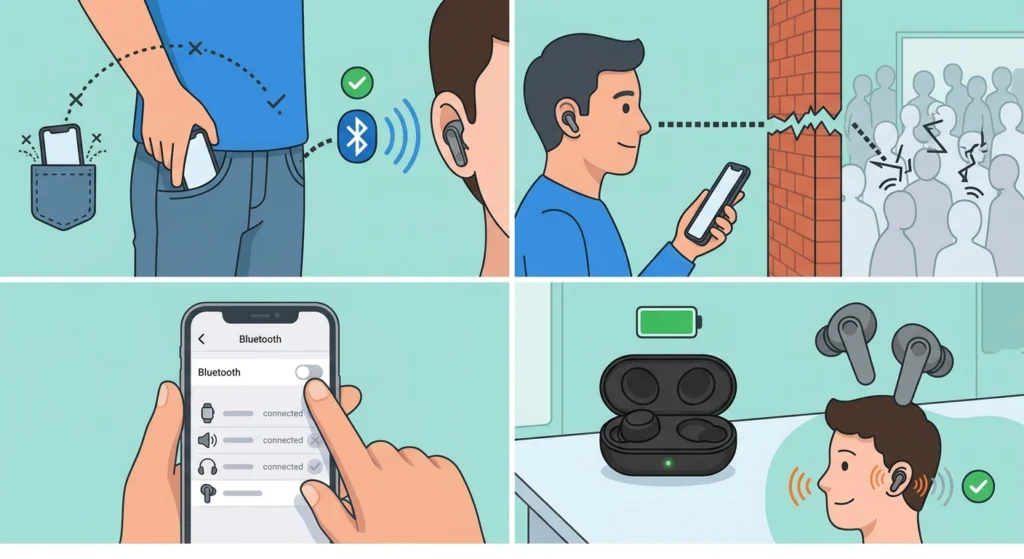
Bluetooth is a short-range, low-power signal, and the human body absorbs it surprisingly well. A phone in a back pocket or a bag on the opposite side of the body is a classic cause of sound cutting out.
- Step 1: Move the phone to a front pocket or hold it on the same side of the body as the earbuds.
- Step 2: Stay within a clear line of sight of the phone when possible, since walls and crowded spaces weaken the signal.
- Step 3: Turn off Bluetooth on any other device that was previously paired with the earbuds.
- Step 4: Charge the earbuds and case if the battery is low, then test again.
Fix 6: Fix Cutting Out on a Windows 11 PC
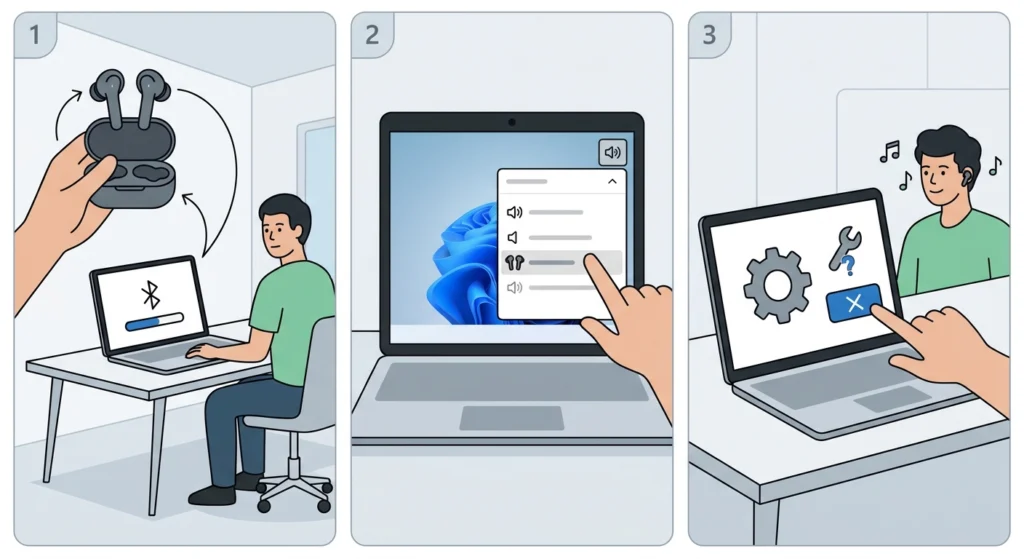
If the sound only breaks up on a computer, the cause is often the Windows pairing or audio settings rather than the earbuds. These Windows 11 guides cover the most relevant fixes.
- Step 1: Re-pair the Bluetooth earbuds for stereo sound on Windows so the PC uses the correct audio connection.
- Step 2: Open audio output settings in Windows 11 and make sure the JBL Tour Pro 3 is selected as the output device.
- Step 3: If the problem continues, reset audio settings in Windows 11 and test the earbuds again.
Extra Tips to Keep the Sound Stable
- Keep the JBL Headphones app installed, since it is the way firmware updates are delivered.
- Use the Check My Best Fit feature in the app so the earbuds sit securely in the ears.
- Restart the earbuds from the case button every few weeks if they stay connected to the same phone for long periods.
- Avoid crowded areas with many Bluetooth devices when possible, such as busy train stations.
Common Problems After Fixing the Cutting Out
Sound Still Cuts Out After a Factory Reset
Make sure the earbuds were forgotten from the phone before pairing again, and then update the firmware. If dropouts happen on every device and in every location, contact JBL support or the retailer about the warranty.
Only One Earbud Loses Sound
Place both earbuds back in the case, close the lid, and take them out again. If that does not help, repeat the factory reset with both earbuds connected.
Earbuds Will Not Reconnect After a Reset
The old pairing is usually still saved on the phone. Forget the JBL Tour Pro 3 in the Bluetooth list and pair it again.
Frequently Asked Questions
Why does the JBL Tour Pro 3 sound keep cutting out?
The most common causes are signal interference, a weak Bluetooth connection, outdated firmware, a low battery, or a pairing glitch. The fixes above address each of these.
How do I restart the JBL Tour Pro 3?
Place the earbuds in the Smart Charging Case and press and hold the case button for 10 seconds. A restart is a lighter step than a factory reset.
How do I factory reset the JBL Tour Pro 3?
With the earbuds connected to the phone, tap the touch control on each earbud twice, then press and hold for 5 seconds. Place the earbuds in the charging case afterward and pair them again.
Do the earbuds need to be connected for a factory reset?
Yes. Both earbuds should be connected and switched on, and neither should be sitting in the charging case when the reset starts.
How do I update the JBL Tour Pro 3 firmware?
Connect the earbuds to the JBL Headphones app and follow the update prompt if one appears. Keep the phone connected to the internet until the update finishes.
Can a phone in my pocket make the sound cut out?
Yes. The body can block Bluetooth signals, so a phone in a back pocket or bag on the opposite side can cause dropouts. Moving the phone to the same side as the earbuds often helps.
Does Bluetooth 5.3 prevent all audio dropouts?
No. The JBL Tour Pro 3 uses Bluetooth 5.3, but walls, crowds, other devices, and distance can still weaken the connection.
Why does the sound cut out only on my Windows 11 PC?
The cause is often the pairing or audio output settings on the PC. Re-pairing the earbuds and checking the selected output device usually resolves it.
Will a factory reset erase my custom settings?
A factory reset returns the earbuds to their default state, so custom settings may need to be set again in the JBL Headphones app.
When should I contact JBL support?
If the sound still cuts out after a firmware update and a factory reset, and the problem appears on more than one device, the earbuds may have a hardware fault. JBL support or the place of purchase can advise on warranty options.