
Your headphones are plugged in, but the sound is still coming from your monitor. Or you connected a Bluetooth headset for a call, and now your music sounds like a phone call from 2003. Or there’s simply no audio at all, and clicking around Settings hasn’t helped.
This guide covers every path to adjusting audio output settings in Windows 11 and Windows 10 — the one-click switch, the settings that make your choice stick, and the specific reasons Windows keeps overriding you. It also covers the quality side that most guides skip: sample rates, exclusive mode, and why your expensive headphones can sound worse on a PC than on your phone.
Key Takeaways
- Fastest switch: press Win + A, click the arrow beside the volume slider, pick your device.
- Makes it stick: press Win + R, type mmsys.cpl, and set your device as both Default Device and Default Communication Device.
- Bluetooth sounds terrible? Windows switched your headset from Stereo (A2DP) to Hands-Free (HFP). Select the Stereo entry manually.
- Monitor stealing your audio after sleep? Disable the HDMI/DisplayPort audio endpoint in the Playback tab. It won’t affect your picture.
- Per-app routing (Spotify to speakers, Discord to headset) works in Windows 11 only, via Volume Mixer.
- Best format for most people: 24-bit, 48000 Hz. Higher rates add resampling overhead without improving anything.
- No sound at all? Run the troubleshooter, disable enhancements, restart the Windows Audio services, then roll back the driver — in that order.
Quick Answer: How to Adjust Audio Output Settings in Windows 11 and 10
To adjust audio output settings in Windows 11 or 10, open Settings > System > Sound and choose your device under Output. For a faster switch, press Win + A and click the arrow next to the volume slider. For settings that survive a reboot or a reconnect, press Win + R, type mmsys.cpl, and set your defaults in the Playback tab.
Find your situation below and jump straight to it.
| Your situation | Where to go |
|---|---|
| I just want to switch speakers and headphones | Switch your output device |
| Windows keeps changing it back | Why Windows keeps switching back |
| My Bluetooth headset sounds muffled or robotic | Bluetooth hands-free hijacking |
| Sound comes from my monitor after waking the PC | HDMI monitors stealing audio |
| I want different apps on different devices | Per-app routing |
| I want the best possible sound quality | Advanced output settings |
| One earbud is louder than the other | Left and right balance |
| I have no sound at all | Full troubleshooting sequence |
Essential Checks Before You Begin
Run through these quickly before changing any settings — they catch most issues before you even start:
- Your audio device is connected — Plug in your speakers or headphones, or pair your Bluetooth device first.
- Windows is up to date — Go to Settings > Windows Update and install any pending updates. Audio driver fixes often ship with system updates.
- Your device appears in Device Manager — Press Win + X, open Device Manager, expand “Sound, video and game controllers,” and confirm your device is listed with no yellow warning symbols.
- You have admin access — Driver updates and service restarts require an admin account.
- You’ve noted your current settings — Write down your current audio format and default device before making changes so you can restore them if needed.
- Bluetooth is on (for wireless devices) — Go to Settings > Bluetooth & devices and confirm Bluetooth is enabled and your device is paired.
How to Switch Your Audio Output Device (4 Ways)
All four methods below do the same job. Use the taskbar for speed, Settings for permanence, Control Panel for the options Microsoft never moved across, and Game Bar when you don’t want to leave a game.
1. Taskbar and Quick Settings (fastest)
Two clicks, no menus. This is what you’ll use ninety percent of the time.
- Click the Volume (speaker) icon in the bottom-right corner of your taskbar, or press Windows key + A to open Quick Settings instantly.

- Drag the volume slider left to lower the level or right to raise it.
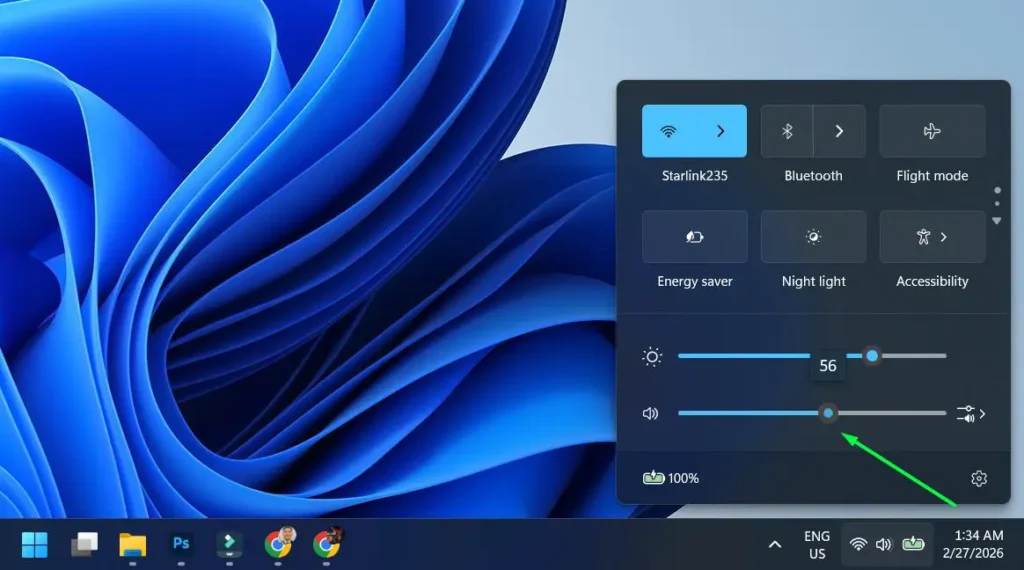
- To switch devices, click the arrow icon next to the volume slider. This expands the list of every available audio output.

- Click your preferred output device. The change applies immediately — no confirmation needed.
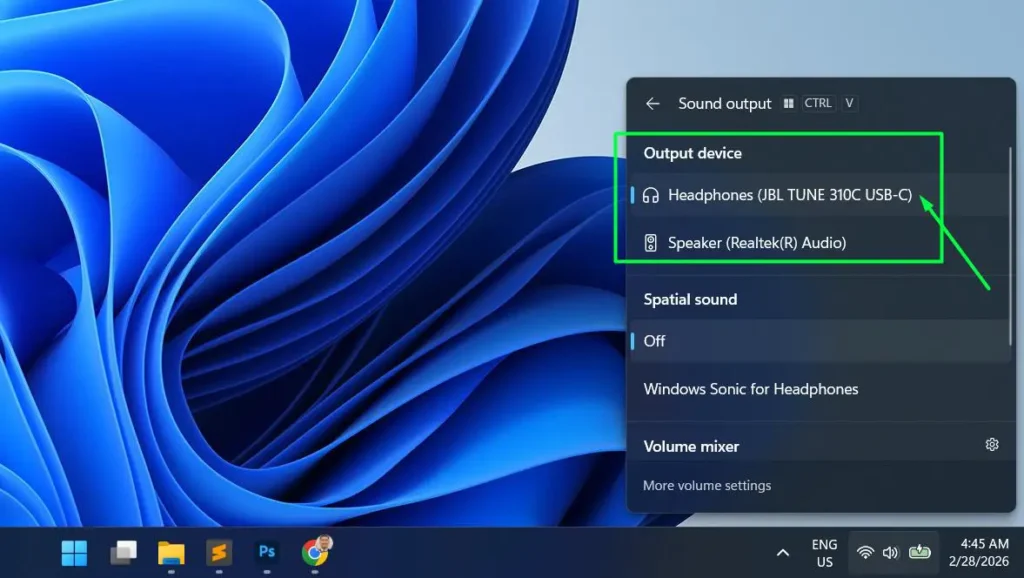
Windows 10 note: Click the speaker icon, then click the device name shown above the volume slider. A dropdown of available outputs appears — select yours and it switches right away.
Important limitation: this is a temporary switch. Windows can and will revert it when a device reconnects or an app requests something else. If you need it to last, see Setting a default device that actually sticks.
2. The Settings app
Use this when you need per-device properties — audio format, enhancements, spatial sound, or renaming a device so you can tell your three “Speakers (Realtek)” entries apart.
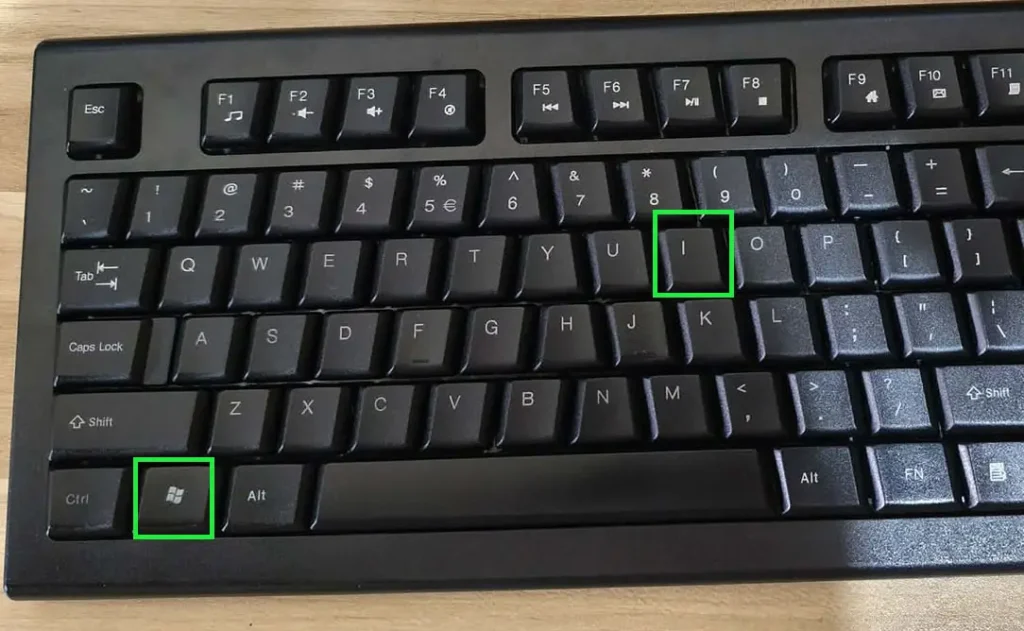
- Press Windows + I to open Settings, or click Start and search for Settings.
- Click System in the left sidebar, then click Sound.
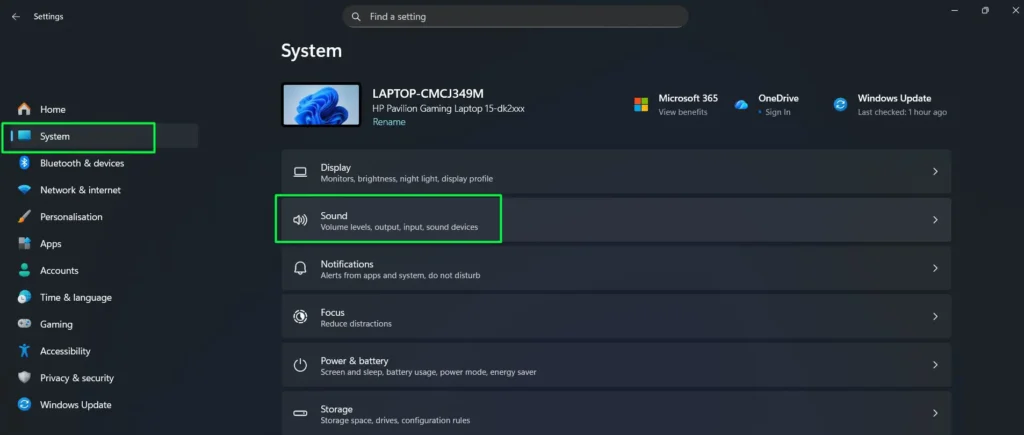
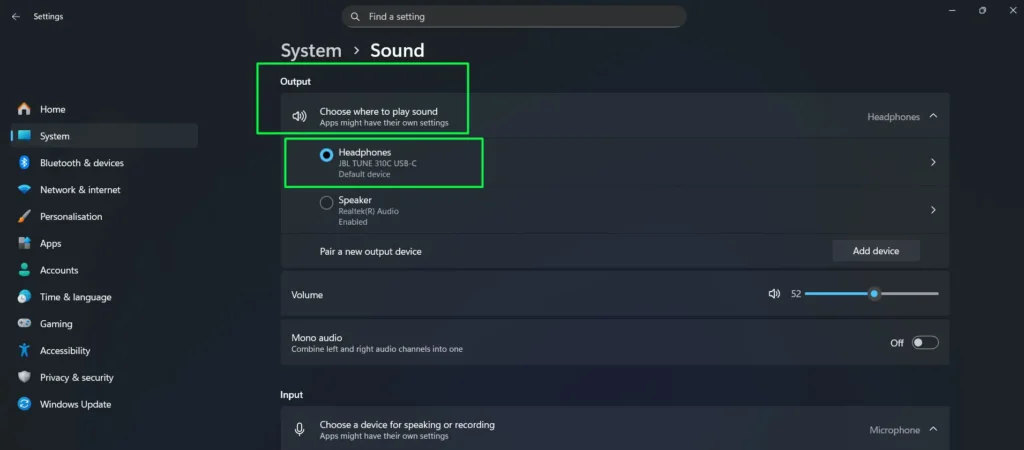
- Under Output, click “Choose where to play sound” and select your device.
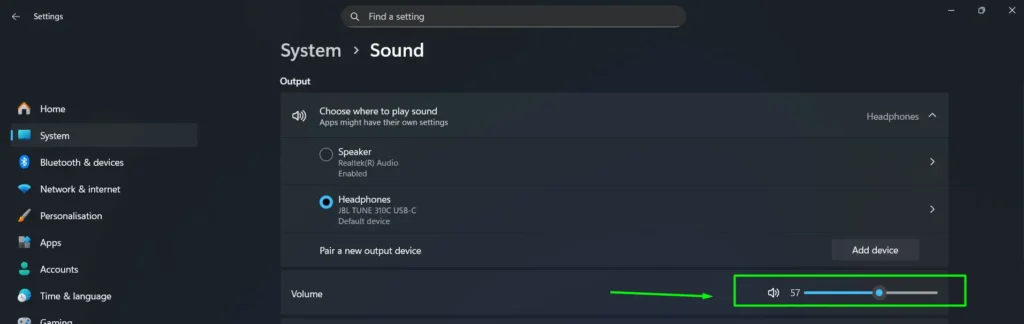
- Use the volume slider to set your preferred level for that specific device. Windows remembers a separate volume per device.
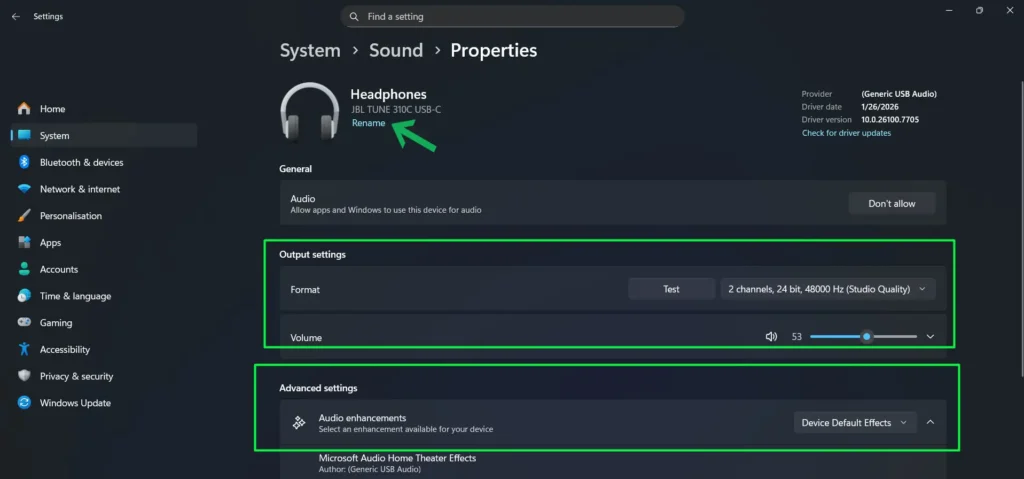
- Click the device name to open its properties. Here you can rename it, change the audio format, and turn enhancements off. Under “Set as default sound device” you can choose “Use as default for audio” (media and system sounds) or “Use as default for communications” (calls) — these are two separate settings, and getting them wrong is the single most common cause of audio going to the wrong place.
Windows 10 note: Press Windows + I, go to System > Sound, and use the “Output” dropdown. For advanced properties, click “Device properties” below the dropdown.
3. The Sound Control Panel (mmsys.cpl)
The classic dialog still exposes controls the modern Settings app doesn’t: exclusive mode, loudness equalization, left/right balance, communications ducking, and hidden or disabled devices. Open it directly with Win + R and mmsys.cpl — that’s faster than any menu path.
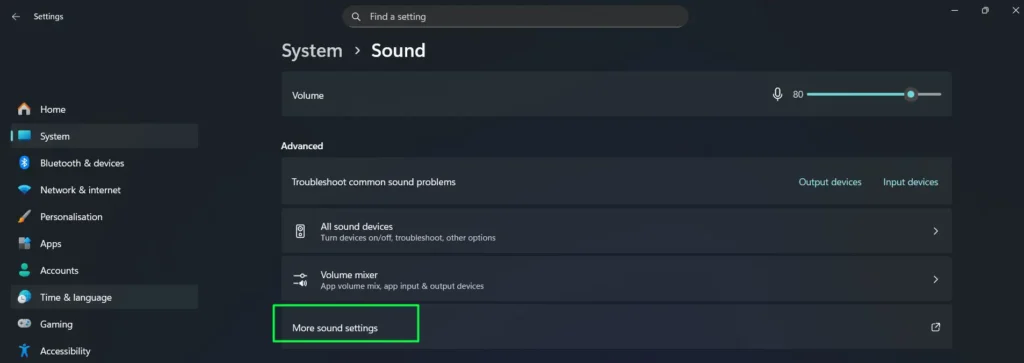
- Press Win + R, type mmsys.cpl, and press Enter. Alternatively, right-click the speaker icon in the taskbar and select “More sound settings.”
- Open the Playback tab. Every audio output Windows recognises is listed here. A green checkmark marks the current default; a green checkmark with a phone icon marks the default communication device.
- Right-click your preferred device and select “Set as Default Device.” Then right-click it again and select “Set as Default Communication Device.” Do both.
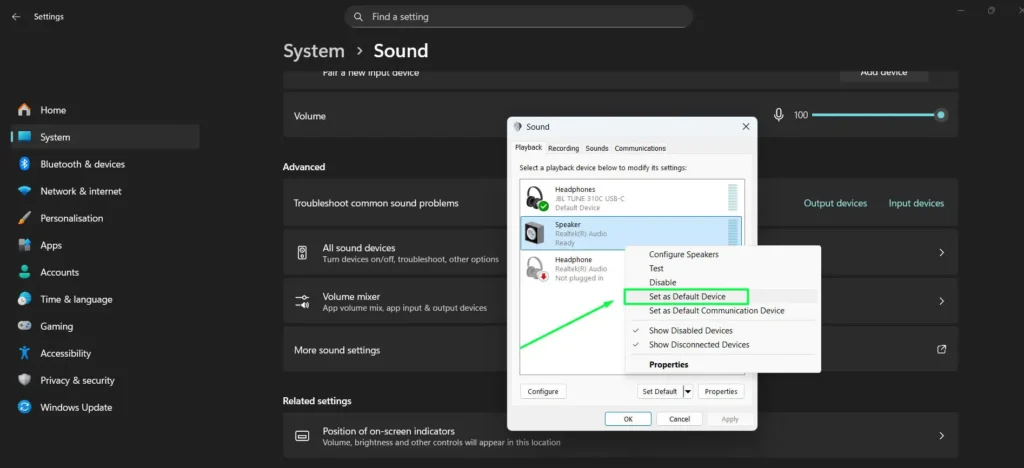
- Click Apply, then OK to save.
Device missing? Right-click any empty area in the Playback tab and enable both “Show Disabled Devices” and “Show Disconnected Devices.” If your device appears greyed out with a down arrow, right-click it and select Enable. On Realtek systems, also open the Realtek Audio Console from the Start menu and confirm the correct jack function is assigned under Device advanced settings.
4. Xbox Game Bar (for gamers)
Switch output devices without pausing, alt-tabbing, or losing fullscreen focus.
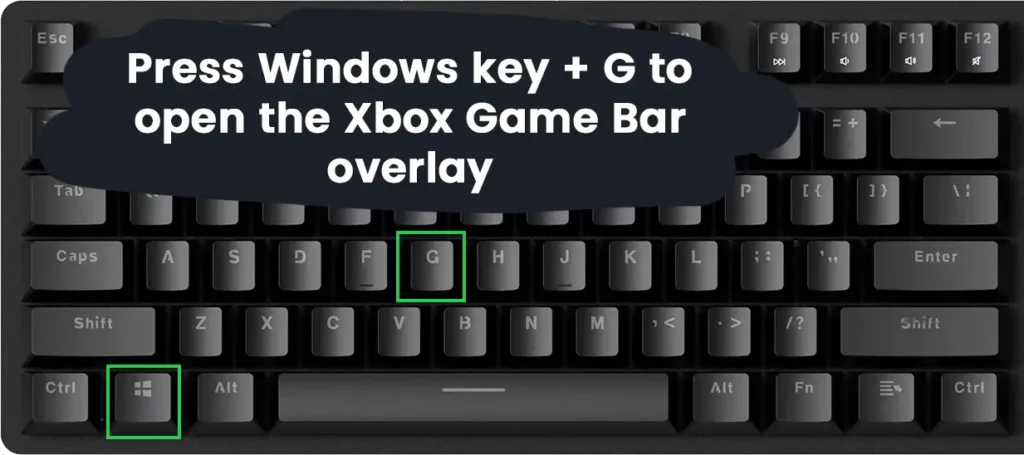
- Press Windows key + G to open the Xbox Game Bar overlay.
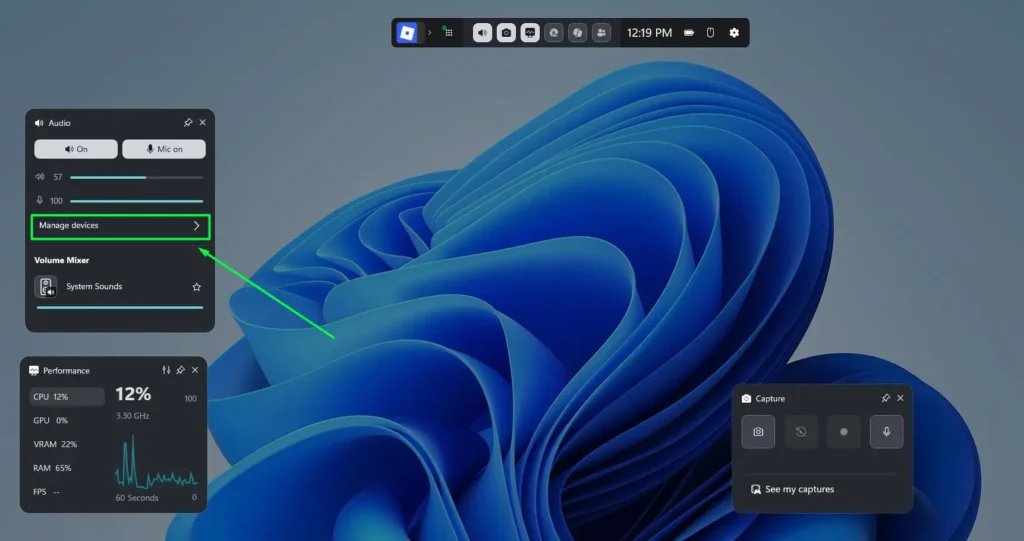
- If the Audio widget isn’t visible, click the Widget Menu (grid icon) at the top and select “Audio” to add it.
- In the Audio widget, click “Manage devices” and find the Output section.
- Click the Output dropdown and select your preferred device.
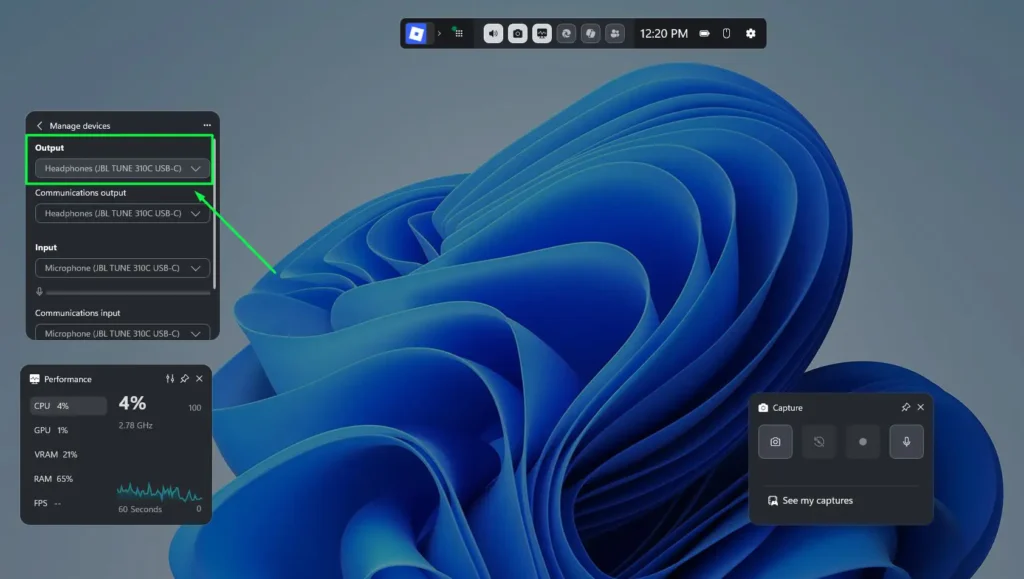
- The change applies instantly. Press Escape or Windows + G again to return to your game.
Note: Game Bar must be enabled first. Go to Settings > Gaming > Xbox Game Bar and toggle it on. This works on both Windows 11 and Windows 10.
Setting a Default Device That Actually Sticks
Taskbar switching is temporary. Windows treats it as a one-off preference and overrides it the moment a device reconnects or an application requests a different endpoint. A default is what survives reboots, sleep, and reconnects.
The critical detail: Windows maintains two separate defaults. The Default Device handles media, music, games, and system sounds. The Default Communication Device handles voice calls in Teams, Zoom, Discord, and similar apps. Setting one does not set the other.
Open mmsys.cpl, go to the Playback tab, and assign your device to both roles. If you want everything on one device, look for both the plain green checkmark and the green checkmark with a phone icon on the same entry. If you genuinely want media through speakers and calls through a headset, that’s exactly what these two settings are for — assign them separately and both will work at once.
Communications ducking (why your music suddenly goes quiet)
Windows automatically lowers all other audio when it detects call activity. That’s why your game volume drops the instant you join a meeting, with no obvious cause.
In the Sound Control Panel, open the Communications tab. You get four choices: reduce other sounds by 80%, reduce by 50%, mute everything else, or do nothing. Most people should select “Do nothing.” Zoom, Teams, and Discord already manage their own volume mixing, and Windows ducking just adds an unpredictable second layer on top.
Why Windows Keeps Switching Back to the Wrong Device
You selected your headset. Windows agreed. Ten minutes later the sound is coming out of your laptop speakers again. This is the most common complaint about Windows audio, and it has four specific causes.
The default communications device trap
When you plug in a USB headset or connect Bluetooth earbuds, Windows frequently marks the new device as the default communication device while leaving your old speakers as the default media device. The result is that Zoom routes to your headset but Spotify and YouTube keep playing through the monitor.
Fix: open mmsys.cpl, Playback tab, and set your chosen device as both Default Device and Default Communication Device. Confirm both icons appear on the same entry.
Bluetooth hands-free profile hijacking
Bluetooth headsets show up twice in your device list — once as Stereo and once as Hands-Free AG Audio. This isn’t a bug. It’s how the Bluetooth specification works.
- A2DP (Stereo): one-way, high bandwidth, full-quality stereo playback. Microphone unavailable.
- HFP (Hands-Free): two-way, low bandwidth, mono, heavily compressed. The microphone works, but playback quality collapses to roughly telephone level.
The moment any application requests microphone access — a browser tab, Discord idling in the background, even a game with voice chat enabled — Windows drops the headset into HFP mode. Your music instantly sounds thin and muffled. And when the call ends, Windows doesn’t reliably switch back.
Fix: manually reselect the Stereo entry from the taskbar or Sound settings after any call. If it happens daily, the durable solution is to use a separate USB or desk microphone for calls. That leaves your Bluetooth headset permanently locked in stereo mode because nothing ever requests its mic. You can check that a replacement microphone is being picked up correctly with our free online mic test.
Some headsets recover from HFP more gracefully than others. If this is a persistent frustration, it’s worth checking behaviour before you buy — our headphone comparison and earbuds comparison pages cover connectivity and codec support model by model.
HDMI monitors that steal your audio
If your monitor connects over HDMI or DisplayPort, Windows registers it as an audio device — even if the monitor has no usable speakers, and even if its volume is at zero. Every time the PC wakes from sleep, the display handshake completes before your other devices finish enumerating, and Windows hands audio to the monitor.
Fix: in the Playback tab, right-click the monitor’s audio entry (usually named after the display model, or listed under NVIDIA/AMD/Intel High Definition Audio) and choose Disable. This affects audio only. Your picture, resolution, and refresh rate are untouched. Windows can no longer route sound to a device that doesn’t exist as far as it’s concerned.
Duplicate devices and stacked drivers
If your Playback tab shows the same device three or four times, you have layered audio drivers. Realtek, NVIDIA, your motherboard vendor, and any headset companion software each register their own endpoints. Windows then has multiple valid candidates for “default” and picks inconsistently.
Fix: open Device Manager, expand “Sound, video and game controllers,” and look for repeated entries — several “NVIDIA High Definition Audio” instances, or old Realtek entries left behind by an update. Right-click and Uninstall device on the duplicates you don’t use, but leave the “Delete the driver software” box unchecked. Restart. The duplicates should be gone.
Docking stations and USB-C hubs
Docks contain their own audio chipsets. Docking creates a new default; undocking removes it, and Windows is supposed to fall back to your laptop speakers. That handoff fails often enough to be a daily annoyance.
Fix: set your laptop speakers as the default device while undocked, then dock and disable the dock’s audio entry in the Playback tab. Windows will stop treating the dock as an audio source entirely, and your laptop speakers stay active whether you’re docked or not.
Per-App Audio Routing with Volume Mixer
Volume Mixer controls each application’s volume independently and — on Windows 11 — sends different apps to completely different output devices at the same time. Game audio to your headset, music to your speakers, call app to a USB headphone: all simultaneously.
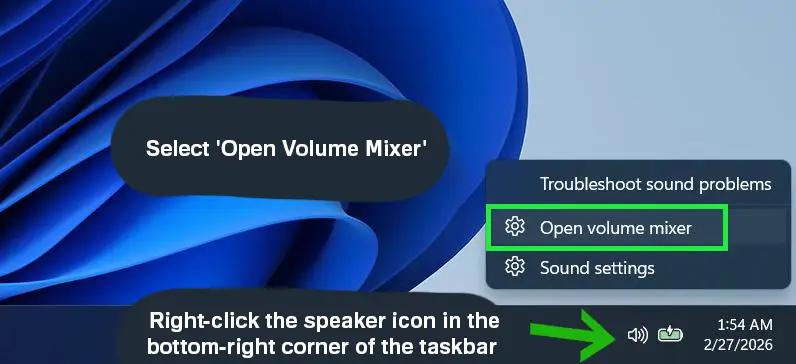
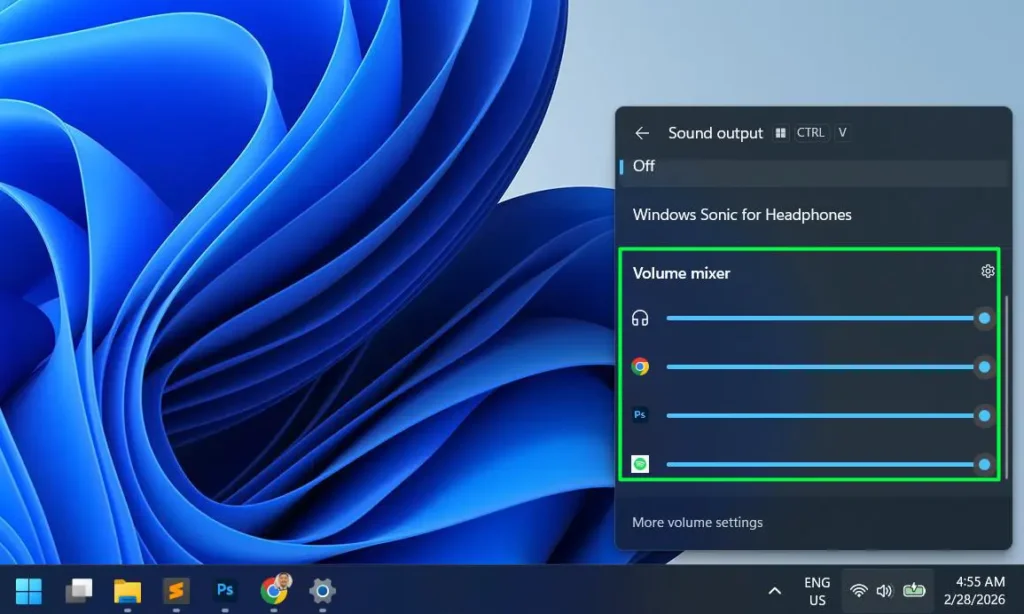
- Right-click the speaker icon in the system tray and select “Open volume mixer.” On Windows 11 you can also press Ctrl + Windows key + V.
- Find the app you want to adjust. Only apps currently producing audio appear in the list.
- Drag that app’s slider to set its individual level. This is relative to the master volume, not independent of it.
- To route the app elsewhere, click the dropdown below its slider and choose a different output device. The change is immediate.
Windows 10 note: right-click the speaker icon and select “Open Volume Mixer” for per-app volume sliders. For device routing, go to Settings > System > Sound > App volume and device preferences — Windows 10’s implementation is less reliable than Windows 11’s and many apps ignore it.
When it doesn’t work: some older applications bypass the Windows audio session API and always grab the default device regardless of what you set here. There’s no registry fix for that. Your options are updating the app or using virtual audio routing software such as VoiceMeeter.
Advanced Audio Output Settings
These are the settings that determine how your audio actually sounds, not just where it goes.
Audio format: bit depth and sample rate
- In Sound settings, click your output device to open its properties.
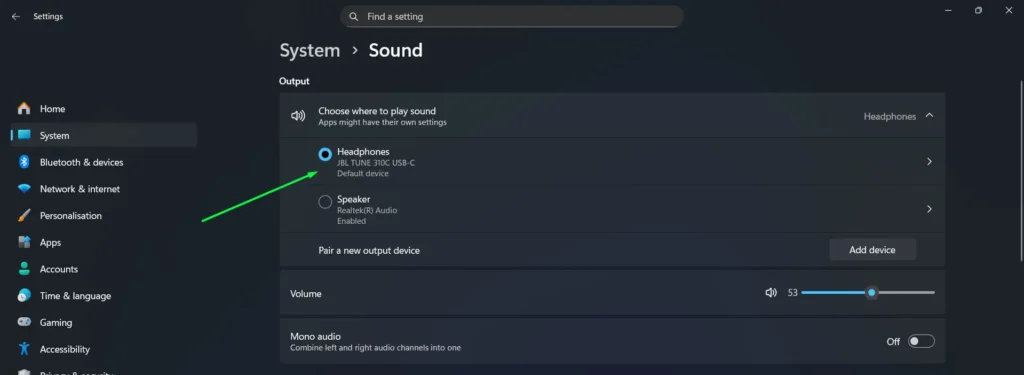
- Scroll to the Format section.
- Use the dropdown to choose your bit depth and sample rate.
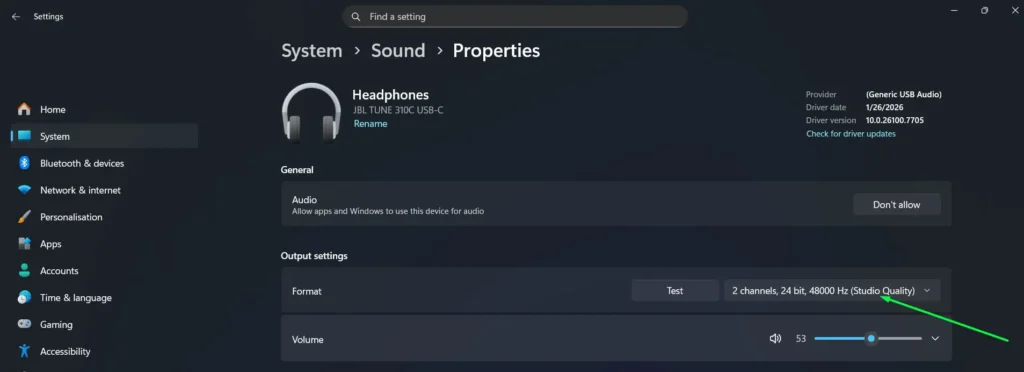
- Choose 24 bit, 48000 Hz for general use. See the section below on resampling for why higher isn’t better.
Exclusive mode
This one is buried in the old Control Panel and it’s the most consequential quality setting Windows has. Open mmsys.cpl, double-click your active device, and go to the Advanced tab. You’ll see “Allow applications to take exclusive control of this device.”
With it enabled, applications like Tidal, foobar2000, Qobuz, or a DAW can bypass the Windows audio mixer entirely and send audio straight to your hardware at its native rate. No resampling, no system sounds interrupting, no shared-mode processing.
The trade-off is real: while an app holds exclusive control, every other application is silent. If you frequently have a browser, a game, and a music player running together, turn it off. If you listen critically, turn it on.
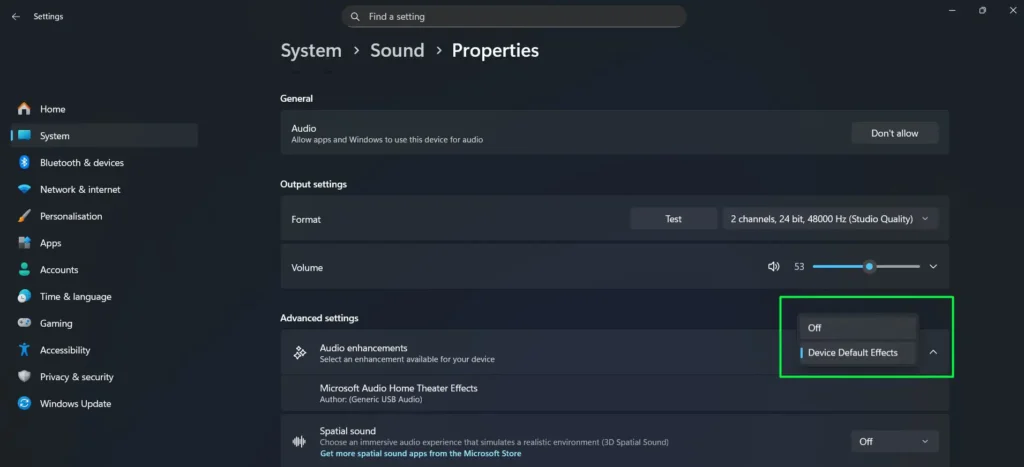
Audio enhancements
- Open your output device properties in Sound settings.
- Set Audio Enhancements to Off if you’re hearing distortion, or if you want an unprocessed signal.
- Check for additional enhancement layers in manufacturer software — Realtek Audio Console, or your headset’s companion app. It’s common to have two processing stacks fighting each other without realising it.
Loudness equalization
Found under the Enhancements tab in mmsys.cpl on supported hardware. It compresses dynamic range — quiet passages get louder, loud passages get quieter.
Genuinely useful for late-night film watching, where you want to hear dialogue without explosions waking the house. Genuinely bad for music, because flattening dynamics is exactly what a mastering engineer spent days deciding not to do. Leave it off unless you specifically need volume compression.
Left and right balance
If one earbud or speaker is quieter than the other, check this before assuming hardware failure. Open mmsys.cpl, double-click your device, go to the Levels tab, and click Balance. You’ll see separate left and right sliders. A knocked-down channel here explains the problem in most cases.
Balance is stored per device, so correcting it for your USB headset won’t affect your speakers. If both channels are level and the imbalance persists across multiple devices, the issue is in the jack or the headphones themselves.
Spatial sound
In device properties (Settings) or the Spatial sound tab (mmsys.cpl), you can enable Windows Sonic for Headphones or Dolby Atmos for Headphones. Windows Sonic is free and works with any pair of headphones. Dolby Atmos requires a paid licence but generally resolves positional cues more precisely.
Both are worth enabling for games and films. Both should be off for music and any critical listening, because virtualisation deliberately alters the stereo image the mix was built around.
What These Settings Actually Do to Your Sound Quality
Most guides tell you which dropdown to click. Here’s what’s happening on the other side of it — and why your headphones can measurably sound worse on a PC than on a phone.
Why a higher sample rate can make things worse
In shared mode, Windows resamples everything to whatever rate you selected in the Format dropdown, in real time. Most music is 44,100 Hz. Most video is 48,000 Hz. If you set the output to 192,000 Hz, every 44.1 kHz track you play gets converted on the fly by the Windows resampler.
That conversion is competent but not free. Setting a rate higher than your source material adds processing without adding information — you cannot recover detail that was never captured. On budget onboard audio, aggressive resampling can also introduce audible artefacts.
Practical guidance: use 24-bit, 48000 Hz as your default. Use 44,100 Hz if you listen almost exclusively to music and want to avoid resampling the most common source rate. Only go to 96 kHz or 192 kHz if you have an audio interface or DAC that natively supports it and source files recorded at that rate. Otherwise you’re paying CPU cost for nothing.
Shared mode, exclusive mode, and ASIO
Windows offers three routes to your hardware, and they’re not equivalent:
| Path | What it does | Best for |
|---|---|---|
| WASAPI shared | Windows mixes all apps and resamples to one common rate | Everyday use, multitasking |
| WASAPI exclusive | One app owns the device, native rate, mixer bypassed | Critical listening, hi-res playback |
| ASIO | Third-party driver bypasses the Windows audio stack entirely | Recording, monitoring, music production |
If you’re recording or monitoring live, ASIO is not optional. Windows shared-mode latency is typically far too high to play an instrument against a backing track. If your interface ships an ASIO driver, install it and select ASIO inside your DAW rather than relying on the Windows output device at all.
Bluetooth codecs and why Windows caps your quality
Your Format dropdown is irrelevant on Bluetooth. What matters is the codec the connection negotiates, and Windows historically supports fewer codecs than Android or iOS.
- SBC — the mandatory baseline. Always available, lowest quality.
- AAC — better, and what most Apple devices default to.
- aptX / aptX HD / LDAC — higher bitrate options that depend on both your Bluetooth adapter and Windows build supporting them. Many PCs fall back to SBC even with LDAC-capable headphones.
This is the real answer to “why do my headphones sound better on my phone.” It’s usually not the headphones and not your Windows settings — it’s the codec the PC negotiated. A USB Bluetooth adapter with explicit aptX or LDAC support, or simply using the headset’s USB dongle where one is provided, will do more for quality than any setting in this article.
Best Audio Output Settings for Different Uses
For music listening
Set 24-bit, 44100 Hz or 48000 Hz. Turn enhancements off. Turn loudness equalization off. Turn spatial sound off. If your player supports it, enable exclusive mode so tracks play at their native rate without resampling. On Bluetooth, confirm you’re on the Stereo profile, not Hands-Free.
For music production
Use ASIO drivers from your interface manufacturer and select them inside your DAW — this bypasses the Windows audio stack and cuts latency to a usable level. Set the Windows format to match your session rate, disable every enhancement, and disable spatial sound entirely. More in our audio and music guides.
For gaming
Enable Windows Sonic or Dolby Atmos — positional audio genuinely helps you locate opponents. Set your headset as both Default Device and Default Communication Device, then use Volume Mixer to balance game audio against voice chat. Set Communications ducking to “Do nothing” so joining a party doesn’t drop your game volume. Use Game Bar to switch devices mid-session.
For video calls
Use a wired or USB headset if you can — it avoids the Bluetooth HFP quality collapse entirely. Set the headset as Default Communication Device only, and leave your speakers as Default Device if you want media to stay separate. Test your microphone before meetings rather than trusting system defaults; our mic test tool takes about ten seconds.
Windows 11 vs Windows 10 Audio Settings
Microsoft redesigned the interface but not the underlying engine. If you know Windows 10 audio, you know Windows 11 audio — only the menus moved.
| Feature | Windows 10 | Windows 11 |
|---|---|---|
| Quick device switch | Click the device name above the volume slider | Click the arrow in the Quick Settings panel (Win + A) |
| Settings path | Settings > System > Sound | Settings > System > Sound |
| Volume Mixer location | Settings > System > Sound > App volume and device preferences | Settings > System > Sound > Volume Mixer (Ctrl + Win + V) |
| Per-app device routing | Limited and unreliable | Supported natively |
| Control Panel access | mmsys.cpl | mmsys.cpl (unchanged) |
| Device properties | Right-click device > Properties | Often requires “More sound settings” first |
| Bluetooth device grouping | Listed as separate entries | Sometimes grouped under one heading |
| Spatial sound default | Windows Sonic off | Windows Sonic off |
The practical difference is that Windows 11 hides advanced properties behind one extra click, and that per-app routing only really works properly on Windows 11. Everything else is cosmetic.
No Sound at All: Full Troubleshooting Sequence
If you have complete silence rather than a routing problem, the cause is almost always a driver, a stopped service, or a disabled endpoint. Work through these in order — most people are fixed by the third or fourth.
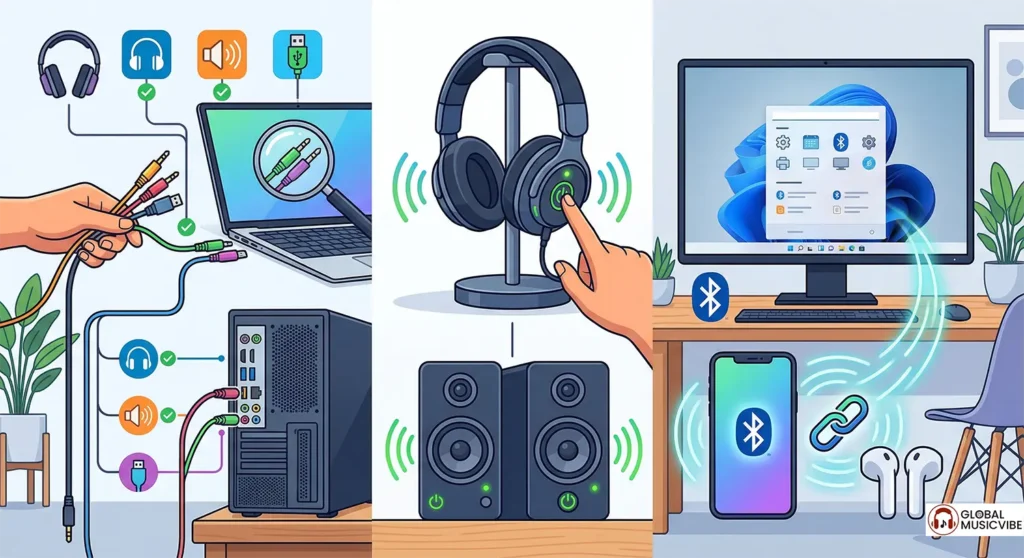
- Check your physical connections. Confirm cables are in the correct ports and that speakers or headphones are powered on. For Bluetooth, confirm the pairing is active and the device is in range.
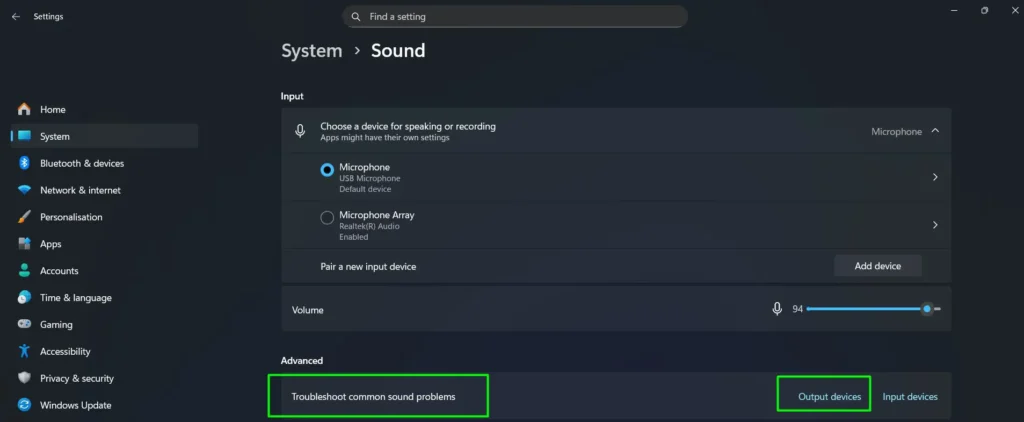
- Run the audio troubleshooter. Go to Settings > System > Sound, scroll to “Troubleshoot common sound problems,” and click Troubleshoot next to your output device.
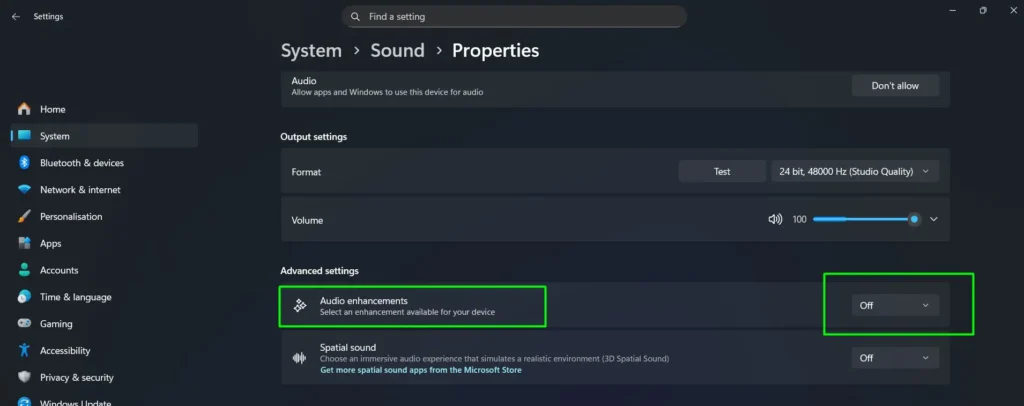
- Turn off audio enhancements. Select your output device, scroll to Advanced settings, and set Audio enhancements to Off. Enhancement layers can conflict with hardware and produce silence rather than distortion.
- Confirm the device isn’t disabled. Open mmsys.cpl, right-click empty space in the Playback tab, enable Show Disabled Devices and Show Disconnected Devices, then right-click your device and select Enable if it’s greyed out.
- Restart the Windows Audio services. Press Win + R, type services.msc, and press Enter. Right-click and restart these in order: Windows Audio, Windows Audio Endpoint Builder, then Remote Procedure Call (RPC). This refreshes the entire audio stack without a reboot.
- Update your audio driver. Press Win + X, open Device Manager, expand “Sound, video and game controllers,” right-click your device, and choose Update driver > Search automatically for drivers. Restart afterwards.
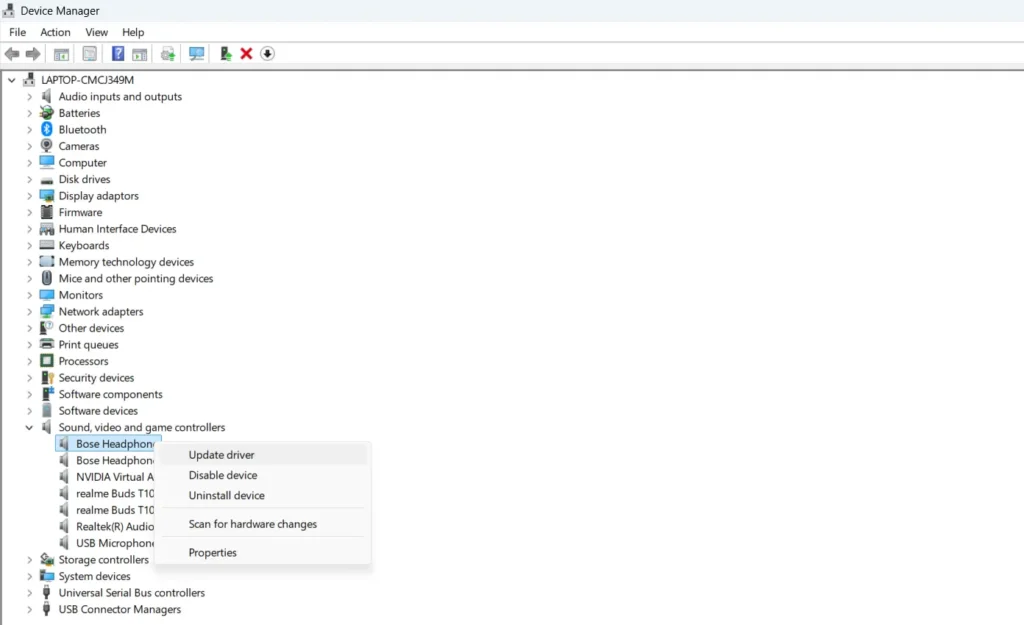
- If updating doesn’t help, reinstall cleanly. Right-click the device in Device Manager, select Uninstall device, and restart. Windows reinstalls a fresh driver on boot.
- If the problem started right after a driver update, roll it back. In Device Manager, right-click the device, select Properties, open the Driver tab, and click Roll Back Driver if it’s available.
If none of that works: skip Windows Update’s generic driver search entirely and go to your motherboard, laptop, or sound card manufacturer’s support page. Download the driver package for your exact model. Windows Update frequently installs a generic High Definition Audio driver that technically works but disables half your hardware’s functionality.
Quick Fix Checklist
- Press Win + A and select the right device.
- If it reverts, open mmsys.cpl and set it as both Default Device and Default Communication Device.
- If Bluetooth sounds bad, select the Stereo entry, not Hands-Free.
- If a monitor or dock keeps stealing focus, disable its audio entry in the Playback tab.
- If one app plays through the wrong device, route it in Volume Mixer.
- If nothing appears at all, install the driver from the manufacturer’s site, not Windows Update.
Keyboard Shortcuts for Quick Audio Adjustments
- Win + A — open Quick Settings for fast device switching.
- Ctrl + Win + V — open Volume Mixer directly (Windows 11).
- Win + R, then mmsys.cpl — jump straight to the Sound Control Panel.
- Win + G — open Xbox Game Bar for in-game audio switching.
- Volume up / down / mute keys — adjust or silence system volume.
- Fn + volume keys — on laptops, may trigger manufacturer-specific media controls instead.
Frequently Asked Questions
Why does Windows keep switching my audio device back?
Taskbar selections are temporary, not defaults. Windows reverts them when a device reconnects, when the PC wakes from sleep, or when an app requests a specific endpoint. Open mmsys.cpl and set your device as both Default Device and Default Communication Device. If it still reverts, an HDMI monitor or docking station is almost certainly claiming the output on wake — disable that device’s audio entry in the Playback tab.
Why do my Bluetooth headphones sound muffled or robotic on my PC?
Windows switched your headset from the Stereo profile (A2DP) to the Hands-Free profile (HFP), which is mono and heavily compressed. This happens automatically whenever an application requests microphone access, and Windows often fails to switch back afterwards. Select the “Stereo” entry manually from the taskbar or Sound settings. To prevent it recurring, use a separate microphone for calls so nothing ever requests the headset’s mic.
Can I play audio through headphones and speakers at the same time?
Not natively in a way that works well. Some devices offer a “Listen” tab in mmsys.cpl that pipes one device through another, but it introduces noticeable delay and echo. For a proper solution you need virtual audio routing software such as VoiceMeeter, which creates a virtual mixer capable of splitting one source to multiple outputs. Expect a small latency penalty. If you only need different apps on different devices rather than the same audio on both, use Volume Mixer per-app routing instead — that works natively on Windows 11.
Why is one side of my headphones louder than the other?
Usually a balance setting, not hardware failure. Open mmsys.cpl, double-click your device, go to the Levels tab and click Balance. If one channel is at 80% and the other at 100%, that’s your answer. This setting is stored per device. If balance is centred and the imbalance still happens across multiple output devices, check the 3.5mm jack for lint or damage, or test the headphones on another source to isolate the fault.
Why does my sound crackle only when my laptop is on battery?
Windows throttles USB power on battery through a feature called USB selective suspend, which can starve USB headsets and external DACs of steady current and cause pops or crackles. Open Device Manager, find your USB audio device under “Sound, video and game controllers,” open Properties, go to the Power Management tab, and uncheck “Allow the computer to turn off this device to save power.” Repeat for the USB hub it’s connected to, under “Universal Serial Bus controllers.”
Why does my audio cut out when I undock my laptop?
Docking stations have their own audio chipsets, so docking creates a new default device and undocking removes it. Windows is supposed to fall back to your laptop speakers, but that handoff frequently fails. Set your laptop speakers as the default while undocked, then dock and disable the dock’s audio entry in the Playback tab. Windows will ignore the dock’s audio entirely and your speakers stay active regardless of dock state.
What is the difference between “Use as default for audio” and “Use as default for communications”?
“Use as default for audio” sets the device as the primary output for system sounds, music, games, and media. “Use as default for communications” assigns it specifically to voice calls in apps like Teams, Zoom, and Discord. They operate independently and simultaneously, which is useful when you want media through speakers and calls through a headset. It’s also the most common reason audio ends up in the wrong place — when you connect a new headset, Windows often sets only the communications default and leaves media on your old device.
What audio format gives the best quality in Windows 11?
24-bit, 48000 Hz for general use. Windows resamples everything to whatever rate you select, so choosing 192,000 Hz forces real-time conversion on every 44.1 kHz music file without adding any detail that wasn’t recorded. Only use 96 kHz or 192 kHz if you have hardware that natively supports it and source files at that rate. If you want to avoid resampling altogether, enable exclusive mode in mmsys.cpl and use a player that supports it — the app can then set the rate to match each track.
Do USB-C audio adapters need special drivers?
Most don’t. Adapters that follow the USB Audio Class standard are recognised by Windows automatically and appear in your output list within seconds of plugging in. Drivers become necessary when manufacturers add proprietary features like virtual surround, EQ profiles, or lighting control. If your adapter appears in Device Manager but never shows in the Sound dialog, it’s likely defective or drawing more power than the port supplies — try a powered hub or a different port.
Why can’t I see all my audio devices in Windows 11 or 10?
Disabled and disconnected devices are hidden by default. Open mmsys.cpl, go to the Playback tab, right-click any empty area, and enable both “Show Disabled Devices” and “Show Disconnected Devices.” All installed audio hardware becomes visible. If a device appears with a down arrow, right-click it and select Enable. Windows sometimes disables endpoints silently after a driver update.
How do I enable the 3.5mm jack on Windows 11 or 10?
Open mmsys.cpl, go to the Playback tab, right-click empty space, and enable “Show Disabled Devices.” If the 3.5mm output appears with a down arrow, right-click and select Enable. Check Device Manager under sound controllers too — a yellow warning on your Realtek or HD Audio device means the driver needs reinstalling. On Realtek systems, open Realtek Audio Console and confirm the jack function is assigned correctly under Device advanced settings. On many laptops the jack only becomes active once something is physically plugged in.
Why is my audio not working after a Windows update?
Windows updates sometimes replace your manufacturer’s audio driver with a generic Microsoft one. Open Device Manager, expand “Sound, video and game controllers,” and look for yellow warning icons. If the issue began immediately after an update, use Roll Back Driver on the Driver tab. If rollback isn’t available, download the driver package directly from your motherboard or laptop manufacturer rather than letting Windows search — the generic driver often loads without error while leaving half your outputs non-functional.
What is the difference between stereo and spatial sound in Windows 11?
Stereo uses two channels, left and right, exactly as the content was mixed. Spatial technologies like Windows Sonic and Dolby Atmos apply head-related transfer function processing to simulate sounds arriving from specific directions in three dimensions. That’s a real advantage in games and films. It’s a disadvantage for music, because it deliberately alters the stereo image the mastering engineer built — keep it off for critical listening.
How do I fix audio distortion or crackling in Windows 11?
Start by turning off audio enhancements in device properties, then drop the format to 16-bit, 44100 Hz and test again — some hardware can’t sustain higher rates reliably. If it persists, disable exclusive mode in case an app is fighting for control, update your audio driver, and close background apps competing for the device. On laptops running on battery, check USB selective suspend. On Bluetooth, distance and interference cause crackling that no software setting will fix.