
Setting up JBL Tour One M2 headphones takes only a few minutes once the charging, pairing, and app steps are done in the right order. This guide walks through the entire process from unboxing to first playback, so the headphones are ready for calls, music, and noise cancellation without any guesswork.
Key Takeaways
- Charge the headphones fully before first use – it takes about 2 hours from empty.
- Sliding the power switch to ON automatically puts the headphones into pairing mode.
- The JBL Headphones app unlocks EQ settings, ANC control, and firmware updates.
- Tour One M2 supports multipoint, so two devices can stay connected at once.
- A 3.5mm cable is included for wired listening when Bluetooth is not an option.
Step-by-Step Guide to Setting Up JBL Tour One M2 Headphones
Method 1: Charge the Headphones Before First Use
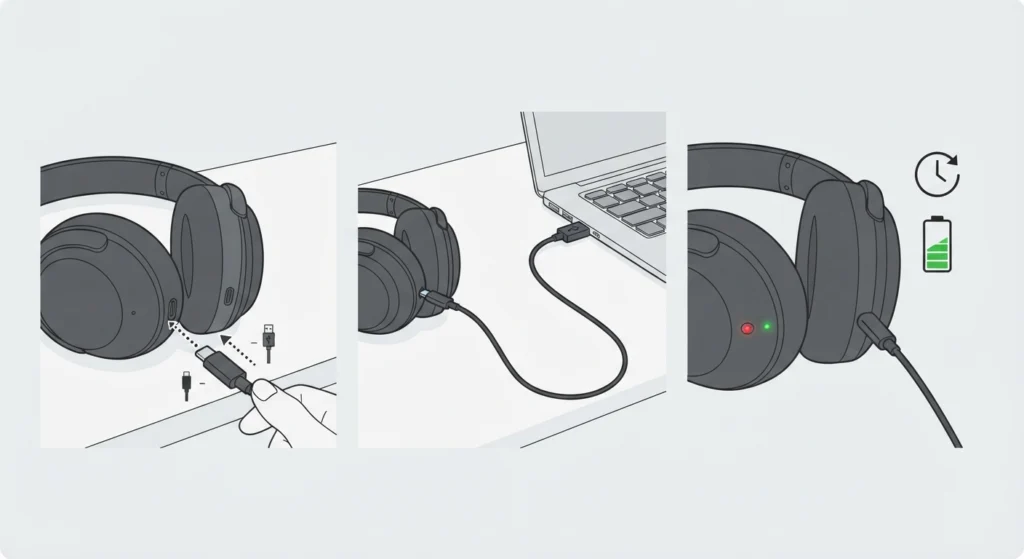
A brand-new pair of Tour One M2 headphones usually carries a partial charge, but a full charge gives a more accurate read on battery performance right from the start. Most people find that plugging the headphones in overnight before the first listening session solves any early battery confusion later on.
- Step 1: Connect the included USB-C cable to the charging port on the right ear cup.
- Step 2: Plug the other end into a USB power source, such as a laptop or wall adapter.
- Step 3: Allow roughly 2 hours for a full charge from empty, and check the LED indicator for status.
Pro-Tip: Keep the headphones charged past 3 months even during storage. Lithium-ion batteries lose capacity faster when left fully drained for long stretches, and this one habit protects long-term battery health.
Method 2: Power On and Enter Pairing Mode
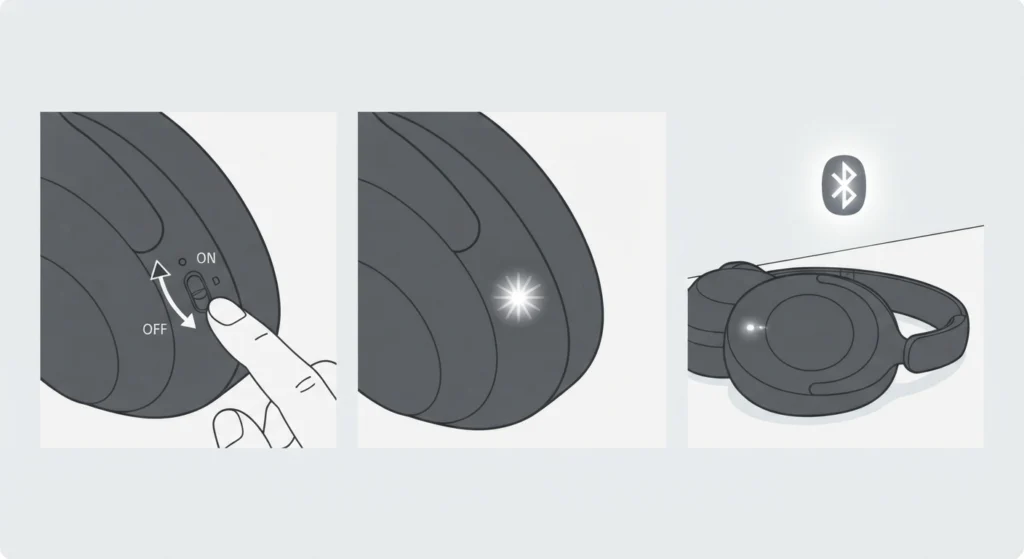
This works best when the headphones are within a few feet of the device being paired, since a strong initial signal makes the handshake between devices much faster.
- Step 1: Slide the power switch on the left ear cup to the ON position.
- Step 2: Watch for the LED indicator to start flashing white – this means pairing mode is active automatically.
- Step 3: Leave the headphones in this state while moving to the next step on the connected device.
Method 3: Connect via Bluetooth on a Phone or Tablet
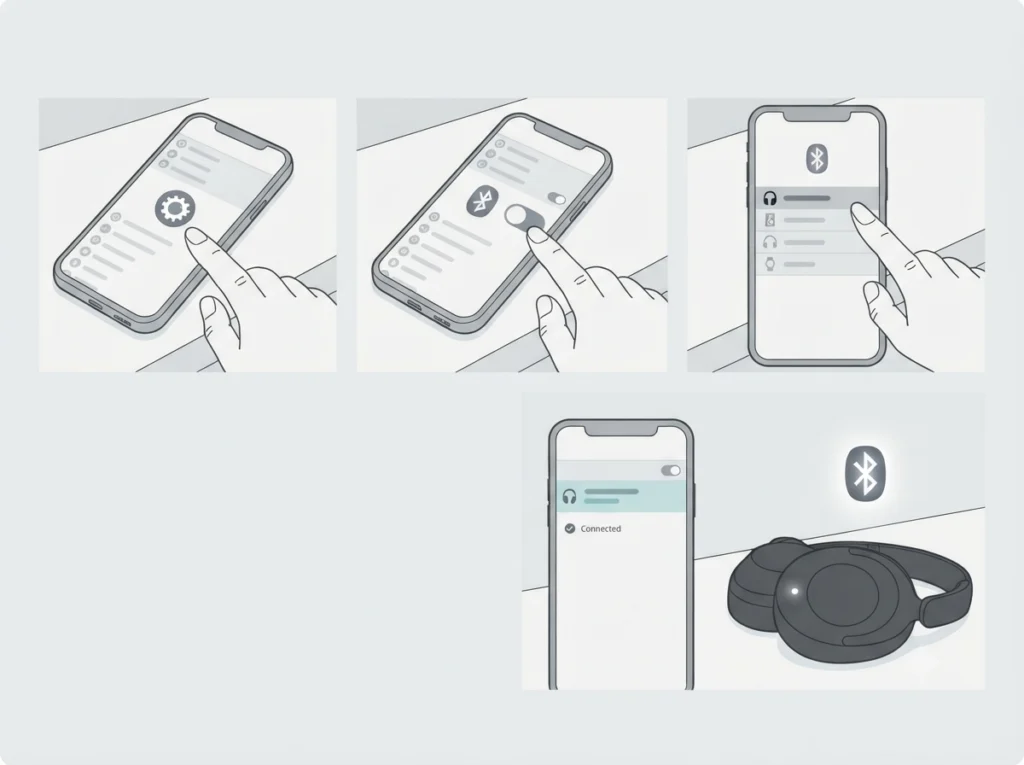
- Step 1: Open the Bluetooth settings menu on the phone or tablet.
- Step 2: Turn Bluetooth on and wait for the device list to populate.
- Step 3: Select ‘JBL TOUR ONE M2’ from the list of available devices.
- Step 4: Confirm the connection – the LED will stop flashing and stay solid once paired successfully.
Android devices running version 6.0 or higher often show a Google Fast Pair pop-up automatically, which speeds things up even further. On a computer, the process is nearly identical, and anyone who has previously had to re-pair Bluetooth earbuds for stereo sound on Windows will recognize the same basic flow here.
Method 4: Connect on a Windows PC with Swift Pair
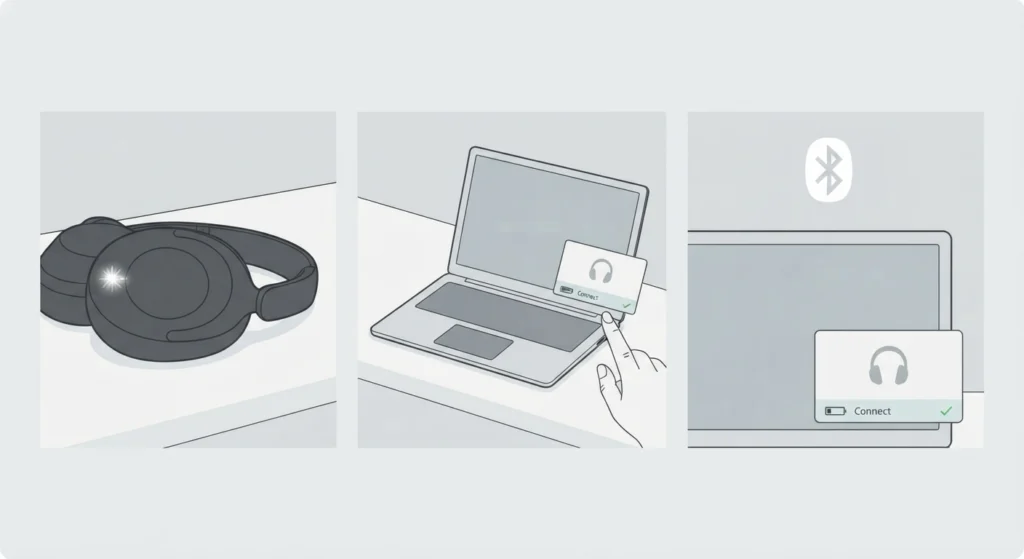
Windows 10 (version 1803 and later) and Windows 11 both support Microsoft Swift Pair, which shortens the setup considerably.
- Step 1: Put the headphones into pairing mode as described above.
- Step 2: Wait for a notification to appear in the bottom-right corner of the screen showing ‘JBL TOUR ONE M2.’
- Step 3: Click Connect on the notification, and the pairing completes within seconds.
If the headphones connect but the sound still plays through built-in speakers, the output device usually needs to be changed manually. A quick walkthrough on adjusting audio output settings on Windows 11 clears this up in under a minute.
Method 5: Install and Set Up the JBL Headphones App
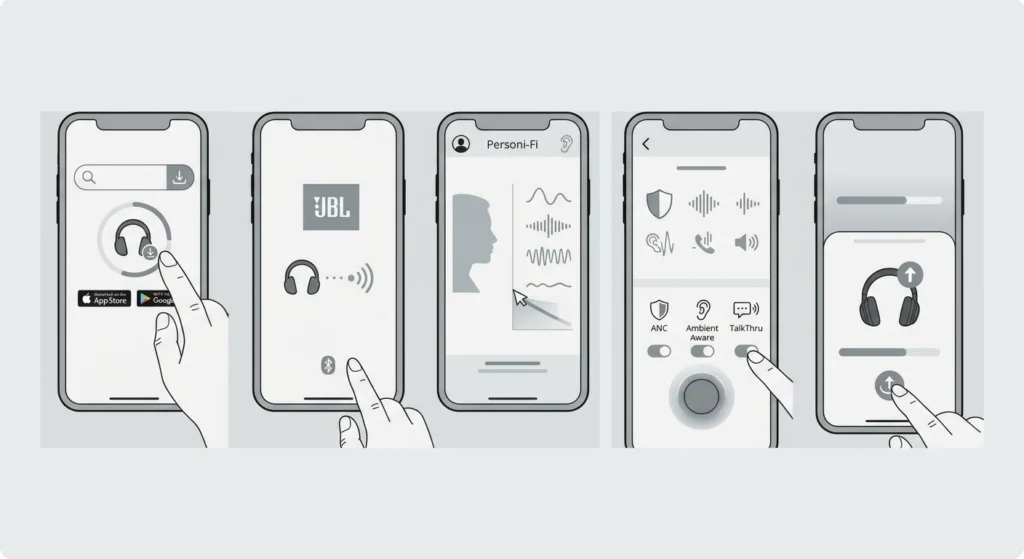
The app is not required for basic listening, but it is where most of the personalization actually happens. Downloading it is a small step that unlocks a noticeably better experience.
- Step 1: Download the JBL Headphones app from the App Store or Google Play.
- Step 2: Open the app and allow it to detect the connected Tour One M2 headphones.
- Step 3: Run the Personi-Fi 2.0 hearing test to build a personalized sound profile.
- Step 4: Adjust ANC modes, Ambient Aware, and TalkThru settings from the main dashboard.
- Step 5: Check for firmware updates and install any that are available.
Method 6: Set Up Multipoint for Two Devices
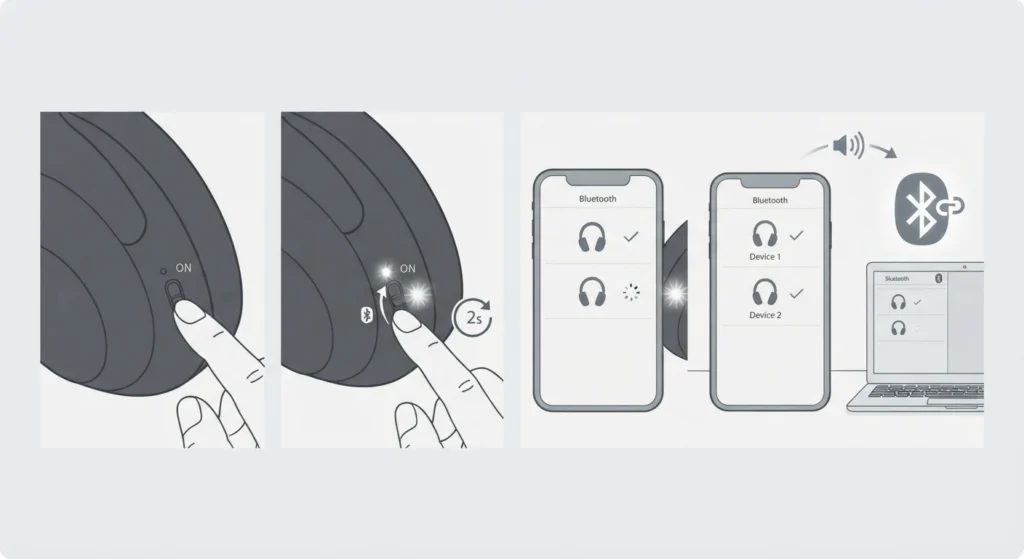
Multipoint connection lets the Tour One M2 stay linked to two sources at the same time, such as a laptop and a phone, which is genuinely useful during a workday that mixes video calls and music.
- Step 1: Pair the headphones with the first device using the Bluetooth steps above.
- Step 2: Slide the power switch to the bottom position and hold for 2 seconds to re-enter pairing mode.
- Step 3: Pair the headphones with the second device the same way.
- Step 4: Both devices now stay connected, and audio automatically switches based on which one is active.
Method 7: Use Wired Listening Mode
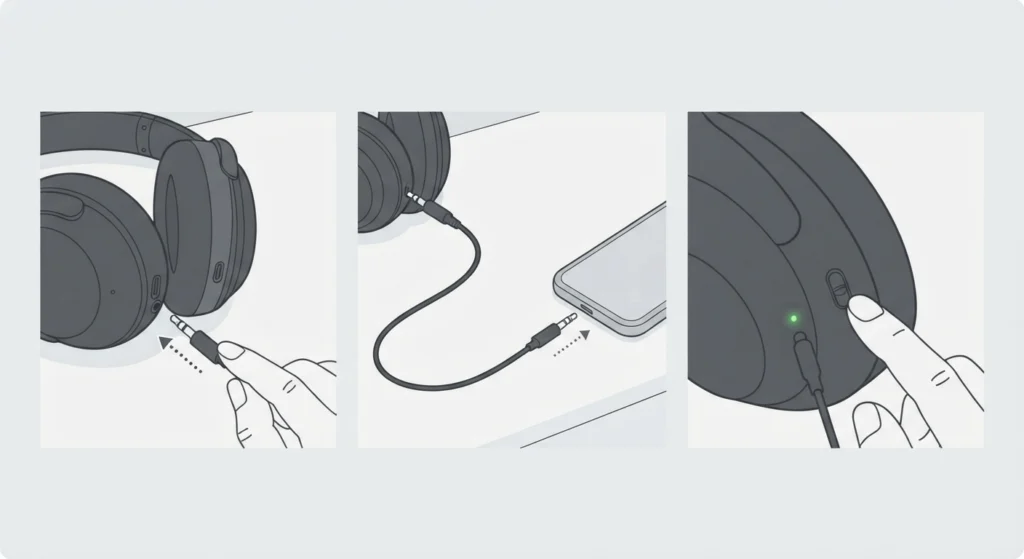
The included 3.5mm cable is a reliable backup for flights, dead batteries, or devices without Bluetooth.
- Step 1: Plug one end of the 3.5mm cable into the headphone jack on the ear cup.
- Step 2: Plug the other end into the audio source.
- Step 3: Power the headphones on if active noise cancellation is needed during wired listening.
Tips for a Smoother Setup
- Forget the headphones from any previous device before pairing with a new one to avoid connection conflicts.
- Update the firmware early through the app, since this often resolves minor Bluetooth quirks before they start.
- Use the left ear cup taps to switch between ANC, Ambient Aware, and TalkThru without opening the app every time.
- On Windows 11, set the Tour One M2 as the default communication device before joining a call so both audio and microphone route correctly.
Common Setup Problems and How to Fix Them
Fix 1: Headphones Do Not Appear in the Bluetooth List
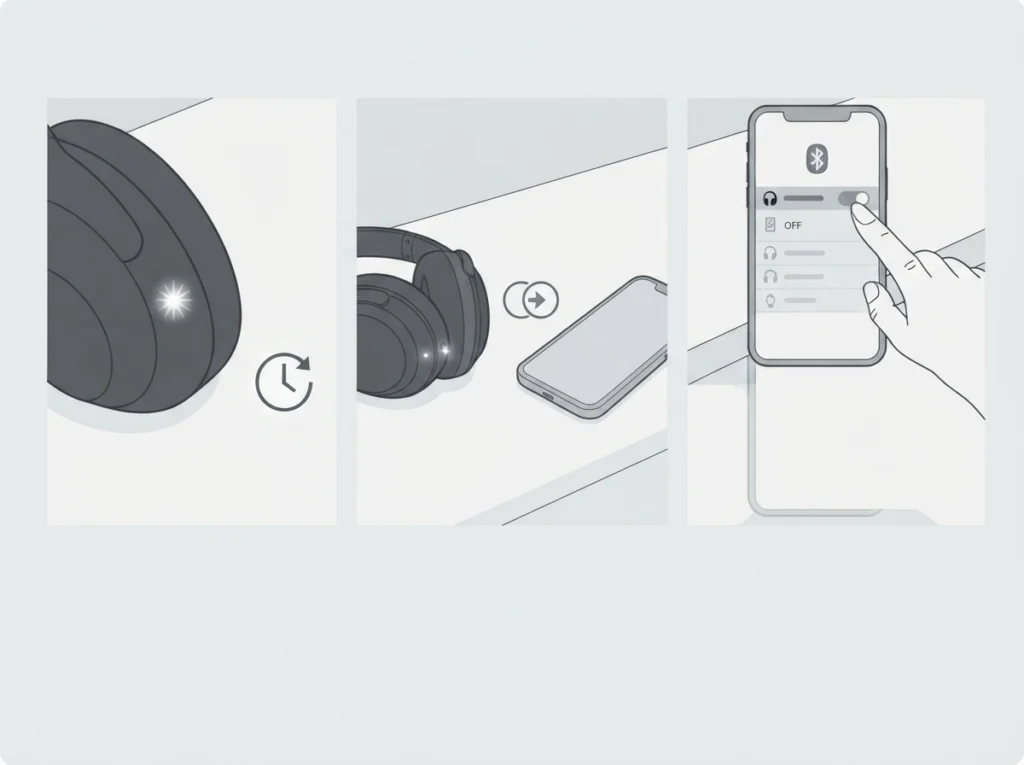
Make sure the LED is actively flashing, which confirms pairing mode is on. Moving closer to the source device and turning Bluetooth off and back on usually resolves this within seconds.
Fix 2: Headphones Connect but No Sound Plays
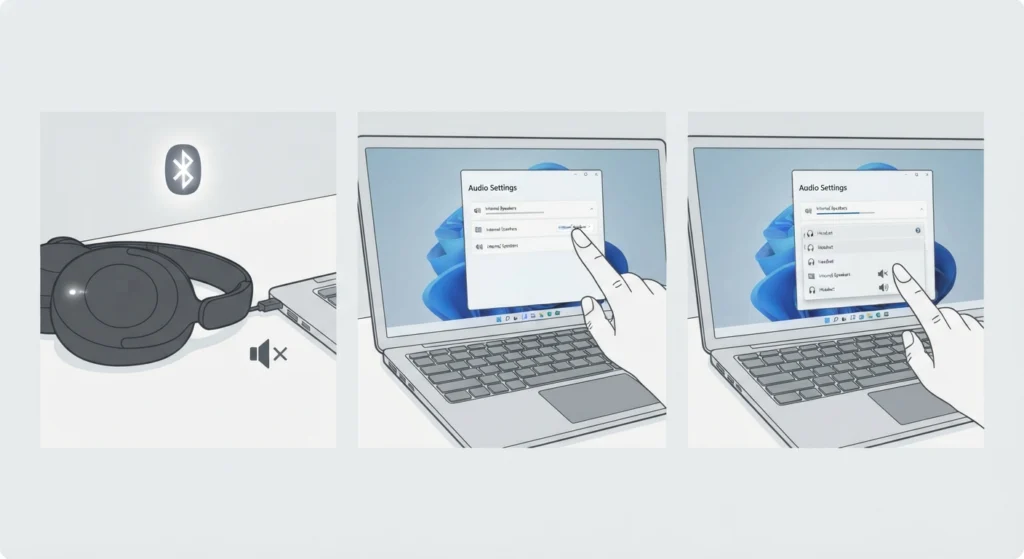
This is almost always an output selection issue rather than a hardware fault. Confirming the correct playback device is selected through the guide on resetting audio settings on Windows 11 usually fixes it right away.
Fix 3: Microphone Is Not Detected During Calls
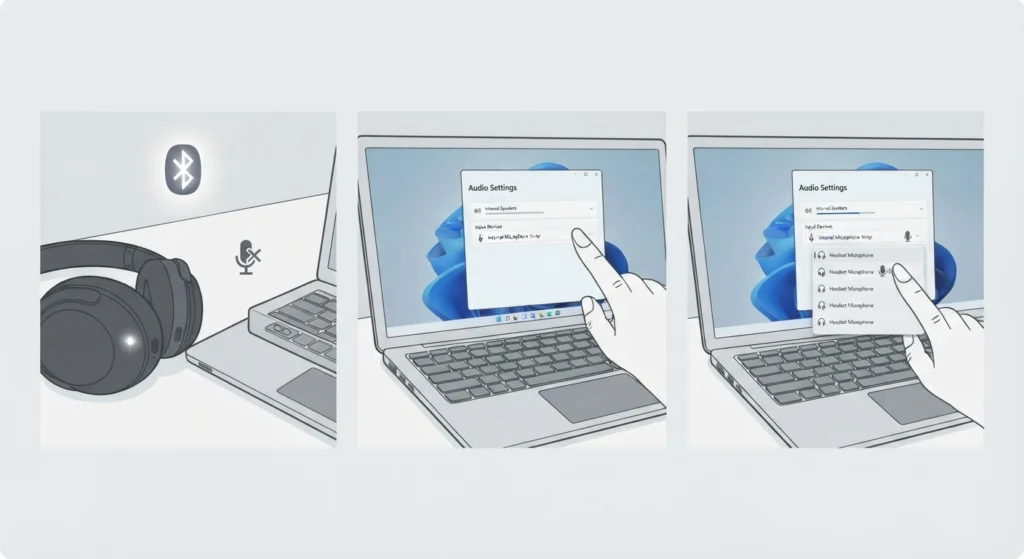
On Windows 11, the headphone microphone sometimes needs to be selected manually in sound settings, especially after switching between multiple audio devices. The steps for resolving microphone detection problems on Windows 11 cover this exact scenario.
Fix 4: Multiple Input Devices Are Causing Confusion
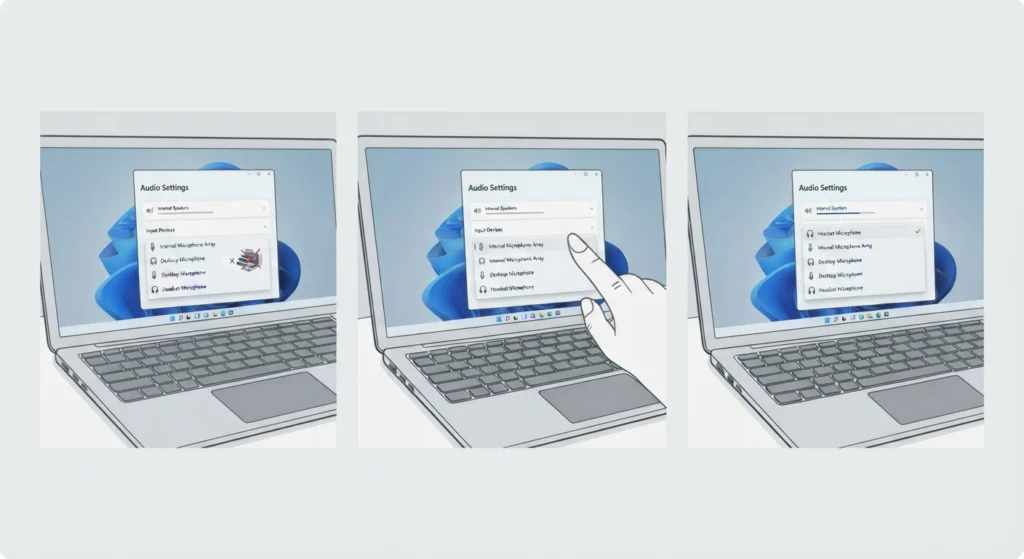
When several microphones or headsets have been connected to the same PC over time, Windows can default to the wrong one. Reviewing how to approach managing audio input devices on Windows 11 helps set the Tour One M2 as the priority device going forward.
Frequently Asked Questions
Does the JBL Tour One M2 require a PIN to pair?
No PIN is required. Selecting the device from the Bluetooth list is enough to complete pairing.
How long does the JBL Tour One M2 take to charge fully?
A full charge from empty takes about 2 hours using the included USB-C cable.
Can the JBL Tour One M2 connect to two devices at the same time?
Yes. The headphones support multipoint connection, allowing two devices to stay paired simultaneously.
Is the JBL Headphones app required to use the headphones?
Basic playback works without it, but the app is needed for EQ personalization, ANC mode adjustments, the Personi-Fi 2.0 hearing test, and firmware updates.
How is the JBL Tour One M2 reset to factory settings?
Press and hold the volume up and volume down buttons together for more than 8 seconds to trigger a factory reset.
Can the headphones be used without Bluetooth?
Yes. The included 3.5mm cable allows wired listening, and powering the headphones on during wired use keeps active noise cancellation available.
Why won’t the headphones enter pairing mode?
If the LED does not flash after sliding the power switch on, a low battery is often the cause. Charging for 10 to 15 minutes before trying again usually resolves it.
Does the JBL Tour One M2 work with both iPhone and Android?
Yes, the headphones pair with both platforms. Android users get access to Google Assistant integration, while iPhone users can use Siri through the same voice control gesture.
How is a new device added after the first pairing?
Slide the power switch to the bottom position and hold for 2 seconds to put the headphones back into pairing mode, then select them from the new device’s Bluetooth list.
What is the battery life on a single charge?
Music playback reaches up to 50 hours with ANC off and around 30 hours with ANC on, while talk time runs up to 30 hours without ANC and 21 hours with it enabled.