
Learning how to connect Bluetooth headphones to an Apple Watch takes less than a minute, and the payoff is real: music, podcasts, and workout playlists can go straight from the wrist to the ears with no phone in the pocket. The process is the same for most headphones and earbuds, and the steps below keep it short and simple.
Key Takeaways
- Open Settings on the Apple Watch, tap Bluetooth, and select the headphones from the list of devices.
- The headphones must be in pairing mode before they show up on the watch.
- Once paired, audio output can be switched anytime from Control Center.
- AirPods that are already set up with an iPhone are generally ready to use on the paired Apple Watch as well.
Method 1: Connect Bluetooth Headphones Directly From the Apple Watch
This is the main way to pair any Bluetooth headphones or earbuds with the watch. Keep the headphones within a few inches of the wrist and make sure they have some battery left.
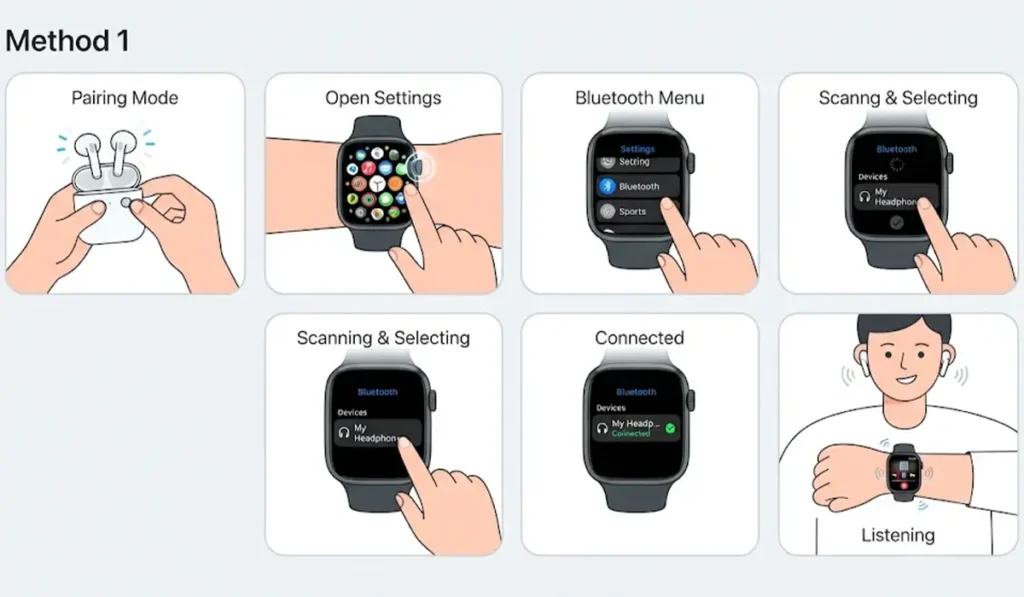
- Step 1: Put the headphones into pairing mode. On most models, this means holding the power or Bluetooth button until a light starts flashing. The exact button and light pattern vary by brand, so the headphone manual is the quickest reference.
- Step 2: Press the Digital Crown on the Apple Watch to open the app grid or list, then open the Settings app.
- Step 3: Tap Bluetooth. The watch starts scanning for nearby devices.
- Step 4: Wait for the headphones to appear under Devices, then tap the name.
- Step 5: If a pairing code or confirmation prompt appears, accept it. When the status next to the name changes to Connected, the pairing is done.
- Step 6: Open the Music, Podcasts, or another audio app, start playing something, and the sound will come through the headphones.
Pro-Tip: Pairing works best when the headphones are not connected to another device at that moment. If the headphones are already linked to a phone or laptop nearby, they may skip pairing mode or connect to that device first. Turning off Bluetooth on the other device before starting avoids the mix-up.
Method 2: Switch the Audio Output to the Headphones in Control Center
After the first pairing, there is no need to repeat the full process. The headphones only need to be selected as the output when audio is playing.
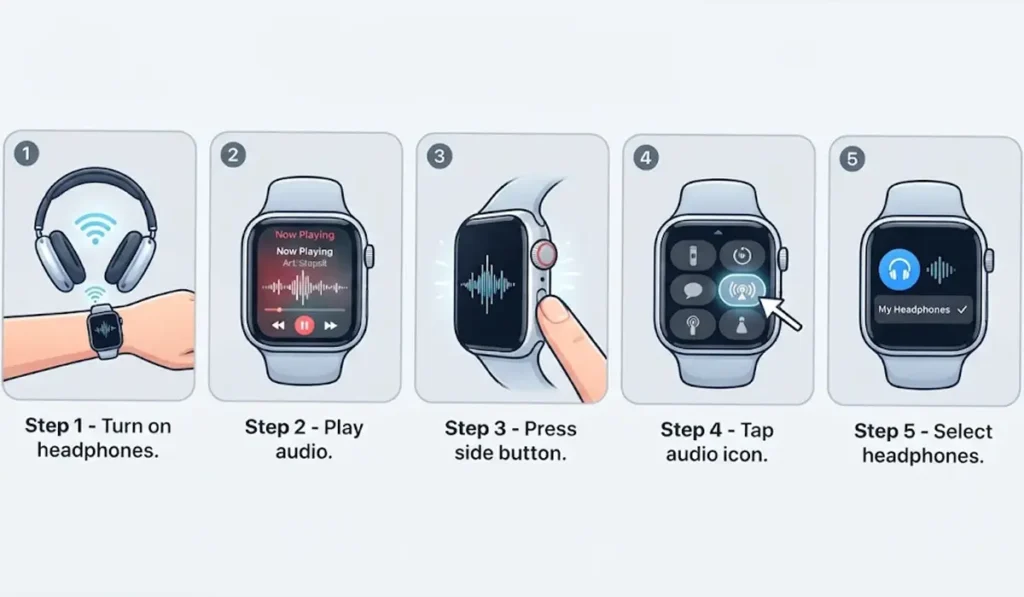
- Step 1: Turn on the headphones and keep them close to the watch.
- Step 2: Start playing audio on the Apple Watch.
- Step 3: Press the side button once to open Control Center.
- Step 4: Tap the audio output icon, which looks like a set of rings with a triangle at the bottom.
- Step 5: Choose the headphones from the list. The sound moves over right away.
Method 3: Use AirPods Already Set Up With an iPhone
AirPods follow a slightly different path. When AirPods are set up with an iPhone, they are generally available on the paired Apple Watch too, so a separate pairing is usually not needed.
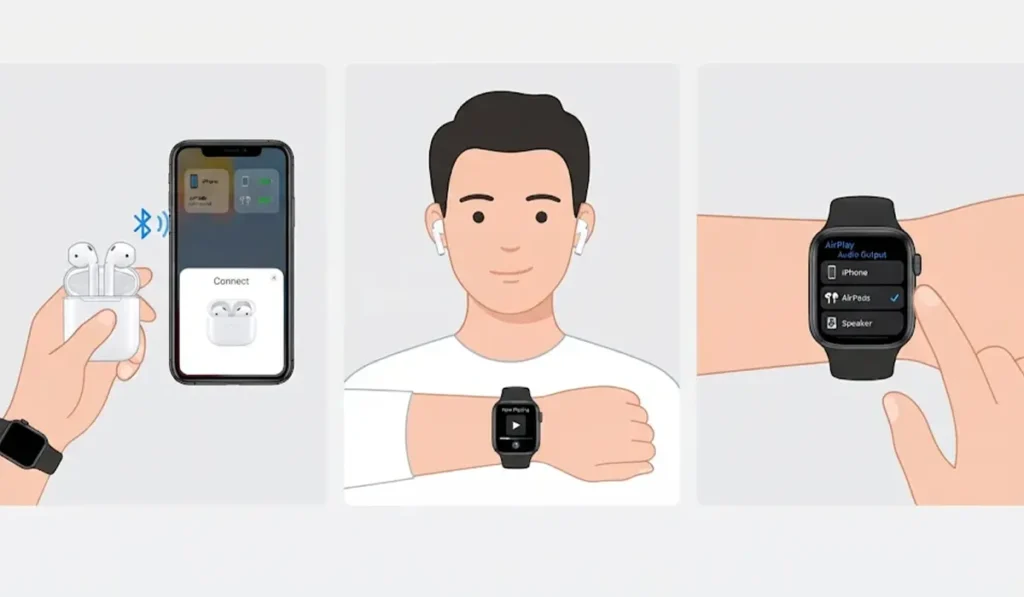
- Step 1: Pair the AirPods with the iPhone first, using the normal setup prompt that appears when the case is opened near the phone.
- Step 2: Place the AirPods in the ears and start playing audio on the Apple Watch.
- Step 3: Press the side button, tap the audio output icon, and select the AirPods if they are not already chosen.
Tips for a Smoother Listening Experience
A few small habits make the setup feel effortless day after day.
- Load playlists or albums onto the watch ahead of time using the Watch app on the iPhone. Music stored on the watch plays without the phone nearby, while streaming needs a Wi-Fi or cellular connection.
- Turn the Digital Crown while audio is playing to adjust the volume without opening any menus.
- Charge the headphones before a workout or a commute. Think of it like a water bottle: the watch can be full, but the headphones need their own refill.
- Headphones that also get used on a Windows PC sometimes need a fresh pairing there after being used with other devices. This guide on how to re-pair Bluetooth earbuds for stereo sound on Windows covers that side of things.
Pro-Tip: Most people find that keeping Bluetooth headphones in their charging case or a dedicated pocket makes pairing mode easier to reach, since the pairing button is often the first thing pressed when the case opens.
Common Problems and Quick Fixes
Fix 1: Headphones Do Not Show Up in the Bluetooth List
The most common reason is that the headphones are not in pairing mode. Hold the pairing button again until the light flashes, keep the headphones close to the watch, and make sure Airplane Mode is turned off on the Apple Watch.
Fix 2: Audio Still Plays Somewhere Else
Open Control Center, tap the audio output icon, and select the headphones from the list. The watch sometimes keeps the previous output until a new one is chosen.
Fix 3: The Headphones Connect to Another Device Instead
Turn off Bluetooth on the phone, tablet, or computer that the headphones were last used with, then try the connection on the watch again. When the same headphones are later used with a PC and are not detected, this guide on troubleshooting headphone detection on Windows can help, and adjusting audio output settings on Windows 11 helps pick the right device there.
Fix 4: Restart the Apple Watch
Press and hold the side button until the power options appear, switch the watch off, and turn it back on. Then repeat Method 1 from the beginning.
Frequently Asked Questions
Can any Bluetooth headphones connect to an Apple Watch?
Most standard Bluetooth headphones and earbuds can connect, as long as they support regular Bluetooth audio and can be placed in pairing mode.
Where are the Bluetooth settings on an Apple Watch?
Press the Digital Crown, open the Settings app, and tap Bluetooth. Nearby devices in pairing mode appear under Devices.
Does the iPhone need to be nearby to listen with Bluetooth headphones?
Not for music that is stored on the watch. Streaming audio needs a Wi-Fi connection or a cellular Apple Watch with an active plan.
Do AirPods need to be paired separately with the Apple Watch?
Usually not. AirPods that are set up with the iPhone are generally ready to use on the paired Apple Watch, and the output can be selected in Control Center.
How can the audio be switched between the headphones and another output?
Press the side button to open Control Center, tap the audio output icon, and choose a different output from the list.
How can Bluetooth headphones be removed from the Apple Watch?
Open Settings, tap Bluetooth, tap the info button next to the headphones, and choose Forget Device. The headphones will need to be paired again afterward.
Can Bluetooth headphones be used during a workout on the Apple Watch?
Yes. Once the headphones are connected, audio from apps like Music or Podcasts can play during a workout, even with the iPhone left at home when music is stored on the watch.
Does using Bluetooth headphones drain the Apple Watch battery faster?
Playing audio over Bluetooth uses some extra battery, so a longer listening session may shorten the time before the next charge.
Why is the headphone name not appearing even in pairing mode?
The headphones may be connected to another nearby device. Turn off Bluetooth on that device, restart pairing mode, and check the Devices list again.