
Late-night movies are better when nobody else in the house gets woken up, and that is exactly where learning how to connect Bluetooth headphones to an Apple TV 4K pays off. The whole process takes only a couple of minutes, and the Apple TV handles most of the work once the headphones are in pairing mode.
Key Takeaways:
- Apple TV 4K pairs with Bluetooth headphones through Settings > Remotes and Devices > Bluetooth.
- The headphones must be in pairing mode before the Apple TV can find them.
- Most pairings finish in under two minutes.
- Once paired, the sound can be switched back and forth in the Audio Output settings.
Connect Bluetooth Headphones to an Apple TV 4K Step-by-Step
Before starting, charge the headphones and keep the Siri Remote nearby, since it is needed to move through the menus. Sitting within a few feet of the Apple TV during pairing helps the connection go smoothly.
Method 1: Pair Standard Bluetooth Headphones
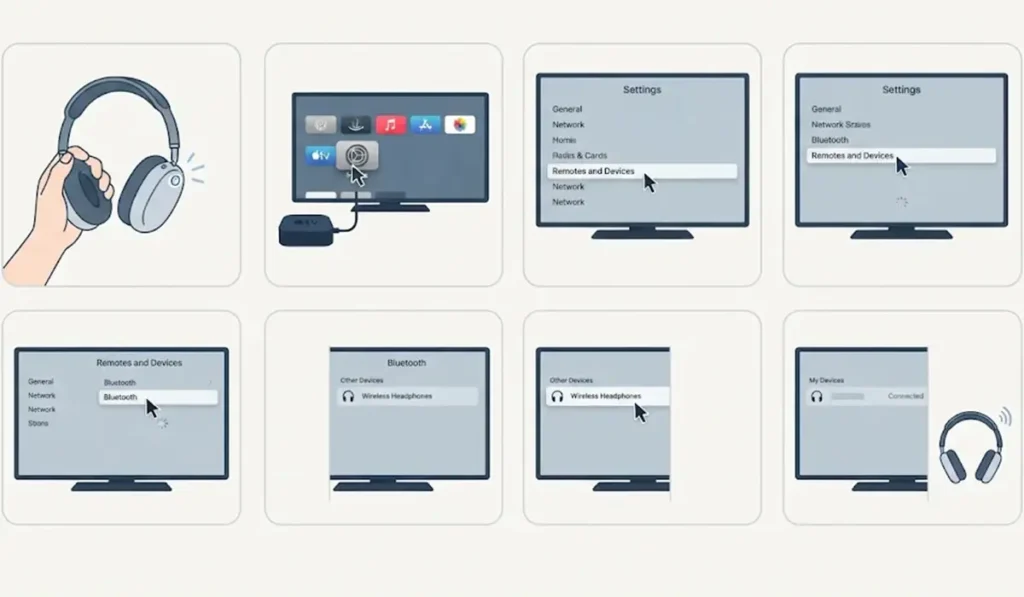
- Step 1: Turn on the headphones and put them into pairing mode. This usually means holding the power or Bluetooth button until a light starts flashing, though the exact button varies by model.
- Step 2: On the Apple TV 4K home screen, open Settings.
- Step 3: Select Remotes and Devices.
- Step 4: Select Bluetooth. The Apple TV starts scanning for nearby devices.
- Step 5: Under Other Devices, select the name of the headphones.
- Step 6: Wait a few seconds until the status changes to Connected. The headphones will play the sound from the Apple TV right away.
Pro-Tip: Headphones love to reconnect to the last device they remember, which is often a phone. Turn off Bluetooth on the phone before pairing, otherwise the headphones may grab the phone connection instead of showing up on the Apple TV.
Method 2: Pair AirPods
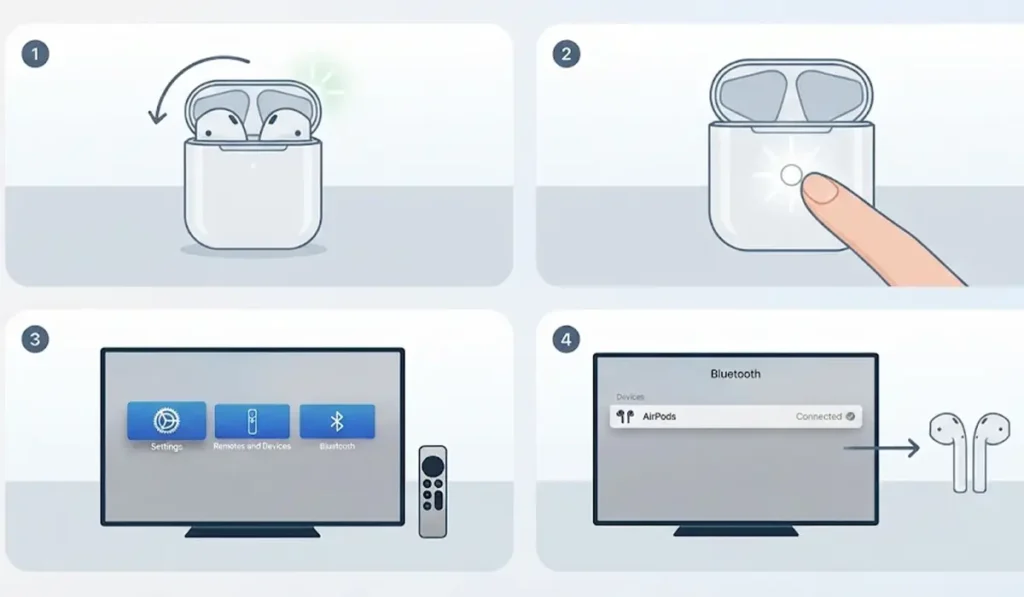
- Step 1: Place the AirPods in the charging case and keep the lid open.
- Step 2: Press and hold the setup button on the back of the case until the status light flashes white.
- Step 3: On the Apple TV 4K, go to Settings > Remotes and Devices > Bluetooth.
- Step 4: Select the AirPods from the list of devices and wait for the Connected status.
Method 3: Switch the Sound to Paired Headphones Later
Headphones that are already paired usually reconnect on their own when they are switched on near the Apple TV. If the sound still comes from the TV speakers, a quick manual switch fixes it.
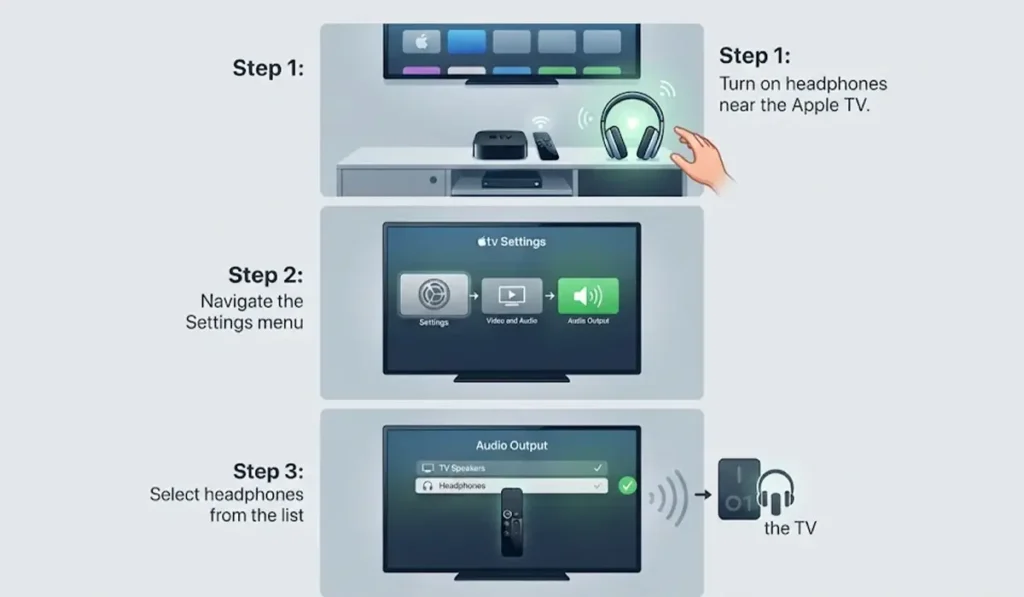
- Step 1: Turn on the headphones and keep them close to the Apple TV.
- Step 2: Open Settings > Video and Audio > Audio Output.
- Step 3: Select the headphones from the list.
To go back to the TV speakers, turn off the headphones or choose a different option in the same Audio Output menu.
Tips for Better Listening on Apple TV 4K
A few small habits make wireless listening far more enjoyable. Most people find that a full battery and a clear line of sight between the headphones and the Apple TV prevent the majority of audio hiccups.
- Keep the headphones within a short distance of the Apple TV, ideally in the same room, so the signal stays steady.
- Charge the headphones before a long movie night, since a low battery can cause crackling or sudden disconnects.
- Give the headphones an easy-to-spot name on the device if the model allows it, which makes the Bluetooth list simpler to read.
- If the same headphones are also used with a computer, this guide to re-pairing Bluetooth earbuds for stereo sound on Windows helps keep the connection clean on that side too.
- When the headphones switch between devices, this walkthrough on adjusting audio output settings can help on a Windows 11 PC.
Pro-Tip: Pairing only has to be done once. After that, the Apple TV remembers the headphones, so there is no need to repeat the full setup unless the pairing is removed.
Common Problems and Fixes
Fix 1: Headphones Do Not Appear in the Bluetooth List
Turn the headphones off, then switch them on again and hold the pairing button until the light flashes. Check that no other device, such as a phone or tablet, is connected to them. Then reopen Settings > Remotes and Devices > Bluetooth.
Fix 2: Paired but No Sound
Open Settings > Video and Audio > Audio Output and select the headphones. Also check that the volume on the headphones is turned up.
Fix 3: Connection Keeps Dropping
Move closer to the Apple TV and make sure the headphones are charged. If the problem continues, go to Settings > Remotes and Devices > Bluetooth, select the headphones, choose Forget Device, and pair them again from the beginning. For a similar situation on a computer, this guide on troubleshooting headphone detection on Windows covers the same idea of starting fresh.
Fix 4: Restart the Apple TV
If nothing else works, restart the Apple TV from Settings > System > Restart, then try the pairing steps again.
Frequently Asked Questions
Can Bluetooth headphones connect to an Apple TV 4K?
Yes. Apple TV 4K supports Bluetooth headphones, so most wireless headphones and earbuds can be paired directly without any extra adapter.
Where are the Bluetooth settings on Apple TV 4K?
Open Settings, choose Remotes and Devices, then select Bluetooth. Nearby devices in pairing mode appear under Other Devices.
Do AirPods work with Apple TV 4K?
Yes. Put the AirPods into pairing mode by holding the setup button on the case until the light flashes white, then select them in the Bluetooth menu.
Is a remote needed to pair headphones with Apple TV 4K?
A Siri Remote or another way to move through the menus is needed, because the pairing is done from the Bluetooth settings screen.
How long does pairing take?
Most pairings finish within a minute or two, as long as the headphones are charged and already in pairing mode.
How can the headphones be removed from the Apple TV?
Go to Settings > Remotes and Devices > Bluetooth, select the headphones, and choose Forget Device.
How can the sound be switched back to the TV speakers?
Turn off the headphones, or open Settings > Video and Audio > Audio Output and select a different option.
Do the headphones reconnect automatically after the first pairing?
In most cases, yes. Once paired, the headphones normally reconnect when they are turned on within range of the Apple TV.
Is a special app needed to use Bluetooth headphones with Apple TV 4K?
No. The connection is made entirely through the built-in Bluetooth settings, so no app or extra software is required.
Can the same headphones stay paired with a phone too?
Yes, many headphones remember several devices. Most of them connect to one device at a time, so the phone may need Bluetooth turned off while the Apple TV is in use.
Final Thoughts
Connecting Bluetooth headphones to an Apple TV 4K comes down to three things: pairing mode on the headphones, the Bluetooth menu on the Apple TV, and selecting the device from the list. After the first setup, private listening is only a button press away.