
Learning how to connect Bluetooth headphones to an LG smart TV takes only a few minutes, and it means late-night movies, games, and sports no longer disturb anyone nearby. The whole process happens inside the TV settings menu, so no extra cables or apps are needed.
Key Takeaways
- The Bluetooth option lives in Settings > All Settings > Sound > Sound Out.
- Headphones must be in pairing mode before the TV starts searching.
- Once paired, the TV sends its sound to the headphones instead of the built-in speakers.
- Switching back to the TV speakers takes just a few clicks in the same menu.
Method 1: Connect Bluetooth Headphones Through the TV Sound Settings
This is the standard way to pair any set of wireless headphones or earbuds with an LG TV. Menu names can differ slightly between webOS versions, but the path stays very close to the one below.
- Step 1: Turn on the headphones and place them in pairing mode. On most models, this means holding the power or Bluetooth button until the indicator light starts flashing.
- Step 2: Press the Settings button (the gear icon) on the LG remote.
- Step 3: Scroll down and select All Settings.
- Step 4: Choose Sound from the menu.
- Step 5: Select Sound Out.
- Step 6: Pick Bluetooth from the list of output options. On some models, this appears as Bluetooth Device or a similar label.
- Step 7: Select the option to pair a new device and wait while the TV scans for nearby Bluetooth devices.
- Step 8: Choose the name of the headphones from the list that appears.
- Step 9: If the TV asks for a PIN, check the headphone manual for the correct code, then confirm. A connected message appears once pairing is complete.
- Step 10: Play something on the TV. The sound now comes through the headphones.
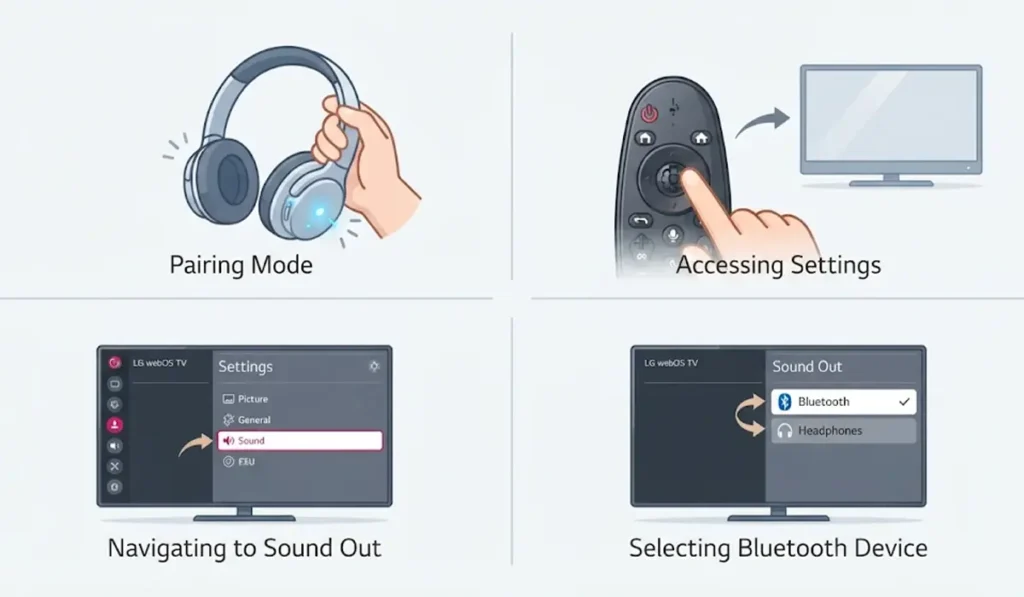
Pro-Tip: Headphones that are still connected to a phone or tablet often refuse to show up on the TV. Turn off Bluetooth on nearby devices, or disconnect the headphones from them, before starting Step 7. Keeping the headphones within a few feet of the TV during pairing also helps the TV find them quickly.
Method 2: Switch the Sound Back to the TV Speakers
Sometimes the headphones are no longer needed, and the room should hear the show again. This only takes a moment.
- Step 1: Press the Settings button on the LG remote.
- Step 2: Select All Settings, then choose Sound.
- Step 3: Select Sound Out.
- Step 4: Choose TV Speaker.
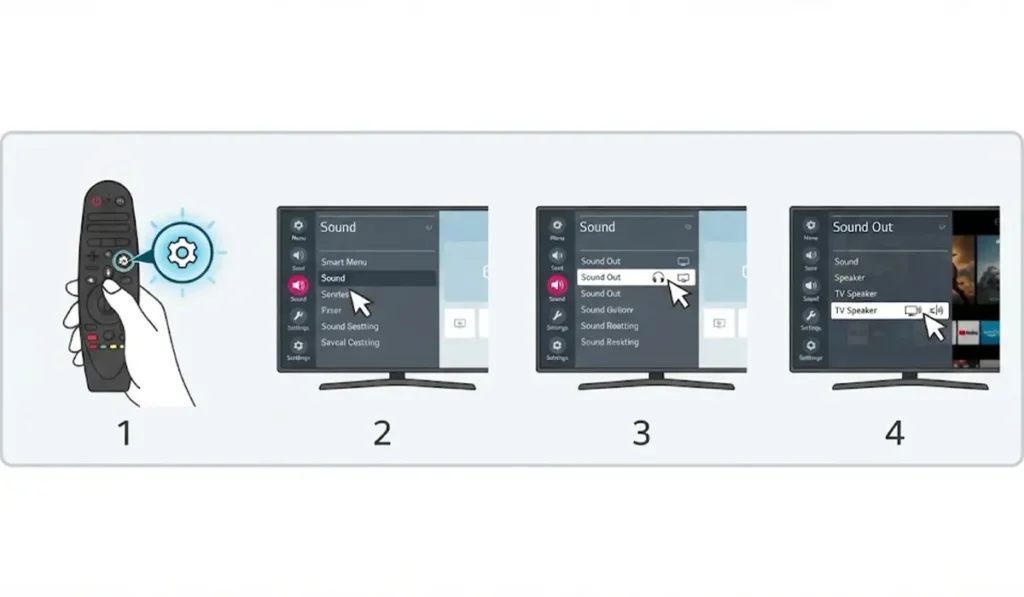
The headphones stay paired with the TV, so reconnecting later is as simple as choosing Bluetooth in the same Sound Out menu.
Tips for a Better Listening Experience
- Charge the headphones fully before a long movie. A weak battery is one of the most common reasons for crackling or dropped audio.
- Sit within clear view of the TV. Bluetooth works best with fewer walls and objects in the way, much like a Wi-Fi signal.
- Start with the volume low and raise it slowly. TV audio can be much louder than music from a phone.
- Keep the TV software updated so the Bluetooth features stay current.
- Headphones that are also used with a computer may need a fresh pairing after being used with the TV. This guide to re-pairing Bluetooth earbuds on Windows covers that side of things.
Pro-Tip: If voices seem slightly out of sync with the picture, open the Sound menu and look for the AV Sync Adjustment setting. Small changes there can bring the dialogue back in line with the lips on screen.
Common Problems and Quick Fixes
Fix 1: Headphones Do Not Appear in the Device List
Turn the headphones off, then back on, and put them in pairing mode again. Make sure they are disconnected from any phone or computer, then run the scan once more.
Fix 2: Sound Still Comes From the TV Speakers
Open Settings, then All Settings, then Sound, then Sound Out, and confirm that Bluetooth is the selected output.
Fix 3: The Connection Keeps Dropping
Move closer to the TV, remove obstacles between the headphones and the screen, and check the headphone battery level.
Fix 4: There Is No Bluetooth Option in Sound Out
This usually means the TV model does not include built-in Bluetooth audio. The model number and the TV manual confirm what the set supports.
Fix 5: Headphones Are Not Detected on a Windows PC Afterward
When the same headphones are shared between the TV and a PC, this headphone detection troubleshooting guide can help the computer recognize them again. For output choices on a Windows 11 computer, the audio output settings guide is a useful next stop.
Frequently Asked Questions
Can any Bluetooth headphones connect to an LG smart TV?
Most standard Bluetooth headphones and earbuds can pair, as long as the TV has built-in Bluetooth audio support. Results can vary a little between TV models and headphone brands.
How can it be checked whether an LG TV supports Bluetooth headphones?
Open Settings, go to All Settings, choose Sound, then select Sound Out. If a Bluetooth option is listed, the TV can send audio to wireless headphones.
Where is the Bluetooth setting on an LG smart TV?
The setting is found under Settings, All Settings, Sound, then Sound Out. The exact wording may differ slightly depending on the webOS version.
Do AirPods work with an LG smart TV?
AirPods use standard Bluetooth pairing, so the same steps apply once they are in pairing mode. Results can vary by TV model.
Will the TV speakers turn off when headphones are connected?
Yes. After Bluetooth is selected as the sound output, the audio plays through the headphones instead of the built-in speakers.
How can the sound be switched back to the TV speakers?
Go to Settings, All Settings, Sound, then Sound Out, and choose TV Speaker. The headphones remain paired for next time.
How close do the headphones need to be to the TV?
Bluetooth range is typically around 10 meters in open space, but walls and furniture can shorten it. Staying within the same room gives the steadiest connection.
Why does the audio sometimes lag behind the picture?
Bluetooth can add a small delay to wireless audio. The AV Sync Adjustment option in the Sound menu can help line the audio up with the video.
Is a PIN needed to pair headphones with an LG TV?
Many headphones pair without any code. If the TV asks for a PIN, the headphone manual lists the correct one.
Can the same headphones still be used with a phone or computer?
Yes. They may need to be put back into pairing mode, or paired again, when switching between devices.