
Knowing how to connect headphones to a home theater receiver means movie night can run as loud as it needs to without waking anyone in the house. The process is simple, and the right method depends on whether the headphones are wired or wireless.
Key Takeaways
- Wired headphones plug into the Phones jack on the front panel of the receiver, usually with a 6.35 mm adapter.
- Wireless headphones connect through the receiver’s Bluetooth menu, but only on models that can send audio out to headphones.
- A Bluetooth transmitter is the fallback for receivers that cannot pair with headphones directly.
- Turn the volume to the lowest level before connecting anything.
Method 1: Connect Wired Headphones to the Headphone Jack
This is the fastest route, and it works on nearly every receiver. Most models have a jack labeled Phones on the front panel. It is typically a large 6.35 mm (quarter-inch) socket, while most consumer headphones end in a smaller 3.5 mm plug. That gap is easily closed with a 3.5 mm to 6.35 mm adapter.
- Step 1: Turn the receiver on and select the source that is playing, such as the TV, Blu-ray player, or streaming box.
- Step 2: Turn the master volume all the way down.
- Step 3: Attach the adapter to the headphone plug if the plug is 3.5 mm.
- Step 4: Push the plug firmly into the Phones jack on the front panel.
- Step 5: Start playback and raise the volume slowly until the level feels comfortable.
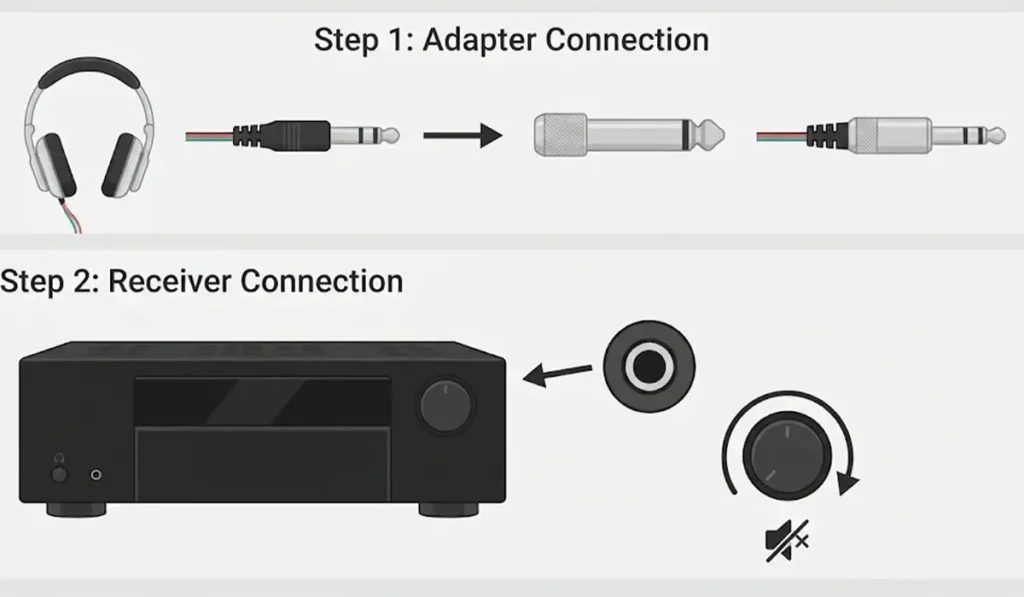
Pro-Tip: A receiver is built to drive large speakers, so its headphone output can be much stronger than the one on a phone. Keeping the volume at zero until the headphones are on the head prevents a painful blast of sound.
Depending on the model, the speakers may go quiet once the plug is inserted. That is normal behavior and not a fault.
Method 2: Connect Wireless Headphones Through the Receiver’s Bluetooth
Many receivers include Bluetooth, but in most cases it is built to receive music from a phone. Only some models can also send audio to Bluetooth headphones. The receiver manual or the on-screen setup menu will show whether a Bluetooth transmitter or Bluetooth headphone option exists. This method works best when that option is present.
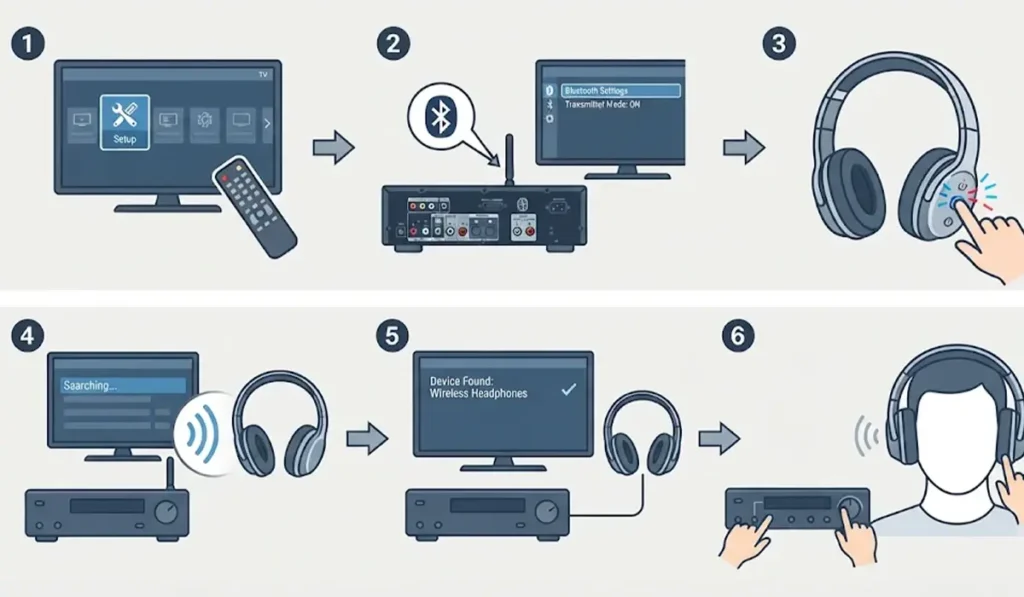
- Step 1: Open the receiver’s setup menu on the TV screen.
- Step 2: Find the Bluetooth section and switch on the transmitter or headphone output option.
- Step 3: Put the headphones into pairing mode, usually by holding the power button until the indicator light flashes.
- Step 4: Start the device search on the receiver and wait for the headphones to appear in the list.
- Step 5: Select the headphones and confirm the pairing.
- Step 6: Play something and adjust the volume on the headphones or the receiver.
Headphones that were used with a phone or laptop earlier sometimes refuse to pair until the old connection is cleared. A quick guide on how to re-pair Bluetooth earbuds walks through that reset.
Method 3: Use a Bluetooth Transmitter for Wireless Headphones
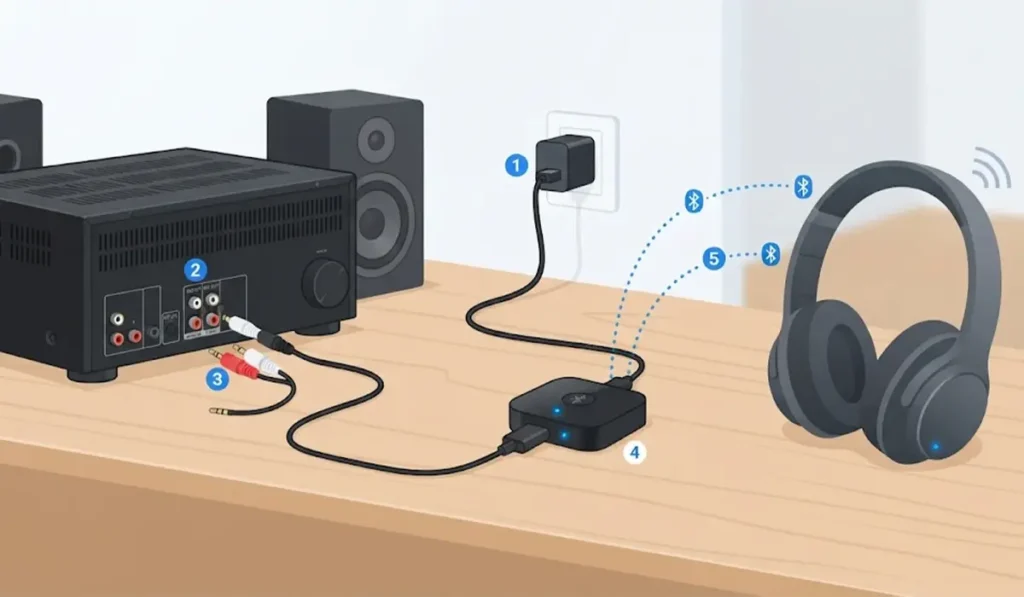
When the receiver has no way to send audio to headphones, a small Bluetooth transmitter fills the gap. Think of it as a tiny radio station that broadcasts the receiver’s sound to the headphones. It plugs into an output on the receiver, and the headphones pair with the transmitter instead of the receiver.
- Step 1: Plug the transmitter into a USB power source, or charge it if it has a built-in battery.
- Step 2: Connect the transmitter to the receiver. The Phones jack works with the right adapter, and many receivers also have a line output such as Rec Out or Zone 2 that can be linked with an RCA to 3.5 mm cable.
- Step 3: If Zone 2 is used, set Zone 2 to the same source that is playing in the main room.
- Step 4: Put the transmitter and the headphones into pairing mode.
- Step 5: Wait for the two devices to link, which is usually confirmed by a solid light.
- Step 6: Start playback and raise the volume gradually.
Pro-Tip: Bluetooth can add a slight delay between picture and sound. Choosing a transmitter and headphones that both support the same low-latency codec, such as aptX Low Latency, keeps lip sync tighter.
Tips for Better Sound Through Headphones
- Switch the receiver to a stereo listening mode if the sound feels thin, since surround modes are designed for speaker rooms.
- Check the receiver manual for a headphone surround mode, which some models offer for a more spacious feel.
- Keep the headphone plug fully seated, because a half-inserted plug can cause sound in one ear only.
- Use a wired connection for fast action scenes or gaming, since it has no delay.
- If the receiver is fed by a Windows 11 PC, the audio output settings page helps confirm the PC is sending sound to the right device.
Common Problems After Connecting Headphones
Fix 1: No Sound in the Headphones
Confirm that the correct source is selected, the receiver is not muted, and the volume is above zero. When the source is a Windows PC and the audio is still missing, this guide on troubleshooting headphone detection can help.
Fix 2: Bluetooth Headphones Not Showing Up
Make sure the headphones are in pairing mode and sitting close to the receiver. If the receiver offers no transmitter option in its menu, its Bluetooth is likely receive-only, and Method 3 is the answer.
Fix 3: Sound Is Delayed Behind the Picture
This is a common trait of Bluetooth connections. Switching to wired headphones removes it, and a low-latency transmitter reduces it.
Frequently Asked Questions
Can any headphones connect to a home theater receiver?
Yes, as long as the connection type matches. Wired headphones need a 3.5 mm to 6.35 mm adapter in most cases, while wireless headphones need either a receiver with Bluetooth transmit support or an external transmitter.
Where is the headphone jack on a receiver?
It is usually on the front panel and labeled Phones.
Why do the speakers go silent when headphones are plugged in?
Many receivers mute the speaker outputs once the Phones jack is in use. This is a normal design choice that prevents sound from playing in both places at once.
Do receivers need an adapter for regular headphones?
Most do. The Phones jack is commonly 6.35 mm, and standard headphones use a 3.5 mm plug.
Can a receiver with Bluetooth connect directly to headphones?
Only some can. Many receivers use Bluetooth just to receive music from a phone, so the manual should be checked for a transmitter or headphone option.
Will surround sound work through headphones?
Receivers often send a stereo version of the sound to the Phones jack. Some models also include a headphone surround mode, which is listed in the manual.
Is there audio delay with wireless headphones?
A small delay can occur with Bluetooth. Wired headphones avoid it, and low-latency codecs on both the transmitter and the headphones reduce it.
Is it safe to use headphones at high volume on a receiver?
The headphone output on a receiver can be powerful, so starting at the lowest volume and raising it slowly is the safest habit.