
Getting a new pair of headphones out of the box is always exciting, and knowing how to set up 1More SonoFlow headphones correctly from the start makes a real difference in sound quality and comfort. A rushed setup often leads to weak Bluetooth connections or missed features, so taking a few extra minutes here saves frustration later.
Key Takeaways
- Charge the headphones fully before the first use to calibrate the battery properly.
- Power on and activate pairing mode using the dedicated button or gesture.
- Connect through the Bluetooth settings menu on a phone, tablet, or laptop.
- Install the 1More Music app to unlock EQ presets and noise-cancellation controls.
- Test both audio and microphone before daily use to confirm everything works.
Step-by-Step Guide to Set Up 1More SonoFlow Headphones
The setup process is straightforward, and most people finish it in under five minutes. The steps below apply to nearly every 1More SonoFlow model currently sold, since the pairing method has stayed consistent across firmware updates.
Method 1: Charge and Power On the Headphones
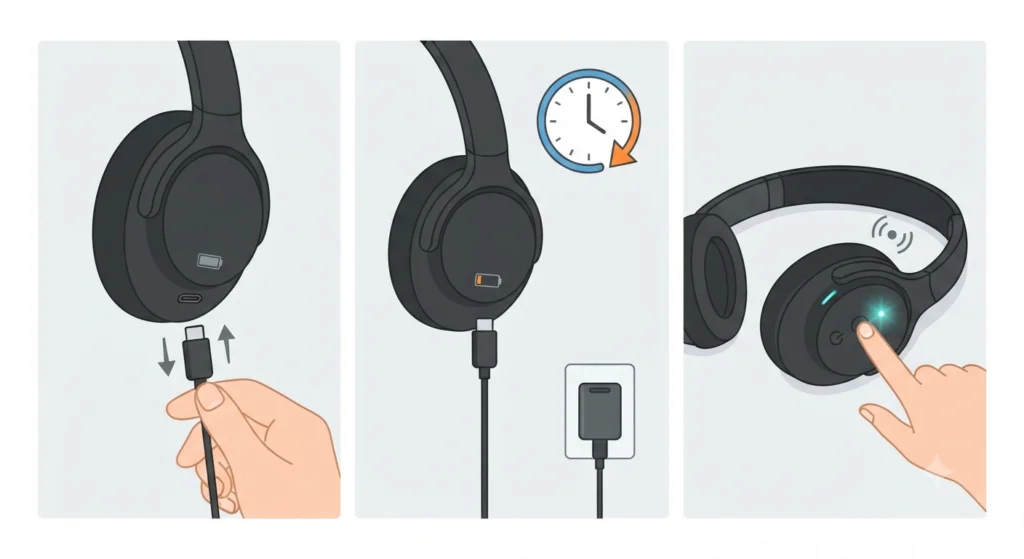
- Step 1: Plug the included USB-C cable into the charging port located on the right earcup.
- Step 2: Let the headphones charge for at least 90 minutes before the first use, even if the battery indicator shows partial charge.
- Step 3: Press and hold the power button for 2-3 seconds until an LED light or voice prompt confirms the headphones have turned on.
A full charge before first use is not just a formality. Lithium batteries perform more reliably long-term when the initial charge cycle is complete, and skipping this step is one reason some users report shorter battery life later on.
Method 2: Turn On Bluetooth Pairing Mode
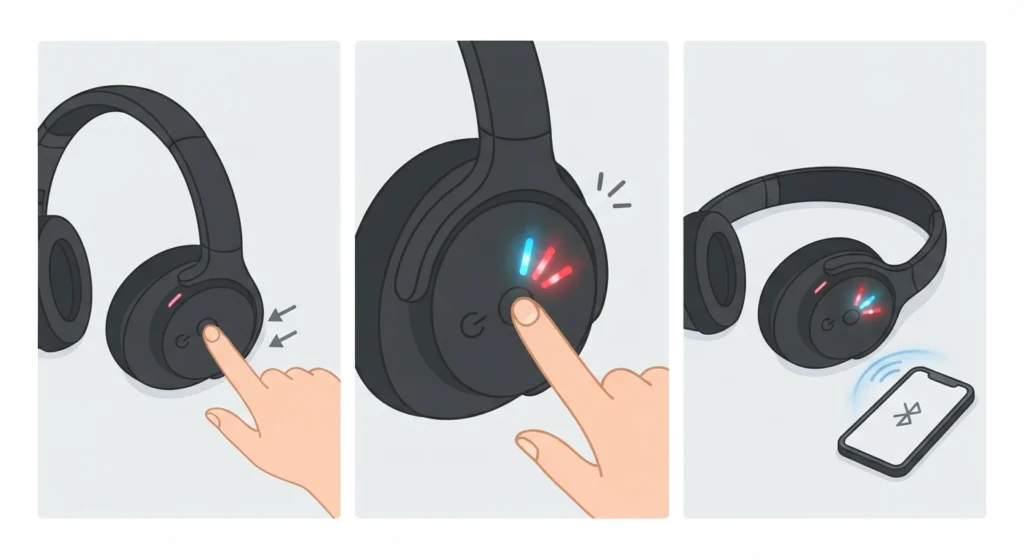
- Step 1: With the headphones powered off, press and hold the power button for around 5 seconds until the LED starts flashing blue and red alternately.
- Step 2: This flashing pattern signals that the headphones are now discoverable and ready to pair.
- Step 3: Keep the headphones within a short distance of the device being paired, since Bluetooth range works best under a few feet during initial setup.
Method 3: Connect to a Phone, Laptop, or Tablet
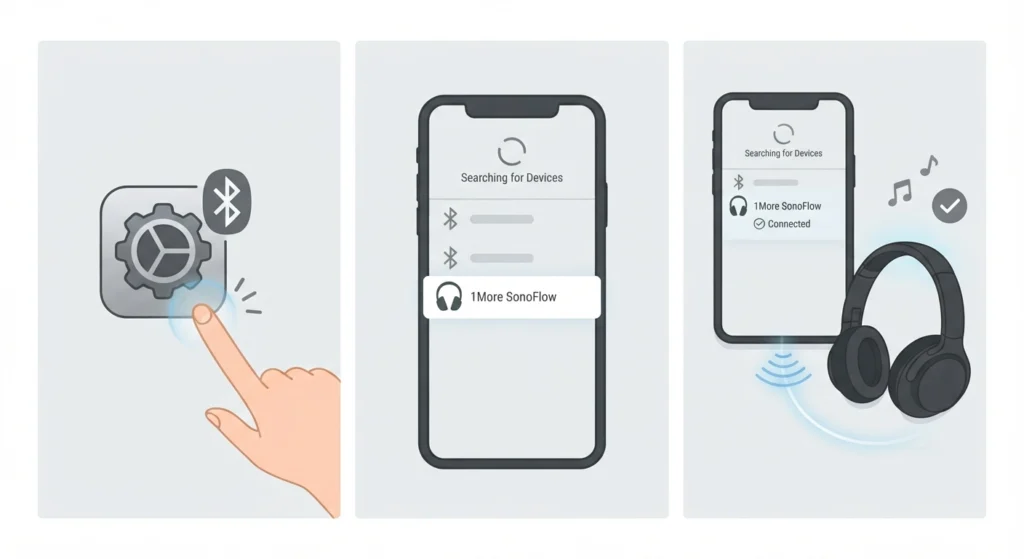
- Step 1: Open the Bluetooth settings menu on the device – this is usually found under Settings on phones or the taskbar icon on Windows laptops.
- Step 2: Select ‘Add Device’ or ‘Pair New Device’, then look for ‘1More SonoFlow’ in the list of available devices.
- Step 3: Tap or click the name once it appears, and wait for the confirmation tone or on-screen message showing the devices are connected.
Windows users sometimes run into a situation where the headphones pair but sound still plays from the laptop speakers. Adjusting the audio output settings on Windows 11 usually resolves this in a few clicks, since the system does not always switch the default playback device automatically after pairing.
Method 4: Install and Set Up the 1More Music App
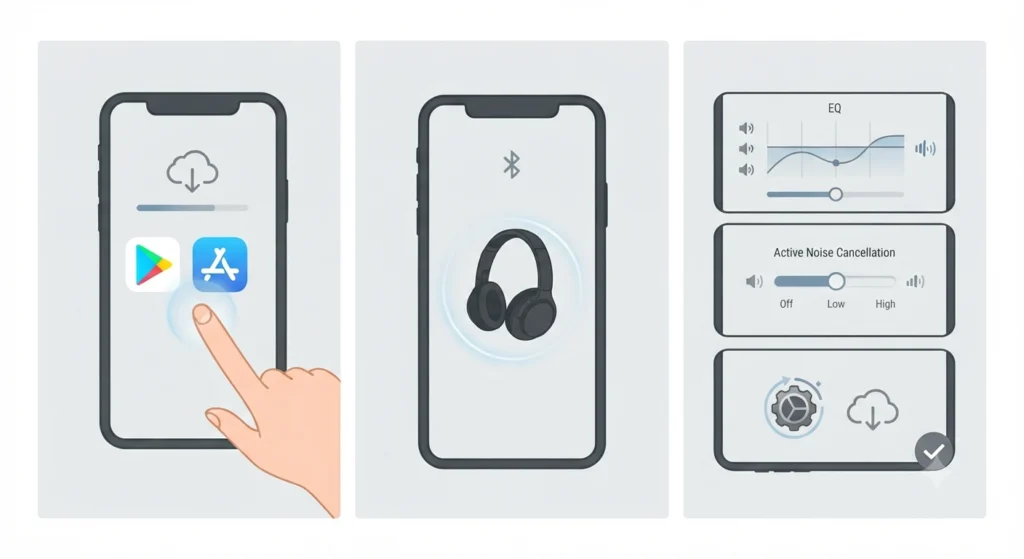
- Step 1: Download the 1More Music app from the Google Play Store or Apple App Store.
- Step 2: Open the app and allow it to detect the connected SonoFlow headphones automatically.
- Step 3: Explore the EQ presets, adjust active noise cancellation levels, and check for firmware updates directly inside the app.
The app is where most of the real customization happens. Without it, the headphones still work fine for basic listening, but noise-cancellation strength and sound presets stay locked to factory defaults.
Tips for a Smooth First-Time Setup
- Keep other Bluetooth devices turned off nearby during the first pairing attempt to avoid interference or accidental connections.
- Forget any previous Bluetooth pairing history on the device if the SonoFlow headphones do not appear in the list right away.
- For anyone who regularly switches between two devices, such as a phone and a laptop, learning to re-pair Bluetooth earbuds for stereo sound on Windows can help maintain a stable connection without constant reconnecting.
- Update the headphone firmware through the app soon after setup, since manufacturers often patch minor Bluetooth stability issues in early updates.
Pro-Tip: Multipoint connection, if supported on the specific SonoFlow model, allows the headphones to stay paired with two devices at once. This is worth enabling early since it saves the hassle of repeatedly disconnecting and reconnecting when switching between a phone call and a laptop meeting.
Common Problems During Setup and How to Fix Them
- Headphones not appearing in the Bluetooth list: Restart Bluetooth on the device and make sure the headphones are still in pairing mode, since the flashing light times out after about two minutes.
- Connected but no sound: The device may still be set to output audio through internal speakers. Resetting the audio settings on Windows 11 often fixes this without needing to re-pair anything.
- Microphone not working during calls: This is a common issue on Windows 11 laptops where the system defaults to the wrong input device. Resolving microphone detection problems usually takes just a quick settings check.
- Audio cutting in and out: This is typically caused by distance or interference. Moving closer to the paired device and removing obstacles between them usually solves it.
For anyone managing multiple microphones or audio devices on the same laptop, reviewing how to manage audio input devices on Windows 11 makes it easier to keep the SonoFlow microphone selected as default going forward.
Frequently Asked Questions
How long does it take to fully charge 1More SonoFlow headphones the first time?
A full charge from empty typically takes around 90 minutes to 2 hours, depending on the charging cable and power source used.
Do 1More SonoFlow headphones work without the app?
Yes, they function for basic audio playback and calls without the app. The 1More Music app is only needed for EQ adjustments, ANC control, and firmware updates.
Why won’t the headphones enter pairing mode?
This usually happens if the headphones are already powered on. Turning them off first, then holding the power button for several seconds, triggers the correct pairing sequence.
Can 1More SonoFlow headphones connect to two devices at the same time?
Many SonoFlow models support multipoint connection, allowing simultaneous pairing with two devices such as a phone and a laptop, though this can typically be toggled in the app settings.
What should be done if the headphones connect but produce no sound?
Check that the correct playback device is selected in the audio settings menu, since some laptops and phones default back to their built-in speakers after pairing.
Is a wired connection possible with 1More SonoFlow headphones?
Yes, most SonoFlow models include a 3.5mm audio cable option for wired listening, which also works when the battery is fully drained.
How can firmware be updated on 1More SonoFlow headphones?
Firmware updates are delivered through the 1More Music app once the headphones are connected and detected within the app interface.
Why does the microphone not work during video calls after pairing?
This is often related to the operating system defaulting to a different input device. Checking the sound settings and manually selecting the SonoFlow microphone typically resolves it.
Does resetting the headphones delete previous Bluetooth pairings?
Yes, a factory reset clears all saved pairing information, so each previously connected device needs to be paired again afterward.
How close do devices need to be during the first pairing attempt?
Staying within a few feet of the device is recommended during initial pairing, since Bluetooth connections are more stable at short range before the link is fully established.