
Resetting the Bose QuietComfort 45 to factory settings is the most reliable way to clear stubborn software glitches and start fresh with a clean setup. This step-by-step guide walks through the exact process Bose recommends, using the right button combination so the headphones return to their original out-of-box state without any guesswork.
Quick Summary Table
- Goal: Restore the QC45 to its original factory state
- Tools needed: None – just the headphones themselves
- Time required: Around 1 to 2 minutes
- Key step: Hold the Power/Bluetooth switch and Action button together for 30 seconds
- Result: All paired devices, settings, and preferences get cleared
Step-by-Step Guide to Factory Reset the Bose QuietComfort 45
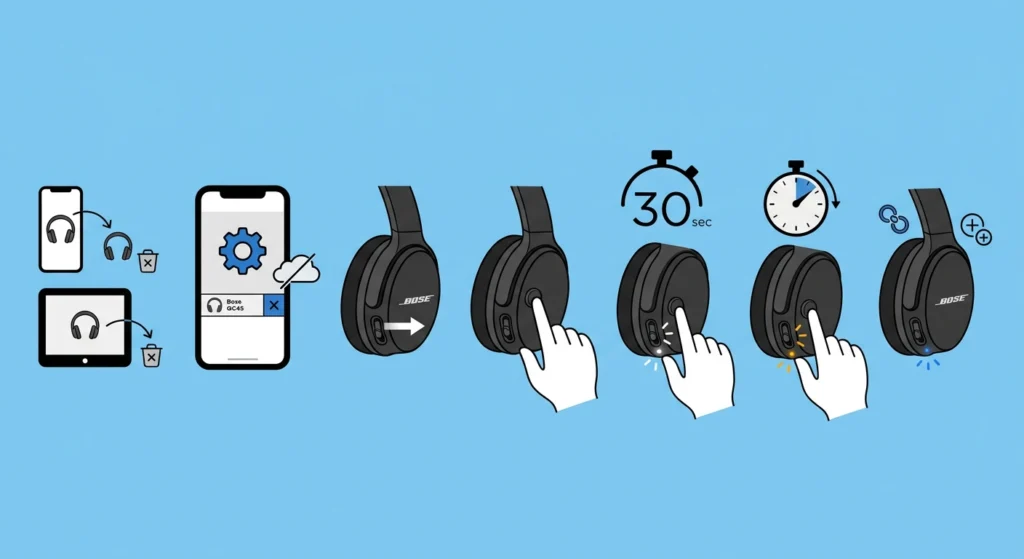
Before starting, it helps to understand what this process actually does. A factory reset wipes every saved Bluetooth connection, every custom setting, and any saved preference inside the headphones. Once finished, the QC45 behaves exactly like it did the day it came out of the box. This works best when the headphones are fully charged or at least have enough battery to stay powered on through the whole process.
- Step 1: Remove the Bose QuietComfort 45 from the Bluetooth device list on any phone, tablet, or computer that has previously connected to them.
- Step 2: Open the Bose Music app and remove the headphones from the connected Bose account, since leftover account data can interfere with the reset.
- Step 3: Slide the Power/Bluetooth switch on the right earcup to the right and hold it in that position.
- Step 4: While holding the switch, press and hold the Action button at the same time.
- Step 5: Keep holding both for a full 30 seconds. The LED indicator blinks white during this stage, so patience matters here.
- Step 6: After the 30 seconds pass, the LED indicator blinks amber for about 2 to 3 seconds, signaling that factory settings are being restored.
- Step 7: Release both buttons once the LED indicator starts slowly blinking blue. This blue blink confirms the reset finished successfully and the headphones are ready to pair as a brand-new device.
Most people find that the trickiest part is holding both controls steady for the full 30 seconds without letting go early. Releasing too soon usually means the reset has to be restarted from Step 3.
Pro-Tip: Keep a finger steady on both the switch and the Action button the entire time, and avoid checking the LED constantly since that often causes an accidental release. Watching for the amber blink as the cue to relax is far more reliable than guessing the timing.
Pairing the Headphones Again After the Reset
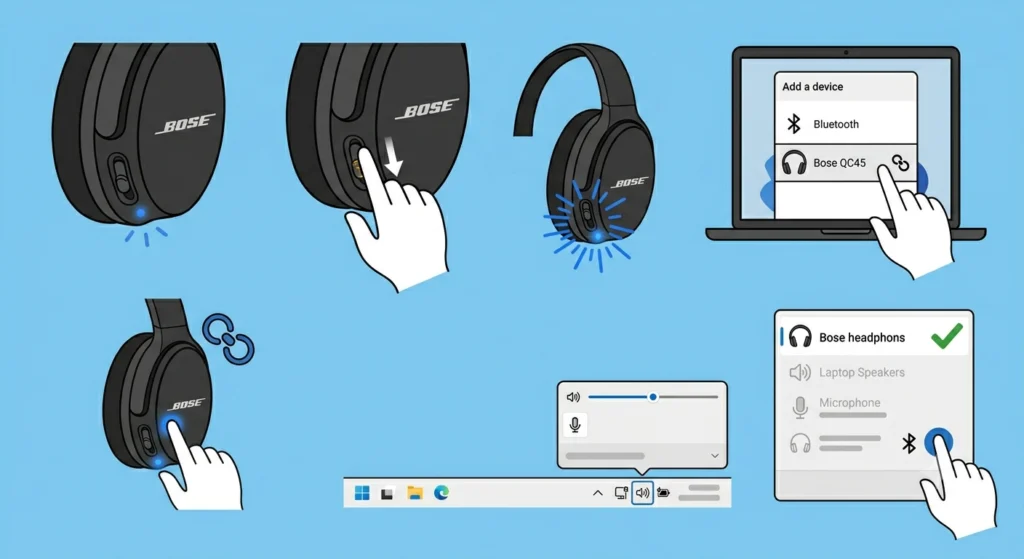
Once the blue light confirms the reset is done, the QC45 needs to be paired again just like a new unit. Put the headphones into pairing mode, then search for them on the connecting device’s Bluetooth menu. If the connection feels inconsistent or the headphones do not show up right away, a guide on how to re-pair Bluetooth audio devices for stereo sound on Windows can help sort out the connection cleanly.
On a Windows 11 machine specifically, sound output sometimes defaults to the wrong device after a fresh pairing. Checking and adjusting the audio output settings right after reconnecting prevents the common mistake of talking to a headset that isn’t actually receiving the audio signal.
Tips for a Smooth Factory Reset
- Charge the headphones to at least 50 percent before starting, since a sudden power loss mid-reset can leave the process incomplete.
- Close the Bose Music app on the phone before beginning the reset, as an open app sometimes tries to reconnect mid-process and confuses the Bluetooth state.
- Perform the reset in a quiet room so the LED color changes are easy to see without distraction.
- Avoid pressing any other button on the headphones while holding the switch and Action button, since extra input can interrupt the sequence.
Common Problems During the Reset Process
Fix 1: The LED Indicator Does Not Change Color
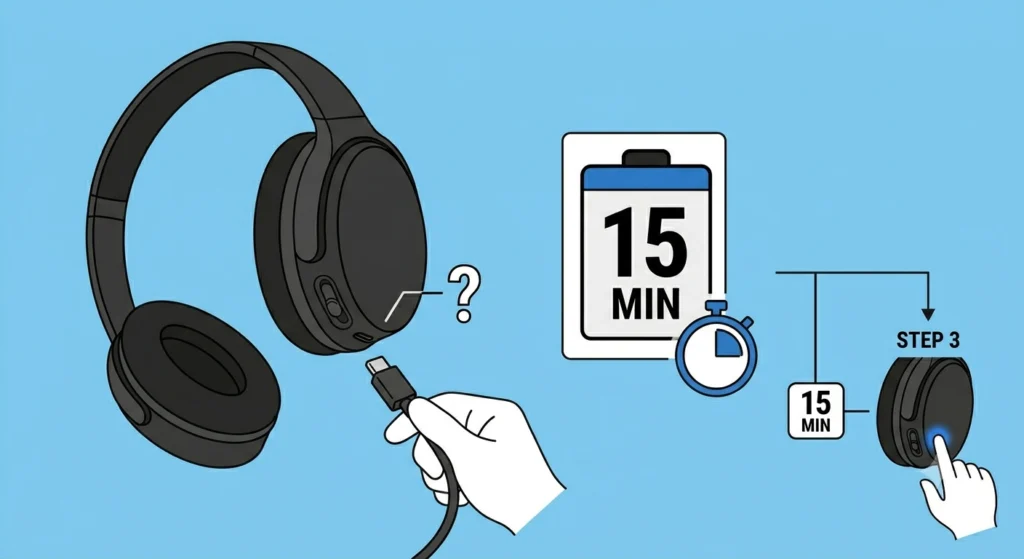
This usually points to low battery. Charge the headphones for at least 15 minutes and try the entire sequence again from Step 3.
Fix 2: The Headphones Do Not Show Up When Pairing Again
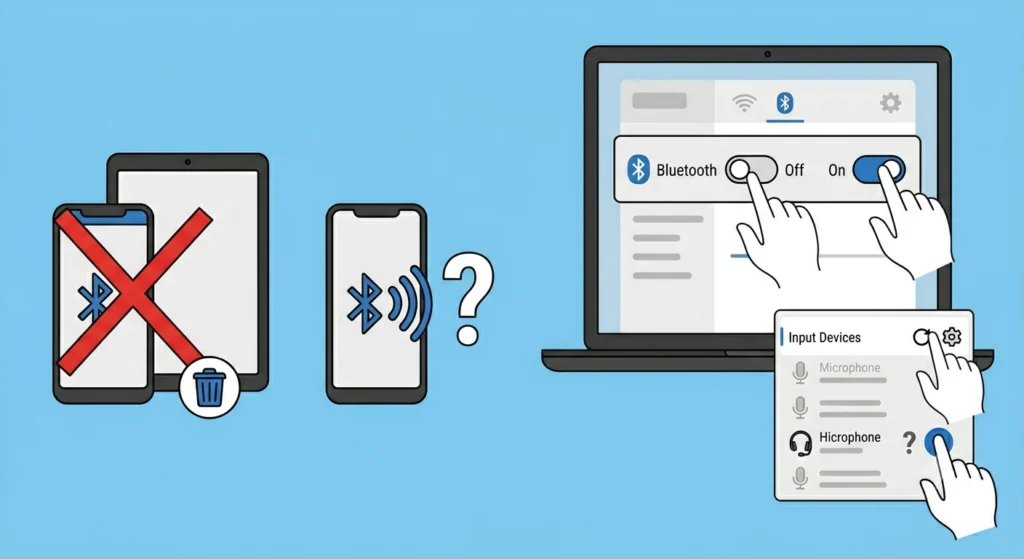
This happens often when the old Bluetooth profile lingers on the connecting device. Removing the device entry first, then restarting Bluetooth on the phone or laptop, usually resolves it. On Windows 11, a deeper look at managing audio input devices can also help if the microphone side of the headset is not registering after reconnecting.
Fix 3: Microphone Stops Working After Reset on a Windows 11 Computer
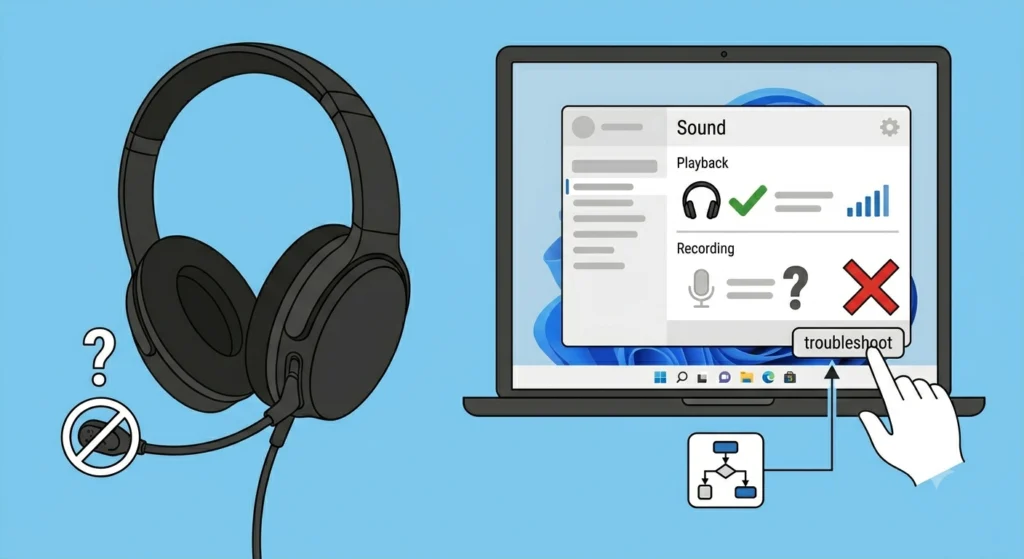
A factory reset sometimes requires Windows to redetect the microphone component separately from the audio output. A walkthrough on resolving microphone detection problems covers this exact scenario step by step.
Fix 4: Audio Sounds Distorted or Unbalanced Right After Reset
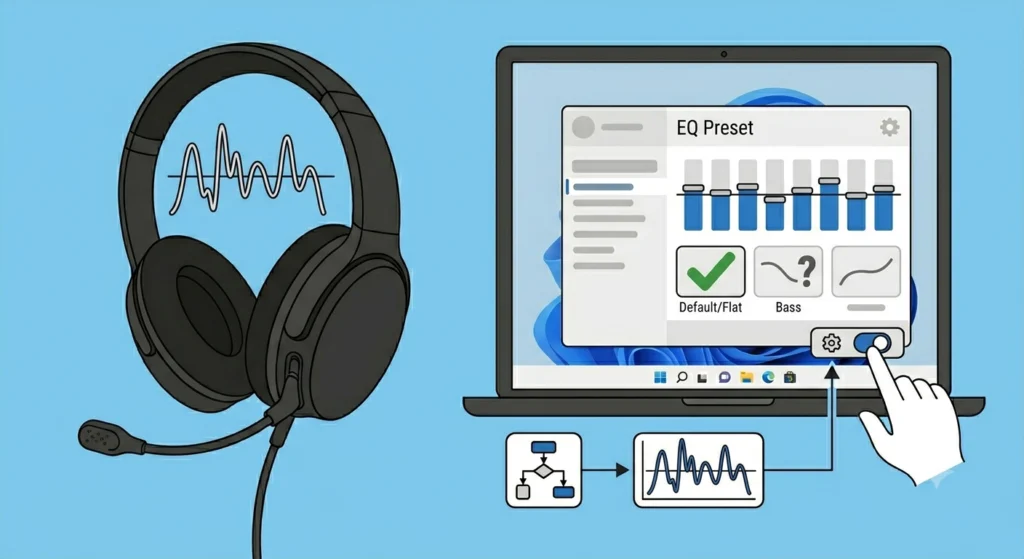
Custom EQ settings get wiped during a factory reset, which can make audio sound different than expected at first. Running through a guide on resetting audio settings on Windows 11 helps realign system-level audio with the freshly reset headphones.
Frequently Asked Questions
How long does it take to factory reset the Bose QuietComfort 45?
The entire process takes around 1 to 2 minutes from start to finish, including the 30-second hold and the brief amber blink that follows.
Will a factory reset delete saved Bluetooth pairings?
Yes. Every paired device gets erased, so each device needs to be paired again afterward.
Does a factory reset affect the battery or charging cycle?
No. The reset only clears settings and paired connections. Battery health and charging performance stay unaffected.
Is factory reset different from a soft reset on the QC45?
Yes. A soft reset, done by connecting a USB cable while holding the switch, simply restarts the headphones and fixes freezing issues. A factory reset wipes saved settings and pairings completely.
Can a factory reset fix Bluetooth connection drops?
In many cases, yes. Clearing old paired device data often resolves dropped connections caused by conflicting Bluetooth profiles.
Do noise cancellation settings reset to default after this process?
Yes. Noise cancellation level, EQ adjustments, and any custom preferences saved in the Bose Music app all return to default factory values.
What does the amber LED blink mean during the reset?
The amber blink, lasting 2 to 3 seconds, confirms that factory settings are actively being restored at that moment.
Is it necessary to remove the headphones from the Bose app before resetting?
Removing the headphones from the Bose account beforehand prevents leftover account data from causing sync issues after the reset completes.
Can the factory reset be performed without the Bose Music app installed?
Yes. The reset itself only requires the physical switch and Action button. The app step is recommended for a cleaner result but is not strictly required for the reset to work.
How can it be confirmed the reset worked correctly?
The LED indicator slowly blinking blue at the end of the process is the clearest confirmation that the QC45 has returned to its original factory state.