
Knowing how to reinstall an audio driver on Windows for headphone issues is often the quickest way to bring back sound that vanished, crackles, or refuses to appear when a pair is plugged in. Think of the audio driver as a translator between Windows and the sound hardware. When that translator gets confused, even the best headphones sit silent.
Key Takeaways
- The whole process happens in Device Manager and takes only a few minutes.
- Uninstalling the audio device and restarting lets Windows install a fresh driver automatically.
- A driver from the PC or motherboard manufacturer is the best backup option.
- Headphones may need to be selected again as the default output afterward.
- The steps work on both Windows 10 and Windows 11.
Step-by-Step Guide to Reinstall an Audio Driver on Windows
Save any open work first, since the PC needs a restart to finish the job. The methods below go from the simplest to the most thorough.
Method 1: Uninstall and Reinstall the Driver in Device Manager
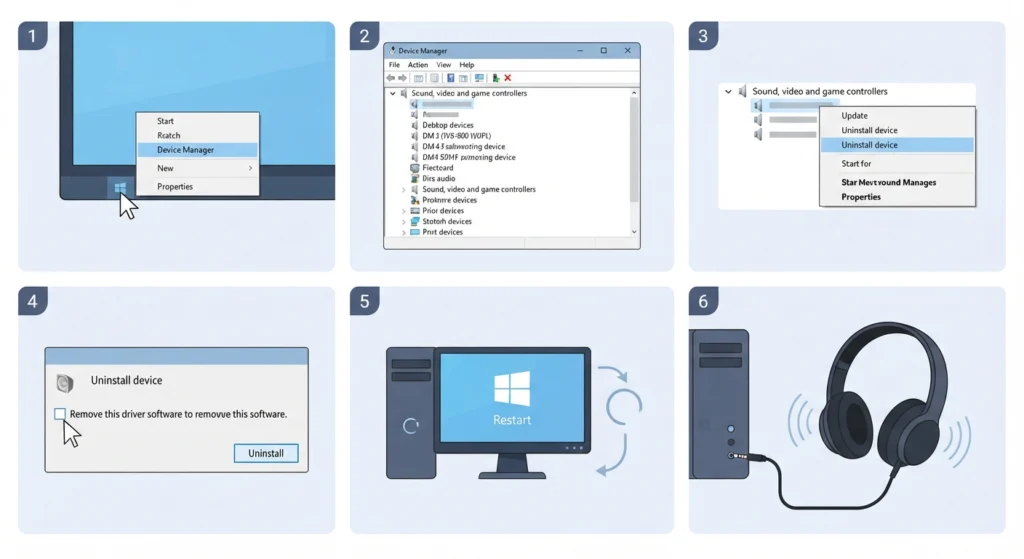
This is the go-to fix for most headphone problems, and it works best when the audio device is still listed in Device Manager.
- Step 1: Right-click the Start button and select Device Manager.
- Step 2: Expand the category named ‘Sound, video and game controllers’.
- Step 3: Right-click the main audio device, such as Realtek(R) Audio, Intel Smart Sound Technology, or High Definition Audio Device, and select Uninstall device.
- Step 4: If a checkbox labeled ‘Attempt to remove the driver for this device’ appears, tick it for a clean removal, then click Uninstall.
- Step 5: Restart the PC. Windows detects the audio hardware during startup and installs a driver on its own.
- Step 6: Plug in the headphones and play any sound to test.
Pro-Tip: Download the audio driver from the PC manufacturer’s support page before uninstalling anything. Once the current driver is removed, Windows may briefly fall back to a basic driver, and having the correct installer saved on the computer avoids being stuck without sound or a way to fetch it.
Method 2: Scan for Hardware Changes
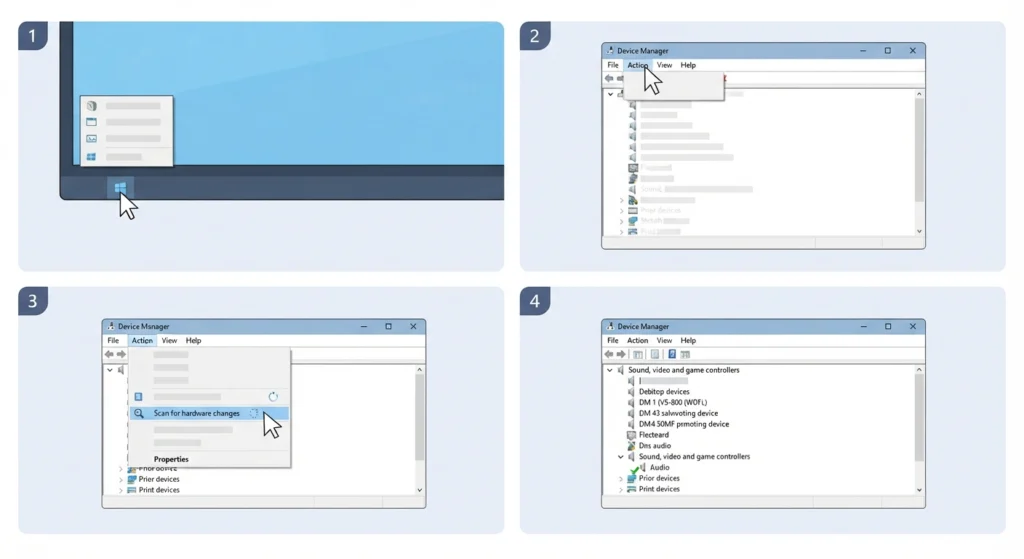
If the audio device does not return after the restart, Windows can be prompted to look for it again.
- Step 1: Open Device Manager.
- Step 2: Click the Action menu at the top of the window.
- Step 3: Select ‘Scan for hardware changes’ and wait a few seconds.
- Step 4: Check that the audio device now appears under ‘Sound, video and game controllers’.
Method 3: Install the Driver From the Manufacturer
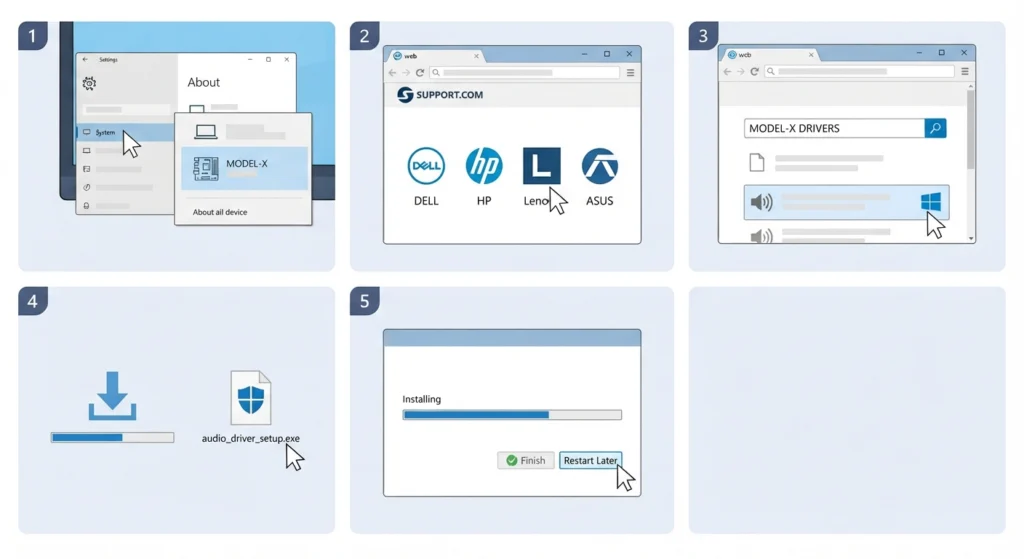
Drivers from the PC or motherboard maker usually include brand-specific audio features, and they are the most reliable choice when the Windows version does not work well.
- Step 1: Open Settings, go to System, then About, and note the device model. Desktop builders should note the motherboard model instead.
- Step 2: Visit the support page of the manufacturer, such as Dell, HP, Lenovo, or ASUS.
- Step 3: Search for the exact model and find the audio driver that matches the installed Windows version.
- Step 4: Download the file, then double-click it to run the installer.
- Step 5: Follow the on-screen prompts and restart the PC when asked.
Set the Headphones as the Default Output Device
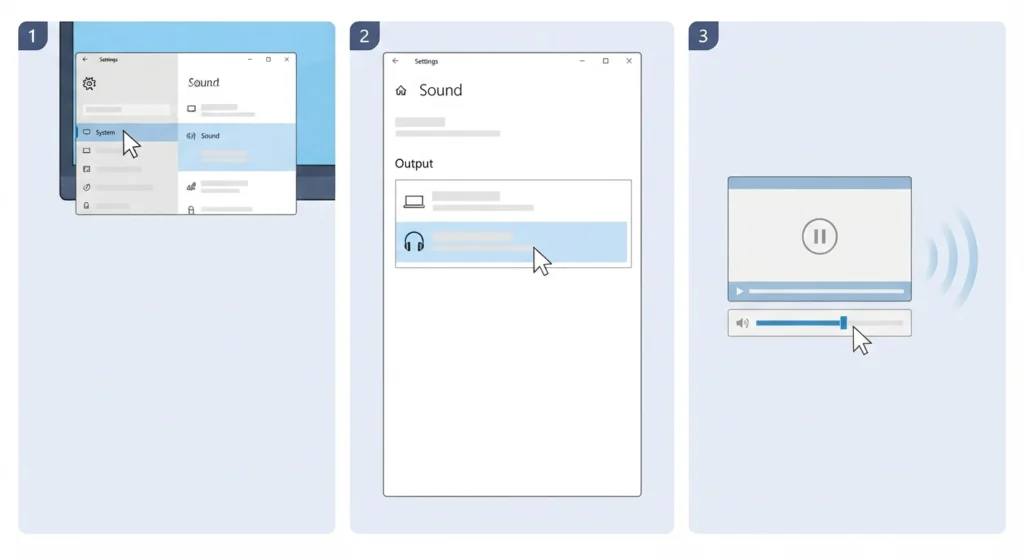
After a driver reinstall, Windows sometimes sends sound to the speakers again. Selecting the headphones takes a few clicks.
- Step 1: Open Settings and go to System, then Sound.
- Step 2: Under Output, choose the headphones from the list.
- Step 3: Play a sound and adjust the volume slider if needed.
More detail is available in this guide on adjusting audio output settings. If sound still behaves oddly, resetting audio settings clears leftover preferences from the old driver.
Pro-Tip: Always restart after installing a driver, even when Windows does not ask. Skipping the restart is one of the most common reasons the fix appears to fail.
Helpful Tips for a Smoother Reinstall
- Close music players, browsers, and video calls before starting so no app is holding the audio device.
- Unplug USB headphones during the uninstall, then plug them back in after the restart so Windows detects them fresh.
- Bluetooth headphones mostly rely on built-in Windows drivers, so pairing them again is often what is needed. This walkthrough on re-pairing Bluetooth earbuds for stereo sound on Windows covers it.
- Use the driver made for the exact Windows version installed to avoid compatibility hiccups.
Common Problems After Reinstalling the Audio Driver
Fix 1: The Audio Device Is Missing After Restart
Open Device Manager and run ‘Scan for hardware changes’ from the Action menu. If nothing appears, install the driver from the manufacturer’s support page as shown in Method 3.
Fix 2: Sound Still Plays From the Speakers
The headphones are likely not selected as the output device. Go to Settings, System, Sound, and pick them under Output.
Fix 3: The Headset Microphone Is Not Detected
Check the input device in Sound settings. This guide on resolving microphone detection problems walks through it, and managing audio input devices explains how to choose the right microphone.
Fix 4: The Driver Installer Will Not Run
Restart the PC, then right-click the installer file and select ‘Run as administrator’.
Frequently Asked Questions
Is it safe to uninstall the audio driver on Windows?
Yes. Windows normally installs a working audio driver automatically after the next restart, so the process is low risk.
Will reinstalling the audio driver delete any files?
No. Only the driver software for the sound hardware is removed, and personal files, photos, and documents stay untouched.
Which device should be uninstalled for headphone problems?
Choose the main audio device under ‘Sound, video and game controllers’, such as Realtek(R) Audio or High Definition Audio Device. Headphones plugged into the audio jack use this same driver.
Do Bluetooth headphones need their own driver?
Most rely on the Bluetooth and audio drivers already built into Windows, so pairing again is often more useful than installing a separate driver.
How long does it take to reinstall an audio driver?
The uninstall and reinstall usually take only a few minutes, plus the time needed for a restart.
What is the difference between updating and reinstalling a driver?
An update replaces the driver with a newer version, while a reinstall removes the current driver and installs a fresh copy.
Do these steps work on both Windows 10 and Windows 11?
Yes. Device Manager works the same way in both versions, and only the Settings menus look slightly different.
Should the driver come from Windows or the manufacturer?
The Windows driver is fine for basic playback. A manufacturer driver usually adds brand-specific audio features and is a good choice when the automatic one does not work well.
Is a restart really required after reinstalling the driver?
A restart is strongly recommended because Windows finishes detecting the hardware and installing the driver during startup.
Can USB headphones be fixed the same way?
Yes. USB headphones typically appear in Device Manager under ‘Sound, video and game controllers’. Uninstall the device, unplug the headphones, restart, and plug them back in.