
Raycon Everyday Earbuds auto-pause not working is one of the most common concerns among new owners who expect the earbuds to stop playback automatically once removed from the ear. The truth is simpler than it seems: this model was never built with an in-ear detection sensor, so what looks like a broken feature is usually a mix of connection drops, accidental touch taps, or device-side settings. This guide breaks down exactly what causes the confusion and how to fix the playback interruptions that get mistaken for a failed auto-pause function.
Key Takeaways
- Raycon Everyday Earbuds do not include an ear-detection sensor, so true auto-pause on removal is not a built-in hardware feature.
- Most reported ‘auto-pause’ problems are actually Bluetooth disconnects, accidental double-taps, or a media setting on the connected device.
- Reseating the earbuds properly and checking the touch sensor placement solves a large share of accidental pausing.
- Resetting the earbuds and re-pairing clears most random stop-and-start playback issues.
- Updating Bluetooth drivers or adjusting audio settings on a Windows 11 device prevents repeated interruptions.
Step-by-Step Guide to Fix Raycon Everyday Earbuds Auto-Pause Not Working
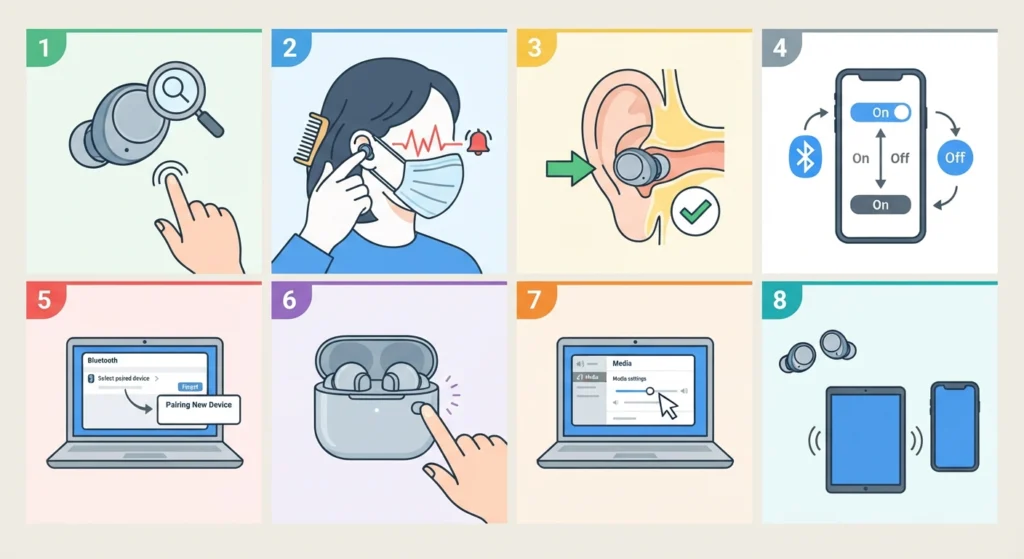
Working through these steps in order clears up the vast majority of playback interruptions reported with this model. Skipping ahead is tempting, but each step rules out a specific cause, so following the order saves time in the long run.
- Step 1: Confirm the model does not include ear-detection hardware. The Raycon Everyday Earbuds use a touch-sensitive control button, not an infrared or optical sensor, so pausing only happens through a double-tap gesture, never automatically when the earbud leaves the ear.
- Step 2: Check for accidental touch triggers. The control sensor sits on the outer face of each earbud, and something as small as a mask strap, a hood, or brushing hair against it can register as a double-tap and pause the audio without warning.
- Step 3: Reseat both earbuds firmly in the ears. A loose fit shifts the earbud during movement, which increases the odds of the sensor being bumped by accident, especially during workouts or while wearing headphones over a beanie or hat.
- Step 4: Restart Bluetooth on the connected device. Turning Bluetooth off and back on clears a stuck connection that can cause audio to cut in and out, which is often mistaken for the earbuds pausing on their own.
- Step 5: Forget the device from Bluetooth settings and re-pair from scratch. On a Windows 11 laptop, this is done through re-pairing the earbuds for stereo sound, which resolves the mono-audio or dropout behavior that sometimes triggers unwanted pauses.
- Step 6: Reset the earbuds using the charging case. Place both earbuds in the case, leave the lid open, and press and hold the button on the back of the case for about ten seconds until the indicator light flashes to confirm the reset.
- Step 7: Check the media playback settings on the source device. Some laptops and phones apply an automatic pause rule when Bluetooth signal strength drops slightly, which has nothing to do with the earbuds themselves and can be adjusted through adjusting the audio output settings on Windows 11.
- Step 8: Test the earbuds with a second device. Pairing with a phone or another laptop isolates whether the issue follows the earbuds or stays with the original device, which narrows down the actual cause quickly.
Pro-Tip: A quick way to tell the difference between an accidental tap and a real connection drop is the sound cue. A tap-triggered pause is silent and instant, while a connection drop usually comes with a brief static crackle or a soft click right before the audio stops.
Tips to Prevent Playback Interruptions on Raycon Everyday Earbuds
Most people find that a few small habits keep the earbuds running smoothly without ever needing to troubleshoot again.
- Keep the connected device’s Bluetooth drivers updated, since outdated drivers are a frequent cause of random dropouts on laptops and desktops.
- Avoid wearing hoods, masks, or headbands that rest directly over the touch sensor during calls or workouts.
- Charge the case regularly, since low case battery can cause the earbuds to disconnect mid-session while attempting to draw power.
- Stay within a clear line of sight from the paired device when possible, as walls and pockets weaken the Bluetooth signal and increase dropout frequency.
- Periodically review resetting the audio settings on Windows 11 if playback issues return after a system update.
Pro-Tip: Cleaning the touch sensor surface with a dry microfiber cloth every week prevents sweat or skin oil buildup, which can make the sensor overly sensitive and more likely to register accidental taps.
Common Problems and Troubleshooting for Raycon Everyday Earbuds
A few related issues tend to show up alongside the auto-pause confusion. These fixes address the ones reported most often.
Fix 1: Audio Randomly Stops on Only One Earbud
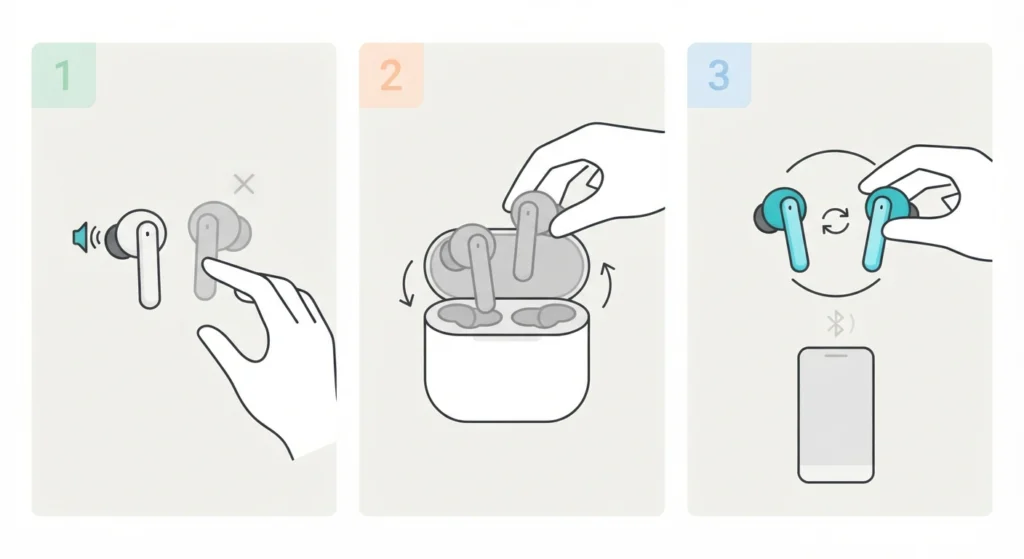
This usually points to a weak connection between the two earbuds rather than the source device. Placing both earbuds back in the case for a full reset, then taking them out together so they sync before connecting to Bluetooth, resolves this in most cases.
Fix 2: Microphone Not Detected During Calls
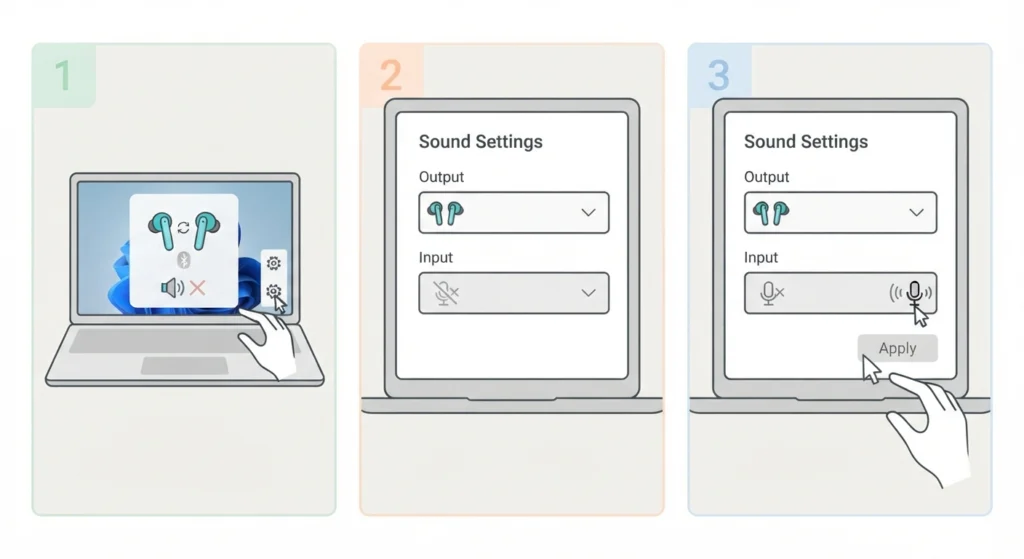
When the earbuds connect for audio but the microphone does not register, the issue is typically on the device side. On Windows 11, this is covered in detail through resolving microphone detection problems, which walks through selecting the correct default input device.
Fix 3: Earbuds Keep Switching Between Devices
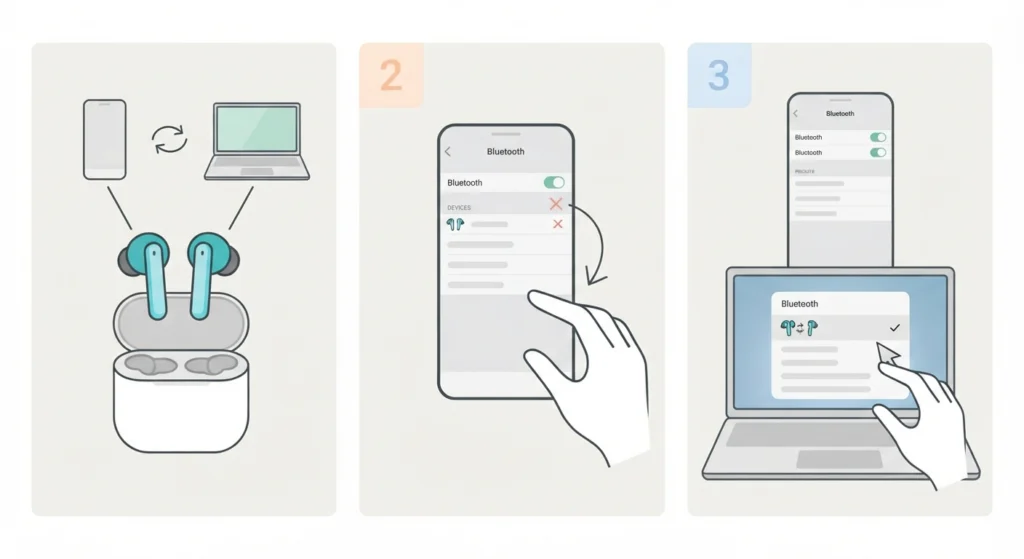
If the earbuds were previously paired with a phone and now default to that device instead of a laptop, clearing old pairings and reviewing managing audio input devices helps set the correct device priority going forward.
Fix 4: Playback Cuts Out During Video Calls
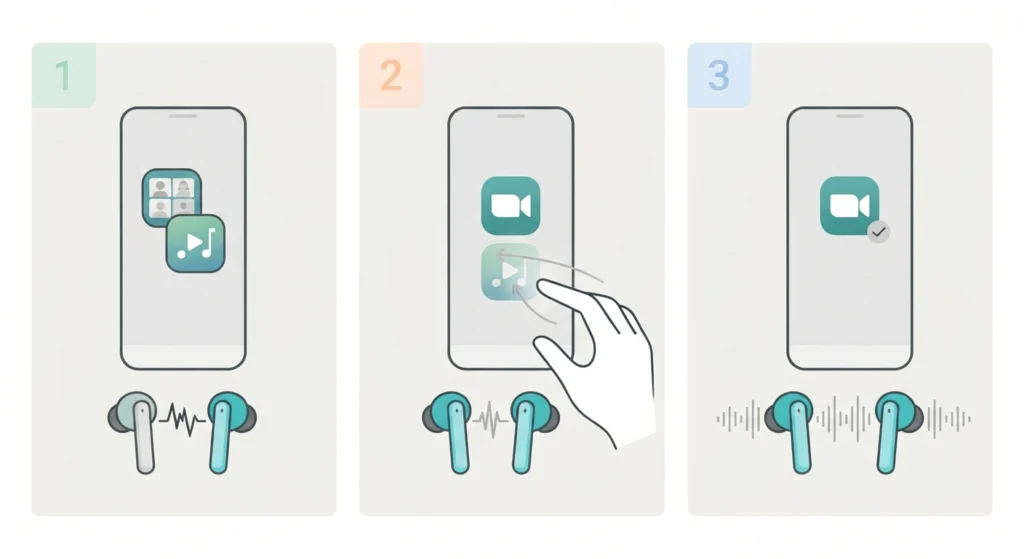
Some conferencing apps switch the audio profile automatically, which can cause a brief stutter that feels like a pause. Closing background apps that also use Bluetooth audio, such as music players running at the same time, usually clears this up.
Frequently Asked Questions
Do Raycon Everyday Earbuds have a real auto-pause feature?
No. This model does not include an ear-detection sensor, so playback does not stop automatically when the earbud is removed. Pausing only happens through a manual double-tap on the touch sensor.
Why does the audio stop playing on its own?
This is almost always caused by an accidental double-tap against clothing or hair, a weak Bluetooth signal, or a device-side setting that lowers volume or pauses audio when the connection weakens slightly.
How to stop Raycon Everyday Earbuds from pausing by accident?
Reseating the earbuds so the sensor faces outward, avoiding contact with hoods or masks, and keeping the touch surface clean all reduce accidental pausing significantly.
Does double-tapping always pause the music?
Yes, two quick presses on either earbud’s touch sensor toggles play and pause. Anything that presses this spot twice in quick succession, even by accident, triggers the same action.
How to reset Raycon Everyday Earbuds?
Place both earbuds in the charging case with the lid open, then press and hold the reset button on the back of the case for around ten seconds until the light flashes to confirm the reset is complete.
Why does only one earbud lose connection sometimes?
This typically happens when the two earbuds fail to sync properly before connecting to a device. Placing both back in the case and letting them sync again before pairing usually fixes it.
Can outdated Bluetooth drivers cause random playback interruptions?
Yes. Outdated drivers on a laptop or desktop are one of the more common causes of intermittent dropouts that feel like the earbuds are pausing without reason.
How to re-pair Raycon Everyday Earbuds with a Windows 11 laptop?
Forget the device from the Bluetooth settings menu, place the earbuds back in the case, take them out again to trigger pairing mode, then search for and select them from the Bluetooth device list.
Does Raycon release firmware updates for the Everyday Earbuds?
Firmware updates, when available, are typically distributed through the official Raycon support channel or companion app rather than through the operating system’s Bluetooth settings.
What if none of these steps fix the issue?
If playback problems continue after a full reset and re-pair, testing the earbuds with a completely different device helps confirm whether the issue is with the earbuds themselves or the original source device.