
Learning how to connect Bluetooth headphones to Chromebook takes only a few minutes, and the process is nearly identical for every pair. Chrome OS handles pairing right from the status area, so no extra apps or drivers are needed. Whether the headphones are over-ear, on-ear, or earbuds, the same steps apply.
Key Takeaways
- Pairing works from Quick Settings or from the Settings app.
- The headphones must be in pairing mode, not just powered on.
- Once paired, the headphones reconnect automatically in most cases.
- The audio output can be switched from Quick Settings after connecting.
Step-by-Step Guide to Connect Bluetooth Headphones to Chromebook
Before starting, make sure the headphones are charged and the Chromebook is within a few feet of them. Bluetooth pairing works best at close range.
Method 1: Connect Using Quick Settings
This is the fastest route, and most people find that it takes under a minute once the headphones are ready.
- Step 1: Put the headphones into pairing mode. This usually means holding the power or Bluetooth button until an indicator light starts flashing. The exact button varies by model, so check the headphone manual if needed.
- Step 2: On the Chromebook, select the clock in the bottom-right corner to open Quick Settings.
- Step 3: Select the Bluetooth icon to turn Bluetooth on if it is off.
- Step 4: Open the Bluetooth list by selecting the arrow next to the Bluetooth icon, then choose Pair new device.
- Step 5: Wait for the Chromebook to scan, then select the name of the headphones from the list of available devices.
- Step 6: Confirm any prompt that appears. Once the headphones show as Connected, audio will start playing through them.
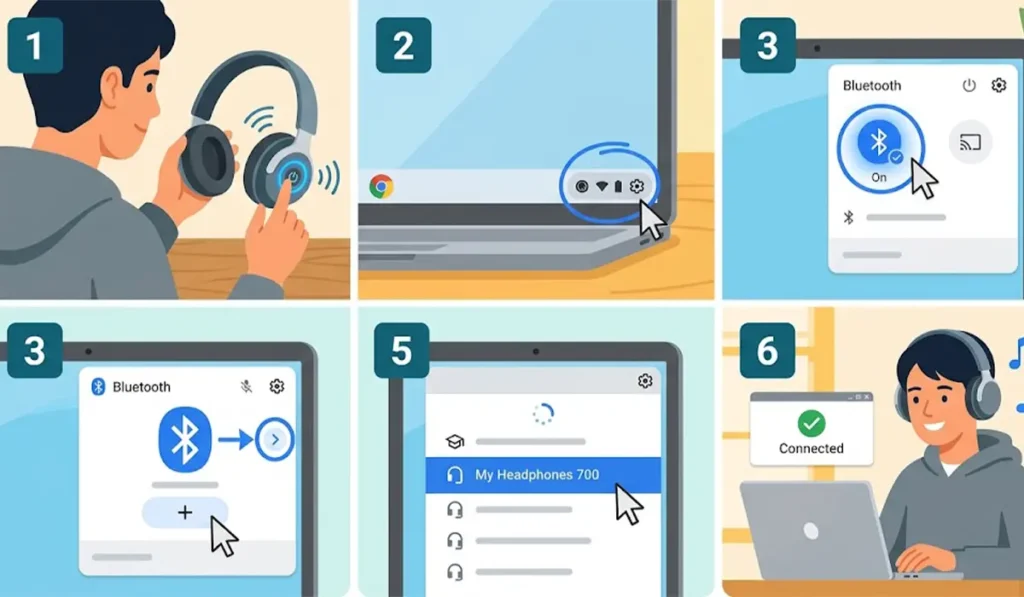
Pro-Tip: Turning the headphones on is not the same as putting them in pairing mode. If the headphones do not show up in the list, the key is to hold the pairing button until the light flashes, then scan again.
Method 2: Connect Using the Settings App
This method works well when the Quick Settings panel is not showing the Bluetooth option or when more control over saved devices is needed.
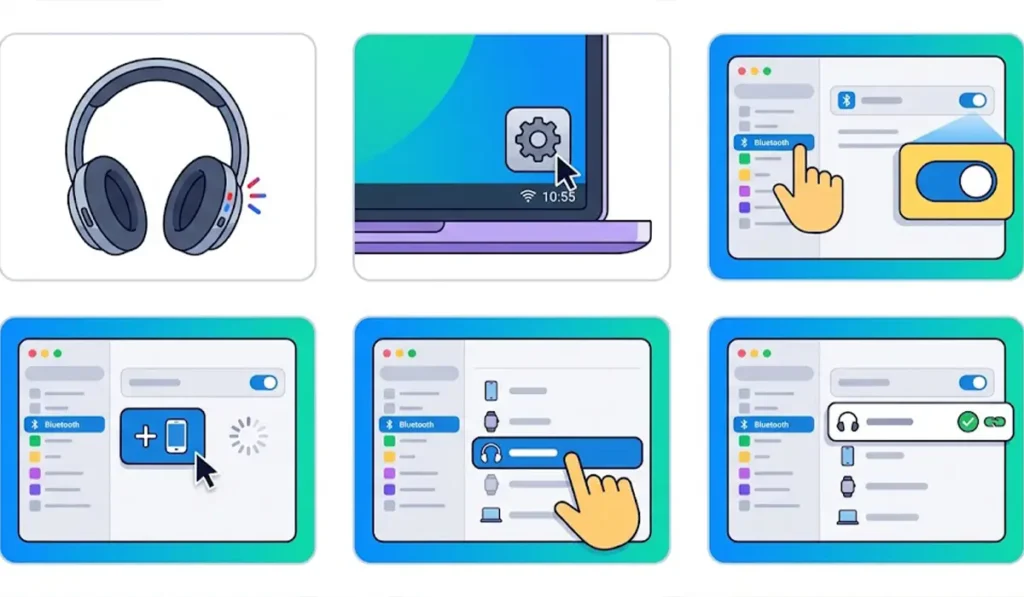
- Step 1: Put the headphones into pairing mode.
- Step 2: Select the clock in the bottom-right corner, then select the gear icon to open Settings.
- Step 3: Choose Bluetooth from the Settings menu and make sure the Bluetooth toggle is on.
- Step 4: Select Pair new device and wait for nearby devices to appear.
- Step 5: Select the headphones from the list and confirm the pairing if prompted.
- Step 6: Check that the headphones appear under the saved devices with a Connected status.
Choose the Headphones as the Audio Output
Sometimes the Chromebook connects to the headphones but keeps playing sound through the built-in speakers. A quick check fixes this.
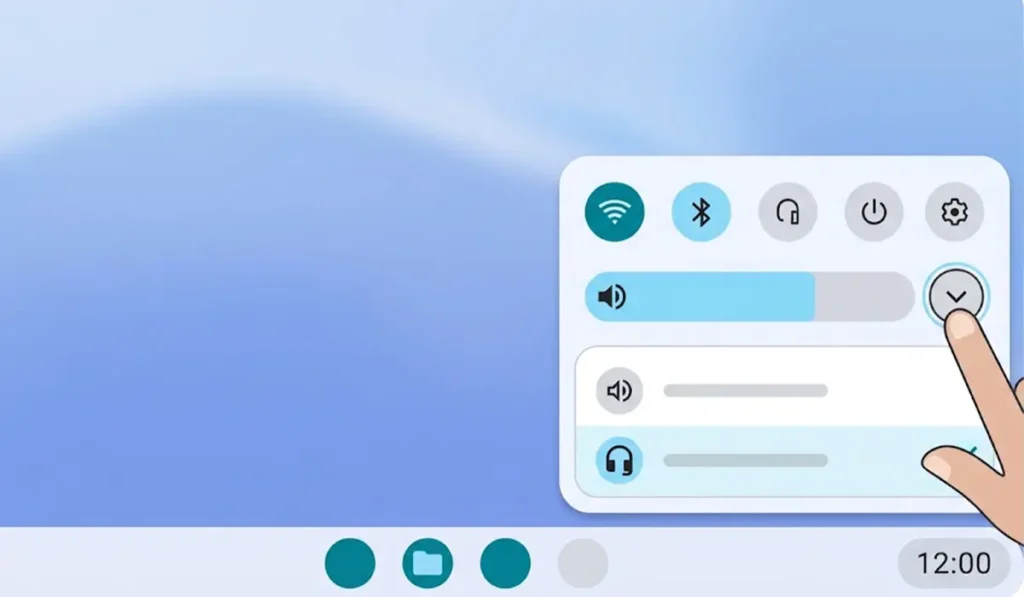
- Step 1: Open Quick Settings by selecting the clock in the bottom-right corner.
- Step 2: Select the arrow next to the volume slider to open the list of audio devices.
- Step 3: Choose the Bluetooth headphones under the output options.
Pro-Tip: Play a short video or song before closing the panel. Hearing sound in the headphones right away confirms the output is set correctly.
Tips for a Smoother Bluetooth Experience
- Keep the headphones within a short distance of the Chromebook. Bluetooth headphones usually work within about 10 meters (33 feet) in open space, but walls and other devices can shorten that range.
- Charge the headphones before pairing. A very low battery can make pairing unreliable.
- Headphones that were last used with a phone may still try to connect to that phone first. Turning off Bluetooth on the phone avoids the mix-up.
- Headphones that are also used with a Windows laptop sometimes need a fresh pairing there too. This guide on how to re-pair Bluetooth earbuds for stereo sound on Windows walks through it.
- For Windows 11 users who share the same headphones, the steps for adjusting audio output settings help keep sound going to the right device.
Common Problems and Quick Fixes
Fix 1: Headphones Not Showing in the Device List
Confirm that the headphones are charged and in pairing mode, with the indicator light flashing. Then select Pair new device again so the Chromebook scans a second time.
Fix 2: Turn Bluetooth Off and On
Open Quick Settings, switch Bluetooth off, wait a few seconds, then switch it back on. This refreshes the connection and often clears a stuck pairing.
Fix 3: Forget the Headphones and Pair Again
Open Settings, select Bluetooth, choose the headphones from the saved devices, and select Forget. Put the headphones back into pairing mode and repeat the steps from Method 1.
Fix 4: Restart the Chromebook
If the headphones still do not connect, restart the Chromebook and try pairing once more. Windows users dealing with a similar issue on a laptop can read about troubleshooting headphone detection on Windows.
Frequently Asked Questions
Do all Chromebooks support Bluetooth headphones?
Nearly all current Chromebooks include built-in Bluetooth. If the Bluetooth icon appears in Quick Settings, the Chromebook can pair with Bluetooth headphones.
How do I put Bluetooth headphones in pairing mode?
Most headphones enter pairing mode when the power or Bluetooth button is held for a few seconds until a light flashes. The exact method depends on the model, so the headphone manual is the best reference.
Can earbuds be connected the same way as headphones?
Yes. Bluetooth earbuds follow the same steps. Place them in pairing mode, then select them from the Bluetooth list on the Chromebook.
Will the headphones reconnect automatically next time?
In most cases, yes. When the headphones are turned on and Bluetooth is enabled on the Chromebook, the saved connection is usually restored without repeating the pairing steps.
How do I remove saved headphones from a Chromebook?
Open Settings, select Bluetooth, choose the headphones from the saved devices, and select Forget. The headphones will need to be paired again to use them later.
How far can Bluetooth headphones be from a Chromebook?
Bluetooth headphones usually work within about 10 meters (33 feet) in open space. Walls, furniture, and other wireless devices can reduce that distance.
Can headphones paired with a phone be used with a Chromebook?
Yes. The headphones simply need to be placed in pairing mode again so the Chromebook can find them. Disconnecting them from the phone first helps avoid connection mix-ups.
How do I switch the sound back to the Chromebook speakers?
Open Quick Settings, select the arrow next to the volume slider, and choose the built-in speakers. Turning off the headphones also returns the sound to the speakers.
Does connecting headphones drain the Chromebook battery faster?
Bluetooth uses a small amount of power, but the effect is usually minor. Turning Bluetooth off in Quick Settings when it is not needed is a simple way to save a little energy.