
This guide shows how to use adaptive noise cancelling on JBL Live Pro 2 TWS earbuds in a few quick steps, using either the JBL Headphones app or the touch controls. Once it is switched on, background hum from traffic, fans, and busy offices fades away, so music and calls come through with far less distraction.
Key Takeaways
- The JBL Live Pro 2 TWS includes True Adaptive Noise Cancelling, which adjusts to the surroundings automatically, plus Smart Ambient for hearing the outside world.
- The most complete way to control it is the free JBL Headphones app, available for iOS and Android.
- After the earbuds have been connected to the app, a single tap on the left earbud cycles through ANC, Ambient Aware, and TalkThru.
- The ANC level can be adjusted in the app to suit quiet rooms or noisy streets.
Step-by-Step Guide to Using Adaptive Noise Cancelling on JBL Live Pro 2 TWS
Method 1: Turn On Adaptive Noise Cancelling With the JBL Headphones App
This method gives the most control, and it only takes a minute. It works best when the earbuds are already paired with the phone.
- Step 1: Place both earbuds in the ears and make sure they are connected to the phone over Bluetooth.
- Step 2: Download the free JBL Headphones app from the App Store or Google Play, then open it.
- Step 3: Select the JBL Live Pro 2 TWS from the device list inside the app.
- Step 4: Open the noise cancelling options and choose Adaptive Noise Cancelling.
- Step 5: Adjust the ANC level until the background noise sits where it feels comfortable. Most people find that a higher level suits commutes, while a lower level feels more natural in a quiet room.
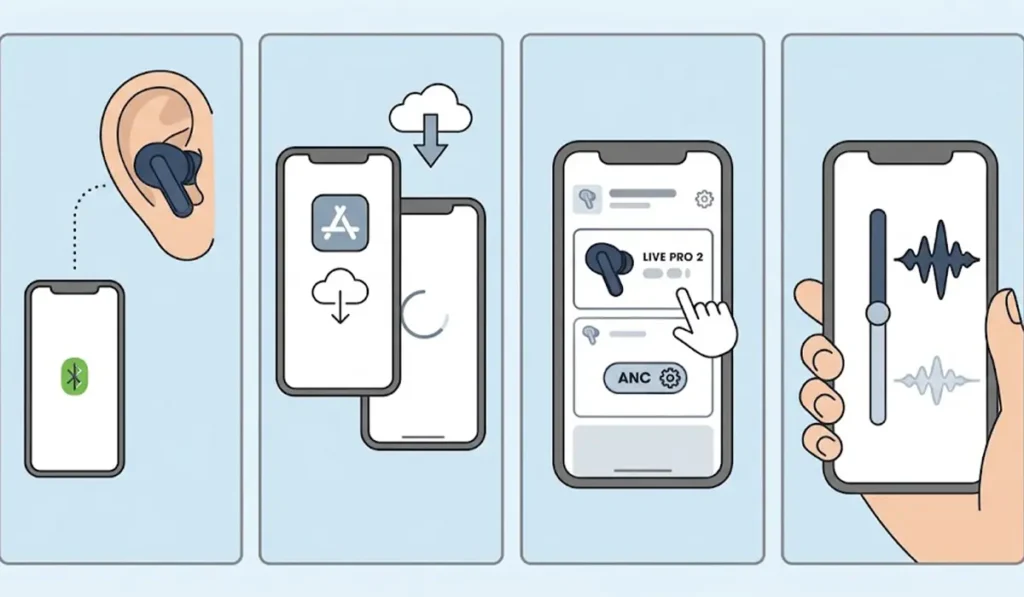
Pro-Tip: Run the fit check in the JBL Headphones app before judging the noise cancelling. These are in-ear earbuds, so the seal matters a lot. A poor seal lets noise leak in, and no amount of tuning fully makes up for it.
Method 2: Switch Modes With the Touch Controls
The touch controls are handy when the phone is tucked away in a bag or pocket. The key is to connect the earbuds to the JBL Headphones app at least once, because JBL’s quick start guide lists the ANC, Ambient Aware, and TalkThru controls as advanced controls that need the app connection.
- Step 1: Connect the earbuds to the JBL Headphones app using the steps in Method 1.
- Step 2: Tap the left earbud once. Each tap moves to the next mode in the cycle of ANC, Ambient Aware, and TalkThru.
- Step 3: Keep tapping once at a time until ANC is active.
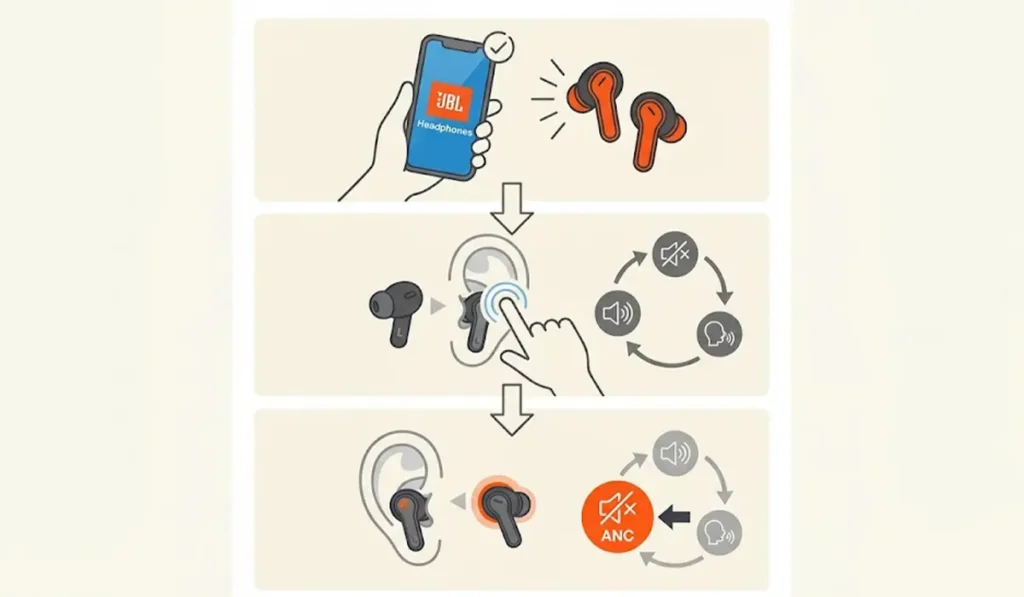
Pro-Tip: The touch control functions can be customized in the JBL Headphones app, so the left earbud tap can be adjusted if the default behavior does not suit your routine.
Tips for Better Adaptive Noise Cancelling Results
- Try the different silicone ear tips that come with the earbuds. A snug, comfortable fit usually makes a bigger difference than any setting.
- Switch to Ambient Aware when walking near traffic or listening for announcements, then go back to ANC when it is time to focus.
- Listeners who also use the earbuds with a computer can re-pair Bluetooth earbuds for stereo sound on Windows to keep the audio balanced between both earbuds.
- On a Windows 11 PC, adjusting audio output settings makes sure the earbuds are the device actually playing the sound.
Common Problems With Adaptive Noise Cancelling
Fix 1: Tapping the Left Earbud Does Not Change the Mode
The ANC controls on the earbuds are marked as advanced controls, which are enabled by connecting the earbuds to the JBL Headphones app. Open the app, select the JBL Live Pro 2 TWS, and then try the left earbud tap again.
Fix 2: Noise Cancelling Feels Weak
Start with the fit. Run the fit check in the app and try a different size of silicone ear tip. After that, raise the ANC level in the app and make sure Adaptive Noise Cancelling is the selected mode rather than Ambient Aware or TalkThru.
Fix 3: The Earbuds Do Not Appear on a Windows PC
When the earbuds are not showing up on a Windows computer, the guide on troubleshooting headphone detection walks through the usual causes.
Frequently Asked Questions
Does the JBL Live Pro 2 TWS have adaptive noise cancelling?
Yes. JBL lists True Adaptive Noise Cancelling with Smart Ambient as a main feature of the JBL Live Pro 2 TWS.
Does adaptive noise cancelling adjust automatically?
Yes. According to JBL, True Adaptive Noise Cancelling uses noise sensing microphones to adjust to the surroundings in real time.
Is the JBL Headphones app free?
Yes. The JBL Headphones app is free and is available for both iOS and Android.
Which earbud switches the noise cancelling mode?
A single tap on the left earbud cycles through ANC, Ambient Aware, and TalkThru once the earbuds have been connected to the JBL Headphones app.
Can the noise cancelling level be adjusted?
Yes. The JBL Headphones app lets users adjust the ANC level as well as the ambient sound control settings.
What is Smart Ambient on the JBL Live Pro 2 TWS?
Smart Ambient lets the outside world in without removing the earbuds. It is useful for staying aware of surroundings, such as traffic or announcements.
Can the touch controls be customized?
Yes. JBL states that controls and features can be customized through the JBL Headphones app.
Is the app required to use adaptive noise cancelling?
The app is the recommended way to control it. JBL’s quick start guide states that the ANC touch controls are enabled by connecting the earbuds to the JBL Headphones app.