
Learning how to use adaptive noise cancellation on Sennheiser Momentum 4 headphones takes about a minute, and everything happens in a phone app and on the right earcup. No menus to dig through, no special tools needed.
Adaptive noise cancellation listens to the noise around the headphones and adjusts automatically, much like automatic headlights that react to the light outside. The key is knowing where to switch it on and how to toggle it quickly during the day.
Key Takeaways
- Adaptive noise cancellation automatically adjusts to the noise level of the surroundings.
- Adaptive mode is selected in the free Sennheiser Smart Control Plus app for iOS and Android.
- A double tap on the right earcup switches between noise cancellation and transparency mode.
- Battery life is rated at up to 60 hours with noise cancellation on.
Step-by-Step Guide to Turn On Adaptive Noise Cancellation
Method 1: Use the Sennheiser Smart Control Plus App
This is the main way to choose Adaptive mode, since the app is where the headphones switch between Adaptive and Custom noise cancellation.
- Step 1: Power on the Momentum 4 and connect them to a phone through Bluetooth.
- Step 2: Open the Sennheiser Smart Control Plus app on the phone and wait for the headphones to appear.
- Step 3: Open the noise cancellation settings inside the app.
- Step 4: Select Adaptive instead of Custom.
- Step 5: Put the headphones on and walk from a quiet room into a noisier space to hear the noise cancellation adjust on its own.
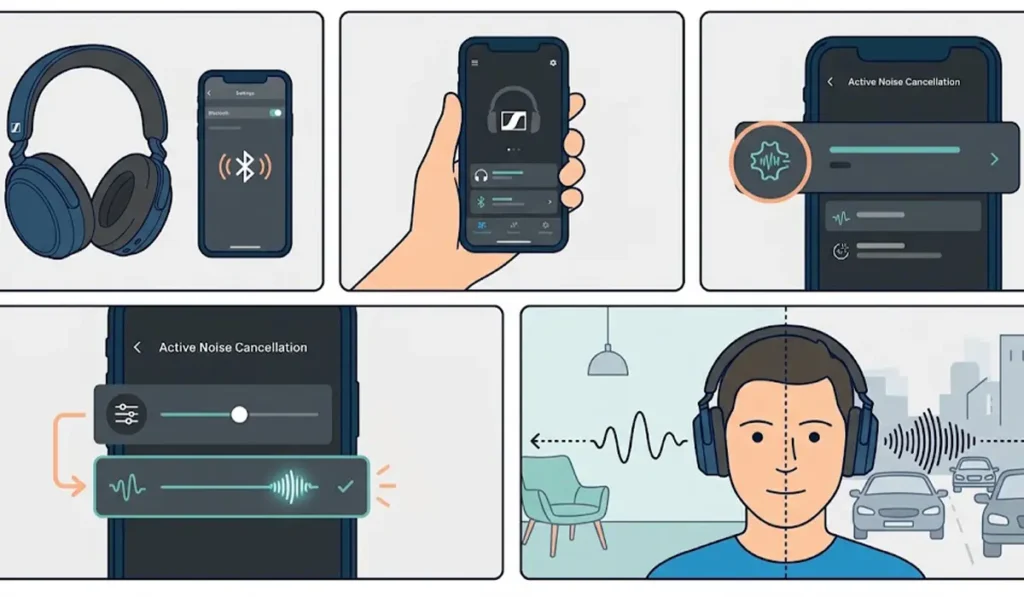
Pro-Tip: Adaptive mode works best when surroundings keep changing, such as a commute with trains, streets, and quiet waiting areas. For a steady environment like a quiet office, Custom mode lets the noise cancellation level be set manually and left alone.
Method 2: Use the Touch Controls on the Right Earcup
Once Adaptive mode is selected in the app, the touch surface on the right earcup is the fastest way to switch between listening modes.
- Step 1: Wear the headphones with the Bluetooth connection active.
- Step 2: Double tap the touch surface on the right earcup to switch from noise cancellation to transparency mode, which lets outside sound in without removing the headphones.
- Step 3: Double tap again to return to noise cancellation.

Tips for Better Results
- Keep the earcups seated fully over the ears. A good seal helps noise cancellation work as intended.
- Use the anti-wind setting in the app when listening outdoors on windy days.
- Adjust the transparency level in the app if the outside sound feels too loud or too quiet.
- Update the headphone firmware through the app when an update is offered.
- When the headphones are used with a Windows 11 computer, confirm the correct output device in the audio output settings so sound plays through the headphones.
Pro-Tip: The app is needed once to choose Adaptive mode, but after that the touch controls handle daily switching. Most people find that this setup removes the need to open the app again for routine use.
Common Problems and Quick Fixes
Fix 1: Double Tap Does Not Change the Mode
Touch gestures can be switched on or off in the app. Open the app and confirm that touch controls are enabled, then try the double tap again on the touch surface of the right earcup.
Fix 2: Adaptive Option Is Not Showing in the App
The app settings become available once the headphones are connected to the phone through Bluetooth. Reconnect the headphones, reopen the app, and check the noise cancellation settings again.
Fix 3: Settings Behave Unexpectedly
Install any available firmware update through the app, then reconnect the headphones and test the noise cancellation modes again.
Fix 4: Headphones Are Not Detected on a Windows PC
When the headphones are connected to a computer instead of a phone, a quick headphone detection check usually shows what is blocking the connection. If the sound only comes through one side or in the wrong mode, re-pairing the Bluetooth device for stereo sound is the next thing to try.
Frequently Asked Questions
What is adaptive noise cancellation on the Sennheiser Momentum 4?
It is a noise cancellation system that automatically adapts to the noise level of the environment, so the amount of cancellation changes as surroundings get louder or quieter.
Is the app required to use adaptive noise cancellation?
The app is where Adaptive mode is chosen instead of Custom mode. After that, the touch controls on the right earcup handle quick switching between noise cancellation and transparency mode.
How can noise cancellation and transparency mode be switched quickly?
Double tap the touch surface on the right earcup. Another double tap switches back.
Can the noise cancellation level be set manually?
Yes. The app offers a Custom option that allows the level of noise cancellation to be set by hand, instead of leaving it to Adaptive mode.
Can the transparency level be adjusted?
Yes. The level of transparency can be adjusted in the app.
How long does the battery last with noise cancellation on?
The Momentum 4 Wireless is rated at up to 60 hours of playback with noise cancellation on.
Which devices support the Sennheiser Smart Control Plus app?
The app is available for iOS and Android devices.
Can the touch controls be turned off?
Yes. After a firmware update, touch gestures can be switched on or off in the app.