
Key Takeaways
- Nothing Ear (Open) sound cutting out is usually caused by Bluetooth interference, outdated firmware, or a weak connection between the earbuds and the connected device.
- Re-pairing the earbuds and updating firmware through the Nothing X app resolves most dropout issues within minutes.
- Windows users often see audio stutter due to power-saving settings on the Bluetooth adapter or conflicting audio enhancements.
- Physical distance, obstacles, and other Bluetooth devices nearby can weaken the signal and cause the audio to break up.
- A factory reset should only be used as a last resort after the steps below have been tried.
Nothing Ear (Open) sound cutting out is one of the most common complaints reported by owners of these open-ear buds, especially when connected to a laptop or desktop over Bluetooth. The good news is that this issue is almost always fixable without a trip to a service center. This guide walks through the exact fixes that resolve audio dropouts, stutter, and random cutouts, starting with the quickest solutions first.
Method 1: Re-pair the Earbuds With the Connected Device
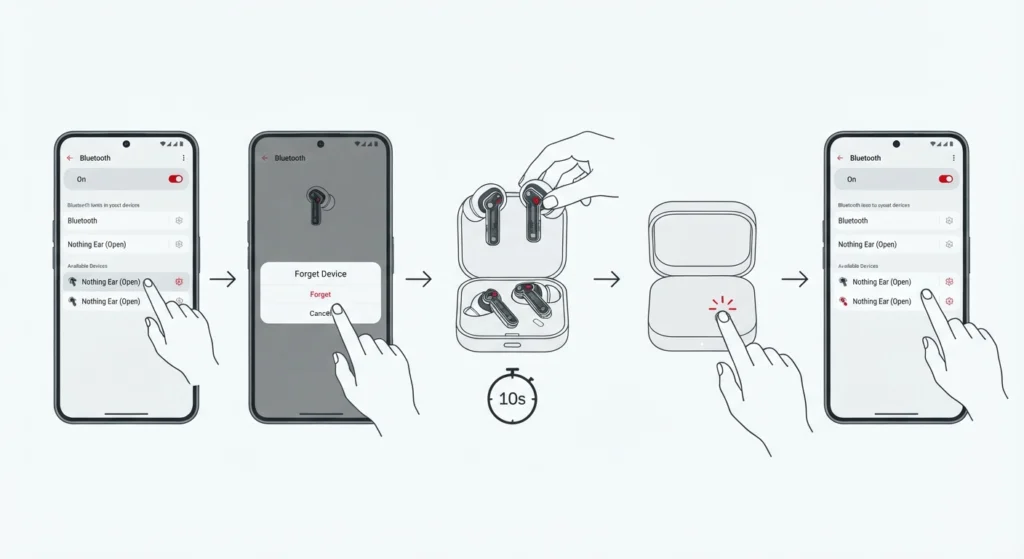
A corrupted Bluetooth pairing profile is the number one reason audio starts cutting in and out. Forgetting the device and pairing it fresh clears out any broken connection data that built up over time.
- Step 1: Open Bluetooth settings on the phone, laptop, or PC currently paired with the Nothing Ear (Open).
- Step 2: Find the earbuds in the paired devices list and select ‘Remove’ or ‘Forget device’.
- Step 3: Place both earbuds back in the case, close the lid for ten seconds, then open it again.
- Step 4: Press and hold the button on the case until the LED starts flashing to enter pairing mode.
- Step 5: Search for new devices on the connected gadget and select ‘Nothing Ear (Open)’ to complete the pairing.
For a more detailed walkthrough of restoring stereo sound after pairing on a Windows machine, this guide on re-pairing Bluetooth earbuds for proper stereo sound covers the process in more depth.
Method 2: Update the Firmware Through the Nothing X App
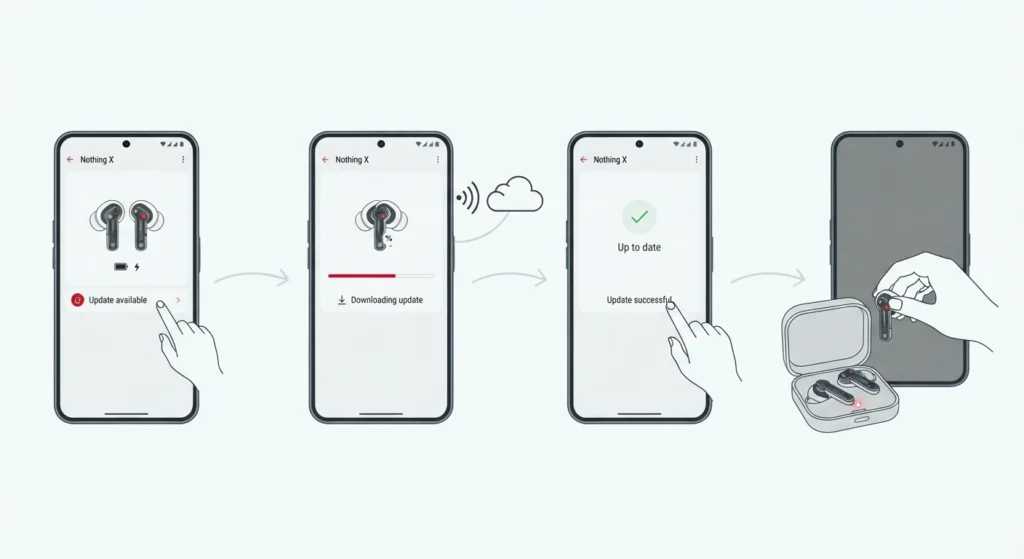
Firmware bugs are a frequent cause of intermittent audio, and Nothing regularly ships updates that patch exactly this kind of issue. Skipping firmware updates is one of the most overlooked reasons buds keep cutting out even after re-pairing.
- Step 1: Download and open the Nothing X app on a paired smartphone.
- Step 2: Connect the Ear (Open) buds and wait for the app to detect the current firmware version.
- Step 3: If an update banner appears, tap it and keep both earbuds inside Bluetooth range until the update finishes.
- Step 4: Restart the earbuds by placing them back in the case for a few seconds after the update completes.
Pro Tip: Firmware updates only push through the Nothing X mobile app, not through Windows. Keep a smartphone handy even if the earbuds are mainly used with a PC, since this is the only way to install the latest fix for connection stability.
Method 3: Reduce Bluetooth Interference
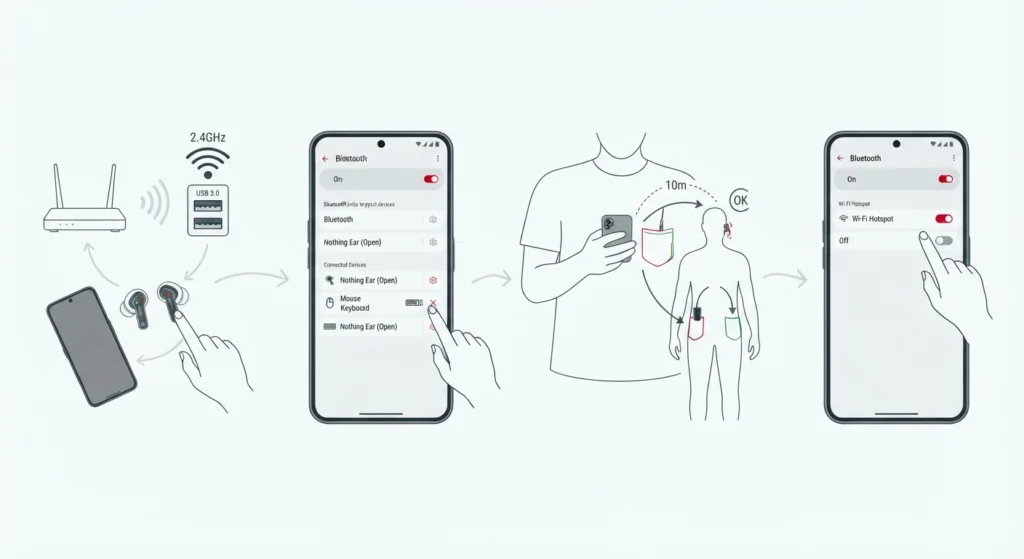
Bluetooth operates on the same 2.4GHz frequency used by Wi-Fi routers, microwaves, and other wireless accessories. When too many signals compete in the same space, audio packets get dropped, and that shows up as the sound cutting in and out.
- Step 1: Move away from routers, USB 3.0 hubs, and other Bluetooth devices while using the earbuds.
- Step 2: Disconnect any other Bluetooth accessories, such as a mouse or keyboard, that are not currently needed.
- Step 3: Keep the connected device within roughly ten meters and avoid placing it in a pocket on the opposite side of the body from the earbuds.
- Step 4: Turn off Wi-Fi hotspot sharing on the phone or laptop if it is running in the background.
Method 4: Adjust Windows Bluetooth Power Settings
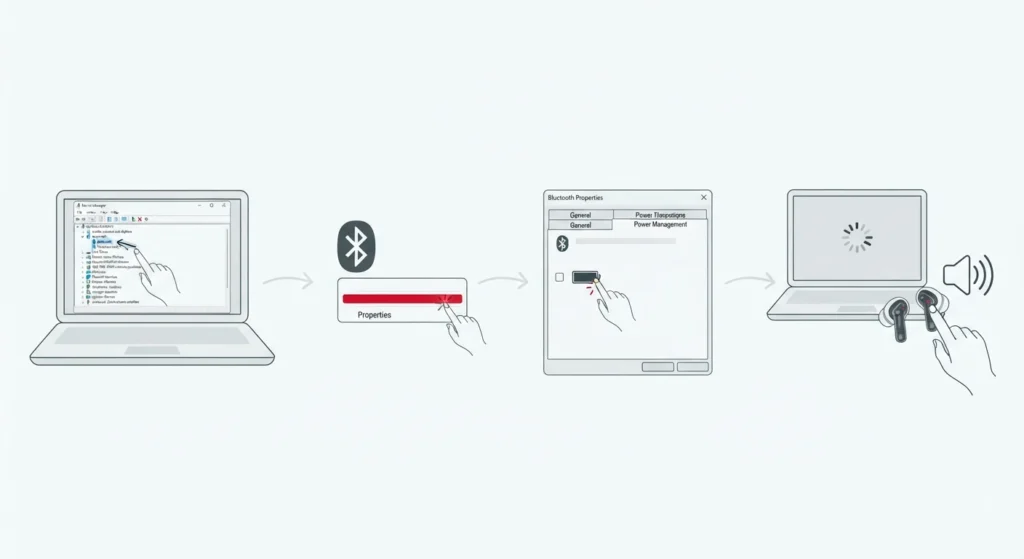
Windows often puts Bluetooth adapters into a low-power state to save battery, and this setting is a common culprit behind choppy audio on laptops. Most people find that disabling this power-saving behavior clears up the stutter almost immediately.
- Step 1: Open Device Manager and expand the ‘Bluetooth’ section.
- Step 2: Right-click the Bluetooth adapter and select ‘Properties’.
- Step 3: Go to the ‘Power Management’ tab and uncheck ‘Allow the computer to turn off this device to save power’.
- Step 4: Restart the computer, then reconnect the Nothing Ear (Open) and play audio to confirm the fix.
Windows 11 users dealing with output routing issues alongside dropouts can also review this guide on adjusting audio output settings to make sure the correct playback device is selected.
Method 5: Reset the Audio Settings on the Connected Device
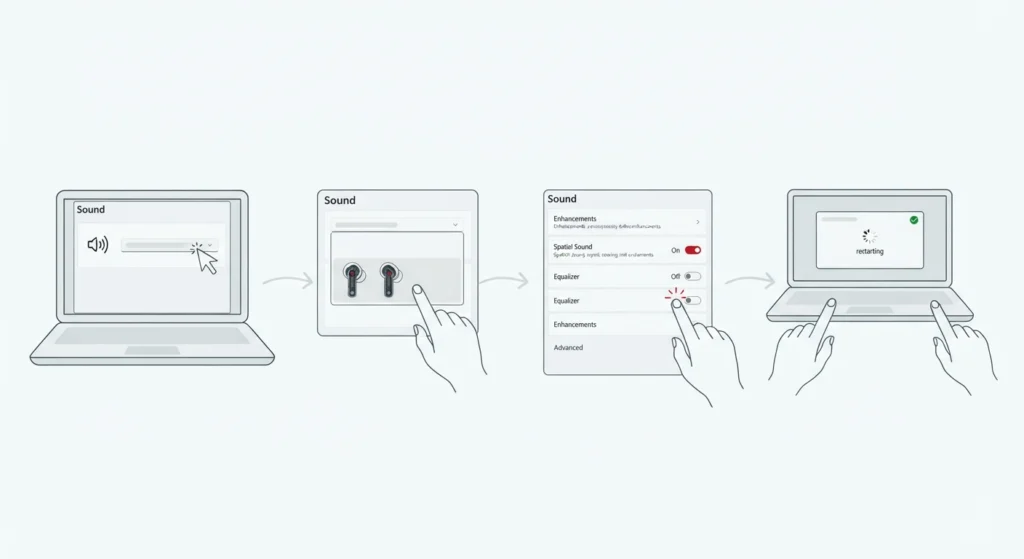
Sometimes the issue is not the earbuds at all but a misconfigured audio stack on the PC or phone. Resetting audio settings back to default clears out corrupted drivers or conflicting enhancements that cause playback to break up.
- Step 1: Open the Sound settings panel on the connected device.
- Step 2: Select the Nothing Ear (Open) as the default playback device.
- Step 3: Disable any audio enhancements, spatial sound, or equalizer effects layered on top of the default output.
- Step 4: Restart the audio service or reboot the device to apply the changes.
A full walkthrough for restoring default audio behavior on Windows 11 is available in this guide on resetting audio settings, which is especially useful if the cutting out started after a system update.
Method 6: Charge the Earbuds Fully and Check the Contacts
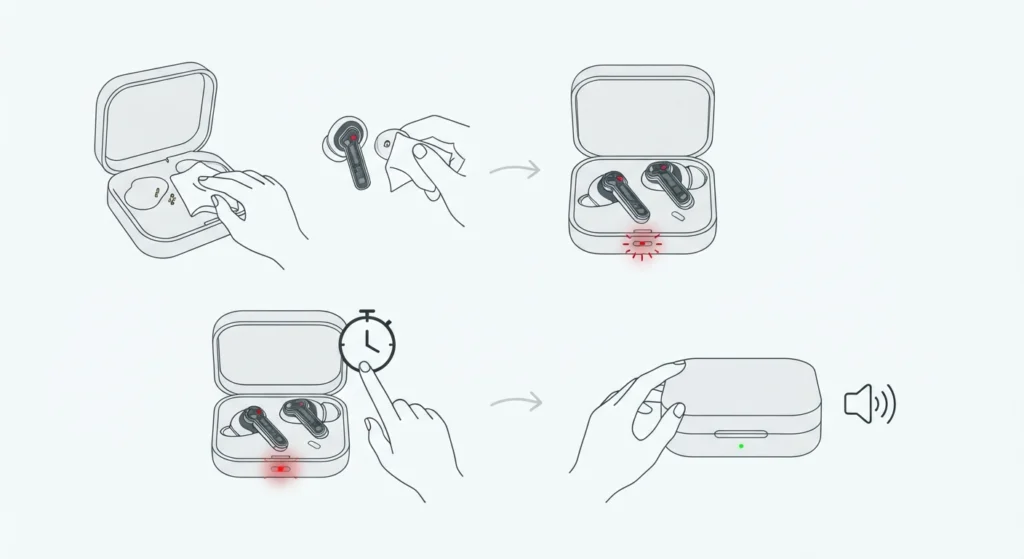
Low battery is an easy detail to overlook, but the Ear (Open) buds start throttling connection stability once the charge drops critically low. Dirty charging contacts inside the case can also prevent a full charge, which leads to the same symptom.
- Step 1: Wipe the metal charging pins on both earbuds and inside the case with a dry, lint-free cloth.
- Step 2: Place both earbuds in the case and confirm the LED indicator shows an active charge.
- Step 3: Let the earbuds charge fully before testing playback again.
Tips to Prevent Audio Cutting Out Going Forward
- Keep firmware updated on a regular basis rather than waiting for a problem to appear.
- Avoid connecting the Ear (Open) to more than one device at the same time, since multipoint connections can compete for bandwidth.
- Store the earbuds in the case when not in use to protect the charging contacts from dust and lint.
- Keep the connected phone or laptop’s Bluetooth drivers updated through the manufacturer’s official update tool.
Common Problems Related to Sound Cutting Out
Only One Earbud Keeps Cutting Out
This usually points to a weaker Bluetooth connection on that specific earbud rather than a global issue. Resetting the earbuds through the Nothing X app and re-pairing typically restores balanced left and right audio.
Audio Cuts Out Only During Phone Calls
Calls use a different Bluetooth profile than music playback, which places extra strain on the connection. If this keeps happening, checking how the microphone is being detected can help, and this guide on resolving microphone detection problems addresses this specific scenario on Windows 11.
Sound Cuts Out When the Phone Is in a Pocket
Body tissue absorbs Bluetooth signal strength, so keeping the connected phone in a pocket on the same side as the weaker earbud often reduces dropouts.
Frequently Asked Questions
Why does the Nothing Ear (Open) keep cutting out on Windows but not on a phone?
Windows Bluetooth stacks handle power management and codec switching differently than mobile operating systems, which can cause more frequent dropouts unless power-saving settings are disabled.
Does a factory reset fix sound cutting out on the Nothing Ear (Open)?
A factory reset can help when re-pairing alone does not resolve the issue, since it clears every saved connection profile stored on the earbuds.
How is the Nothing Ear (Open) factory reset?
Place both earbuds in the case, press and hold the button for around fifteen seconds until the LED flashes red and white, then set them up again as a new device.
Can outdated firmware really cause audio dropouts?
Yes, outdated firmware is one of the leading causes of intermittent audio, since Nothing frequently ships patches that specifically target Bluetooth connection stability.
Is the sound cutting out related to the open-ear design?
Not directly. The open-ear design affects passive noise isolation and fit, but audio dropouts are a Bluetooth and software issue rather than a design limitation.
Does distance from the connected device affect audio quality?
Yes, Bluetooth signal strength weakens with distance and obstacles, and staying within a closer range noticeably reduces cutouts.
Why does the audio only cut out in one ear?
This typically indicates a connection issue with one earbud specifically, which is usually solved by resetting and re-pairing both buds together.
Can other Bluetooth devices cause interference with the Ear (Open)?
Yes, having multiple Bluetooth accessories active at once, such as a mouse, keyboard, or speaker, increases the chance of interference and dropped audio packets.
Does the Nothing X app need to stay open for firmware updates to install?
Yes, the app needs to remain open and both earbuds need to stay within Bluetooth range until the firmware update fully completes.
Should audio input devices be checked if only calls are affected?
Yes, checking how input devices are configured can help isolate the issue, and this is especially useful for narrowing down call-specific problems on Windows 11. This guide on managing audio input devices covers this in more detail.