
Key Takeaways
- JLab Studio Pro ANC mic not working is usually caused by mute settings, Bluetooth pairing issues, or wrong default device selection.
- Most fixes take less than five minutes and do not require any technical background.
- Windows sound settings and driver updates solve the majority of reported cases.
- Firmware updates through the JLab app resolve mic issues tied to older software versions.
- A factory reset works as a last resort when other methods fail.
JLab Studio Pro ANC mic not working is a common complaint among people who rely on these headphones for calls, meetings, and voice chats. This issue usually shows up out of nowhere – one day the mic works perfectly during a Zoom call, and the next day the other person can barely hear a word. The good news is that this problem almost always has a simple explanation, and fixing it does not require sending the headphones back or buying a replacement.
Step-by-Step Guide to Fix JLab Studio Pro ANC Mic Not Working
Before diving into advanced troubleshooting, start with the basics. Most mic problems on the Studio Pro ANC trace back to one of the methods below. Work through them in order, since each one rules out a specific cause.
Method 1: Check the Mute Button and Physical Controls
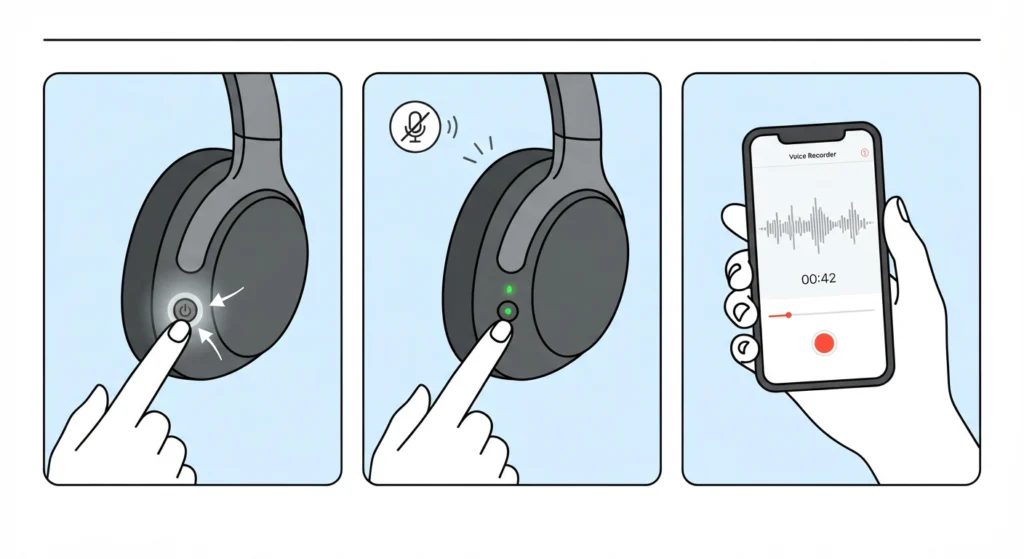
This sounds obvious, but it catches more people than expected. The Studio Pro ANC has a mute control that gets triggered accidentally when adjusting ear cups or storing the headphones in a bag.
- Step 1: Locate the mic mute button, usually found on the right ear cup near the power button.
- Step 2: Press it once and check for a voice prompt or LED indicator confirming the mic is active.
- Step 3: Test the mic using the voice recorder app on the connected device before moving to the next method.
Method 2: Re-Pair the Bluetooth Connection
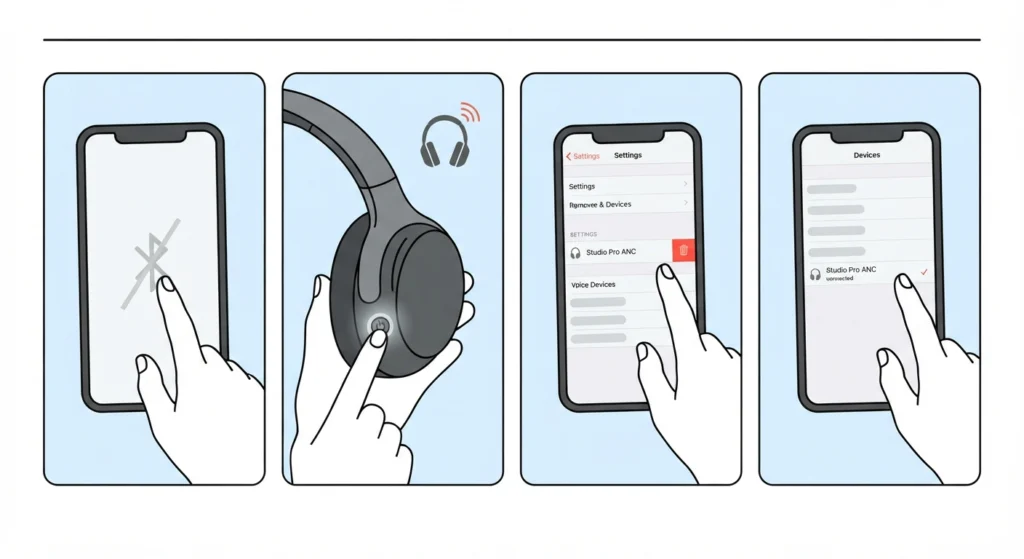
A weak or outdated Bluetooth pairing often affects the microphone even when audio playback sounds fine. This happens because the mic and speaker sometimes run on separate Bluetooth profiles, and only one of them may drop out.
- Step 1: Turn off Bluetooth on the connected device.
- Step 2: Turn off the headphones, then hold the power button for five seconds to enter pairing mode.
- Step 3: Remove the existing Bluetooth pairing entry from the device before reconnecting.
- Step 4: Reconnect and select the headphones from the available devices list.
For a full walkthrough on getting stereo sound and a stable connection back after re-pairing, this guide on re-pairing Bluetooth earbuds for proper stereo output covers the process in more detail.
Pro-Tip: Always forget the device on the computer or phone before re-pairing. Reconnecting without removing the old pairing profile often keeps the same faulty mic configuration active, which means the problem returns within minutes.
Method 3: Set the Headphones as the Default Communication Device
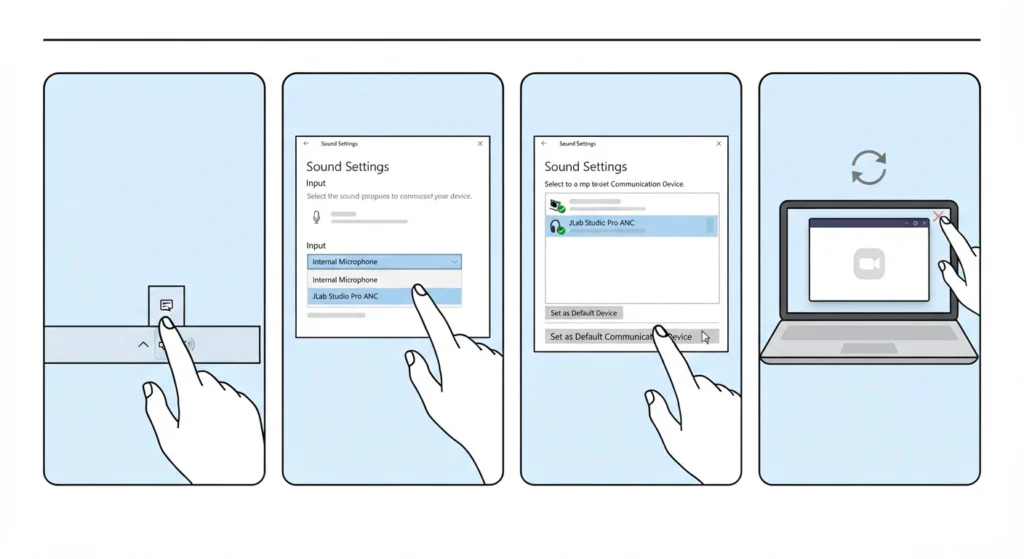
Windows sometimes keeps a laptop’s built-in microphone as the default communication device, even after the JLab headphones are connected. This is one of the most overlooked causes of mic failure.
- Step 1: Right-click the speaker icon in the taskbar and open sound settings.
- Step 2: Under input devices, select the JLab Studio Pro ANC.
- Step 3: Set it as both the default device and the default communication device.
- Step 4: Restart the app being used for calls to apply the change.
Anyone still unsure which device is currently active can check this breakdown on managing audio input devices on Windows 11 for a clearer view of how the system prioritizes microphones.
Method 4: Check Microphone Privacy Permissions
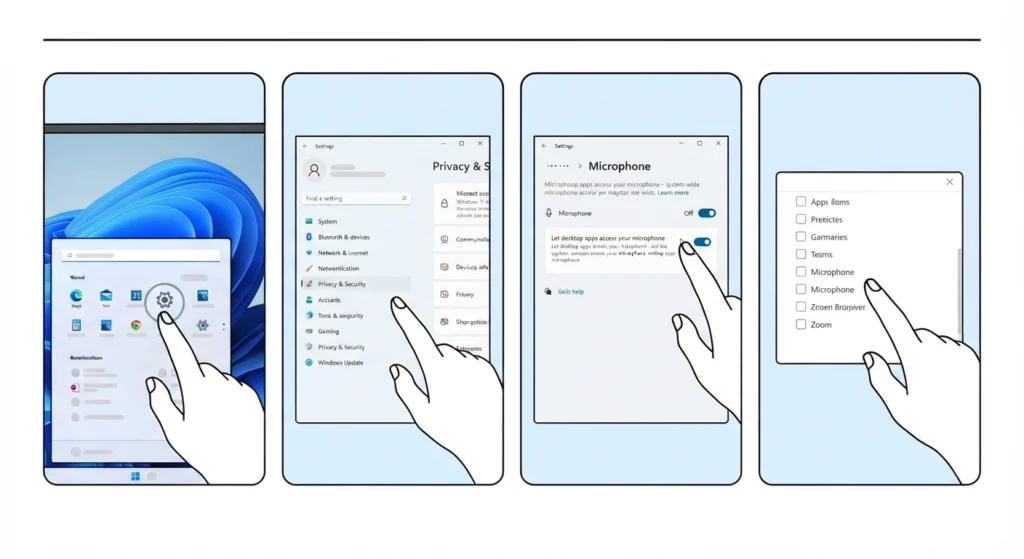
Windows 11 blocks microphone access at the system level for privacy reasons, and this setting resets more often than most people realize, especially after an update.
- Step 1: Open Settings, then go to Privacy and Security.
- Step 2: Select Microphone under App Permissions.
- Step 3: Turn on microphone access and allow desktop apps to use it.
- Step 4: Check individual app permissions for the specific software being used, such as Zoom, Teams, or Discord.
Method 5: Update Audio Drivers
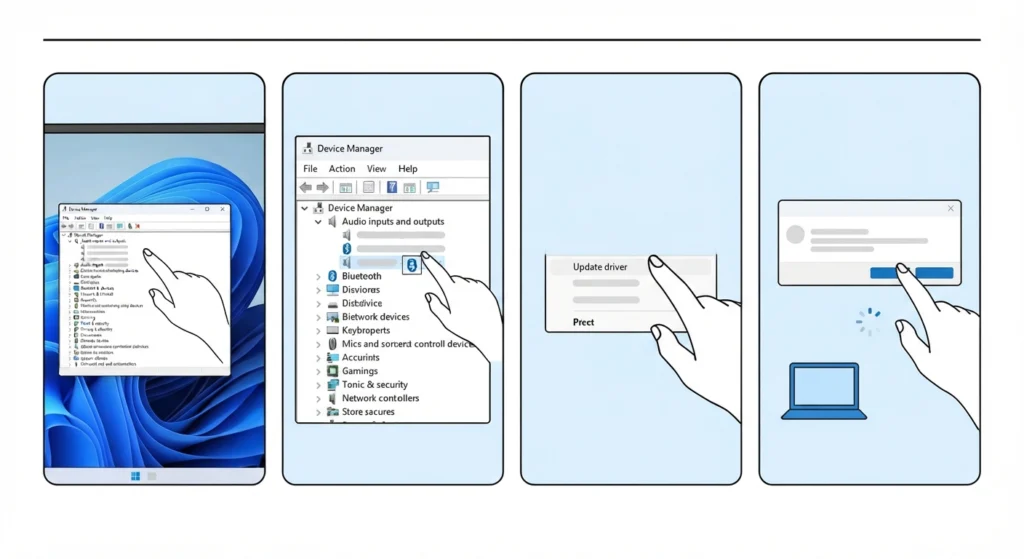
Outdated or corrupted audio drivers rank among the top causes of mic failure on Windows systems, and Bluetooth headphones are especially sensitive to this since they depend on updated drivers to handle both audio and mic signals correctly.
- Step 1: Open Device Manager and expand the Audio inputs and outputs section.
- Step 2: Right-click the Bluetooth audio device and select Update Driver.
- Step 3: Choose the option to search automatically for updated drivers.
- Step 4: Restart the computer once the update finishes.
Those dealing with detection problems specifically, where the mic does not even show up as an option, should also review this resource on resolving microphone detection problems on Windows 11.
Method 6: Update Firmware Through the JLab App
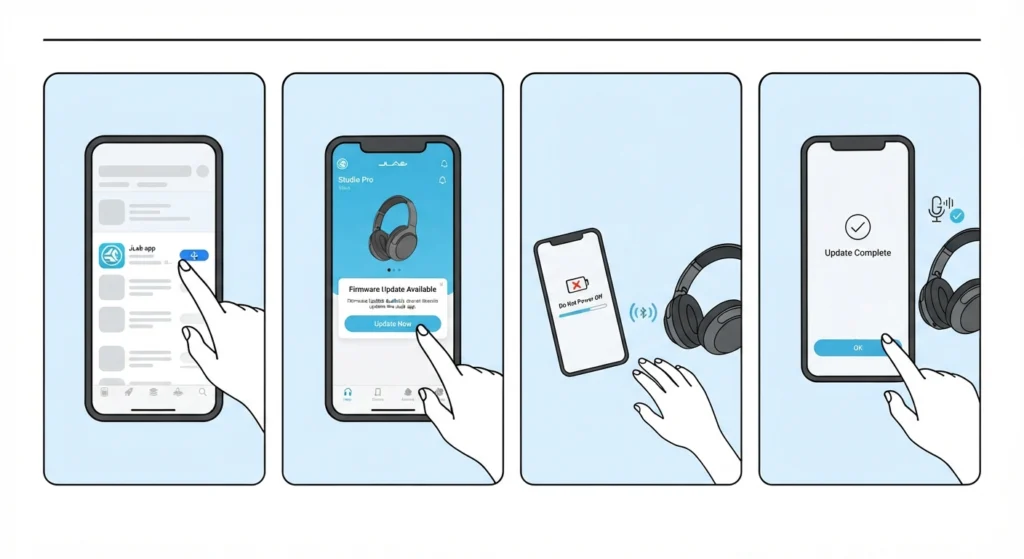
JLab regularly releases firmware updates that patch mic-related bugs. This step is frequently skipped, yet it resolves a surprising number of persistent cases.
- Step 1: Download the JLab app from the official app store.
- Step 2: Connect the Studio Pro ANC and check for available firmware updates.
- Step 3: Install the update and keep the headphones near the paired device until the process completes.
- Step 4: Restart the headphones and test the mic again.
Method 7: Reset Audio Settings to Default
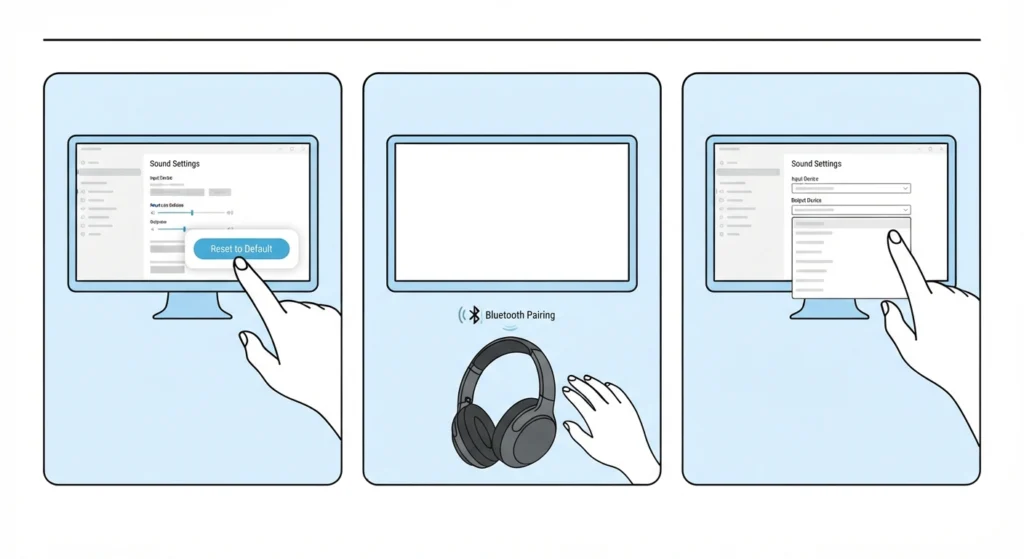
When none of the above methods work, resetting the audio configuration clears out any conflicting settings that built up over time.
- Step 1: Open Sound Settings and select the option to reset all audio settings.
- Step 2: Reconnect the Studio Pro ANC after the reset completes.
- Step 3: Reconfigure the input and output devices from scratch.
A more detailed rundown is available in this guide on resetting audio settings on Windows 11, which walks through the reset process along with what to expect afterward.
Method 8: Factory Reset the Headphones
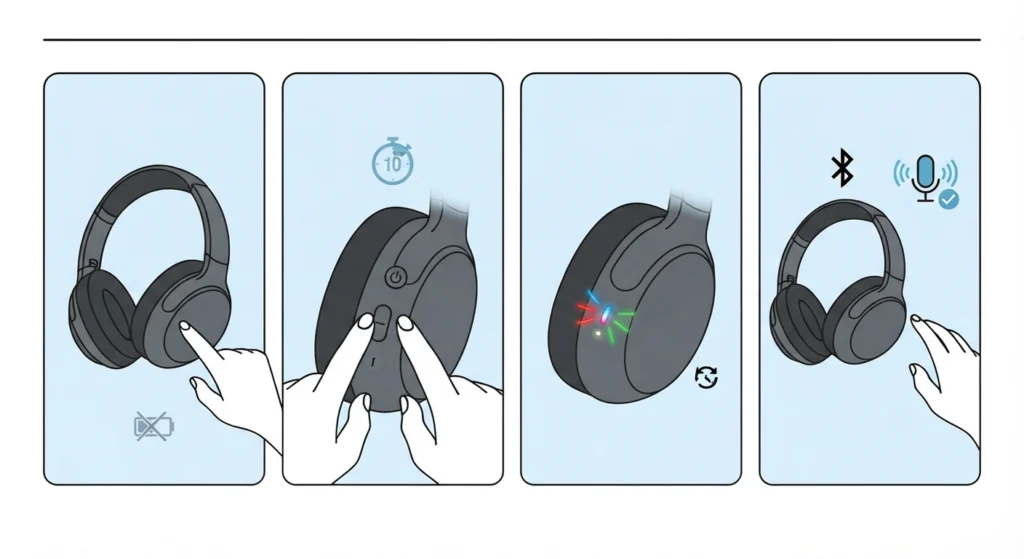
This is the last resort, reserved for cases where the mic still fails after every other method has been tried.
- Step 1: Turn off the headphones completely.
- Step 2: Hold the power button and volume down button together for ten seconds.
- Step 3: Wait for the LED to flash, confirming the reset completed.
- Step 4: Pair the headphones as new and test the mic immediately.
Tips to Keep the Mic Working Properly
- Keep firmware updated through the JLab app every few months, since manufacturers often patch mic bugs quietly without major announcements.
- Avoid connecting the Studio Pro ANC to two devices at once, since simultaneous connections sometimes cause the mic signal to drop even when audio keeps playing.
- Store the headphones in a case rather than a bag pocket, since loose buttons can get pressed and mute the mic without any obvious warning.
- Check for adjusting the output settings when the mic volume sounds too low or muffled during calls, since this guide on adjusting audio output settings on Windows 11 explains how to fine-tune levels for clearer voice pickup.
Common Problems and Troubleshooting
Mic Works on One App but Not Another
This usually points to an app-specific permission issue rather than a hardware problem. Checking the microphone settings inside the affected app, such as Zoom or Discord, typically resolves it faster than restarting the whole system.
Mic Cuts Out Mid-Call
Intermittent mic dropouts are often linked to Bluetooth interference from other wireless devices nearby, including routers, other headphones, or smart home devices. Moving closer to the paired device or reducing wireless clutter in the room often fixes this.
Mic Sounds Robotic or Distorted
This distortion typically happens when the headphones switch between audio profiles automatically. Manually setting the communication profile as default, as covered in Method 3, usually clears up the distortion.
Pro-Tip: If the mic issue only appears on a specific laptop or phone, the problem is almost certainly on the device side rather than the headphones. Testing the Studio Pro ANC mic on a second device is the fastest way to confirm this before spending time on further troubleshooting.
Frequently Asked Questions
Why is the JLab Studio Pro ANC mic not working suddenly?
Sudden mic failure is most often caused by an accidental mute press, a dropped Bluetooth pairing, or a Windows update that reset default device settings.
Does the JLab Studio Pro ANC have a separate mic mute button?
Yes, the mic mute control is built into the ear cup controls and can be triggered accidentally during handling or storage.
Why does the mic work with music apps but not video calls?
This happens when the operating system defaults to a different device profile for communication apps. Setting the headphones as the default communication device usually resolves it.
How often should firmware be updated on the Studio Pro ANC?
Checking for firmware updates every two to three months through the JLab app is a reasonable habit, since updates often include mic-related fixes.
Can outdated Windows drivers cause mic problems with Bluetooth headphones?
Yes, outdated audio drivers are one of the most common reasons a previously working Bluetooth mic suddenly stops functioning correctly.
Is a factory reset safe for the Studio Pro ANC?
Yes, a factory reset only clears paired device history and settings. It does not damage the headphones and is fully reversible by re-pairing afterward.
Why does the mic sound quiet even when it is working?
Low mic volume is typically tied to input level settings on the connected device rather than a hardware fault. Adjusting the input gain in sound settings usually fixes this.
Does connecting to two devices at once cause mic issues?
Yes, multipoint connections can cause the mic signal to become unstable, even though audio playback continues working normally.
How long does a firmware update usually take?
Most firmware updates for the Studio Pro ANC complete within two to five minutes, provided the headphones stay connected and charged during the process.
What should be done if none of these methods fix the mic?
If the mic still fails after a factory reset and driver update, contacting JLab support for a warranty check is the next reasonable step, since this points to a hardware issue rather than a software one.