
Key Takeaways
- JBL Tour Pro 3 mic not working on calls is usually caused by a pairing glitch, outdated firmware, or the wrong input device selected on the connected system.
- Re-pairing the earbuds fixes the issue in most cases within a few minutes.
- Firmware updates through the JBL Headphones app resolve mic bugs that were present in earlier software versions.
- Microphone permission settings on the connected phone or PC often block the earbud mic without any obvious warning.
- A blocked microphone mesh or a stuck mono mode setting can also silence the mic during calls.
Calls dropping in quality or going completely silent on the microphone side is one of the most common complaints tied to the JBL Tour Pro 3. The good news is that JBL Tour Pro 3 mic not working on calls is rarely a hardware failure. Most of the time, it comes down to a setting, a connection glitch, or firmware that needs a refresh. This guide walks through every fix in order, starting with the quickest one.
Fix 1: Re-Pair the JBL Tour Pro 3 Earbuds
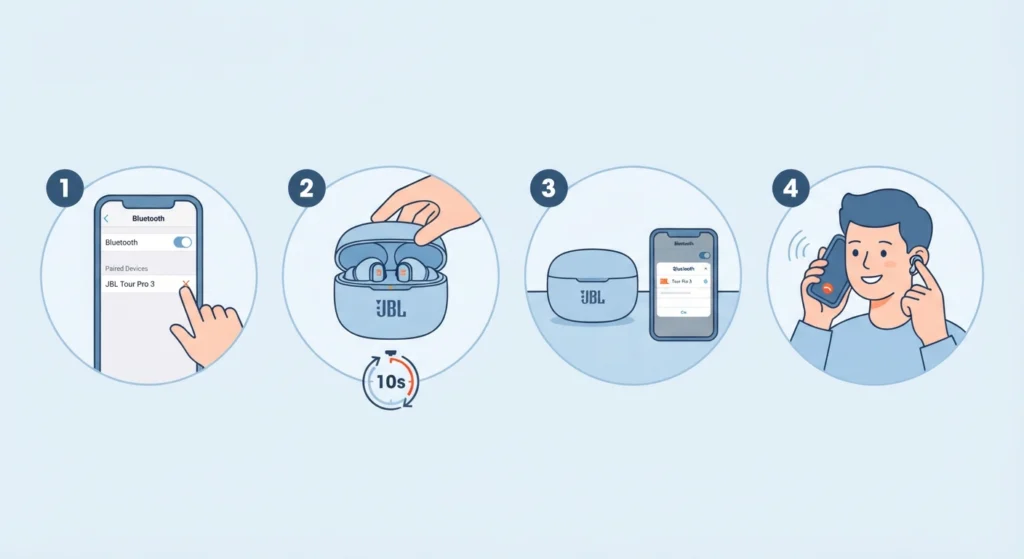
Bluetooth connections sometimes hold onto a corrupted audio profile, and that profile can carry over the mic channel while leaving the speaker channel untouched. Re-pairing clears that out completely.
- Step 1: Open Bluetooth settings on the connected phone, tablet, or computer and forget or remove the JBL Tour Pro 3 from the paired devices list.
- Step 2: Place both earbuds back in the charging case and close the lid for about 10 seconds.
- Step 3: Reopen the case near the connected device and select the earbuds from the available Bluetooth list.
- Step 4: Make a short test call once paired to confirm the mic is picking up sound.
On a Windows machine, this is also a good moment to re-pair the earbuds for stereo sound if audio has been playing in mono or only through one side, since that same connection reset often restores the mic at the same time.
Fix 2: Check Microphone Permissions on the Connected Device
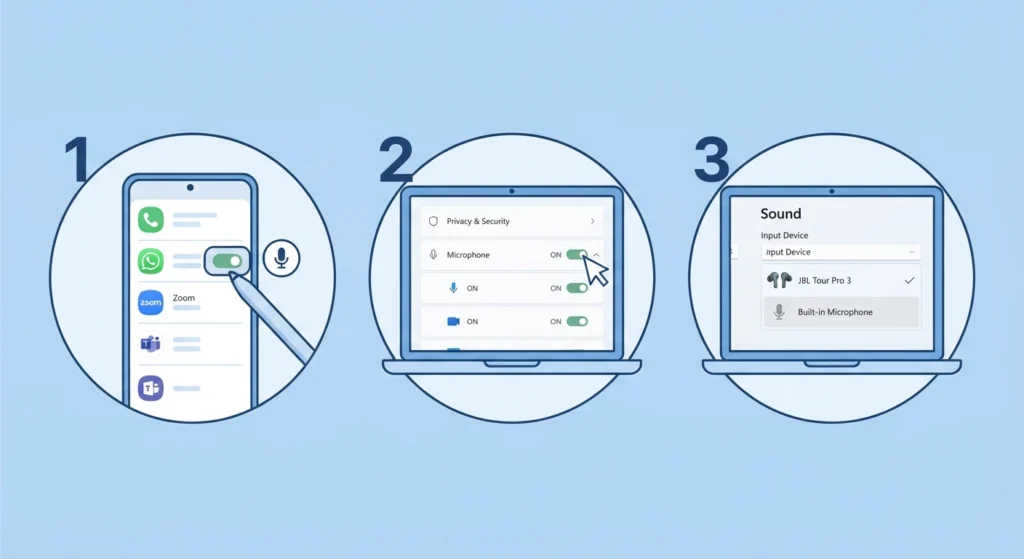
A phone or laptop can be perfectly paired with the earbuds while still blocking the mic at the operating system level. This is one of the most overlooked causes of a silent mic on calls.
- Step 1: On a phone, go to app permissions and confirm the calling app (Phone, WhatsApp, Zoom, Teams, and similar) has microphone access allowed.
- Step 2: On Windows 11, open Settings, then Privacy & Security, then Microphone, and turn on access for both the operating system and individual apps.
- Step 3: Confirm the JBL Tour Pro 3 is set as the default recording device rather than a built-in laptop mic.
If the earbuds still don’t show up correctly as an input source, the steps for resolving microphone detection problems on Windows 11 cover this scenario in more detail, including cases where the device is recognized for audio playback but not for recording.
Fix 3: Update Firmware Through the JBL Headphones App
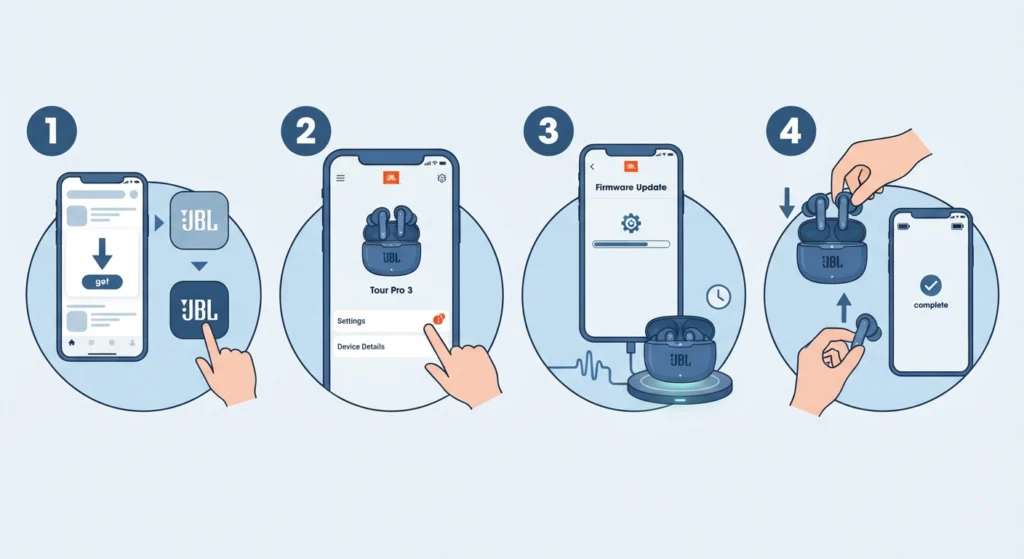
Firmware bugs tied to the mic have been common across several JBL true wireless models, and Tour Pro 3 is no exception. An outdated firmware version can leave the mic muted during calls even though media audio plays normally.
- Step 1: Download and open the JBL Headphones app on a paired phone.
- Step 2: Select the Tour Pro 3 from the device list and look for a firmware update notification.
- Step 3: Keep the earbuds in the case, charging, and close to the phone until the update finishes.
- Step 4: Restart the earbuds after the update by placing them in the case and taking them back out.
Fix 4: Turn Off Single Earbud or Mono Call Mode
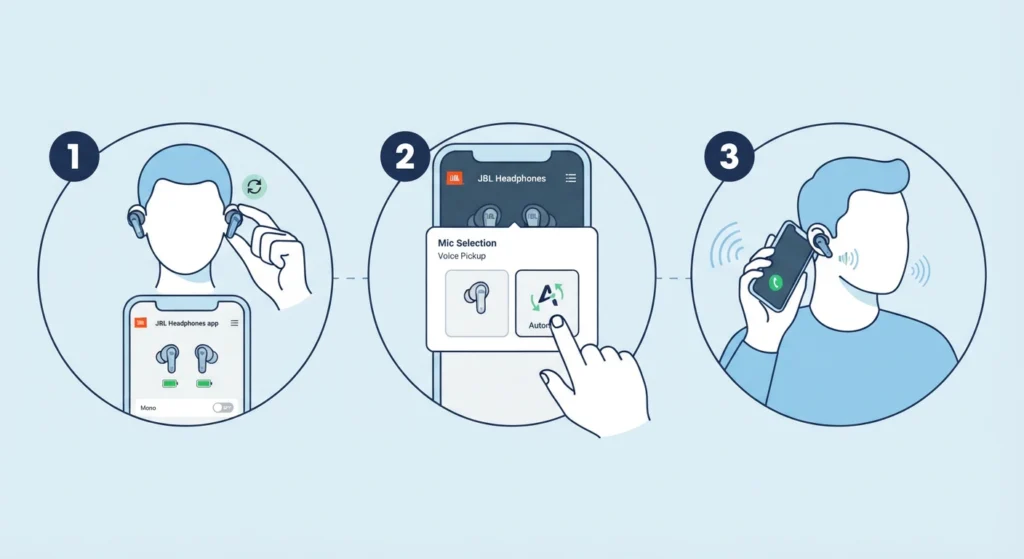
Wearing only one earbud is convenient for calls, but it activates a mono mode that sometimes routes the mic signal incorrectly, especially if the earbud being used isn’t the one the system expects to carry the mic.
- Step 1: Place both earbuds back in the ears, or check the JBL Headphones app for a single-earbud mic setting.
- Step 2: If a preferred mic side option exists in the app, switch it to automatic rather than a fixed side.
- Step 3: Test a call using both earbuds together before deciding whether one-earbud mode is usable at all.
Pro-Tip: Mic issues that only happen with one earbud in almost always trace back to mono mode settings, not a damaged microphone. Testing with both earbuds first saves time and rules out a hardware problem right away.
Fix 5: Clean the Microphone Mesh and Charging Contacts
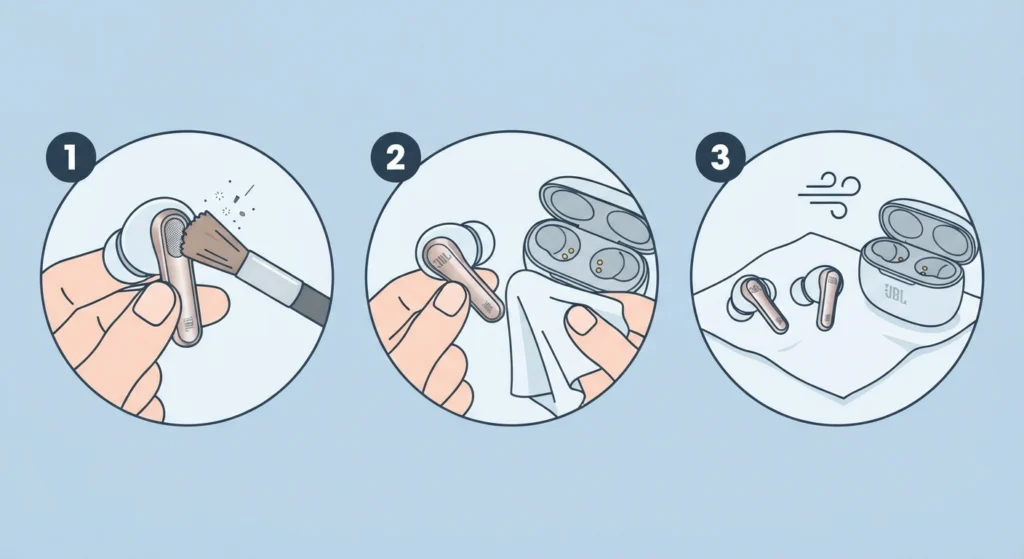
Sweat, skin oils, and pocket lint build up on the tiny mic mesh over time, muffling voice pickup even when every setting is correct.
- Step 1: Use a dry, soft-bristled brush to gently clear debris from the mic openings on each earbud.
- Step 2: Wipe the charging contacts on both the earbuds and the case with a dry microfiber cloth.
- Step 3: Let the earbuds dry fully before placing them back in the case if any moisture was involved.
Fix 6: Adjust Audio Input and Output Settings on Windows 11
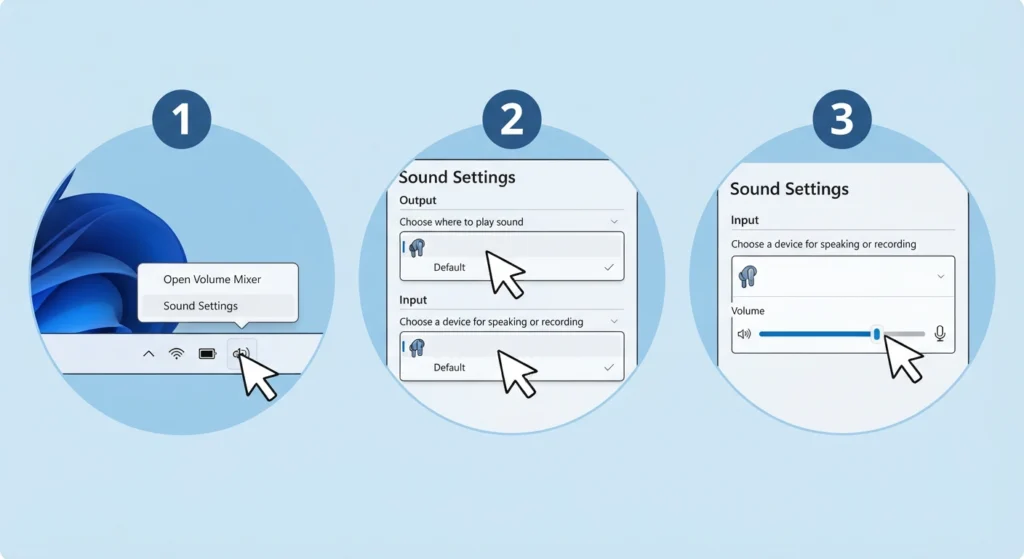
Windows sometimes defaults to a different input device after an update or a driver refresh, even when the JBL Tour Pro 3 was working fine the day before.
- Step 1: Right-click the sound icon in the taskbar and open Sound settings.
- Step 2: Set the earbuds as both the default output and default input device.
- Step 3: Adjust the input volume slider if the mic level looks unusually low.
For a closer look at getting these settings right, the guide on adjusting audio output settings on Windows 11 and the companion guide for managing audio input devices on Windows 11 both cover the exact menus involved.
Fix 7: Reset Audio Settings as a Last Resort
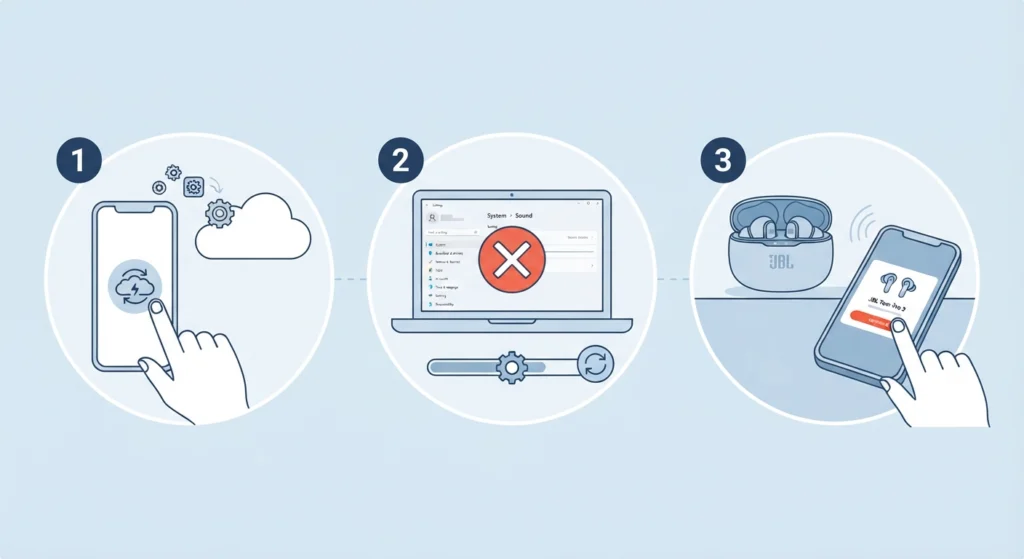
When none of the fixes above solve the problem, a full audio settings reset clears out corrupted drivers or conflicting configurations that build up over months of use.
- Step 1: Back up any custom audio profiles or app-specific sound settings first.
- Step 2: Follow the reset process for the operating system in use, then restart the device.
- Step 3: Re-pair the JBL Tour Pro 3 from scratch once the reset finishes.
The full process is outlined in the guide for resetting audio settings on Windows 11, which is worth bookmarking for future audio issues beyond just this one.
Tips to Keep the Mic Working Reliably
- Keep the JBL Headphones app installed and check it monthly for firmware updates rather than waiting for a problem to appear.
- Avoid connecting the earbuds to more than one device at the same time, since multipoint conflicts can interrupt the mic channel mid-call.
- Store the earbuds in the case when not in use to avoid dust buildup on the mic mesh.
- Keep the earbuds within normal Bluetooth range during calls; walking too far from the paired device causes signal drops that sound like a mic failure.
Pro-Tip: Battery levels below 10 percent can cause the earbuds to disable secondary features like the mic to save power. Charging to at least 20 percent before an important call avoids this entirely.
Common JBL Tour Pro 3 Mic Problems
Beyond a fully silent mic, a few related issues show up often and share the same root causes covered above.
- Choppy or robotic-sounding mic audio usually points to a weak Bluetooth connection or interference from other nearby wireless devices.
- Mic working on calls but not in voice memo or recording apps typically means the app itself lacks microphone permission, not the earbuds.
- Mic cutting out a few seconds into a call often signals a firmware bug that a pending update resolves.
- One earbud mic working while the other doesn’t points to a mono mode or preferred-side setting rather than a broken component.
Frequently Asked Questions
Why is the JBL Tour Pro 3 mic not working only during phone calls?
This usually happens when the connected phone routes call audio through a different profile than media playback. Re-pairing the earbuds or checking the default communication device setting on the phone typically resolves it.
Does a low battery affect the JBL Tour Pro 3 microphone?
Yes. Earbuds running on very low battery sometimes disable the mic to conserve power while keeping playback active. Charging past 20 percent before a call avoids this issue.
Can wearing only one earbud cause mic problems?
It can. Single earbud mode sometimes routes the mic to a fixed side, and if that side isn’t the one being worn, the mic appears dead. Wearing both earbuds or adjusting the mic side setting in the app fixes this.
How often should the JBL Tour Pro 3 firmware be updated?
Checking for updates once a month through the JBL Headphones app is a reasonable habit, since mic-related bugs are commonly addressed in firmware releases.
Why does the mic work on one device but not another?
This points to a permissions or default device setting issue on the specific device having trouble, rather than a problem with the earbuds themselves. Checking microphone permissions on that device usually solves it.
Is a muffled mic on the JBL Tour Pro 3 a sign of damage?
Not necessarily. A muffled mic is often caused by dust or debris blocking the mic mesh. Cleaning it gently with a dry brush restores clarity in most cases.
Should the earbuds be reset if only the mic is failing?
A full reset is worth trying only after re-pairing, firmware updates, and permission checks have already been ruled out, since it is the most time-consuming fix on the list.
Can other Bluetooth devices interfere with the mic signal?
Yes. Multiple Bluetooth devices operating close together can cause signal conflicts that affect the mic channel more noticeably than playback audio. Reducing nearby Bluetooth traffic during a call helps.
Does the JBL Headphones app show mic status directly?
The app shows connection and firmware status, and on some firmware versions a basic mic test option, which is a useful first check before going through every fix in this guide.
What is the fastest fix to try first?
Re-pairing the earbuds resolves the JBL Tour Pro 3 mic not working issue in the majority of reported cases and takes under two minutes to complete.