
JBL Tour One M2 static noise usually comes from a firmware glitch, a weak Bluetooth connection, or an active noise cancellation conflict, and most cases can be fixed in under ten minutes without any tools or a trip to a repair shop. This guide walks through the exact fixes that resolve the crackling, hissing, or static sound so listening sessions stay smooth and clear again.
Key Takeaways
- Static or hissing on the JBL Tour One M2 is most often linked to firmware, Bluetooth signal, or ANC settings.
- A quick reset and firmware update solves the issue for the majority of users.
- Re-pairing the headphones removes corrupted connection data that causes crackling sounds.
- Physical causes like dirty contacts or a loose ear cushion are rare but easy to check.
- Windows audio settings can also be the source of hissing during calls or playback.
Method 1: Update the JBL Headphones App Firmware
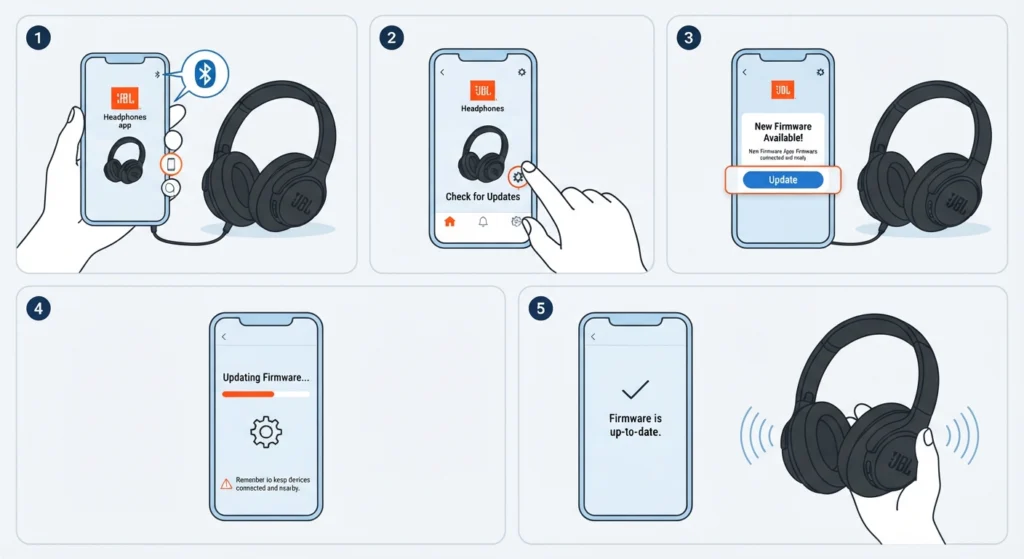
Firmware bugs are the leading cause of static noise on wireless headphones, and JBL regularly ships updates that patch audio glitches like this one. Skipping updates is one of the most common reasons this problem sticks around longer than it should.
- Step 1: Open the JBL Headphones app on a smartphone connected to the Tour One M2.
- Step 2: Tap the headphone icon or settings menu to check for available updates.
- Step 3: Select ‘Update’ if a new firmware version appears and keep the headphones within Bluetooth range during the process.
- Step 4: Wait for the update to finish completely before disconnecting or turning off the headphones.
- Step 5: Restart the headphones and play audio to check if the static is gone.
Method 2: Perform a Factory Reset
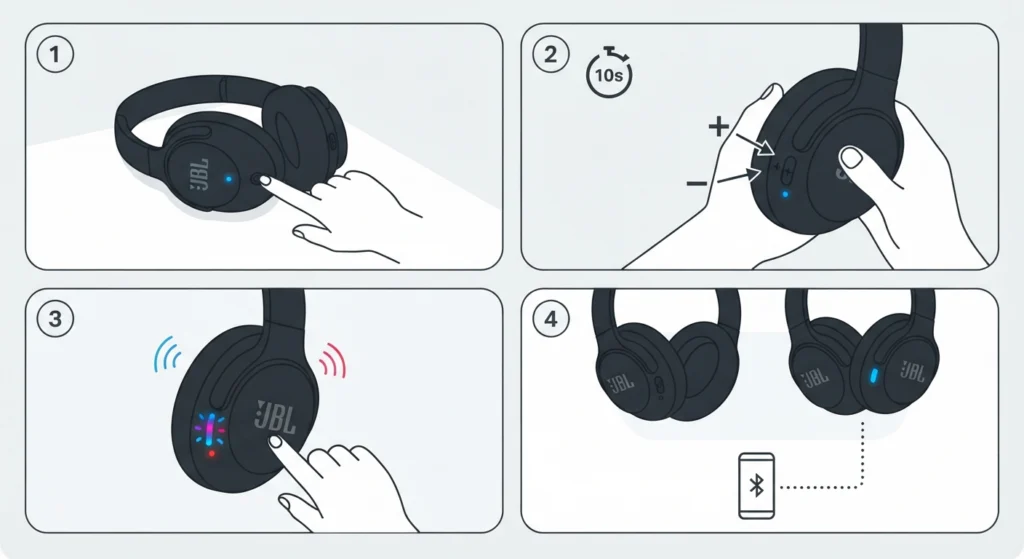
A reset clears out any corrupted settings that build up over time, which is often what triggers random hissing sounds even when the headphones are otherwise working fine.
- Step 1: Power on the JBL Tour One M2.
- Step 2: Press and hold both the volume up and volume down buttons at the same time for about 10 seconds.
- Step 3: Release the buttons once the LED indicator flashes or the headphones announce a reset confirmation.
- Step 4: Turn the headphones off, then back on, and reconnect them to the paired device.
Pro-Tip: Always charge the headphones to at least 50 percent before running a reset. A low battery during the process can cause the reset to fail or leave settings in an inconsistent state.
Method 3: Forget the Device and Re-Pair the Bluetooth Connection
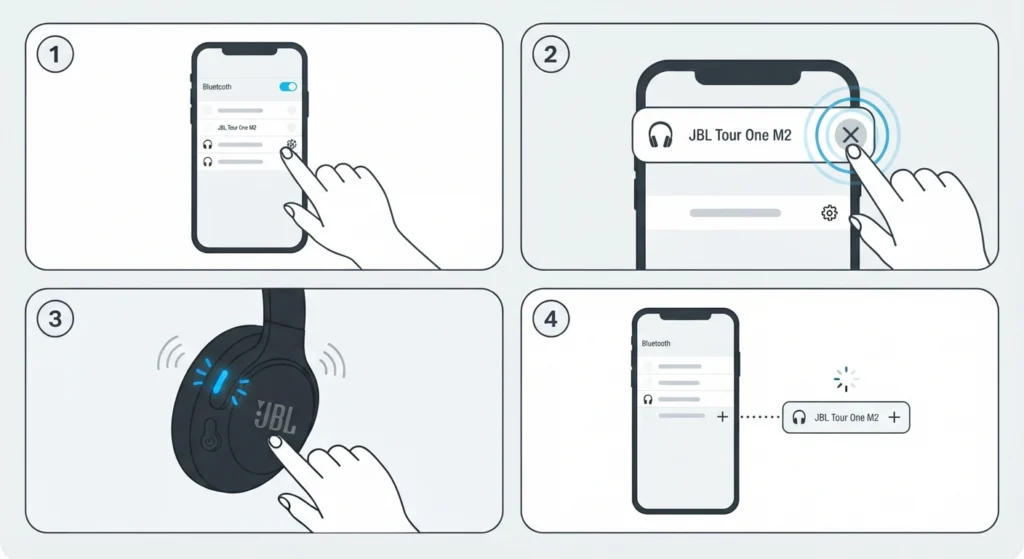
Static often shows up when the Bluetooth pairing profile gets corrupted after multiple reconnects. Clearing the saved connection and starting fresh usually clears the noise right away. For a full walkthrough on getting a clean stereo connection, this guide on how to re-pair Bluetooth earbuds for stereo sound covers the process in detail.
- Step 1: Go to the Bluetooth settings on the connected phone, tablet, or computer.
- Step 2: Find the JBL Tour One M2 in the device list and select ‘Forget’ or ‘Remove Device’.
- Step 3: Put the headphones into pairing mode by holding the power button until the LED blinks blue.
- Step 4: Search for new devices on the phone or computer and select the Tour One M2 to pair again.
Method 4: Adjust or Disable Active Noise Cancellation
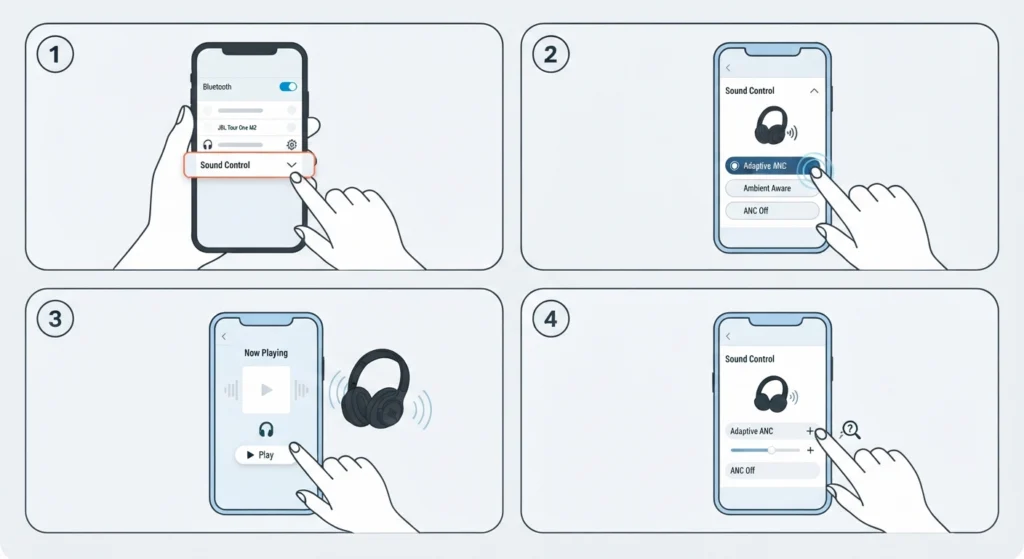
Static that only appears with ANC turned on points to a known interaction between the noise-sensing microphones and certain audio sources. Switching modes or lowering the ANC intensity through the app often removes the hiss instantly.
- Step 1: Open the JBL Headphones app and go to the sound control section.
- Step 2: Switch from Adaptive Noise Cancelling to Ambient Aware or Off mode.
- Step 3: Play audio for a few minutes to see if the static disappears in the new mode.
- Step 4: If the noise is gone, switch back to ANC gradually and test each level to find where the hiss starts.
Method 5: Reduce Bluetooth Interference
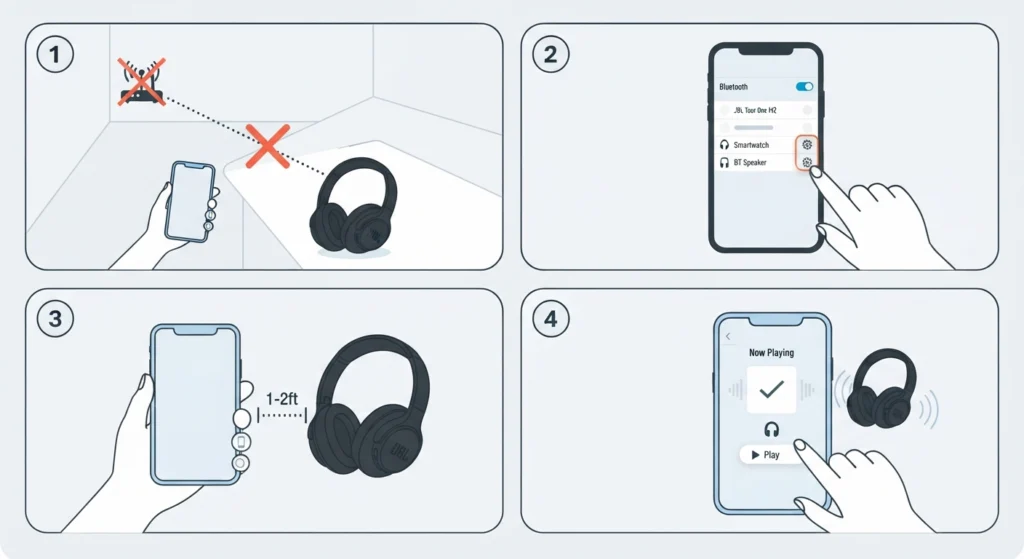
Wireless routers, other Bluetooth devices, and even microwaves can interrupt the signal between the headphones and the connected device, which sounds like static or crackling during playback.
- Step 1: Move away from Wi-Fi routers, USB 3.0 hubs, and other Bluetooth accessories.
- Step 2: Disconnect any other Bluetooth devices paired to the same phone or laptop that are not currently in use.
- Step 3: Keep the connected device within a few feet of the headphones, especially in crowded Bluetooth environments like offices or transit.
Method 6: Check Windows Audio Settings
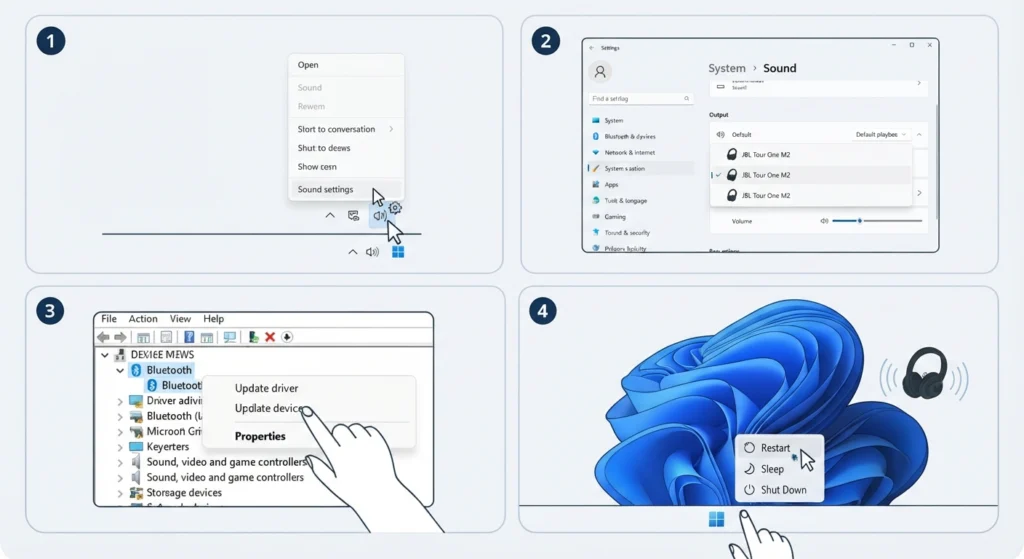
When the static only happens on a Windows laptop or desktop, the issue is sometimes on the computer’s side rather than the headphones. Outdated audio drivers or the wrong output configuration can introduce exactly this kind of noise. Resetting the sound settings back to default, as explained in this guide on resetting audio settings on Windows 11, often clears it up in a few clicks. It also helps to review the audio output settings on Windows 11 to confirm the correct playback device and sample rate are selected for the Tour One M2.
- Step 1: Right-click the sound icon in the Windows taskbar and open sound settings.
- Step 2: Confirm the JBL Tour One M2 is set as the default playback device.
- Step 3: Update Bluetooth and audio drivers through Device Manager or Windows Update.
- Step 4: Restart the computer and test the headphones again.
Method 7: Inspect for Hissing During Calls or Microphone Use
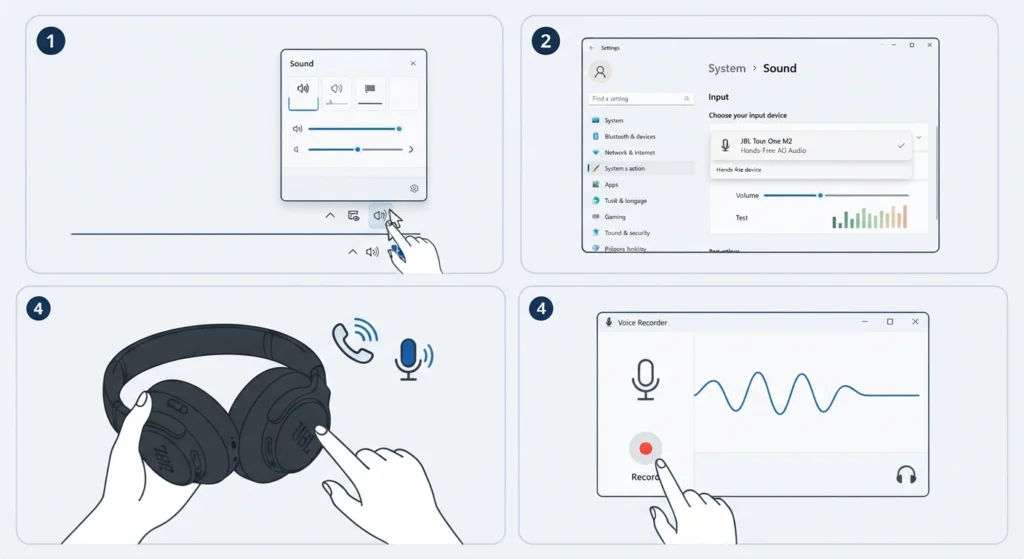
If the static specifically shows up while making calls or recording, the microphone input settings are usually the source rather than the headphones themselves. Checking how the input device is configured, as covered in this guide on managing audio input devices on Windows 11, can rule out a software-level cause. For persistent mic detection issues, this resource on resolving microphone detection problems on Windows 11 walks through the fix in more depth.
Tips to Prevent Static Noise on the JBL Tour One M2
- Keep the JBL Headphones app installed and check for firmware updates every few weeks.
- Charge the headphones fully at least once a week to avoid low-battery-related audio glitches.
- Avoid connecting the headphones to more than one device at the same time unless multipoint is intentionally being used.
- Wipe down the ear cup contacts occasionally with a dry microfiber cloth to prevent buildup that can interfere with sensors.
Common Problems Linked to Static or Hissing
- Static that only happens on one side often points to a loose ear cup connector rather than a software issue.
- Crackling that appears right after a firmware update usually resolves itself with a second restart or a follow-up update from JBL.
- Hissing that gets louder near the volume limit is generally related to ANC microphone sensitivity, not a hardware fault.
- Intermittent static during movement can be a sign of Bluetooth interference rather than a defective unit.
Pro-Tip: If static persists after trying every fix above and the headphones are still under warranty, JBL support can run a remote diagnostic before recommending a replacement, which saves time compared to guessing at further fixes.
Frequently Asked Questions
Why does the JBL Tour One M2 make a static noise out of nowhere?
This usually happens due to a temporary firmware glitch, a weak Bluetooth signal, or interference from nearby wireless devices. A reset or firmware update resolves most of these cases.
Does turning off ANC fix the static noise?
In many cases, yes. Static that only appears with Active Noise Cancellation on is linked to the noise-sensing microphones, so switching to Ambient Aware or Off mode often removes the noise immediately.
How often should the JBL Tour One M2 firmware be updated?
Checking for updates every few weeks through the JBL Headphones app is a good habit, since JBL periodically releases patches that address audio bugs like static and crackling.
Can a low battery cause static or hissing sounds?
Yes. When the battery drops too low, some wireless headphones, including the Tour One M2, can produce distorted or static audio right before shutting down. Keeping the headphones charged above 20 percent helps avoid this.
Is the static noise a sign of a hardware defect?
Not always. Most static issues are software-related and get fixed with a reset, firmware update, or re-pairing. If the noise continues after trying all standard fixes, a hardware issue becomes more likely and a warranty check is worth considering.
Why does static only happen on Windows and not on a phone?
This points to a driver or audio configuration issue on the computer rather than the headphones. Updating Bluetooth drivers and confirming the correct playback device is selected usually solves it.
Should the headphones be reset before or after updating firmware?
Updating the firmware first is generally recommended, since a reset afterward clears out any leftover settings conflicts from the update process.
Can other Bluetooth devices cause static on the Tour One M2?
Yes. Having multiple Bluetooth accessories active near the headphones, such as a mouse, keyboard, or speaker, can create signal interference that sounds like static or dropouts.
Does re-pairing delete any saved settings on the headphones?
Re-pairing only affects the Bluetooth connection profile. Personal EQ settings and ANC preferences saved in the JBL Headphones app remain intact.
How long does it take to fix static noise using these methods?
Most fixes, including a firmware update, reset, or re-pairing, take between five and ten minutes to complete and test.