
A Huawei FreeBuds 6i mic not working on calls is frustrating, especially when the other person keeps saying they cannot hear anything. The good news is that most cases come down to a dirty mic opening, a blocked app permission, or a Bluetooth connection that simply needs a refresh. This guide walks through each fix in a clear order, starting with the quickest.
Quick Summary:
- Most common cause: call audio is routed to the phone instead of the earbuds, or the app has no microphone permission.
- Fastest fixes: reseat the earbuds in the case, clean the mic openings, and check the call audio output.
- Deeper fixes: re-pair the earbuds, update the firmware in the HUAWEI AI Life app, or run a factory reset.
- Using Windows 11: the earbuds must be selected as the input device, not only the output device.
Step-by-Step Fixes for Huawei FreeBuds 6i Mic Problems
Fix 1: Reset the Connection by Reseating the Earbuds
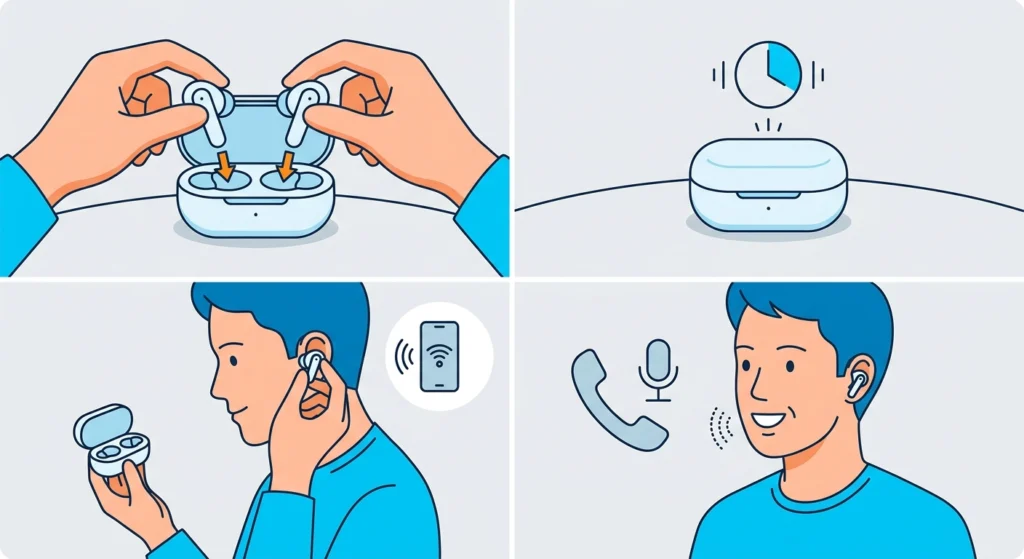
Think of this as turning a stuck app off and on again. It clears small glitches without touching any settings.
- Step 1: Place both earbuds back in the charging case.
- Step 2: Close the lid and wait about 10 seconds.
- Step 3: Open the lid, put the earbuds in your ears, and wait for them to reconnect to your phone.
- Step 4: Make a short test call or record a voice message to check the mic.
Fix 2: Clean the Microphone Openings
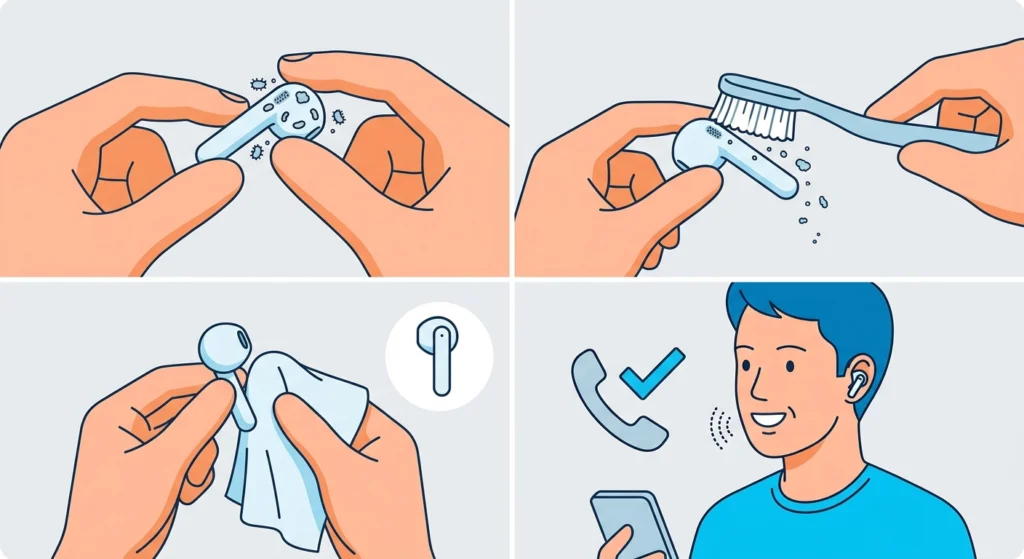
Earwax, lint, and pocket dust can quietly cover the tiny mic holes. The result is a voice that sounds muffled, faint, or missing entirely.
- Step 1: Remove both earbuds and look closely at the small openings on the outer body.
- Step 2: Gently brush each opening with a clean, dry, soft-bristled brush.
- Step 3: Wipe the surface with a dry microfiber cloth.
- Step 4: Test again with a short call.
Pro-Tip: Never push a pin, needle, or toothpick into the openings, and avoid liquids or alcohol near them. These can damage the mic membrane and turn a simple cleaning job into a permanent fault.
Fix 3: Allow Microphone Permission for the Calling App
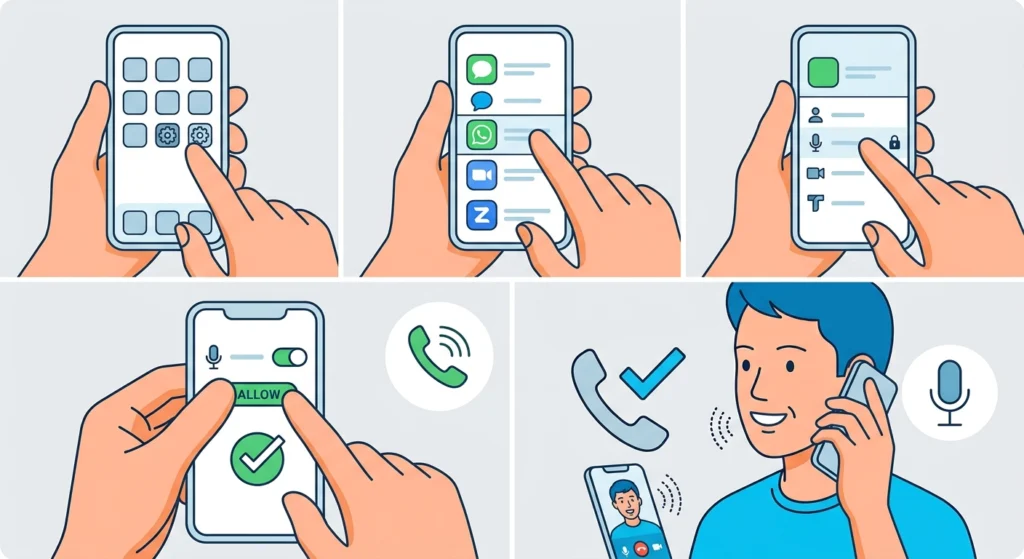
If the mic works in one app but not another, the permission is usually the culprit. This is common with WhatsApp, Messenger, Zoom, Teams, and Google Meet.
- Step 1: Open your phone Settings and go to Apps (on Android) or scroll down to the specific app (on iPhone).
- Step 2: Select the calling app that has the mic problem.
- Step 3: Open Permissions (on Android) and choose Microphone.
- Step 4: Set it to Allow, or switch the Microphone toggle on (on iPhone).
- Step 5: Restart the app and place a test call.
Fix 4: Switch the Call Audio to the Earbuds
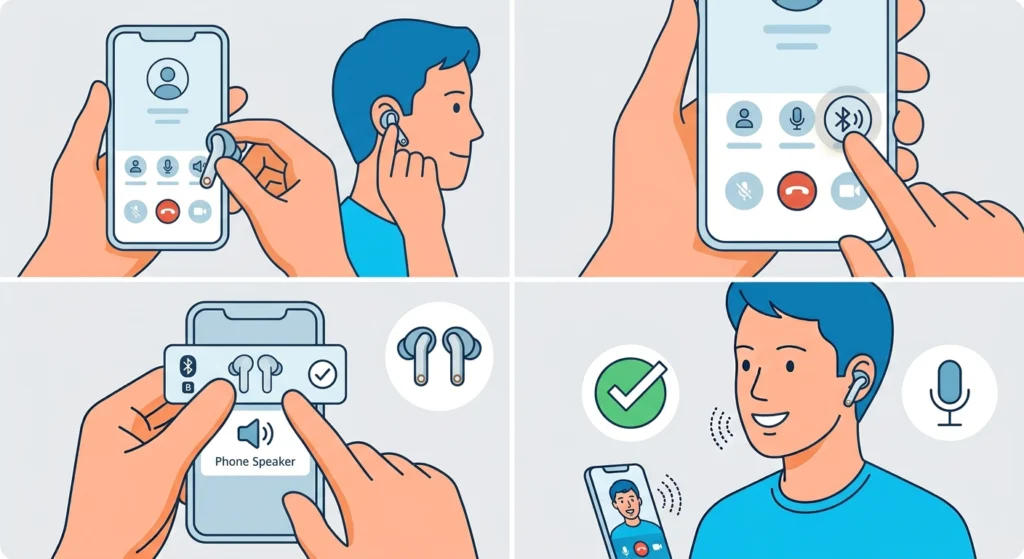
Sometimes the earbuds are connected, yet the call still uses the phone speaker and phone mic. In that case, the earbuds play sound but the other person hears a distant or muffled voice.
- Step 1: Start a call.
- Step 2: Tap the audio output button on the call screen (it often shows a speaker or Bluetooth icon).
- Step 3: Select Huawei FreeBuds 6i from the list.
- Step 4: Ask the other person if the voice is now clear.
Fix 5: Forget the Earbuds and Pair Them Again
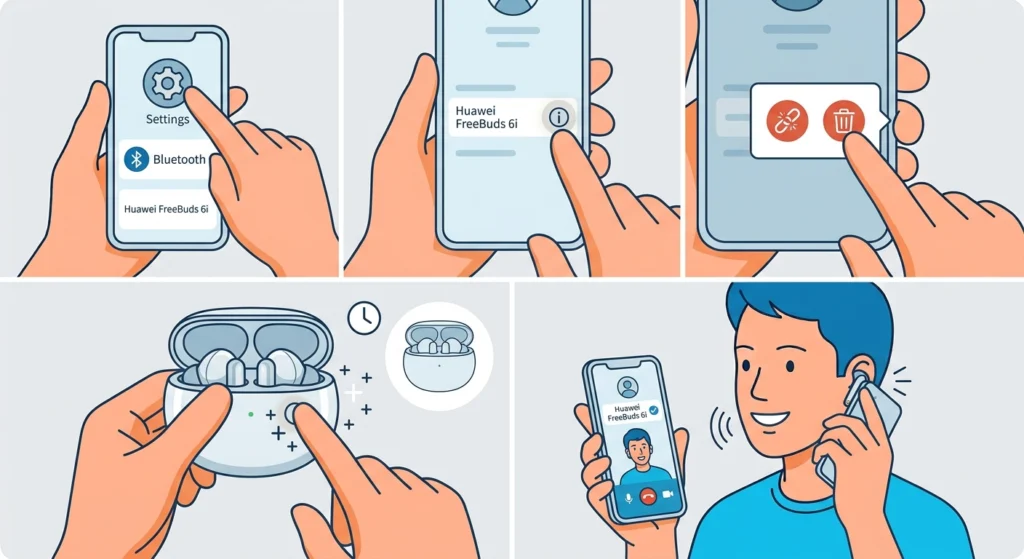
A corrupted pairing record can break the call profile while music still plays normally. Pairing again builds a fresh connection.
- Step 1: Open Bluetooth settings on your phone.
- Step 2: Tap the settings icon next to Huawei FreeBuds 6i (on Android) or the info icon (on iPhone).
- Step 3: Choose Unpair or Forget This Device.
- Step 4: Put the earbuds in the case, open the lid, and press and hold the function button on the case until the indicator blinks white.
- Step 5: Select Huawei FreeBuds 6i from the available devices and confirm the pairing.
Fix 6: Update the Earbud Firmware
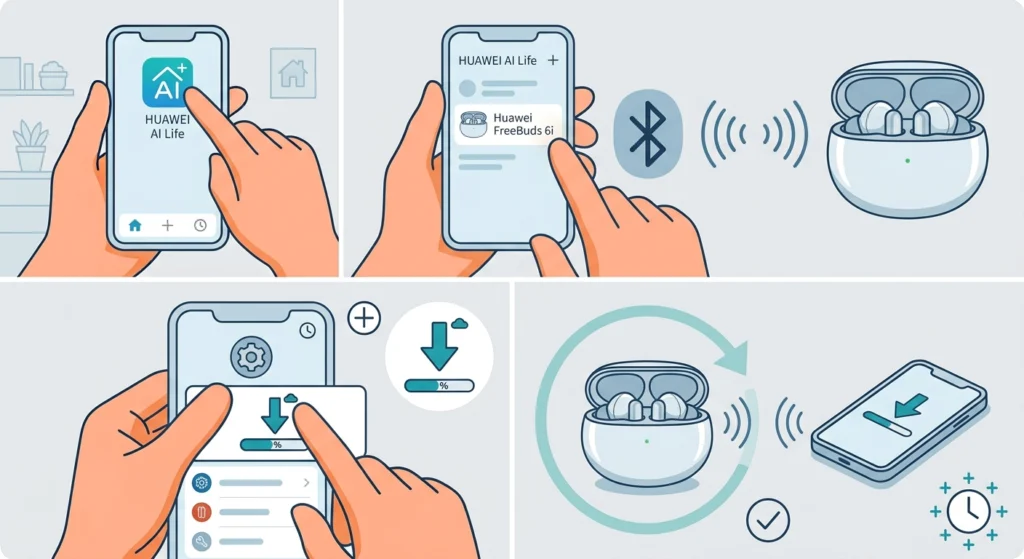
Firmware updates can correct known audio and connection issues. Keeping the earbuds up to date is a simple way to avoid repeat problems.
- Step 1: Install and open the HUAWEI AI Life app on your phone.
- Step 2: Connect to Huawei FreeBuds 6i from the app.
- Step 3: Open the device settings and tap Firmware update.
- Step 4: If an update is available, keep the earbuds in the case and near the phone until the update finishes.
Fix 7: Factory Reset the FreeBuds 6i
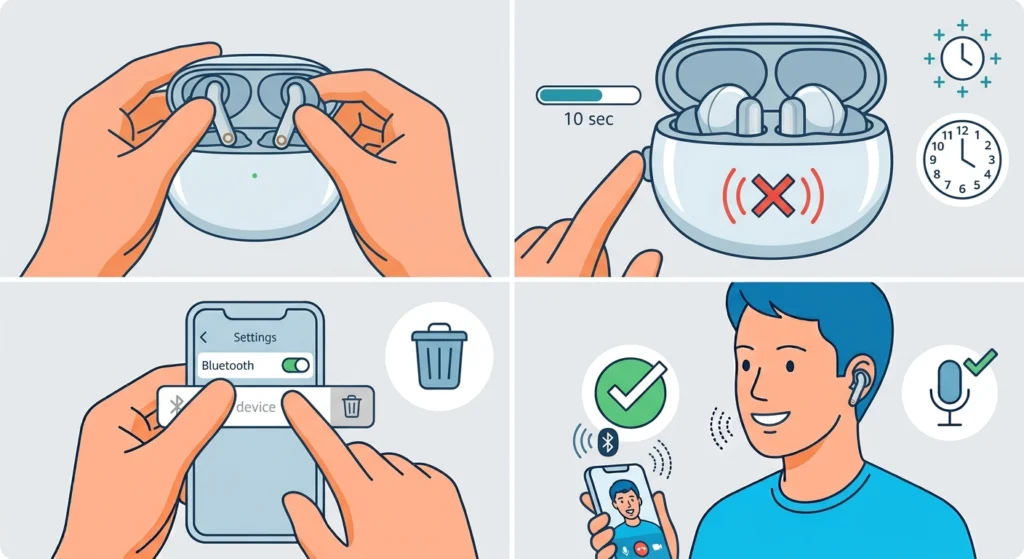
This is the last resort because it erases saved pairings and custom settings. It works best when the mic still fails after every fix above.
- Step 1: Put both earbuds in the charging case and keep the lid open.
- Step 2: Press and hold the function button on the case for about 10 seconds, until the indicator blinks red.
- Step 3: Remove the old Huawei FreeBuds 6i entry from your phone Bluetooth list.
- Step 4: Pair the earbuds again and test a call.
Fix the Mic When Using FreeBuds 6i on Windows 11
On a PC, the earbuds can play music perfectly while the mic stays silent. The reason is that Windows treats the headset input as a separate device, and it must be chosen manually in many apps.
Fix 8: Select the Earbuds as the Input Device
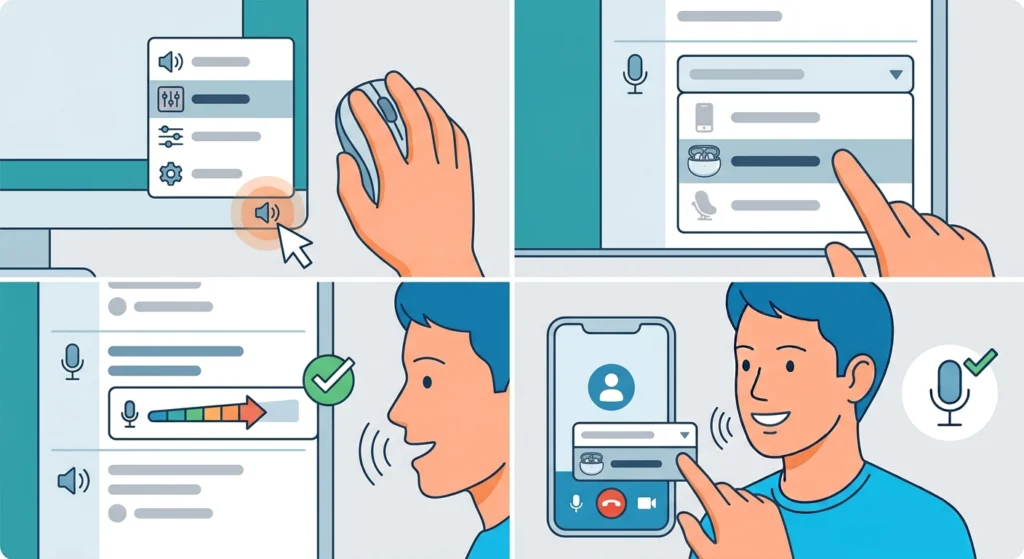
- Step 1: Right-click the speaker icon in the taskbar and open Sound settings.
- Step 2: Under Input, choose the Huawei FreeBuds 6i headset microphone.
- Step 3: Speak and watch the input volume bar to confirm Windows hears your voice.
- Step 4: In your calling app, open the audio settings and select the same microphone.
If Windows does not list the mic at all, the guide on resolving microphone detection problems covers how to bring it back. To review every connected mic and speaker in one place, see managing audio input devices.
Fix 9: Re-Pair the Earbuds on Windows
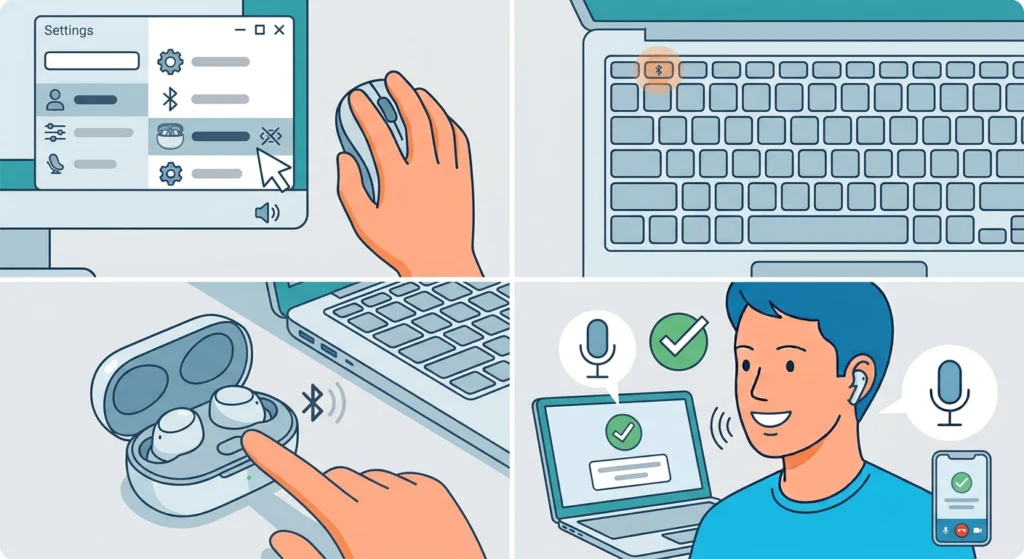
A stale Bluetooth entry can leave the headset profile broken on a PC. Following the steps to re-pair Bluetooth earbuds on Windows creates a clean connection for both sound and voice.
Fix 10: Check Output Settings and Reset Audio Settings
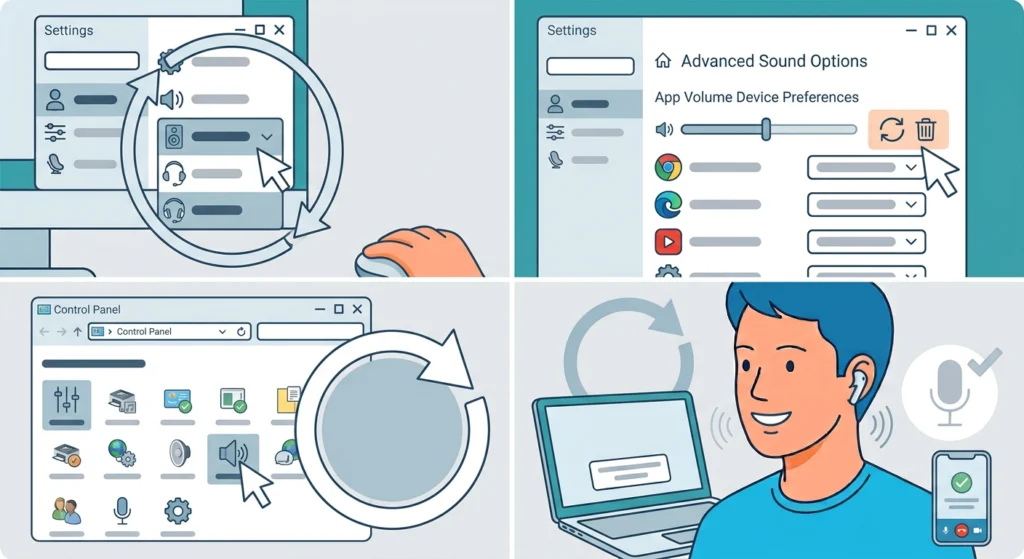
Wrong output or leftover audio settings can interfere with the headset. Review the options in adjusting audio output settings, and if needed, use resetting audio settings to return Windows sound to a clean state.
Pro-Tip: When a call app starts using the headset mic, Windows may switch the earbuds to hands-free mode, which lowers music quality. This is normal behavior for Bluetooth headsets and returns to normal once the call ends.
Tips to Keep the Mic Working Well
- Wipe the mic openings with a dry cloth every week or two, especially after workouts.
- Keep the earbuds in the case when not in use so dust does not build up.
- Update the firmware through the HUAWEI AI Life app from time to time.
- Wear both earbuds firmly and avoid covering the outer part with a hat, hood, or hair.
- Charge the case and earbuds regularly, since very low battery can cause unstable connections.
Common Problems and Quick Solutions
The Other Person Hears Me Quietly
This usually points to blocked mic openings. Clean them gently as shown in Fix 2, then check that the earbuds sit properly in the ear.
The Mic Works in One App Only
The other app probably lacks microphone permission. Follow Fix 3 for that specific app.
The Mic Works on the Phone but Not on the PC
The earbuds are most likely not selected as the input device on the computer. Follow Fix 8 to set the correct microphone.
The Mic Stopped Working After Pairing With Another Device
The connection may be stuck on the previous device. Disconnect the earbuds from the other device, then follow Fix 5 on the device that needs the mic.
Frequently Asked Questions
Why is the mic on my Huawei FreeBuds 6i not working during calls?
The most common reasons are blocked mic openings, missing microphone permission in the calling app, call audio routed to the phone, or a faulty Bluetooth connection. Working through the fixes above in order usually solves it.
Does the mic work if only one earbud is in my ear?
Wearing both earbuds is the best way to test, since it removes one variable. If the mic works with a pair but not with a single earbud, reseat both in the case and reconnect.
How do I clean the mic on Huawei FreeBuds 6i safely?
Use a dry, soft-bristled brush and a dry microfiber cloth. Avoid sharp objects, water, and alcohol because they can damage the mic membrane.
How do I update the firmware on Huawei FreeBuds 6i?
Open the HUAWEI AI Life app, connect to the earbuds, go to the device settings, and tap Firmware update. Keep the earbuds in the case near the phone until the update is complete.
How do I factory reset the Huawei FreeBuds 6i?
Place the earbuds in the case with the lid open, then press and hold the function button on the case for about 10 seconds until the indicator blinks red. Remove the old Bluetooth entry from the phone and pair again.
Why does the mic work on my phone but not on my Windows 11 PC?
Windows often needs the earbuds selected manually as the input device. Open Sound settings, choose the FreeBuds 6i microphone under Input, and select the same mic inside the calling app.
Will a factory reset delete my music or files?
No. The earbuds do not store music or personal files. A reset only removes saved pairings and custom settings.
Do I need to give the calling app microphone permission when using earbuds?
Yes. Apps need microphone permission even when a Bluetooth headset is used, because the permission controls access to any audio input.
Can a dirty mic opening really cause call problems?
Yes. Even a thin layer of earwax or lint can reduce voice pickup and make speech sound faint or muffled.
How can I tell if the call is using the earbuds mic?
Check the audio output button on the call screen and confirm Huawei FreeBuds 6i is selected. On a PC, confirm the earbuds are chosen as the input device in Sound settings.