
Late-night movie marathons are a lot more fun when nobody else in the house is disturbed. Learning how to connect Bluetooth headphones to a Chromecast takes only a couple of minutes, and the whole process happens right on the TV screen with the remote in hand.
Key Takeaways
- Bluetooth headphone pairing works on Chromecast with Google TV (4K and HD) models.
- The pairing option lives under Settings, then Remote & Accessories.
- Headphones must be in pairing mode before the Chromecast starts searching.
- Once connected, sound moves from the TV speakers to the headphones automatically.
- The full process takes about two minutes.
Method 1: Pair Bluetooth Headphones Through Remote & Accessories
This is the one method that matters. Keep the Chromecast remote nearby, make sure the headphones have some battery left, and follow the steps below in order.
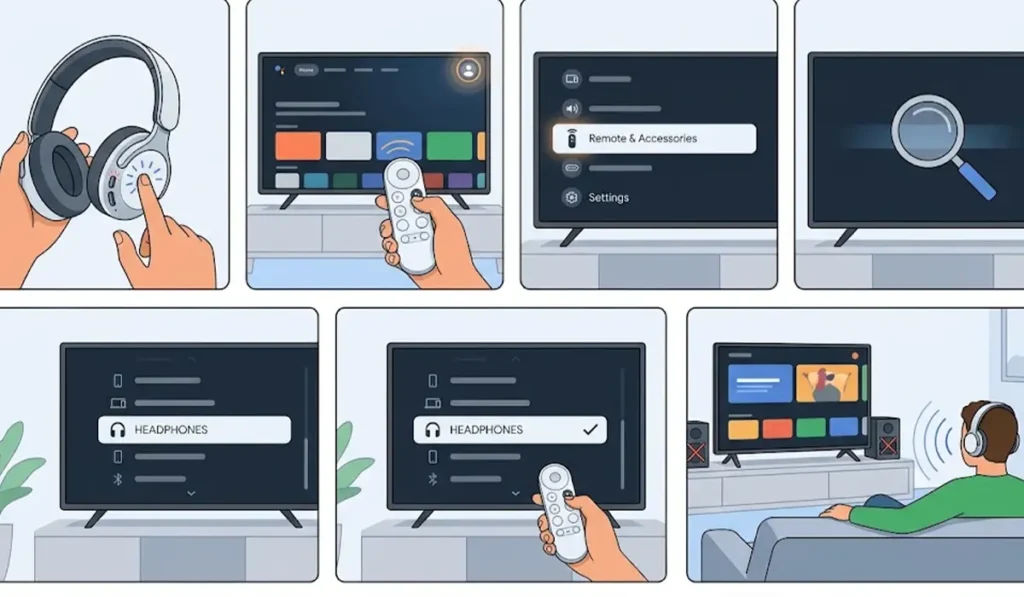
- Step 1: Turn on the headphones and put them in pairing mode. On most models, this means holding the power or Bluetooth button until a light starts flashing. For AirPods, open the case lid and hold the button on the back of the case until the light flashes white.
- Step 2: On the Google TV home screen, use the remote to select the profile picture in the top right corner, then choose Settings.
- Step 3: Select Remote & Accessories.
- Step 4: Choose Pair remote or accessory. The Chromecast now begins scanning for nearby Bluetooth devices.
- Step 5: Wait for the headphones to appear in the list, then select them by name.
- Step 6: Confirm the pairing request if one appears on screen. After a few seconds, the headphones show as connected.
- Step 7: Play any video or show. The sound now comes through the headphones, while the TV speakers go quiet.
Pro-Tip: Keep the headphones close to the Chromecast during pairing, ideally within a few feet. Pairing from across the room is one of the most common reasons the headphones never show up in the list.
Tips for Better Wireless Listening
A few small habits make the experience smoother day after day.
- Charge the headphones before a long movie. A dying battery can cause crackling or sudden disconnects halfway through a film.
- Pick a seat with a clear line of sight to the TV. Walls and furniture between the headphones and the Chromecast can weaken the signal.
- Check the Remote & Accessories screen to see all previously paired devices in one place.
- Headphones that are also used with a PC may need a fresh start there too, and this guide on re-pairing Bluetooth earbuds for stereo sound on Windows covers it clearly.
- Windows 11 users who switch the same headphones between devices can also look at adjusting audio output settings to keep sound going to the right place.
Pro-Tip: Most people find that pairing once is enough. After the first successful connection, the headphones are remembered, so future sessions usually need only a quick power-on near the Chromecast.
Common Problems and Fixes
Fix 1: Headphones Do Not Appear in the List
The headphones are most likely not in pairing mode, or they are still connected to a phone or tablet nearby. Turn Bluetooth off on other devices, put the headphones back into pairing mode, and select Pair remote or accessory again.
Fix 2: Pairing Starts but Fails
Move the headphones closer to the Chromecast and make sure the battery is charged. If the headphones were paired before and still fail, remove the old entry from Remote & Accessories and pair them again from the beginning.
Fix 3: No Sound After Connecting
Check the volume on the headphones themselves, since it is controlled separately from the TV. If the headphones still stay silent, turn them off and on again so the Chromecast reconnects. For a related issue on a PC, the guide on troubleshooting headphone detection may help.
Frequently Asked Questions
Can Bluetooth headphones connect to any Chromecast?
Bluetooth headphone pairing is available on Chromecast with Google TV models. Older Chromecast models without the Google TV interface do not offer Bluetooth headphone pairing.
Where is the Bluetooth setting on a Chromecast with Google TV?
Open Settings from the profile picture on the home screen, then select Remote & Accessories and choose Pair remote or accessory.
Do AirPods work with a Chromecast?
Yes. AirPods can be paired like any other Bluetooth headphones. Hold the button on the back of the case until the light flashes white, then select them from the list on the Chromecast.
Do the TV speakers stay on after the headphones connect?
No. Once the headphones are connected, the sound plays through them instead of the TV speakers.
Do I need the Chromecast remote to pair the headphones?
Yes, the remote is used to move through the menus and select the headphones from the list.
How can headphones be disconnected from a Chromecast?
Go back to Remote & Accessories, select the headphones, and choose the option to forget or disconnect them. Turning the headphones off also stops the connection.
Will there be an audio delay with Bluetooth headphones?
A small delay can happen with any Bluetooth connection, and the amount depends on the headphones. Many people never notice it while watching shows or movies.
Do Bluetooth headphones work with every streaming app?
Yes. The audio is sent to the headphones at the system level, so apps like YouTube and Netflix play through them the same way.