
Late-night binge sessions are much better when nobody else in the house is disturbed. This guide shows how to connect Bluetooth headphones to a Fire TV Stick in just a few minutes, using nothing but the remote and the headphones themselves.
- Time needed: about 2 minutes
- What is required: a Fire TV Stick, its remote, and Bluetooth headphones or earbuds
- Menu path: Settings, Controllers and Bluetooth Devices, Other Bluetooth Devices, Add Bluetooth Devices
- Key detail: the headphones must be in pairing mode before the search starts
Method 1: Connect Bluetooth Headphones Using Fire TV Settings
This is the standard way to pair any set of wireless headphones or earbuds with a Fire TV Stick. Keep the headphones close to the TV and charged enough to stay powered on during pairing.
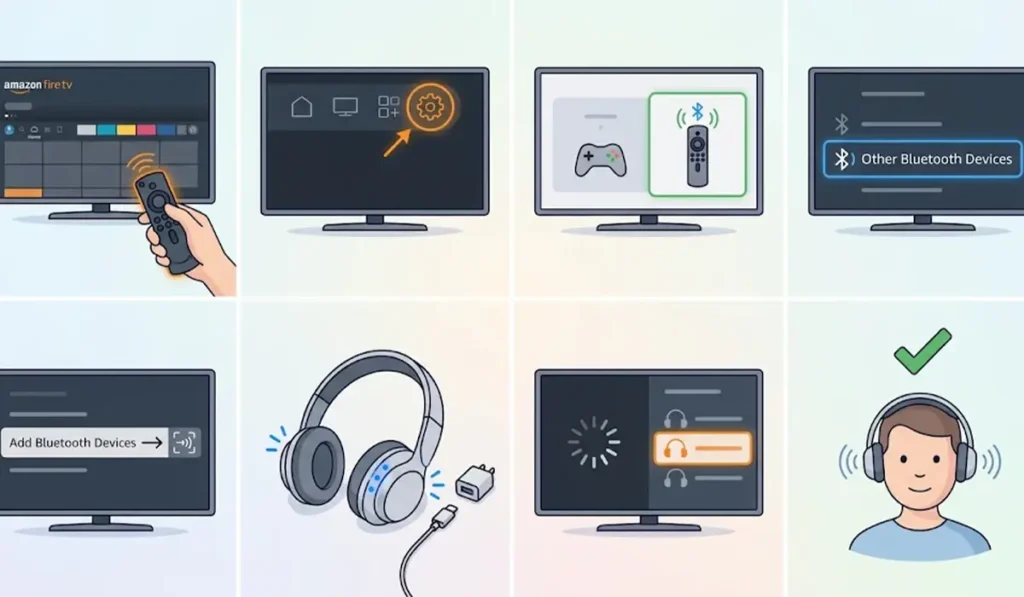
- Step 1: Turn on the Fire TV Stick and go to the Home screen.
- Step 2: Scroll to the right and select the Settings icon, which looks like a gear.
- Step 3: Choose Controllers and Bluetooth Devices. The wording may differ slightly depending on the Fire OS version.
- Step 4: Select Other Bluetooth Devices.
- Step 5: Choose Add Bluetooth Devices. The Fire TV Stick begins searching for nearby devices.
- Step 6: Put the headphones in pairing mode. On most models, this means holding the power or Bluetooth button until a light starts flashing. The exact method varies by brand, so check the headphone manual if needed.
- Step 7: Wait for the headphone name to appear in the list of available devices, then select it.
- Step 8: Confirm any on-screen prompt. Once the status shows Connected, audio plays through the headphones.
Pro-Tip: Headphones that were recently used with a phone or laptop often reconnect to that device on their own. Turn off Bluetooth on the other device, or switch it off completely, before starting the search. This one habit prevents most pairing delays.
Method 2: Reconnect Previously Paired Headphones
Once headphones have been paired, there is usually no need to repeat the full process. Most people find that switching the headphones on near the TV is enough for the connection to return.
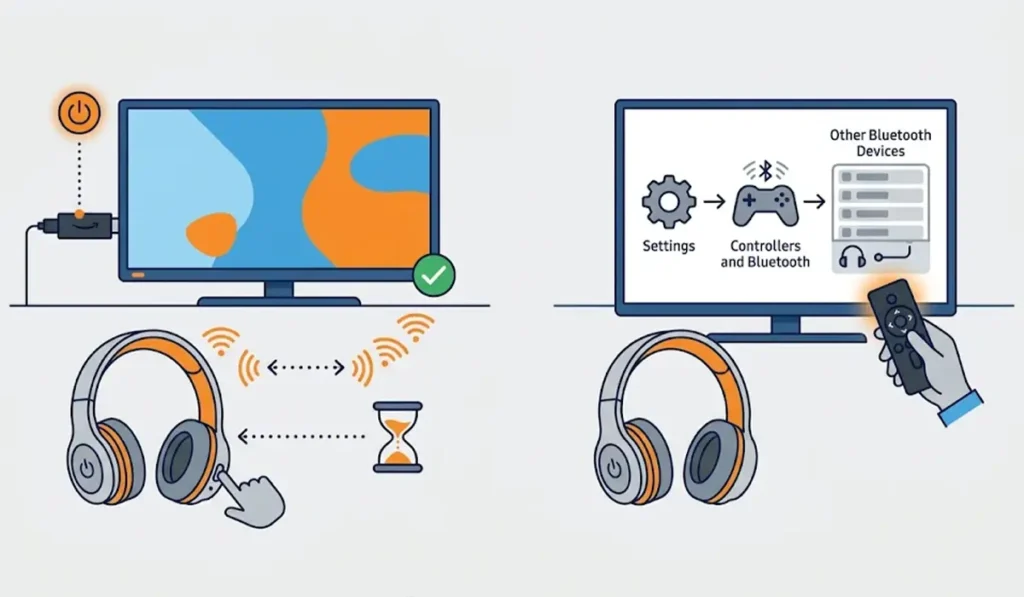
- Step 1: Turn on the headphones and keep them within a few feet of the Fire TV Stick.
- Step 2: Wait a few seconds for the connection to be established automatically.
- Step 3: If the headphones do not connect, go to Settings, then Controllers and Bluetooth Devices, then Other Bluetooth Devices.
- Step 4: Select the headphones from the paired list to reconnect them.
Tips for a Better Listening Experience
- Charge the headphones fully before a long movie night. A dying battery is the most common reason audio cuts out mid-scene.
- Stay within a reasonable range of the Fire TV Stick. Walking into another room with walls in between can weaken the signal.
- Keep the headphones in pairing mode only while searching. Leaving them in pairing mode for too long can cause them to time out.
- Headphones that are also used with a PC are easy to manage. For Windows setups, this guide on how to re-pair Bluetooth earbuds for stereo sound on Windows is a helpful companion.
- Windows 11 users who switch the same headphones between devices can also review how to adjust audio output settings so sound goes to the right place.
Common Problems and Quick Fixes
Fix 1: Headphones Do Not Appear in the List
Turn the headphones off, then put them back into pairing mode and run the search again. Also make sure they are not still connected to a phone or tablet nearby, since a headphone that is already connected elsewhere usually will not show up.
Fix 2: Pairing Fails or Disconnects Right Away
Remove the headphones from the paired list on the Fire TV Stick, then repeat the pairing steps from the beginning. A fresh pairing often clears a stale connection record.
Fix 3: Fire TV Stick Does Not Respond Properly
Restart the device by going to Settings, then My Fire TV, then Restart. After it powers back on, try pairing again.
Fix 4: Headphones Are Not Detected on a Windows PC
If the same headphones also fail to show up on a computer, this walkthrough on troubleshooting headphone detection on Windows covers the steps.
Frequently Asked Questions
Can any Bluetooth headphones connect to a Fire TV Stick?
Most Bluetooth headphones and earbuds can connect, as long as they are able to enter pairing mode and are not already linked to another device.
Does a Fire TV Stick have Bluetooth built in?
Yes. Fire TV Stick devices support pairing with Bluetooth audio devices such as headphones, earbuds, and speakers.
Where are the Bluetooth settings on a Fire TV Stick?
Go to Settings, then Controllers and Bluetooth Devices, then Other Bluetooth Devices. The Add Bluetooth Devices option starts the search.
How do headphones get into pairing mode?
On most headphones, holding the power or Bluetooth button for several seconds until a light flashes starts pairing mode. The exact button and light pattern depend on the brand and model.
Can AirPods be used with a Fire TV Stick?
Yes. AirPods can be paired like any other Bluetooth headphones. Open the case, hold the setup button on the case until the light flashes white, and select them from the Fire TV Stick list.
Do Bluetooth headphones reconnect automatically?
In most cases, previously paired headphones reconnect once they are powered on and within range of the Fire TV Stick. If not, select them from the paired list in the Bluetooth settings.
Does the TV speaker stay on when headphones are connected?
Sound from the Fire TV Stick typically plays through the connected headphones instead of the TV speakers.
Is Wi-Fi needed to pair Bluetooth headphones?
No. Bluetooth pairing does not depend on Wi-Fi. An internet connection is only needed for streaming apps and content.