
Setting up the Samsung Galaxy Buds 2 Pro for the first time only takes a few minutes once the basic order of steps is clear. Most people get tripped up not because the process is hard, but because they skip a small step like waiting for the case lid to close properly before opening it again. This guide walks through the exact setup sequence so the earbuds connect smoothly on the very first try, whether the device on the other end is a Samsung phone, another Android phone, an iPhone, or a Windows PC.
Quick Summary Table
- Charge the earbuds and case fully before the first use
- Place both earbuds in the case, close the lid for five to six seconds, then reopen it to trigger pairing mode
- Use the Galaxy Wearable app for Samsung and Android phones, or pair manually through Bluetooth settings on iPhone, Mac, and Windows
- Fit the correct ear tip size before finishing setup for the best seal and sound quality
- Update the firmware through the Galaxy Wearable app right after pairing
Step-by-Step Guide to Setting Up Galaxy Buds 2 Pro
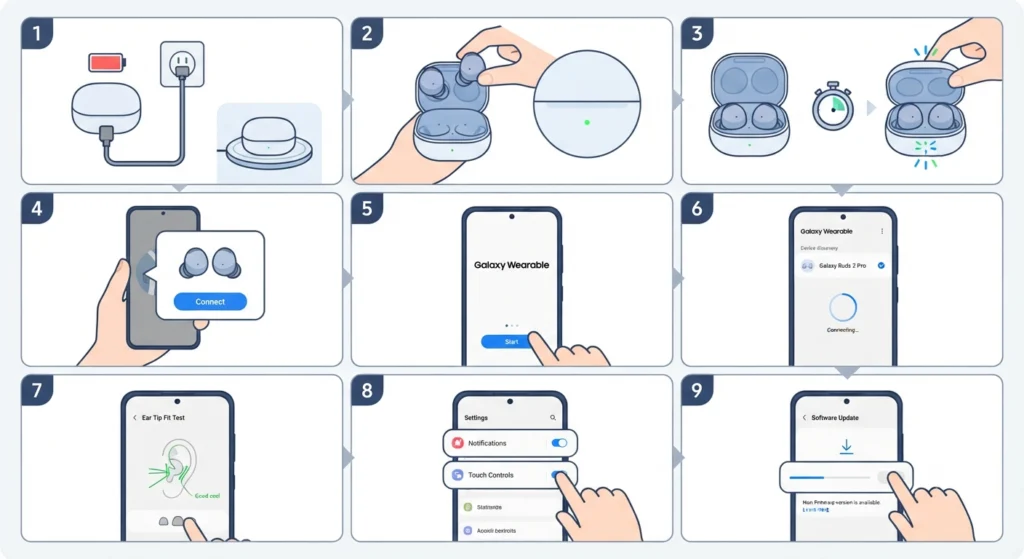
Here is the complete setup process, broken down in the order it should actually happen. Following these steps in sequence avoids the most common pairing hiccups people run into on day one.
- Step 1: Charge the earbuds and case before doing anything else. Plug the case into a USB-C cable or set it on a wireless charger for at least 30 minutes. A low battery on either earbud is one of the most common reasons pairing fails on the first attempt.
- Step 2: Remove both earbuds from the case and check the LED indicator on the case lid. A steady light confirms the case has power and is ready to pair.
- Step 3: Place both earbuds back into the charging case and close the lid. Wait about five to six seconds before opening it again. This action triggers Bluetooth pairing mode automatically, and the case LED will start blinking to confirm it.
- Step 4: On a Samsung Galaxy phone, a pairing notification typically pops up on the screen within a few seconds of opening the case near the phone. Tap that notification to begin setup. On other Android phones, open the Galaxy Wearable app instead, since the automatic pop-up usually only appears on Samsung devices.
- Step 5: If the Galaxy Wearable app is being used for the first time, tap Start (or Continue, depending on the app version) on the welcome screen. If a device has already been paired before, tap the menu icon and select Add new device instead.
- Step 6: Select the Galaxy Buds 2 Pro from the list of detected devices and confirm the connection when prompted. The app will briefly show a connecting animation before settling into the home screen.
- Step 7: Once connected, the app usually prompts an ear tip fit test. Pick the ear tip size that came closest to fitting comfortably in the box and run the test, since a poor seal affects both sound quality and active noise cancellation.
- Step 8: Finish any on-screen setup prompts, such as enabling notifications reading or setting up touch controls. These are optional but worth doing during the initial setup rather than digging through menus later.
- Step 9: Check for a firmware update inside the Galaxy Wearable app under Earbuds settings. Updating right away resolves several known connectivity quirks that older firmware versions had at launch.
Pro-Tip: If the phone does not show a pairing pop-up within ten seconds of opening the case, try closing the lid and reopening it once more. The earbuds sometimes need a second trigger to properly broadcast their Bluetooth signal, especially if they were already paired with a different device beforehand.
Setting Up on Devices Without the Galaxy Wearable App
Not every device supports the Galaxy Wearable app, and that is perfectly fine. The Buds 2 Pro still work as standard Bluetooth earbuds on iPhones, Mac computers, and basic Bluetooth-enabled devices like TVs.
Method 1: Pairing with an iPhone or iPad
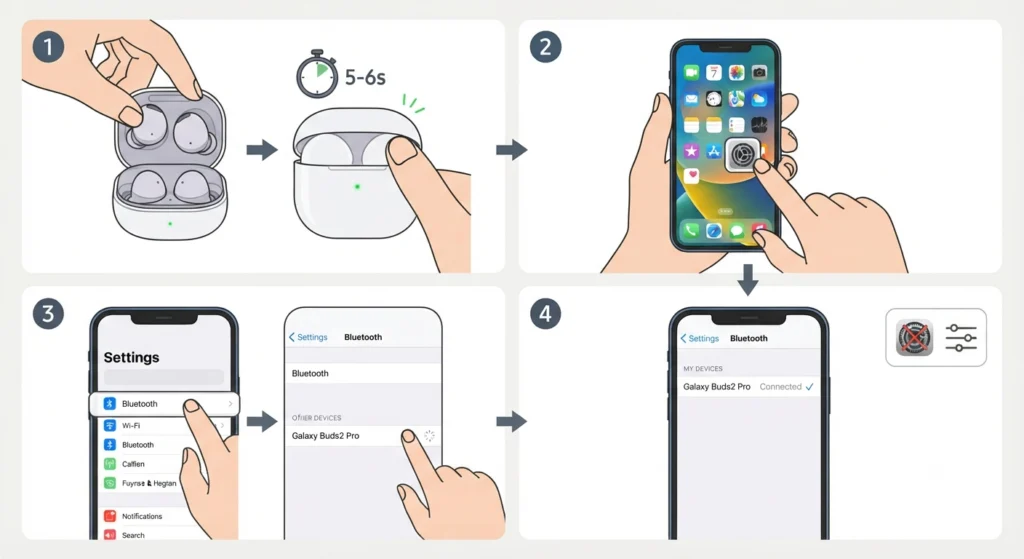
- Step 1: Place both earbuds in the case, close the lid for five to six seconds, then open it to enter pairing mode.
- Step 2: Open Settings on the iPhone and tap Bluetooth.
- Step 3: Turn on Bluetooth if it is not already active, then select Galaxy Buds2 Pro from the list under Other Devices.
- Step 4: Wait for the connection to complete. There is no companion app for full feature access on iOS, so things like noise control levels and EQ settings will not be available.
Method 2: Pairing with a Mac Computer
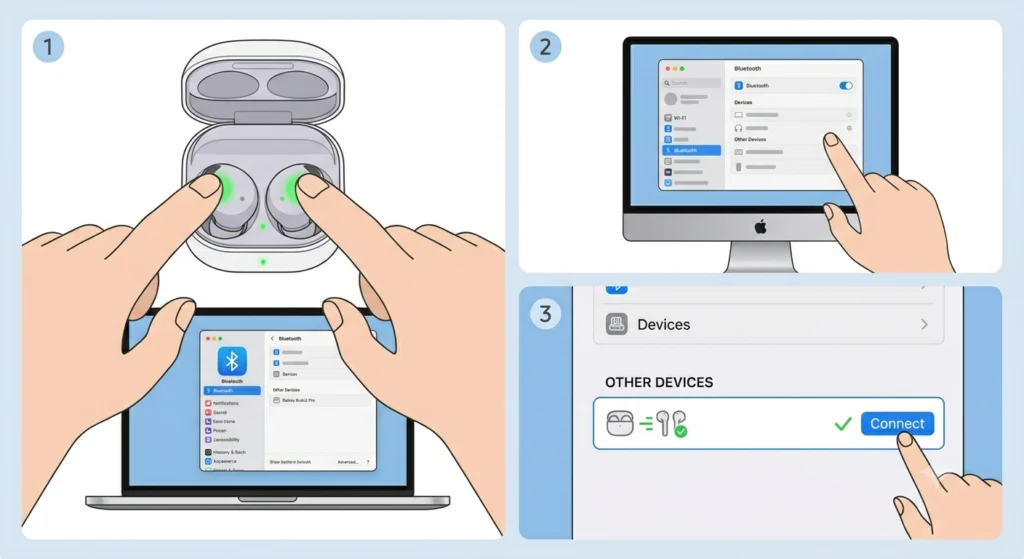
- Step 1: Put the earbuds in pairing mode using the same case method described above.
- Step 2: On the Mac, go to System Settings, then Bluetooth.
- Step 3: Select Galaxy Buds2 Pro once it appears in the device list and click Connect.
Method 3: Pairing with a Windows PC
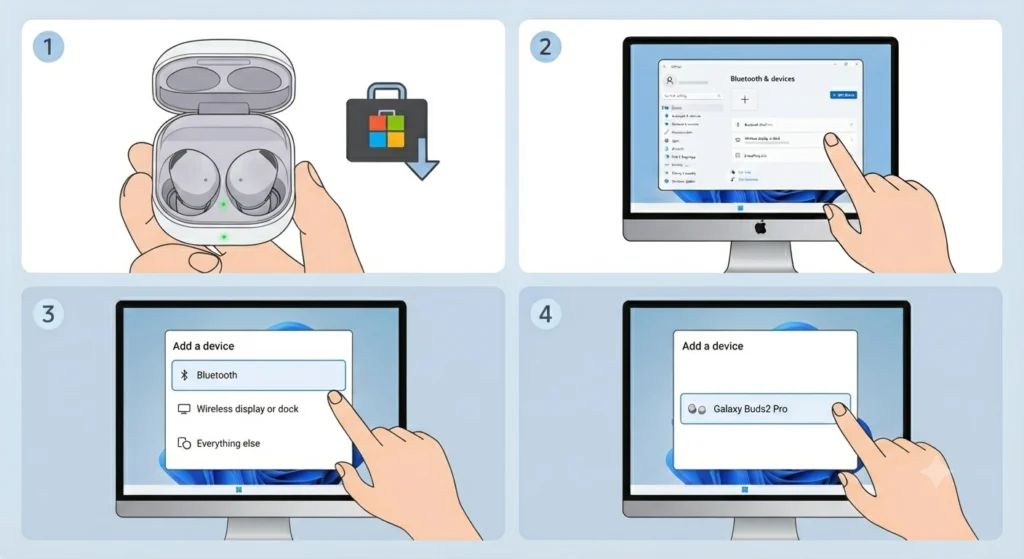
- Step 1: Download the Galaxy Buds app from the Microsoft Store for the smoothest setup experience, or skip straight to manual pairing through Windows Bluetooth settings.
- Step 2: Put the earbuds into pairing mode by closing and reopening the case lid.
- Step 3: Open Settings on the PC, go to Bluetooth & devices, then click Add device.
- Step 4: Select Bluetooth from the options shown and choose Galaxy Buds2 Pro from the discovered devices list.
Anyone setting these up on a laptop for the first time and running into a one-sided connection or stuttering audio will usually find it helpful to re-pair the earbuds for proper stereo sound on Windows, since Windows sometimes connects only one earbud channel on the first attempt.
Getting the Ear Tip Fit Right
The Galaxy Buds 2 Pro ship with three ear tip sizes, and picking the wrong one is one of the most overlooked parts of initial setup. A loose fit lets outside noise leak in and weakens bass response, while a tip that is too tight can feel uncomfortable within twenty minutes of wear.
The Galaxy Wearable app includes a built-in fit test that plays a short sound and analyzes the seal in each ear. Running this test after pairing, rather than guessing based on comfort alone, gives a more reliable read on whether the seal is actually good enough for proper noise cancellation.
Tips for a Smooth First Setup
- Keep the phone or PC within three feet of the earbuds during the initial pairing process, since longer distances can cause the connection to drop before it fully completes.
- Turn off Bluetooth on any other earbuds or headphones nearby before pairing, as having multiple Bluetooth audio devices active at once sometimes causes the wrong device to grab the connection.
- Always pair through the case rather than by touching the earbuds in the ears for the very first connection, since the case method is what most phones and the Galaxy Wearable app expect to detect.
- Charge the case fully even if the earbuds themselves show decent battery, since a low case charge can interrupt the pairing handshake partway through.
- For anyone using a desktop or laptop, double-checking that the correct playback device is selected afterward makes a noticeable difference; this guide on adjusting audio output settings on Windows 11 covers exactly where to find that setting.
Common Setup Problems and How to Fix Them
Fix 1: Earbuds Do Not Appear in the Bluetooth List
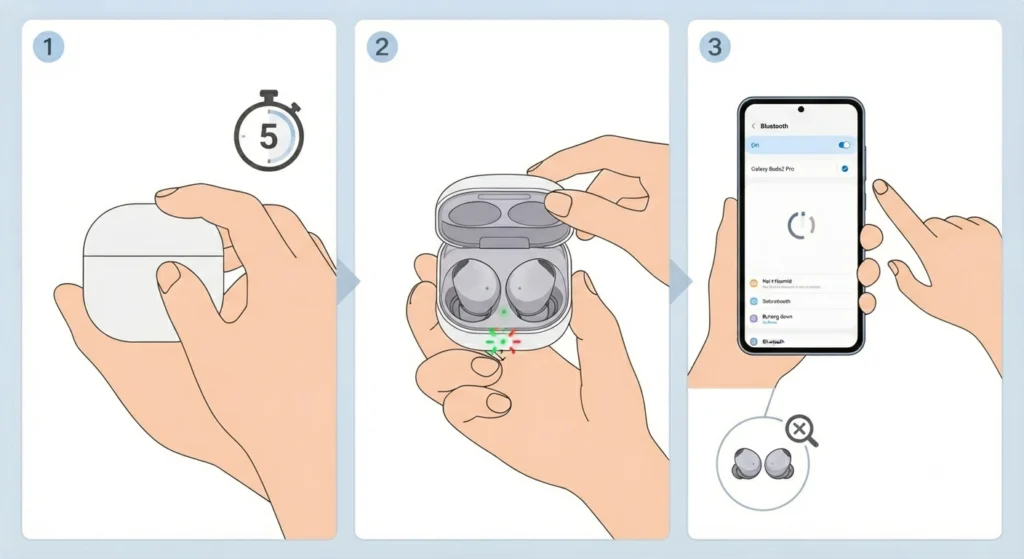
This usually means pairing mode was not triggered correctly. Close the case lid completely for a full five seconds, then reopen it slowly. If nothing shows up after two attempts, restart Bluetooth on the connecting device entirely rather than just toggling it off and on quickly.
Fix 2: Only One Earbud Connects
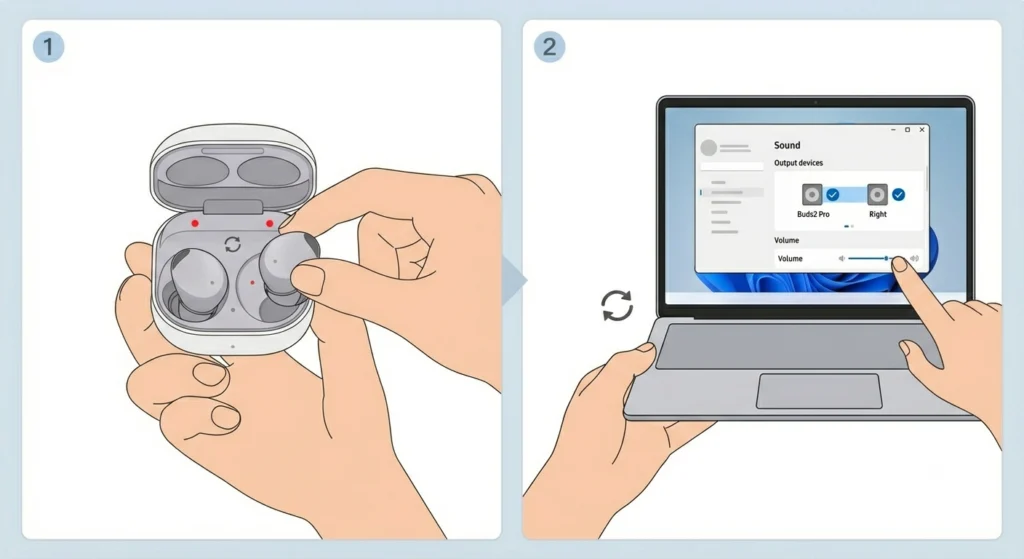
Place both earbuds back in the case together, close the lid, and reopen it so they resync with each other before reconnecting to the device. This is a far more common issue on Windows PCs than on phones, and Windows users dealing with repeated single-earbud connections may want to follow this guide on managing audio input devices on Windows 11 to confirm both channels are properly recognized.
Fix 3: Microphone Is Not Detected During Calls
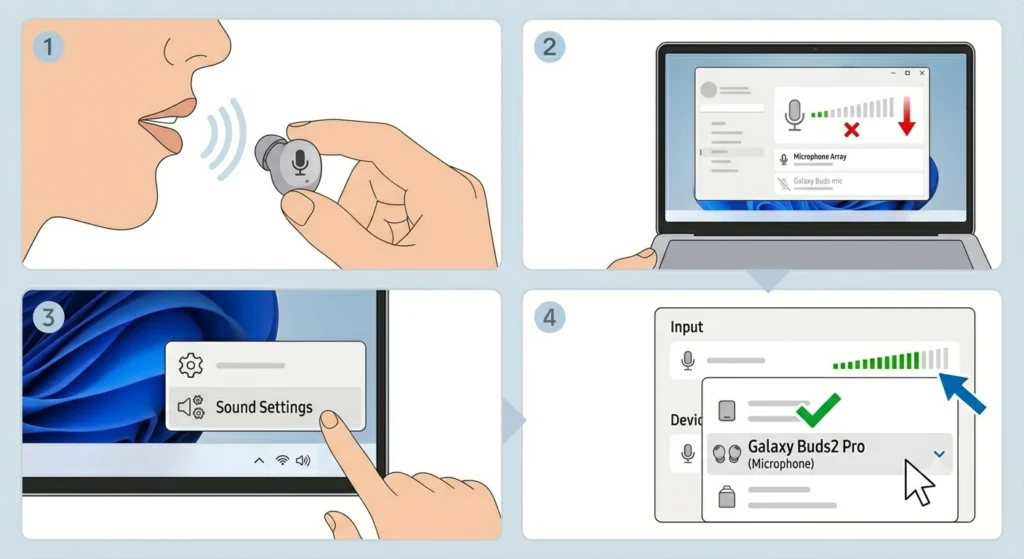
If calls connect but the other person cannot hear anything, the microphone input may not be set correctly at the system level rather than the earbuds themselves. This step-by-step guide on resolving microphone detection problems on Windows 11 walks through the exact settings to check.
Fix 4: Audio Sounds Distorted or Cuts Out Right After Pairing
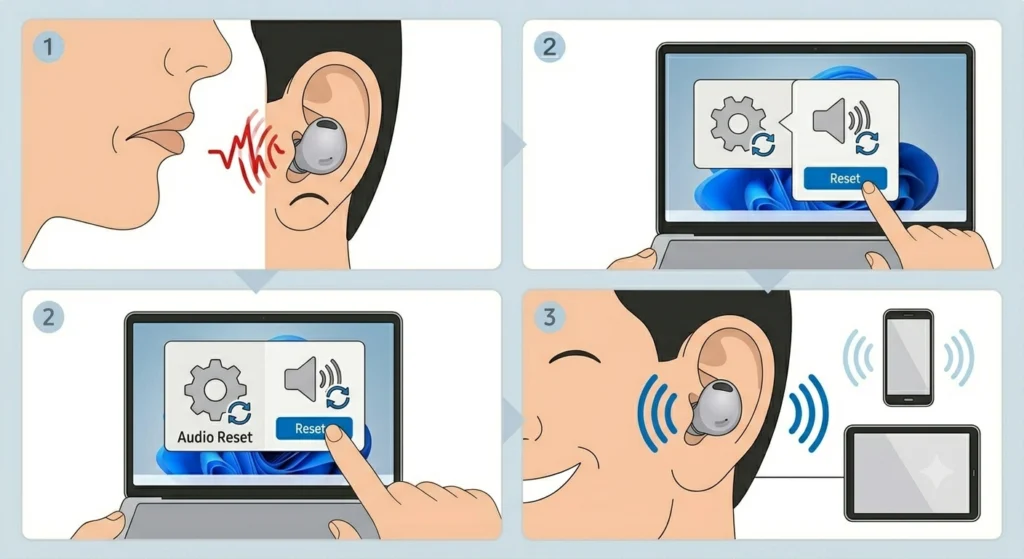
This is often a leftover setting from a previous Bluetooth device rather than an issue with the Buds 2 Pro themselves. Resetting the audio configuration clears out conflicting settings, and this guide on resetting audio settings on Windows 11 covers how to do that safely without losing other device pairings.
Pro-Tip: Before assuming the earbuds themselves are faulty, always test them on a second device first. A huge number of so-called defective earbuds turn out to be a one-off software glitch on a single phone or computer, not a hardware problem at all.
Frequently Asked Questions
How long does it take to charge the Galaxy Buds 2 Pro for the first time?
A full charge from empty typically takes around 60 to 90 minutes using a USB-C cable. Wireless charging tends to take slightly longer.
Do the Galaxy Buds 2 Pro work with non-Samsung Android phones?
Yes. The Galaxy Wearable app supports most Android phones running a compatible Android version, though some Samsung-exclusive features may be limited.
Can the Galaxy Buds 2 Pro connect to two devices at the same time?
Yes, this is supported through a feature that allows automatic switching between two connected devices, such as a phone and a laptop, without needing to manually disconnect and reconnect each time.
What should be done if the case will not show a pairing notification on a Samsung phone?
Make sure Bluetooth is turned on and that the phone is running a recent One UI version. Opening the case closer to the phone, within a foot or two, often resolves a missed pop-up.
Is the Galaxy Wearable app required to use the Galaxy Buds 2 Pro?
No. The earbuds function as standard Bluetooth headphones without the app, though features like noise control adjustment, EQ settings, and firmware updates require it.
How can it be confirmed that the ear tips fit correctly?
The Galaxy Wearable app includes a fit test under Earbuds settings that checks the seal in each ear after the initial pairing is complete.
Can the Galaxy Buds 2 Pro be used with a Windows PC without the dedicated app?
Yes, manual pairing through the Windows Bluetooth settings menu works without installing anything, though the companion app does offer more control over settings.
Why does only one earbud produce sound after the first pairing attempt?
This typically happens when the earbuds lose sync with each other. Placing both back in the case and reopening the lid resets that internal connection before reconnecting to the device.
Should the firmware be updated immediately after the first setup?
Yes. Checking for an update right after pairing through the Galaxy Wearable app is good practice, since firmware updates often resolve early connectivity issues.
How close do the earbuds need to be to the device during initial pairing?
Staying within about three feet is recommended for the most reliable first connection, even though the working Bluetooth range extends much further once paired.