
Key Takeaways
- Astro A50 X mic not working is usually caused by a muted mic switch, a loose base station connection, or the wrong input device selected in Windows.
- Most fixes take less than five minutes and do not require any tools or technical background.
- G HUB software controls firmware updates, EQ settings, and mic level testing for the A50 X LIGHTSPEED headset.
- Windows 11 microphone privacy permissions are one of the most overlooked causes of a silent mic.
- Physical damage to the boom mic is rare but should be ruled out if software fixes do not help.
A silent microphone in the middle of a match or a work call is one of the most frustrating things that can happen with a premium headset like the Astro A50 X. This guide covers exactly what causes an Astro A50 X mic not working and walks through each fix in the order that resolves the issue fastest, based on how this headset actually communicates with a PC, Xbox, or PS5.
Step-by-Step Guide to Fix Astro A50 X Mic Not Working
Fix 1: Check the Mic Mute Switch and Boom Position
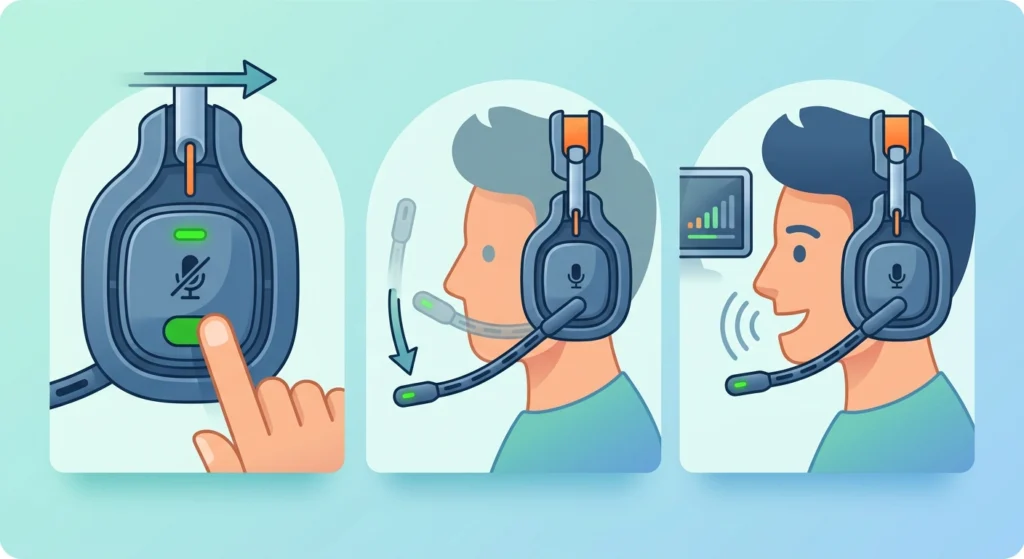
This sounds obvious, but it is the number one reason the mic goes silent, especially after cleaning the headset or adjusting the boom arm. The A50 X uses a mute control built into the ear cup, and the boom arm itself also acts as a mute trigger on many Astro models when flipped up.
- Step 1: Look at the mic mute button or switch on the headset and confirm it is set to unmuted (most models show a red indicator or LED when muted).
- Step 2: Lower the boom microphone fully into the speaking position, since raising it can automatically mute the mic on this headset line.
- Step 3: Speak into the mic and check for a mute confirmation tone or LED change to confirm the state.
Pro-Tip: If the mute status is unclear, open G HUB and watch the live mic input meter while speaking. A flat, unmoving meter almost always points back to a mute switch issue rather than a hardware failure.
Fix 2: Confirm the Base Station and Connection Mode

The A50 X LIGHTSPEED headset relies on its base station for wireless audio and mic transmission, and it needs to be set to the correct platform mode to work properly.
- Step 1: Confirm the headset is seated correctly on the base station and powered on.
- Step 2: Check that the base station is set to the platform actually in use, since PLAYSYNC allows switching between PC, Xbox, and PS5 with one button, and a mismatched mode will block mic input even if audio plays fine.
- Step 3: Try a different USB port on the computer or console, avoiding USB hubs, since those can cause intermittent connection drops.
Fix 3: Set the Correct Input Device on Windows
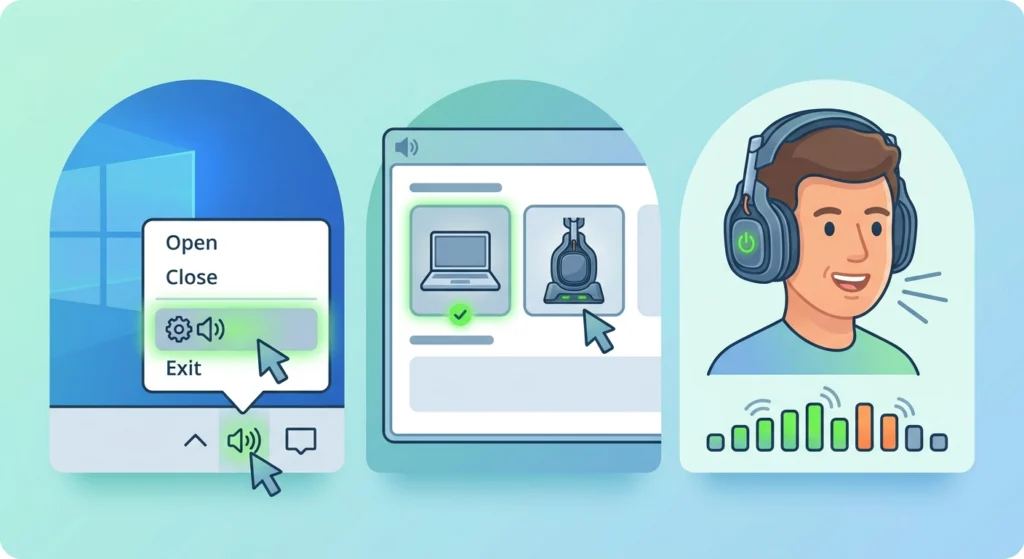
Windows sometimes defaults to a different microphone, especially on laptops with a built-in mic or a webcam microphone installed.
- Step 1: Right-click the speaker icon in the taskbar and open Sound settings.
- Step 2: Under Input, select the Astro A50 X or its LIGHTSPEED receiver as the default microphone.
- Step 3: Speak normally and watch the input volume meter to confirm it responds.
For a deeper look at diagnosing input problems that go beyond a simple device swap, this guide on resolving microphone detection problems covers additional Windows 11 settings worth checking.
Fix 4: Update Firmware and Drivers Through G HUB

Logitech G HUB is the official software for the A50 X and handles firmware updates, EQ presets, and mic configuration. Outdated firmware is a common cause of mic dropouts that were not present when the headset was new.
- Step 1: Install G HUB from the official Logitech G website if it is not already on the system.
- Step 2: Connect the base station directly to the computer and open G HUB.
- Step 3: Check for available firmware updates for both the headset and the base station, and install any that appear.
- Step 4: Restart the headset and base station once the update finishes.
Fix 5: Review Microphone Privacy Permissions in Windows 11
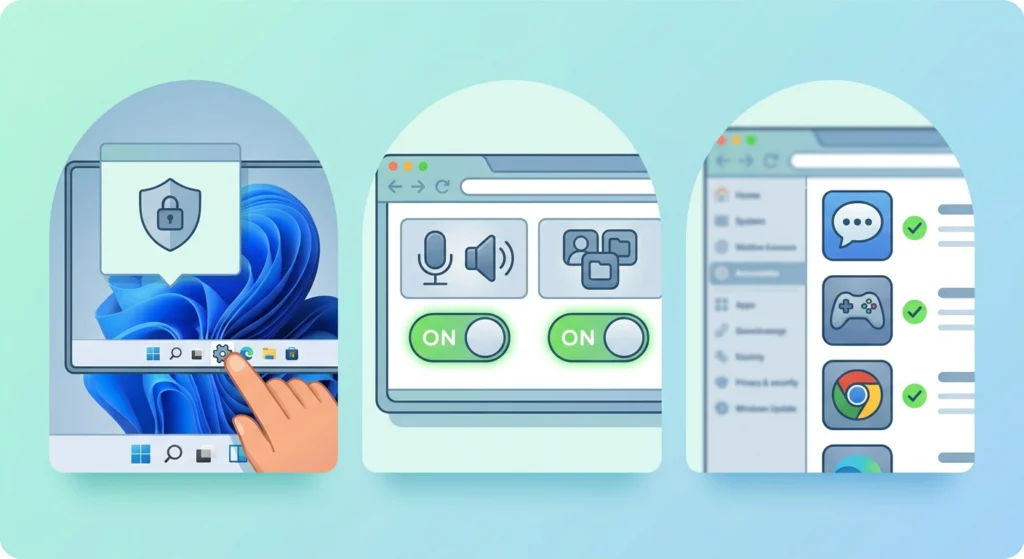
This step gets overlooked constantly, and it explains a lot of cases where the mic shows up in settings but still does not transmit any sound in games or chat apps.
- Step 1: Open Settings, then go to Privacy & security, then Microphone.
- Step 2: Turn on microphone access for the system, then turn on the option that lets apps access the microphone.
- Step 3: Scroll down and confirm the specific app being used, such as Discord or a game client, is allowed to use the microphone.
Anyone managing multiple input devices across different apps will find this walkthrough on managing audio input devices useful for keeping permissions and defaults organized going forward.
Fix 6: Test and Adjust Mic Level in G HUB
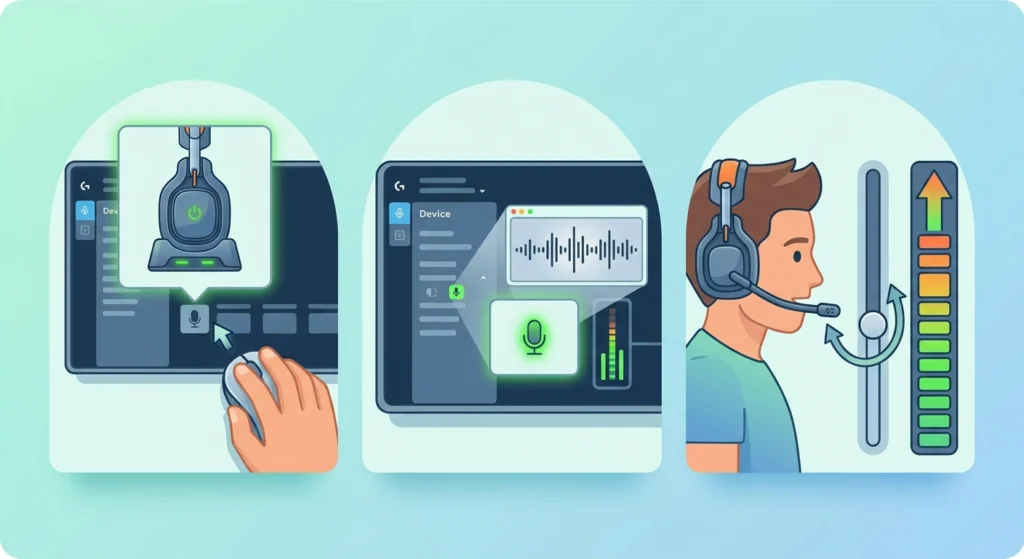
A mic that technically works but sounds too quiet or cuts out under load usually needs a gain adjustment rather than a full reinstall.
- Step 1: Open G HUB and select the A50 X device panel.
- Step 2: Locate the microphone input settings and start a test recording.
- Step 3: Raise the input gain gradually while speaking at a normal volume until the meter reflects clear, consistent levels.
Pro-Tip: Avoid maxing out the gain slider to compensate for a quiet mic. Pushing it too high introduces background noise and static, which sounds worse to teammates than a slightly quiet signal.
Tips to Keep the Astro A50 X Mic Working Reliably
- Keep G HUB updated automatically rather than checking manually, since firmware patches often address mic stability specifically.
- Store the headset on the base station when not in use so the boom arm stays in a consistent, undamaged position.
- Avoid connecting the base station through USB extension cables, which can introduce enough signal loss to cause intermittent mic drops.
- Clean the mic grille occasionally with a dry, soft brush, since dust buildup on the mic port can muffle voice pickup over time.
Common Problems and Troubleshooting
Beyond the main fixes above, a few recurring issues are worth knowing since they have quick, specific answers.
- Mic works in Windows but not in-game: the game itself often has a separate audio device setting that overrides the system default, so that needs to be checked inside the game’s own audio menu.
- Mic cuts out only during Bluetooth use: since the base station supports simultaneous Bluetooth and LIGHTSPEED connections, an overloaded wireless environment can cause interference, and this guide on re-pairing Bluetooth audio devices is helpful when troubleshooting that specific conflict.
- Mic sounds distorted after an update: this typically clears up after resetting the EQ and mic profile back to default inside G HUB rather than adjusting individual sliders.
- Audio settings feel inconsistent between sessions: reviewing and resetting saved profiles can help, and this resource on resetting audio settings outlines how to start from a clean baseline.
Frequently Asked Questions
Why is the Astro A50 X mic not working on PC but works fine on console?
This usually points to a Windows-side issue rather than the headset itself, such as the wrong default input device or a privacy permission blocking microphone access for a specific app.
Does the Astro A50 X need special software to fix mic issues?
G HUB is the official software for this headset and is required for firmware updates, mic level testing, and EQ adjustments, so it should be installed for any deeper troubleshooting.
Why does the mic mute automatically when the boom arm is raised?
Raising the boom arm on many Astro headsets, including this model, triggers an automatic mute as a built-in convenience feature, so lowering it back into position typically restores mic input immediately.
Can a loose base station connection cause the mic to stop working?
Yes, since the base station handles both audio output and mic input wirelessly, a poor USB connection or an incorrect platform mode can silence the mic even while game audio continues to play normally.
How can the mic input be tested without joining a game or call?
G HUB includes a built-in mic test feature that shows a live input meter, which is the most reliable way to confirm the mic is transmitting before troubleshooting further.
Why does the mic work in some apps but not others, like Discord or a specific game?
Individual apps often have their own audio input settings that are separate from the Windows system default, so the correct device needs to be selected inside that app as well.
Does firmware really affect microphone performance on the A50 X?
Yes, firmware updates for this headset frequently include improvements to mic gain handling and wireless stability, both of which directly affect how consistently the mic performs.
Is it normal for the mic volume to sound low even at maximum gain?
If gain is maxed out in G HUB and the mic still sounds quiet, a firmware update or a full reset of the mic profile in G HUB usually resolves it before hardware is considered the cause.
Can Bluetooth interference cause mic problems on the A50 X?
Since the base station supports simultaneous Bluetooth and LIGHTSPEED wireless connections, a crowded wireless environment can occasionally cause brief mic interruptions, particularly near other 2.4GHz devices.
What should be checked first if the mic worked yesterday but not today?
Start with the mute switch and boom arm position, since a sudden mic failure with no other changes is most often accidental muting rather than a technical fault.