
AKG K371 no sound in wired mode usually points to a loose cable, a wrong audio output selection, or a driver conflict rather than a hardware failure. Since the K371 depends on a physical connection for wired listening, even a small misalignment at the jack can cut the signal completely. This guide walks through the exact fixes needed to restore sound, starting with the simplest cause and moving toward deeper system-level solutions.
Key Takeaways
- Most wired sound issues on the AKG K371 trace back to a loose or misaligned 3.5mm jack
- Windows often defaults to the wrong output device once headphones are plugged in
- A worn or damaged cable is one of the most overlooked causes of silent audio
- Updating or reinstalling audio drivers resolves persistent no-sound issues on newer Windows builds
- Testing the headphones on a second device quickly confirms whether the issue is the headphones or the source device
Step-by-Step Guide to Fix AKG K371 No Sound in Wired Mode
Work through these fixes in order. Most users find the problem resolves within the first two or three steps, but the later fixes cover the less common causes.
Fix 1: Check the Cable and Jack Connection
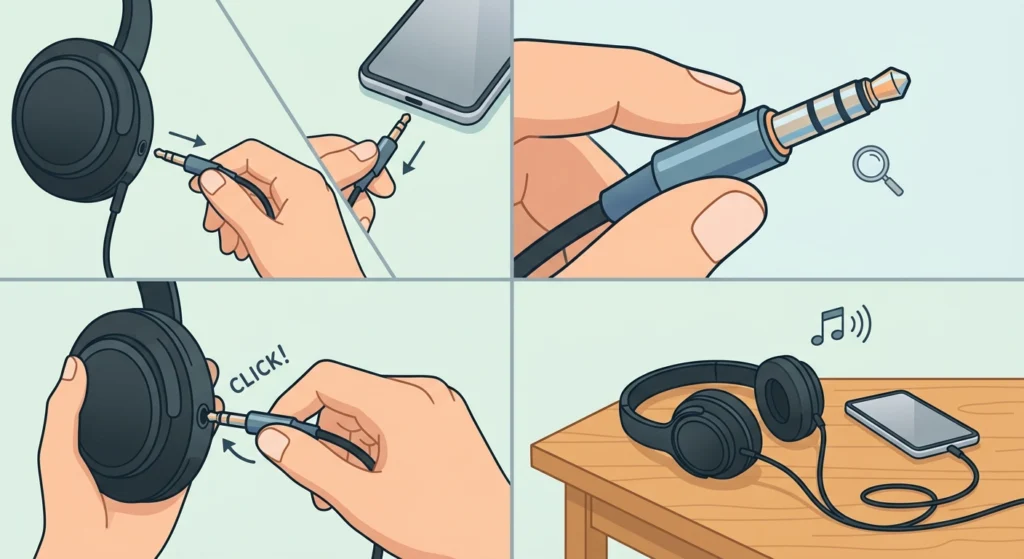
A loose connection is the most common reason wired headphones stop producing sound, especially with detachable cables like the one used on the K371.
- Step 1: Unplug the cable fully from both the headphone side and the source device.
- Step 2: Inspect the 3.5mm jack for dust, lint, or a bent pin.
- Step 3: Reinsert the cable firmly into both ends until it clicks or seats completely.
- Step 4: Play audio again and check whether sound returns.
Pro-Tip: The K371’s cable connector needs to sit flush against the earcup. A cable that looks plugged in but sits slightly angled will often produce silence or sound in only one ear.
Fix 2: Select the Correct Audio Output Device
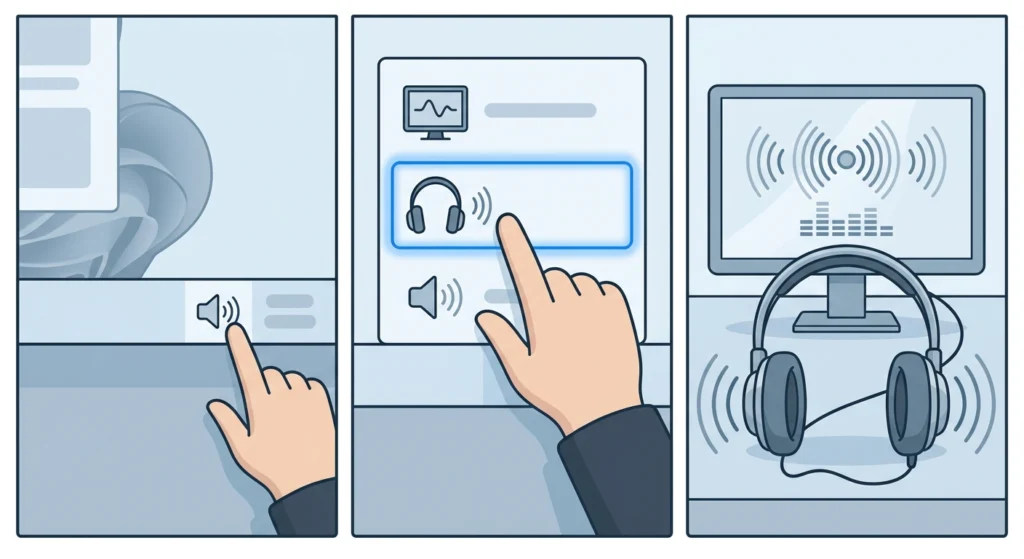
Windows sometimes keeps a previous output device active even after headphones are connected. This is one of the most frequent causes of a wired connection producing no sound at all.
- Step 1: Right-click the speaker icon in the taskbar.
- Step 2: Choose the output device labeled Headphones or AKG K371 from the list.
- Step 3: Play a test sound to confirm audio comes through the headphones.
For a more detailed walkthrough on adjusting audio output settings, the linked guide covers every menu involved in Windows 11.
Fix 3: Test With a Different Cable
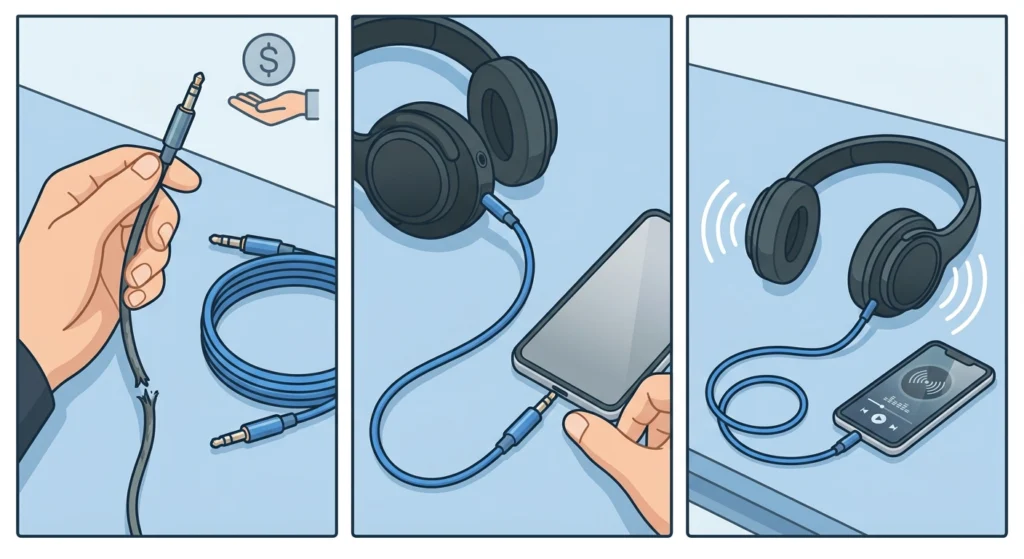
Cables wear out over time, particularly at the point where the wire meets the connector. A frayed or internally broken cable often shows no visible damage on the outside.
- Step 1: Borrow or purchase a standard 3.5mm replacement cable.
- Step 2: Connect it to the K371 and the source device.
- Step 3: Play audio to see if sound is restored.
Fix 4: Clean the Headphone Jack Port
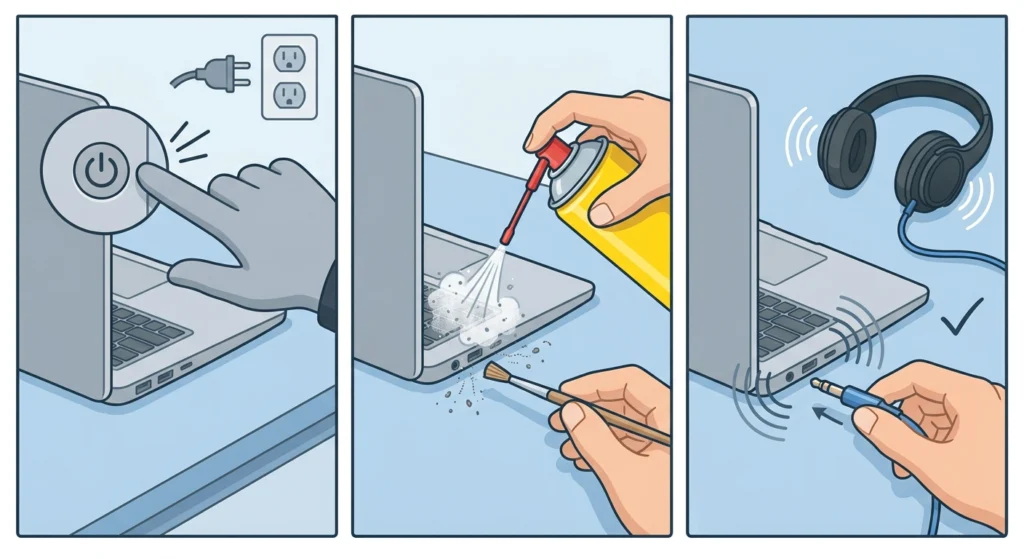
Lint and dust buildup inside the 3.5mm port on a laptop or audio interface can prevent a full connection even when the cable itself is fine.
- Step 1: Power off the device before cleaning.
- Step 2: Use a can of compressed air or a soft, dry brush to clear the port.
- Step 3: Reconnect the cable and test playback.
Fix 5: Update or Reinstall the Audio Driver
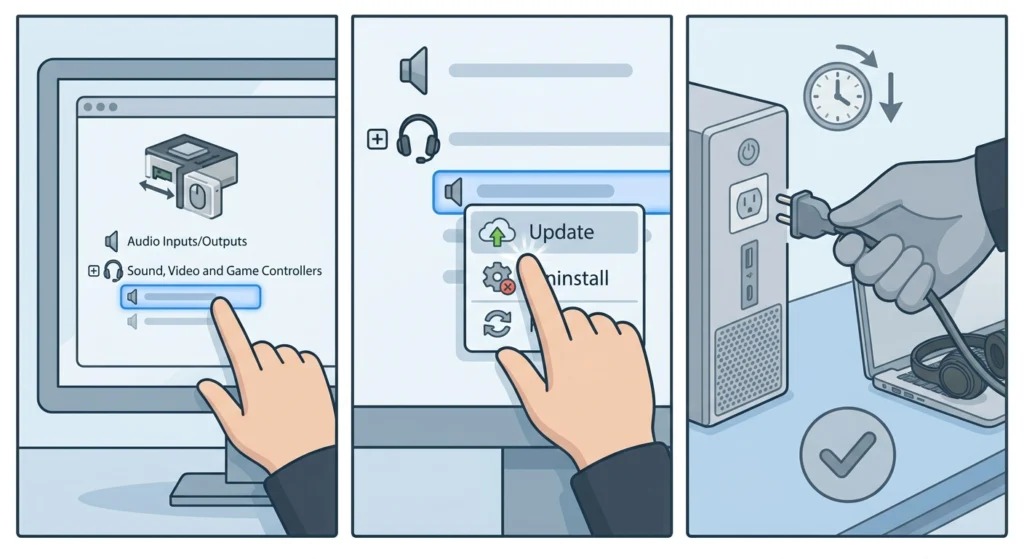
An outdated or corrupted audio driver can silently block sound output even when every physical connection is correct.
- Step 1: Open Device Manager and expand the Sound, Video and Game Controllers section.
- Step 2: Right-click the active audio driver and select Update Driver.
- Step 3: If updating does not help, uninstall the driver and restart the device to let Windows reinstall it automatically.
Fix 6: Reset Windows Audio Settings
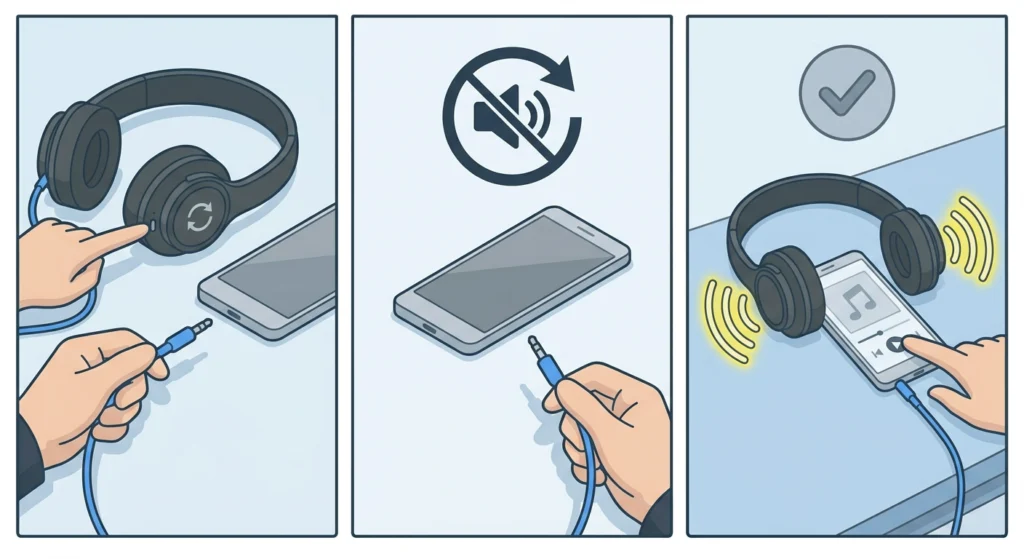
When output selection and drivers both check out, a full audio reset often clears whatever configuration is blocking sound.
- Step 1: Open Windows Settings and navigate to the Sound section.
- Step 2: Follow the reset process for playback devices.
- Step 3: Reconnect the K371 and test sound again.
The full process is explained in this guide on resetting audio settings, which covers the reset options available in Windows 11.
Fix 7: Disable Audio Enhancements
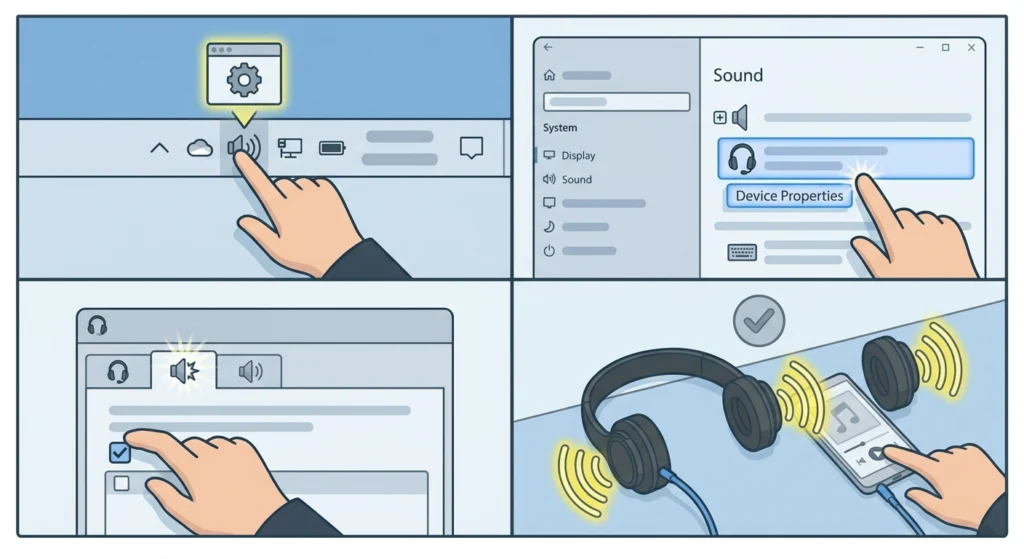
Certain built-in audio enhancements can conflict with wired headphone output, particularly after a Windows update changes default settings.
- Step 1: Right-click the sound icon and open Sound Settings.
- Step 2: Select the headphone device and open its properties.
- Step 3: Open the Enhancements tab and disable all effects.
- Step 4: Play audio again to confirm the fix.
Pro-Tip: Audio enhancements are usually enabled by default on new Windows installs. Disabling them is a quick check that takes less than a minute but resolves a surprising number of wired sound complaints.
Tips to Keep the AKG K371 Working Reliably in Wired Mode
- Store the cable coiled loosely rather than tightly wrapped to avoid internal wire stress
- Avoid pulling the cable from the wire itself when disconnecting; grip the connector instead
- Check the jack for pocket lint if the headphones were recently carried in a bag
- Keep the audio driver updated through Windows Update rather than relying only on manual checks
Common Problems With AKG K371 Wired Sound
Sound Plays in Only One Ear
This usually points to a cable that is not fully seated in the jack or a connector pin that has bent slightly from repeated use. Reseating the cable resolves most cases.
Sound Cuts In and Out
Intermittent sound is a classic sign of cable wear near the connector. Gently flexing the cable near each end while audio plays can help confirm this is the cause.
Low Volume Even at Maximum Setting
This can happen when the source device output is set lower than expected or when an enhancement setting is compressing the audio signal. Checking both the system volume and the enhancement settings usually clears it up.
Frequently Asked Questions
Why does the AKG K371 produce no sound only in wired mode?
Wired mode depends entirely on a physical connection, so any looseness at the jack, a damaged cable, or an incorrect output selection in Windows will block sound even though the headphones themselves work fine.
Does the AKG K371 need a driver to work with a computer?
No dedicated driver is required. The K371 uses the standard audio driver already built into Windows, so sound issues are almost always related to settings or the physical connection rather than missing software.
Can a damaged cable really cause complete silence?
Yes. A broken wire inside the cable can interrupt the entire signal path even if the outer casing looks undamaged. Testing with a replacement cable is the fastest way to rule this out.
Why does Windows keep switching the audio output away from the headphones?
This typically happens when multiple playback devices are connected or recently used. Manually selecting the K371 as the default output after plugging in usually prevents this from repeating.
Is it normal for the 3.5mm jack to need occasional cleaning?
Yes, especially for devices carried in bags or used in dusty environments. Lint buildup inside the jack is a common and easily fixed cause of connection problems.
Should the cable be replaced with an official AKG cable only?
A standard 3.5mm cable will work for testing purposes, but using the official AKG replacement cable ensures the correct fit and length for the K371’s connector design.
Does updating Windows affect headphone sound settings?
It can. Windows updates sometimes reset audio enhancement settings or default output selections, which is why checking these settings after a major update is worth doing.
Why does sound work in one app but not another?
Some applications have their own audio output setting separate from the system default. Checking the sound settings inside the specific app resolves this in most cases.
Can a laptop’s headphone jack itself be the problem?
Yes. If another pair of wired headphones also produces no sound on the same jack, the port itself may be damaged rather than the K371.
How long does it typically take to fix a no-sound issue like this?
Most cases are resolved within the first few fixes, usually within five to ten minutes, since the majority of causes trace back to the cable connection or the output device selection.