
Beats Studio Buds+ mic not working during calls is one of the most common complaints among users who rely on these earbuds for meetings, video chats, and everyday phone conversations. The issue usually comes down to a handful of predictable causes, and most of them can be fixed in a few minutes without any special tools.
Key Takeaways:
- Dirt on the microphone mesh is the most common cause of muffled or silent mic audio.
- Outdated firmware often breaks call quality even when music playback sounds fine.
- Windows 11 users should double-check which device is set as the default input.
- A factory reset resolves most persistent Bluetooth-related mic failures.
- Using one earbud at a time can sometimes cause the mic to switch unexpectedly.
Step-by-Step Guide to Fix Beats Studio Buds+ Mic Not Working
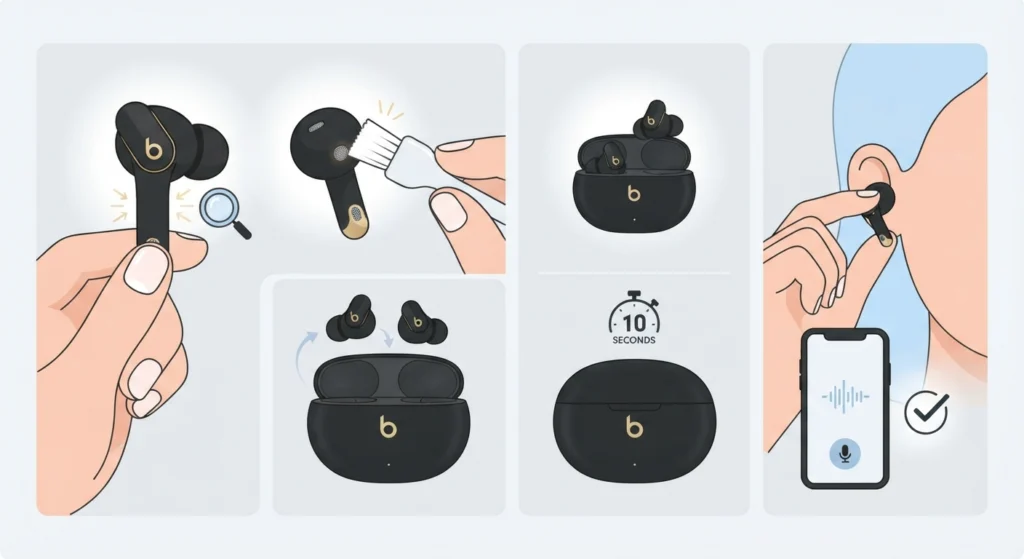
This first method solves the issue for most people, especially when the mic worked before and suddenly stopped responding on calls.
- Step 1: Remove both earbuds from the ears and inspect the small mesh openings near the stem. This is where the microphones sit, and even a thin layer of dust or earwax can muffle input audio.
- Step 2: Gently clean the mesh using a dry, soft-bristled brush. Avoid water, alcohol, or sharp objects, since these can damage the internal microphone components.
- Step 3: Place the buds back in the case, close the lid, and wait ten seconds before reopening it. This forces a fresh Bluetooth handshake with the connected device.
- Step 4: Reconnect the earbuds and start a short test call or voice memo recording to confirm the mic is picking up sound clearly.
- Step 5: If the audio is still muffled or silent, move to the firmware update method below, since outdated software is the next most likely cause.
Pro-Tip: Earwax buildup happens faster for people who exercise regularly or use the buds daily for long calls. Cleaning the mesh once a week prevents most mic problems before they start.
Fix 2: Update Firmware Using the Beats App
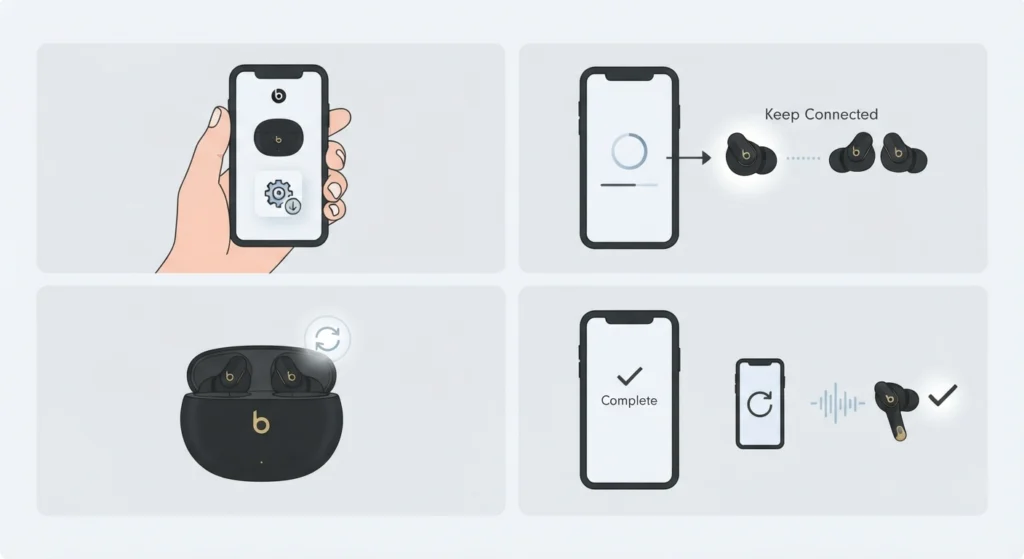
Firmware controls how the microphone communicates with the connected phone or laptop. When it falls behind, call audio often breaks even though music and podcasts play normally.
- Step 1: Open the Beats app on the paired device and select Beats Studio Buds+ from the device list.
- Step 2: Check the firmware section for any available update and install it while the earbuds stay within range and connected.
- Step 3: Keep the earbuds in the case with the lid open until the update finishes completely, since interrupting it can cause connection errors.
- Step 4: Once updated, restart the paired device and rejoin a test call to confirm the microphone responds properly.
Fix 3: Adjust Bluetooth and Input Device Settings on Windows 11
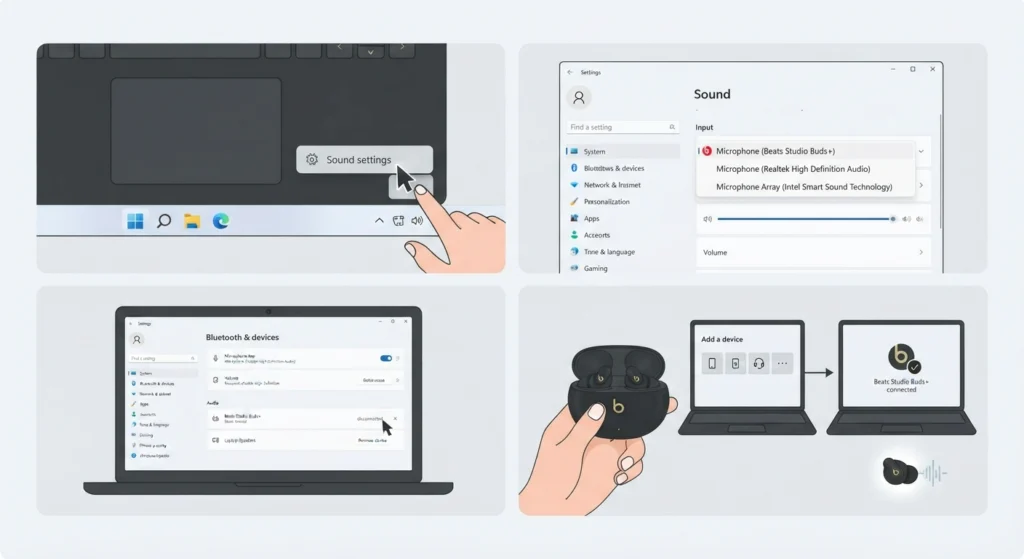
Windows laptops sometimes default to the wrong input source, which makes it seem like the mic has failed when it’s actually just not selected. Anyone who has struggled with this before knows how frustrating it feels to sound perfect on one call and completely silent on the next.
- Step 1: Right-click the speaker icon in the taskbar and open sound settings.
- Step 2: Under input devices, confirm that Beats Studio Buds+ is selected as the default microphone rather than a built-in laptop mic. Reviewing how to manage audio input devices on Windows 11 makes this step much faster for anyone unfamiliar with the settings menu.
- Step 3: If the earbuds don’t appear in the list at all, Windows may not be detecting the microphone correctly. This guide on resolving microphone detection problems walks through the exact fix for that situation.
- Step 4: Remove the earbuds from Bluetooth settings, then re-pair them from scratch to reset the audio profile Windows uses for calls.
Fix 4: Reset Beats Studio Buds+ to Factory Settings
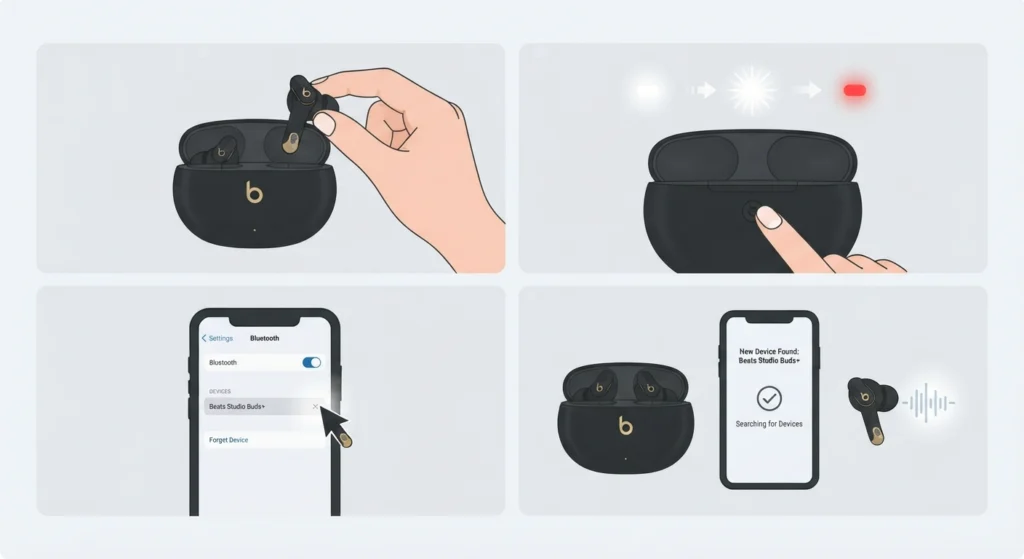
When cleaning and firmware updates don’t resolve the mic issue, a factory reset usually clears out corrupted pairing data that’s silently causing the problem.
- Step 1: Place both earbuds in the case but leave the lid open.
- Step 2: Press and hold the button on the back of the case for about fifteen seconds until the LED flashes white, then red, confirming the reset.
- Step 3: Forget the Beats Studio Buds+ device from Bluetooth settings on the phone or computer being used.
- Step 4: Re-pair the earbuds as a new device and test the microphone on a fresh call.
Pro-Tip: A factory reset erases any custom controls set through the Beats app, so it’s worth noting down preferred settings before starting this fix.
Tips to Prevent Mic Issues on Future Calls
- Store the earbuds in the case when not in use instead of leaving them out, since dust exposure is a major cause of mic blockages.
- Keep the Beats app installed even after setup, since it’s the only reliable way to catch firmware updates as they roll out.
- Avoid switching between more than two paired devices in the same day, since this can confuse the Bluetooth profile and affect mic handoff.
- Wipe the case charging contacts occasionally, since a weak charge can cause the earbuds to behave unpredictably during long calls.
Common Problems With Beats Studio Buds+ Mic
Mic Works for Music Apps but Not on Calls
This usually points to an input device conflict rather than a hardware fault. Reviewing how to adjust audio output settings on Windows 11 alongside the input settings often resolves this, since output and input profiles sometimes get mismatched after an update.
Only One Earbud Registers as the Microphone
Beats Studio Buds+ typically assigns mic duty to whichever earbud connects first. Removing both earbuds and reinserting them at the same time usually fixes the imbalance.
Mic Cuts Out Mid-Call
This is often linked to Bluetooth interference from other nearby devices. Moving away from routers, other Bluetooth speakers, or crowded wireless environments frequently solves the dropout.
Mic Sounds Robotic or Distorted
A weak Bluetooth connection or low battery on one earbud is the most common trigger. Charging both earbuds fully before the next call usually clears this up.
Frequently Asked Questions
Why is the Beats Studio Buds+ mic not working only on certain apps?
Some apps default to a different input source automatically. Checking the app’s own audio settings, not just the device settings, usually reveals the mismatch.
Does cleaning the mic mesh really make a difference?
Yes. The microphone openings are small, and even light dust buildup can muffle or block sound almost entirely.
How often should Beats Studio Buds+ firmware be updated?
Checking for updates once a month through the Beats app is enough to stay current, since Apple and Beats release updates periodically rather than constantly.
Can a factory reset fix a mic that stopped working suddenly?
In most cases, yes. A sudden mic failure is often linked to corrupted pairing data, and a factory reset clears that data completely.
Why does the mic work on a phone but not on a laptop?
This typically happens when the laptop has not been set to use the earbuds as the default input device, even though the connection itself is active.
Is it normal for only one earbud to act as the mic?
Yes, this is expected behavior. Beats Studio Buds+ uses a single earbud for the microphone at a time, though which one is active can change between sessions.
What causes background noise during calls with these earbuds?
Wind exposure, low battery, or interference from other Bluetooth devices are the most common causes of unexpected background noise.
Should both earbuds be worn during a call for the mic to work properly?
Wearing both is not required, but keeping both in the case together when not on a call helps maintain a stable Bluetooth pairing profile.
Can old Bluetooth pairings cause mic problems later?
Yes. Leftover pairing data from previous devices can interfere with current connections, which is why removing and re-pairing occasionally helps.
How long does a factory reset take to complete?
The reset itself takes under a minute, though re-pairing and testing the mic afterward adds a few extra minutes to the full process.