
Key Takeaways
- Bluetooth cache and app permission issues are the most common reason the earbuds do not appear
- Restarting Bluetooth on the phone and force-closing the app solves this in most cases
- A factory reset is the fix when the earbuds are paired but still invisible inside the app
- Keeping both the firmware and the Bang and Olufsen app updated prevents this problem from returning
- Windows 11 users sometimes need a separate audio settings adjustment beyond simple re-pairing
Beoplay EX not showing up in the app usually happens right after unboxing a new pair, switching phones, or updating a device’s operating system. This is a well-known hiccup with Bluetooth earbuds in general, and Beoplay EX owners run into it more often than expected simply because the app relies on a stable Bluetooth handshake to detect the case and buds. The good news is that this is almost always fixable in under ten minutes without contacting support.
How to Fix Beoplay EX Not Showing Up in the App
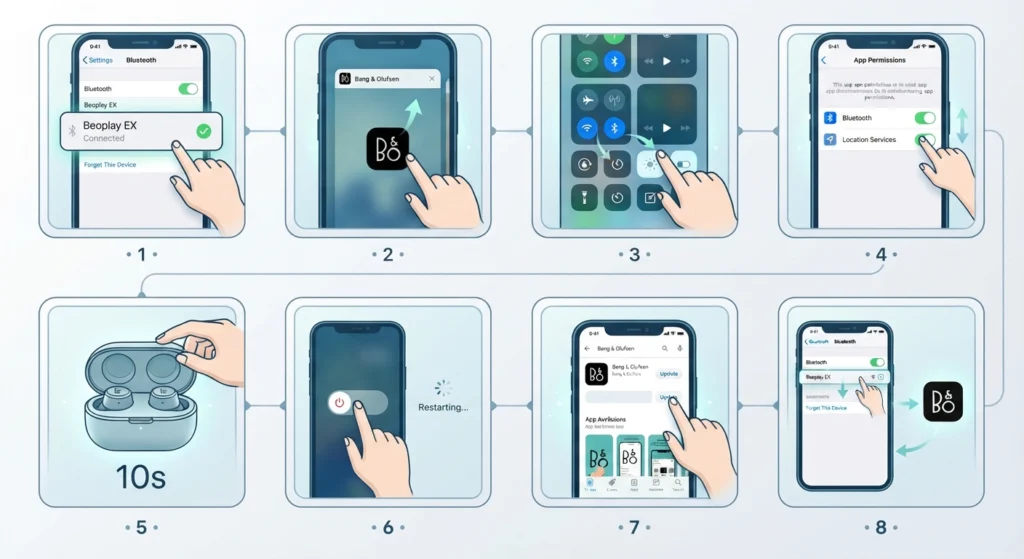
These steps follow the exact order that resolves the issue for most users, starting with the simplest fix and moving toward deeper resets. Working through them in sequence saves time instead of jumping straight to a full reset.
- Step 1: Open the phone’s Bluetooth settings and confirm the Beoplay EX is listed as connected, not just paired
- Step 2: Force-close the Bang and Olufsen app completely, then reopen it after a few seconds
- Step 3: Toggle Bluetooth off and back on from the phone’s control center or settings menu
- Step 4: Check that the app has Bluetooth and Location permissions enabled, since both are required on Android and iOS for device discovery
- Step 5: Place both earbuds back in the case, close the lid for ten seconds, then reopen it near the phone
- Step 6: Restart the phone itself, since a stuck Bluetooth service in the background often blocks new device detection
- Step 7: Update the Bang and Olufsen app from the App Store or Google Play if an update is pending
- Step 8: Remove the earbuds from the phone’s Bluetooth list entirely, then re-pair them from scratch through the app’s add-device flow
Pro-Tip: Always remove the earbuds from the phone’s native Bluetooth menu before re-pairing through the app. Leaving an old pairing entry behind is the number one reason the app fails to recognize the earbuds even after multiple restarts.
Fixing the Issue on Windows 11
Laptop and desktop users on Windows 11 face a slightly different version of this problem, since the operating system handles Bluetooth audio devices differently than mobile platforms. Anyone who has gone through the process of re-pairing Bluetooth earbuds for stereo sound on Windows will recognize a similar pattern here, since Windows sometimes locks the earbuds into a single-channel or hands-free profile that blocks proper detection.
Method 1: Reset the Bluetooth Connection
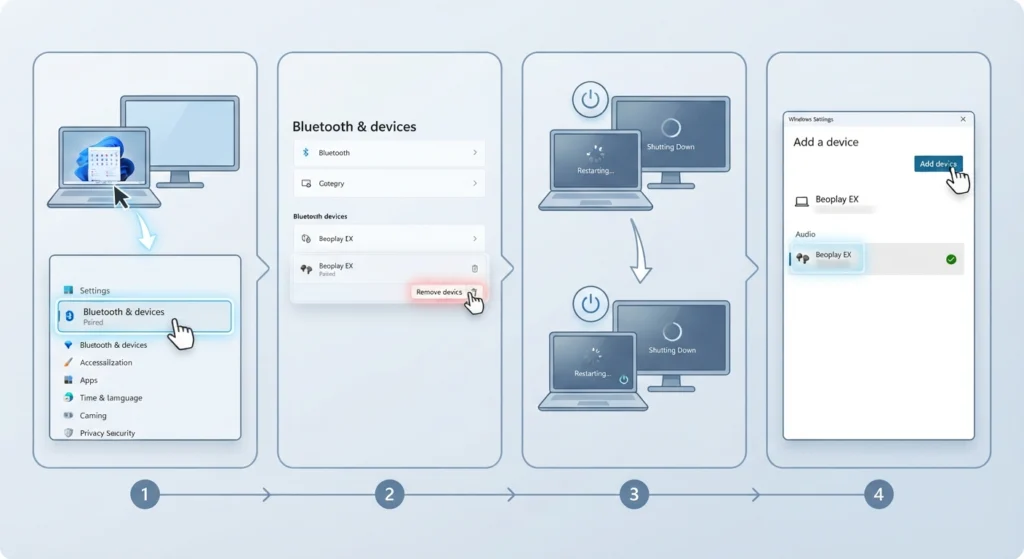
- Step 1: Open Windows Settings and go to Bluetooth and Devices
- Step 2: Remove the Beoplay EX entry completely
- Step 3: Restart the laptop or desktop
- Step 4: Add the device again and confirm it shows as an audio device, not just a generic Bluetooth accessory
Method 2: Adjust Audio and Driver Settings
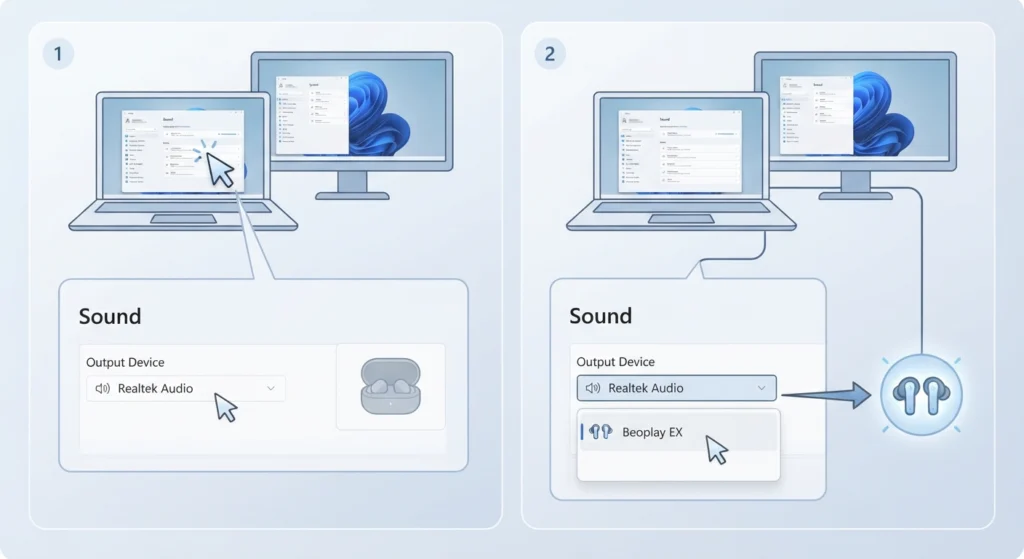
If the earbuds connect but the app still will not detect them, the issue is often related to output routing rather than pairing. This is the same root cause covered in the guide on adjusting audio output settings on Windows 11, and running through those steps alongside a driver update usually clears the detection block.
Tips to Keep Beoplay EX Connected Properly
- Keep the earbuds within three feet of the phone during the first pairing attempt
- Charge the case to at least 20 percent before troubleshooting, since low battery can suppress Bluetooth advertising
- Avoid pairing the same earbuds to more than one device at the same time
- Install firmware updates as soon as they appear in the app instead of postponing them
- Turn off other nearby Bluetooth accessories temporarily if the earbuds keep dropping out of the list
Common Problems and Troubleshooting
Fix 1: Earbuds Appear Paired But Not Detected in the App
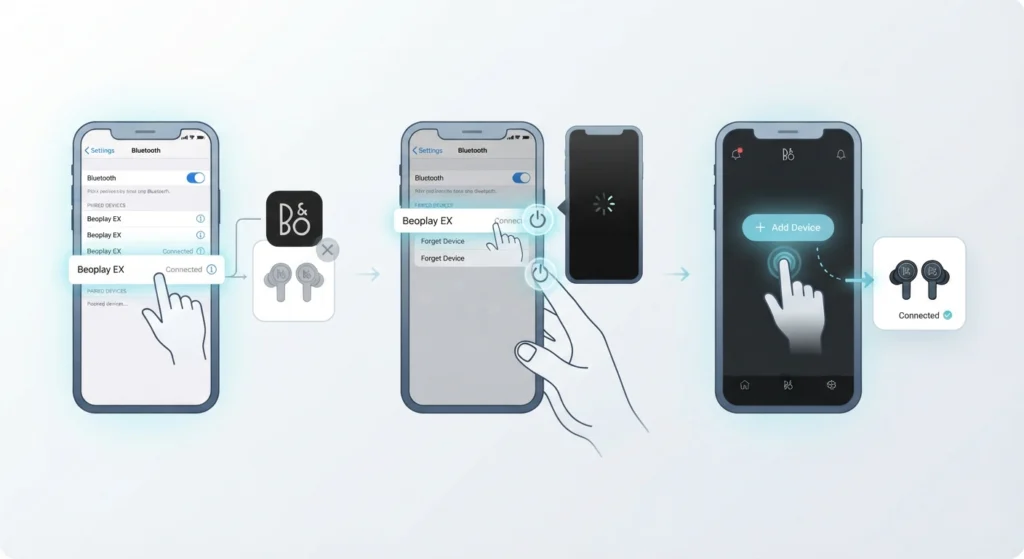
This happens when the phone’s Bluetooth stack and the app’s internal device list fall out of sync. Forgetting the device, restarting the phone, and re-adding it through the app almost always resolves this. On Windows machines, this same symptom is covered in detail in the guide on resetting audio settings, which walks through clearing the audio cache that causes this mismatch.
Fix 2: App Shows Only One Earbud Instead of Both
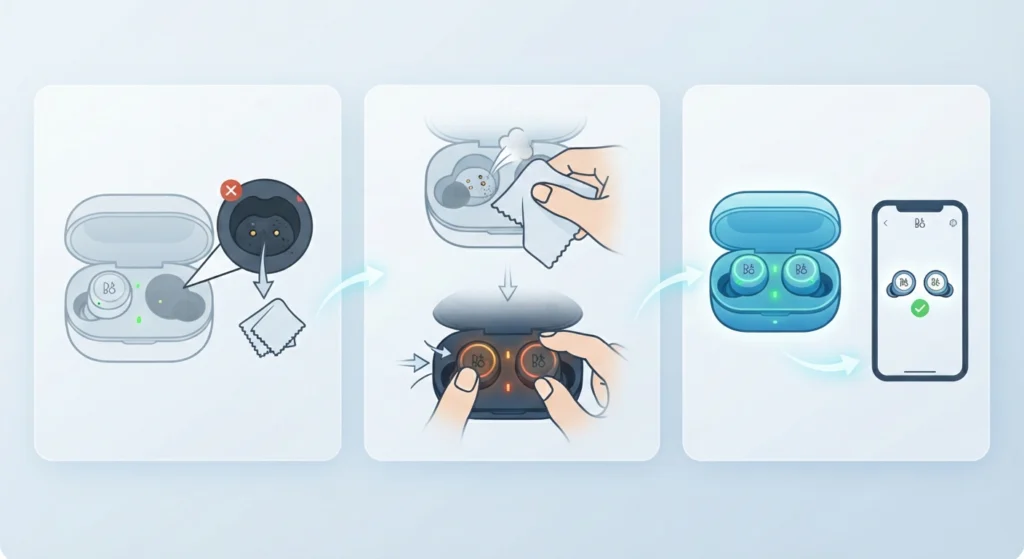
This is typically a charging or contact issue rather than a software one. Wiping the charging pins inside the case with a dry cloth and reseating both earbuds firmly usually brings the missing bud back into view within a minute.
Fix 3: Firmware Update Stuck or Not Detected
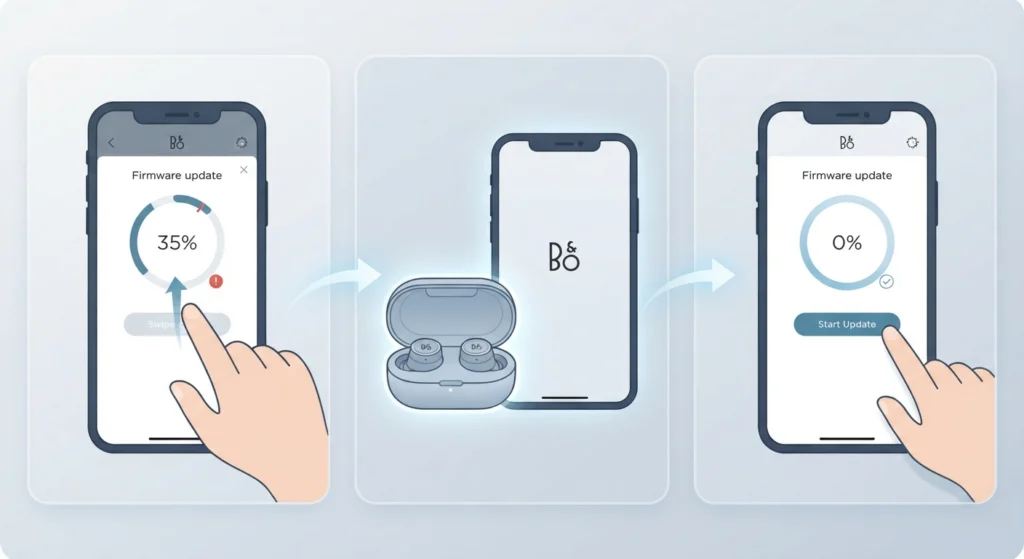
Firmware updates require a stable connection for the full duration of the process. If the update stalls, close the app, keep the case open and near the phone, and restart the update from the beginning instead of letting it retry automatically.
Frequently Asked Questions
Why is Beoplay EX not showing up in the Bang and Olufsen app?
The most common causes are a stale Bluetooth pairing, missing app permissions, or a low battery in the case. Working through the standard reset steps resolves this in the vast majority of cases.
How long does a factory reset take on Beoplay EX?
A factory reset typically takes less than two minutes, though the earbuds need to be fully re-paired afterward, which adds a few extra minutes.
Why does only one earbud show up in the app?
This is usually caused by dirty charging contacts or one earbud not seating fully in the case. Cleaning the contacts and reseating both buds resolves it in most situations.
Do Beoplay EX need to be charged to show up in the app?
Yes, a case with very low battery may not broadcast a strong enough Bluetooth signal for the app to detect it. Charging to at least 20 percent before troubleshooting is recommended.
Can outdated phone software cause this issue?
Yes, an outdated operating system can interfere with how Bluetooth devices are discovered and displayed. Keeping the phone’s software current reduces the chances of this happening.
Why won’t Beoplay EX connect properly on Windows 11?
Windows 11 sometimes assigns the earbuds to a limited audio profile instead of the full stereo profile, which affects app detection. Removing and re-adding the device through Bluetooth and Devices settings usually fixes it.
Is it necessary to forget and re-pair the earbuds every time?
Not every time, but it is the most reliable fix when the app fails to detect earbuds that already show as connected in the phone’s native Bluetooth menu.
Does closing background apps help the earbuds show up faster?
Yes, background apps using Bluetooth can occasionally interfere with detection. Closing unrelated Bluetooth-connected apps before opening the Bang and Olufsen app can speed up the process.
What should be checked first before trying a full reset?
Always confirm Bluetooth and Location permissions are enabled for the app first, since this single setting causes a large share of detection failures on both Android and iOS.
Can microphone or input device settings affect app detection?
On Windows, input device conflicts can sometimes mask the earbuds from showing correctly. Reviewing the steps in the guide on managing audio input devices helps rule this out.