
Setting up the Edifier W820NB Plus headphones takes just a few minutes once the correct order of steps is known. These noise-cancelling over-ear headphones are built for quick pairing, but small details like button hold times and LED signals can trip up first-time users. This guide walks through every stage of setup, from powering on to connecting for the first time.
Quick Summary – Key Takeaways
- Hold the power button for around 3 seconds to power on and enter pairing mode automatically
- Select ‘EDIFIER W820NB Plus’ from the Bluetooth device list on the phone, tablet, or laptop
- The blue LED blinks twice once pairing is successful
- Holding the power button for 6 seconds while powered off skips the last connected device and opens pairing mode for a new one
- A USB-C cable handles both charging and wired PC connection
- Pressing ‘+’ and ‘-‘ together for 5 seconds clears saved pairing records
Step-by-Step Guide: Setting Up Edifier W820NB Plus for the First Time
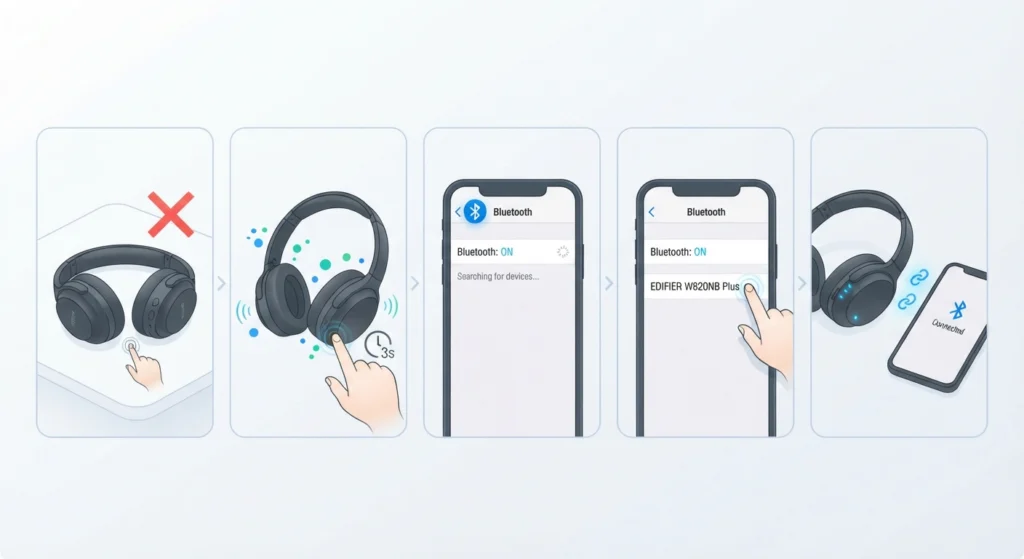
The first setup is the most important part, since it establishes how the headphones will behave for every future use. Most people find that the whole process takes less than two minutes once the LED signals are understood.
- Step 1: Make sure the headphones are fully powered off before starting.
- Step 2: Press and hold the power button for approximately 3 seconds. The blue and green LEDs will flash alternately and rapidly, which means the headphones have entered pairing mode automatically.
- Step 3: On the phone, tablet, or computer, open Bluetooth settings and search for available devices.
- Step 4: Select ‘EDIFIER W820NB Plus’ from the list of nearby devices.
- Step 5: Wait for the connection to complete. The blue LED will blink twice, confirming the headphones are now paired and ready to use.
For subsequent listening sessions, the headphones will automatically reconnect to the last device used, so this full process only needs to happen once per new device.
Method 1: Charging the Headphones Before Setup
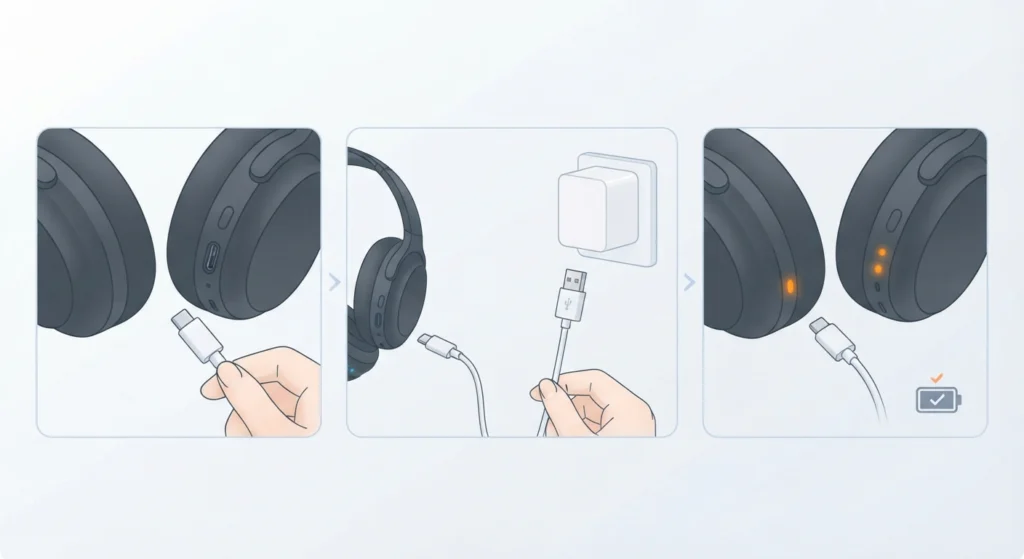
A headphone that shuts off mid-setup because of low battery is a common annoyance, so charging before first use is worth the extra few minutes.
- Step 1: Connect the small end of the included USB-C cable to the charging port on the headphones.
- Step 2: Plug the other end into a USB-A power adapter or wall charger.
- Step 3: Watch the LED indicator – an orange light stays steady while charging and turns off once the battery is full.
Using the cable that came in the box is recommended, since third-party cables sometimes have compatibility issues that prevent proper charging.
Method 2: Connecting to a New Device Without Losing the Old Pairing
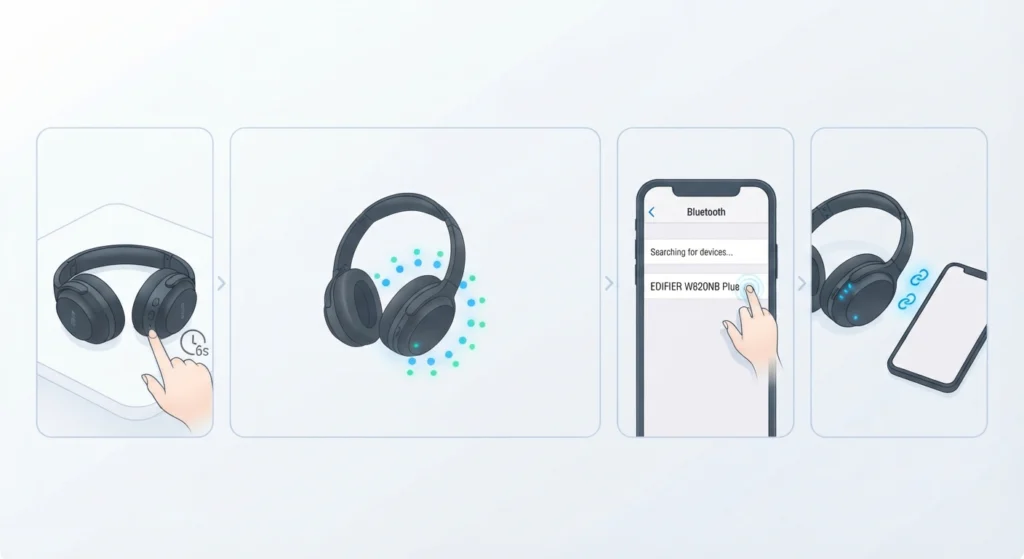
Switching between a laptop and a phone is a routine scenario for anyone using these headphones across multiple devices. The key is to skip the last connected device instead of forgetting it entirely.
- Step 1: With the headphones powered off, press and hold the power button for around 6 seconds.
- Step 2: The blue and green LEDs will flash alternately and rapidly, indicating the headphones are ready to pair with a new device while keeping the old one saved.
- Step 3: Open Bluetooth settings on the new device and select ‘EDIFIER W820NB Plus.’
- Step 4: The blue LED blinks twice once the connection is confirmed.
Anyone managing multiple audio sources on a Windows machine may also want to check this guide on re-pairing Bluetooth earbuds for proper stereo sound, which helps when audio plays through only one side after switching devices.
Method 3: Wired Connection via USB-C
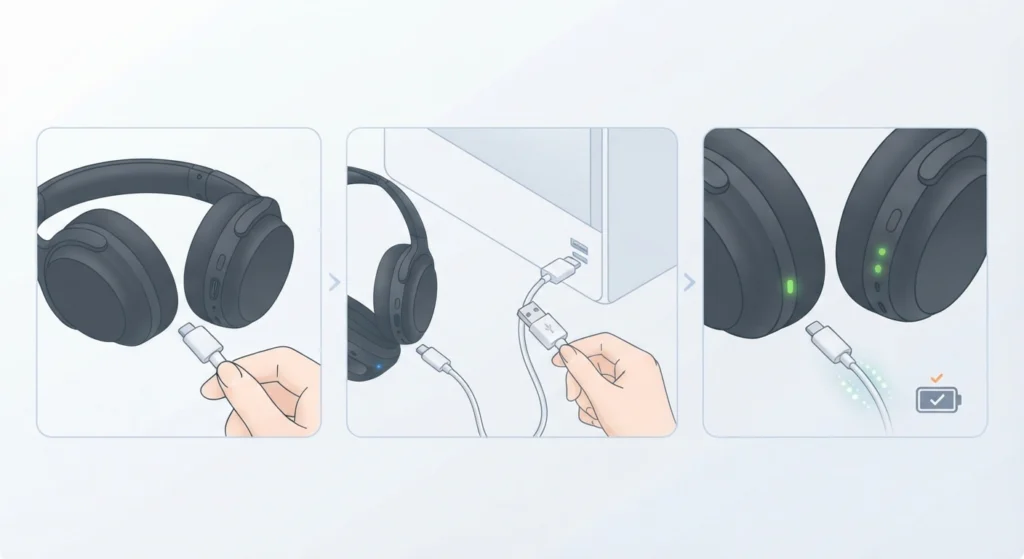
Wired mode comes in handy during video calls or when Bluetooth isn’t an option, such as on older desktop setups.
- Step 1: Connect the small end of the USB-C cable to the headphones.
- Step 2: Plug the other end into a USB-A port on the computer.
- Step 3: Once connected, music, calls, and charging all work through the same cable. The orange LED indicates charging, while a steady green LED means the battery is fully charged.
On Windows 11, it sometimes helps to double-check that the correct output device is selected after plugging in. This guide on adjusting audio output settings covers exactly that.
Method 4: Clearing Pairing Records for a Fresh Setup
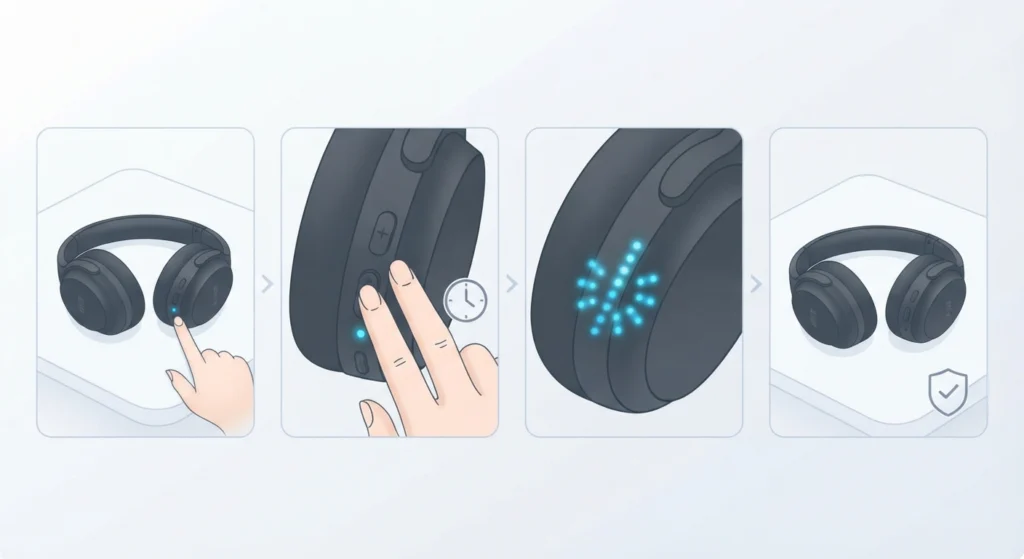
Sometimes a clean slate is the fastest fix, especially after connecting the headphones to several devices over time.
- Step 1: Power on the headphones.
- Step 2: Simultaneously press and hold the ‘+’ and ‘-‘ buttons for about 5 seconds.
- Step 3: The blue LED will blink six times rapidly, confirming that all saved pairing records have been cleared.
- Step 4: The headphones can now be set up again as if brand new, following the first-time setup steps above.
If audio still sounds off after a reset, this resource on resetting audio settings on Windows 11 is a useful next step.
Pro-Tip: Always confirm the LED color before assuming something went wrong. A rapid alternating blue-green flash means pairing mode is active and working correctly – it’s not an error signal, even though it looks similar to a warning light on other devices.
Using the ANC Button and the Edifier Connect App
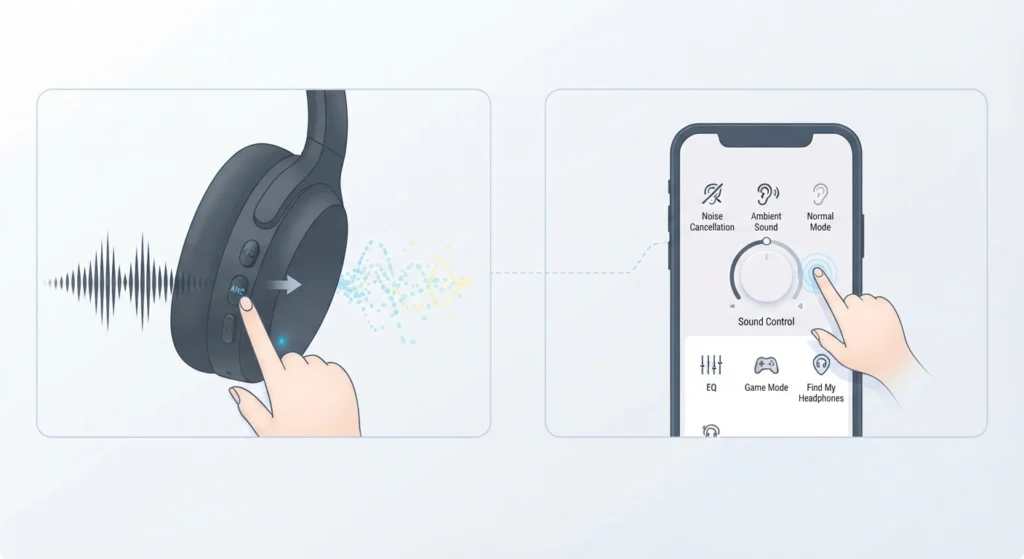
The W820NB Plus comes with a dedicated ANC button that switches between noise cancellation and ambient sound mode with a single press. For deeper customization, the Edifier Connect App allows adjustment of sound control settings beyond the default options built into the headphones. This app is optional for basic setup but adds useful flexibility for anyone who wants more control over how the headphones behave in different environments.
Tips for a Smooth Setup Experience
- Keep the headphones within one meter of the connecting device during the initial pairing process
- Charge the headphones to at least 50 percent before the first setup to avoid interruptions
- Turn off Bluetooth on any other nearby devices that were previously paired, since this prevents accidental reconnection during setup
- Restart Bluetooth on the phone or laptop if the headphones don’t appear in the device list within 30 seconds
Pro-Tip: Noise cancellation draws more battery than standard playback. If setup is being done for the first time in ANC mode, expect the battery percentage to drop faster than expected during the first session – this is normal and not a defect.
Common Problems During Setup
Headphones Not Appearing in the Bluetooth List
This usually happens when the headphones are still connected to a previous device. Powering off and holding the power button for 6 seconds, rather than 3, forces the headphones to skip that old connection and become visible again.
Pairing Mode Won’t Activate
If the LED doesn’t flash after holding the power button, the battery may be too low. Charging for at least 15 minutes usually resolves this before trying again.
Audio Plays on Only One Side
This is often a Windows Bluetooth stereo issue rather than a headphone fault. Checking managing audio input devices on Windows 11 can help identify if the wrong audio profile is selected.
Microphone Not Detected During Calls
On Windows 11, this typically traces back to app permissions or the wrong input device being selected. This guide on resolving microphone detection problems walks through the fix in detail.
Frequently Asked Questions
How long does it take to fully charge the Edifier W820NB Plus?
A full charge typically takes around 2 hours using the included USB-C cable and a standard USB-A power adapter.
Can the headphones be used while charging?
Yes, when connected via the USB-C cable to a computer, the headphones can play audio, handle calls, and charge at the same time.
What does the alternating blue and green LED mean?
It indicates the headphones are actively in pairing mode and searching for a device to connect with.
How many devices can be paired at once?
The headphones store multiple pairing records, but only reconnect automatically to the single most recently used device unless a new one is manually selected.
Do the headphones need the Edifier Connect App to work?
No, the app is optional and only needed for additional sound customization beyond the default noise cancellation and ambient sound modes.
Why do the headphones turn off automatically?
The headphones are designed to power off after a period without a Bluetooth connection, which helps preserve battery life when not in use.
What is the correct way to reset the headphones?
Pressing and holding the ‘+’ and ‘-‘ buttons together for 5 seconds while powered on clears all saved pairing records and resets the connection history.
Can the W820NB Plus connect to a PC without Bluetooth?
Yes, connecting the USB-C cable directly to a USB-A port on the PC allows wired use without needing Bluetooth at all.
Why is the headphone not showing up when searching on a laptop?
This usually means the headphones are still linked to their last connected device. Holding the power button for 6 seconds while powered off forces new pairing mode.
Is the ANC button used for anything besides noise cancellation?
Yes, the same button also switches to ambient sound mode, allowing outside noise to pass through when needed.