
Learning how to fix headphones not working in Microsoft Teams usually takes just a few minutes, because the cause is almost always a wrong device selection, a muted channel, or a blocked permission. Most people find that the headphones themselves are fine. Teams or Windows is simply pointing at the wrong place.
Quick Summary
- Best first move: choose your headphones manually under Devices in Teams settings.
- Second check: make sure Windows uses the same headphones as the default output.
- Bluetooth users: remove and re-pair the headphones if Teams cannot see them.
- No mic or no sound at all: check Windows microphone privacy permissions.
- Last resort: fully quit Teams, restart it, and run the Windows audio troubleshooter.
Quick Fixes to Get Sound Back in Microsoft Teams
Fix 1: Select Your Headphones in Teams Device Settings
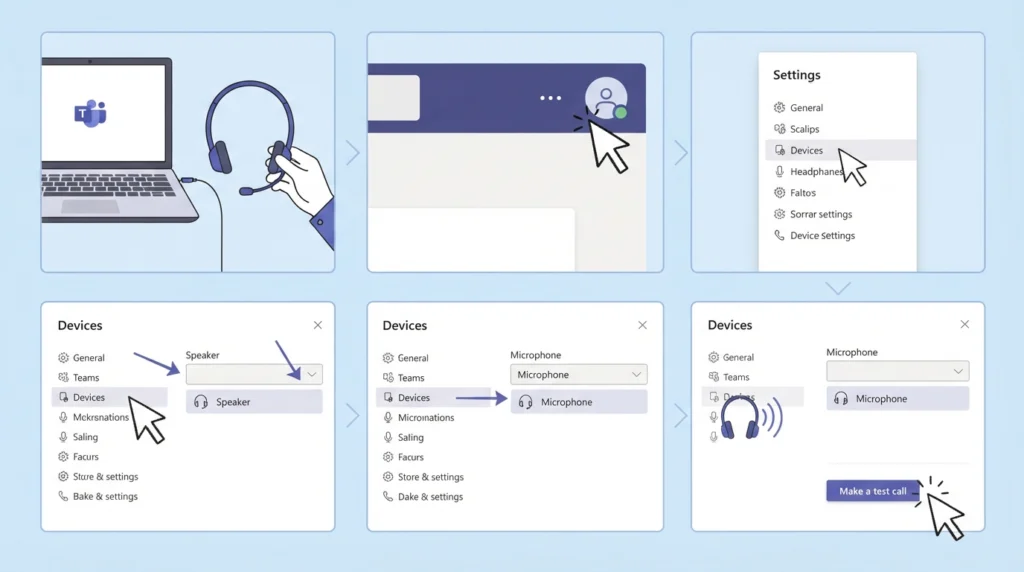
Teams does not always switch to newly connected headphones on its own. Choosing them by hand solves the problem more often than any other fix.
- Step 1: Plug in or connect the headphones before opening Teams.
- Step 2: Select the three dots next to your profile picture at the top of Teams, then choose Settings.
- Step 3: Open the Devices tab.
- Step 4: Under Audio devices, set Speaker to your headphones.
- Step 5: Set Microphone to the headphone mic, or to another mic if the headphones do not have one.
- Step 6: Use the test call option on the same page to confirm that sound plays through the headphones.
Pro-Tip: During a live meeting, the same device choices appear under the More menu in the meeting controls. Switching there is faster than leaving the call to open settings.
Fix 2: Set the Headphones as the Default Output in Windows
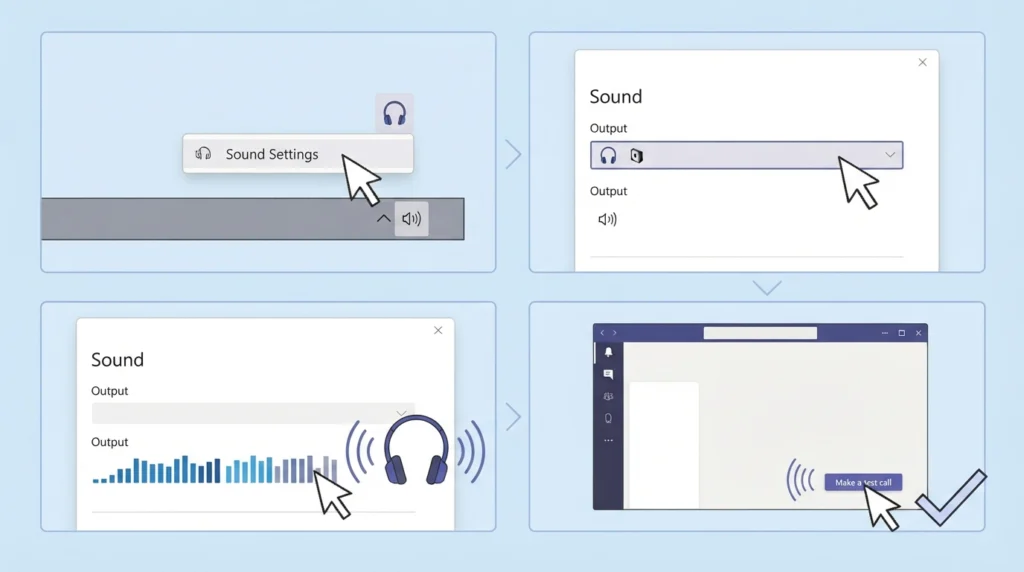
If Teams is set to use the default speaker, whatever Windows has chosen is what Teams will use. Think of Windows as the front desk. If it sends the sound to the wrong room, Teams cannot do much about it. A deeper walkthrough is available in this guide on adjusting audio output settings.
- Step 1: Right-click the speaker icon in the taskbar and choose Sound settings.
- Step 2: Under Output, select your headphones from the list.
- Step 3: Play any sound and check that the volume bar moves and audio is heard.
- Step 4: Return to Teams and run a test call again.
Fix 3: Check Volume Levels and Mute Controls
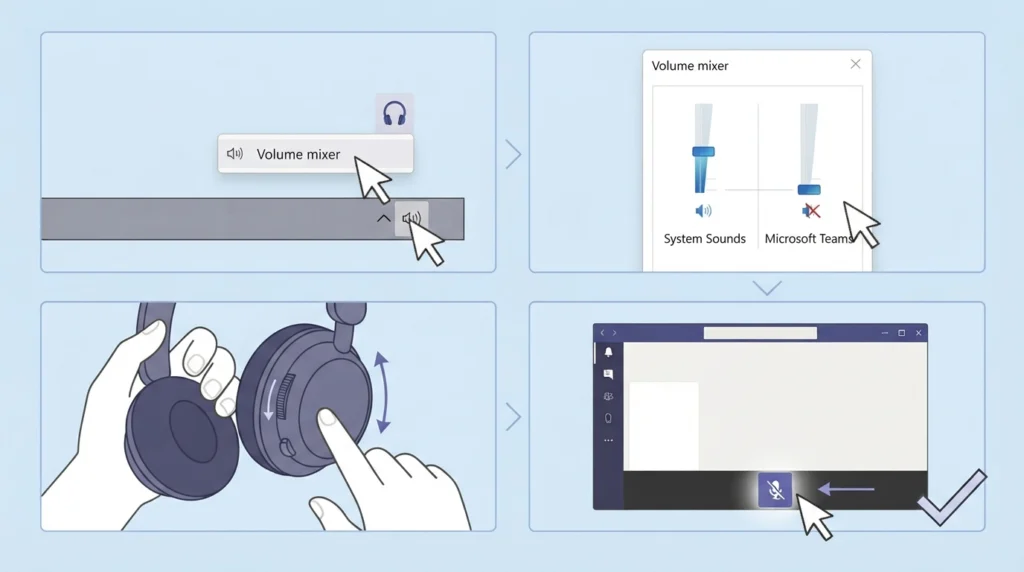
It sounds basic, but a lowered app volume or a mute button on the headphones is behind plenty of silent meetings.
- Step 1: Right-click the speaker icon in the taskbar and open Volume mixer, or open Sound settings and scroll to the volume mixer section.
- Step 2: Make sure Microsoft Teams is not turned down or muted.
- Step 3: Check the physical volume wheel, mute switch, or inline remote on the headphones.
- Step 4: Confirm the mute button inside the Teams meeting is not active.
Fix 4: Reconnect Bluetooth Headphones
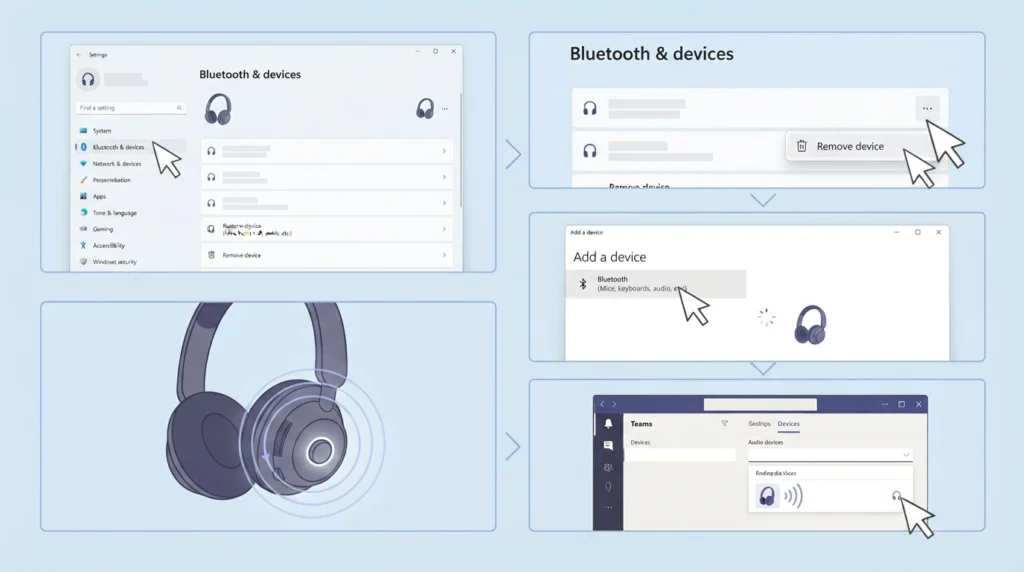
Bluetooth headphones sometimes hold on to a broken connection. Removing the pairing and starting fresh clears it. This guide explains how to re-pair Bluetooth earbuds for stereo sound on Windows in more detail.
- Step 1: Open Windows Settings and go to Bluetooth and devices.
- Step 2: Select the three dots beside your headphones and choose Remove device.
- Step 3: Put the headphones in pairing mode.
- Step 4: Select Add device, choose Bluetooth, and pick the headphones from the list.
- Step 5: Reopen Teams and select the headphones again under Devices.
Pro-Tip: Bluetooth headphones often switch to a Hands-Free mode as soon as the microphone is used in a call. This is normal behavior, and it can make audio sound thinner than music playback. Selecting the headphones for both Speaker and Microphone in Teams keeps the connection consistent.
Fix 5: Allow Microphone Access for Teams
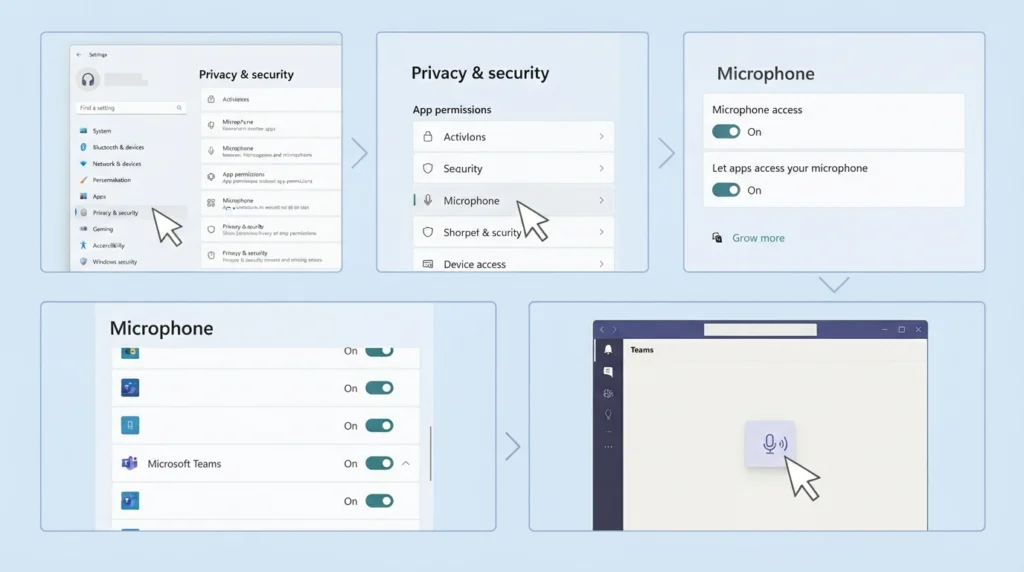
Windows can block apps from using the microphone. If Teams is blocked, the headset may appear dead even though it works elsewhere. For related detection problems, see this page on resolving microphone detection problems.
- Step 1: Open Windows Settings and select Privacy and security.
- Step 2: Choose Microphone.
- Step 3: Turn on Microphone access and Let apps access your microphone.
- Step 4: Scroll down and confirm that Microsoft Teams is allowed.
- Step 5: Restart Teams and test again.
Fix 6: Run the Windows Audio Troubleshooter
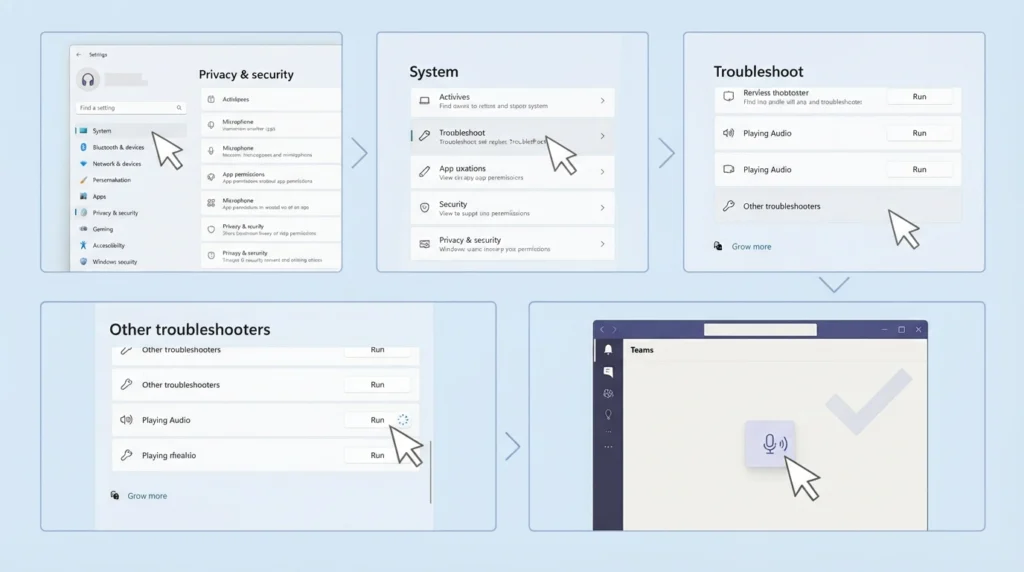
Windows has a built-in tool that checks drivers, services, and device settings in one pass.
- Step 1: Open Windows Settings, then go to System and select Troubleshoot.
- Step 2: Choose Other troubleshooters.
- Step 3: Select Run next to Audio or Playing Audio.
- Step 4: Pick your headphones when asked and follow the prompts.
- Step 5: If nothing improves, try resetting audio settings and run a Teams test call again.
Fix 7: Fully Restart Microsoft Teams
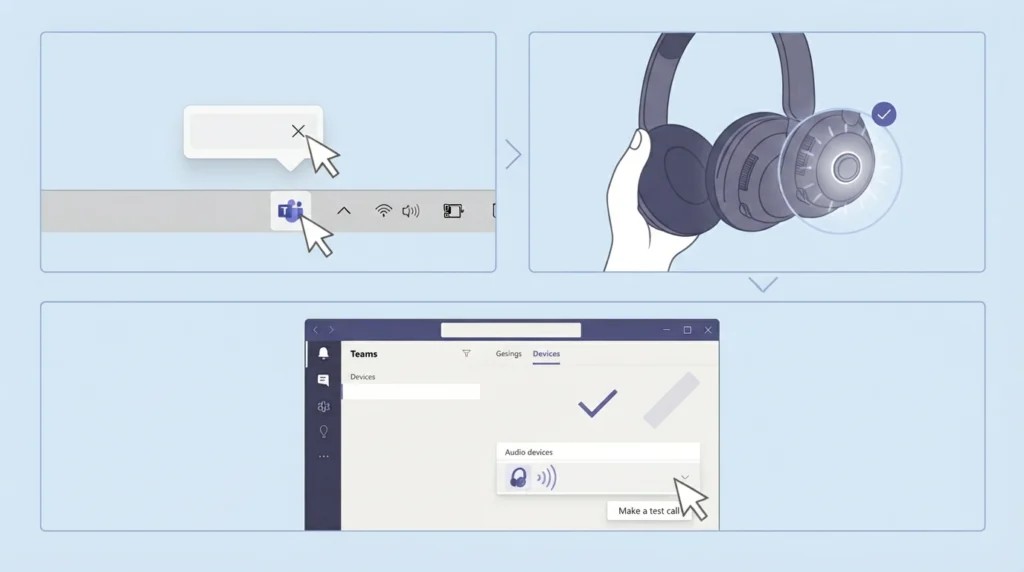
Closing the Teams window does not always close the app. It often keeps running in the background with the old audio device still loaded.
- Step 1: Right-click the Teams icon in the taskbar or system tray and choose Quit.
- Step 2: Connect your headphones and confirm Windows sees them.
- Step 3: Open Teams again and check the Devices settings.
Common Problems and Their Quick Solutions
Others Can Hear You, but You Cannot Hear Them
The Speaker setting in Teams is usually pointing at the wrong device. Open Settings, go to Devices, and set Speaker to the headphones.
You Can Hear Others, but They Cannot Hear You
The Microphone setting is the likely cause. Select the headphone mic in Teams and check microphone permissions in Windows. The guide on managing audio input devices covers this in more depth.
Sound Plays Through Laptop Speakers Instead
Windows or Teams is still using the built-in speakers. Set the headphones as the default output in Windows, then select them again inside Teams.
Headphones Work in Other Apps but Not in Teams
This points to a Teams device selection or permission issue rather than a hardware fault. Fix 1, Fix 5, and Fix 7 above usually clear it.
Helpful Tips for Reliable Audio in Teams
- Connect the headphones before launching Teams so the app detects them right away.
- Run a test call before important meetings to avoid surprises.
- Keep Windows and Teams updated so audio drivers and app features stay compatible.
- Charge Bluetooth headphones fully before long meetings, since low battery can cause dropouts.
- Use one audio device at a time. Leaving a speaker, a monitor, and headphones all connected makes wrong device selection more likely.
- Keep wired headphone plugs clean and fully inserted, since a loose plug can cause crackling or silence.
Frequently Asked Questions
Why are my headphones not working in Microsoft Teams?
The most common reasons are the wrong speaker or microphone selected in Teams, the wrong default output in Windows, blocked microphone permissions, or a broken Bluetooth connection.
Where do I change audio devices in Teams?
Select the three dots next to your profile picture, choose Settings, and open Devices. Speaker and Microphone can be changed there. During a meeting, the same options are available from the More menu.
Why does Teams not detect my headphones?
Teams may have been opened before the headphones were connected. Quit Teams fully, connect the headphones, and reopen the app. If they still do not appear, check that Windows lists them under Sound settings.
Why can I hear music but not Teams calls?
Teams may be using a different output than your media player. Set the Speaker in Teams Devices settings to the headphones and check the app volume in the Windows volume mixer.
Do Bluetooth headphones need to be paired again for Teams?
Not usually. Re-pairing is only needed when the connection is unstable or the headphones do not show up properly. Removing the device in Windows and adding it again is the standard method.
Why does the sound quality drop when I join a Teams call with Bluetooth headphones?
Many Bluetooth headphones switch to a Hands-Free profile when the microphone is active. This profile prioritizes voice over music quality, so a change in sound is expected.
How do I allow Teams to use my microphone?
Open Windows Settings, go to Privacy and security, select Microphone, and turn on microphone access for apps. Then make sure Microsoft Teams is allowed in the app list.
Can a Teams update fix headphone problems?
Updates can fix compatibility issues, so keeping Teams and Windows current is a good habit. Selecting the correct device in settings should still be checked first.
How can I test my headphones before a meeting?
Open Teams settings, go to Devices, and use the test call option. This lets you hear playback and check your microphone without joining a real meeting.
Should I restart my computer to fix headphone issues in Teams?
A restart can help if Windows audio services are stuck. Try quitting and reopening Teams first, since that is faster and often enough.