
Headphones not working in OBS is a frustrating problem that tends to show up right before a stream or recording session starts, and in most cases it comes down to a wrong audio device selection or a muted monitoring channel inside the app. This guide covers the exact fixes that bring the sound back, in the order that solves the issue fastest.
Key Takeaways:
- Most headphone audio issues in OBS come from an incorrect audio monitoring device setting.
- The Advanced Audio Properties panel is where the majority of these problems get solved.
- Windows playback device settings and OBS device settings need to match for headphones to work properly.
- Driver issues and exclusive mode settings are the next most common causes after device mismatches.
- A quick restart of the Windows Audio service clears up many stuck audio glitches.
Step-by-Step Guide to Fix Headphones Not Working in OBS
Each fix below targets a different point where OBS and Windows can lose track of the headphone connection. Working through them in order saves time, since the first two solve the problem for most users.
Fix 1: Set the Correct Audio Monitoring Device in OBS
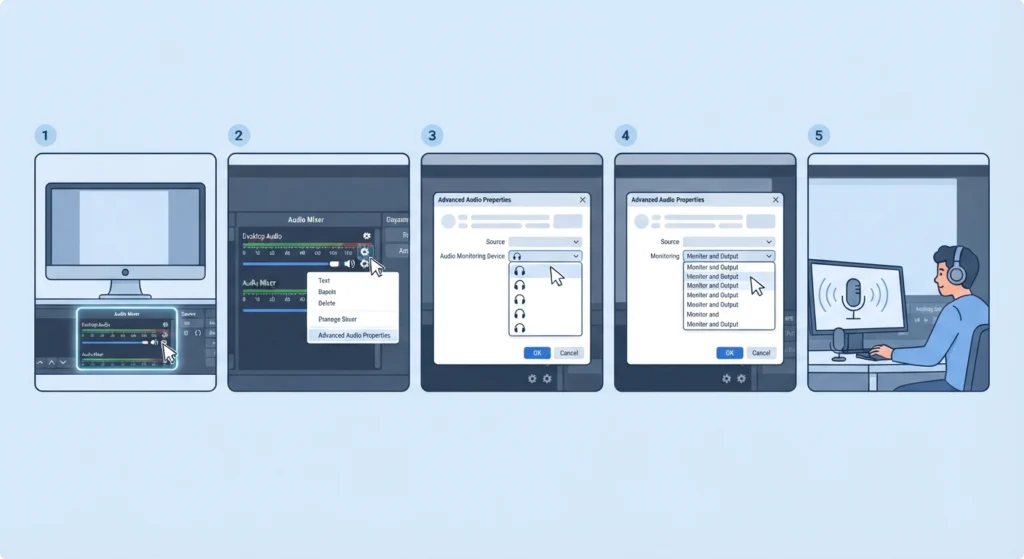
OBS treats ‘monitoring’ separately from regular playback, which is the main reason headphones stay silent even though everything looks normal in the mixer. This setting tells OBS exactly where to send monitored audio.
- Step 1: Open OBS and locate the Audio Mixer panel at the bottom of the window.
- Step 2: Click the gear icon next to Desktop Audio (or any audio source) and select Advanced Audio Properties.
- Step 3: Under Audio Monitoring Device, choose the correct headphones from the dropdown list.
- Step 4: Set Monitoring to ‘Monitor and Output’ so the audio plays through the headphones while still being recorded.
- Step 5: Close the window and play a short clip or speak into the microphone to confirm sound comes through.
Pro-Tip: Leaving monitoring set to ‘Monitor Off’ is the single most common reason headphones appear dead in OBS while the mixer bars are still moving. This one setting gets missed more than any other.
Fix 2: Match the Windows Default Playback Device with OBS
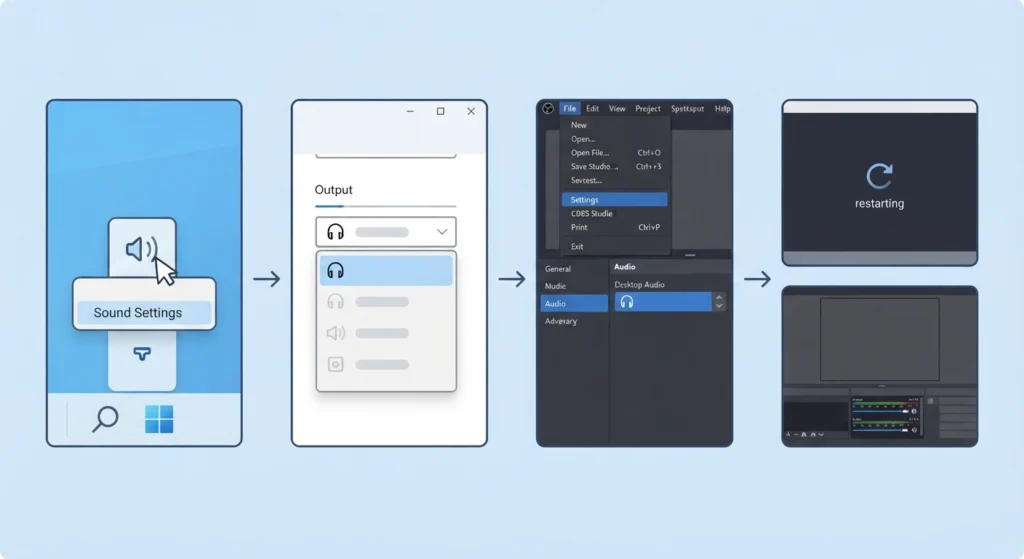
OBS pulls its device list from Windows, so if Windows has the wrong output selected as default, OBS inherits the same problem. Adjusting the audio output settings on the system level usually clears this up in under a minute.
- Step 1: Right-click the speaker icon in the Windows taskbar and select Sound settings.
- Step 2: Under Output, choose the connected headphones as the default device.
- Step 3: Go back to OBS, open Settings, then Audio, and confirm the Desktop Audio device matches the same headphones.
- Step 4: Restart OBS to apply the change fully.
Anyone who wants a deeper walkthrough of this part can check this guide on adjusting audio output settings for a full breakdown of the Windows side.
Fix 3: Disable Exclusive Mode for the Headphones
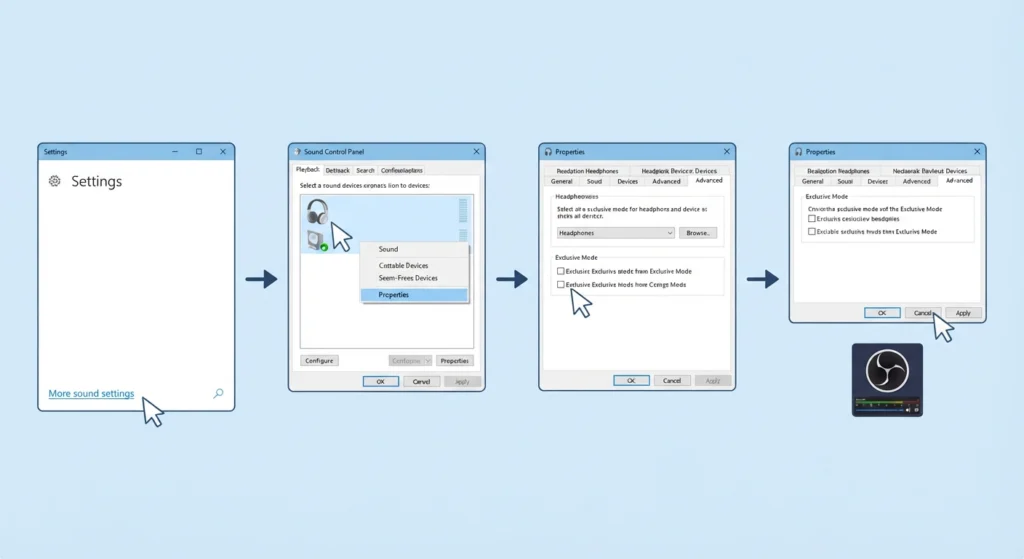
Windows allows certain apps to take exclusive control over an audio device, which locks other programs, including OBS, out of using it at the same time. This is a quiet setting that rarely gets checked, yet it causes real problems.
- Step 1: Open Sound settings and click More sound settings, or search for Sound Control Panel.
- Step 2: Right-click the headphones and select Properties.
- Step 3: Open the Advanced tab and uncheck both boxes under ‘Exclusive Mode’.
- Step 4: Click Apply, then OK, and reopen OBS to test the audio again.
For a broader fix that clears out several related audio conflicts at once, this guide on resetting audio settings covers the process in detail.
Fix 4: Update or Reinstall the Audio Drivers
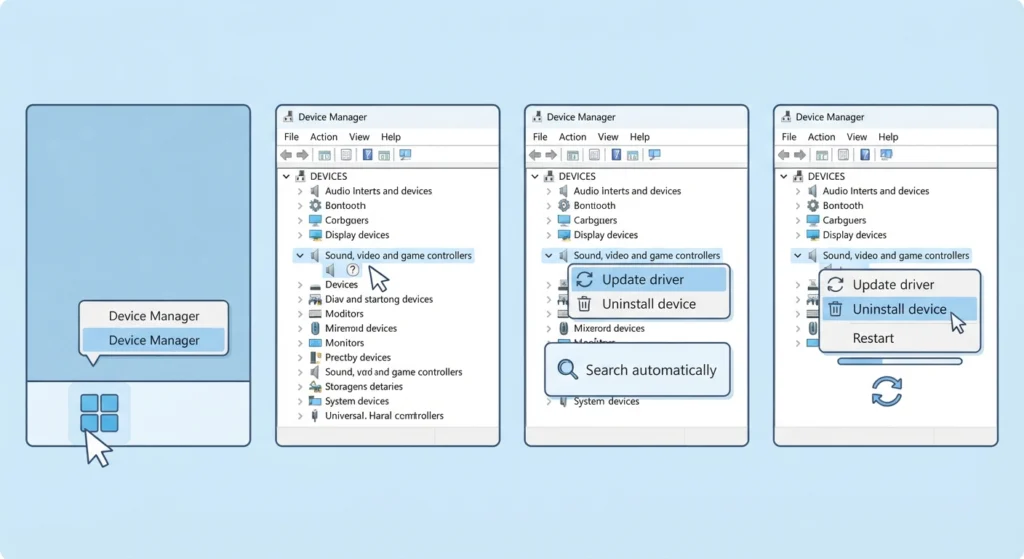
Outdated drivers are a frequent cause of headphones working fine in every other app but going silent specifically inside OBS, since OBS relies on the driver layer to route sound correctly.
- Step 1: Right-click the Start button and open Device Manager.
- Step 2: Expand Sound, video and game controllers.
- Step 3: Right-click the audio device and select Update driver, then choose Search automatically.
- Step 4: If the update does not help, right-click again and select Uninstall device, then restart the computer to let Windows reinstall it fresh.
Fix 5: Restart the Windows Audio Service
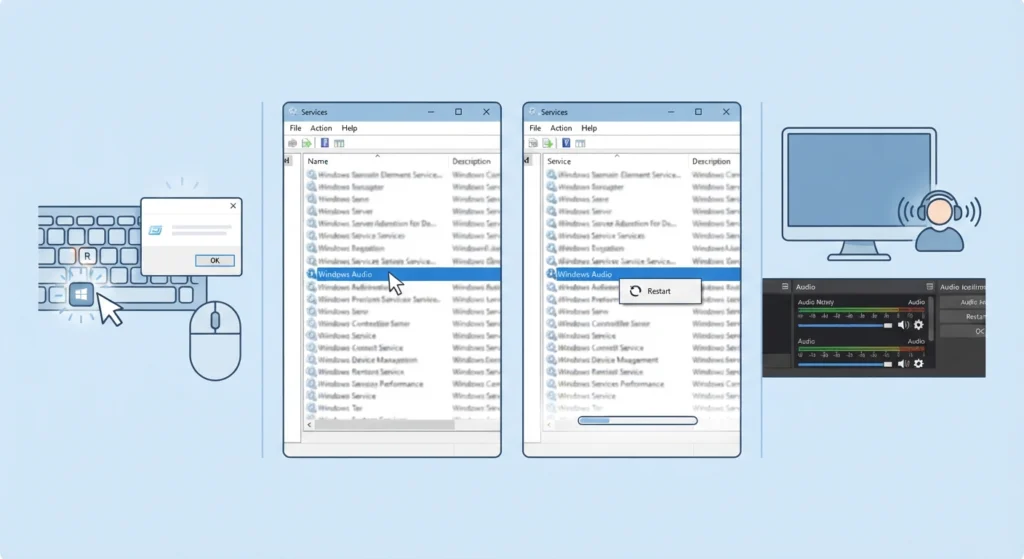
Sometimes the audio engine itself gets stuck rather than any individual setting being wrong, and a quick service restart forces Windows to rebuild the audio connection from scratch.
- Step 1: Press Windows key plus R, type services.msc, and press Enter.
- Step 2: Scroll down to Windows Audio and right-click it.
- Step 3: Select Restart, then wait a few seconds for the service to come back online.
- Step 4: Reopen OBS and check whether the headphones now produce sound.
Fix 6: Check the Cable, Bluetooth Pairing, or Battery
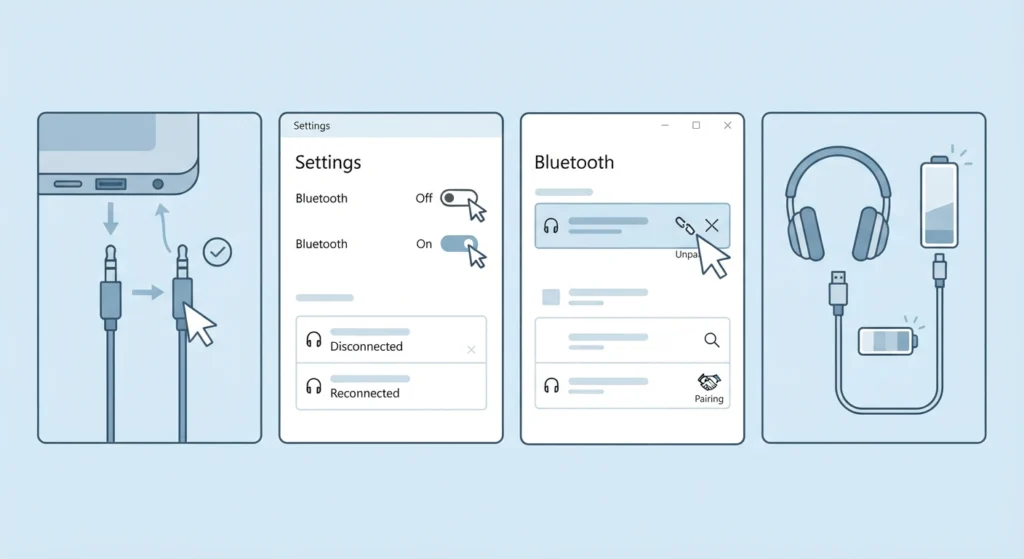
Software settings get blamed often, but a loose cable or a dropped Bluetooth connection produces the exact same symptoms inside OBS. This step rules out the hardware side before digging further into settings.
- Step 1: For wired headphones, unplug and firmly reconnect the cable, trying a different port if one is available.
- Step 2: For wireless headphones, turn Bluetooth off and back on from Windows settings.
- Step 3: If the pairing still looks unstable, remove the device and pair it again from scratch.
- Step 4: Charge the headphones fully if battery level has not been checked recently, since low battery can cause intermittent dropouts that look like a software bug.
Wireless users who keep losing the connection mid-stream may find this guide on how to re-pair Bluetooth earbuds for stereo sound useful for a more stable connection going forward.
Tips to Keep Headphone Audio Stable in OBS
- Set the sample rate in OBS Audio settings to match the default format shown in Windows Sound Control Panel, since a mismatch causes distorted or missing audio.
- Avoid switching headphones between USB and Bluetooth mid-session, as OBS does not always detect the swap automatically.
- Keep OBS updated to the latest version, since audio handling improvements are a regular part of new releases.
- Close other apps that might be holding onto the audio device, such as voice chat software running in the background.
Common Problems When Headphones Still Do Not Work in OBS
Headphones Work in Windows but Not in OBS
This almost always points back to the Audio Monitoring Device setting covered in Fix 1, since OBS treats monitored playback separately from the system-wide default device.
Only One Side of the Headphones Produces Sound
This is typically a cable or connector issue rather than an OBS setting, though it can also appear if the wrong audio format is selected. Testing the headphones in another app first helps confirm which side the problem sits on.
Audio Cuts Out Only While Recording or Streaming
High CPU or GPU load during a live session can cause brief audio dropouts. Lowering the output resolution or bitrate in OBS settings often resolves this without needing any change to the headphone setup itself.
Anyone also having trouble with the microphone side of the setup, not just headphone output, can check this guide on resolving microphone detection problems for a matching fix on Windows 11, or this guide on managing audio input devices for a full overview of input device settings.
Frequently Asked Questions
Why are headphones not working in OBS but work everywhere else?
This usually happens because the Audio Monitoring Device inside OBS is set differently from the default Windows playback device. Matching both to the same headphones in Advanced Audio Properties solves it in most cases.
How to fix no sound from headphones in OBS Studio?
Start with Advanced Audio Properties and set Monitoring to Monitor and Output with the headphones selected, then confirm the same device is chosen as default in Windows Sound settings.
Why does OBS show audio levels moving but no sound comes through headphones?
Moving audio bars mean OBS is receiving the signal, but monitoring is likely turned off or pointed to the wrong output device, so the sound never gets routed to the headphones.
Can an incorrect sample rate cause headphones to stop working in OBS?
Yes, a sample rate mismatch between OBS Audio settings and the Windows default format can cause distorted, silent, or crackling audio through headphones.
Do Bluetooth headphones cause more audio issues in OBS than wired ones?
Bluetooth headphones are more prone to dropouts due to pairing instability or interference, while wired headphones tend to fail because of loose connections or driver issues instead.
Why do headphones cut out only while streaming on OBS?
This is often related to CPU or GPU load during encoding rather than the headphones themselves, so lowering stream quality settings can prevent the dropouts.
How to test if headphones work correctly with OBS before going live?
Run a local recording test in OBS, play back the file, and confirm both audio and monitoring sound correctly before starting an actual stream.
What causes only one side of headphones to work in OBS?
This is generally a hardware or cable issue rather than an OBS setting, and testing the headphones outside OBS first helps confirm whether the problem is software or hardware related.
Why does restarting OBS fix headphone audio issues temporarily?
Restarting forces OBS to reload the list of available audio devices, which can resolve issues caused by a device being reconnected or swapped while OBS was already running.
Is updating audio drivers necessary to fix headphones in OBS?
Outdated or corrupted drivers are a common root cause of audio devices misbehaving specifically inside OBS, so keeping drivers updated prevents a large share of these issues from happening again.