
Key Takeaways
- Headphones not working in Discord is usually caused by wrong device settings, outdated drivers, or app-specific permission issues.
- The fastest fix is checking Discord’s output device setting under User Settings, since this is where most cases go wrong.
- Windows audio settings, driver updates, and Bluetooth pairing can all interfere with Discord’s audio output.
- Restarting Discord’s voice connection often resolves the issue without touching any system settings at all.
- A full guide is included below, moving from the quickest fix to the more advanced ones.
Headphones not working in Discord is one of the most common audio complaints among gamers, remote teams, and anyone who spends hours in voice channels. This usually happens right after a Windows update, a fresh Discord install, or after switching to a new pair of headphones. This guide breaks down every practical fix, starting with the simplest one first, so sound comes back without wasting time guessing.
Step-by-Step Guide to Fix Headphones Not Working in Discord
Fix 1: Check Discord’s Output Device Setting
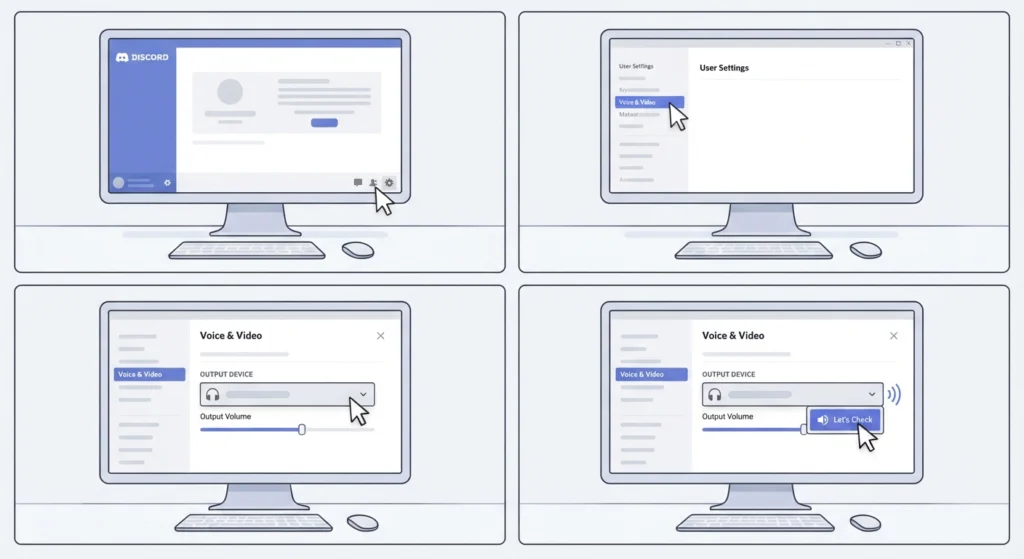
This is where most people find the issue is actually sitting. Discord has its own audio settings that run separately from Windows, so even if headphones work perfectly everywhere else, Discord might still be pointed at the wrong device.
- Step 1: Open Discord and click the gear icon near the username to enter User Settings.
- Step 2: Select Voice & Video from the left-hand menu.
- Step 3: Under Output Device, choose the correct headphones from the dropdown list.
- Step 4: Click the Test Speaker button to confirm sound plays through the headphones.
Pro-Tip: If the headphones don’t appear in the dropdown at all, the issue is likely at the Windows level, not inside Discord. Adjusting the audio output settings on Windows 11 usually clears this up before touching Discord again.
Fix 2: Set the Headphones as Default in Windows
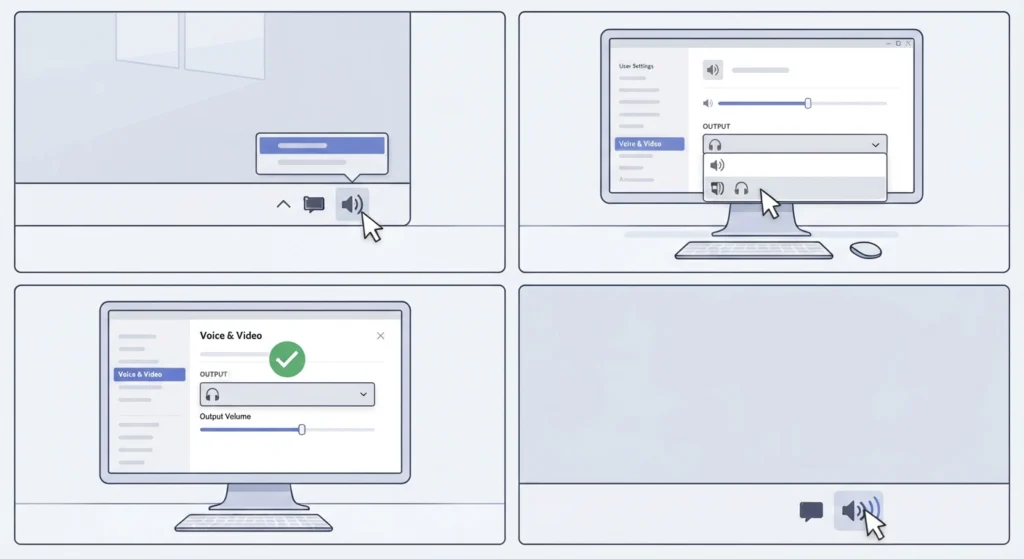
Discord often pulls its default device straight from Windows, so if the operating system itself isn’t routing sound to the headphones, no amount of clicking inside Discord will fix it.
- Step 1: Right-click the speaker icon in the Windows taskbar.
- Step 2: Select Sound settings.
- Step 3: Under Output, choose the headphones as the default device.
- Step 4: Reopen Discord and check if the audio now comes through correctly.
Fix 3: Reset Windows Audio Settings
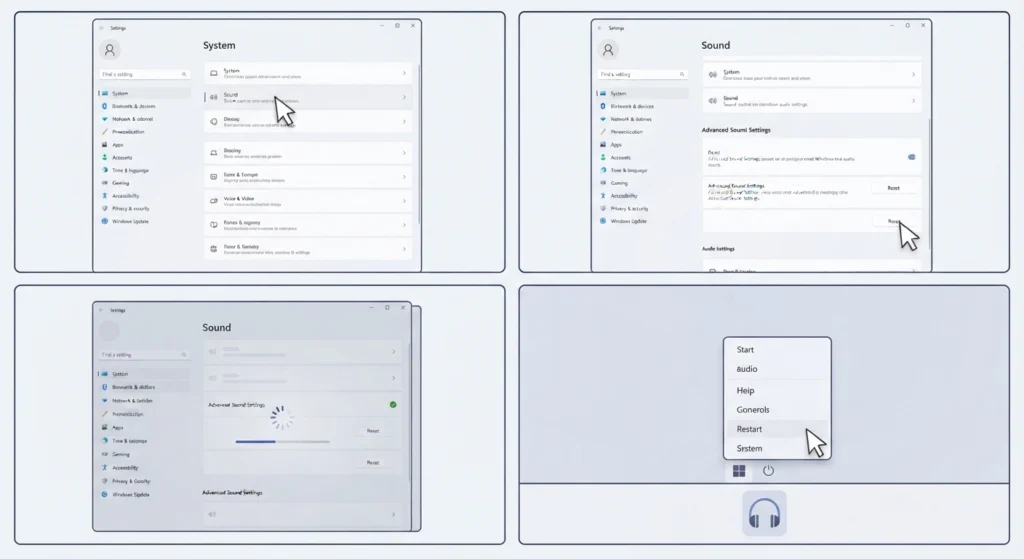
Sometimes the audio drivers or settings get into a confused state after an update, and headphones stop being recognized correctly by any app, not just Discord. Resetting the audio settings on Windows 11 restores everything to its default configuration, which often clears out these conflicts in one go.
- Step 1: Open Settings and go to System, then Sound.
- Step 2: Scroll down and select the reset option under advanced sound settings.
- Step 3: Restart the computer once the reset completes.
- Step 4: Reconnect the headphones and open Discord to test.
Fix 4: Update or Reinstall Audio Drivers
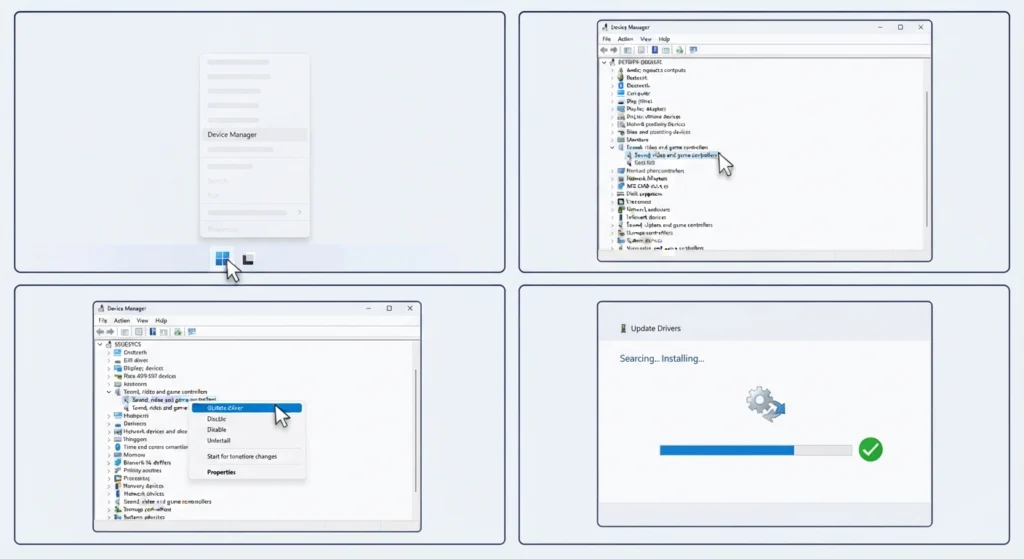
Outdated audio drivers are a frequent culprit, especially on laptops that haven’t been updated in a while. A driver that’s even slightly out of sync with Windows can cause headphones to show up but produce no actual sound in specific apps like Discord.
- Step 1: Right-click the Start button and open Device Manager.
- Step 2: Expand the Sound, video and game controllers section.
- Step 3: Right-click the audio driver and select Update driver.
- Step 4: Choose Search automatically for drivers and let Windows install the latest version.
Fix 5: Re-Pair Wireless or Bluetooth Headphones
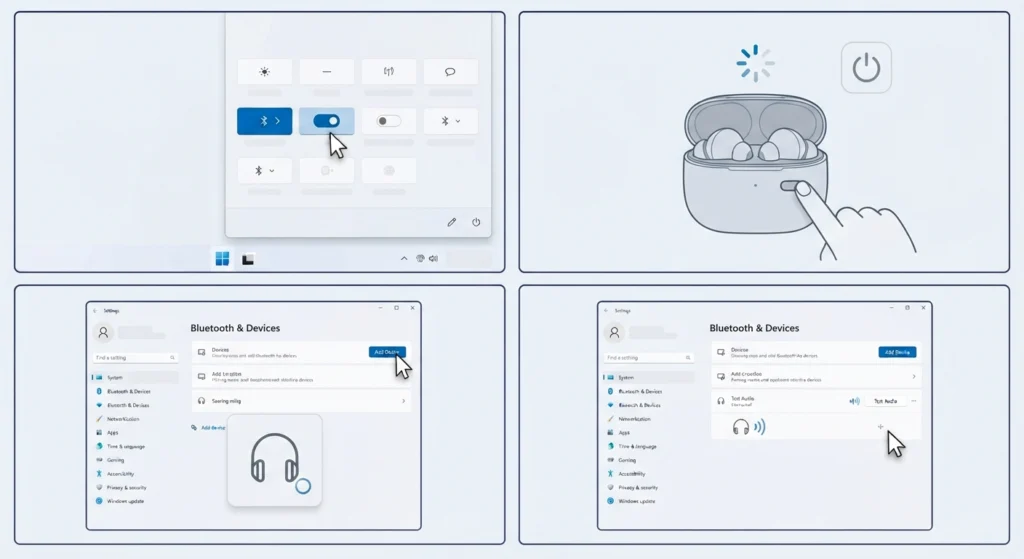
Bluetooth headphones bring an extra layer of complexity since the connection itself can drop or become unstable, even when the headphones appear connected. When this happens, Discord may still list the device but fail to actually send audio to it. Re-pairing Bluetooth earbuds for stereo sound on Windows usually resolves this connection mismatch quickly.
- Step 1: Turn off Bluetooth from the Windows action center.
- Step 2: Turn the headphones off and back on to reset their pairing mode.
- Step 3: Turn Bluetooth back on and reconnect the headphones from the device list.
- Step 4: Open Discord and test the output device again.
Fix 6: Check Discord’s App Permissions in Windows
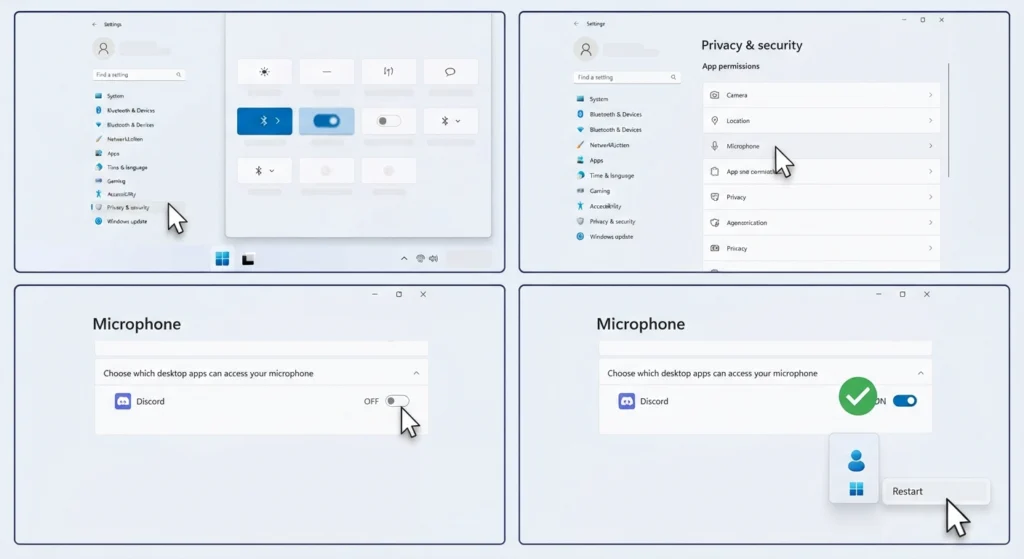
Windows sometimes blocks apps from accessing the microphone or speakers for privacy reasons, and Discord isn’t exempt from this. If permissions were changed recently, whether by an update or manually, Discord may lose access to audio devices without any clear warning message.
- Step 1: Open Settings and go to Privacy & security.
- Step 2: Select Microphone, then scroll to the list of allowed apps.
- Step 3: Make sure Discord is toggled on to allow access.
- Step 4: Restart Discord after making the change.
Fix 7: Restart Discord’s Voice Connection
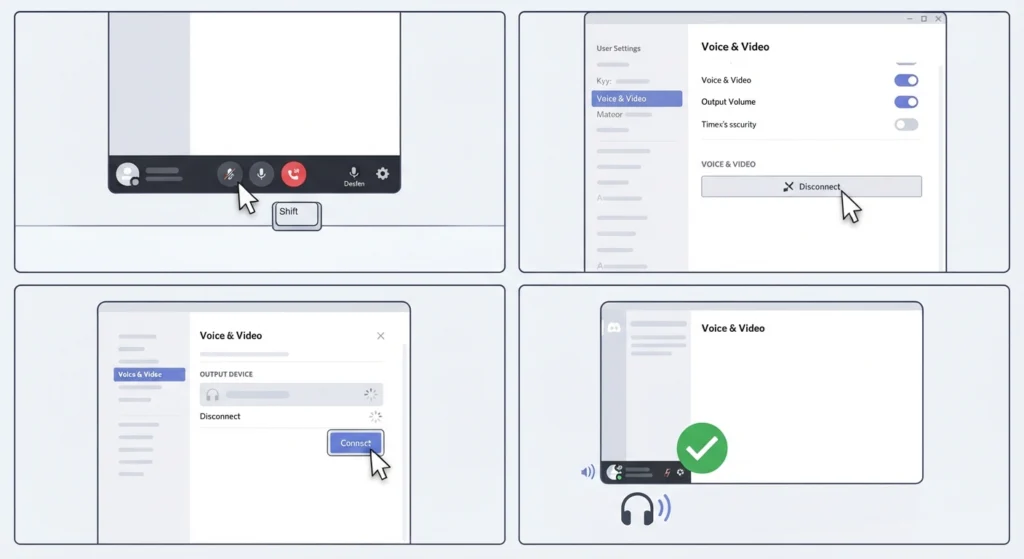
This fix sounds almost too simple, yet it solves the problem more often than expected. Discord’s voice servers occasionally lose sync with a session, and a fresh reconnect clears the glitch without needing to touch any settings.
- Step 1: Hold Shift and click the mute icon at the bottom left of Discord, or open User Settings.
- Step 2: Select Voice & Video, then look for Disconnect Voice Connection.
- Step 3: Click it, then rejoin the same voice channel.
- Step 4: Confirm sound is coming through the headphones as expected.
Fix 8: Reinstall Discord
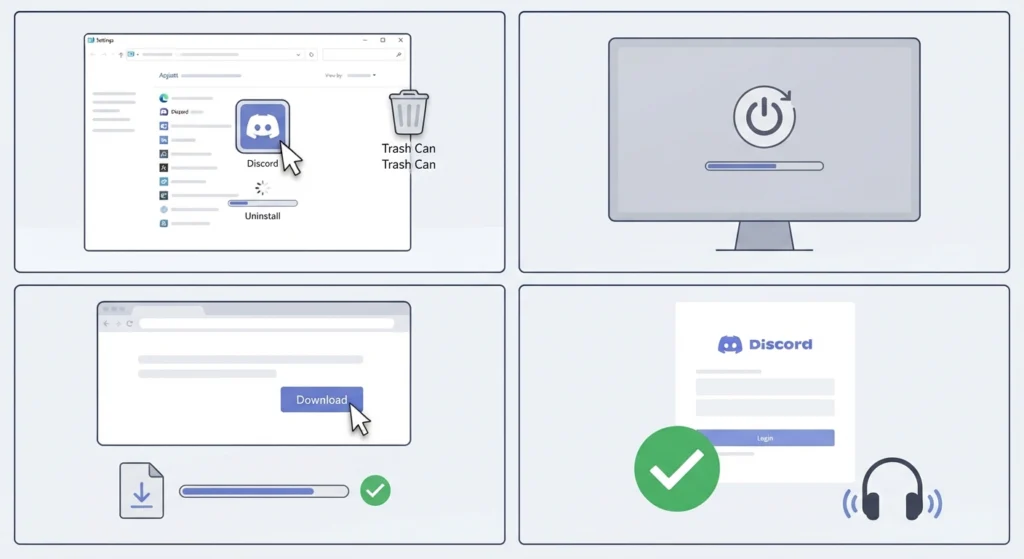
When none of the fixes above work, a clean reinstall clears out any corrupted configuration files that may be blocking audio output specifically within the app.
- Step 1: Uninstall Discord through Windows Settings or Control Panel.
- Step 2: Restart the computer.
- Step 3: Download the latest installer from Discord’s official website.
- Step 4: Install the app, sign back in, and test the headphones in a voice channel.
Helpful Tips for Reliable Discord Audio
A few small habits make audio issues far less likely to come back after fixing them once.
- Keep Windows and Discord updated, since most audio bugs get patched within a few releases.
- Avoid connecting headphones through a USB hub if possible, as some hubs cause signal drops that mimic a broken headset.
- Managing audio input devices properly in Windows 11 also prevents Discord from randomly switching to a different microphone mid-call.
- Test headphones in another app, like Windows’ own sound settings, before troubleshooting inside Discord, just to confirm the hardware itself works.
Pro-Tip: Restarting the computer after any driver or permission change matters more than it seems. Many fixes appear to fail simply because Windows hasn’t fully reloaded the audio stack yet.
Common Problems With Headphones in Discord
Headphones Work Elsewhere but Not in Discord
This almost always points to Discord’s own output device setting being set incorrectly, rather than a hardware or driver problem.
Sound Cuts In and Out During Calls
This is typically a Bluetooth interference issue or a loose wired connection, and it can also happen when too many audio-related apps are running at once.
One Side of the Headphones Has No Sound
This points to a balance setting in Windows or a hardware fault in the cable, and checking the balance slider under sound settings is the fastest way to rule out software.
Microphone Works but Headphones Don’t
Since input and output are handled separately, resolving microphone detection problems on Windows 11 won’t fix headphone output, and each needs to be checked on its own.
Frequently Asked Questions
Why are the headphones not showing up in Discord’s settings at all?
This usually means Windows itself isn’t detecting the device correctly. Checking Device Manager or reconnecting the headphones through a different USB port often resolves this.
Does restarting Discord actually fix audio problems?
Yes, in many cases. Discord’s voice connection can desync from its servers, and a simple reconnect clears up sound issues without needing any deeper troubleshooting.
Why do headphones work in other apps but not Discord?
This points directly to Discord’s output device setting under Voice & Video, since the app manages its own audio routing separately from Windows.
Can outdated drivers cause headphones to stop working only in Discord?
Yes, outdated or corrupted drivers can cause app-specific audio issues, especially when Discord updates its voice engine and the driver hasn’t caught up.
How can Bluetooth headphones be fixed if Discord shows no sound?
Re-pairing the Bluetooth connection resolves most cases, since a weak or unstable pairing often causes the device to appear connected without actually transmitting audio.
Is it necessary to reinstall Discord for a simple audio glitch?
Not usually. Reinstalling should be treated as a last resort after checking device settings, drivers, and permissions first.
Why does Discord keep switching to a different audio device automatically?
This happens when the default communication device in Windows is different from the default playback device. Setting both to the same headphones prevents this switch.
Can Windows privacy settings block headphone audio in Discord?
Privacy settings mainly control microphone access rather than output, but blocked permissions can still prevent Discord from functioning correctly during a call.
Why does audio work in a browser call but not in Discord specifically?
Browsers use system-level audio routing, while Discord manages its own device selection internally, so a mismatch between the two is a common and easy fix.
What is the very first thing to check when headphones stop working in Discord?
Always start with Discord’s own output device dropdown under Voice & Video settings, since this single setting resolves the majority of reported cases.