
Fixing headphone problems on a Chromebook usually takes just a few minutes once the right steps are followed. Sound issues, one-sided audio, or headphones that simply refuse to connect are common headaches for Chromebook users, but most causes trace back to a handful of settings or connections. This guide breaks down every practical fix, from basic checks to deeper audio settings, so normal sound returns fast.
Key Takeaways
- Most headphone issues on a Chromebook come from loose connections, outdated software, or incorrect audio output settings.
- Wired headphones should be checked physically first before touching any settings.
- Bluetooth headphones often need to be unpaired and re-paired to restore stereo sound.
- Resetting audio settings solves the majority of persistent sound glitches.
- Powerwashing the Chromebook should only be used as a final option.
Step-by-Step Guide to Fix Headphone Problems on a Chromebook
Method 1: Check the Physical Connection
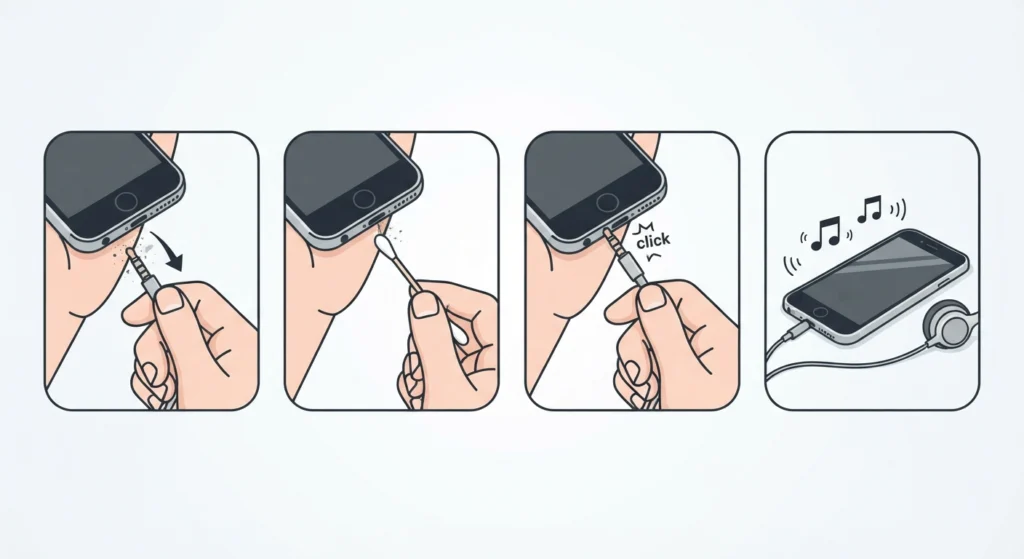
This works best when the headphones are wired, since a loose jack is the most common reason sound stops working. Dust, lint, or a slightly bent plug can prevent a full connection even when the headphones look properly plugged in.
- Step 1: Unplug the headphones completely and inspect the jack for dust, lint, or debris.
- Step 2: Gently clean the jack using a dry cotton swab if any buildup is visible.
- Step 3: Plug the headphones back in firmly until they click or sit flush against the port.
- Step 4: Play any audio or video to confirm sound is coming through correctly.
Method 2: Restart the Chromebook
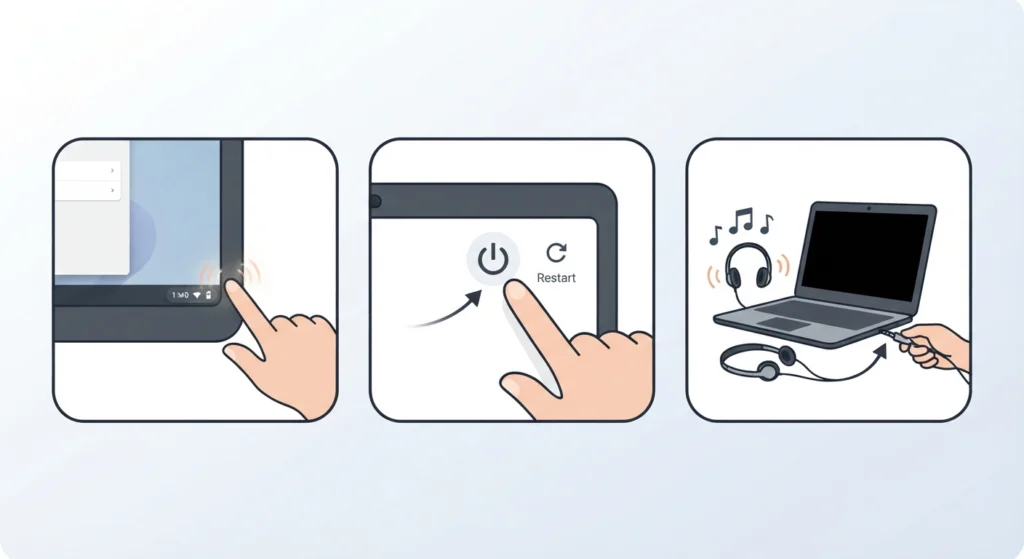
Most people find that a simple restart clears out temporary glitches in the audio driver without needing to change any settings. It sounds basic, but it resolves a surprising number of sudden audio dropouts.
- Step 1: Click the status area in the bottom-right corner of the screen.
- Step 2: Select the power icon, then choose Restart.
- Step 3: Once the Chromebook reboots, reconnect the headphones and test the sound again.
Method 3: Update Chrome OS to the Latest Version
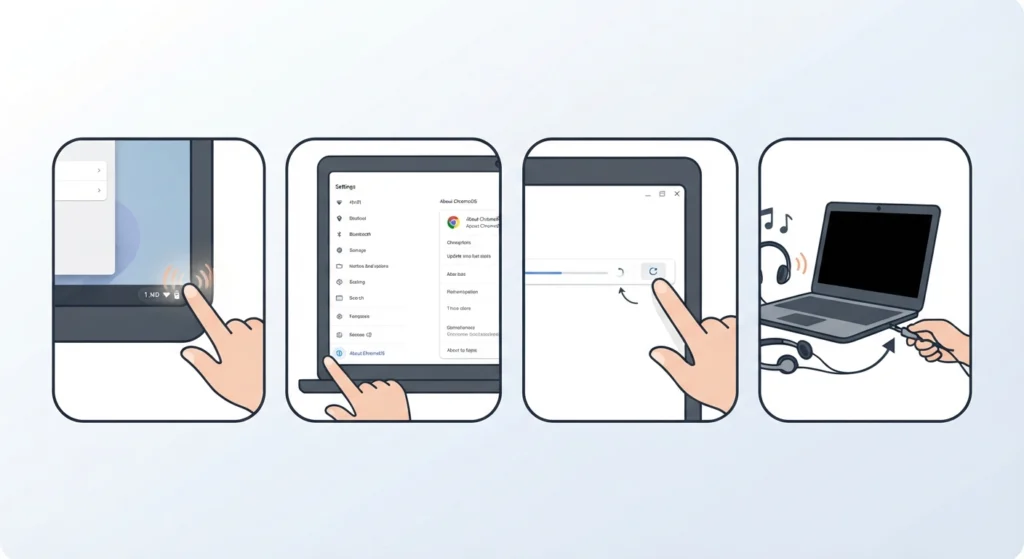
An outdated system is a frequent cause of random audio bugs, since Chrome OS updates often include fixes for hardware compatibility, including sound drivers.
- Step 1: Open Settings from the status area or app launcher.
- Step 2: Select About ChromeOS from the left-hand menu.
- Step 3: Click Check for Updates and allow the system to install any available update.
- Step 4: Restart the Chromebook once the update finishes, then test the headphones.
Method 4: Adjust the Audio Output Settings
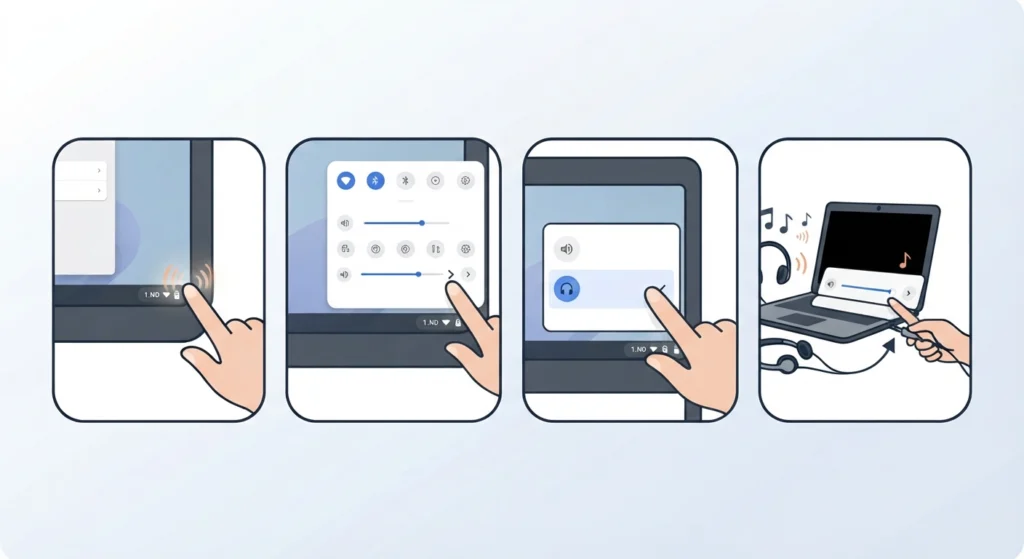
Sometimes the Chromebook is simply sending sound to the wrong output device, especially after connecting a monitor, dock, or another audio accessory recently. Reviewing the audio output settings makes sure the headphones are selected as the active playback device rather than internal speakers or another connected device.
- Step 1: Click the status area and select the volume icon.
- Step 2: Choose the arrow next to the volume slider to view available output devices.
- Step 3: Select the headphones from the list if they are not already highlighted.
- Step 4: Adjust the volume slider and test playback.
Pro-Tip: If headphones disappear from the output list entirely, unplugging and replugging them usually forces the Chromebook to detect the device again without needing a restart.
Method 5: Reset the Audio Settings
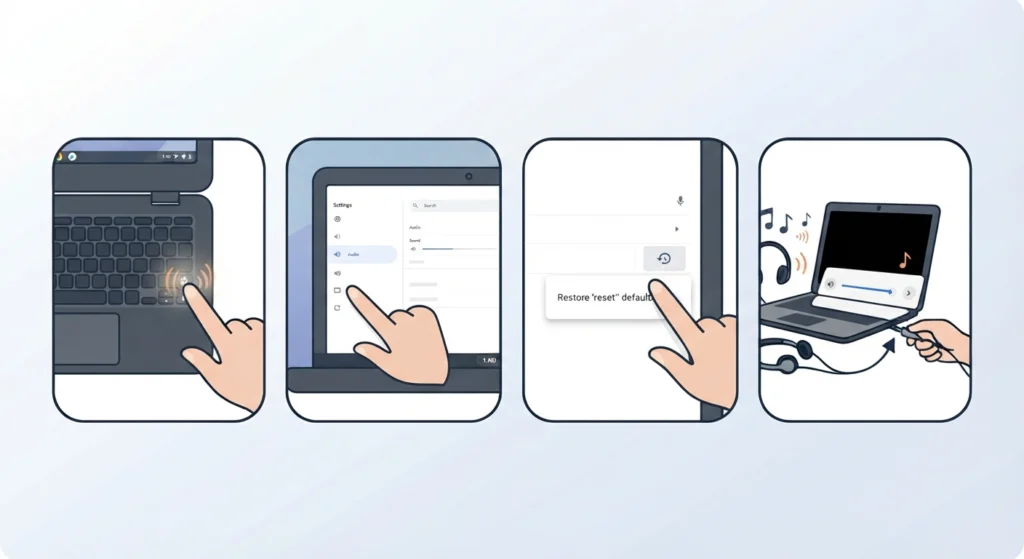
When headphones are detected but sound still comes out distorted, muted, or unbalanced, the audio configuration itself may need a fresh start. Learning how to go about resetting audio settings clears out any conflicting configurations that built up over time.
- Step 1: Open Settings and navigate to the Audio or Sound section.
- Step 2: Select the option to restore audio settings to default.
- Step 3: Confirm the reset and restart the Chromebook.
- Step 4: Reconnect the headphones and check sound quality again.
Method 6: Re-Pair Bluetooth Headphones or Earbuds
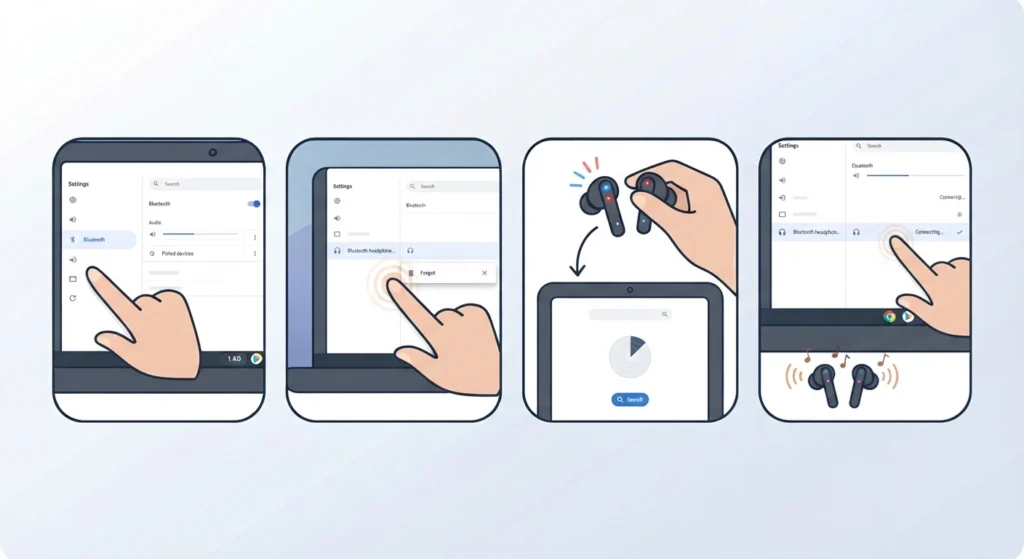
Wireless headphones bring their own set of quirks, and one of the most common is sound only playing from one ear or cutting out intermittently. Knowing how to properly re-pair Bluetooth earbuds for stereo sound often solves this in under a minute.
- Step 1: Open Settings and select Bluetooth.
- Step 2: Click the headphones in the device list and choose Forget.
- Step 3: Put the headphones into pairing mode and search for devices again.
- Step 4: Select the headphones once they appear and confirm the connection.
Method 7: Check Volume Mixer and App-Specific Settings
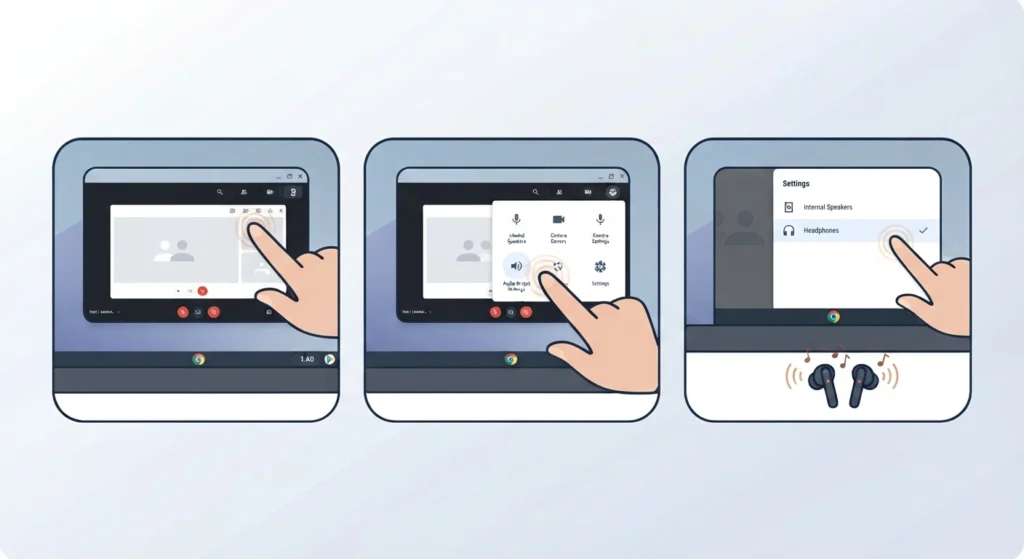
The key is to rule out the app itself before assuming the Chromebook is at fault. Some apps, particularly video conferencing tools, have their own internal volume or output settings separate from the system-wide controls.
- Step 1: Open the app being used for audio playback or calls.
- Step 2: Locate the audio or device settings inside that app.
- Step 3: Confirm the headphones are selected as the chosen output within the app itself.
Method 8: Powerwash the Chromebook as a Last Resort
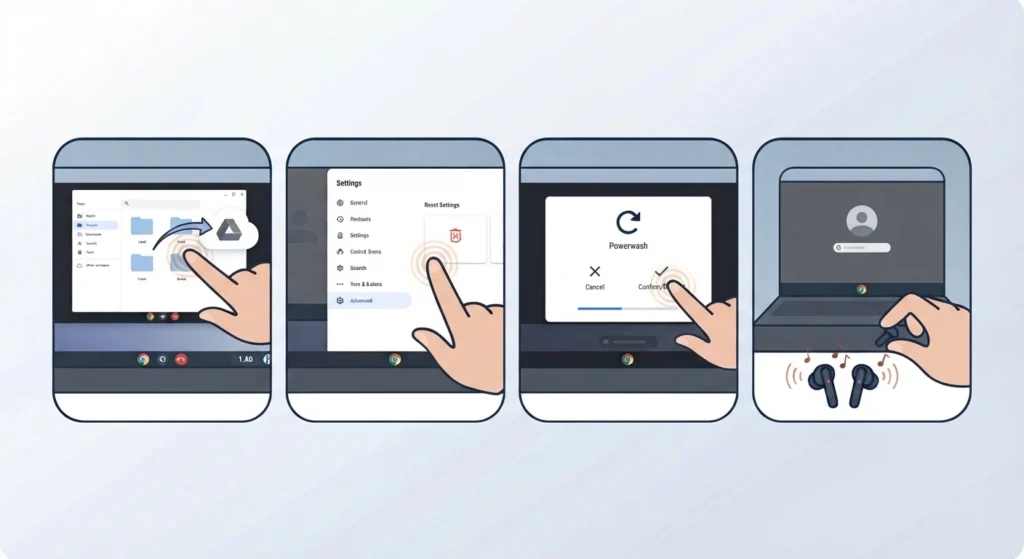
This step should only come after every other method has been tried, since it erases local data and returns the Chromebook to factory settings.
- Step 1: Back up any important files to Google Drive or an external drive.
- Step 2: Open Settings, then go to Advanced and select Reset Settings.
- Step 3: Choose Powerwash and confirm the action.
- Step 4: Sign back in after the reset and reconnect the headphones to test sound.
Tips to Keep Chromebook Headphones Working Properly
- Unplug wired headphones by holding the plug itself rather than pulling on the cable.
- Keep the headphone jack free of dust by covering it when not in use.
- Charge Bluetooth headphones fully before long calls or listening sessions to avoid connection drops.
- Check for Chrome OS updates on a regular basis rather than waiting for a problem to appear.
- Review managing audio input devices occasionally, especially after connecting new accessories, to keep both microphone and playback devices set correctly.
Common Headphone Problems on a Chromebook
Chromebook Not Detecting Headphones
This usually happens when the wrong output device is still selected or the jack has a poor connection. Method 1 and Method 4 above resolve this in most cases.
Sound Only Coming from One Ear
For wired headphones, this often points to a damaged cable or bent plug. For Bluetooth models, re-pairing the device almost always brings back full stereo sound.
Crackling or Static Noise
Static is frequently caused by a loose connection or interference from nearby wireless devices. Resetting the audio settings clears up static caused by driver conflicts.
Microphone Not Working Through Headphones
When the headset mic stops picking up sound, it is often a separate setting from playback audio. Reviewing steps for resolving microphone detection problems helps identify whether the mic itself is muted or simply not selected as the input device.
Frequently Asked Questions
Why is the Chromebook not recognizing the headphones at all?
This is typically caused by a loose connection, dust in the jack, or the wrong audio output selected in settings. Checking the physical connection first solves this in the majority of cases.
How long does it take to fix headphone problems on a Chromebook?
Most fixes take less than five minutes, especially simple ones like restarting the device or re-pairing Bluetooth headphones.
Does Powerwash delete all the files on a Chromebook?
Yes, Powerwash erases local data and returns the Chromebook to its original factory state, so backing up files beforehand is necessary.
Why do Bluetooth earbuds only play sound in one ear on a Chromebook?
This usually happens when the stereo connection between the two earbuds drops. Forgetting the device and pairing it again typically restores full sound.
Can outdated Chrome OS cause headphone problems?
Yes, an outdated system can cause audio driver conflicts. Keeping Chrome OS updated reduces the chances of sudden sound issues.
Why does the headphone jack make a crackling sound on a Chromebook?
Crackling is often linked to a loose plug, dust buildup, or a settings conflict that resetting the audio configuration usually clears.
Is there a difference between fixing wired and Bluetooth headphone issues?
Yes, wired issues are mostly hardware or connection related, while Bluetooth issues are more often tied to pairing or interference.
Why is the headphone microphone not working during calls?
This is usually caused by the input device being set incorrectly rather than an actual hardware failure. Checking the input settings resolves this quickly.
Should headphones be tested on another device before troubleshooting the Chromebook?
Yes, testing headphones on a phone or another laptop helps confirm whether the issue is with the headphones or the Chromebook itself.
How often should Chromebook software be updated to avoid audio issues?
Checking for updates every few weeks, or whenever a notification appears, keeps the audio drivers current and reduces the risk of sound problems.