
Headphone echo or feedback during calls is one of the most frustrating audio problems anyone can deal with – especially in the middle of an important meeting or conversation. The good news is that this issue almost always has a clear cause and a straightforward fix. This guide walks through every reliable solution, step by step, so the problem gets resolved fast and stays resolved.
Quick Summary: Key Takeaways
- Headphone echo is most commonly caused by microphone sensitivity set too high, incorrect audio settings, or a physical fit issue with the headphones.
- Disabling ‘Listen to this device’ in Windows audio settings is one of the fastest fixes available.
- Lowering microphone boost and input volume eliminates feedback in the majority of cases.
- Software-level fixes work across Windows, Mac, Android, and iOS.
- Call app settings (Zoom, Teams, Google Meet) have their own echo cancellation controls that are often overlooked.
- A proper headphone seal and correct fit can reduce or eliminate acoustic feedback entirely.
How to Fix Headphone Echo or Feedback During Calls
Fix 1: Disable ‘Listen to This Device’ on Windows
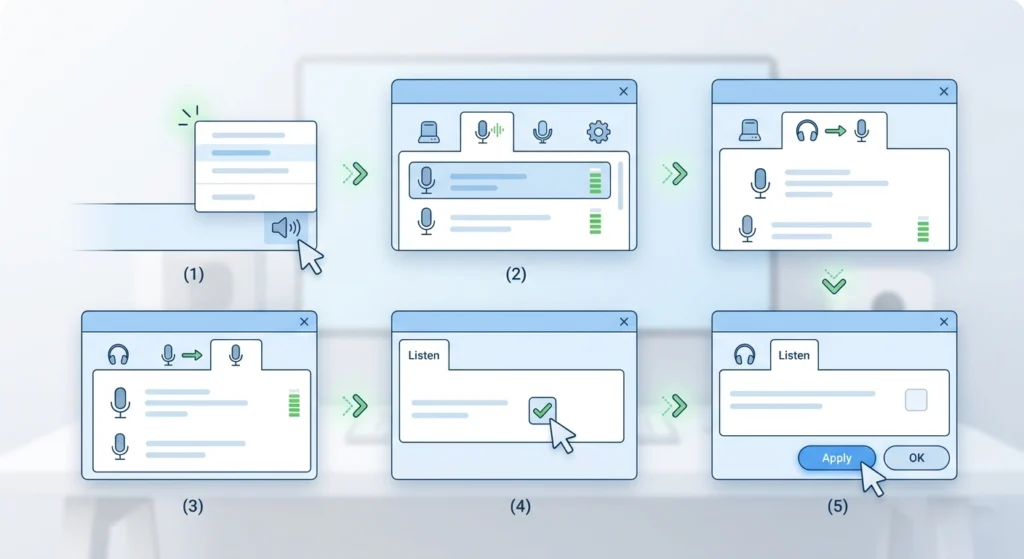
This is the most common cause of echo on Windows computers. When ‘Listen to this device’ is enabled for a microphone, the system plays microphone input back through the headphones in real time – creating a direct echo loop.
- Step 1: Right-click the speaker icon in the system tray and select ‘Sounds.’
- Step 2: Go to the ‘Recording’ tab and double-click the active microphone.
- Step 3: Click the ‘Listen’ tab.
- Step 4: Make sure ‘Listen to this device’ is unchecked.
- Step 5: Click ‘Apply,’ then ‘OK.’
This single fix resolves echo for a large percentage of Windows users. If the issue continues after this, move on to the next fix.
Fix 2: Lower Microphone Volume and Boost
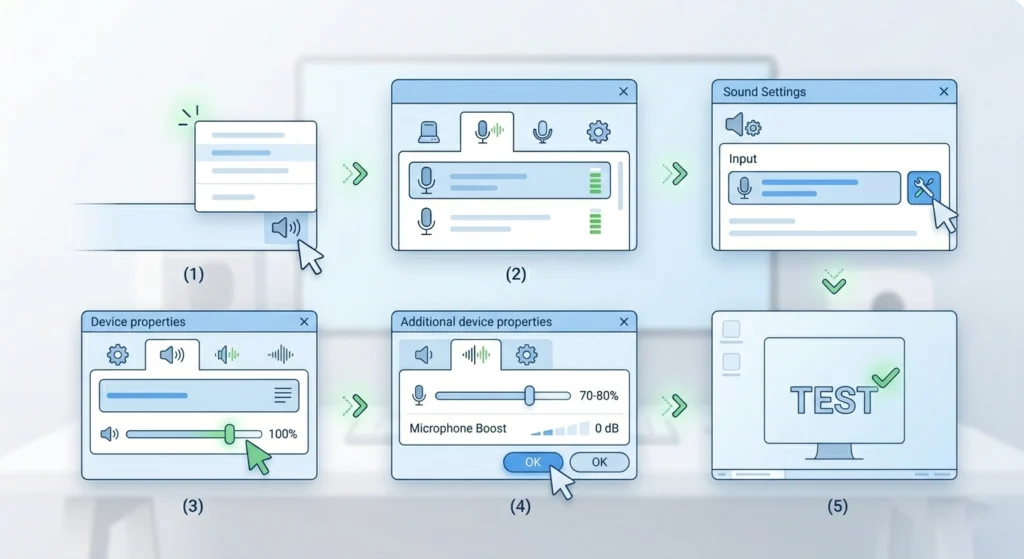
A microphone level that is set too high picks up sound from the headphone speakers and feeds it back into the call. This creates a feedback loop that sounds like a faint echo or a high-pitched ringing.
- Step 1: Open ‘Sound Settings’ on Windows (right-click speaker icon, then ‘Sound settings’).
- Step 2: Under ‘Input,’ click the active microphone and select ‘Device properties.’
- Step 3: Lower the input volume to around 70-80%.
- Step 4: Click ‘Additional device properties,’ go to the ‘Levels’ tab, and reduce ‘Microphone Boost’ to 0 dB if it is set higher.
- Step 5: Test the call again.
For a deeper look at managing audio input devices on Windows 11, that guide covers every input setting in detail.
Pro Tip: Most people set microphone boost too high thinking it improves call quality. In practice, any boost above +10 dB almost always introduces echo or feedback – especially with in-ear headphones where the mic sits close to the speaker drivers. Keep boost at 0 dB unless the mic is genuinely too quiet for the other person.
Fix 3: Adjust Audio Output Settings
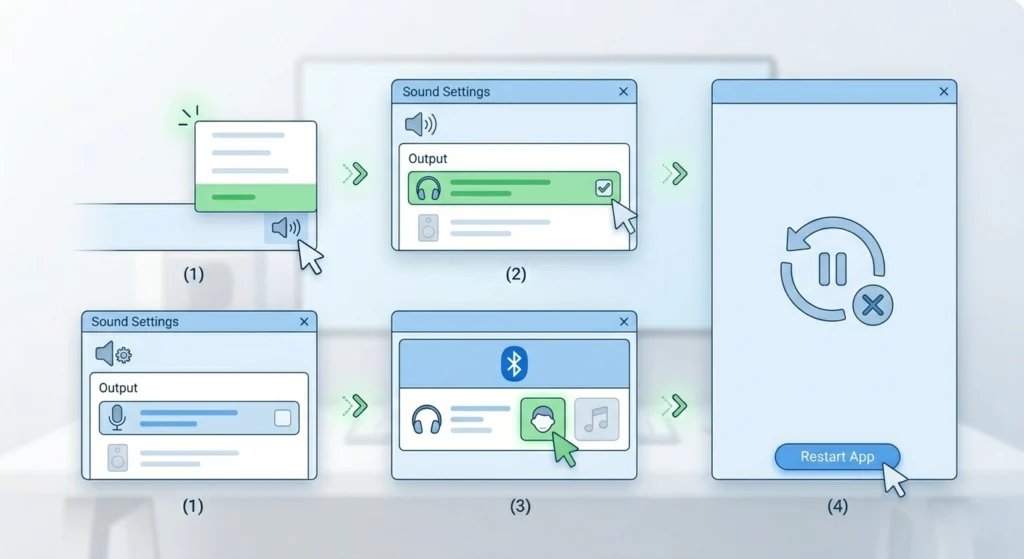
Sometimes the issue is not the microphone at all – it is the output device routing audio incorrectly. When the system is sending audio to both the headphones and the built-in speakers at the same time, echo becomes almost inevitable.
- Step 1: Open ‘Sound Settings’ and go to ‘Output.’
- Step 2: Confirm only the headphones are selected as the output device – not ‘Speakers’ or any secondary output.
- Step 3: If using Bluetooth headphones, make sure they are connected in headset mode, not just audio mode.
- Step 4: Restart the call app after making changes.
The full breakdown for adjusting audio output settings on Windows 11 is a solid reference if the routing options look confusing.
Fix 4: Turn On Echo Cancellation in the Call App
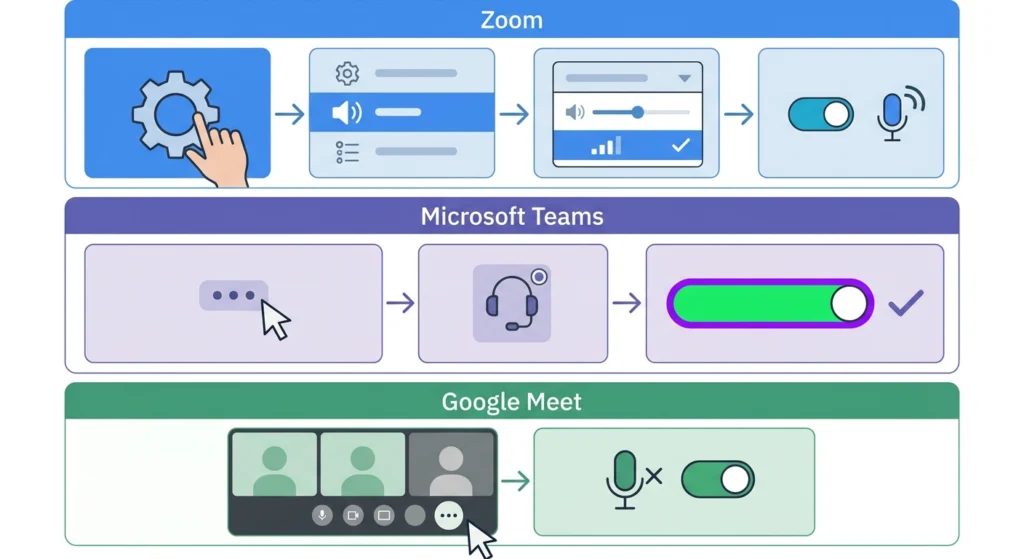
Apps like Zoom, Microsoft Teams, and Google Meet all have built-in echo cancellation. If this feature was accidentally disabled, echo comes back immediately. The key is to make sure it is turned on at the app level, not just at the system level.
For Zoom:
- Step 1: Open Zoom and go to ‘Settings’ (gear icon).
- Step 2: Click ‘Audio.’
- Step 3: Under ‘Suppress background noise,’ select ‘Auto’ or ‘Medium.’
- Step 4: Make sure ‘Echo cancellation’ is enabled (it is listed under advanced audio settings).
For Microsoft Teams:
- Step 1: Click the three-dot menu (more options) and go to ‘Settings.’
- Step 2: Open ‘Devices.’
- Step 3: Confirm ‘Noise suppression’ is set to ‘Auto’ or ‘High.’
For Google Meet:
- Step 1: During a call, click the three-dot menu and select ‘Settings.’
- Step 2: Go to ‘Audio’ and toggle on ‘Noise cancellation.’
Fix 5: Update or Reinstall Audio Drivers (Windows)
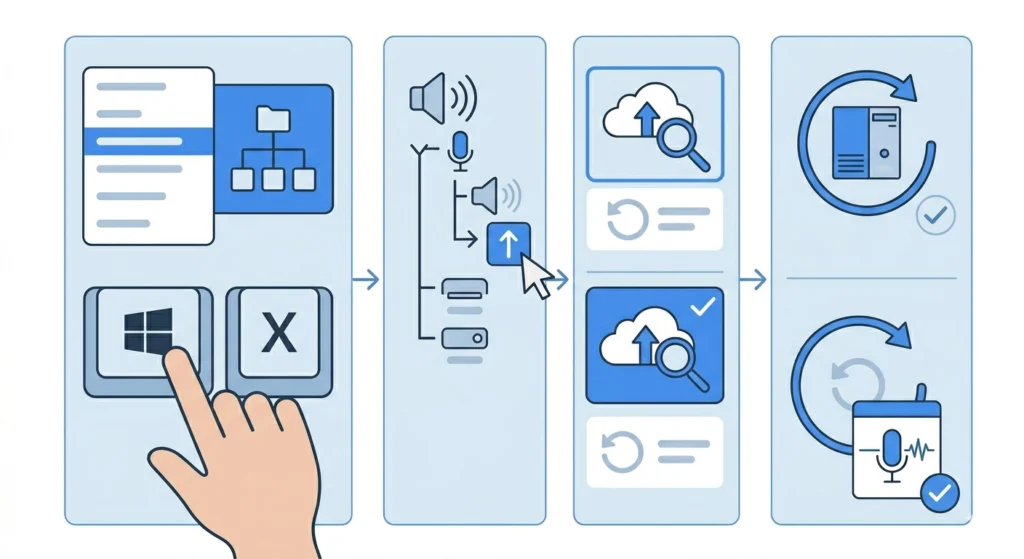
Outdated or corrupted audio drivers are a common but overlooked cause of echo. Driver issues can cause the system to misroute audio signals, creating feedback loops that do not respond to settings changes.
- Step 1: Press ‘Windows + X’ and select ‘Device Manager.’
- Step 2: Expand ‘Sound, video and game controllers.’
- Step 3: Right-click the audio device and select ‘Update driver.’
- Step 4: Choose ‘Search automatically for drivers.’
- Step 5: If no update is found, right-click the device again and select ‘Uninstall device,’ then restart the computer. Windows reinstalls the driver automatically on reboot.
Fix 6: Reset Audio Settings to Default
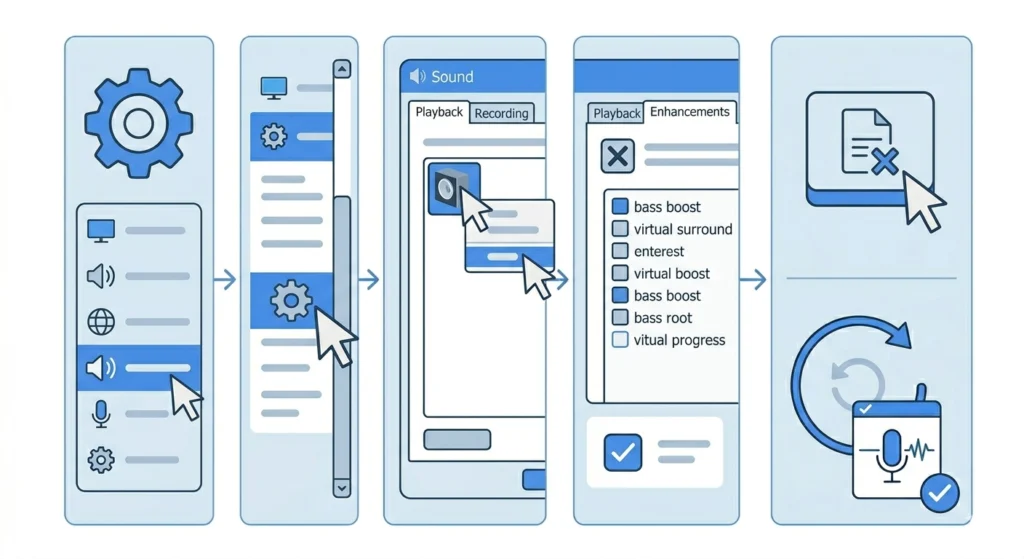
Sometimes audio settings become misconfigured after an update or after installing a new app. Resetting everything back to default is a clean way to eliminate any configuration-related echo.
- Step 1: Open ‘Sound Settings’ in Windows 11.
- Step 2: Scroll down and click ‘More sound settings.’
- Step 3: Under the ‘Playback’ tab, right-click the active headphone output and select ‘Properties.’
- Step 4: Go to the ‘Enhancements’ tab and check ‘Disable all enhancements.’
- Step 5: Apply changes and retest.
For a full walkthrough on resetting audio settings on Windows 11, that guide covers both basic and advanced resets.
Fix 7: Fix Echo on Mac
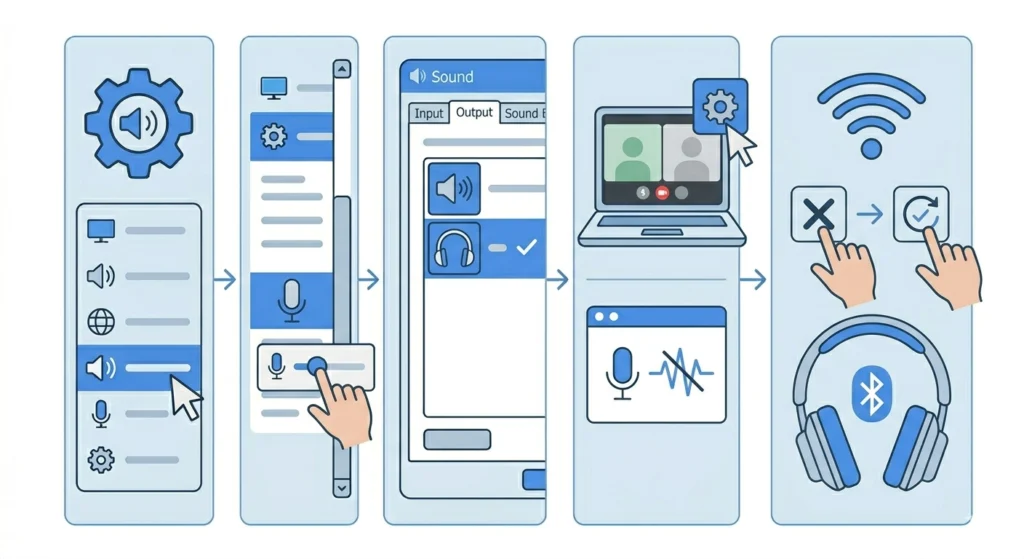
- Step 1: Open ‘System Settings’ and go to ‘Sound.’
- Step 2: Click ‘Input’ and lower the input volume slider for the microphone.
- Step 3: Make sure the correct output device (headphones) is selected under ‘Output.’
- Step 4: Open any active call app and check its audio settings for echo cancellation or noise suppression options.
- Step 5: If using Bluetooth headphones, disconnect and reconnect them to refresh the connection.
Fix 8: Fix Echo on iPhone or Android During Calls
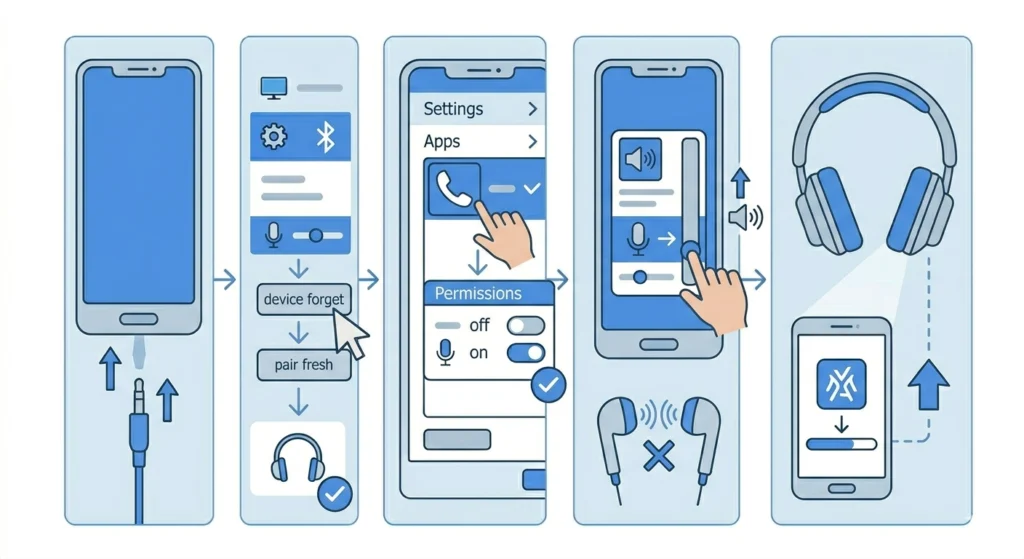
Mobile echo usually comes from a loose headphone fit or from the phone switching between the headphone mic and the built-in mic mid-call.
- Step 1: Remove and firmly reseat the headphone jack or earbuds to ensure a solid connection.
- Step 2: For Bluetooth earbuds, disconnect and reconnect. Go to Bluetooth settings, forget the device, and pair it fresh.
- Step 3: Make sure the call app has permission to use the microphone (Settings > Apps > [App Name] > Permissions).
- Step 4: Lower the call volume slightly – high volume on earbuds lets sound leak from the speaker into the mic.
- Step 5: For persistent Bluetooth echo, check if a firmware update is available for the headphones via the manufacturer’s app.
Fix 9: Check Headphone Fit and Physical Placement
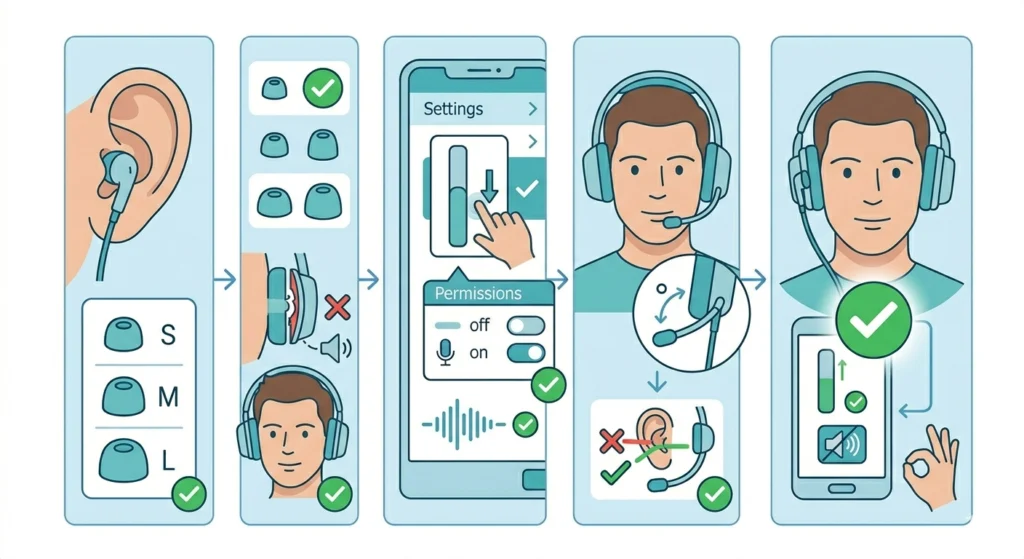
This fix is often missed entirely, but it is highly effective – especially for in-ear monitors and earbuds. When headphones do not fit snugly, audio from the speakers leaks out and gets picked up by the microphone, creating an acoustic echo loop.
- Step 1: For in-ear headphones, try a different ear tip size to get a better seal.
- Step 2: For over-ear headphones, make sure both ear cups sit flush against the ears.
- Step 3: Reduce headphone output volume slightly – even 10-15% lower often eliminates leakage into the mic.
- Step 4: If using a boom microphone headset, angle the mic slightly away from direct line with the ear cup.
Pro Tip: Open-back headphones are fundamentally not designed for calls. Sound leaks freely from the drivers by design, making it almost impossible to prevent some level of echo pickup. If calls are a regular need, closed-back or in-ear designs with good passive isolation are the right tool for the job.
Tips for Preventing Headphone Echo Long Term
- Always use headphones as the exclusive audio output during calls – never mix headphone and speaker output simultaneously.
- Keep microphone boost at 0 dB as a default setting unless absolutely needed.
- Keep audio drivers updated, especially after major Windows or macOS updates.
- Use call apps with native echo cancellation (Zoom, Teams, Discord all include this).
- For Bluetooth headphones, ensure they are paired correctly in headset profile mode. A useful reference for this is the guide on re-pairing Bluetooth earbuds for stereo sound on Windows.
- Regularly check call app audio settings after app updates, since updates sometimes reset audio preferences.
Common Problems and Solutions
- Echo only happens in one specific app: The issue is almost certainly the app’s audio settings, not the system. Check echo cancellation and noise suppression inside that app’s settings menu.
- Echo started after a Windows update: Updates can reset audio enhancements or driver settings. Go to Sound Settings and re-apply the ‘Disable all enhancements’ option, or reset audio settings from scratch.
- Echo only happens on Bluetooth headphones: Bluetooth headphones in stereo audio mode often disable the microphone, forcing the system to fall back to the built-in mic – which then picks up headphone audio. Ensure the device is connected in headset/hands-free profile mode.
- Other callers hear echo but the user does not: This means the user’s microphone is picking up their own speaker audio and sending it back. The primary fixes are lowering microphone sensitivity and ensuring ‘Listen to this device’ is off.
- High-pitched feedback squeal instead of echo: This is a classic acoustic feedback loop. The microphone is too close to a speaker that is playing the mic input. Lower mic boost, reduce output volume, or physically separate the mic from the speakers.
- Echo on headphones with a detachable mic: Check that the mic is fully seated in its connector. A loose detachable mic can cause signal interference that sounds like intermittent echo or static.
Frequently Asked Questions
Why do headphones cause echo during calls?
Echo happens when the microphone picks up audio that is already playing through the headphone speakers and sends it back into the call. This creates a loop where sound is heard twice – once live and once delayed. The most common causes are high microphone sensitivity, incorrect system audio settings, or a poor headphone seal that allows sound to leak from the speakers to the mic.
How do headphones fix echo in Windows 11?
The fastest fix for Windows 11 is to open Sound Settings, go to the Recording tab, open the active microphone properties, click the Listen tab, and make sure ‘Listen to this device’ is unchecked. After that, reduce microphone boost to 0 dB under the Levels tab and disable audio enhancements under the Enhancements tab.
Does lowering headphone volume stop echo?
Yes, in many cases it does. When the headphone output volume is very high, sound leaks from the drivers and gets picked up by the microphone. Reducing output volume by 10-20% often breaks this acoustic loop, especially with in-ear headphones or open-back designs.
Why do Bluetooth headphones echo more than wired ones?
Bluetooth headphones often switch between audio profiles depending on what the system assigns them. When connected in stereo audio mode only, the system may default to the built-in laptop microphone while still routing output to the headphones – creating a classic echo setup. The fix is to ensure Bluetooth headphones are connected in headset or hands-free profile mode so the headphone mic is used consistently.
Can call apps cause echo on their own?
Yes. If echo cancellation is disabled inside a call app like Zoom or Microsoft Teams, echo will occur regardless of how well the system audio is configured. Always check the audio settings inside the specific app being used for calls and confirm that echo cancellation or noise suppression is enabled.
Does the headphone microphone position affect echo?
It can. On headsets with boom microphones, positioning the mic too close to or directly in line with an ear cup increases the chance of speaker audio bleeding into the mic. Angling the boom mic slightly away from the ear cups and keeping it at a moderate distance from the mouth reduces this risk.
Why does only the other caller hear the echo and not me?
When the other caller hears echo but the user does not, the user’s microphone is capturing their own speaker output and sending it back across the call. The fix focuses on reducing microphone sensitivity, disabling ‘Listen to this device’ in Windows, and making sure the headphone output volume is not leaking into the mic pickup zone.
Does echo cancellation in Windows work the same as in call apps?
Not exactly. Windows has system-level audio enhancements including some echo reduction, but these are less sophisticated than the AI-powered echo cancellation built into modern call apps. For the best results, use both – enable system enhancements and turn on in-app echo cancellation simultaneously.
Do open-back headphones cause more echo than closed-back?
Yes, significantly. Open-back headphones are designed to let sound pass through the ear cups freely for a natural soundstage. This is ideal for music listening but problematic for calls, since audio leaks directly from the drivers and gets picked up by the microphone. Closed-back headphones or in-ear designs with a good seal are a much better choice for regular call use.
Can a microphone detection issue cause echo?
Sometimes. When the system fails to properly detect the headphone microphone, it defaults to the built-in mic instead. If the built-in mic is picking up audio from open headphone speakers, echo follows. Resolving microphone detection problems on Windows 11 can eliminate this as a source of echo entirely.