
Headphones being detected as wrong device is one of the most frustrating audio issues in Windows 11. The system shows the connected headphones as ‘Speakers,’ ‘Line Out,’ or some other unrelated device – and the audio either plays from the wrong output or does not work at all. The good news? This is almost always fixable without reinstalling drivers or resetting the whole system.
Quick Summary
- Windows misidentifying headphones usually comes down to incorrect audio output settings or a misconfigured device type in Sound properties
- The fastest fix is manually setting the correct default audio device and renaming the device type
- Updating or reinstalling audio drivers resolves most cases where the settings alone do not work
- This guide covers Windows 11 fixes only – all steps are direct and tested
Fix 1: Set Headphones as the Default Audio Device
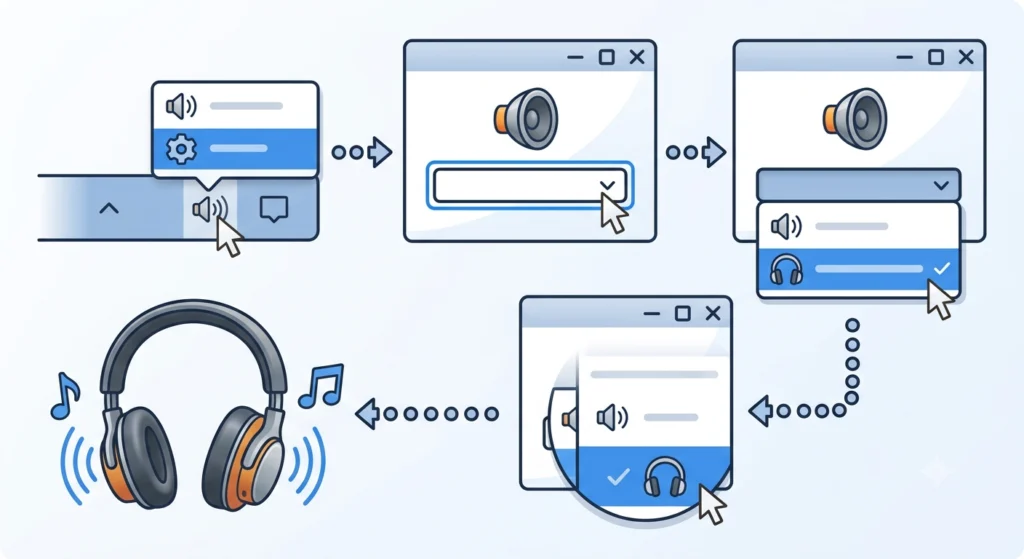
Windows sometimes defaults to the wrong output device, especially after a system update or when multiple audio devices are connected. Manually setting headphones as the default output is the first thing to check.
- Step 1: Right-click the speaker icon in the taskbar (bottom-right corner) and select ‘Sound settings.’
- Step 2: Under ‘Output,’ look for the dropdown labeled ‘Choose where to play sound.’
- Step 3: Click the dropdown and select the headphones from the list. If it shows as ‘Speakers’ or another name, select the one that corresponds to the connected headphones port or Bluetooth device.
- Step 4: Play audio to test. If sound comes from the headphones, the fix worked.
This works best when the headphones are physically connected before opening the settings. Plugging in after the fact sometimes delays detection.
For a more detailed walkthrough on adjusting audio output settings in Windows 11, that guide covers additional scenarios including multiple output devices.
Fix 2: Change the Device Type in Sound Control Panel
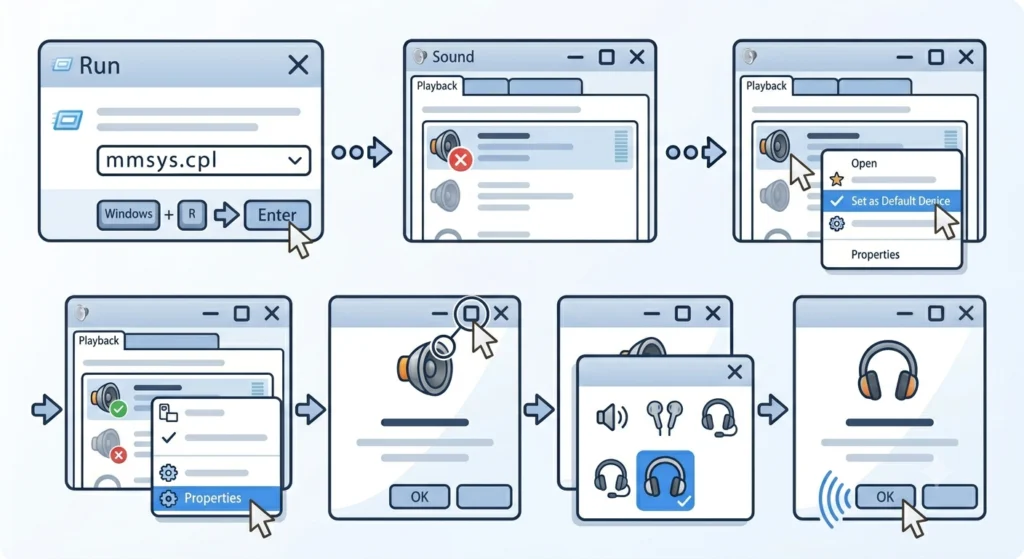
Windows assigns a device type – like ‘Speakers’ or ‘Headphones’ – based on how it recognizes the hardware. If the label is wrong, the system may route audio incorrectly or apply the wrong audio enhancements. Correcting the device type directly in the Sound Control Panel fixes this.
- Step 1: Press Windows + R, type mmsys.cpl, and press Enter to open the classic Sound Control Panel.
- Step 2: Under the ‘Playback’ tab, locate the device showing the wrong label (e.g., ‘Speakers’ when headphones are connected).
- Step 3: Right-click on it and select ‘Set as Default Device.’
- Step 4: Right-click again and choose ‘Properties.’
- Step 5: In the Properties window, click the device icon at the top (the image of speakers or headphones).
- Step 6: A small window opens showing different device type icons. Select the headphones icon and click ‘OK.’
- Step 7: Click ‘OK’ to close Properties, then test the audio.
Most people find that just changing the icon here does not rename the device permanently – but it does correct how Windows applies audio processing to that output, which is what actually matters for proper detection.
Pro Tip: If the headphones icon option is grayed out or missing in the Properties window, it usually means the audio driver does not support device type differentiation. In that case, move directly to Fix 3 (driver update) before anything else.
Fix 3: Update or Reinstall the Audio Driver
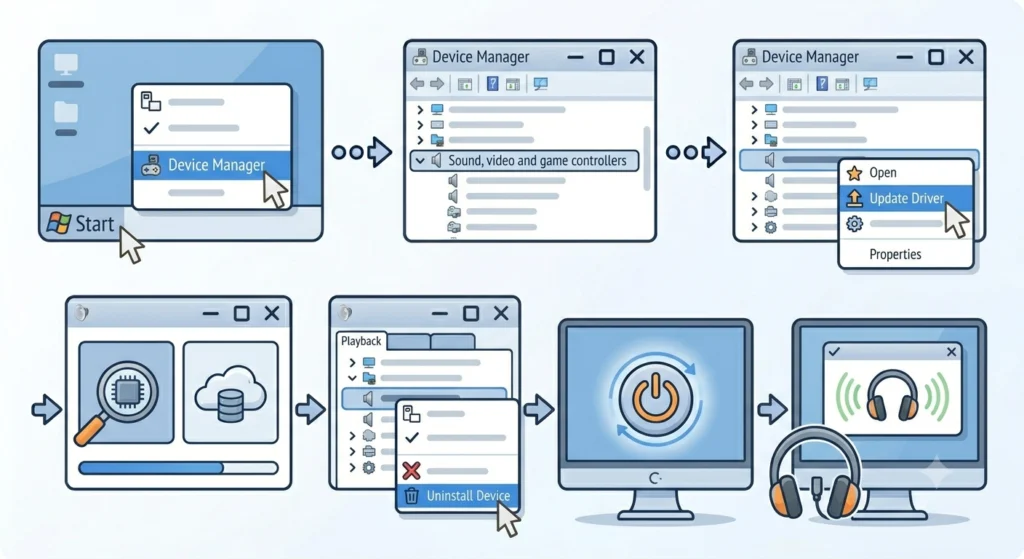
An outdated or corrupted audio driver is one of the most common reasons headphones get misidentified. The driver is what tells Windows what kind of device is connected. When it breaks or falls behind, Windows guesses – and usually guesses wrong.
- Step 1: Right-click the Start button and select ‘Device Manager.’
- Step 2: Expand ‘Sound, video and game controllers.’
- Step 3: Right-click the audio device (usually Realtek, Intel, or AMD audio) and select ‘Update driver.’
- Step 4: Choose ‘Search automatically for drivers.’ Let Windows find and install any available update.
- Step 5: If no update is found, go back, right-click the same device, and choose ‘Uninstall device.’ Check the box to delete the driver if prompted.
- Step 6: Restart the computer. Windows will reinstall the driver automatically on boot.
- Step 7: After restart, reconnect headphones and check if they are now correctly identified.
The key is that reinstalling forces Windows to rebuild its detection logic for the audio hardware from scratch. This clears any corrupted state that caused the wrong device label.
Fix 4: Disable and Re-enable the Audio Device
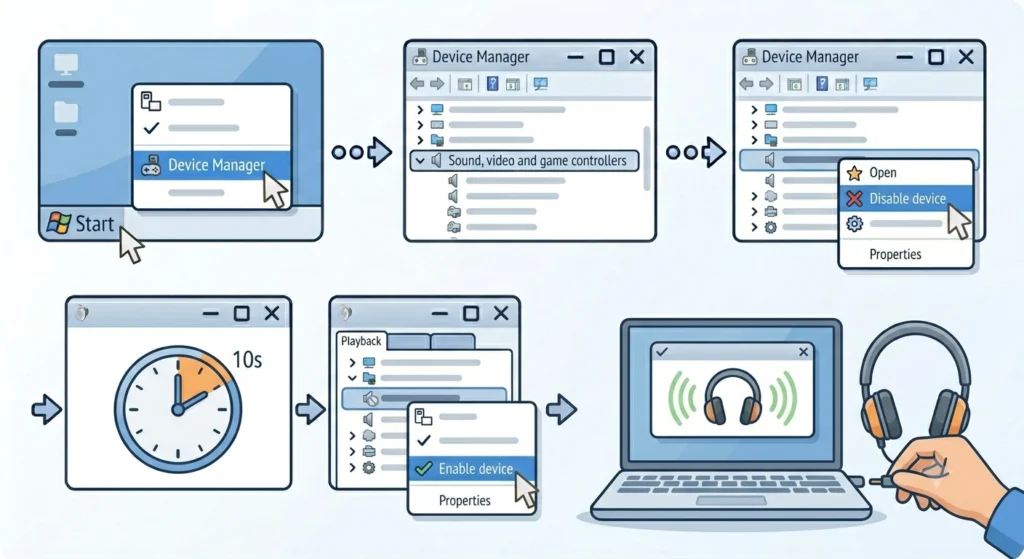
Sometimes the detection issue is not about the driver version – it is a temporary glitch in how Windows initialized the device. A quick disable and re-enable often resets this without needing a full driver reinstall.
- Step 1: Open Device Manager (right-click Start and select it).
- Step 2: Expand ‘Sound, video and game controllers.’
- Step 3: Right-click the audio device and select ‘Disable device.’ Confirm if prompted.
- Step 4: Wait 10 seconds.
- Step 5: Right-click the same device and select ‘Enable device.’
- Step 6: Reconnect headphones and check Sound settings again.
Fix 5: Check Audio Input Device Settings
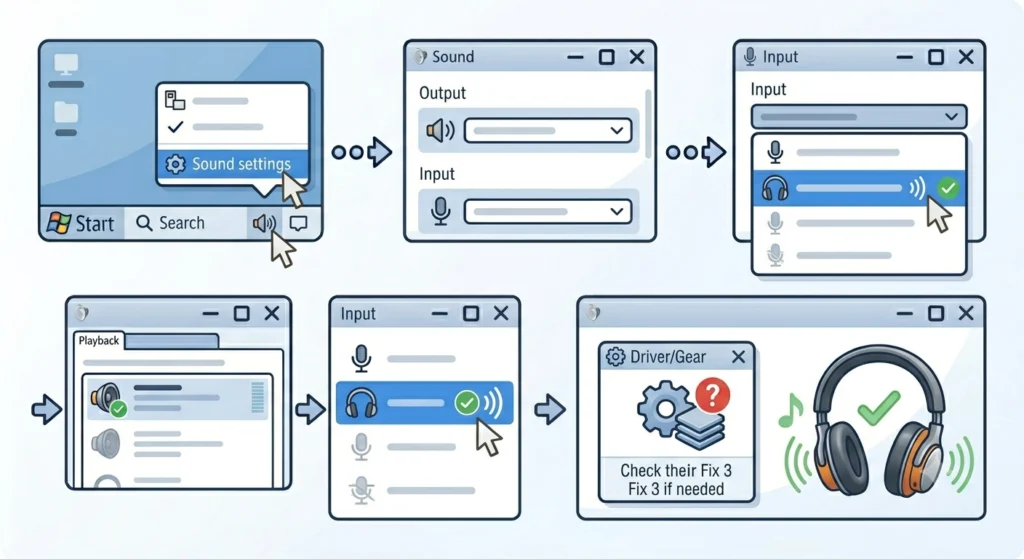
Sometimes the confusion is not on the output side but on the input side. If the microphone on headphones is being detected under the wrong category, it can affect how the whole headset is classified by Windows. Checking managing audio input devices in Windows 11 can help identify whether the microphone is also being misread, which often points to a driver issue rather than just a settings problem.
- Step 1: Open Sound settings (right-click taskbar speaker icon).
- Step 2: Scroll down to the ‘Input’ section.
- Step 3: Under ‘Choose a device for speaking or recording,’ confirm the headphone microphone is selected – not a built-in mic or unrelated device.
- Step 4: If it looks correct but headphones are still misidentified on output, check Fix 3.
Tips for Keeping Headphones Detected Correctly
- Always plug in wired headphones before booting Windows when possible – detection is more reliable at startup
- For Bluetooth headphones, remove and re-pair the device if it keeps showing the wrong label. A full re-pair resets device metadata in Windows
- Keep audio drivers updated through the manufacturer site (Realtek, Intel, etc.) rather than relying solely on Windows Update
- Avoid using generic USB audio adapters without drivers – they often get flagged as ‘USB Audio Device’ and never correctly identified as headphones
- If using a USB DAC or audio interface, check the manufacturer app for device type configuration options separate from Windows settings
Pro Tip: For Bluetooth headphones specifically, the wrong device detection is often caused by Windows connecting in ‘Hands-Free’ profile instead of ‘Stereo’ profile. To fix this, go to Bluetooth settings, remove the device completely, and re-pair Bluetooth earbuds for stereo sound on Windows – this forces Windows to reconnect using the correct audio profile.
Common Problems and Solutions
Headphones Still Show as ‘Speakers’ After All Fixes
This usually means the audio driver does not distinguish between output types. Download the latest driver directly from the motherboard or laptop manufacturer website – not from Windows Update. Manufacturer-specific drivers include better device detection logic than the generic ones Windows installs automatically.
Headphones Detected Correctly Once but Reverts After Restart
A startup app or audio service is overriding settings on boot. Open ‘Task Manager,’ go to the ‘Startup apps’ tab, and disable anything related to audio management (Realtek HD Audio Manager, for example) that resets output preferences. Then manually set the default device again and check if it holds.
No Headphones Option in Output Device List
If headphones do not even appear in the device list, the jack or Bluetooth pairing may not be registering. For wired headphones, try a different port. For Bluetooth, remove the device from Bluetooth settings and pair it fresh. If it still does not appear, the audio driver may need a full reinstall as covered in Fix 3.
Wrong Device Detected Only on Specific Apps
Some apps (like browsers or communication tools) have their own audio output settings separate from Windows. Check the app audio settings directly. For example, in Chrome, some extensions override system audio. In video call apps, look for a ‘Speaker’ or ‘Audio output’ dropdown inside the app settings.
Frequently Asked Questions
Why does Windows detect headphones as speakers?
Windows assigns device types based on driver data and the port being used. If the driver does not send the correct device type signal, or if the audio chip does not differentiate between output types, Windows defaults to labeling it as ‘Speakers.’ Updating the driver or changing the device type in Sound Control Panel properties usually resolves this.
Does this issue affect audio quality?
Yes, it can. When Windows thinks headphones are speakers, it may apply different audio processing, equalization, or spatial sound settings that are not optimized for headphone listening. Correcting the device type ensures the right audio profile is used.
Can a Windows update cause headphones to be misdetected?
Yes. Windows updates occasionally replace manufacturer audio drivers with generic ones, which lose the ability to correctly identify headphone types. After a major update, it is worth checking Device Manager to see if the audio driver was changed, and reinstalling the manufacturer version if needed.
Why does my Bluetooth headphone connect as a ‘Hands-Free’ device?
Windows defaults to the Hands-Free profile when it detects a microphone on the Bluetooth headset. This profile uses lower audio quality. To force stereo mode, disconnect the device, go to Bluetooth and device settings, remove the headphone, and re-pair it. Avoid granting microphone access during pairing if stereo audio quality is the priority.
Will resetting audio settings fix this issue?
In some cases, yes. Resetting audio settings in Windows 11 can clear misconfigurations that prevent correct device detection, especially if multiple fixes have been tried and nothing has worked. It returns audio preferences to default, which sometimes resolves stubborn detection issues.
What if headphones are detected correctly but no sound plays?
That is a separate issue from wrong device detection. If the headphones are correctly identified but silent, check the volume level for that specific device, make sure the output is not muted in app-level settings, and confirm the headphones are set as default. It could also be a physical issue with the cable or connector.
Does this problem occur on Windows 10 the same way?
The root causes are the same, but the settings locations differ slightly. This guide is written specifically for Windows 11. On Windows 10, the Sound Control Panel steps are nearly identical, but the modern Settings app layout is different.
Why do headphones get detected correctly on first plug-in but show wrong on restart?
Some audio management software (like Realtek Audio Console or IDT Audio) resets device assignments on startup. Disabling that software from startup, or configuring it to remember the preferred device type, prevents this from resetting after every reboot.
Can a faulty audio jack cause wrong device detection?
Yes. A damaged or dirty 3.5mm jack can cause the system to misread the connected device, especially if the CTIA/OMTP wiring standard of the headphone does not match what the jack expects. Try a different port or a USB audio adapter to rule out hardware as the cause.
Is there a way to permanently label a device as headphones in Windows?
Yes. Through the device Properties window in Sound Control Panel (mmsys.cpl), selecting the headphones icon for the device type saves it as a preference. As long as the same device is connected to the same port, Windows will remember the label. Switching ports may reset it.