
Key Takeaways
- Virtual surround sound issues are almost always caused by incorrect audio settings, disabled features, or outdated drivers – not hardware failure.
- Windows Sonic, Dolby Atmos, and DTS Sound Unbound each require separate activation steps.
- The fix usually takes less than 5 minutes once the right setting is found.
- Updating or reinstalling audio drivers resolves the issue in most cases where settings alone do not help.
- Third-party surround sound apps must be set as the default audio output to work properly.
Virtual surround sound not working on headphones is one of the most frustrating audio experiences – especially when it was working perfectly fine before. Whether the spatial audio suddenly stopped, never activated after setup, or simply sounds flat and stereo-only, the root cause is almost always a misconfigured setting or a driver that needs attention. This step-by-step guide covers every reliable fix to get virtual surround sound back up and running.
Fix Virtual Surround Sound Not Working on Headphones
Fix 1: Enable Spatial Sound in Windows Settings
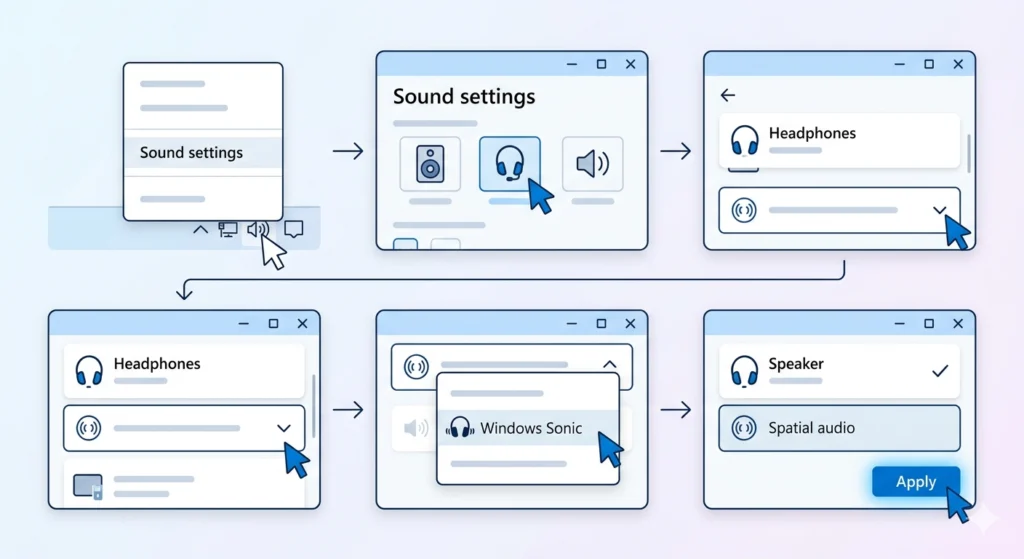
This is the most common reason virtual surround sound stops working. Windows requires spatial audio to be manually enabled per device, and it can revert after a Windows update.
- Step 1: Right-click the speaker icon in the taskbar and select ‘Sound settings’.
- Step 2: Click on the headphones listed under ‘Output’.
- Step 3: Scroll down to ‘Spatial audio’ and open the dropdown menu.
- Step 4: Select ‘Windows Sonic for Headphones’ or the preferred spatial audio format (Dolby Atmos, DTS Headphone:X).
- Step 5: Click ‘Apply’ if prompted, then play audio to test.
The key is to make sure the correct headphone device is selected before changing the spatial audio setting. Applying it to the wrong output device will not produce any effect.
Fix 2: Check If the Correct Audio Device Is Set as Default
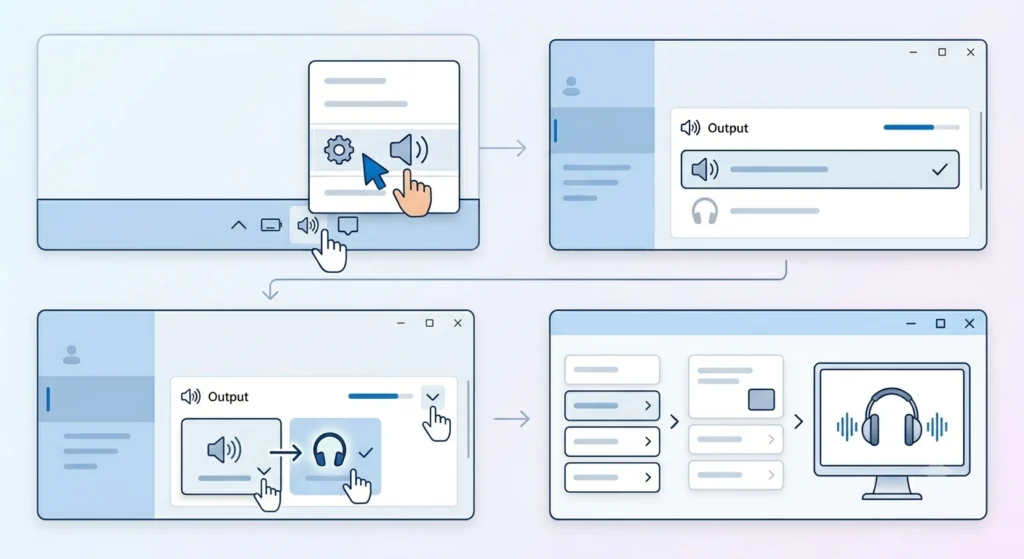
Virtual surround sound only applies to the active default playback device. If the system is routing audio to speakers or a different output, the headphone spatial settings will not trigger.
- Step 1: Right-click the speaker icon and choose ‘Open Sound settings’.
- Step 2: Under ‘Output’, confirm the headphones are selected as the active device.
- Step 3: If not, click the dropdown and switch to the correct headphone output.
- Step 4: Visit the audio output settings guide for Windows 11 for a more detailed walkthrough on setting the right default device.
This works best when only one audio device is connected at a time during initial setup – it eliminates any ambiguity about which device Windows is targeting.
Fix 3: Update or Reinstall Audio Drivers
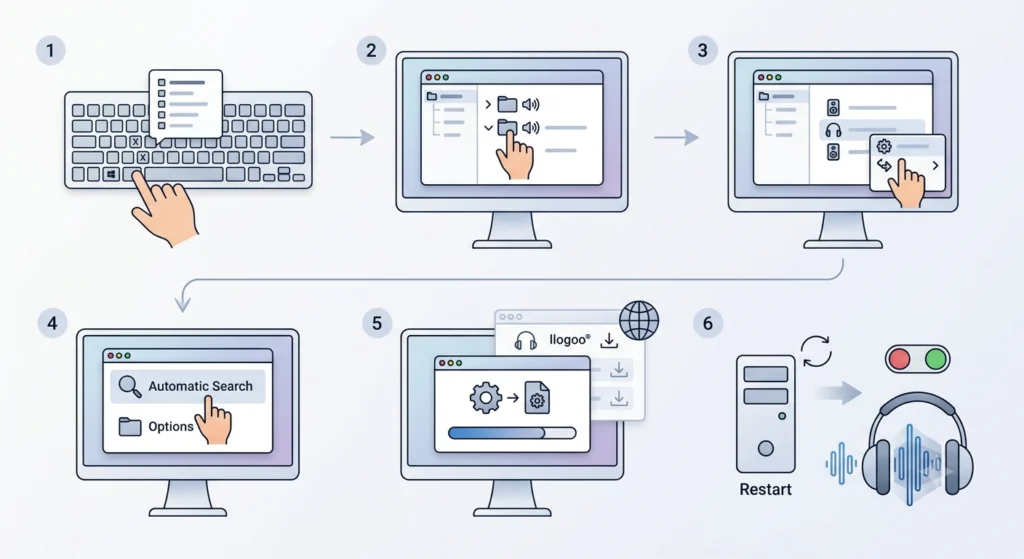
Outdated or corrupted audio drivers are a leading cause of virtual surround sound failing silently. The feature may appear enabled in settings, but if the driver does not support it, nothing will happen.
- Step 1: Press ‘Windows + X’ and open ‘Device Manager’.
- Step 2: Expand ‘Sound, video and game controllers’.
- Step 3: Right-click the audio device and select ‘Update driver’.
- Step 4: Choose ‘Search automatically for drivers’ and let Windows find the latest version.
- Step 5: If no update is found, visit the headphone manufacturer’s website and download the latest driver manually.
- Step 6: Restart the computer after installation and re-enable spatial audio.
For headsets from brands like SteelSeries, Razer, Corsair, or HyperX, always prefer the manufacturer’s own driver over the generic Windows audio driver – the proprietary driver unlocks full surround sound support.
Pro-Tip: If updating does not help, try uninstalling the audio driver entirely (right-click device in Device Manager and choose ‘Uninstall device’), then restart. Windows will automatically reinstall a clean version, which resolves many surround sound glitches caused by corrupted driver files.
Fix 4: Enable the Surround Sound Feature in the Headphone App
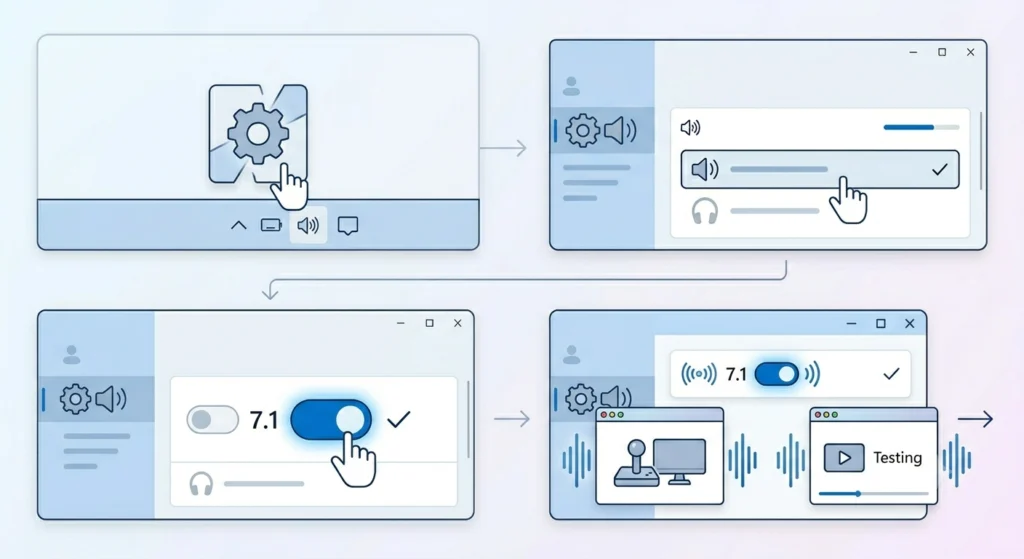
Most gaming headsets and premium headphones come with their own companion software – Razer Synapse, SteelSeries GG, ASUS Armoury Crate, Corsair iCUE, and similar. Virtual surround sound is controlled separately inside these apps and must be toggled on from within them.
- Step 1: Open the companion software for the headphones.
- Step 2: Navigate to the audio or sound settings section.
- Step 3: Look for a ‘Surround Sound’, ‘7.1’, or ‘THX Spatial Audio’ toggle and enable it.
- Step 4: Apply the changes and test with a game or spatial audio video.
Most people find that the companion app toggle and the Windows spatial audio setting work independently. Enabling one does not automatically enable the other. Both may need to be active depending on the setup.
Fix 5: Disable Audio Enhancements That Conflict With Surround Sound
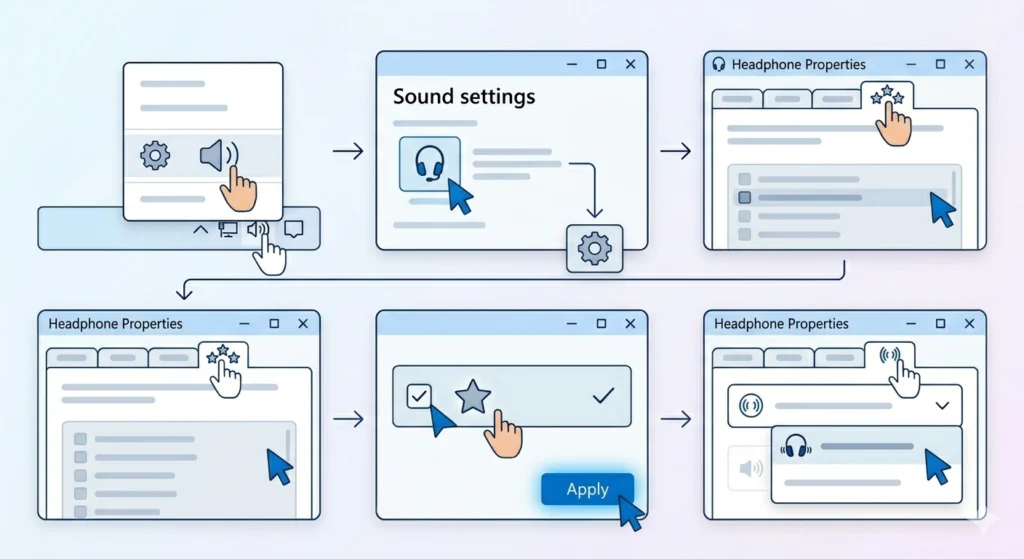
Windows audio enhancements can sometimes interfere with spatial audio processing. Disabling them forces Windows to pass the audio signal cleanly to the spatial audio engine.
- Step 1: Right-click the speaker icon and select ‘Sound settings’.
- Step 2: Click on the headphones under ‘Output’ and scroll to ‘Additional device properties’.
- Step 3: Go to the ‘Enhancements’ tab.
- Step 4: Check ‘Disable all enhancements’ and click ‘Apply’.
- Step 5: Switch to the ‘Spatial sound’ tab and confirm the spatial audio format is still selected.
Fix 6: Set Audio Format to 24-bit or 16-bit Stereo
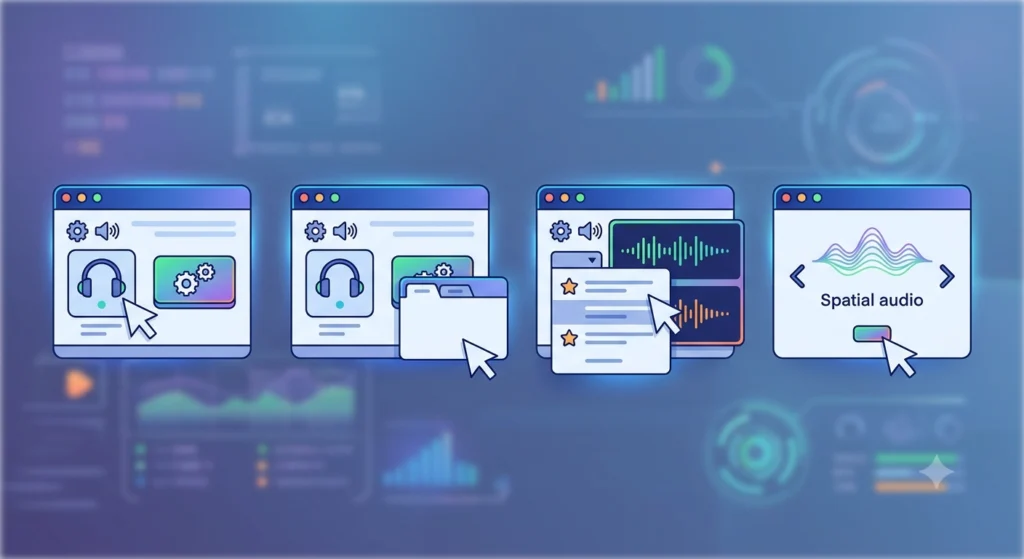
Virtual surround sound formats like Windows Sonic require the audio device to be set to a stereo format rather than a multi-channel output. Ironically, setting headphones to ‘5.1 Surround’ or ‘7.1 Surround’ in the device format can actually prevent virtual surround from working.
- Step 1: Go to ‘Sound settings’ and open the headphone device properties.
- Step 2: Click ‘Additional device properties’ and go to the ‘Advanced’ tab.
- Step 3: Under ‘Default Format’, change the format to ’24 bit, 48000 Hz (Studio Quality)’ or ’16 bit, 48000 Hz’.
- Step 4: Click ‘Apply’, then re-enable spatial audio under the ‘Spatial sound’ tab.
This is a commonly missed step. The format dropdown needs to reflect stereo (2-channel) output – Windows Sonic and Dolby Atmos handle the virtual multi-channel mixing themselves.
Fix 7: Reset Audio Settings to Default
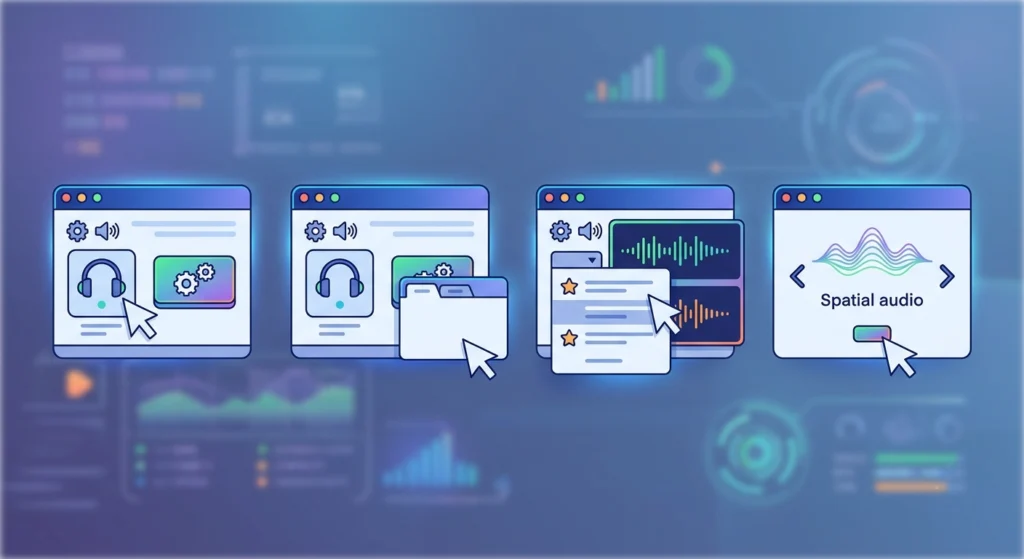
If the sound configuration has become inconsistent after updates or software installs, resetting everything back to default is often the fastest way to start fresh and reapply spatial audio cleanly. Follow the step-by-step audio reset guide for Windows 11 to do this without losing other system preferences.
- Step 1: Open Sound settings and navigate to the headphone device.
- Step 2: Click ‘Additional device properties’ and go to the ‘Advanced’ tab.
- Step 3: Click ‘Restore Defaults’.
- Step 4: Do the same under the ‘Enhancements’ and ‘Spatial sound’ tabs.
- Step 5: Re-enable spatial audio from scratch using Fix 1 above.
Pro-Tip: After resetting, always re-enable spatial audio before opening any apps or games. Some applications cache the audio device state at launch, meaning they will not detect the spatial audio change if they were already running.
Fix 8: Re-pair Wireless or Bluetooth Headphones
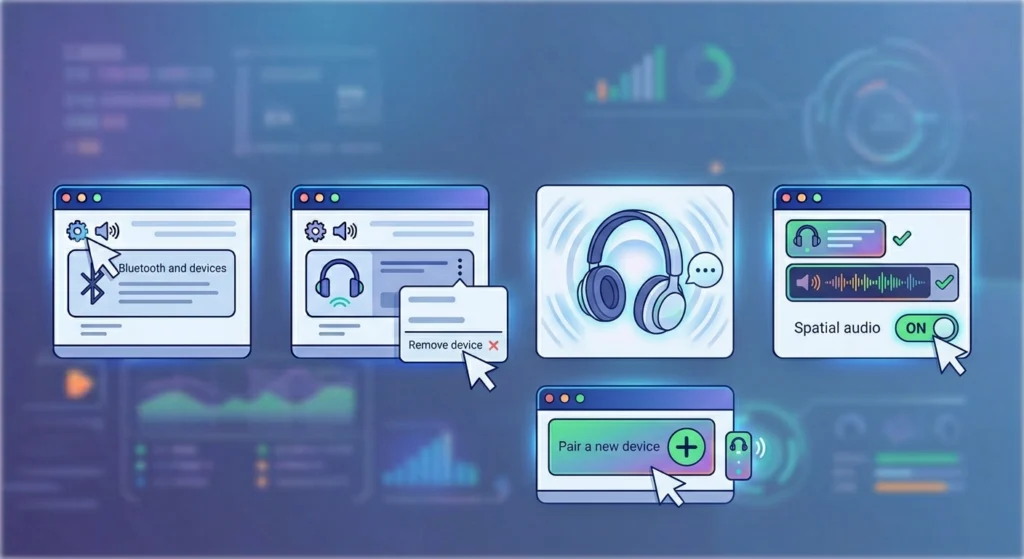
Wireless headphones that connect over Bluetooth can lose their audio profile configuration, which may strip out the spatial audio link. Re-pairing the device refreshes the connection and often restores the surround sound association. The guide on re-pairing Bluetooth earbuds for stereo sound on Windows covers this process in detail.
- Step 1: Go to ‘Settings’ and open ‘Bluetooth and devices’.
- Step 2: Find the headphones in the device list, click the three-dot menu, and select ‘Remove device’.
- Step 3: Put the headphones back into pairing mode.
- Step 4: Re-pair the device from the Bluetooth settings.
- Step 5: Go back to Sound settings and re-enable spatial audio for the freshly paired device.
Tips for Getting the Best Virtual Surround Sound Experience
- Always use a wired USB connection when possible for gaming headsets – Bluetooth introduces latency that can slightly desync surround audio cues.
- Test surround sound using dedicated test content like YouTube spatial audio demos or spatial audio test tones rather than regular stereo music.
- Keep companion software like Razer Synapse or SteelSeries GG running in the background – these apps must be active to maintain the surround sound profile.
- Avoid enabling both Windows Sonic and a third-party spatial app simultaneously – only one surround engine should be active at a time to prevent conflicts.
- Check for Windows Update after fixing the issue – some spatial audio improvements are bundled into cumulative updates and activate additional features automatically.
Common Problems With Virtual Surround Sound on Headphones
Spatial Audio Option Is Greyed Out
This usually means the audio driver does not support spatial audio, or the format setting is incompatible. Switch the audio format to 16-bit or 24-bit stereo under the ‘Advanced’ tab in device properties, then check if the spatial audio option becomes available again.
Surround Sound Sounds Like Regular Stereo
The most likely cause is that the spatial audio toggle is enabled in Windows but not inside the headphone’s companion app, or vice versa. Confirm both are active. Also ensure the content being played supports spatial audio – standard stereo files will not take advantage of surround sound processing.
Surround Sound Works in One App But Not Another
Some applications override the system audio settings and use their own audio engine. Games like those using Unreal Engine have their own in-game spatial audio settings that must be enabled separately. Check the in-app audio settings and look for options like ‘Headphones’, ‘HRTF’, or ‘Spatial Audio’.
Virtual Surround Sound Stopped Working After a Windows Update
Windows updates occasionally reset spatial audio settings or overwrite audio drivers with generic versions. After any major update, go back to Sound settings, confirm the spatial audio format is still selected, and check Device Manager to verify the correct driver is still installed.
Headphone Is Not Listed as a Spatial Audio Device
Not all headphones are recognized as compatible spatial audio devices in Windows. Visit the audio input device management guide to check how devices are being recognized and configured at the system level. In some cases, using a USB audio adapter instead of the 3.5mm jack resolves device recognition issues.
Frequently Asked Questions
Why is virtual surround sound not working on headphones in Windows 11?
The most common reasons are that spatial audio is disabled in Sound settings, the wrong audio device is set as default, or an audio driver update reset the configuration. Go to Sound settings, click on the headphone output, and make sure a spatial audio format like Windows Sonic or Dolby Atmos is selected.
Does virtual surround sound work on all headphones?
Windows Sonic for Headphones works on virtually any stereo headphone connected to a Windows PC. Dolby Atmos and DTS Headphone:X may require a paid license or specific hardware. Manufacturer-branded surround sound (like Razer 7.1 or SteelSeries Surround) only works on compatible headsets from those brands.
Is Windows Sonic better than Dolby Atmos for headphones?
Dolby Atmos generally provides more immersive and accurate spatial audio, especially for movies and supported games. Windows Sonic is a solid free alternative that works well for gaming. The best choice depends on personal preference and whether Dolby Atmos content is frequently used.
Why does virtual surround sound sound flat or not spatial?
This often happens when the audio source is standard stereo and does not contain spatial metadata. Virtual surround sound performs best with content specifically mixed for spatial audio. Also check that enhancements are not disabled in a way that blocks spatial processing, and confirm the headphone audio format is set to stereo rather than multi-channel.
Can Bluetooth headphones use virtual surround sound?
Yes, but with limitations. Bluetooth headphones can use Windows Sonic and some spatial audio formats, but the Bluetooth codec in use may affect quality. SBC codec connections often produce weaker spatial audio than aptX or LDAC. Re-pairing the device and selecting a higher-quality Bluetooth codec in the device settings can help.
Do gaming headsets need companion software for surround sound?
Most branded gaming headsets require their companion software to enable proprietary surround features. However, Windows Sonic works independently without any additional software. If the goal is to use the headset’s built-in 7.1 or THX processing, the companion app must be installed and running.
Why did virtual surround sound stop working after a Windows update?
Windows updates can overwrite audio drivers with generic versions and reset spatial audio preferences. After an update, check Sound settings to confirm spatial audio is still enabled, and visit Device Manager to verify the manufacturer driver is still active. Reinstalling the driver from the manufacturer’s site is often the quickest fix.
How do you test if virtual surround sound is working correctly?
Use a dedicated spatial audio test video on YouTube (search ‘virtual surround sound headphone test’) or use in-game audio cues that come from distinct directions. If sounds only feel like they come from left and right rather than above, behind, or in front, the spatial processing may not be active or the content may not support it.
Can virtual surround sound work with USB headphones?
Yes – USB headphones often work better with virtual surround sound than 3.5mm connections because they present themselves as a distinct USB audio device, which Windows recognizes more reliably for spatial audio configuration. The same setup steps apply: enable spatial audio in Sound settings after selecting the USB headphone as the default output.
What is the difference between 7.1 surround sound and virtual surround sound?
True 7.1 surround sound uses multiple physical speakers placed around the listener. Virtual surround sound uses digital signal processing and HRTF (Head-Related Transfer Function) algorithms to simulate that same multi-directional audio experience through two headphone drivers. The result is similar spatial awareness, but produced entirely through software.