
When headphones sound too bass-heavy, everything from vocals to instrumentals gets drowned out by low-end rumble. Fixing headphones that sound too bass-heavy is usually straightforward once the right settings or adjustments are made. This guide covers every practical fix – from quick equalizer tweaks to system-level audio changes – so balanced sound is just a few steps away.
Key Takeaways
- Overpowering bass is most often caused by EQ settings, audio enhancements, or the fit of the headphones on the ears
- Adjusting the equalizer is the fastest and most effective fix for most users
- Windows 11 audio enhancements and third-party apps can secretly boost bass without any manual changes
- Physical fit and seal adjustments can reduce unwanted bass resonance in over-ear and in-ear headphones
- Resetting audio settings to default is a reliable fallback when software tweaks do not work
How to Fix Headphones That Sound Too Bass-Heavy: Step-by-Step
Fix 1: Adjust the Equalizer (EQ) Settings
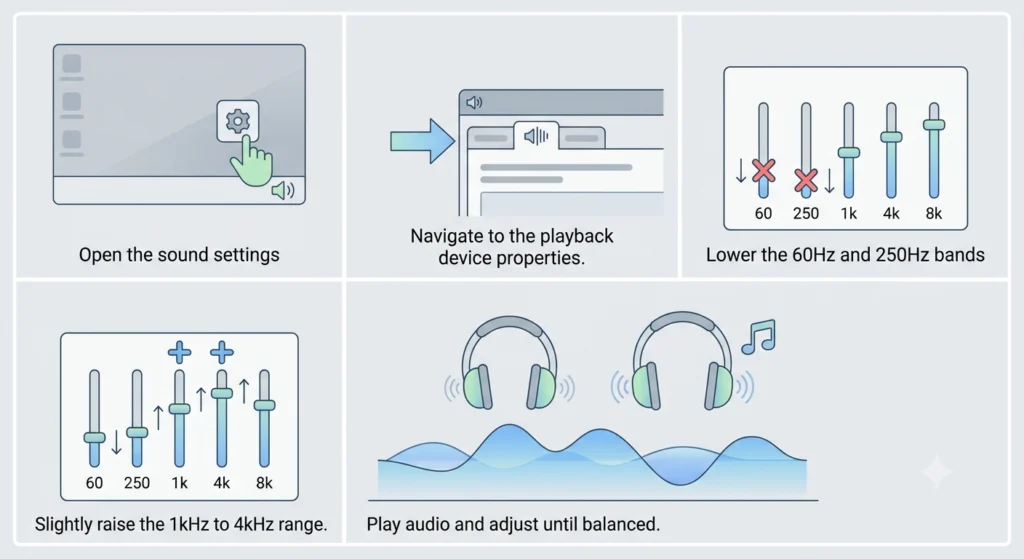
The equalizer is the most direct tool for controlling bass. Whether using a built-in system EQ or a dedicated app, reducing the low-frequency bands brings the bass back under control.
- Step 1: Open the sound settings on the device. On Windows 11, right-click the speaker icon in the taskbar and select ‘Sound settings.’
- Step 2: Navigate to the playback device properties and look for an ‘Enhancements’ or ‘Equalizer’ tab.
- Step 3: If an EQ is available, lower the 60Hz and 250Hz bands – these control most of the bass frequencies.
- Step 4: Slightly raise the 1kHz to 4kHz range to bring midrange clarity back into balance.
- Step 5: Play audio and adjust until the sound feels balanced rather than muddy or boomy.
Most people find that pulling the bass down by just 3 to 6 decibels makes a dramatic difference without making the audio sound thin.
Fix 2: Disable Audio Enhancements in Windows 11
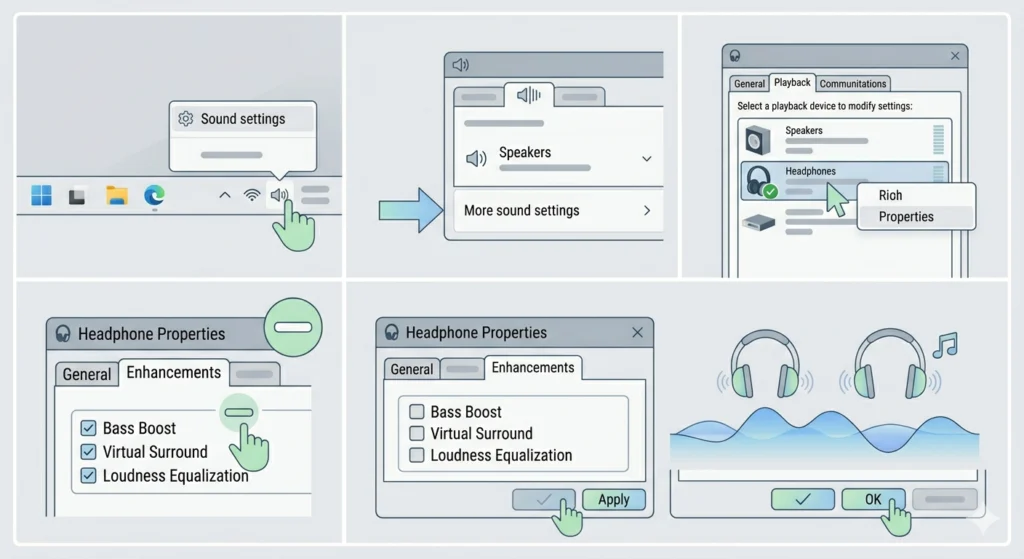
Windows 11 includes built-in audio processing features that can unintentionally amplify bass. The ‘Bass Boost’ enhancement is a common culprit that gets enabled by default on some systems or after driver updates.
- Step 1: Right-click the speaker icon in the taskbar and choose ‘Sound settings.’
- Step 2: Click on the active output device and select ‘More sound settings.’
- Step 3: Go to the ‘Playback’ tab, right-click the headphones, and select ‘Properties.’
- Step 4: Click the ‘Enhancements’ tab and uncheck ‘Bass Boost’ as well as any other active enhancements.
- Step 5: Click ‘Apply’ then ‘OK’ and test the audio.
For a full walkthrough of adjusting audio output settings on Windows 11, that dedicated guide covers every panel in detail.
Pro Tip: If the ‘Enhancements’ tab is missing, the audio driver may not support it. Try updating or reinstalling the headphone driver from the manufacturer’s website to unlock this panel.
Fix 3: Check and Reset App-Specific EQ Settings
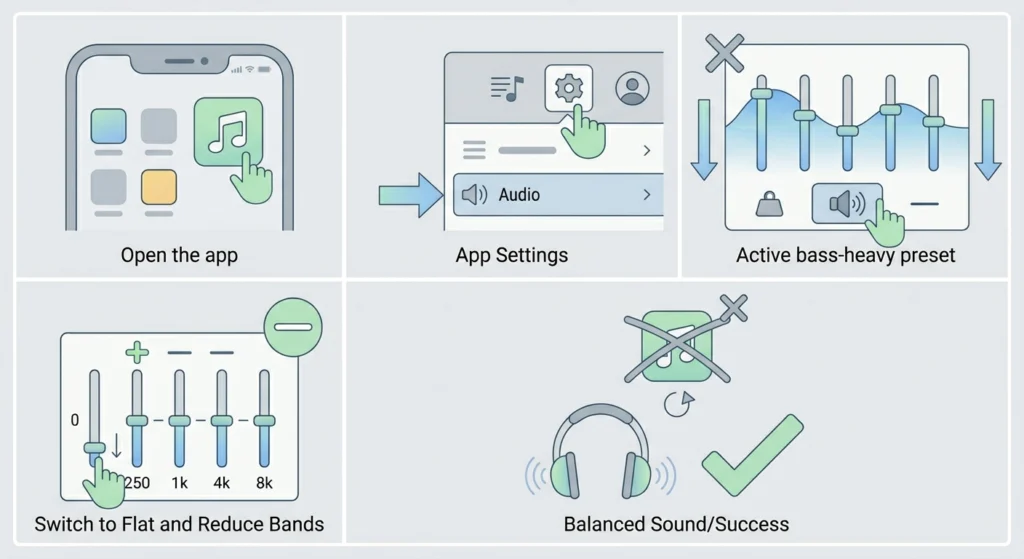
Streaming apps like Spotify, Apple Music, and YouTube Music all have their own built-in equalizers. These settings are independent of the system EQ, so both can stack on top of each other – doubling the bass boost unintentionally.
- Step 1: Open the streaming app being used (for example, Spotify).
- Step 2: Go to ‘Settings’ and look for an ‘Audio’ or ‘Playback’ section.
- Step 3: Find the equalizer option and check whether a bass-heavy preset like ‘Bass Boost,’ ‘Hip-Hop,’ or ‘Dance’ is active.
- Step 4: Switch to ‘Flat,’ ‘Normal,’ or ‘Custom’ and manually reduce the low-frequency bands.
- Step 5: Restart the app and check if the balance improves.
Fix 4: Adjust the Physical Fit of the Headphones
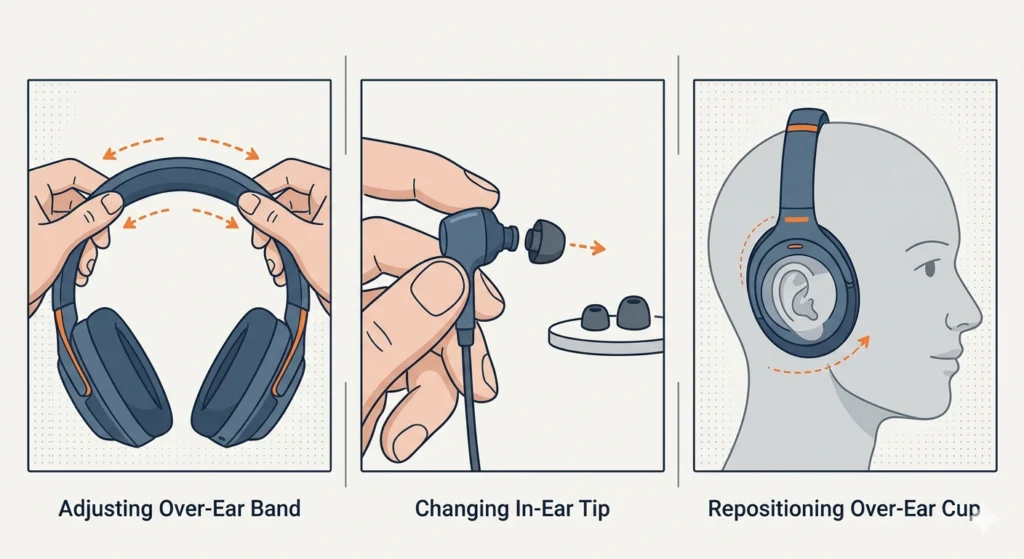
The physical seal between the headphones and the ear has a major impact on bass perception. A tight seal traps more low-frequency energy, which makes the bass sound amplified even at normal settings. This works best when fine-tuning the fit rather than removing the headphones entirely.
- Step 1: For over-ear headphones, slightly loosen the clamping force by gently bending the headband outward. Less pressure means a less airtight seal.
- Step 2: For in-ear headphones, try switching to a smaller ear tip size. A smaller tip reduces the seal and naturally reduces bass resonance.
- Step 3: Reposition the ear cups so they sit slightly off-axis if possible, which can reduce the low-frequency buildup without affecting comfort too much.
The key is to experiment gradually. Small fit changes can shift the perceived sound significantly.
Fix 5: Reset Audio Settings to Default
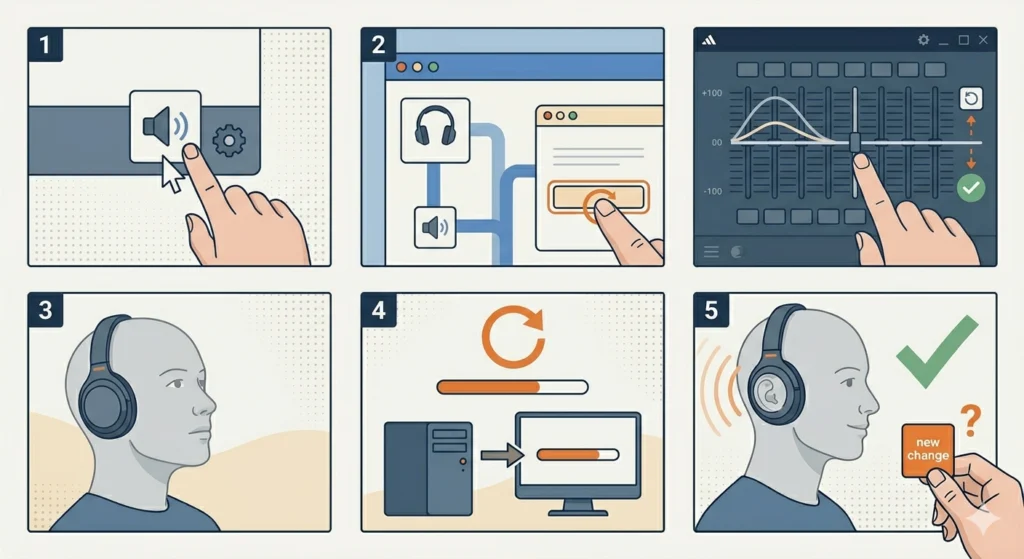
If multiple tweaks have been made over time and the source of the bass problem is unclear, resetting everything to default is the cleanest solution. This removes layered changes that may be stacking on top of each other.
- Step 1: Open Windows 11 Sound settings and navigate to the headphone device properties.
- Step 2: Under the ‘Enhancements’ tab, click ‘Restore Defaults.’
- Step 3: Go back to any third-party EQ apps (like Equalizer APO or FXSound) and reset those to flat as well.
- Step 4: Restart the computer to clear any background audio processing.
- Step 5: Test the sound before applying any new changes one at a time.
A full guide on resetting audio settings on Windows 11 can help if the default button is missing or greyed out.
Fix 6: Update or Reinstall the Audio Driver
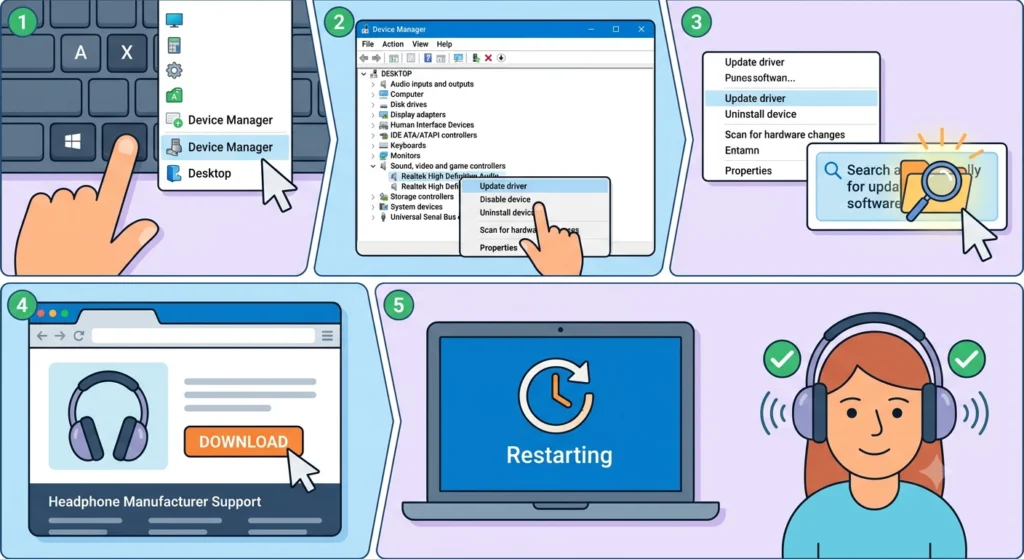
Outdated or corrupt audio drivers sometimes apply their own preset EQ curves in the background. This can make headphones sound bass-heavy even when all visible settings look correct.
- Step 1: Press Windows + X and select ‘Device Manager.’
- Step 2: Expand ‘Sound, video and game controllers’ and right-click the audio device.
- Step 3: Select ‘Update driver’ and choose ‘Search automatically for drivers.’
- Step 4: If no update is found, visit the headphone manufacturer’s website and download the latest driver manually.
- Step 5: Restart the system after installation and test the audio again.
Fix 7: Use a Third-Party Equalizer App
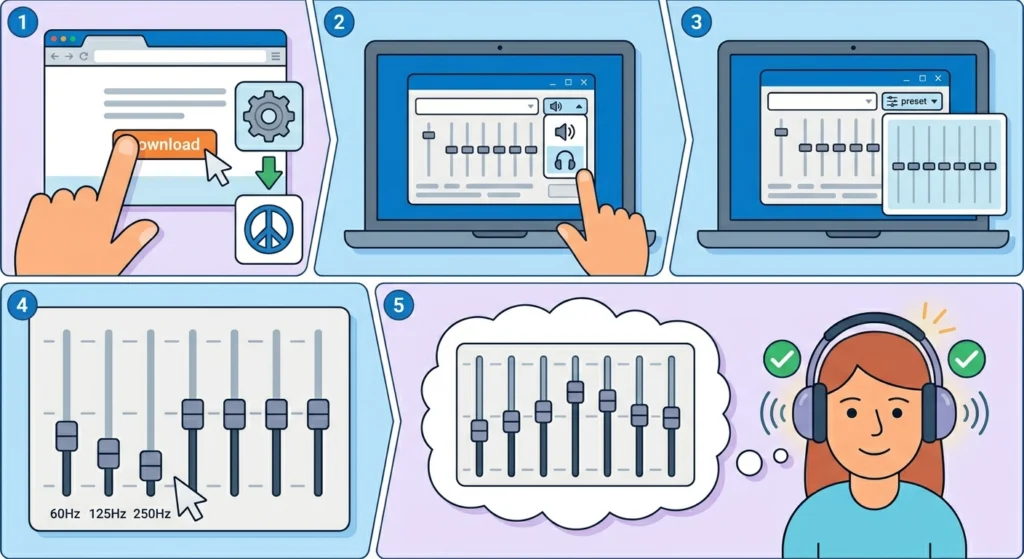
When the built-in Windows EQ options are limited, a third-party equalizer gives far more precise control. Apps like Equalizer APO with the Peace GUI, or FXSound, allow per-band adjustments down to the exact frequency causing the problem.
- Step 1: Download and install Equalizer APO from the official source, then install the Peace GUI for an easier interface.
- Step 2: Open Peace and select the headphone output as the target device.
- Step 3: Load a ‘Flat’ or ‘Default’ preset as a starting point.
- Step 4: Drag down the 60Hz, 125Hz, and 250Hz bands to reduce bass output.
- Step 5: Boost 1kHz to 3kHz slightly to bring vocals and mids back into focus.
Pro Tip: When using Equalizer APO, always start adjustments in small increments of 1 to 2dB. Drastic cuts can introduce phase issues or make the sound feel hollow. Subtle changes made gradually produce the most natural-sounding result.
Tips for Better Headphone Sound Balance
- Always use ‘Flat’ as the starting EQ preset before making any custom adjustments
- Test with a reference track that has a well-known balanced sound, such as acoustic guitar or orchestral music
- Avoid stacking multiple EQ tools at the same time – pick one and use it exclusively
- If headphones are brand new, allow a break-in period of 20 to 40 hours before judging bass response
- On mobile devices, check if the accessibility ‘Audio Balance’ setting has been changed
- Closed-back headphones inherently produce more bass than open-back designs – this is a hardware characteristic, not a flaw
Common Problems and Troubleshooting
Bass Returns After Every Restart
This usually means an audio enhancement is being re-enabled by a driver or system process at startup. Check if headphone companion software (like Razer Synapse, SteelSeries GG, or ASUS Sonic Studio) is running in the background and overriding manual settings. Disable auto-launch for these apps or adjust the presets within them directly.
EQ Changes Have No Effect
When equalizer adjustments do not seem to change anything, another audio layer may be overriding the settings. Try disabling all third-party audio software and test with only the Windows system EQ active. Also confirm the correct output device is selected – it is easy to adjust the wrong device in the sound settings panel.
Bass Is Only Too Heavy in One Ear
Uneven bass between ears can point to a physical driver issue inside the headphone, or a damaged cable causing frequency imbalance. First, swap the left and right channels in software to confirm whether the issue is hardware or software-based. If the problem follows the headphone (not the channel assignment), the unit may need repair or replacement.
Problem Only Occurs With Certain Apps
Some apps apply their own audio processing pipeline entirely separate from the operating system. Check in-app audio settings for any equalizer or ‘enhancement’ features. Also verify the app’s output format settings – some apps default to a ‘movie’ or ‘surround’ mode that artificially boosts bass for speaker simulation.
Frequently Asked Questions
Why do headphones sound too bass-heavy out of the box?
Many headphones are tuned with a ‘V-shaped’ or ‘bass-boosted’ sound signature because manufacturers believe this sounds impressive during a store demo. Over time, this becomes fatiguing. Adjusting the EQ to a flatter response fixes this without any hardware changes.
Does bass boost damage headphones?
Excessive bass boost at high volumes can stress the drivers over time, particularly in budget headphones with smaller drivers. Moderate use of bass boost at normal listening volumes is generally safe, but sustained high-volume bass-heavy listening can reduce driver longevity.
What EQ frequency controls bass?
Sub-bass sits between 20Hz and 80Hz and produces the deep, felt rumble. Bass proper sits between 80Hz and 250Hz and controls the warmth and weight of music. Reducing these two ranges tames most bass-heavy headphone issues.
Can the type of audio file cause bass-heavy sound?
Yes. Highly compressed audio files (such as low-bitrate MP3s) can exhibit uneven frequency reproduction where bass frequencies survive compression better than mids. Listening to lossless or high-bitrate files often reveals a more balanced sound signature.
Does headphone impedance affect bass response?
Yes. Using high-impedance headphones (above 100 ohms) with an underpowered source can cause a distorted, uneven frequency response – sometimes with exaggerated bass. Pairing high-impedance headphones with a dedicated headphone amplifier usually corrects this.
Why does bass sound louder when headphones are worn tightly?
A tight ear seal traps low-frequency sound energy inside the ear cup or ear canal. This creates a resonance chamber effect that amplifies bass. Loosening the fit or using a smaller ear tip reduces this effect considerably.
Is there a way to fix bass-heavy headphones without software?
Yes. Adjusting the physical fit is the main hardware-side solution. Using smaller ear tips, reducing clamping force, or partially venting the ear cups by wearing them slightly off-seal can reduce bass resonance without touching any settings.
Will using a DAC or amplifier fix bass-heavy headphones?
A DAC and amplifier improve power delivery and signal clarity but will not reduce bass on their own. However, some DAC and amplifier units include built-in EQ or bass roll-off switches that can help. The most effective fix remains adjusting the equalizer regardless of the equipment in use.
Can foam ear tips reduce bass compared to silicone tips?
Yes. Memory foam ear tips create a deeper seal than silicone, which amplifies bass. Switching from foam to a single-flange silicone tip – or a smaller size silicone tip – reduces the seal and therefore reduces perceived bass. This is a common and easy fix for in-ear headphones.
What is the best EQ preset for balanced headphone sound?
The ‘Flat’ or ‘Normal’ preset is the best starting point for balanced sound. From there, making small cuts in the 60Hz to 250Hz range and subtle boosts in the 1kHz to 4kHz range produces a sound profile that is clear and accurate across most music genres.