
Key Takeaways
- Most headphone audio problems on Windows 11 come from wrong default device settings, outdated drivers, or disabled enhancements.
- Setting the correct playback device is the fastest fix and solves the issue in most cases.
- Driver updates through Device Manager resolve stubborn audio glitches and crackling sounds.
- Bluetooth headphones often need re-pairing after a Windows update to restore stereo sound.
- A full audio reset clears corrupted settings when nothing else works.
Headphone audio trouble on Windows 11 usually shows up at the worst possible time, right in the middle of a call or a favorite playlist. This guide walks through the exact fixes that get sound working again, in the order that solves the problem quickest for most people.
Method 1: Set Headphones as the Default Playback Device
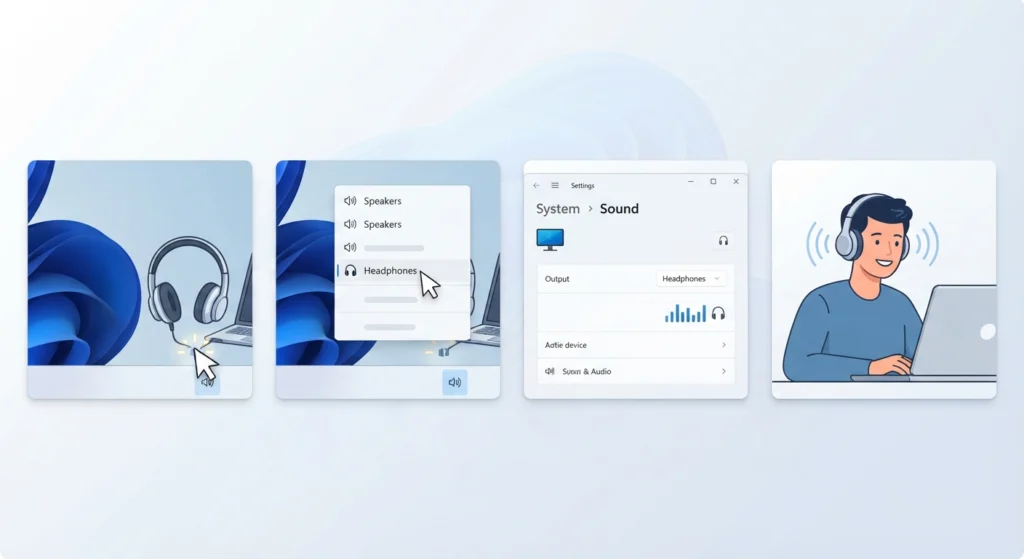
Windows 11 sometimes keeps a different output selected even after headphones are plugged in or connected. This is the single most common reason audio plays through speakers instead of headphones.
- Step 1: Right-click the speaker icon on the taskbar.
- Step 2: Select the headphone device from the list of available outputs.
- Step 3: Play a short audio clip to confirm sound now comes through the headphones.
- Step 4: If the headphones are not listed, open Settings, then System, then Sound, and check under Output devices.
This works best when the headphones are already connected before opening the sound menu. Windows only lists devices that are actively detected.
Method 2: Update or Reinstall the Audio Driver
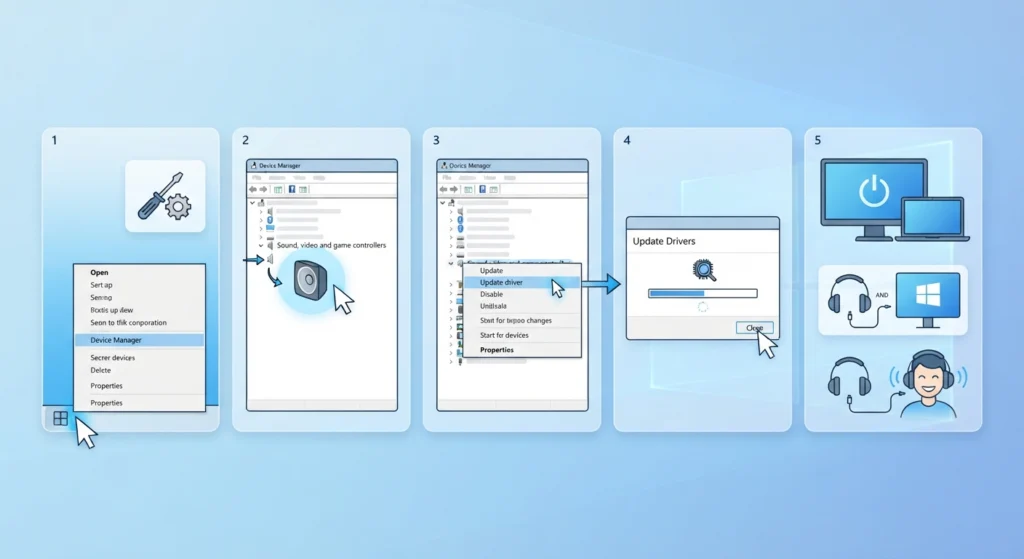
An outdated or corrupted audio driver is behind a large share of crackling, muffled, or silent headphone issues.
- Step 1: Right-click the Start button and open Device Manager.
- Step 2: Expand the Sound, video and game controllers section.
- Step 3: Right-click the audio driver listed and choose Update driver.
- Step 4: Select Search automatically for drivers and let Windows install the update.
- Step 5: Restart the computer and reconnect the headphones.
Pro-Tip: If updating does not help, uninstall the driver instead and restart the PC. Windows 11 automatically reinstalls a fresh copy of the driver on startup, and this often clears issues a simple update misses.
Method 3: Disable Audio Enhancements
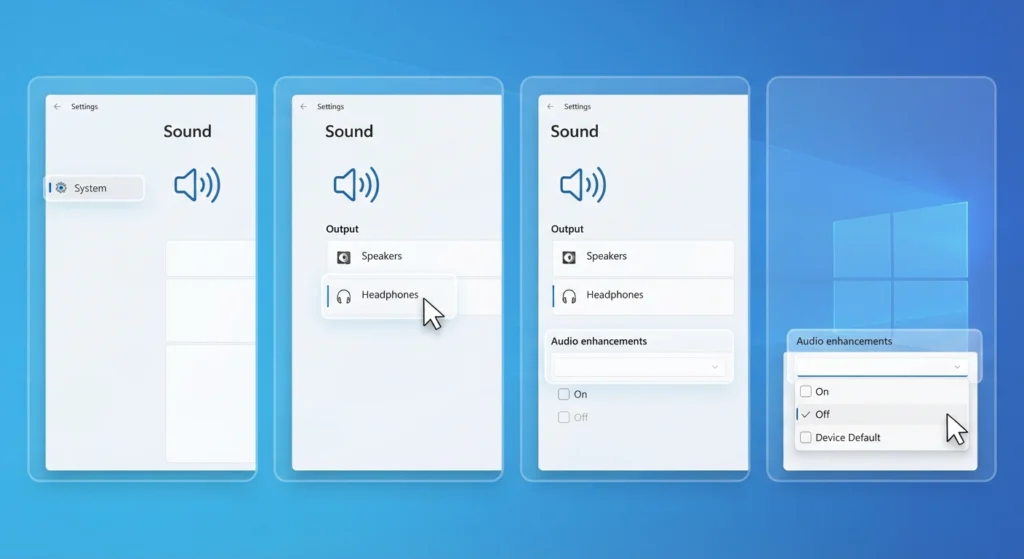
Audio enhancements are meant to improve sound quality, but on many systems they cause distortion, popping, or complete silence with certain headphones.
- Step 1: Open Settings, then System, then Sound.
- Step 2: Click on the connected headphone device under Output.
- Step 3: Scroll to the Audio enhancements section.
- Step 4: Set it to Off or Device Default.
Most people find that turning off enhancements clears up static and crackling almost immediately, especially on wired headphones plugged into a 3.5mm jack.
Method 4: Adjust Audio Output Settings and Sample Rate
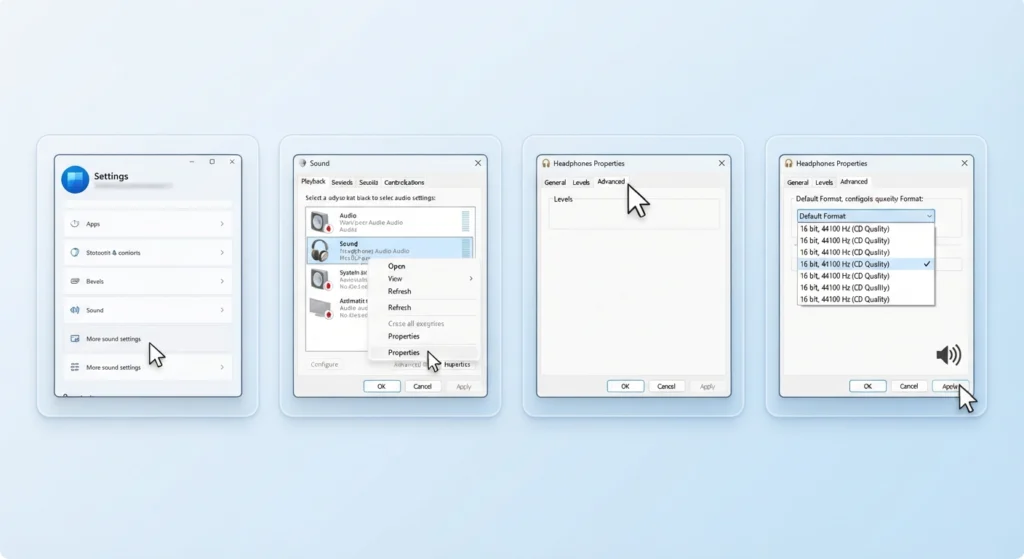
A mismatched sample rate or bit depth between the headphones and Windows can cause distorted or robotic-sounding audio. A detailed walkthrough on adjusting audio output settings covers this in more depth, but the core fix is straightforward.
- Step 1: Open Settings, then System, then Sound, then More sound settings.
- Step 2: Right-click the headphone device and select Properties.
- Step 3: Go to the Advanced tab.
- Step 4: Test a different format, such as 16 bit, 44100 Hz, then apply and test audio.
Method 5: Re-Pair Bluetooth Headphones
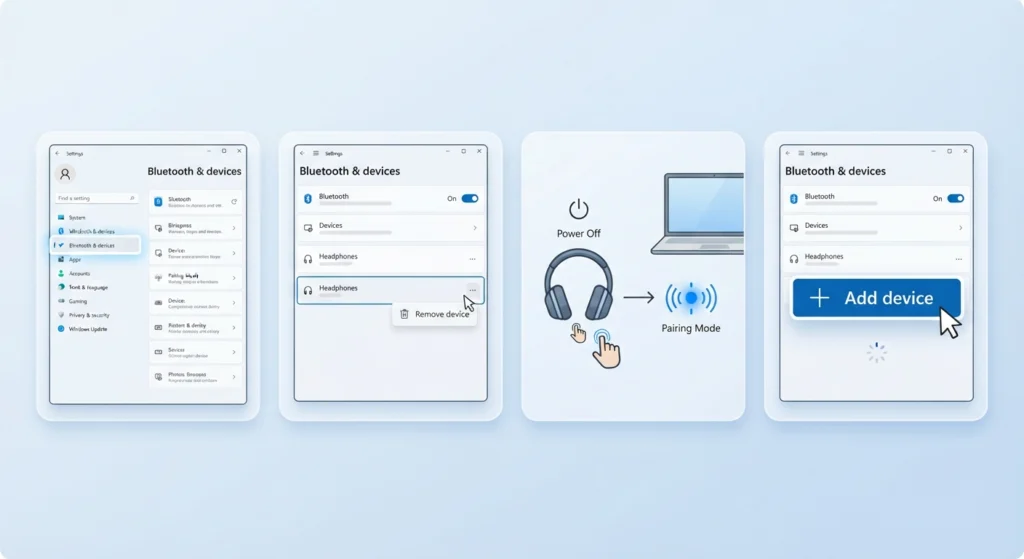
Wireless headphones often lose stereo sound or drop audio entirely after a Windows update. Removing and re-adding the device usually restores full audio quality, and this guide on how to re-pair Bluetooth earbuds for stereo sound breaks the process down clearly.
- Step 1: Open Settings, then Bluetooth and devices.
- Step 2: Click the three dots next to the headphones and select Remove device.
- Step 3: Turn the headphones off, then back on in pairing mode.
- Step 4: Select Add device in Windows and reconnect from scratch.
Pro-Tip: Bluetooth headphones sometimes connect only for calls and not for media playback. This happens when Windows locks the device into the hands-free profile instead of the stereo profile, and a fresh re-pair almost always fixes it.
Method 6: Reset Audio Settings to Default
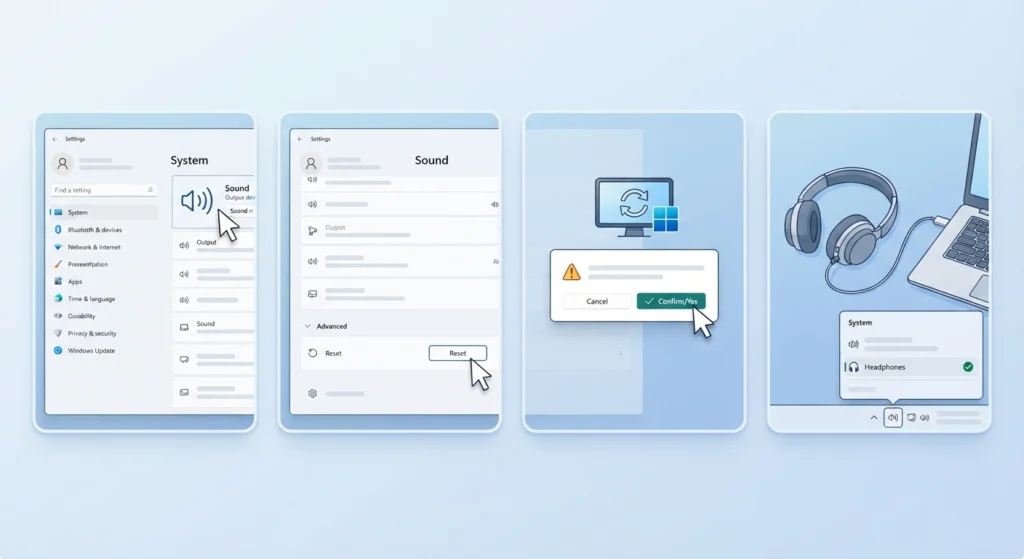
When none of the fixes above work, corrupted audio configuration is likely the cause. A full reset clears every custom setting and rebuilds the audio stack from scratch, and the process for resetting audio settings only takes a few minutes.
- Step 1: Open Settings, then System, then Sound.
- Step 2: Scroll down and select Advanced, then Reset.
- Step 3: Confirm the reset and restart the PC.
- Step 4: Reconnect the headphones and check the default output device again.
Method 7: Restart the Windows Audio Service
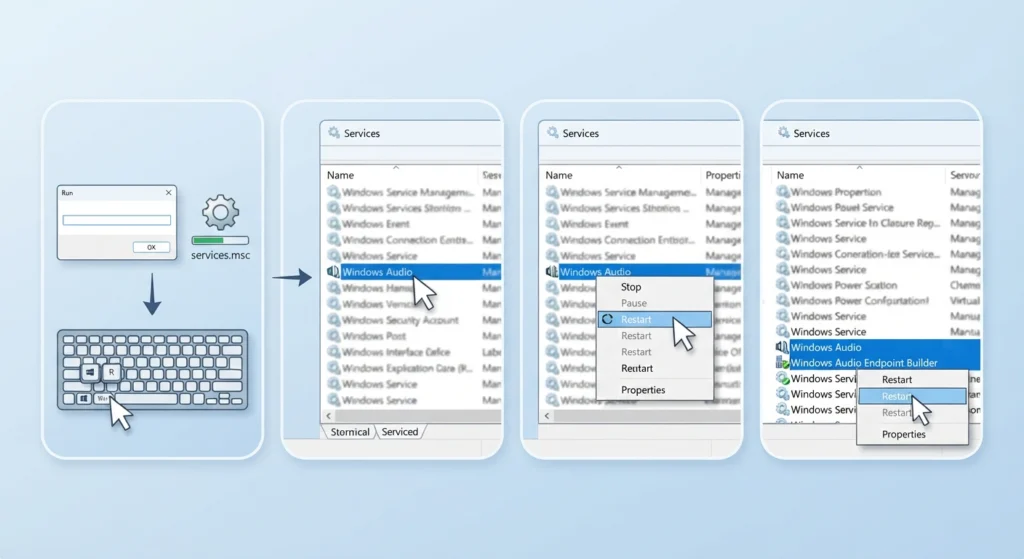
The Windows Audio service occasionally stalls in the background, which cuts off sound without any obvious error message.
- Step 1: Press Windows key plus R, type services.msc, then press Enter.
- Step 2: Find Windows Audio in the list.
- Step 3: Right-click it and select Restart.
- Step 4: Also restart Windows Audio Endpoint Builder the same way.
Tips for Keeping Headphone Audio Stable on Windows 11
- Keep Windows updated, since many audio bugs get patched through routine system updates.
- Avoid using more than one audio enhancement app at the same time, as conflicting software often causes distortion.
- For headphones with a built-in microphone, check that input devices are configured correctly, and this guide on managing audio input devices helps keep both sides working together.
- Unplug and replug wired headphones if sound cuts out, since a loose 3.5mm connection is a common and easy-to-miss cause.
- Test headphones on another device to rule out a hardware fault before spending time on software fixes.
Common Headphone Audio Problems on Windows 11
No Sound at All
This usually points to the wrong output device being selected or a driver that failed to load properly after a restart. Method 1 and Method 2 above resolve this in most cases.
Crackling or Popping Sound
Audio enhancements or an outdated driver are the usual culprits. Turning off enhancements, as shown in Method 3, clears this up quickly.
Sound Only Plays in One Ear
This is often a balance setting issue rather than a hardware fault. Check Settings, then System, then Sound, then the device properties, and confirm the left and right balance sliders are centered.
Microphone Works but Headphones Do Not, or the Reverse
Output and input devices are configured separately in Windows 11, and one working while the other fails is common. A closer look at resolving microphone detection problems covers the input side of this issue in detail.
Bluetooth Headphones Keep Disconnecting
Interference from other wireless devices, low battery, or an outdated Bluetooth driver typically causes this. Updating the Bluetooth adapter driver through Device Manager, the same way as Method 2, often solves it.
Frequently Asked Questions
Why do headphones show as connected but no sound plays on Windows 11?
This almost always means the headphones are connected but not selected as the default playback device. Setting them as default under Sound settings usually fixes it right away.
How can outdated audio drivers be identified on Windows 11?
Device Manager shows a yellow warning icon next to a driver that has a problem. Even without a warning icon, drivers older than several months are worth updating through the Update driver option.
Do audio enhancements cause distortion on wired headphones?
Yes, and this is a frequent cause of static and popping sounds. Disabling enhancements in the device properties resolves distortion for most wired headphones.
Why do Bluetooth headphones lose stereo sound during calls?
Windows sometimes switches the headphones to a hands-free audio profile during calls, which lowers sound quality. Reconnecting the device or re-pairing it restores full stereo audio for media playback.
Is resetting audio settings safe on Windows 11?
Yes, a reset only affects sound configuration and does not touch personal files or installed programs. It simply rebuilds the audio settings to their default state.
Why does one headphone earpiece sound quieter than the other?
This is often caused by an unbalanced left and right audio setting rather than a faulty earpiece. Checking the balance sliders in the device properties usually confirms and fixes this.
Can a Windows update break headphone audio?
Yes, updates occasionally reset audio drivers or default device settings. Re-checking the default playback device and driver version after any major update prevents most post-update audio issues.
Why does audio cut out randomly through wired headphones?
A loose 3.5mm jack connection is the most common cause. Cleaning the port and firmly reseating the plug resolves this in the majority of cases.
How long does it take to fix most headphone audio problems on Windows 11?
Most issues resolve within a few minutes using the default device and driver update methods. More persistent problems involving Bluetooth pairing or a full settings reset may take a little longer.
Should headphones be tested on another device before troubleshooting Windows settings?
Yes, this quickly rules out a hardware fault. If the same audio problem happens on a different device, the headphones themselves are likely the issue rather than Windows.