
Key Takeaways
- Crackling sound on Beats Studio Pro is usually caused by outdated firmware, a weak Bluetooth connection, or incorrect audio settings on the connected device.
- Re-pairing the headphones and updating firmware solves the issue in most reported cases.
- Windows 11 audio format and output settings often need manual adjustment to stop crackling.
- Dirty charging contacts and ear cushion vents can also cause distorted or crackling audio.
- A factory reset is the most reliable fix when other methods do not resolve the problem.
Beats Studio Pro crackling sound is a common issue reported by users connecting the headphones to laptops, phones, and desktops. This guide walks through the exact fixes that resolve crackling, popping, or static noise, starting with the simplest solutions and moving toward more advanced troubleshooting steps.
Method 1: Update the Beats Studio Pro Firmware
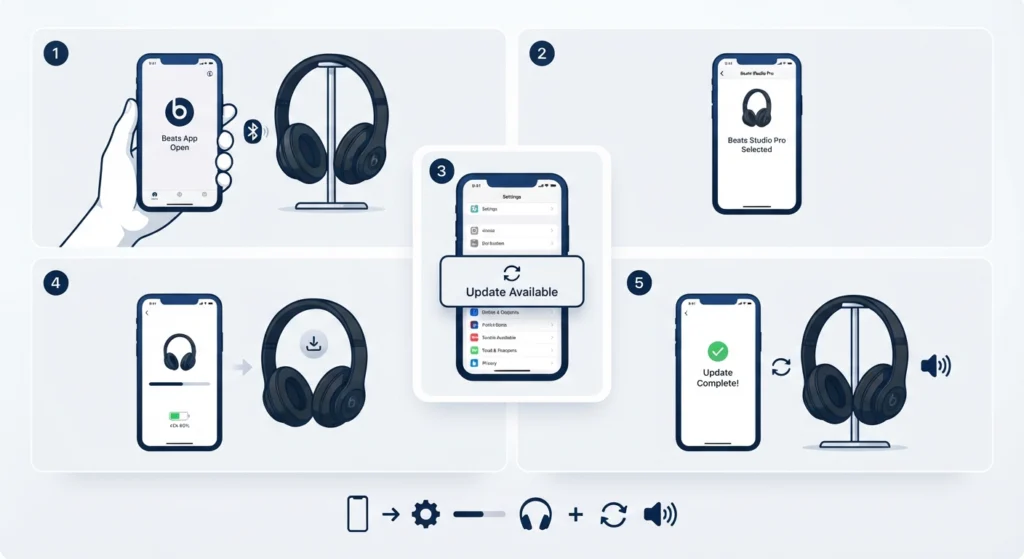
Outdated firmware is one of the most frequent causes of crackling audio on Beats Studio Pro. Beats regularly releases firmware updates that improve Bluetooth stability and fix audio processing bugs, so checking for updates should always be the first move.
- Step 1: Open the Beats app on a paired iPhone or Android device.
- Step 2: Select the Beats Studio Pro from the device list.
- Step 3: Tap on the firmware or software update section.
- Step 4: Install any available update and keep the headphones within range and charged above 50 percent during the process.
- Step 5: Restart the headphones once the update finishes and test the audio again.
Pro Tip: Firmware updates can take several minutes to complete, and interrupting the process by turning off the headphones early can cause more audio glitches than it fixes. Patience here saves a lot of frustration later.
Method 2: Re-pair the Bluetooth Connection
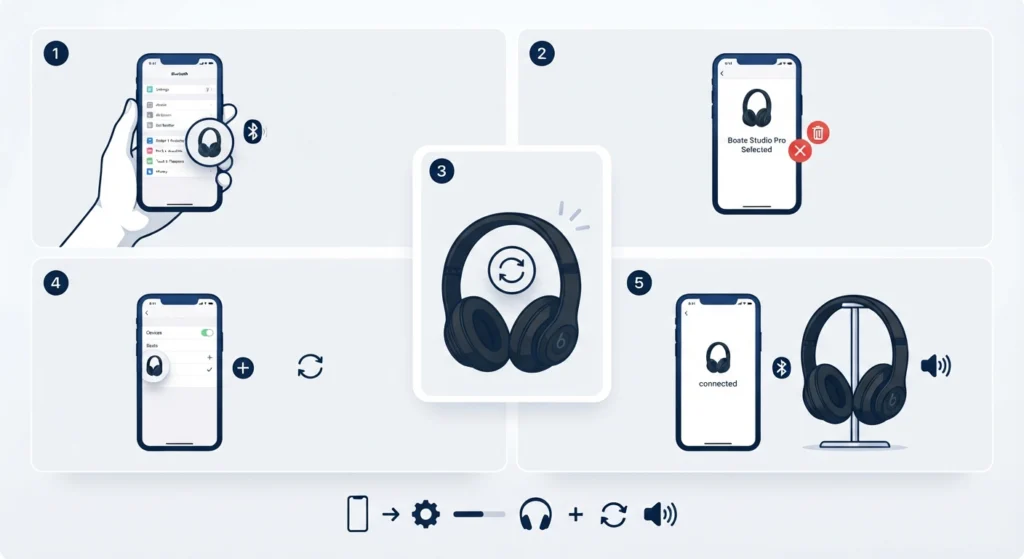
A weak or corrupted Bluetooth pairing is another leading cause of crackling sound, especially after a system update or a switch between multiple paired devices. Forgetting the device and reconnecting the Bluetooth pairing from scratch often clears out the glitch completely.
- Step 1: Go to Bluetooth settings on the connected device and locate Beats Studio Pro.
- Step 2: Select forget device or remove device to fully clear the existing pairing.
- Step 3: Turn the headphones off, then back on, and place them into pairing mode.
- Step 4: Search for new devices on the connected gadget and select Beats Studio Pro from the list.
- Step 5: Play audio to check whether the crackling sound has stopped.
Method 3: Adjust the Audio Output Settings on Windows 11
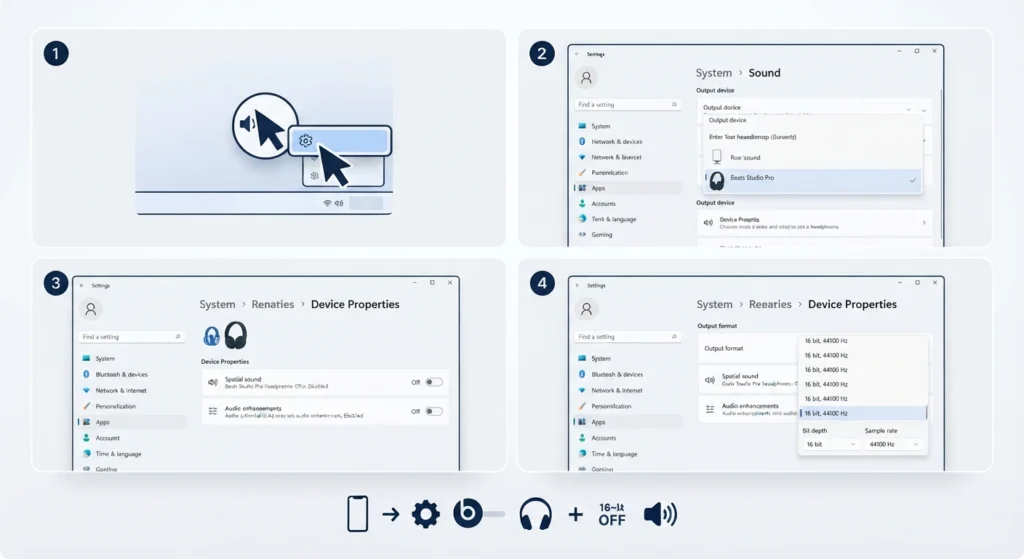
Windows 11 sometimes applies audio enhancements or a mismatched sample rate that causes crackling on Bluetooth headphones. This works best when the output format is matched manually rather than left on automatic detection.
- Step 1: Right-click the speaker icon in the taskbar and select sound settings.
- Step 2: Choose Beats Studio Pro under the output device list.
- Step 3: Open the device properties and disable any spatial sound or audio enhancement options.
- Step 4: Lower the default format to 16 bit, 44100 Hz and test if the crackling reduces.
Most people find that adjusting the audio output format directly in Windows 11 removes crackling caused by sample rate mismatches, which is a very common but often overlooked cause.
Method 4: Reset the Audio Settings
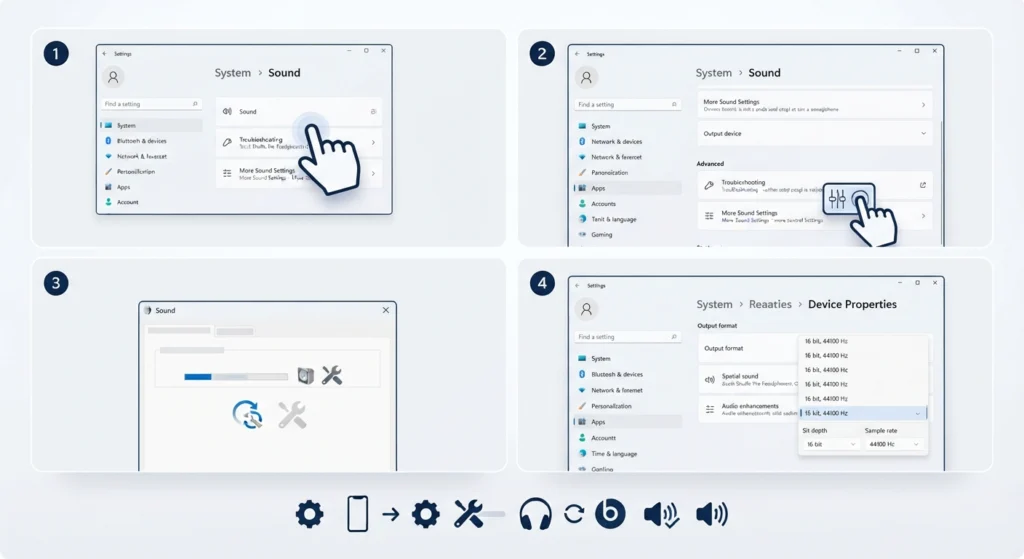
Sometimes the operating system holds onto corrupted audio configurations even after changing settings manually. Resetting the audio stack forces Windows to rebuild the connection from a clean state.
- Step 1: Open Settings and navigate to the System section, then select Sound.
- Step 2: Scroll down and select more sound settings or troubleshoot.
- Step 3: Follow the prompts to reset the sound configuration back to default values.
- Step 4: Reconnect Beats Studio Pro and set it as the default playback device again.
Anyone who wants a full walkthrough can follow the guide on resetting audio settings on Windows 11 for a more detailed breakdown of each option involved.
Method 5: Clean the Ear Cushions and Charging Contacts
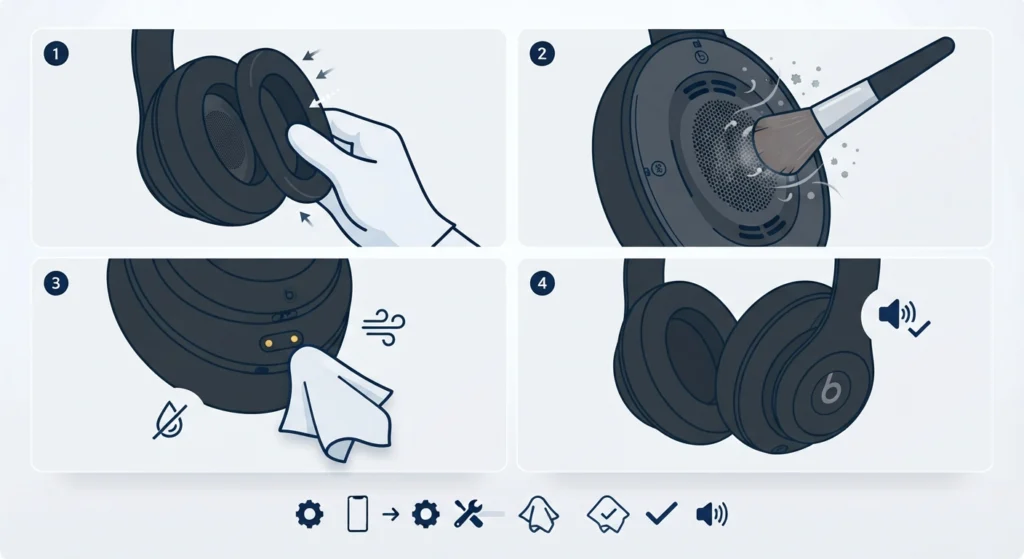
Physical buildup around the ear cushion vents or charging pins can distort sound output and mimic a crackling effect, especially after months of daily use. This is a simple fix that gets overlooked because the cause feels more like a software issue than a hardware one.
- Step 1: Remove the ear cushions gently from the headphone housing.
- Step 2: Use a dry, soft brush to clear dust or debris from the speaker mesh and vents.
- Step 3: Wipe the charging contacts with a slightly damp microfiber cloth and let them dry fully.
- Step 4: Reattach the cushions and test the sound again.
Method 6: Check for Audio Input and Output Device Conflicts
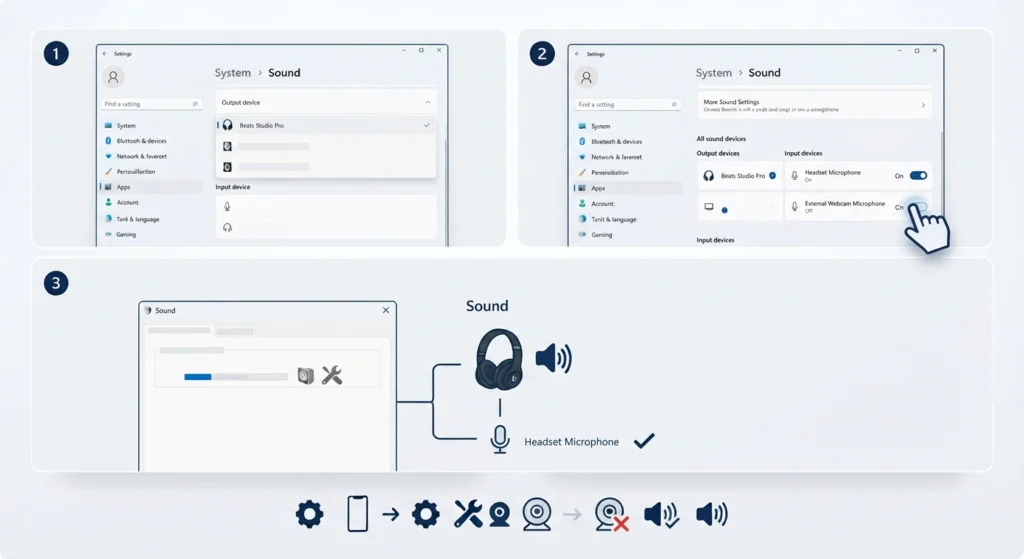
When multiple audio devices remain connected at once, the system can jump between input and output sources, which produces a crackling or stuttering sound. Managing which devices stay active prevents this kind of conflict.
The key is to keep only the devices that are actually in use enabled, and disable the rest. A full explanation is available in the guide on managing audio input devices on Windows 11, which covers how to disable unused microphones and inputs that interfere with playback.
Method 7: Factory Reset Beats Studio Pro
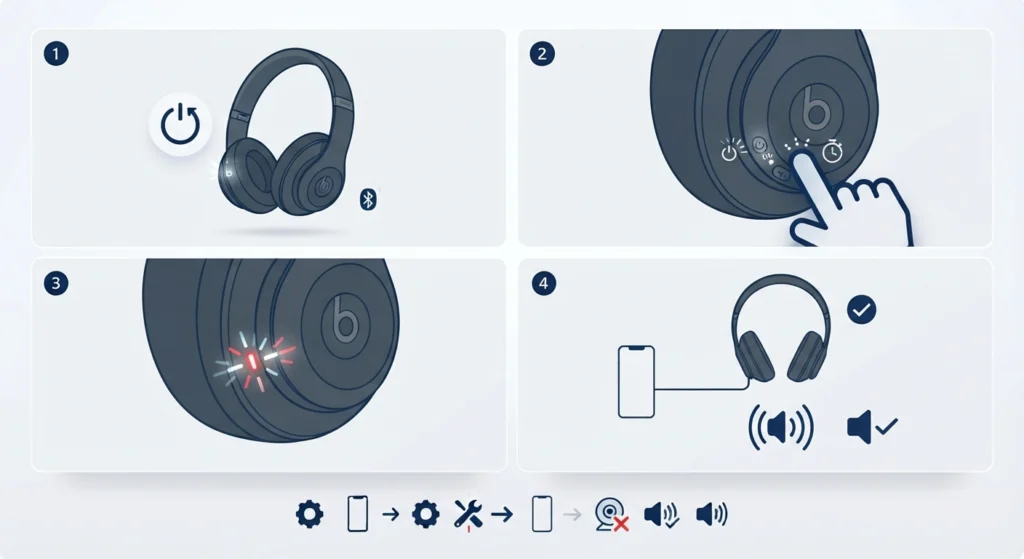
When none of the previous methods resolve the crackling, a factory reset clears any internal settings conflict that built up over time. This should be treated as a last resort since it removes all saved pairings.
- Step 1: Turn on the Beats Studio Pro and place them in pairing mode.
- Step 2: Press and hold the power button and the volume down button together for about 10 seconds.
- Step 3: Wait for the LED indicator to flash, confirming the reset has completed.
- Step 4: Re-pair the headphones as a new device and check the audio quality.
Pro Tip: After a factory reset, avoid connecting Beats Studio Pro to more than one device at the same time for the first few playback sessions. This gives the headphones a stable single connection to settle into before multipoint pairing is used again.
Tips to Prevent Crackling Sound in the Future
- Keep the Beats app installed and check for firmware updates every few weeks.
- Avoid placing the headphones near routers, microwaves, or other Bluetooth devices that cause interference.
- Charge the headphones fully before long listening sessions to avoid low battery audio distortion.
- Store the headphones in their case when not in use to keep dust away from the speaker vents.
- Disconnect unused Bluetooth devices from the paired list to reduce connection switching.
Common Problems and Troubleshooting
Crackling Only Happens on One Side
This usually points to a loose ear cushion or debris blocking the speaker mesh rather than a Bluetooth issue. Cleaning that side following Method 5 typically resolves it.
Crackling Happens Only During Calls
This is often related to microphone detection conflicts on the connected computer. Checking the guide on resolving microphone detection problems on Windows 11 helps identify whether the microphone input is causing the disruption.
Crackling Returns After a Few Days
This pattern usually means firmware did not fully install or the Bluetooth pairing degraded again. Repeating Method 1 and Method 2 in sequence generally clears it for good.
Frequently Asked Questions
Why does Beats Studio Pro make a crackling sound?
Crackling sound is most commonly caused by outdated firmware, a weak Bluetooth connection, incorrect audio output settings, or debris around the ear cushions and speaker vents.
Does low battery cause crackling sound on Beats Studio Pro?
Yes, a low battery can cause the Bluetooth signal to weaken, which sometimes results in crackling, stuttering, or dropped audio during playback.
How can firmware updates fix crackling sound?
Firmware updates often include bug fixes for Bluetooth stability and audio processing, both of which directly affect how clean the sound output is.
Is crackling sound covered under Beats warranty?
If the crackling persists after trying all software and connection fixes, it may indicate a hardware fault, which could be covered under warranty depending on the purchase date and condition.
Can Windows 11 settings cause crackling on Beats Studio Pro?
Yes, incorrect audio format settings, enabled sound enhancements, or an outdated Bluetooth driver on Windows 11 can all lead to crackling sound.
Should Beats Studio Pro be reset if crackling continues?
A factory reset is recommended only after firmware updates, re-pairing, and settings adjustments have already been tried without success.
Does using multipoint connection cause crackling?
Multipoint connection can sometimes cause audio interruptions when both connected devices are actively sending audio signals at the same time, which may sound like crackling.
How often should Beats Studio Pro firmware be checked?
Checking for firmware updates every few weeks through the Beats app helps keep the headphones running with the most stable audio performance available.
Can dirty ear cushions cause crackling sound?
Yes, dust or debris blocking the speaker mesh inside the ear cushions can distort audio output and create a crackling or muffled effect.
Does distance from the connected device affect crackling sound?
Yes, moving too far from the paired device or having physical obstructions between them can weaken the Bluetooth signal and cause crackling or audio dropouts.