
Key Takeaways
- EarFun Air Pro 4 touch controls not responding usually traces back to a Bluetooth glitch, outdated firmware, a dirty sensor, or a control mapping error in the app.
- Restarting and re-pairing the earbuds solves the issue in most reported cases within minutes.
- The EarFun Audio app allows full control customization, so a wrong gesture assignment can look like a hardware failure when it is not.
- A factory reset restores the touch sensors to their original working state when other fixes do not help.
- Debris, moisture, or a worn silicone tip around the stem can block the capacitive sensor from registering taps.
EarFun Air Pro 4 touch controls not responding is one of the more common complaints among new owners, and it tends to show up right after unboxing or right after a firmware update. The good news is that this problem is rarely a sign of a defective unit. Most people find that the fix takes less than ten minutes once the actual cause is identified. This guide walks through the exact steps that resolve unresponsive touch controls on the EarFun Air Pro 4, in the order that tends to work best.
Method 1: Restart and Reconnect the Earbuds
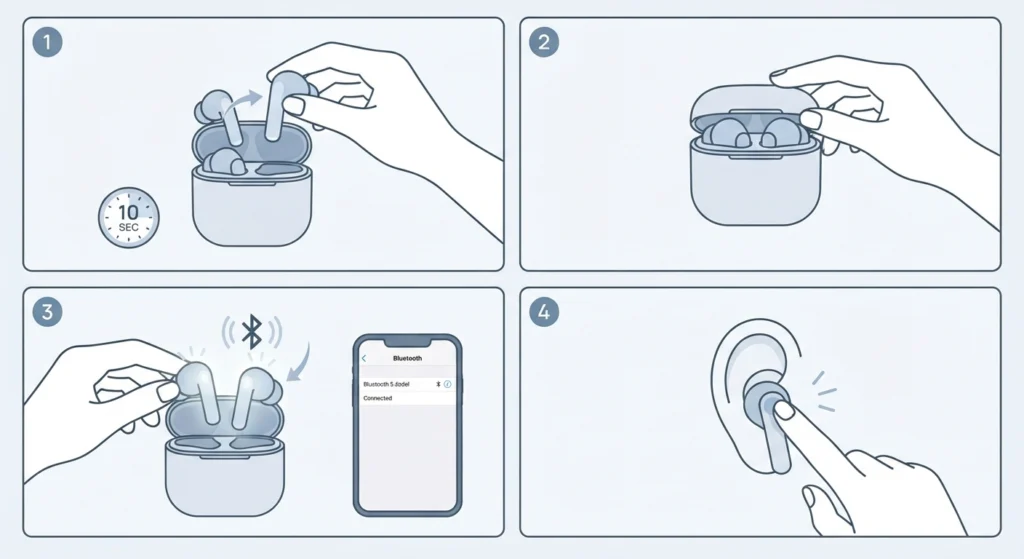
This works best as the first move because it clears out temporary Bluetooth glitches that commonly interrupt touch sensor communication between the earbuds and the connected device.
- Step 1: Place both earbuds back into the charging case and close the lid completely for about ten seconds.
- Step 2: Open the lid and remove the earbuds, then wait for them to reconnect automatically to the paired device.
- Step 3: Test a single tap on either earbud to check for a response, such as a pause or play chime.
- Step 4: If nothing happens, forget the device from the Bluetooth settings menu and re-pair the earbuds for stereo sound before testing the controls again.
A quick restart clears the connection cache without wiping any custom settings, which is why it belongs at the top of the list.
Method 2: Update the EarFun Audio App and Firmware
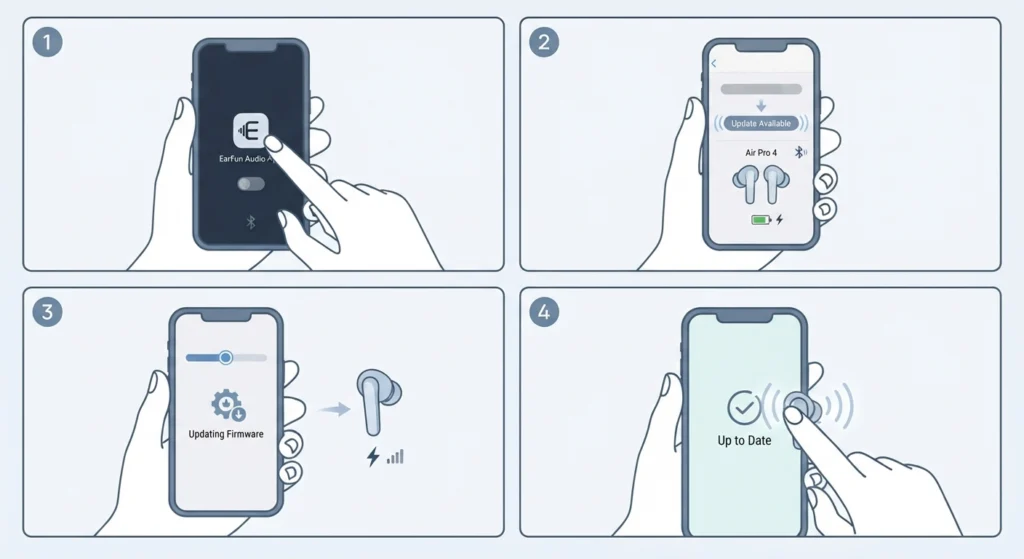
Touch controls rely on firmware to interpret taps correctly. An outdated version can cause delayed responses or complete unresponsiveness, especially after a recent software rollout from EarFun.
- Step 1: Open the EarFun Audio app on the connected phone or tablet.
- Step 2: Connect the Air Pro 4 earbuds and check the firmware version listed under device settings.
- Step 3: Install any available update and keep the earbuds within range and charged during the process.
- Step 4: Restart the earbuds once the update finishes, then test the touch controls again.
Pro-Tip: Never remove the earbuds from the case or close the app while a firmware update is running. Interrupting the update is one of the most common reasons touch controls stop responding entirely afterward.
Method 3: Clean the Touch Sensor Area
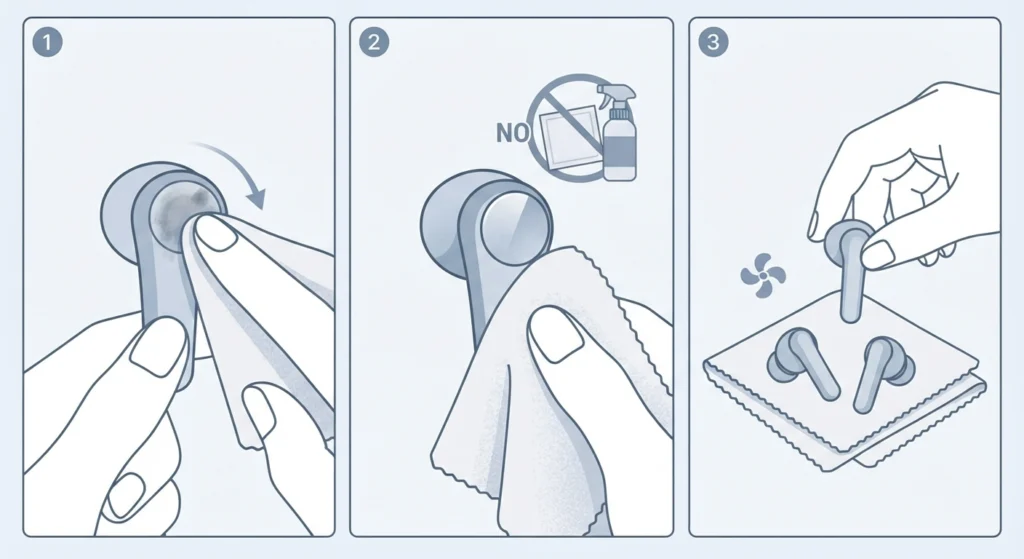
The touch panel sits on the flat outer surface of each earbud, and it relies on skin contact to register a tap. Sweat, ear wax, or a thin layer of dust can weaken that contact enough to make taps feel unresponsive.
- Step 1: Use a dry microfiber cloth to gently wipe the outer flat surface of each earbud.
- Step 2: Avoid alcohol-based wipes directly on the sensor, since repeated use can dull the surface coating over time.
- Step 3: Dry both earbuds fully before testing, since moisture is a frequent cause of erratic or missed taps.
This is a small maintenance habit, but it comes up often in real-world use, particularly for anyone who wears the earbuds during workouts.
Method 4: Reassign or Re-Enable Touch Controls in the App
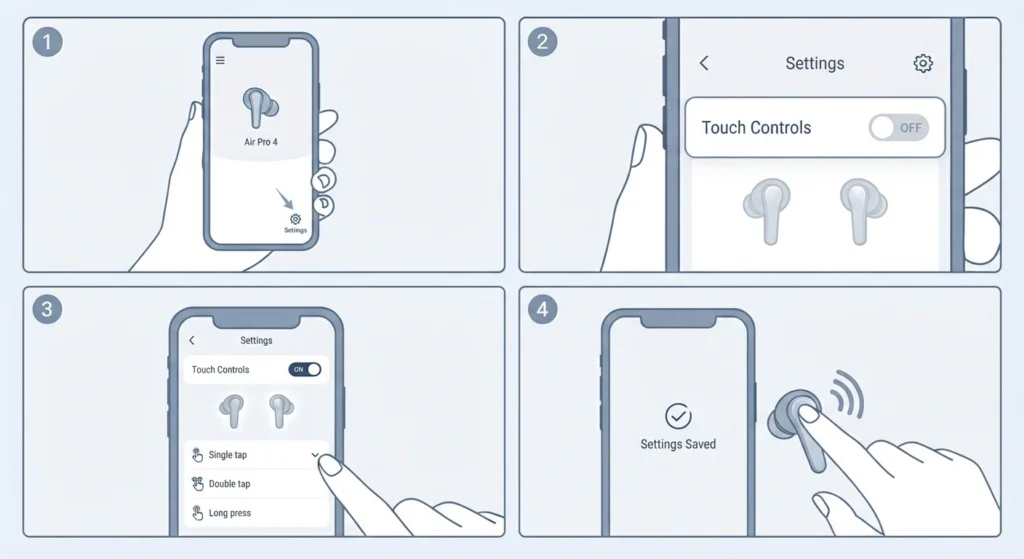
The EarFun Audio app lets users customize what each tap gesture does, and it also includes an option to disable controls entirely. If that setting was toggled off by accident, the earbuds will feel completely unresponsive even though nothing is actually broken.
- Step 1: Open the EarFun Audio app and navigate to the touch control settings for the Air Pro 4.
- Step 2: Confirm that the toggle for enabling touch controls is switched on for both earbuds.
- Step 3: Review each gesture assignment, such as single tap, double tap, and long press, to make sure none were left blank.
- Step 4: Save the changes and test each gesture directly from the earbuds.
Method 5: Factory Reset the EarFun Air Pro 4
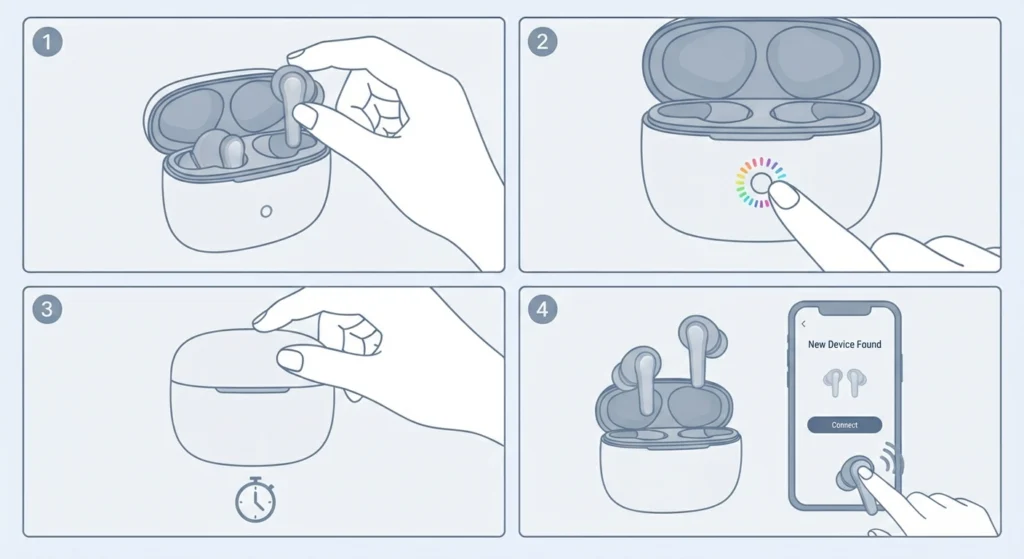
When none of the earlier methods bring the controls back, a factory reset clears every stored setting and pairing record, giving the sensors a clean slate.
- Step 1: Place both earbuds in the case without closing the lid.
- Step 2: Press and hold the button on the case for about eight seconds until the LED indicator flashes rapidly.
- Step 3: Close the lid for ten seconds, then reopen it and re-pair the earbuds as if setting them up for the first time.
- Step 4: Test the touch controls again once the pairing process completes.
Tips to Prevent Touch Control Issues Going Forward
- Keep the EarFun Audio app updated so gesture mappings and firmware stay in sync with the earbuds.
- Avoid wearing the earbuds under tight hoods, helmets, or beanies, since fabric pressing against the stem can trigger or block taps unintentionally.
- When using the earbuds with a Windows 11 laptop, check that the connected device recognizes the correct playback device by adjusting the audio output settings, since a mismatched output can make it seem like a tap did nothing.
- Store the earbuds in a dry case pocket rather than a bag with loose coins or keys that could scratch the sensor surface.
Common Problems Related to Touch Controls
A few patterns come up repeatedly among Air Pro 4 owners, and most trace back to the same handful of causes covered above.
- Only one earbud responds to taps: This usually points to a connection sync issue between the two buds rather than a hardware fault, and re-pairing the earbuds for stereo sound typically resolves it.
- Controls work but trigger the wrong action: This points to a gesture mapping error in the app rather than a sensor problem, so reviewing the assignments in Method 4 is the right move.
- Controls stop working after a Windows update: The connected device sometimes resets its audio profile after a system update, so resetting the audio settings on the PC often brings functionality back.
- Voice assistant does not respond to a long press: This can relate to microphone recognition rather than the touch sensor itself, which is worth checking by resolving microphone detection problems on the connected computer.
- Earbuds do not appear as an input device after reconnecting: This is a device-side issue rather than an earbud fault, and it is usually solved by managing audio input devices directly in the operating system settings.
Frequently Asked Questions
Why did the EarFun Air Pro 4 touch controls suddenly stop working?
The most common causes are a Bluetooth connection glitch, an interrupted firmware update, or accidental disabling of touch controls inside the EarFun Audio app. Restarting the earbuds resolves the issue in the majority of reported cases.
Does a factory reset erase custom touch control settings?
Yes. A factory reset clears all saved gesture assignments and pairing history, so the earbuds return to their default control layout and need to be set up again through the app.
Can moisture or sweat cause the touch sensors to stop responding?
Yes. The capacitive sensor needs consistent skin contact to register a tap, and a layer of sweat or moisture can weaken that contact enough to make taps feel inconsistent or unresponsive.
Why does only one earbud respond to touch commands?
This typically happens when the two earbuds lose sync with each other over Bluetooth. Placing both back in the case, closing the lid, and re-pairing them as a pair usually restores control on both sides.
Is it possible to disable touch controls entirely on the Air Pro 4?
Yes. The EarFun Audio app includes a setting that turns off touch controls completely, which is useful for anyone who accidentally triggers gestures during exercise or while wearing headwear.
How long does a firmware update take on the EarFun Air Pro 4?
A firmware update usually takes a few minutes as long as the earbuds remain connected, charged, and within range of the paired device throughout the process.
What should be done if touch controls still do not work after a factory reset?
If a factory reset and re-pairing do not restore function, the sensor hardware itself may be affected. At that point, contacting EarFun support with proof of purchase for a warranty check is the appropriate next step.
Can a screen protector or case accessory interfere with touch controls?
The Air Pro 4 does not use add-on covers over the touch panel, so this is not typically a factor. Debris or a worn ear tip near the stem is a far more common cause of reduced sensitivity.
Why do the touch controls trigger the wrong function, like pausing instead of skipping?
This points to the gesture mapping settings inside the EarFun Audio app rather than a hardware issue. Reviewing and reassigning each gesture under the touch control menu usually corrects the behavior.