
A Dyson Zone mic that suddenly stops picking up voice during calls or voice assistant commands is a common complaint among owners, and most of the time it comes down to a Bluetooth glitch, an outdated firmware version, or a wrong input device selection on the connected computer. This guide walks through the exact fixes that resolve the issue, in the order most likely to work first.
Quick Summary: Key Takeaways
- The Dyson Zone mic issue is usually caused by a Bluetooth connection drop, a firmware mismatch, or the wrong input device being selected on the paired device.
- A soft reset (holding the power button for 10 seconds) resolves most temporary mic glitches without erasing pairings.
- Updating firmware through the MyDyson app fixes mic bugs tied to older software builds.
- On Windows 11, the operating system sometimes defaults to the wrong microphone, which makes a working headset appear broken.
- A factory reset should only be used after the steps above fail, since it wipes all saved Bluetooth pairings.
Step-by-Step: How to Fix Dyson Zone Mic Not Working
Fix 1: Reseat the Bluetooth Connection
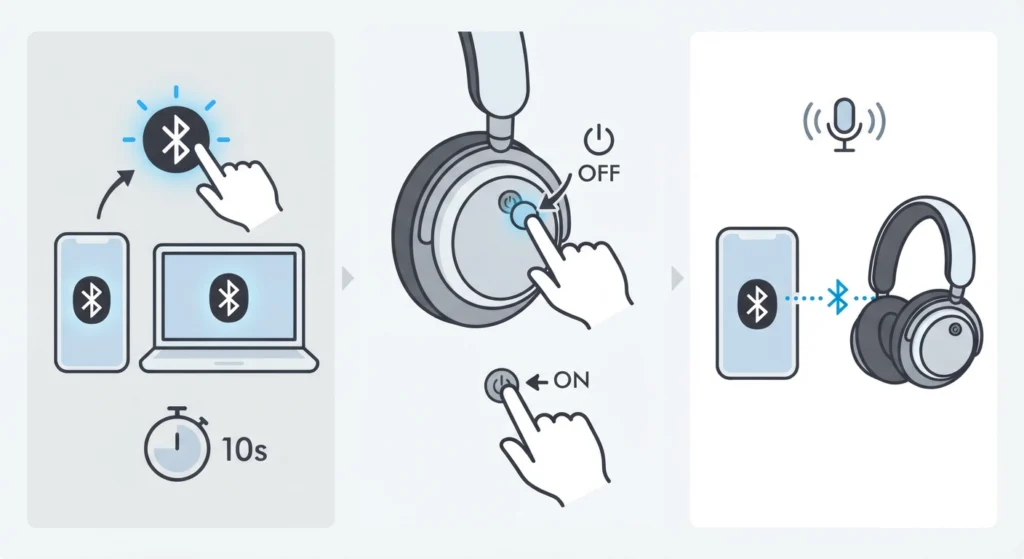
A shaky Bluetooth link is the number one reason a mic stops transmitting even though audio playback still works fine. Voice data and audio streaming use separate profiles over Bluetooth, so it is entirely possible to hear music perfectly while the other person on a call hears nothing.
- Step 1: Turn off Bluetooth on the connected phone, laptop, or tablet completely, then wait ten seconds before turning it back on.
- Step 2: On the Dyson Zone, turn the headphones off and back on using the power button on the right ear cup.
- Step 3: Reconnect to the paired device and open any calling or voice app to test the mic again.
Anyone who has struggled with re-pairing Bluetooth earbuds for stereo sound on a Windows machine will recognize this pattern – dropped connections often affect one function while leaving another untouched. If reconnecting solves the mic problem only temporarily, the device profile itself may need a refresh, which is covered in this guide on re-pairing Bluetooth earbuds on Windows.
Fix 2: Perform a Soft Reset on the Dyson Zone
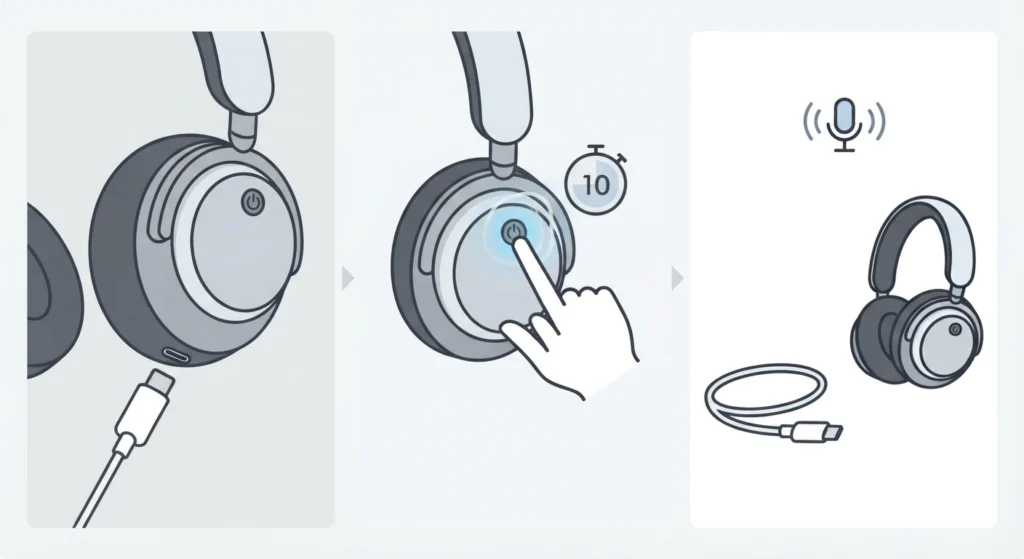
A soft reset restarts the internal processor without touching any saved settings or pairings. Think of it as the headphone equivalent of restarting a frozen phone – quick, low-risk, and often enough to clear whatever bug is blocking the mic input.
- Step 1: Plug the Dyson Zone into a charger using the original USB-C cable.
- Step 2: Press and hold the power button on the right ear cup for at least 10 seconds.
- Step 3: Release the button, wait five seconds, then power the headphones back on and test the mic.
Pro-Tip
Always keep the headphones connected to power during a soft reset. If the battery is critically low, the reset process will not complete properly, and the mic issue may appear to persist even though the actual cause was a failed reset.
Fix 3: Update the Firmware Through the MyDyson App
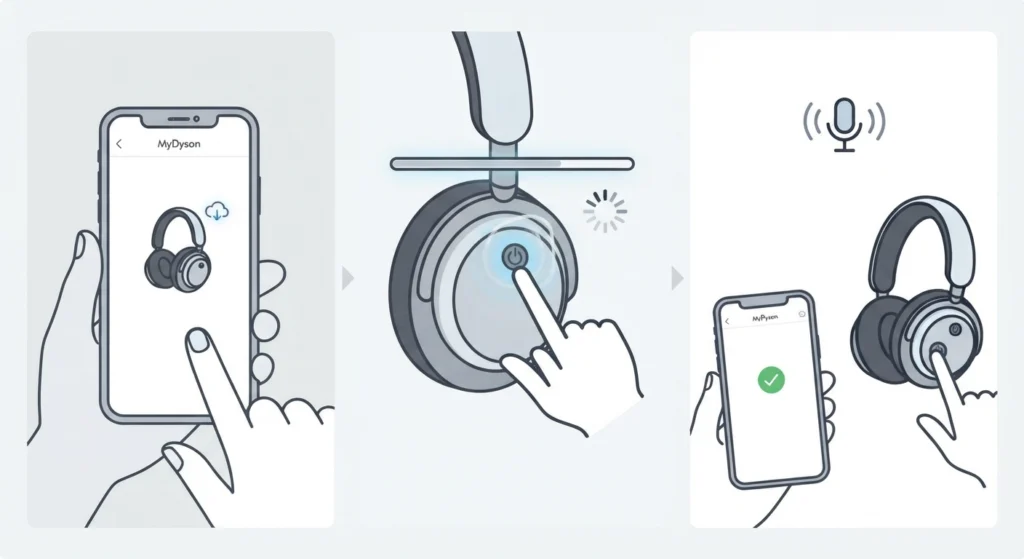
Mic performance issues are frequently tied to an outdated firmware build. Dyson pushes updates periodically that patch audio processing bugs, including ones that affect microphone clarity and detection.
- Step 1: Open the MyDyson app on a smartphone with Bluetooth enabled.
- Step 2: Connect the Dyson Zone to the app and navigate to the device settings section.
- Step 3: If an update is listed, follow the on-screen prompts and keep the headphones powered on and in range for the entire process.
- Step 4: Once the update finishes, restart the headphones by holding the power button for a few seconds before testing the mic again.
Firmware updates typically take just a few minutes to install. Interrupting the process by powering off the headphones or walking out of Bluetooth range can corrupt the update, so patience here matters more than it seems.
Fix 4: Check the Microphone Input on the Connected Device
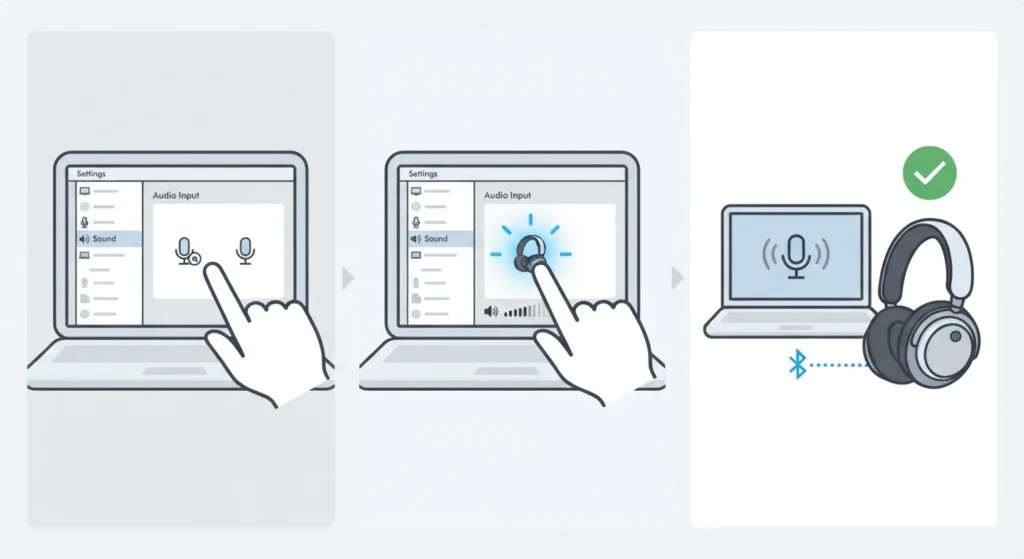
This is the fix most people overlook, and it explains a large share of cases where the headphones themselves are working perfectly fine. Windows and other operating systems sometimes default to a built-in laptop mic or a different audio device instead of the Dyson Zone, especially after a system update or a driver refresh.
- Step 1: On Windows 11, open Settings and navigate to the sound section to check which microphone is set as default.
- Step 2: Select the Dyson Zone manually if it is not already chosen as the active input device.
- Step 3: Test the mic in a calling app or the built-in Windows voice recorder to confirm the input is being picked up.
For a closer look at how Windows 11 handles input device selection, this walkthrough on managing audio input devices covers the exact menus involved. If the device is not showing up at all in the list, the detection problem may sit deeper in the system, which is addressed in this guide on resolving microphone detection problems on Windows 11.
Fix 5: Perform a Factory Reset as a Last Resort
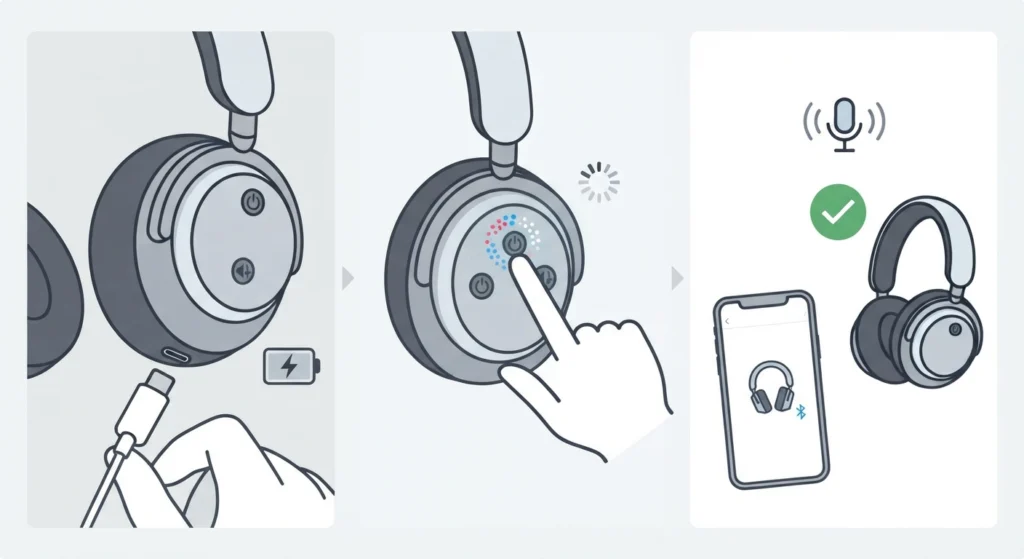
A factory reset wipes every saved Bluetooth pairing and setting, restoring the Dyson Zone to its original out-of-box state. This resolves deeper firmware conflicts that a soft reset cannot touch, but it should only be used once the earlier fixes have been ruled out.
- Step 1: Plug the Dyson Zone into a charger.
- Step 2: Press and hold the power button and the noise cancellation button at the same time until the LED flashes to indicate a reset is in progress.
- Step 3: Once the reset completes, re-pair the headphones from scratch through the MyDyson app and test the mic on a fresh connection.
Tips to Keep the Dyson Zone Mic Working Reliably
- Keep the MyDyson app updated on the connected phone, since app-side bugs can affect how mic settings are communicated to the headphones.
- Avoid connecting the Dyson Zone to more than one device at a time, since simultaneous connections often cause the mic to route to the wrong device.
- Store the headphones in the provided case when not in use to protect the microphone ports from dust and moisture buildup.
- Check app permissions on the connected phone or computer, since blocked microphone access at the system level will make even a fully functional headset seem silent.
Common Problems Related to Dyson Zone Mic Issues
Mic Works on Calls but Not With Voice Assistants
This usually points to a permissions issue rather than a hardware fault. Voice assistants often require separate microphone access grants distinct from calling apps, so checking app-level permissions on the connected device resolves this in most cases.
Mic Cuts In and Out During Calls
Intermittent mic dropouts are typically a Bluetooth interference problem rather than a broken microphone. Moving away from other Bluetooth devices, Wi-Fi routers, or USB 3.0 hubs, which are known to interfere with the 2.4GHz band, often clears this up.
Mic Sounds Muffled or Distorted
A muffled mic is frequently linked to outdated audio drivers on the connected computer rather than the headphones themselves. Adjusting the audio output and input settings through the system sound panel, as covered in this guide on adjusting audio output settings on Windows 11, resolves most distortion complaints.
Headphones Are Detected but the Mic Is Not Listed as an Option
This is common right after a Windows update, where the audio driver stack resets and needs to rediscover connected devices. Resetting the audio settings entirely, as explained in this guide on resetting audio settings on Windows 11, forces the system to re-detect the Dyson Zone mic properly.
Frequently Asked Questions
Why did the Dyson Zone mic suddenly stop working?
The most common causes are a dropped Bluetooth connection, an outdated firmware version, or the connected device defaulting to a different microphone. Working through the fixes above in order resolves the vast majority of cases.
Does a soft reset erase Bluetooth pairings on the Dyson Zone?
No. A soft reset only restarts the internal processor and does not remove any saved pairings or settings. Only a factory reset wipes that information.
How long does a Dyson Zone firmware update take?
Firmware updates through the MyDyson app usually complete within a few minutes, as long as the headphones stay powered on and within Bluetooth range for the entire process.
Can two devices use the Dyson Zone mic at the same time?
Simultaneous connections to multiple devices can cause the mic to route unpredictably. Connecting to one device at a time gives the most reliable mic performance.
Why does the Dyson Zone mic work for calls but not for voice assistants?
This is typically a permissions issue rather than a hardware problem, since voice assistant apps often require separate microphone access approval on the connected device.
Is a factory reset safe to perform on the Dyson Zone?
Yes, a factory reset is safe and does not damage the hardware. It simply clears all saved pairings and settings, requiring the headphones to be paired again from scratch afterward.
Does Windows 11 sometimes select the wrong microphone automatically?
Yes. Windows 11 can default to a built-in laptop mic or another connected device after an update or driver change, which makes the Dyson Zone mic appear broken even when it is working correctly.
Can outdated audio drivers cause the Dyson Zone mic to sound distorted?
Outdated or mismatched audio drivers on the connected computer are a common cause of muffled or distorted mic input, separate from any issue with the headphones themselves.
Should the Dyson Zone be updated regularly?
Yes. Keeping both the headphones firmware and the MyDyson app updated helps avoid bugs that specifically affect microphone detection and clarity.
What should be tried first if the Dyson Zone mic is not working?
Reseating the Bluetooth connection is the fastest first step, since it resolves the issue in a large share of cases without needing a reset or firmware update.