
Beats Solo Buds mic not working during calls is one of the most common complaints among Windows users, especially after a system update or a fresh Bluetooth pairing. The good news is that this issue is almost always fixable in a few minutes without needing a replacement or a warranty claim.
Quick Takeaways:
- Most microphone issues come from Bluetooth pairing glitches, not hardware damage.
- Windows often defaults to the wrong microphone after connecting new earbuds.
- Cleaning the mic mesh solves muffled or silent call audio surprisingly often.
- Firmware updates through the Beats app fix a large share of call-quality bugs.
- A simple unpair-and-repair cycle resolves the issue for most users on the first try.
Step-by-Step Guide to Fix Beats Solo Buds Mic Not Working
Each fix below is listed in the order it should be tried. Start from the first one since it solves the majority of cases, then move down the list only if the microphone still does not pick up voice during calls.
Fix 1: Clean the Microphone Mesh
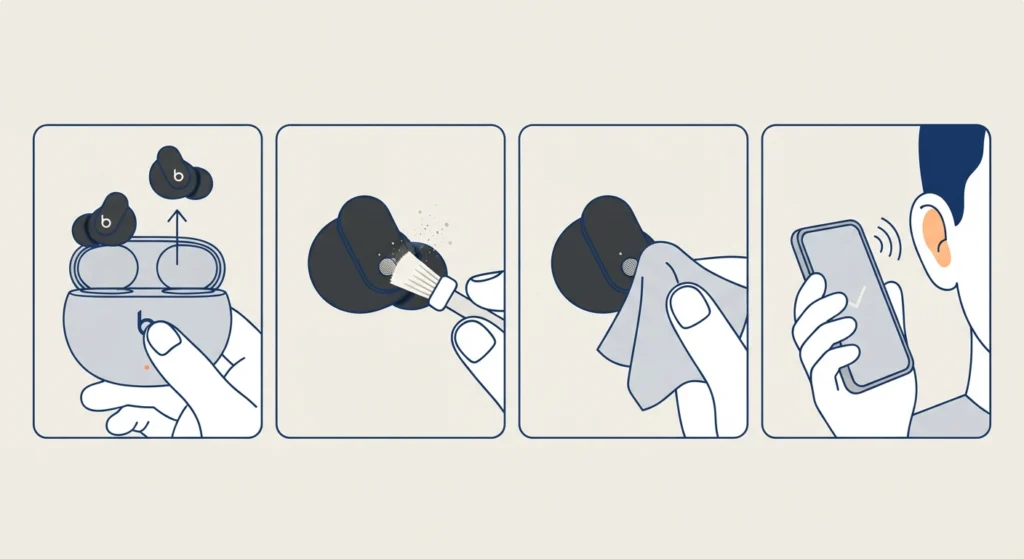
Dust, lint, and skin oil build up inside the mic opening faster than most people expect, and this is often the real reason a mic sounds muffled or stops working entirely.
- Step 1: Remove the Beats Solo Buds from the charging case.
- Step 2: Use a dry, soft-bristled brush to gently clear the mic port on each earbud.
- Step 3: Wipe the surface with a dry microfiber cloth, avoiding liquids or compressed air at close range.
- Step 4: Reconnect the earbuds and test the mic on a short call.
Fix 2: Reset the Bluetooth Connection
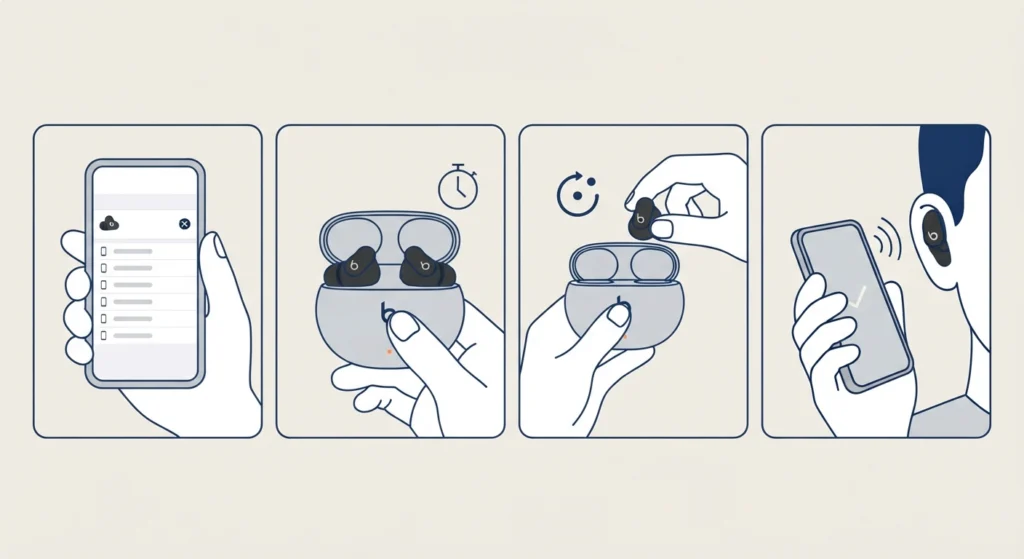
A stuck Bluetooth profile is one of the leading causes of mic failure, even when audio playback still works fine. This happens because the phone or laptop keeps using an old connection profile instead of the correct one.
- Step 1: Open Bluetooth settings and remove the Beats Solo Buds from the paired devices list.
- Step 2: Restart the earbuds by placing them back in the case for ten seconds, then taking them out.
- Step 3: Restart the laptop or phone before pairing again.
- Step 4: Re-pair the earbuds and select them as the active audio device.
Anyone unfamiliar with the exact pairing sequence can follow this guide on re-pairing Bluetooth earbuds for stereo sound on Windows before moving to the next fix.
Fix 3: Set Beats Solo Buds as the Default Microphone
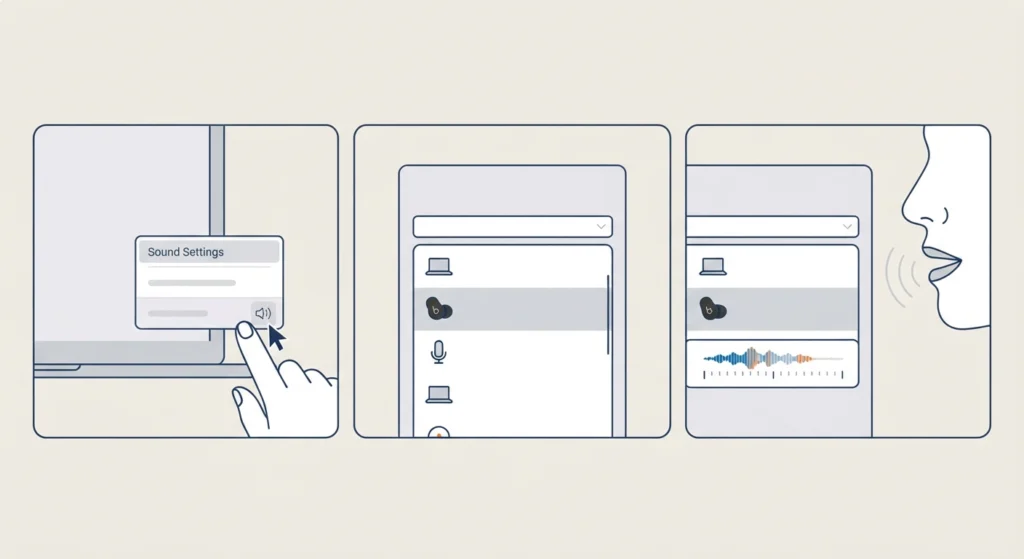
Windows sometimes keeps the laptop’s built-in microphone active even after new earbuds are connected. This is one of the most overlooked reasons a mic appears to not work at all during calls.
- Step 1: Right-click the speaker icon in the taskbar and open sound settings.
- Step 2: Locate the input device section and select Beats Solo Buds from the list.
- Step 3: Test the mic level by speaking normally and watching the input meter move.
For a more detailed walkthrough on switching devices correctly, this guide on managing audio input devices on Windows 11 covers every setting involved.
Pro-Tip: Some calling apps like Zoom or Teams have their own separate microphone setting that overrides the Windows default. Always check the in-app audio settings too, since fixing it in Windows alone will not help if the app itself is still pointed at the wrong device.
Fix 4: Resolve Microphone Detection Problems in Windows 11
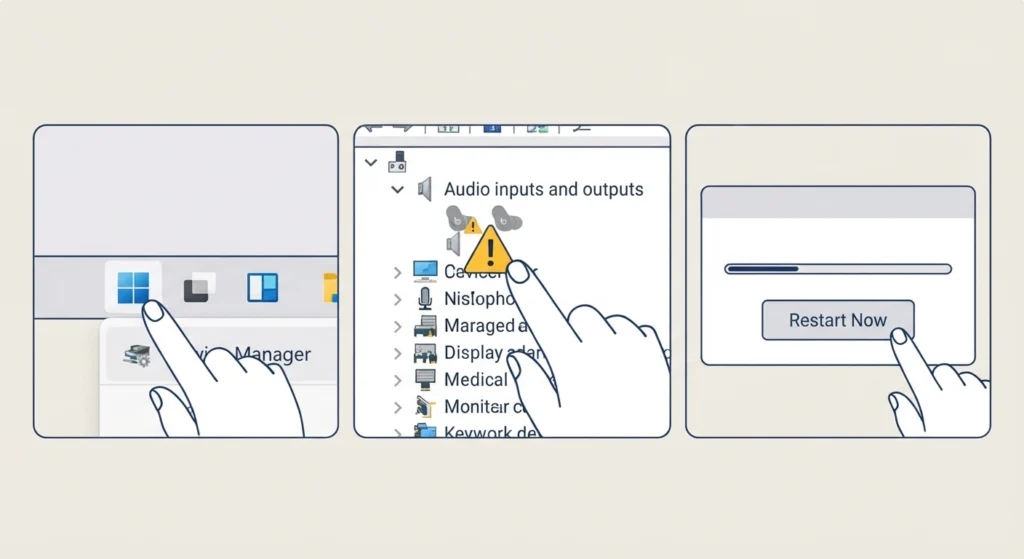
If Beats Solo Buds does not even appear in the list of input devices, this points to a detection issue rather than a settings issue. This is common after a Windows update changes driver behavior.
- Step 1: Open Device Manager and check for a yellow warning icon next to any audio device.
- Step 2: Update or reinstall the Bluetooth audio driver if one appears outdated.
- Step 3: Restart the system after the driver update completes.
A full breakdown of this process is available in this guide on resolving microphone detection problems on Windows 11, which walks through driver checks in more depth.
Fix 5: Reset Audio Settings to Default
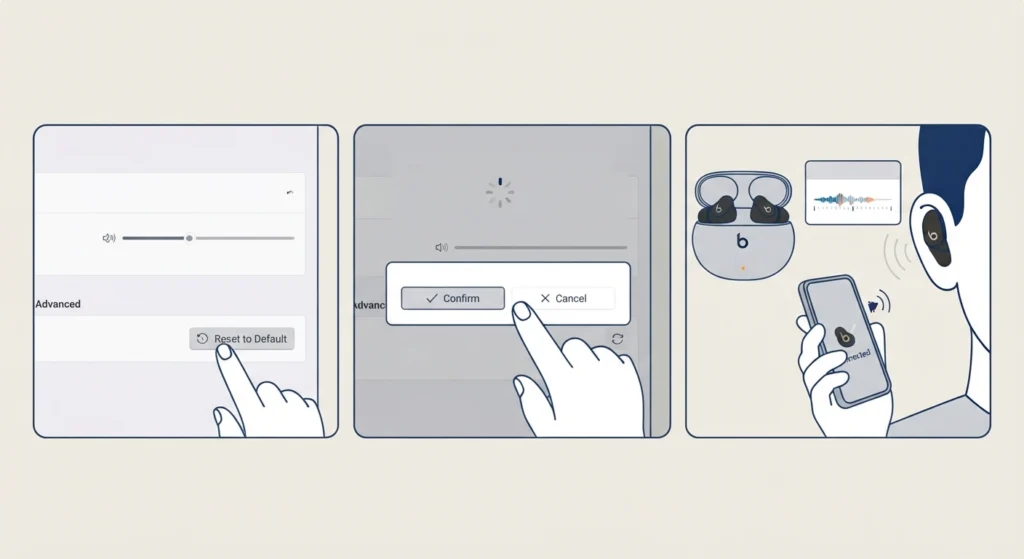
When multiple fixes have already been tried without success, a full audio reset often clears whatever conflicting configuration is causing the mic to fail.
- Step 1: Open Windows sound settings and locate the reset option under advanced settings.
- Step 2: Confirm the reset and allow the system to reload default audio drivers.
- Step 3: Reconnect the Beats Solo Buds and test the mic again.
Full instructions for this process are covered in this guide on resetting audio settings on Windows 11.
Fix 6: Update Firmware Through the Beats App
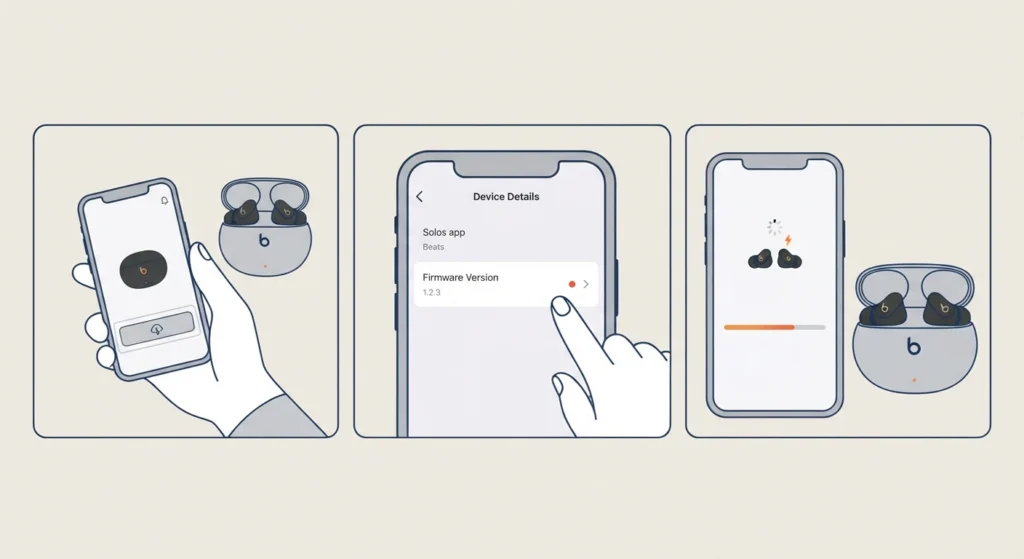
Firmware bugs are a real and common cause of mic failure, particularly on units that have not been updated in a while. The Beats app pushes small firmware patches that specifically target call-quality and mic-detection bugs.
- Step 1: Download and open the Beats app on a paired phone.
- Step 2: Check the firmware version listed under device details.
- Step 3: Install any available update and keep the earbuds close to the phone until it finishes.
Fix 7: Adjust Audio Output and Input Levels
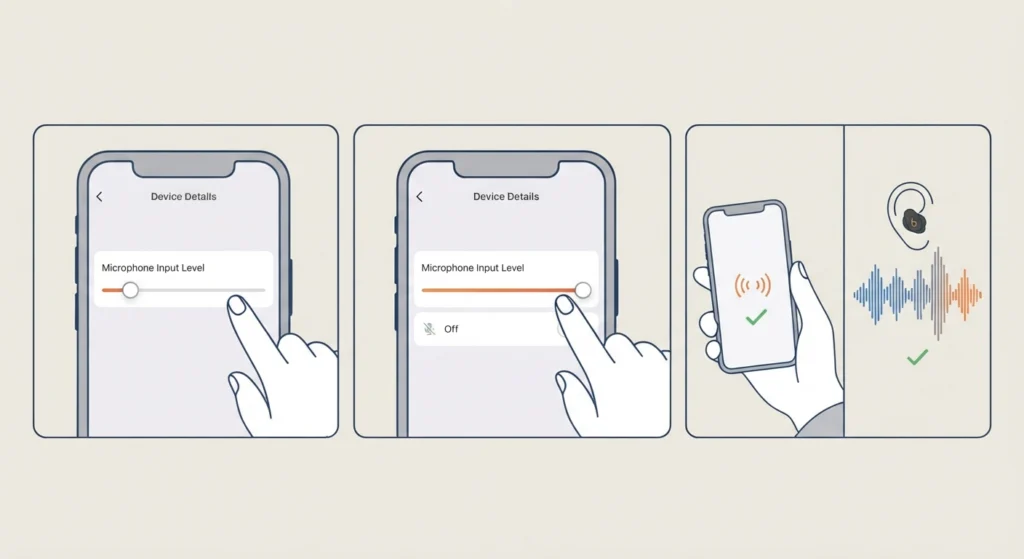
Sometimes the mic is technically working, but the input level is set so low that the other person on a call simply cannot hear anything. This is easy to miss since playback audio sounds completely normal.
- Step 1: Open the sound control panel and select the Beats Solo Buds properties.
- Step 2: Raise the microphone input level and disable any aggressive noise suppression.
- Step 3: Run a test call to confirm the volume comes through clearly.
This guide on adjusting audio output settings on Windows 11 explains how output and input levels interact, which helps avoid setting them incorrectly again in the future.
Tips to Keep the Mic Working Reliably
- Store the earbuds in the case when not in use to protect the mic mesh from dust.
- Keep firmware updated every few weeks through the Beats app.
- Avoid connecting the same earbuds to two devices at once, since this causes audio routing conflicts.
- Restart the laptop or phone occasionally to clear stuck Bluetooth profiles before they cause bigger issues.
Pro-Tip: If the mic works fine on one device but not another, the problem is almost always device-side settings rather than the earbuds themselves. Testing the same earbuds on a second phone or laptop is the fastest way to confirm this.
Common Problems and Quick Fixes
- Mic works but sounds robotic: This usually points to a weak Bluetooth signal; moving closer to the paired device often clears it up.
- Mic cuts in and out during calls: This is typically caused by interference from other wireless devices nearby, such as routers or other Bluetooth accessories.
- Mic works on one app but not another: The app in question likely has its own microphone permission or device setting that needs to be updated separately.
- Mic stopped working after a Windows update: A fresh driver reinstall almost always resolves this, since updates sometimes reset audio driver assignments.
Frequently Asked Questions
Why is the Beats Solo Buds mic not working only on calls but fine for recording?
This usually means the calling app is not pulling audio from the correct input device. Checking the in-app microphone setting separately from the Windows setting usually solves this.
Can dust really stop the microphone from working completely?
Yes. A blocked mic port can reduce input to the point where it registers as no signal at all, which looks identical to a hardware failure.
Do Beats Solo Buds need regular firmware updates?
Regular updates are not mandatory, but they do fix known bugs related to call quality and device detection, so checking every so often is worthwhile.
Why does the mic work on a phone but not on a laptop?
This is often a driver or default device issue on the laptop side, since phones tend to handle Bluetooth microphone switching more automatically.
Is it normal for the mic to stop working after switching between two paired devices?
Yes, this is a known behavior with many Bluetooth earbuds, since some devices do not refresh the mic profile correctly during quick switching.
Will resetting the earbuds delete any saved settings?
No. Resetting Bluetooth pairing does not erase any firmware or stored equalizer settings inside the earbuds themselves.
How long does it usually take to fix a mic not working issue?
Most cases are resolved within five to ten minutes using the cleaning, re-pairing, or default device fixes listed above.
Should the microphone be tested after every fix?
Yes, testing after each step helps identify exactly which fix resolved the issue, which saves time if the same problem happens again later.
Can a warranty claim be avoided by trying these fixes first?
In most cases, yes. The majority of mic issues reported by users come down to software or connection settings rather than actual hardware defects.
What should be done if none of these fixes work?
If the mic still fails after trying every fix above, contacting official Beats support for a hardware diagnostic is the appropriate next step.