
AirPods Pro 2 one earbud not working is a common issue that many users run into, whether the left side goes silent or the right one just won’t connect. The good news is that most of these cases have a simple fix, and the steps below walk through exactly what works, starting with the quickest checks first.
Quick Summary: Key Takeaways
- One dead earbud is usually caused by a low battery, a dirty speaker mesh, or a Bluetooth connection glitch, not a hardware failure.
- Cleaning the earbud and checking the charging contacts solves the problem in a large number of cases.
- Resetting the AirPods Pro 2 and re-pairing them clears most software-related connection issues.
- Checking the audio balance setting matters, since a shifted L/R slider can make it seem like one earbud has stopped working.
- If none of the fixes below work, the earbud may need a warranty check or a replacement through Apple Support.
Step-by-Step Guide to Fix AirPods Pro 2 One Earbud Not Working
Fix 1: Check the Battery and Charging Case
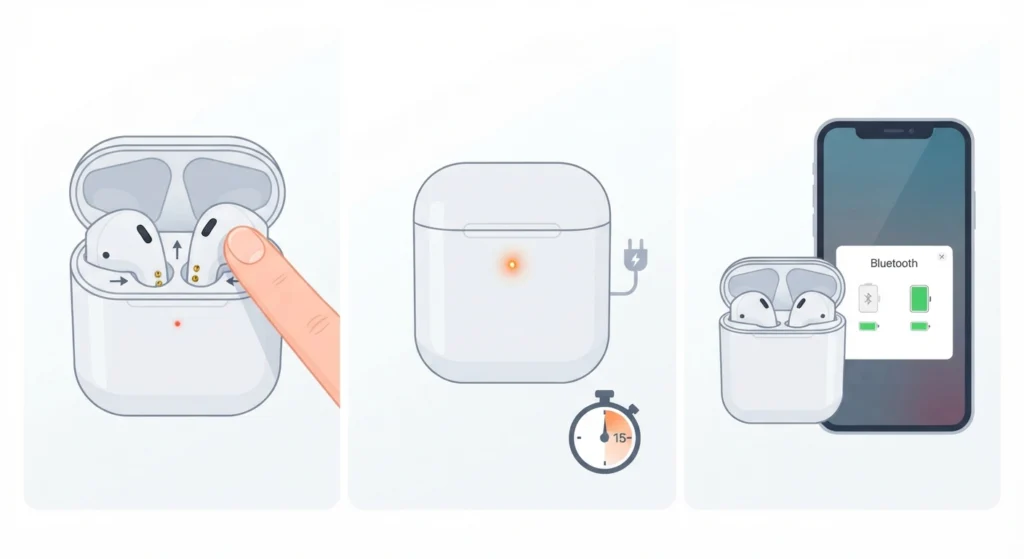
A weak charge on one earbud is the single most common reason it stops producing sound while the other keeps working fine. This happens more often with the earbud that sits slightly loose in its charging slot, since a poor connection means it never actually charges to full.
- Step 1: Place both earbuds back in the case and check that each one clicks into position with the metal contacts aligned.
- Step 2: Close the lid and let the case charge for at least 15 minutes before testing again.
- Step 3: Open the case near a paired iPhone or check the Bluetooth settings on other devices to view the battery percentage for each earbud individually.
Pro-Tip: A slightly bent or dirty charging pin inside the case can prevent one earbud from ever reaching full charge, even if it looks properly seated. Wiping the contact points with a dry cotton swab often resolves this in seconds.
Fix 2: Clean the Earbud Speaker Mesh
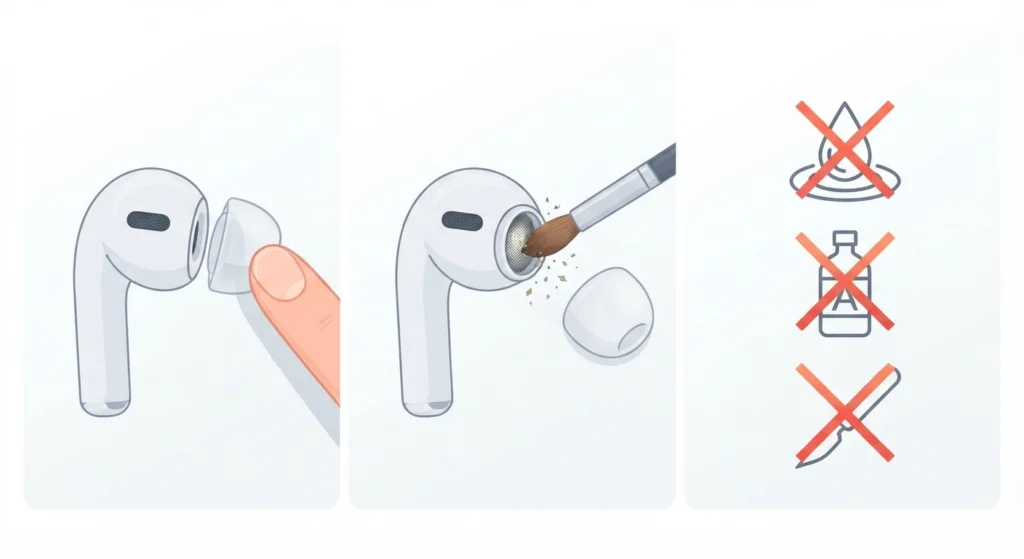
Earwax and dust build-up on the speaker mesh is a very common culprit, especially for the earbud used more often on one side. A blocked mesh can muffle or completely cut off sound, which mimics a hardware fault even though nothing is actually broken.
- Step 1: Use a dry, soft-bristled brush to gently sweep away visible debris from the speaker mesh and the silicone tip.
- Step 2: Remove the silicone ear tip and check underneath it, since wax tends to collect in that hidden gap.
- Step 3: Avoid using water, alcohol, or sharp objects, as these can push debris further into the mesh or damage the internal driver.
Fix 3: Reset the AirPods Pro 2
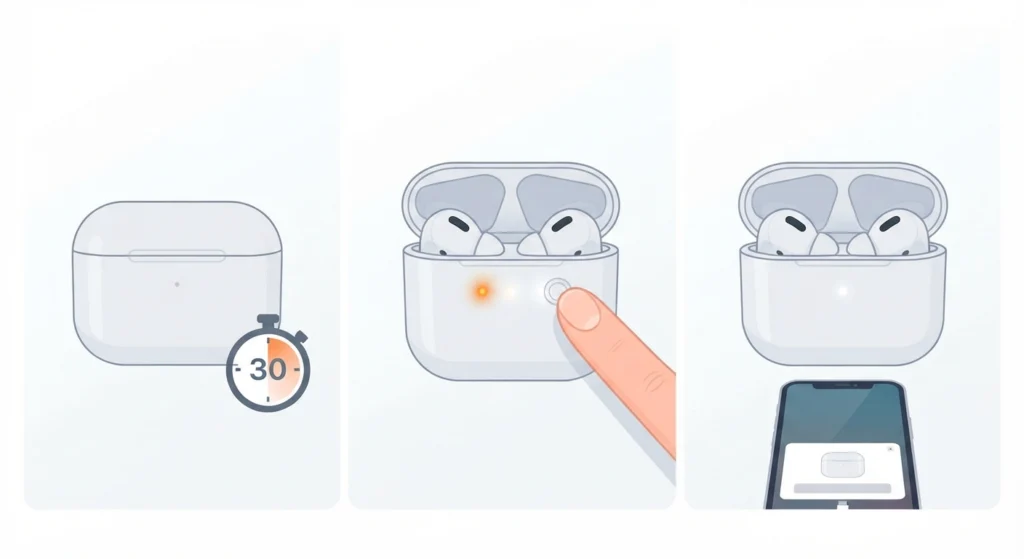
A full reset clears any temporary software glitch that might be affecting just one earbud. This is one of the most reliable fixes when a single earbud drops audio randomly or fails to connect at all.
- Step 1: Place both AirPods in the case and close the lid for about 30 seconds.
- Step 2: Open the lid, then press and hold the setup button on the back of the case for around 15 seconds until the status light flashes amber, then white.
- Step 3: Once the light turns white, the reset is complete and the AirPods are ready to be paired again as a new device.
Fix 4: Re-Pair the AirPods With the Device
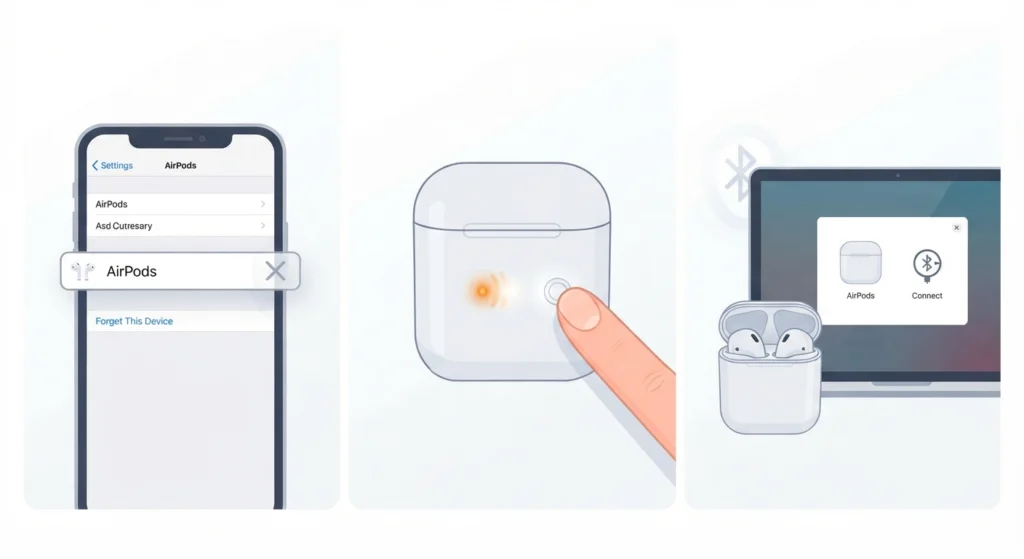
Sometimes the connection profile for one earbud gets corrupted, which causes it to stay silent even though the other side sounds perfectly normal. Forgetting the device and setting it up fresh usually clears this out completely. On a Windows PC, the process to re-pair Bluetooth earbuds for proper stereo sound follows a similar logic and is worth checking if the earbuds are used with a laptop as well.
- Step 1: Go to Bluetooth settings on the connected device and select ‘Forget This Device’ for the AirPods.
- Step 2: Reset the AirPods using the steps above if this has not already been done.
- Step 3: Open the case near the device and follow the on-screen pairing prompt, keeping the lid open until setup finishes.
Fix 5: Check the Audio Balance Setting
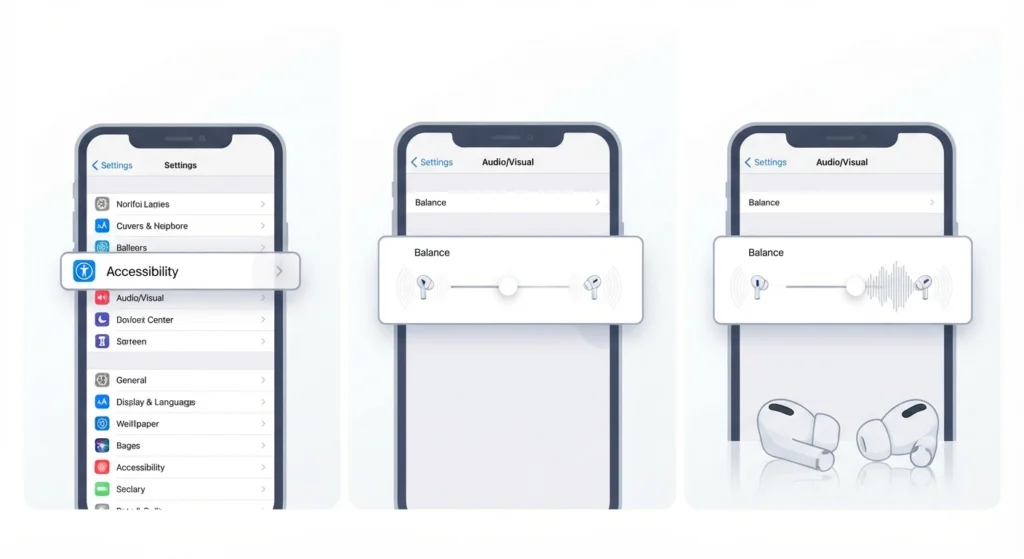
This one catches a lot of people off guard. If the left/right audio balance slider has shifted toward one side, it can sound like a single earbud has completely failed when it is actually working fine. This is especially worth checking after an accessibility setting gets changed accidentally. Windows users dealing with uneven or missing audio can also review the steps for adjusting audio output settings to rule out a similar balance issue on the PC side.
- Step 1: On iPhone, open Settings, then Accessibility, then Audio/Visual.
- Step 2: Check the Balance slider and make sure it sits exactly in the middle.
- Step 3: Play audio and adjust the slider slightly to confirm both earbuds are actually receiving sound.
Fix 6: Update Firmware
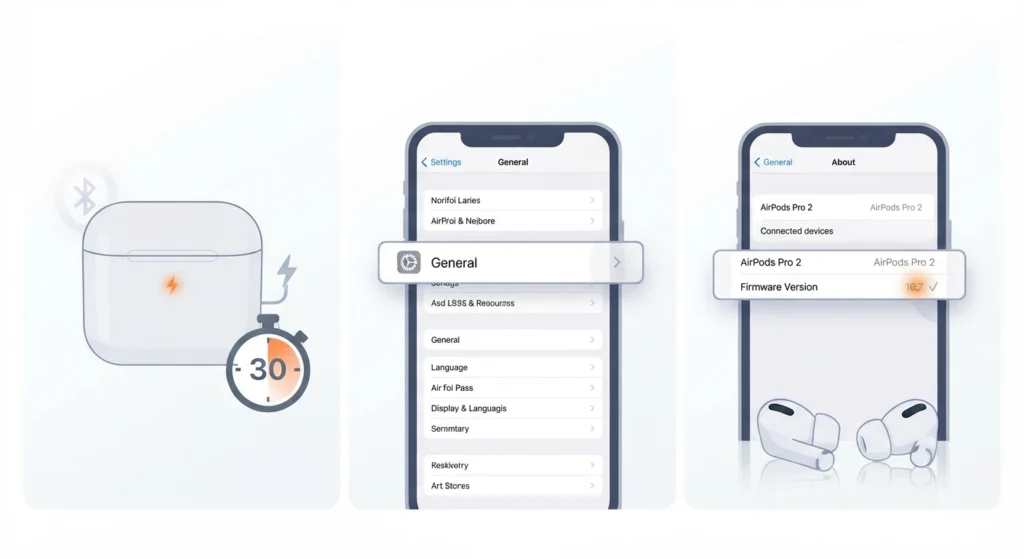
AirPods Pro 2 update their firmware automatically in the background, but this only happens when the case has enough charge and stays within Bluetooth range of an iPhone for a while. An outdated firmware version can occasionally cause one earbud to behave inconsistently.
- Step 1: Keep the AirPods in the case, connected to power, and near a paired iPhone for at least 30 minutes.
- Step 2: Open Settings, then General, then About, then tap the AirPods listed under connected devices to check the current firmware version.
- Step 3: Compare it against the latest available version listed on Apple’s support page to confirm the update installed correctly.
Tips to Prevent This From Happening Again
- Wipe down both earbuds and the charging case with a dry cloth at least once a week to stop wax and dust from building up.
- Store the case somewhere it will not get crushed in a bag, since a bent charging pin is a frequent cause of one-sided charging problems.
- Alternate which earbud goes in which ear occasionally, since consistent use on one side speeds up wax build-up on that speaker mesh.
- Check battery health and connection status every couple of weeks rather than waiting until one earbud stops working completely.
Other Common AirPods Pro 2 Problems
Both Earbuds Cutting Out at the Same Time
This usually points to a Bluetooth interference issue rather than a hardware problem, especially in crowded Wi-Fi environments. Moving away from other wireless devices or forgetting and re-pairing the connection typically resolves it.
Microphone Not Picking Up Voice on Calls
If sound plays fine but the microphone seems dead, the issue is often related to the connected device’s input settings rather than the earbuds themselves. On Windows 11, working through the steps for resolving microphone detection problems usually identifies whether the AirPods are even selected as the active input device.
Audio Suddenly Sounds Distorted or Quiet
This is often tied to system-level audio settings rather than the earbuds. On a Windows 11 machine, running through the process for resetting audio settings clears out corrupted audio drivers that can cause this kind of distortion.
Frequently Asked Questions
Why is only one AirPod working while the other stays silent?
This is most often caused by a low battery, a dirty speaker mesh, or a corrupted connection profile on one earbud, not a permanent hardware failure.
How long should AirPods Pro 2 be reset for before pairing again?
Holding the setup button for around 15 seconds, until the light flashes amber then white, is enough to complete a full reset.
Can a dirty speaker mesh really stop an earbud from working?
Yes. Wax and dust build-up on the mesh can muffle or block sound entirely, which is one of the most common reasons a single earbud appears dead.
Does the audio balance setting affect how AirPods sound?
Yes. If the left/right balance slider in Accessibility settings shifts toward one side, the other earbud can sound like it has stopped working even though it hasn’t.
Why does one AirPod work on iPhone but not on a Windows laptop?
This usually comes down to how the device is paired rather than the earbud itself. Reviewing how to manage audio input devices on Windows 11 often reveals that the wrong microphone or audio profile is currently selected.
Should AirPods Pro 2 be cleaned even if they seem to be working fine?
Yes. Regular cleaning of the speaker mesh and charging contacts prevents most one-earbud issues before they start.
How often does firmware update on AirPods Pro 2?
Firmware updates install automatically in the background whenever the case has sufficient charge and stays near a paired iPhone, so no manual download is required.
What if none of these fixes solve the problem?
If the earbud still does not produce sound after cleaning, resetting, and re-pairing, it may point to a genuine hardware fault, and checking warranty eligibility through Apple Support is the next step.
Can moisture cause one AirPod to stop working?
Yes. Sweat or accidental water exposure can temporarily affect the speaker driver on one earbud. Letting it air dry completely for several hours before testing again is recommended.
Is it normal for one AirPod to drain faster than the other?
Some difference in battery drain is normal depending on which ear handles calls or Siri requests more often, but a large or sudden gap usually points to a charging contact issue.